

Participants Options (360)
What's on this page
About Participants Options
The Options section of the Participants tab is where you set up nominations and their requirements, nomination approval, unsolicited evaluations, self-evaluations, and more for your 360 project.

Qtip: Once certain options described on this page are enabled, tasks are created for subjects. Nominations, report approval, and other such tasks take place in the subject’s Participant Portal.
Give Feedback Settings
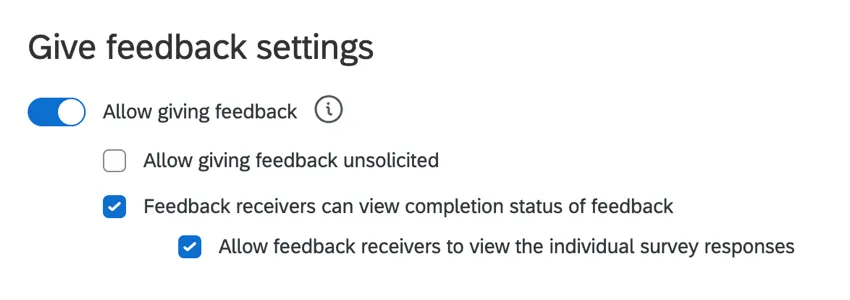
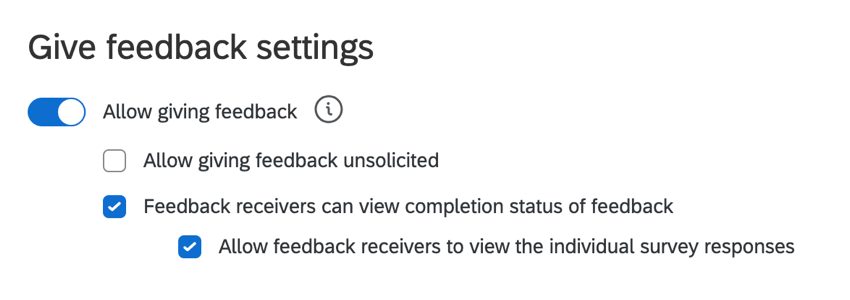
- Allow giving feedback: When this option is disabled, the “Give feedback” section of the Participant Portal will be hidden. Subjects will not be able to submit feedback for each other. When enabled, this option allows subjects to submit feedback. This also allows you to enable the following options:
- Allow giving feedback unsolicited: Allows subjects to give feedback to other subjects in the current project without being explicitly asked to provide feedback. The subject must already be added to the project in order to be evaluated. Qtip: When this option is enabled, the Subject nomination groups options control who can give unsolicited evaluations. (Not who can be the subject of an unsolicited evaluation.) Anyone in the assessment should also be enabled so that evaluators can add themselves to the subjects’ assessments. Anyone in the directory should only be enabled to limit the possible unsolicited evaluators by using a specific group filter.
 Qtip: Unsolicited evaluations will not increment the number in the Evaluations Received or Evaluations Completed columns.
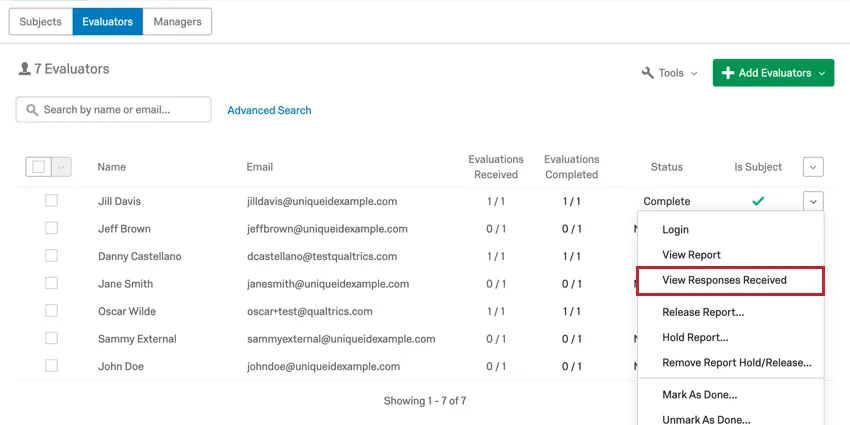
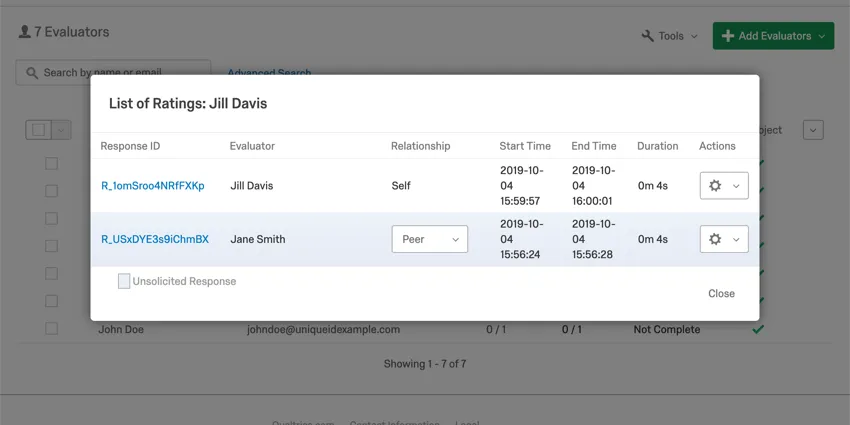
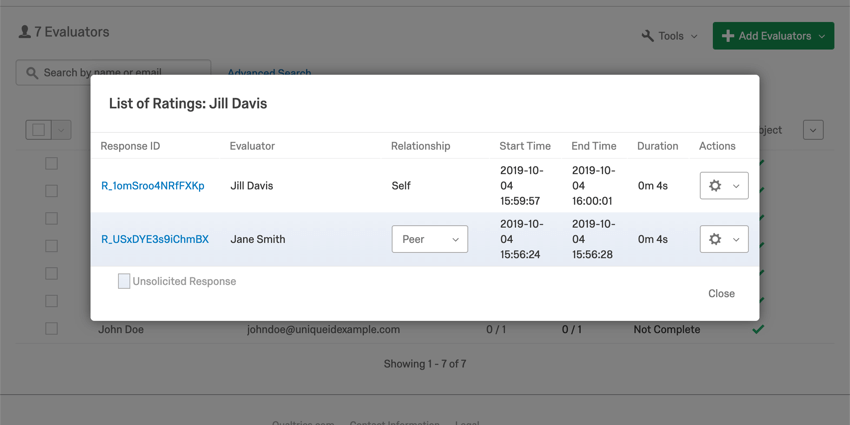
To find an unsolicited evaluation or allow someone to retake their unsolicited evaluation, go to View Responses Received and check the responses highlighted in blue at the bottom of the list.
- Feedback receivers can view completion status of feedback: Allows each subject to view whether or not specific feedback requests have been completed. Qtip: The “Subject nominates evaluators” option must also be enabled for this to work.
- Allow feedback receivers to view the individual survey responses: Allows subjects to view each feedback response they’ve received. This option only appears when “Feedback receivers can view completion status of feedback” is enabled.
- Allow giving feedback unsolicited: Allows subjects to give feedback to other subjects in the current project without being explicitly asked to provide feedback. The subject must already be added to the project in order to be evaluated.
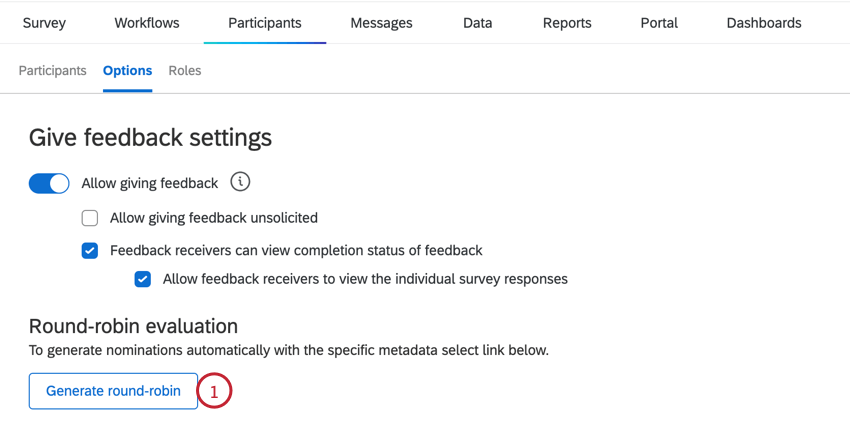
Round Robin Evaluation
You can create a round-robin evaluation where subjects in a group evaluate all other subjects in that group. You may create multiple round-robin evaluations in one 360 project.
Attention: Your project must have 1,000 or fewer subjects to use this feature.
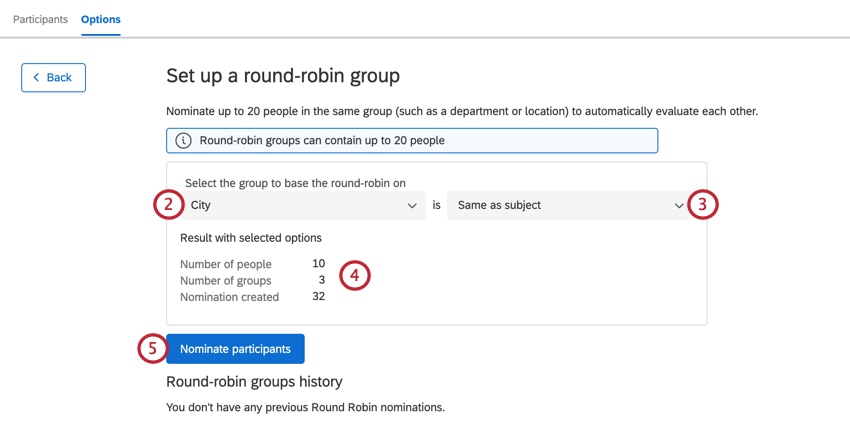
Qtip: You can only choose All if your project has twenty or fewer participants.
Qtip: You will only be able to select values for which the number of participants is less than or equal to twenty.
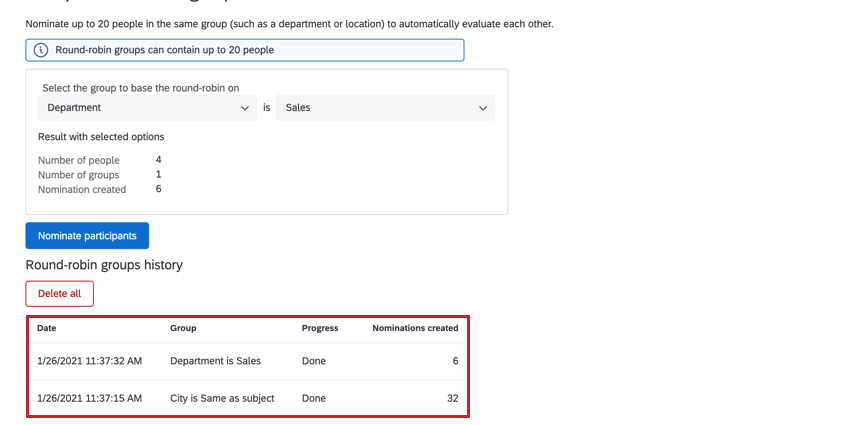
Example: In this example, we are creating a round-robin group for participants whose Department is equal to Sales. In other words, we want all participants in the Sales department to evaluate each other.
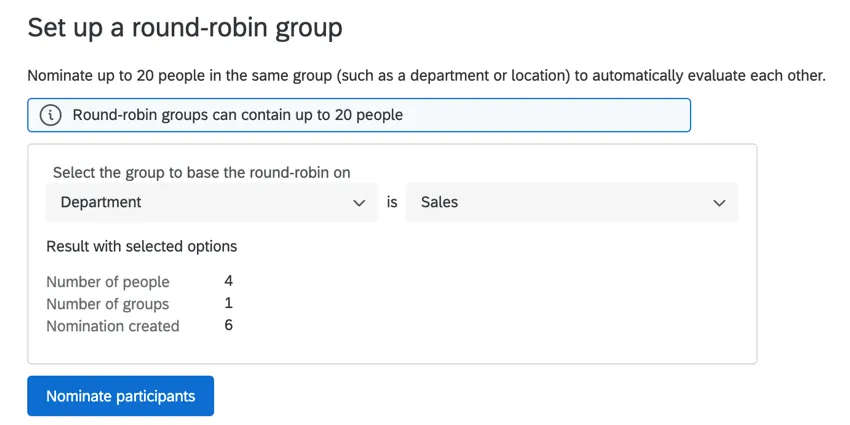
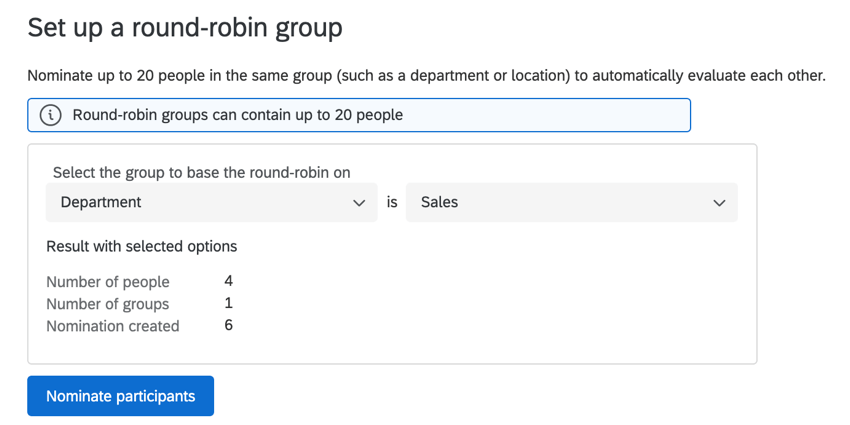
After creating your round-robin evaluation, Qualtrics will process this task and create your nominations. You can view the progress of this in the table below the round-robin setup window. Every round-robin group you’ve created in your project will be listed here.
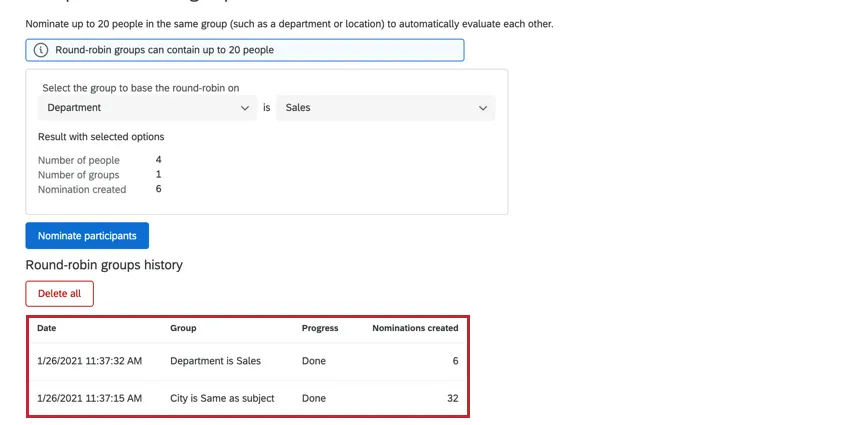
Qtip: You can create multiple round-robin groups. There is a limit of 50 total groups per project.
Qtip: Some projects will have both the new and legacy round-robin feature enabled. If you generate nominations between two people in both systems, the new round-robin will take precedence over the old. If the nomination is removed from the new round-robin, the legacy nomination will go into effect. To determine if a nomination is from the new or legacy system, navigate to a participant’s evaluators and look at the Relationship column. If the relationship is “Automatic,” then the nomination is from the legacy system. If the relationship is “Round Robin” then the nomination is from the new system.
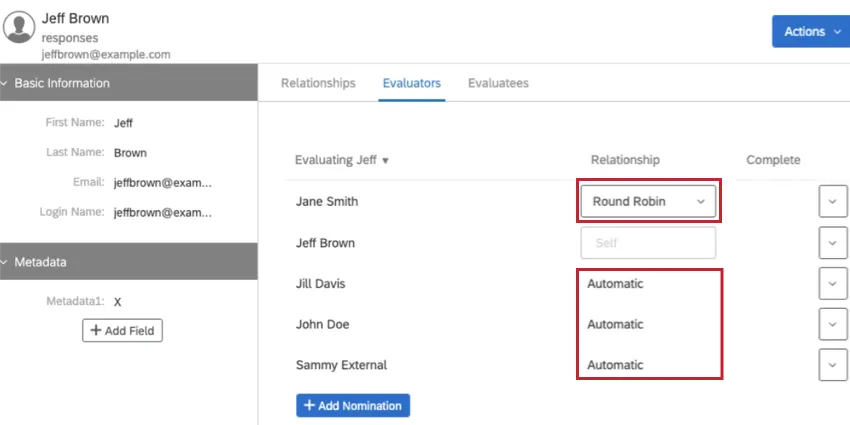
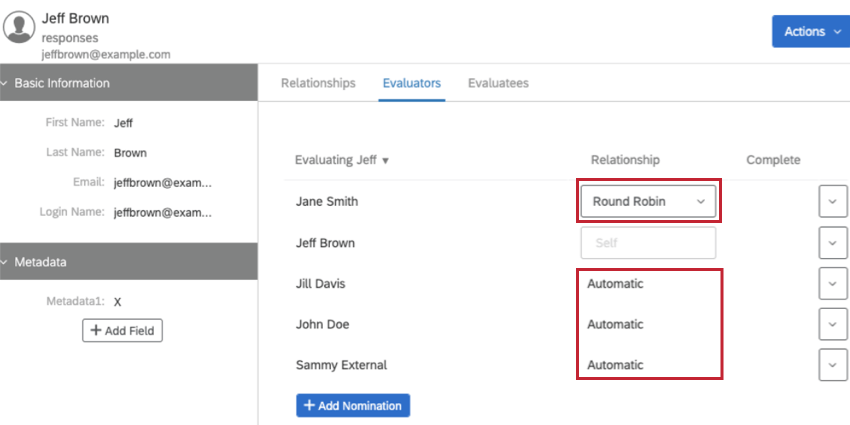
Qtip: Round-robin nominations on the new system are not generated automatically. If you add new subjects to your project, you will need to re-run your nomination setup to have the new nominations appear.
Deleting Round-Robin Evaluations
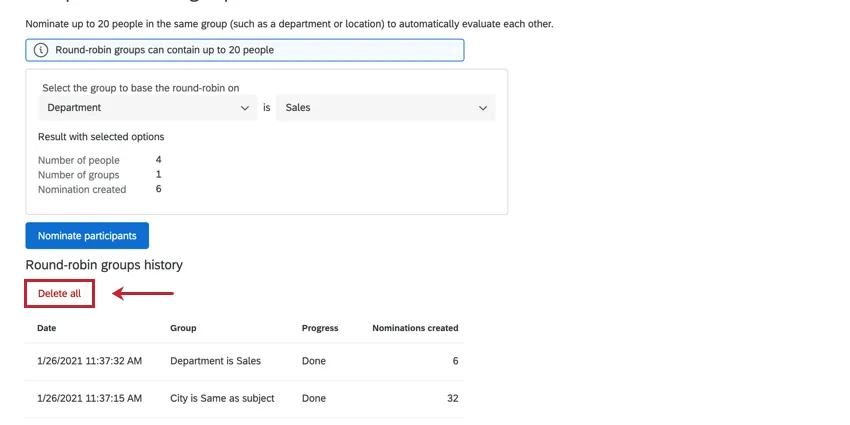
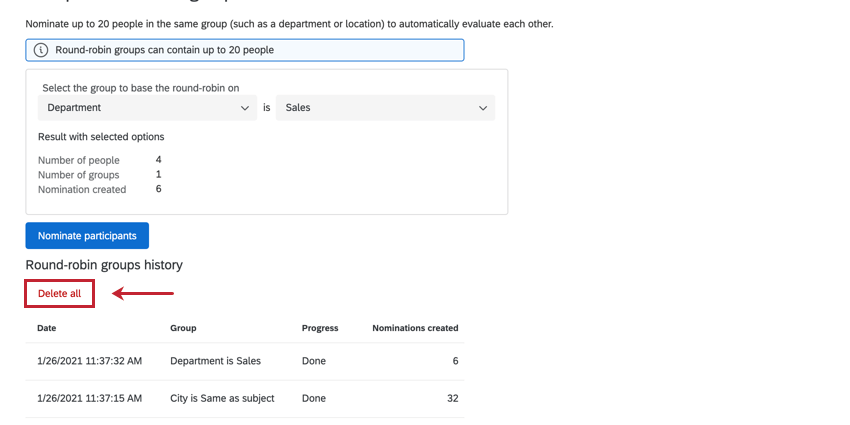
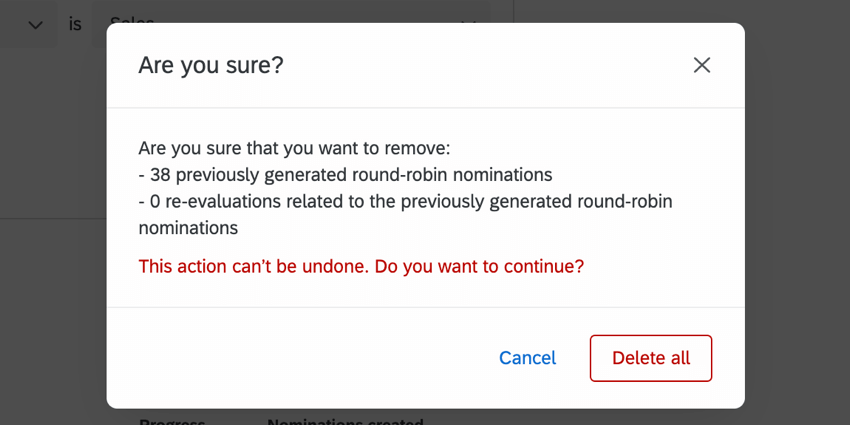
You can delete your round-robin evaluations by clicking the Delete all button in the round-robin setup window.
A confirmation window will appear to make sure you want to delete your round-robin evaluations. Note that they are irretrievable once deleted. Click Delete all to confirm.
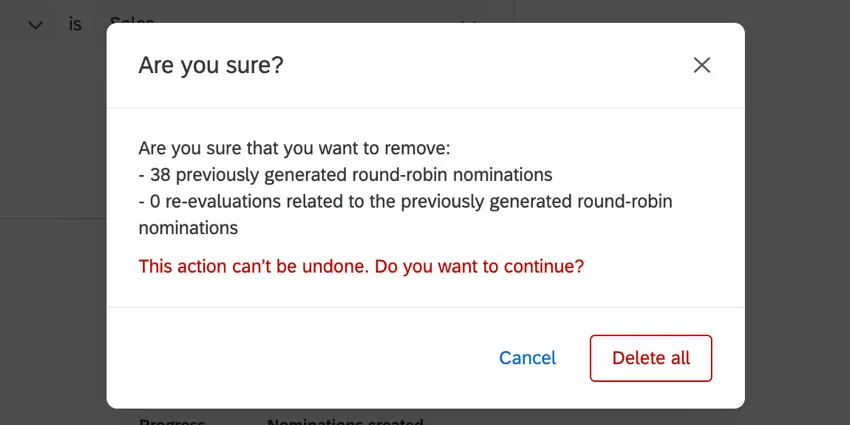
Qtip: Upon deleting your round-robin nominations, any previously collected responses associated with the nominations will be deleted.
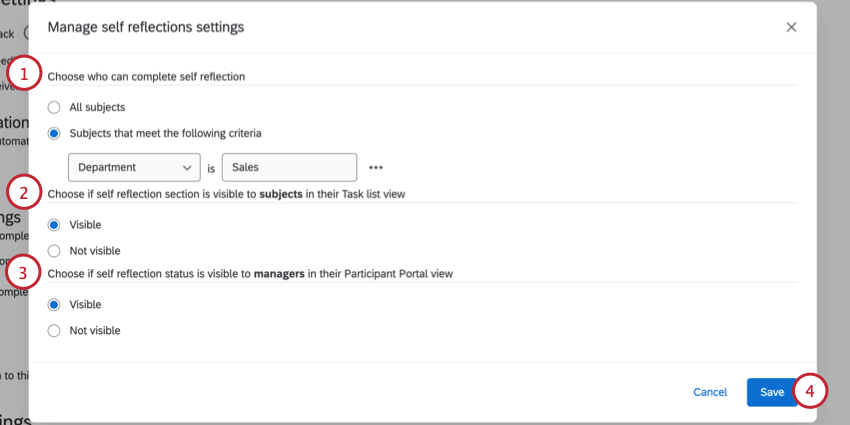
Self Reflection Settings
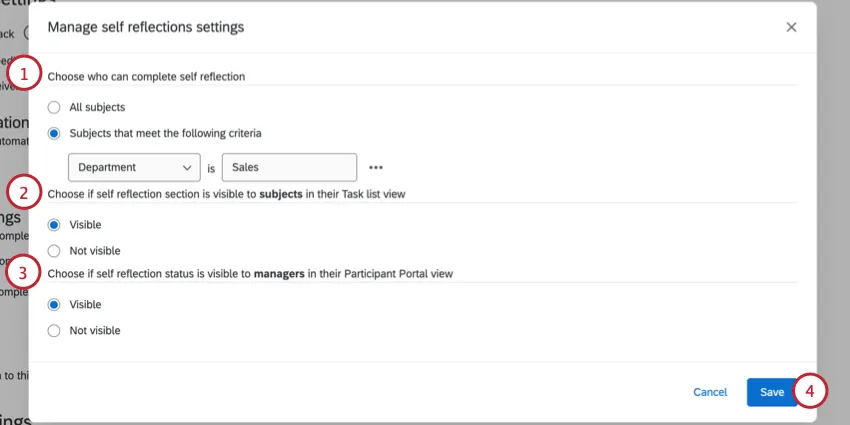
The Self reflection settings control who is eligible to complete self reflections and if the self reflection status is visible in the Participant Portal. Make sure Allow subjects to complete self reflection is enabled if you want participants to evaluate themselves.
Click Manage settings to change how self reflections are handled.

The following settings are available:
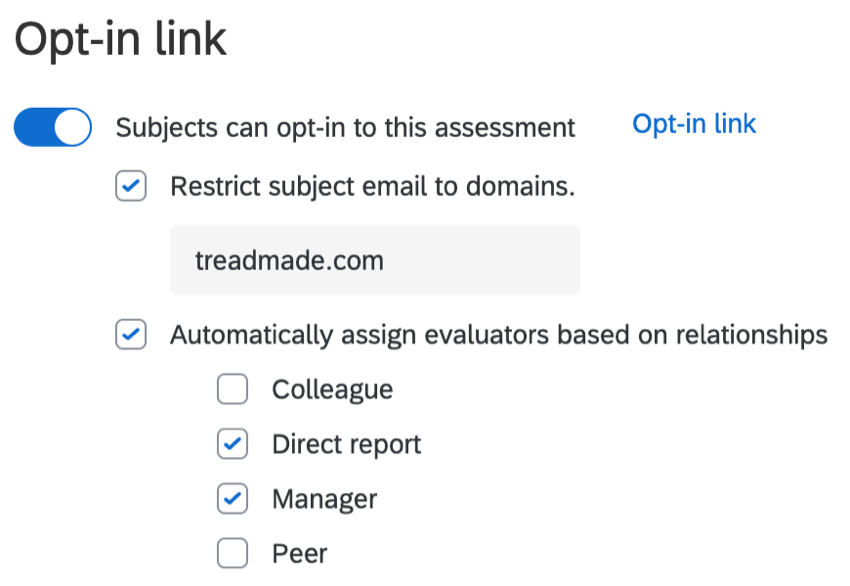
Opt-In Link
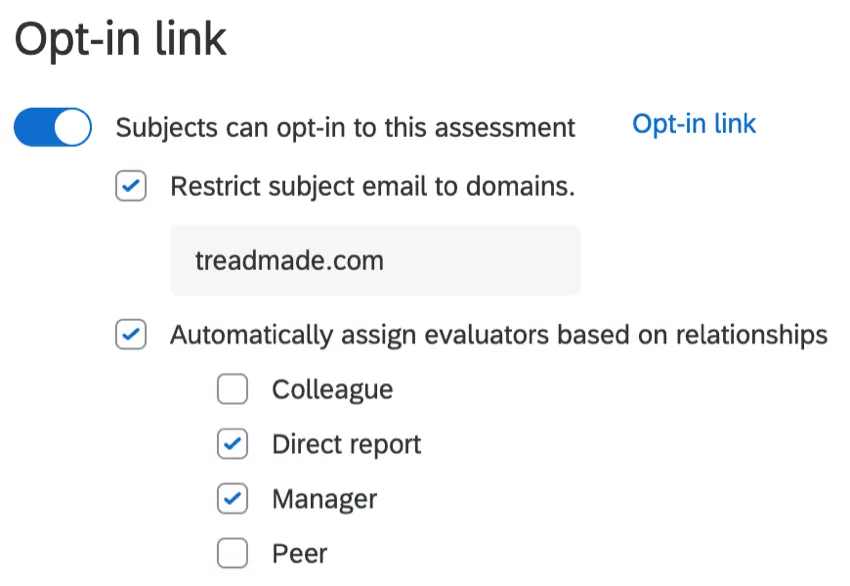
Subjects can opt-in to this assessment: This option creates a link where someone can opt-in. So long as they exist in the directory and thus have a portal to log into, this option adds them to the participant list. From there, they can perform any tasks set on the 360 survey by default (self-assessment, nominating evaluators, etc.). Click Opt-in link to get this link.
- Restrict subject email to domains: To avoid participants from opting in from the wrong account, or to keep users uploaded into your directory on separate 360 projects, you can specify the email domain someone is logged into before they can opt in.
- Automatically assign evaluators based on relationships: If your participants are already uploaded to the employee directory with relationships assigned, you can use this information to assign evaluators to subjects as they opt into the assessment. For example, you can choose to add all of the subject’s direct reports and manager as evaluators. Evaluators will be added so long as they are listed amongst the chosen relationships for that subject in the directory; an evaluator does not have to already be in the project’s participant list to be added. Qtip: This setting only applies to subjects who opt into the assessment using the link. There’s also the option to automatically assign evaluators based on relationships when you add or import participants.
Evaluator Nomination Settings
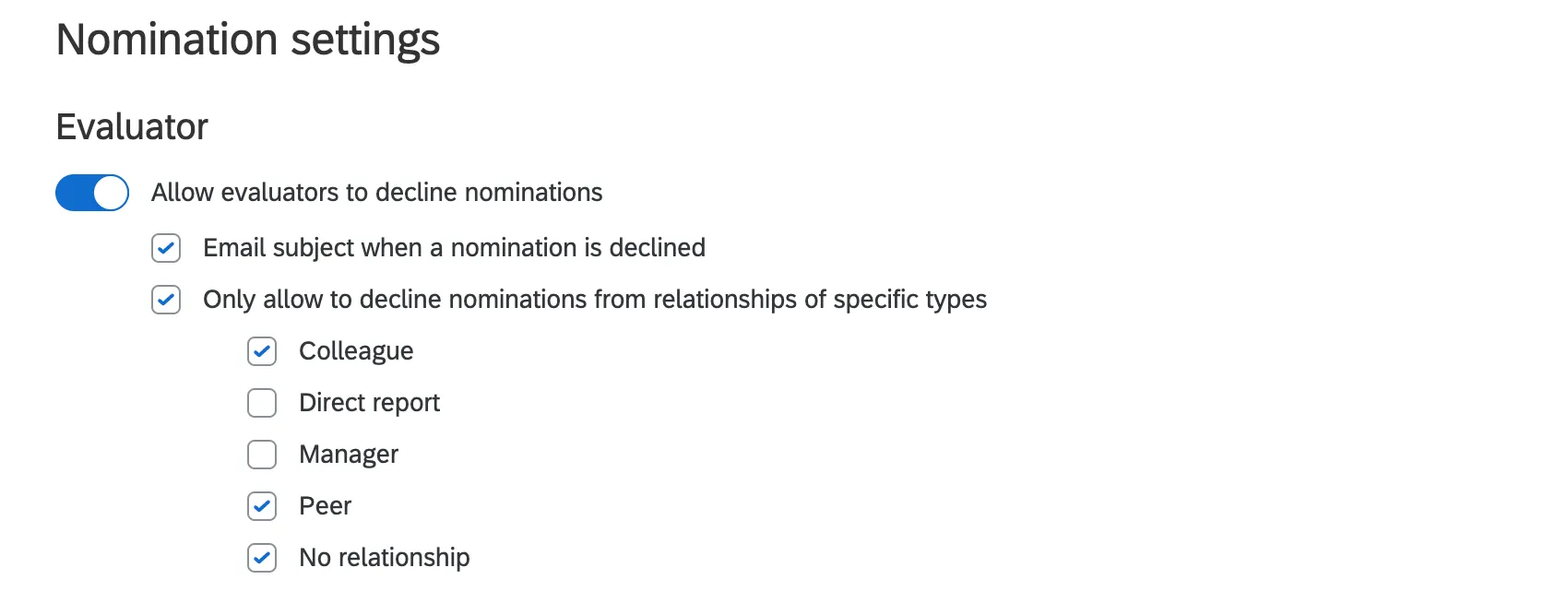
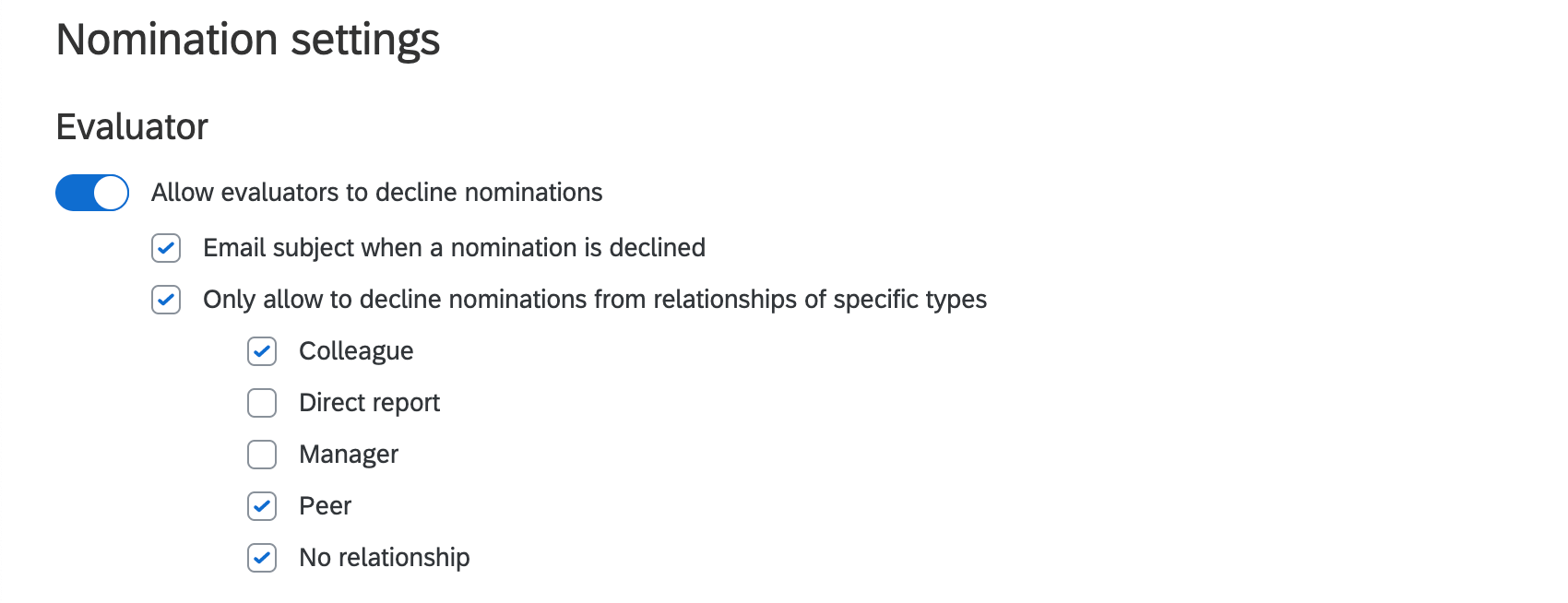
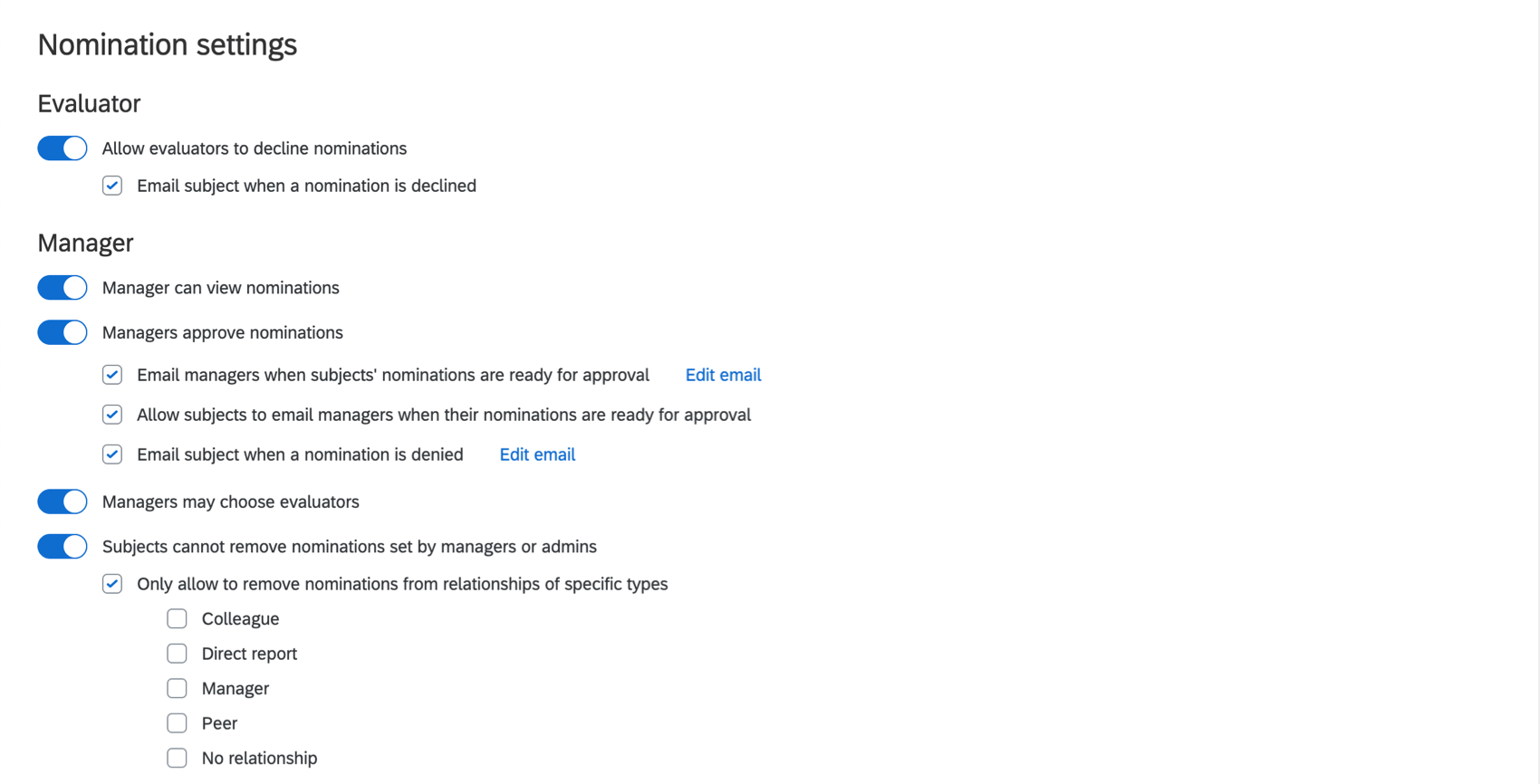
Allow evaluators to decline nominations: If a subject nominates someone to be the evaluator, enabling this option allows the evaluator to decline.
- Email subject when a nomination is declined: This option must be selected before any nominations are declined. Otherwise, the email will not send retroactively. Subjects will be emailed when someone has turned down their nomination.
- Only allow to decline nominations from relationships of specific types: As described, allow evaluators to decline nominations if they have a certain relationship to the subject. Example: You may be fine with employees rejecting nominations from peers or colleagues. At the same time, you do not want employees to deny direct reports or managers, since these are the employees who work with the subject most closely.

Manager Nomination Settings
Qtip: These options only apply to the built-in Qualtrics relationship, Manager. Be careful to spell and capitalize it exactly, because participants uploaded with “manager” or “Managers” as their relationship will not have these options applied.
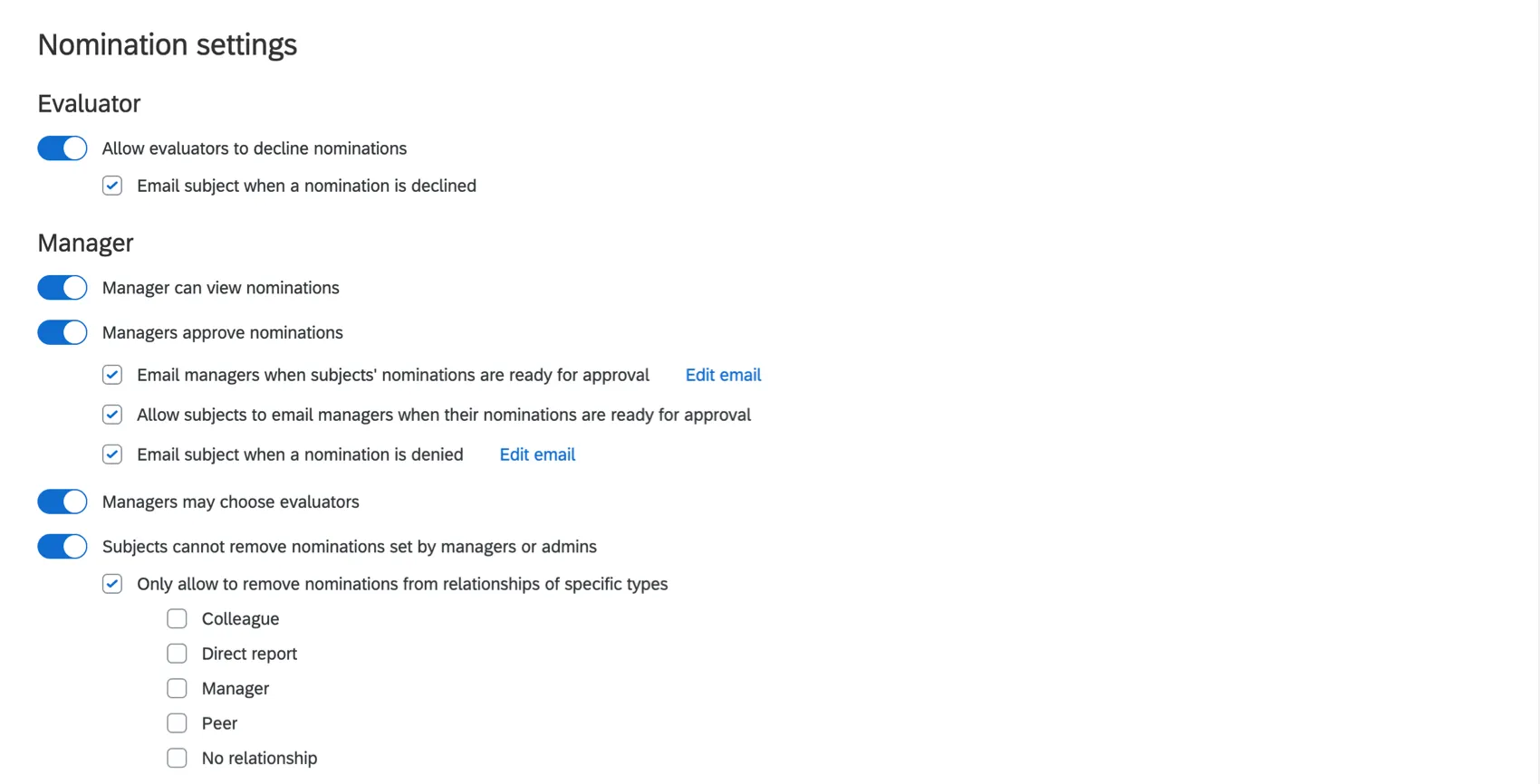
- Manager can view nominations: Select this option and managers will be able to view the evaluators nominated by their direct reports.
- Managers approve nominations: Don’t allow nominated evaluators to assess subjects until the subject’s manager has approved their nomination.
- Email managers when subjects’ nominations are ready for approval: If there are nomination requirements, an email will be sent only when the subject moves from not meeting requirements to meeting requirements. If there are no nomination requirements, an email will be sent only when the first nomination is added.
- Allow subjects to email managers when their nominations are ready for approval: This allows the subject to email the manager whenever asking them for approval on their nominations.
- Email subject when a nomination is denied: When this option is selected, subjects will be emailed when their manager has rejected their nomination.
- Managers may choose evaluators: Select this option and managers will be able to add evaluators to their direct reports.
- Subject cannot remove nominations set by managers or admins: This setting prevents subjects from removing evaluators uploaded for them by an admin, or selected by a manager. Subjects can still delete nominations they made themselves.
- Only allow to remove nominations from relationships of specific types: When this option is enabled, subjects will only be allowed to remove nominations of selected relationship types.
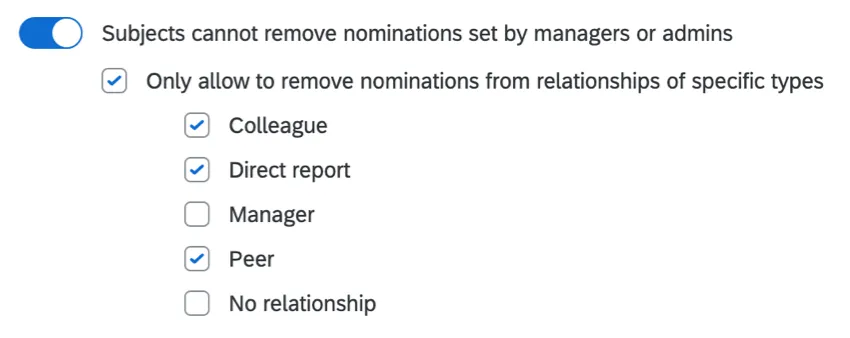 Example: You are fine with subjects removing any nominations so long as those nominees are colleagues, peers, or have no relationship assigned. However, you never want the subject to be able to remove a manager or a direct report. Therefore, you enable this option, and select all relationship types except Direct Report and Manager.
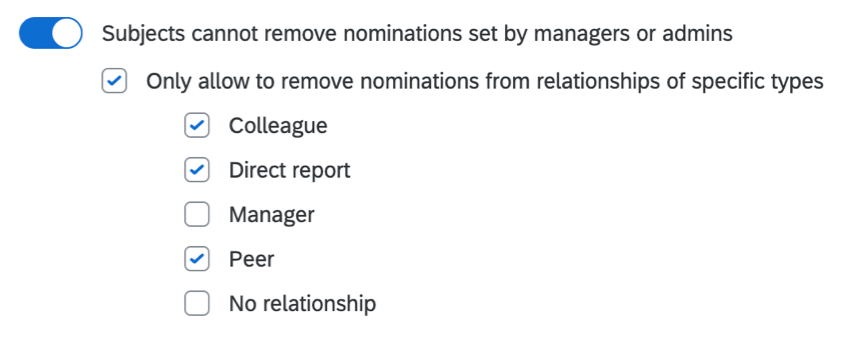
- Only allow to remove nominations from relationships of specific types: When this option is enabled, subjects will only be allowed to remove nominations of selected relationship types.
Subject Nomination Settings
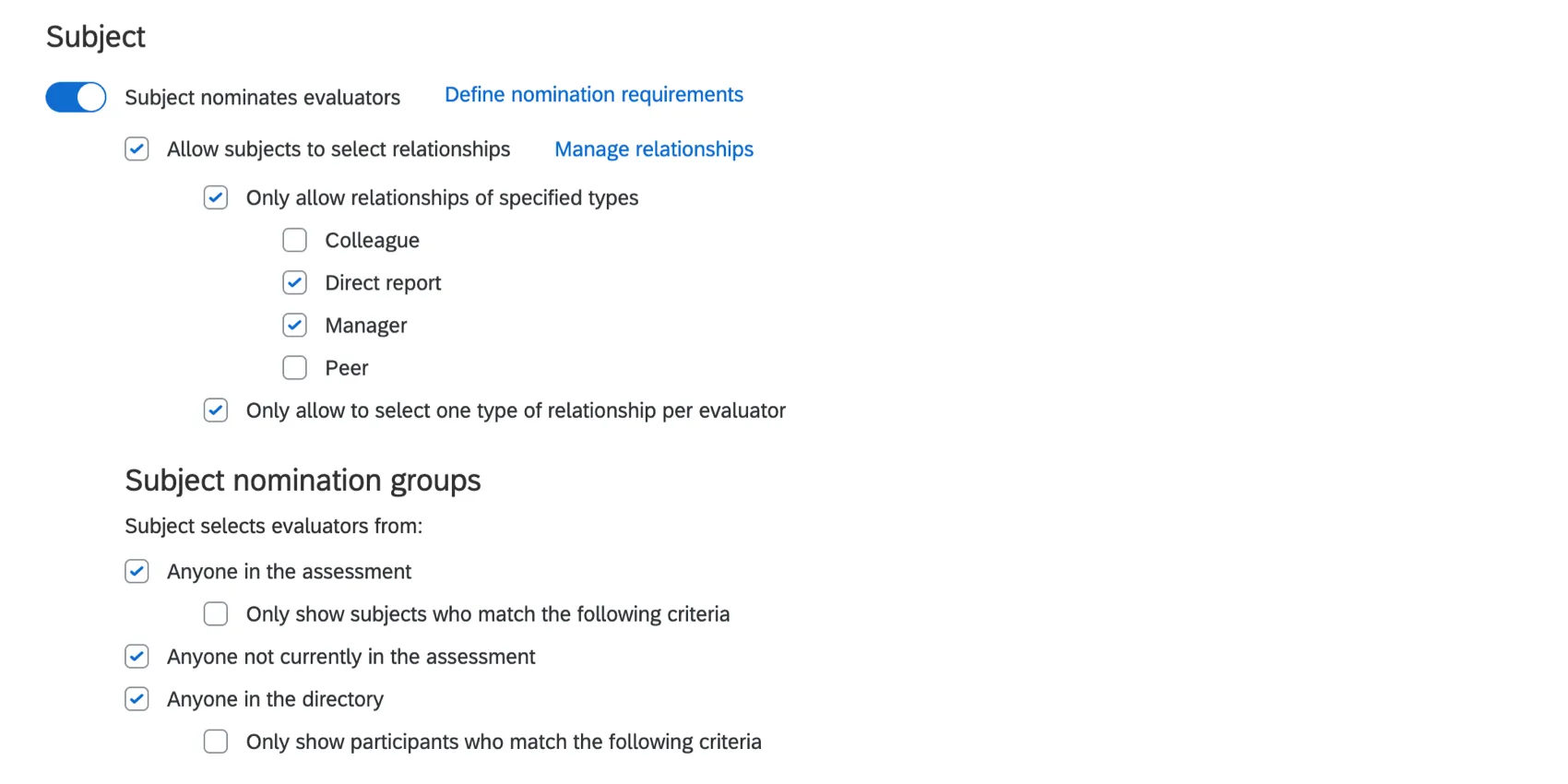
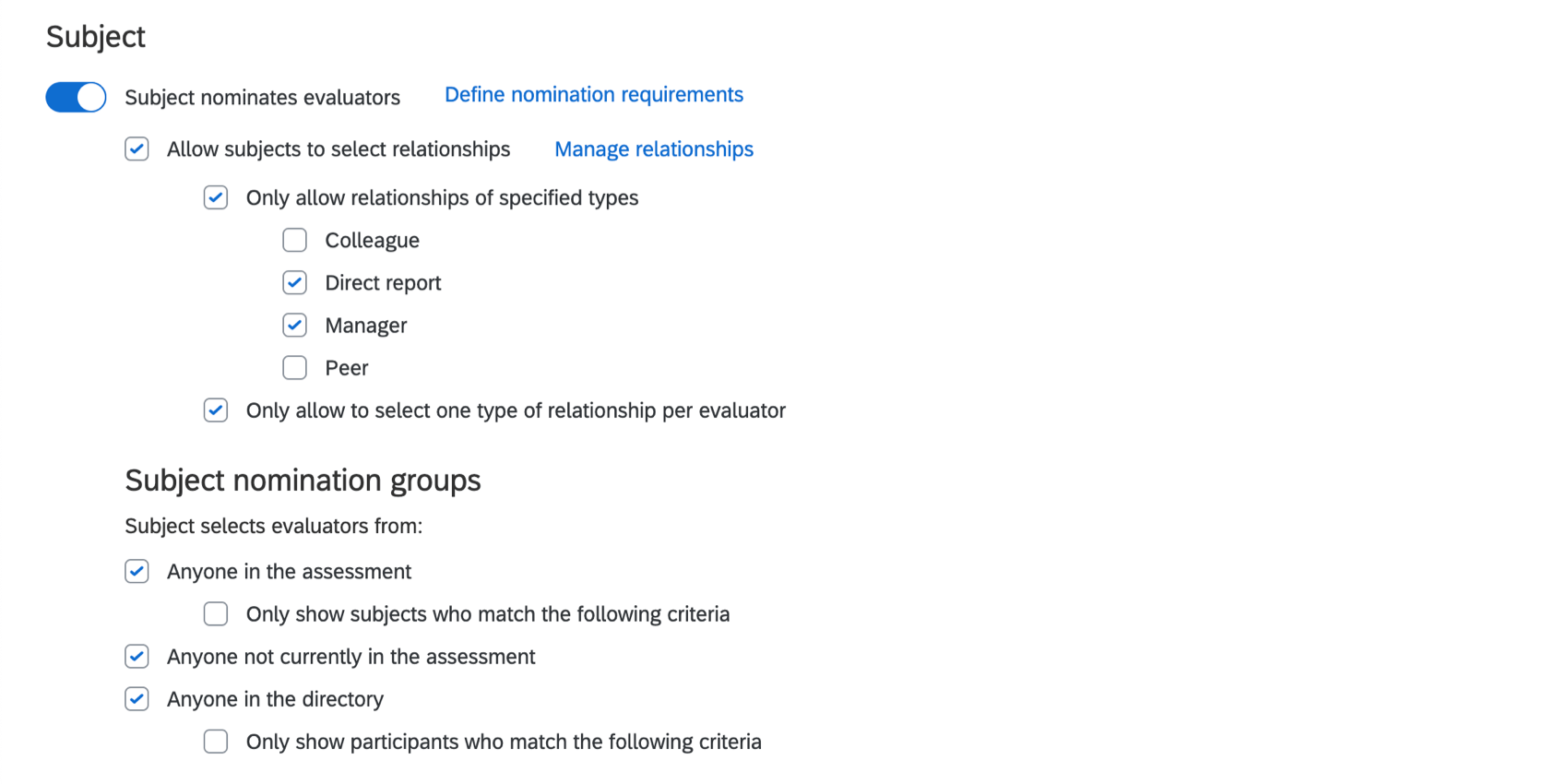
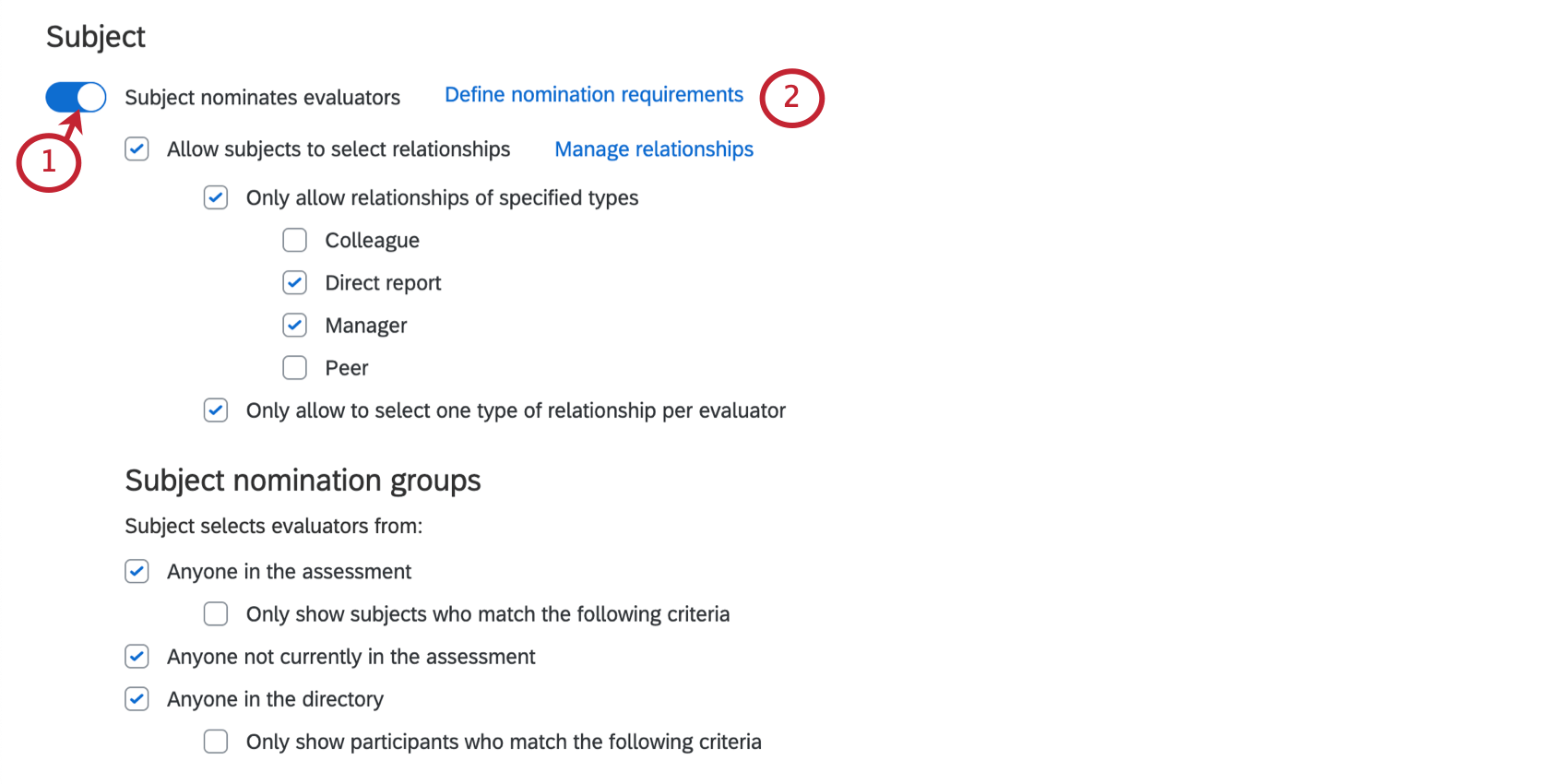
Subject nominates evaluators: Allows subjects to view their evaluators and choose who their evaluators will be. If this setting is enabled, a number of options will appear so you can specify how subjects are allowed to nominate evaluators:
- Allow subjects to select relationships: This option allows subjects to set the relationships they share with their nominations. If this option is not selected, when the subject nominates an evaluator, the 360 project reads the relationship set between the two in the directory, leaving it blank if there is none. Click Manage Relationships to see the Manage Relationships window and edit your custom relationships.
- Only allow relationships of specified types: When you select this option, you can restrict what relationships a subject can choose from.
- Only allow to select one type of relationship per evaluator: When this option is not enabled, subjects can nominate the same person multiple times under different relationships. When enabled, this option will prevent subjects from nominating the same person to evaluate them again under a different relationship.
Qtip: If Subject nominates evaluators is enabled, but you don’t select any other settings to specify who they’re allowed to nominate, then the subjects will not be able to nominate evaluators, but they will be able to view evaluators assigned to them. In other words, if you want to let subjects see their evaluator list, but not edit it, you can enable Subject nominates evaluators and nothing else in this section.
Subject nomination groups
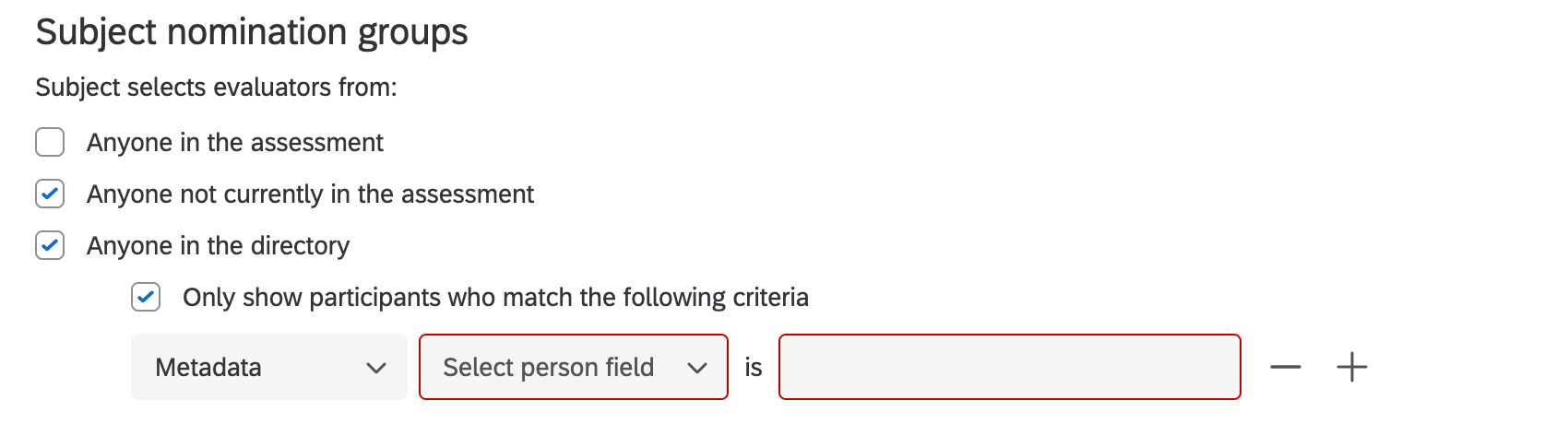
Once “subject nominates evaluators” is enabled, you can specify that the subject selects evaluators from:
- Anyone in the assessment: Subjects may nominate anyone uploaded as a participant in the 360 project.
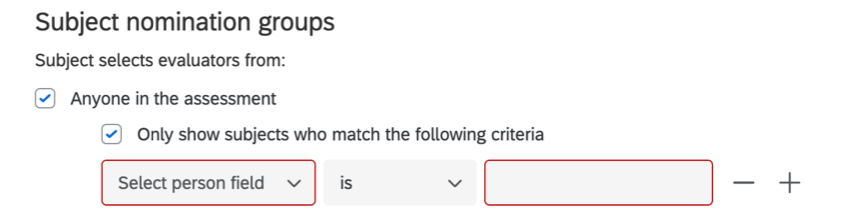
- Only show subjects who match the following criteria: Subjects may nominate anyone uploaded as a participant in the 360 project, provided they match certain metadata values.
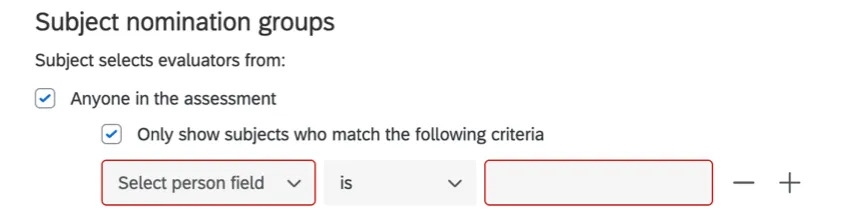
- Only show subjects who match the following criteria: Subjects may nominate anyone uploaded as a participant in the 360 project, provided they match certain metadata values.
- Anyone not currently in the assessment: Can only choose people not in the assessment. Note that this means subjects can type in any email address to invite them to the assessment, and that these evaluators will then be added to your directory. There is also the likelihood that duplicates will be added, since subjects cannot specify a unique identifier with the evaluator they upload. We generally recommend not using this option if you can instead upload all eligible employees to the directory and thus enable the Anyone in the directory option. Attention: Brands with SSO should not use this option. Any evaluators subjects add from outside the directory will not have the SSO login enabled.

- Anyone in the directory: Subjects may nominate anyone saved in the directory. Attention: The Anyone in the directory option will only appear in the Subject Options if the Admin User has the Access Directories permission enabled.
- Only show participants who match the following criteria: Subjects may nominate anyone uploaded to the directory, provided they match certain metadata or email address values.
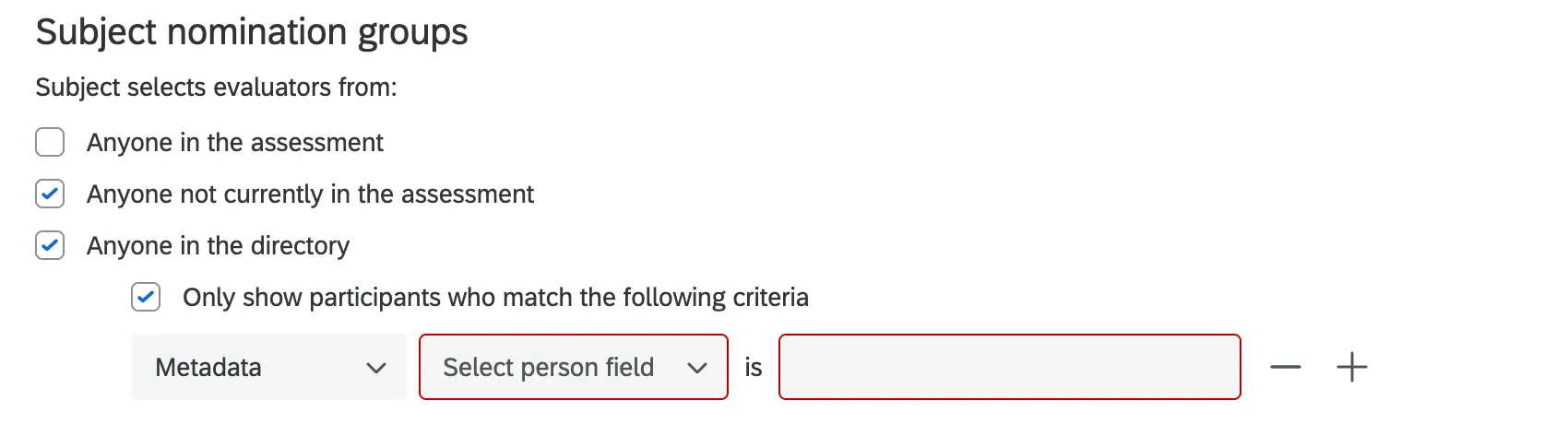
- Only show participants who match the following criteria: Subjects may nominate anyone uploaded to the directory, provided they match certain metadata or email address values.


Define Nomination Requirements
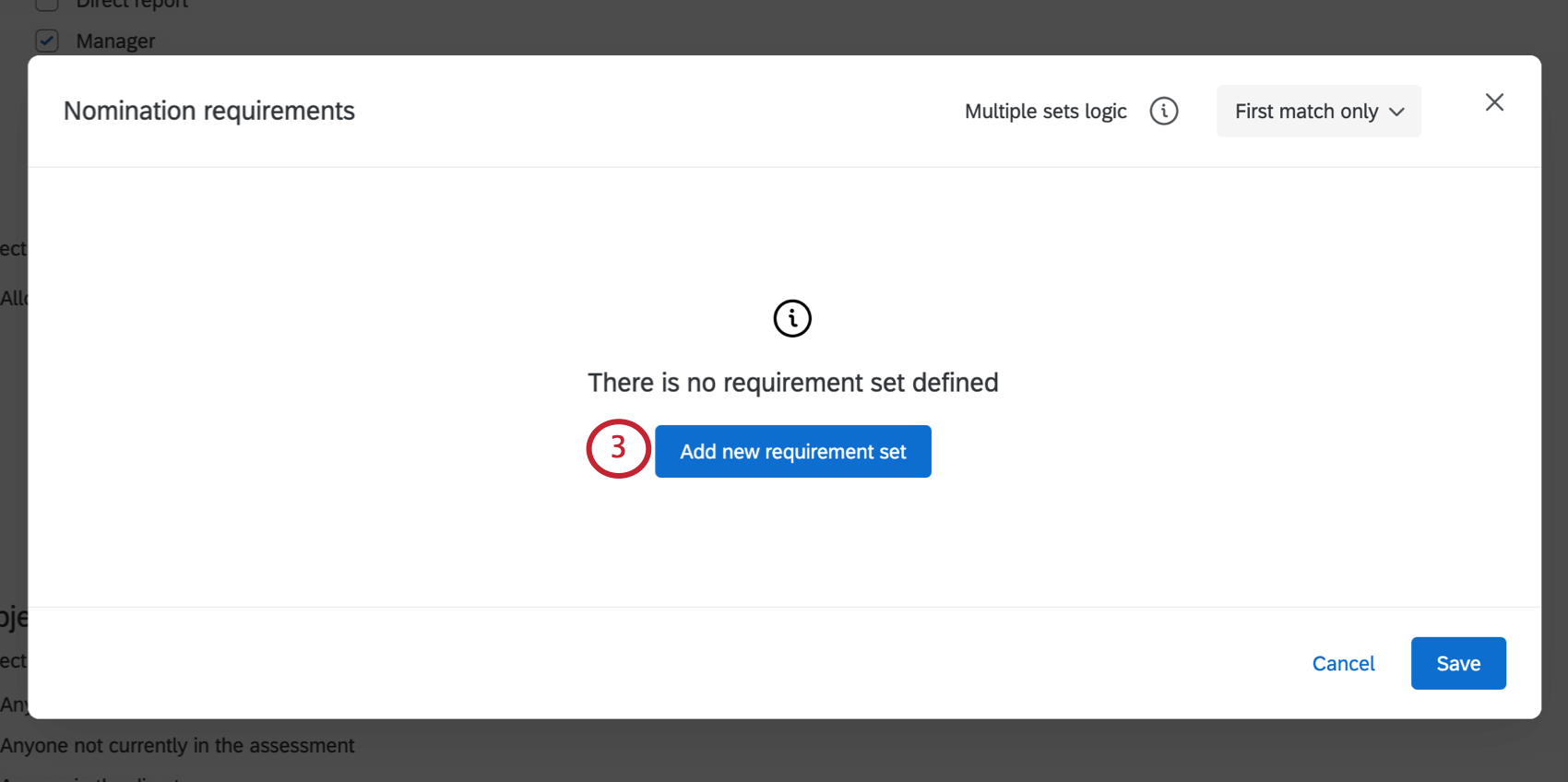
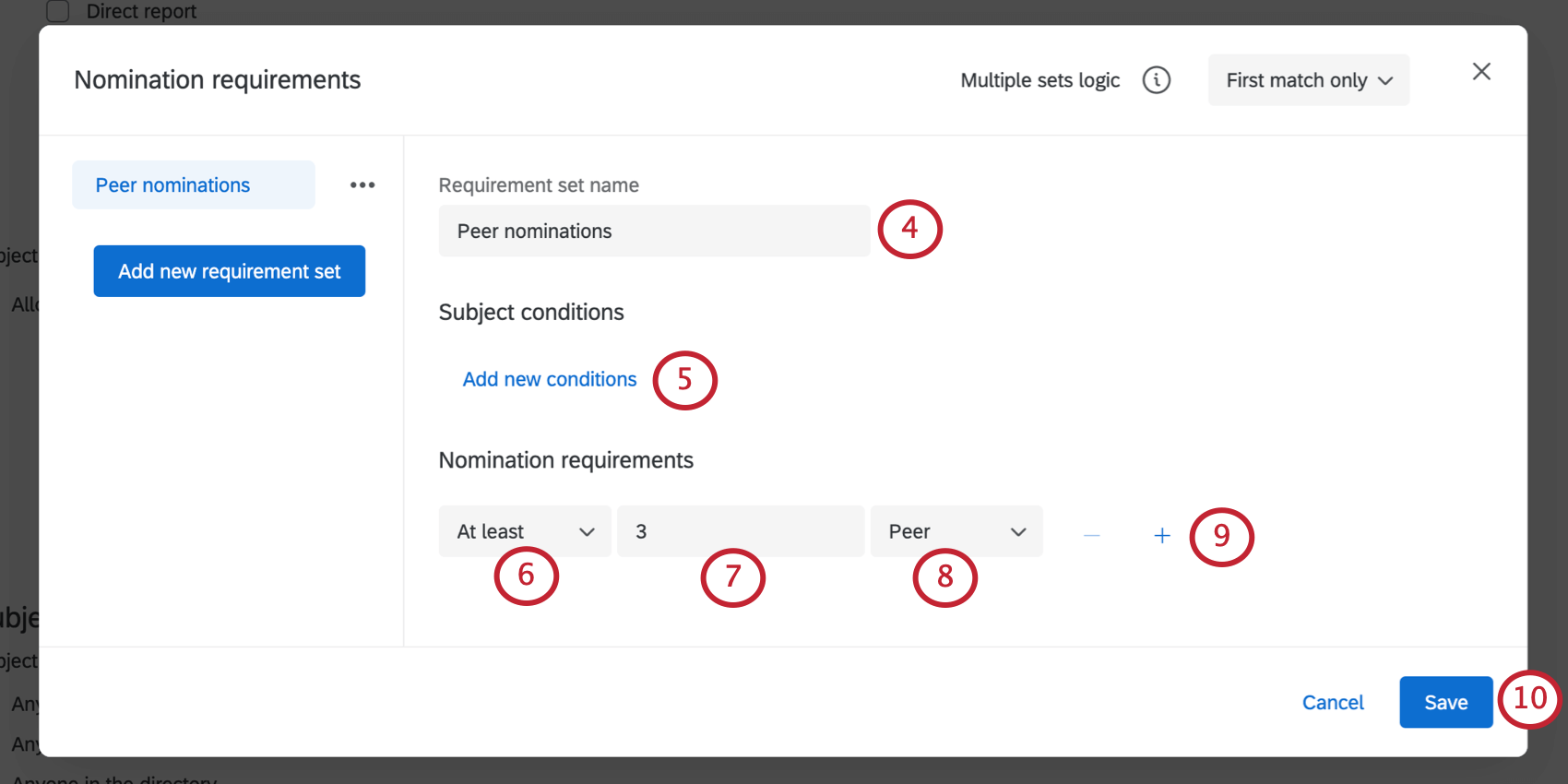
You can specify how many evaluators of each relationship a subject can nominate.
More Options for Nomination Requirements
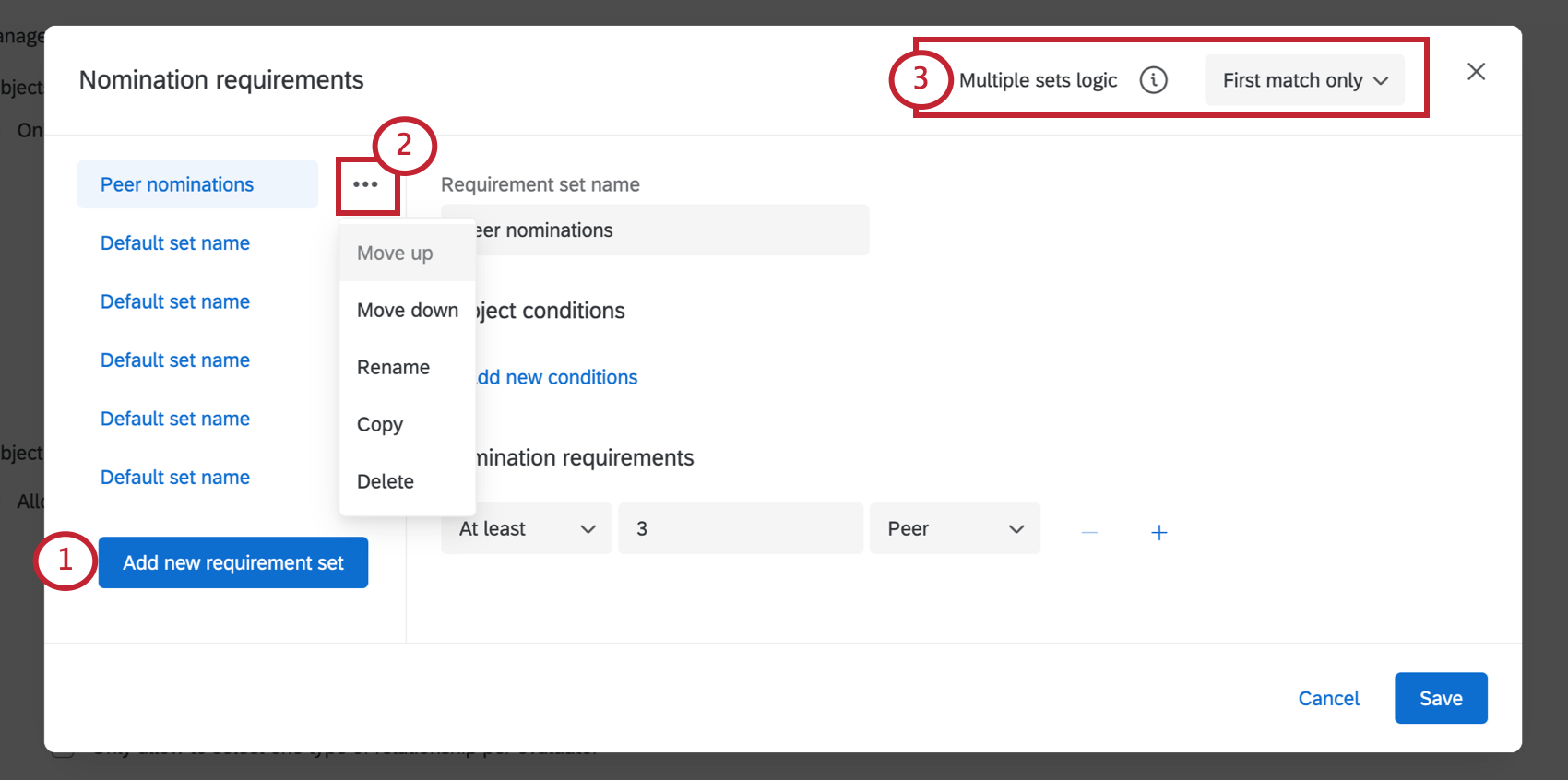
There are a few more options you have for defining nomination requirements.
For example, if you create multiple sets of requirements, you can then determine that subjects don’t have to complete all of them, just the first one they meet the requirements for.
That's great! Thank you for your feedback!
Thank you for your feedback!