

Comment Summaries Widget (EX)
What's on this page
Attention: This feature is only available to users on the new simplified pricing and packaging plans for Employee Experience. If you have questions about your Qualtrics pricing and packaging plan, reach out to Account Services.

About the Comment Summaries Widget
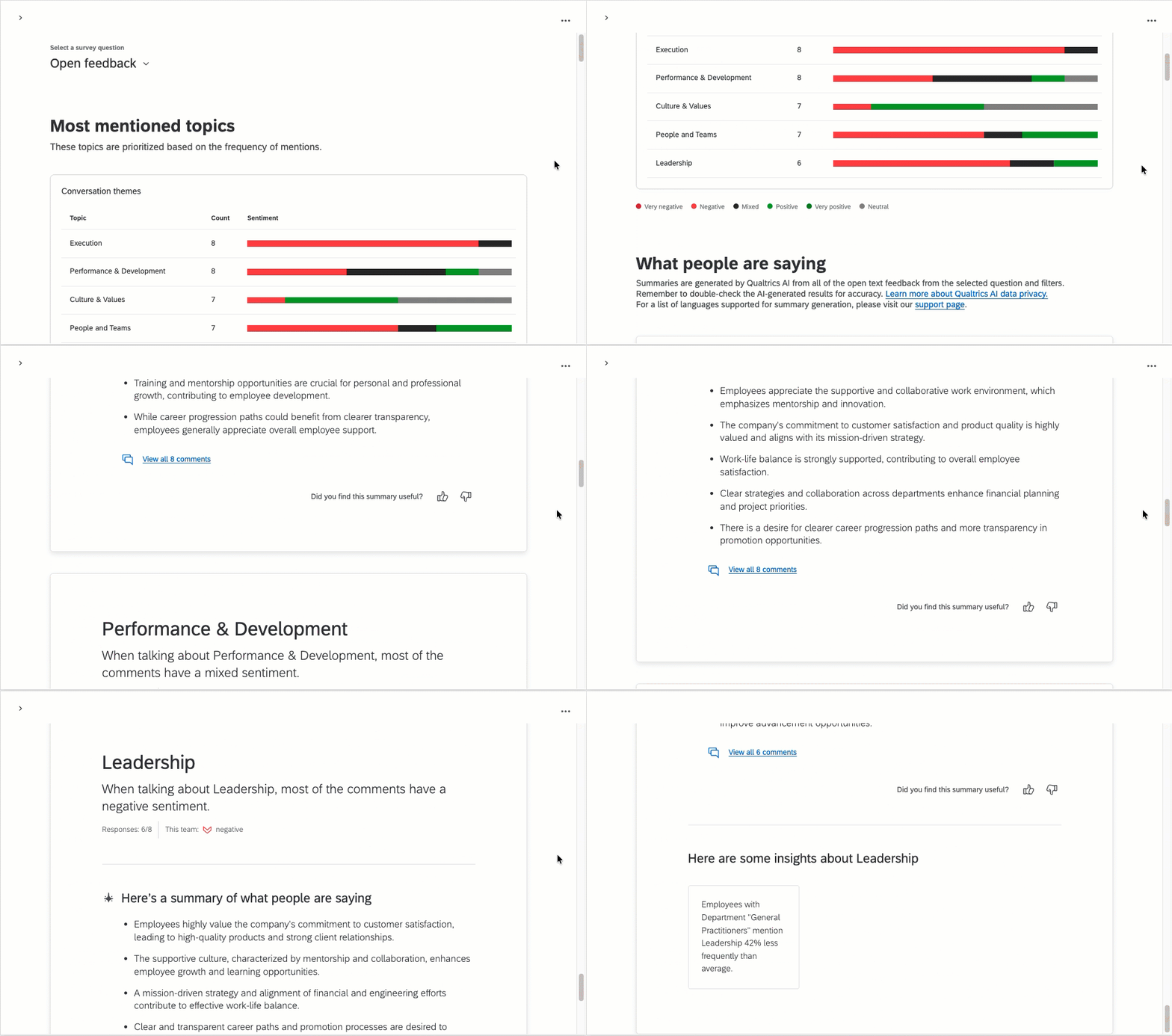
The comment summaries widget takes your team’s responses to open feedback questions and uses AI to create insightful summaries and highlight key topics. This widget is ideal for medium and large teams and organizations, where it can be difficult to go through lots of individual responses. With the help of Text iQ, this widget allows you to quickly identify top themes and topics.
Keep in mind that you will also need to have enough responses to exceed confidentiality thresholds. To learn more about response limits for this widget, see Understanding the Comment Summaries Widget below.
Qtip: Once this feature is enabled, this functionality is only compatible with Engagement, Lifecycle, Pulse, and Ad Hoc Employee Research projects. For more details on each, see Types of Employee Experience Projects.

Qtip: The comment summaries widget can provide summaries in English, German, French, Spanish, and Japanese. The language of the summaries is based on the user’s account language. For all other languages, summaries will be provided in English.
Permissions
In order for dashboard editors to use this widget, a Brand Administrator must enable the EX Comment Summaries user permission for their Qualtrics account.
Once this widget has been added to a dashboard, only dashboard viewers with the Can view comment fields permission enabled can see data in this widget. To update many dashboard users’ permissions at once, see Roles.
Field Type Compatibility
Each part of this widget is only compatible with the field types listed:
- Text question fields: Open Text
- Demographic fields: Participant metadata (Multi-Answer Text Set)
Setting Up Text iQ
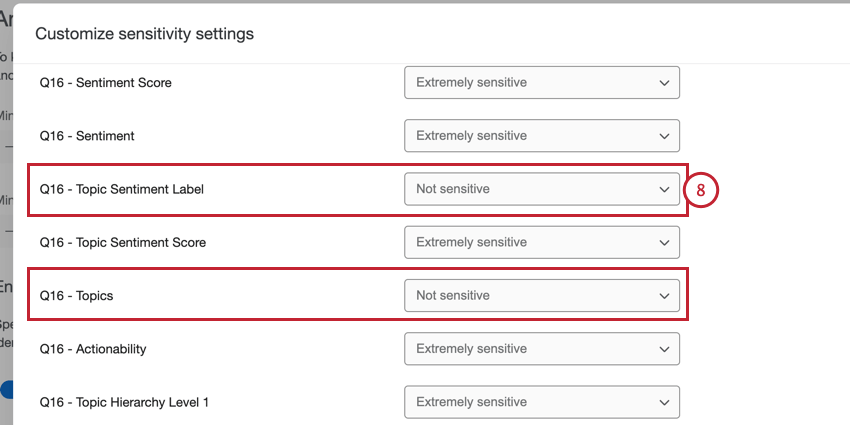
Before you create a comment summaries widget, you need to set up Text iQ in your EX project.
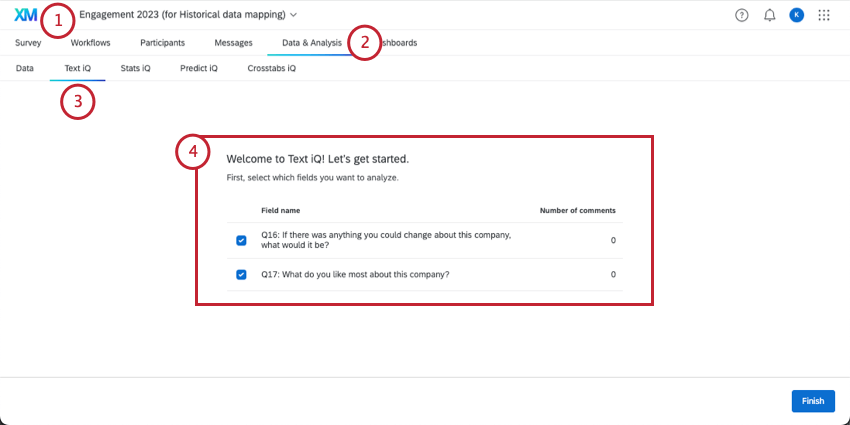
Qtip: You may need to update your dataset with enrichments.
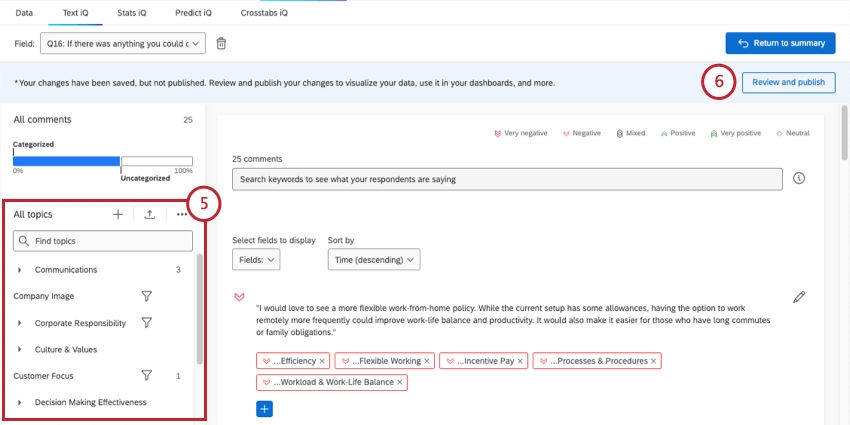
Qtip: If you’re not sure where to start, try some expert-designed topics from the Qualtrics library. We offer premade topics specifically designed for Employee Experience research!
Qtip: Wait until your text analysis is done loading to perform the next steps. You can leave the page while this happens.
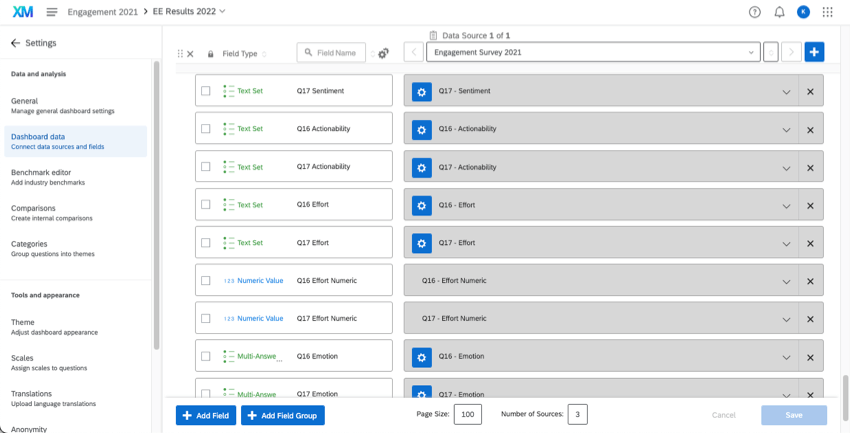
Qtip: If you have more than one source mapped to your dashboard, you need to be careful to separate your Text iQ fields, so each one is only mapped to one data source. See more details on Mapping Multiple Text iQ Sources, under “Data Mapper.”
Creating Comment Summaries
Qtip: You must configure Text iQ topics, map text iQ data, and add text question fields to the widget before it’ll display data. Demographic fields and comparisons are optional.
Select Comment Summaries from the widget menu.
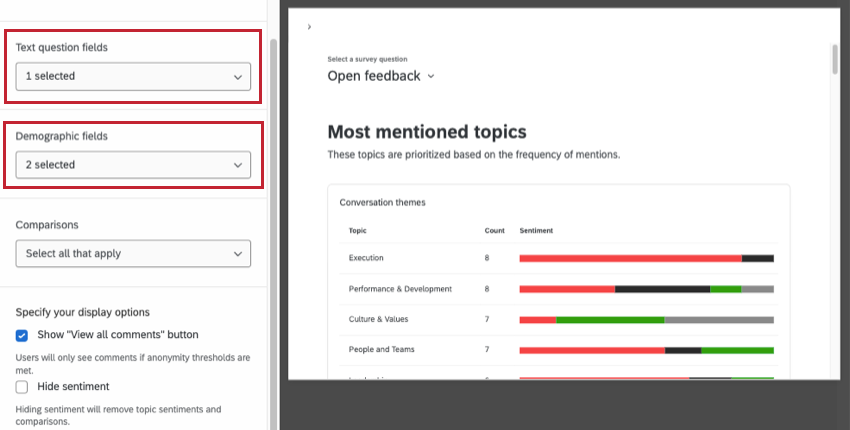
Under Text question fields, select the text entry questions where you asked for employee feedback.
Qtip: You can select multiple questions, so long as each question’s text fields are mapped to your dashboard. Dashboard viewers will be able to switch between which question’s comment summaries they want to see using the menu pictured below.

Under Demographic fields, select demographic metadata you’re interested in.
Qtip: If there are any statistically significant results, the widget will highlight the segments with the most significant differences. If there are no statistically significant results, you will not see any demographic-specific information.
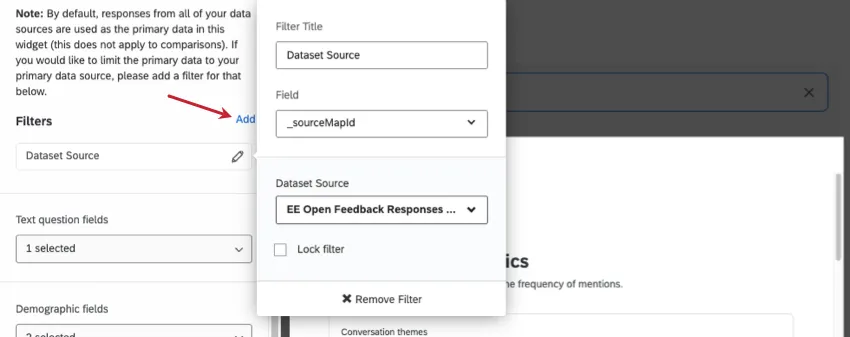
Attention: By default, responses from all of your data sources are used in this widget. If you want to limit the data included, please add a widget filter for a data source.
Comparisons
Qtip: When you use a comparison, the widget will only display data from your primary data source. It will not include additional sources.
By adding comparisons to your widget, you can compare different groups’ or units’ general sentiment towards a specific topic.
You can select Comparisons to display in your widget. See how to create comparisons.
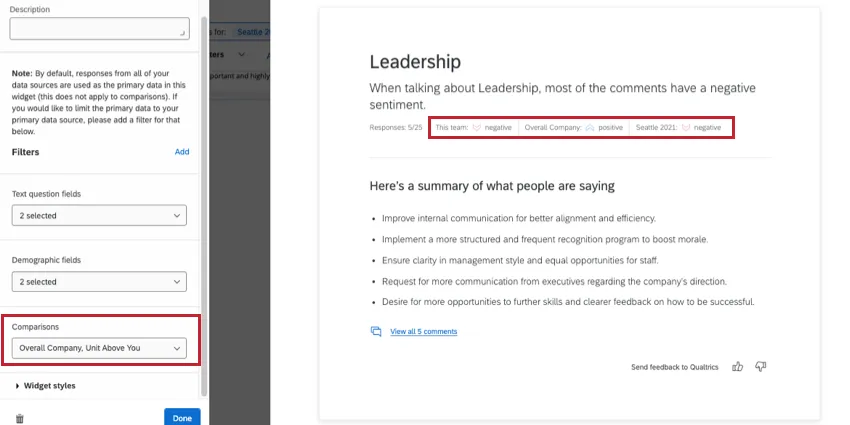
As you add comparisons to your widget, they’ll appear with each of the topic summaries to show how the current team’s overall sentiment compares to each of the comparison groups.
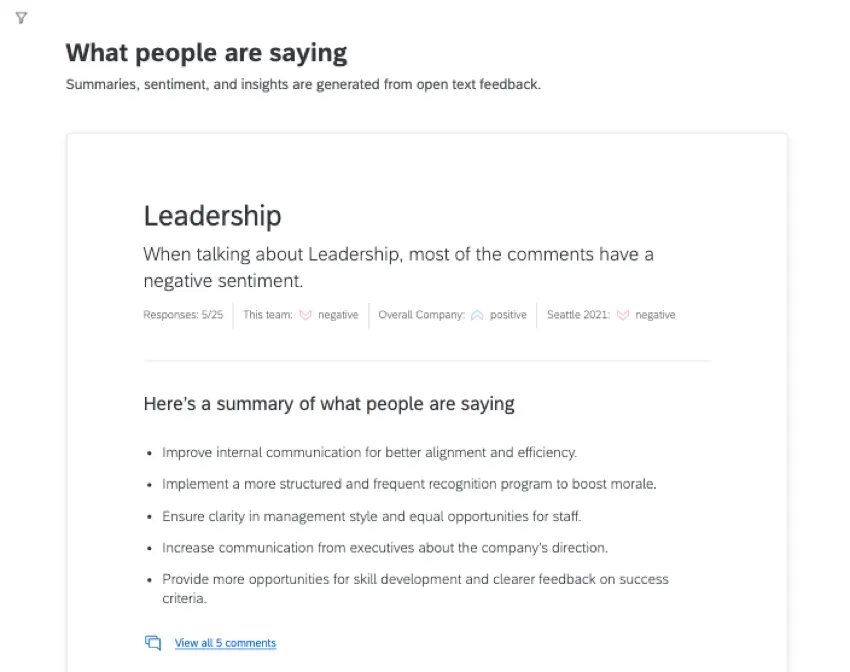
Example: In the widget shown above, the sentiment of the current viewer’s team tends to be negative on Leadership, the overall company’s sentiment is positive, and the unit above’s sentiment is negative.

Widget Customization
Qtip: For basic tasks like deleting, moving, and resizing widgets, see Widgets Basic Overview (EX). This page also has guidance on filtering widgets, and editing titles and descriptions.
There are 2 unique display options available for customizing your comment summary widget:
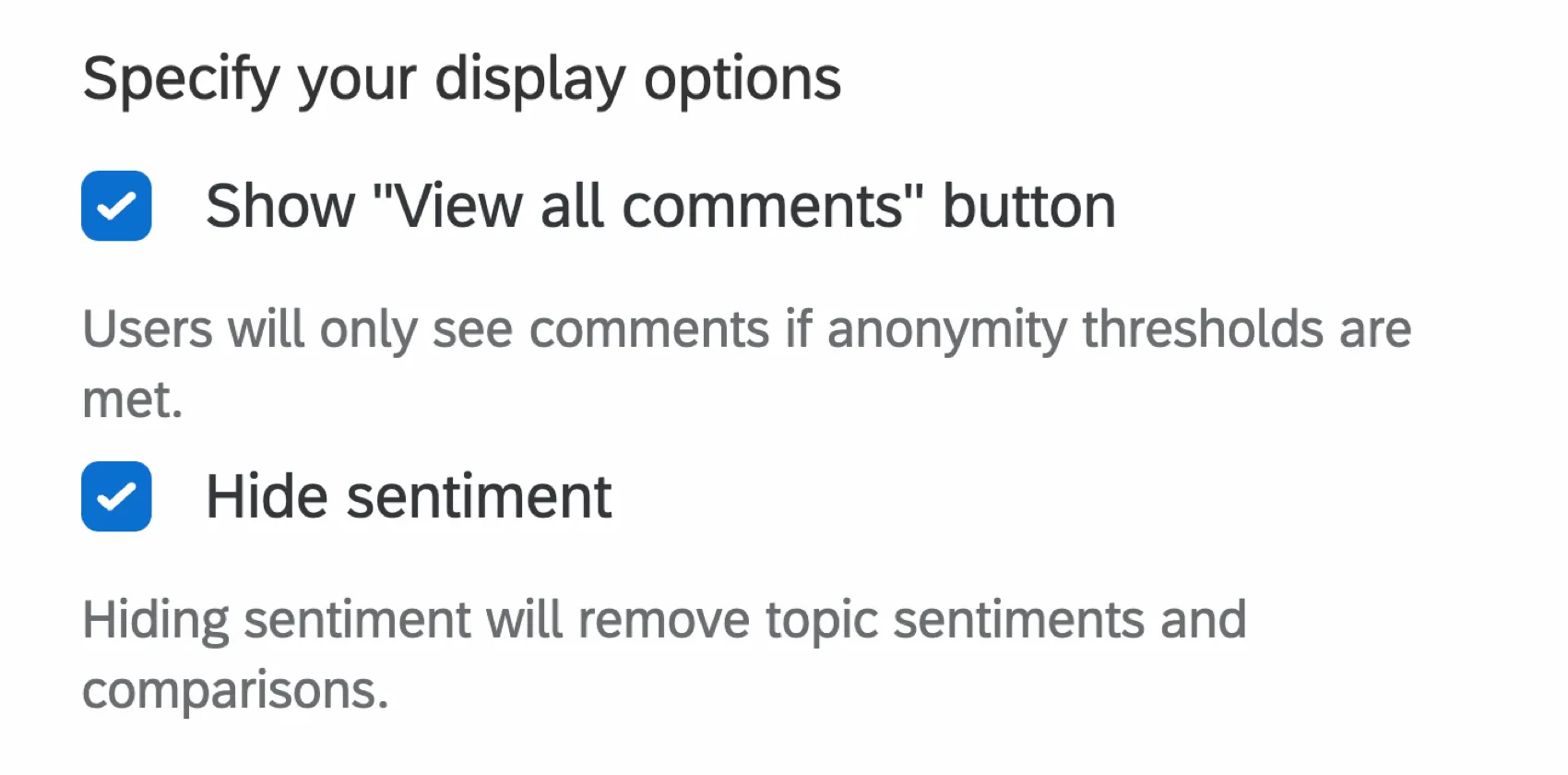
- Show “View all comments” button: When enabled, a “View all comments” button is added to the widget. This button lets dashboard users take a look at the individual feedback provided that the widget is creating summaries for. When this setting is disabled, only the summaries will be displayed for each topic, and the individual comments being analyzed will be hidden.
- Hide sentiment: When enabled, topic sentiments and comparisons will be hidden in the widget. This includes the sentiment breakdown bar, mentions of sentiment in topics, and sentiment in dashboard exports.
Qtip: You cannot customize the colors of the comment summaries widget.
Qtip: Comment summaries can be exported to JPG or PDF.
Widget Translation
Topics from Text iQ will not automatically be translated in your comment summaries widget. You can update the translations used in your widget by following the instructions in Widget Label Translation.
Understanding the Comment Summaries Widget
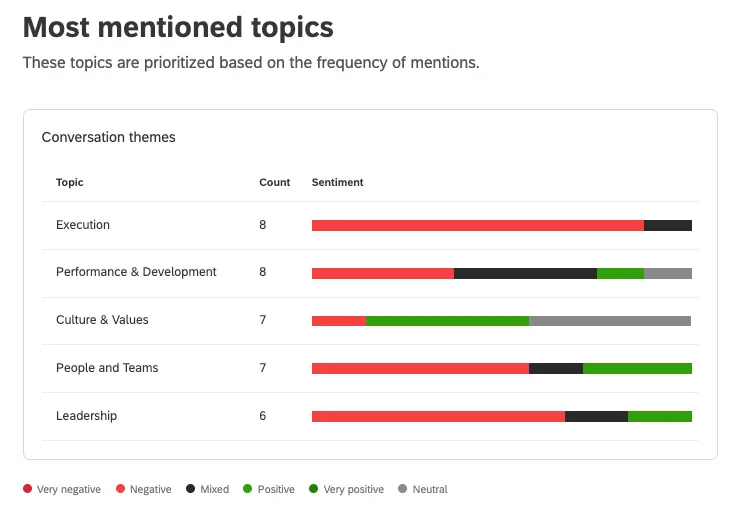
Each comment summaries widget starts by giving you a chart showing the top 5 most mentioned topics found in Text iQ. Then you can scroll down to see more information about each topic. Finally, it’s important to keep in mind how Enhanced Confidentiality and other privacy settings affect this widget.
Qtip: While we have guardrails in place and are continually refining our products, artificial intelligence may at times generate output that is inaccurate, incomplete, or outdated. Prior to using any output from Qualtrics’ AI features, you must review the output for accuracy and ensure that it is suitable for your use case. Output from Qualtrics’ AI features is not a substitute for human review or professional guidance.
Most Mentioned Topics
The Most mentioned topics will show conversation themes. You’ll see the top parent topics from your feedback, and the count of how many responses reference each topic. You’ll also see a sentiment break-out for each topic.
Summaries for Each Topic
Under What people are saying, you’ll see a table for each of the top parent topics identified. For each topic, you’ll see the overall sentiment, followed by the viewer’s team’s sentiment. If you’ve added a comparison, they’ll be displayed here.
Qtip: If you have a confidentiality comment threshold, your question needs to have more comments than this threshold to get its own summary.
Qtip: If a topic has 300 comments or more, the summary is generated on a random sampling of 300 comments.
The table will provide an AI generated series of bullet points summarizing the comments that fit this topic. You can view all of the exact comments given for this topic by clicking the link. If “View all Comments” has been turned off in the widget settings, the comments will be hidden, and only the summaries will be shown for each topic.
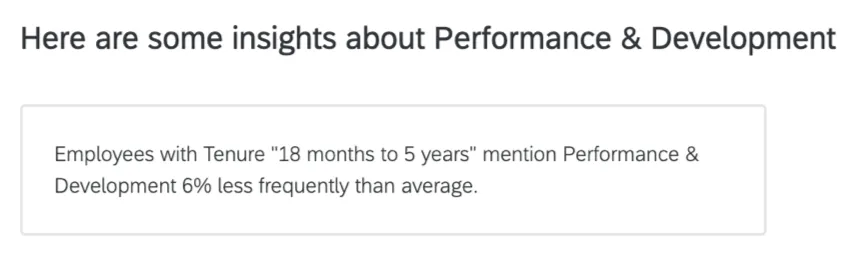
If you added demographics to your widget, you may also see information below the summaries. If there is a statistically significant result, the widget will call out how often specific demographics referenced specific topics. If there are no statistically significant results, you will not see any demographic-specific information.
Comment Summaries and Confidentiality
The comment summaries widget will obey any confidentiality threshold you have set, either on a dashboard or administrative level.
If a team has enough comment responses on a question to exceed the confidentiality comment threshold, summaries will be displayed for each topic.
Example: If your comment threshold is 10 comments, you’ll need 10 comments for your open text question before data will appear in this widget.
The widget allows you to view all comments relevant to a topic. However, you can only do this if the responses exceed the confidentiality threshold for the question.
Qtip: Comment summaries can still be generated if the topic anonymity threshold is not met as long as the overall response count for the team meets the threshold.
Qtip: Use Enhanced confidentiality to populate data in your widget when the number of respondents is lower than your 'Minimum respondents to display data points' setting.
That's great! Thank you for your feedback!
Thank you for your feedback!