

Image Widget (CX & EX)
What's on this page
About Image Widgets
The image widget allows you to show a single image in your dashboard. Both static and dynamic (GIF) images are compatible with this widget.
Types of Dashboards
This widget can be used in a few different types of dashboard. This includes:
- CX Dashboards
- Results Dashboards
- Employee Engagement
- Lifecycle
- 360
- Pulse
- Ad Hoc Employee Research
- Employee Journey Analytics
- Brand Experience
Basic Setup
The image widget requires a URL to display an image. You can always upload it to your library, then copy the URL.
Under Image URL, paste the URL.
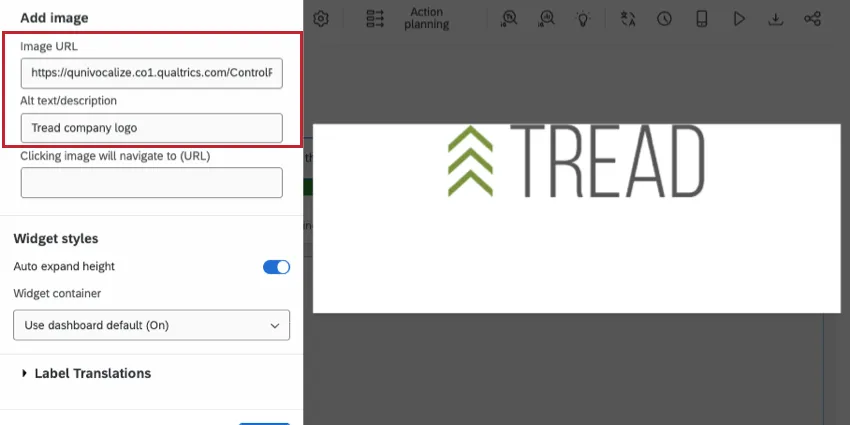
Add the Alt text/description for screen readers.
Qtip: See supported file types for images.

Image Size and Alignment
Once you add an image URL, you can adjust its size and alignment within the image container.
To get started, click the image on the right.
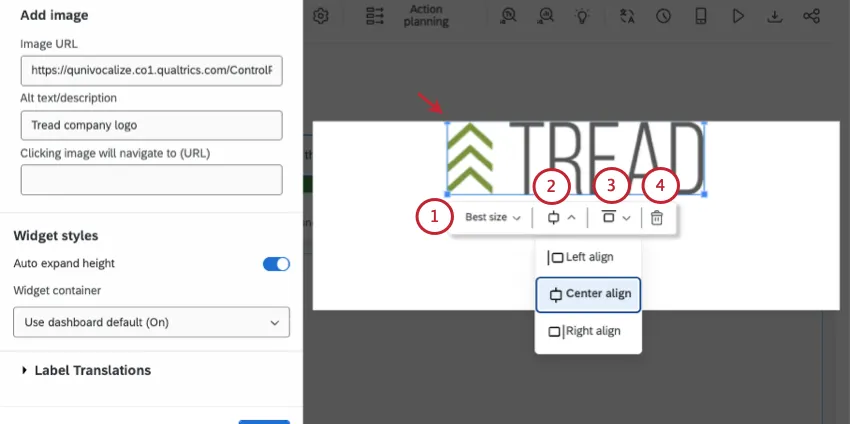
- Adjust the image’s size. Use this menu to pick from a preset size.
- Select whether the image should be left, center, or right aligned (horizontally).
- Select whether the image should be top, middle, or bottom aligned (vertically).
- Click the trashcan to delete the image URL.
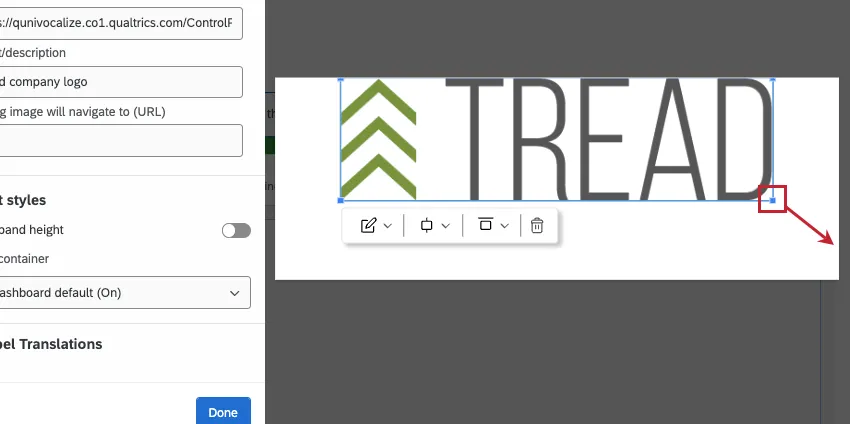
Like in many software, you can also resize the image by clicking and dragging the corners.
Widget Customization
Qtip: This section focuses on widget customization unique to the image widget. For capabilities many widgets share, like container settings, see Building Widgets.
In addition to the basic setup and image adjustment, the image widget has a few more options.
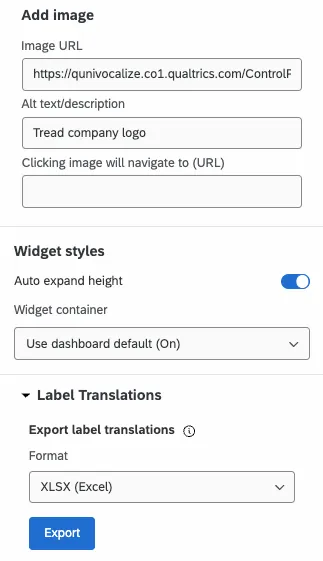
Clicking image will navigate to (URL): If you want your widget to be a clickable hyperlink, add the full destination URL here.
Auto expand height: Because the image can be resized independent of the widget itself, you can decide if the container should change size based on the widget.
Example: The image is taller than the widget. If Auto expand height is enabled, the widget container will automatically adjust to match the image.

Qtip: You may need to leave dashboard editing mode to see the effects of this setting.
Label Translations: The labels in an image widget include the alt text / description. To learn more about widget label translations, see this page.
Legacy Image Widget
Attention: Brands created after April 9, 2026 cannot create legacy image widgets.

The image widget requires a URL to display an image. Once you have the image URL, paste it into the Image URL box located in the widget editing pane.
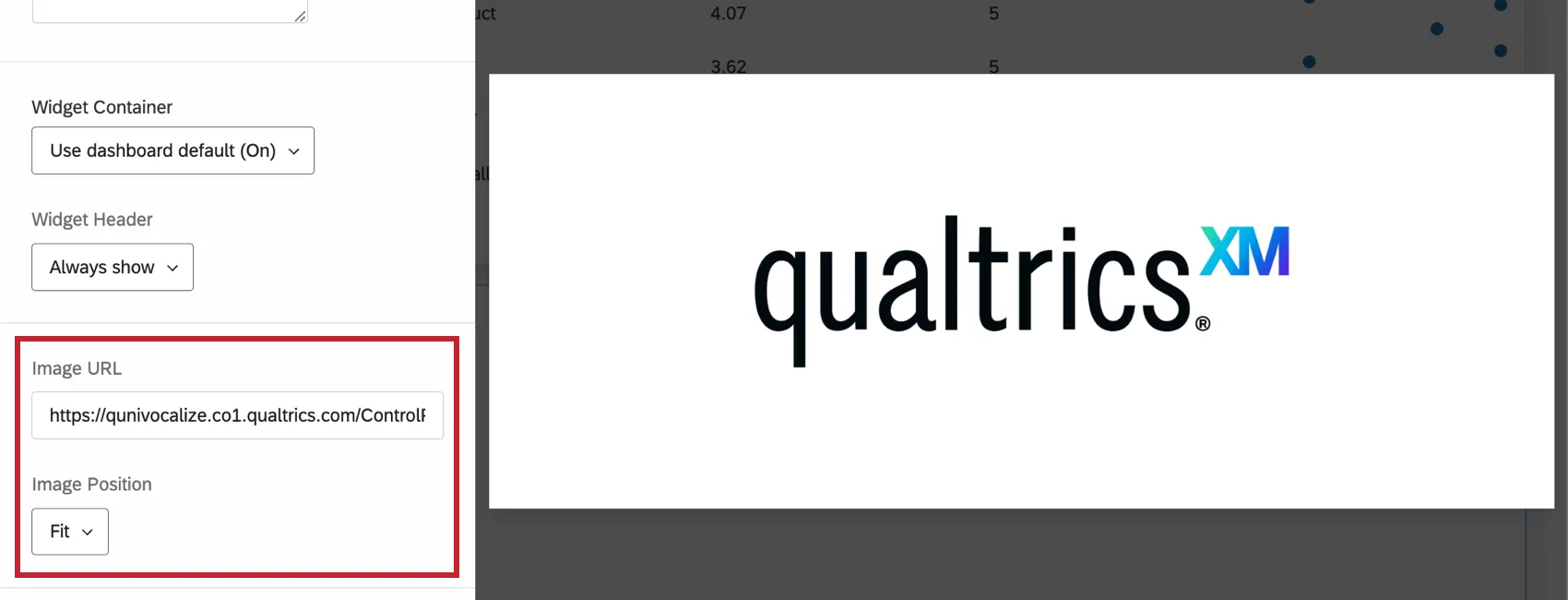
Qtip: If you have an image uploaded to your computer you’d like to use, upload it to your Qualtrics account library and use the URL from there.
Additionally, you can adjust the Image Position. This determines how the image is resized to fit the widget. Test each of the settings to see which looks best.
You can also customize the image widget’s title and description just like other widgets.
FAQs
My image is not hosted online, but I have it saved on my computer. Can I add the image to my Rich Text Editor, Image Slideshow, and Image widgets from a file location on my computer?
My image is not hosted online, but I have it saved on my computer. Can I add the image to my Rich Text Editor, Image Slideshow, and Image widgets from a file location on my computer?
That's great! Thank you for your feedback!
Thank you for your feedback!