

Monitor DXA Frustration Signals Task
What's on this page
About the Monitor DXA Frustration Signals Task
The Monitor DXA Frustration Signals task lets you set up notifications based on a threshold for the frustration signals received within Digital Experience Analytics. This allows you to be notified of sudden spikes in frustration signals that may occur, so you can quickly address customer frustration before it increases.
When a frustration signal threshold is crossed, you will receive a notification with the following information:
- The type of frustration signal.
- The threshold that was crossed, and whether it was an increase or decrease.
- The URL or PageTag where the spike occurred.
- A link to a session replay showing an instance of the element with the most frustration.
Requirements
Before you can create a Monitor DXA Frustration Signals task, you must do the following:
- Publish a DXA data source within the data modeler. This source will be selected when you build your workflow.
- Have access to the Workflows tab. If you are a Brand Admin you can enable this within the Admin tab. If you are not, reach out to your Brand Admin for access.
Qtip: Only Brand Admins can set up snoozing for frustration notifications. If you would like to set up snoozing, you must have the Brand Administrator user type.

Setting Up A DXA Frustration Signals Task
Qtip: If you want to be alerted about more than 1 page or element at a time, you can create multiple tasks.
Follow the instructions to create a new workflow. Select Started at a specific time (scheduled).
Qtip: You must create your workflow within the workflows tab of a Website / App Insights project or a survey project. You cannot create your workflow from the stand-alone workflows tab.
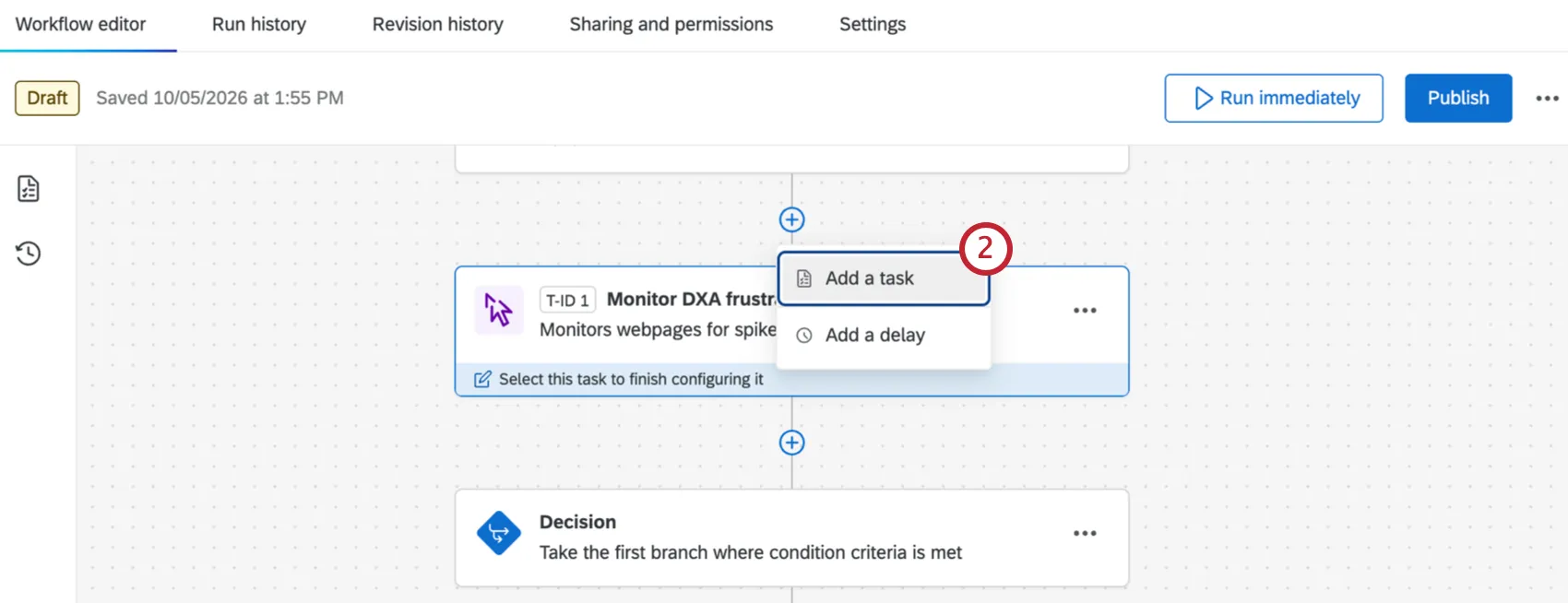
Click the plus sign ( + ) and select Add a task.
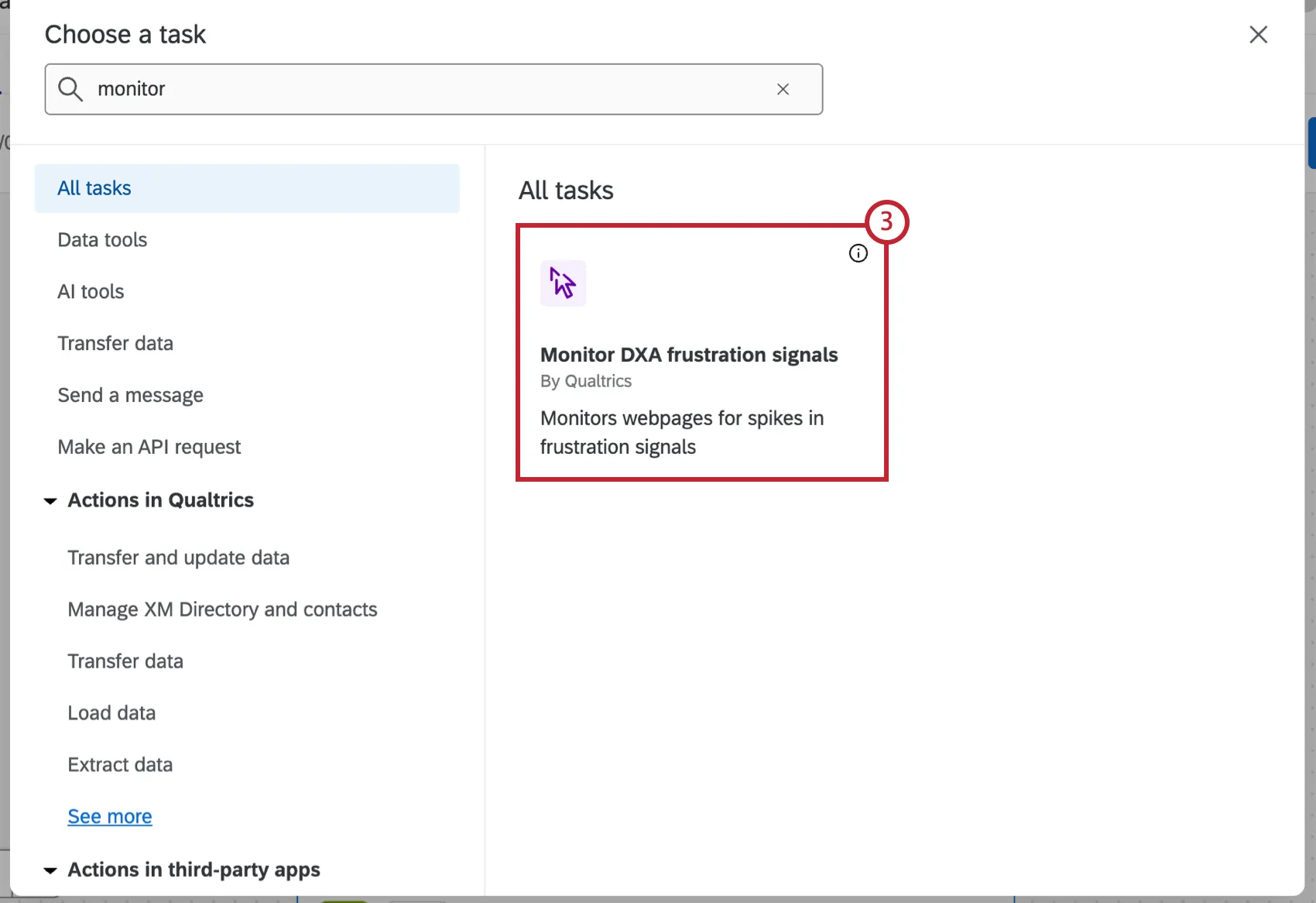
Select Monitor DXA Frustration Signals.
Select your DXA data source. Click the 3 dots to insert new conditions or delete a condition.
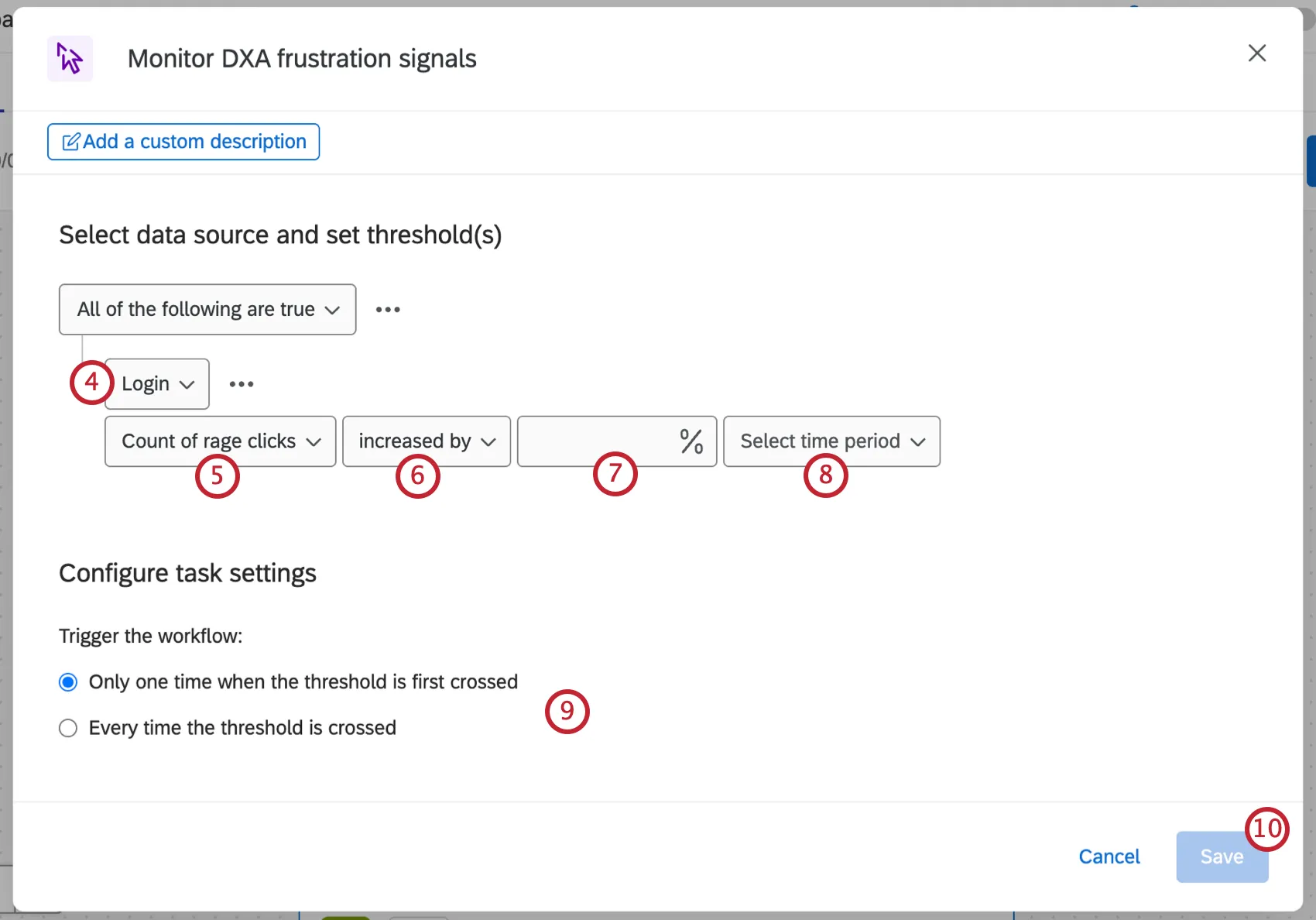
Select the frustration signal you want to track.
Attention: If you select a page tag and then try to delete that page tag from the Sessions tab, you'll see a warning that it is in use. Deleting it will break the workflow.

Determine if you want to be notified when your selected frustration signal increases or decreases.
Select what percentage of increase or decrease will trigger a notification.
Select a time period for the comparison window. You can choose between 15, 30, 60, or 90 days.
Determine if the workflow will be triggered once when the threshold is crossed, or every time the threshold is crossed.
Click Save.
Add a task to alert an individual user or a distribution list that the threshold has been met. Common tasks include:
If desired, click the plus sign ( + ) and select Add a condition to add conditions to your workflow, which determines when the workflow triggers.
Save and publish your workflow.
Snoozing Notifications
Qtip: Only a brand administrator can turn on snooze behavior for a workflow. Once enabled, it applies to everyone who receives that workflow's alerts.
Snoozing lets you temporarily silence repeat notifications for a threshold that's been triggered so you're not notified multiple times. You can set up 2 forms of snoozing:
- Once when the value crosses the threshold: You will be notified the first time the threshold is crossed, and not again until it resets.
- Every day the value is greater than the threshold: You will be notified once per day for as long as the value stays above the threshold.
A snooze will reset once the metric drops below the threshold, and you will be notified if it crosses it again. Updating the threshold value will also reset the snooze.
Qtip: Snoozing cannot be reset based on time. Snoozes can only be reset based on metrics crossing the threshold.
Managing Workflows from Your Website / App Insights Project
If you create a workflow from the Sessions tab of your Website / App Insights project, it will appear in the main Workflows tab. Deleting the workflow from your Website / App Insights project removes it from the Workflows tab as well, and vice versa. If the Website / App Insights project is deleted, any workflows created from it are deleted too.
If you create a workflow within your Website / App Insights project, you can select a pre-built template. This template contains both a Monitor DXA frustration signals task and one of the following communication tasks:
Qtip: When using this task, a new Jira ticket will be created each time the workflow runs because the threshold is crossed. If snoozing is enabled for the workflow, duplicate tickets won’t be created while a threshold remains crossed. Any additional tasks that are configured (Slack, Teams, or email) will include a link to the Jira ticket, only if they are after the Jira task in the workflow.
Qtip: Editing this template will only change your copy, and will not change the original template.
That's great! Thank you for your feedback!
Thank you for your feedback!