

Imported Data Project Record Task
What's on this page
Qtip: This page describes functionality that we intend to release starting June 3, 2026. Qualtrics may, in its sole discretion and without liability, change the timing of any product feature rollout, change the functionality for any in preview or in development product feature, or choose not to release a product feature or functionality for any reason or for no reason.

About the Imported Data Project Record Task
The Imported data project record task can be used to create new records or update existing records in an imported data project. Put simply, you can change information in existing rows of data, or add new rows.
Example: You have an imported data project that lists all of your organization’s office locations with their emergency contacts. You create a survey that office managers can fill out if they need to change the emergency contact.

Qtip: This task can only be used to update existing fields in the project. (In other words, the existing columns.) To add a new field to your imported data project, use the field editor.
Attention: When you create this task, we highly recommend using an imported data project with a unique ID field specified. Otherwise you will need to use the internally generated Record ID field.

Setting Up an Imported Data Project Record Task
Warning: We do not recommend using this task with a dataset record event. Otherwise, the task and event could keep triggering each other, causing ongoing loops.
Follow the linked instructions to create a new event-based workflow.
Configure the event that triggers your workflow. Common events to pair with this task include:
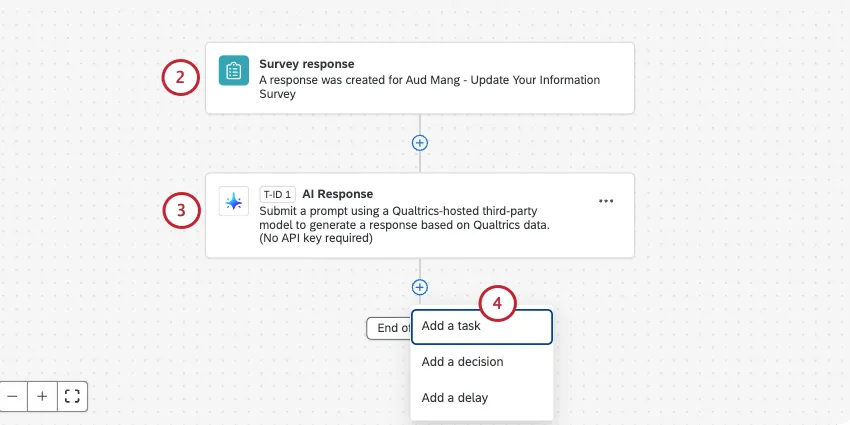
Survey response event: Start the workflow when a survey response is recorded or updated.
Experience ID event: Start the workflow when a directory contact’s data is updated.
If desired, you can add other tasks to your workflow to add their output to the record. Some examples include:
AI Response task: Use Qualtrics AI to gather insights from your data.
OpenAI task: Use third-party AI to gather insights from your data.
Code task: Use JavaScript to analyze and edit data.
Click the plus sign ( + ) and select Add a task.
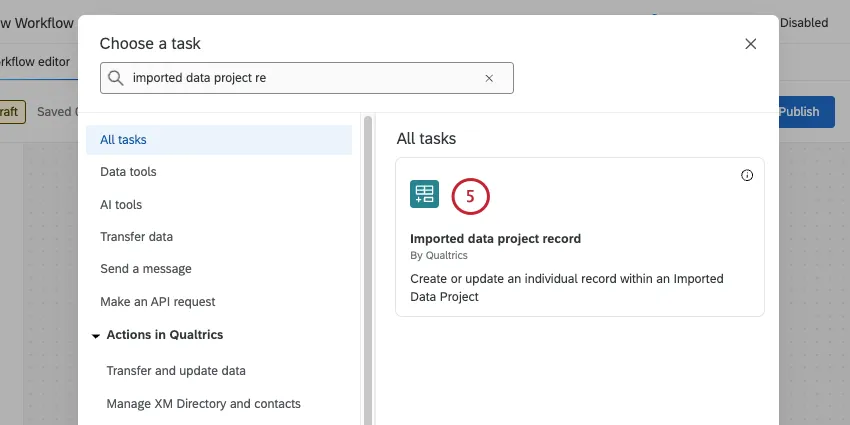
Choose the Imported data project record task.
Choose the Project that contains the record you’d like to update.
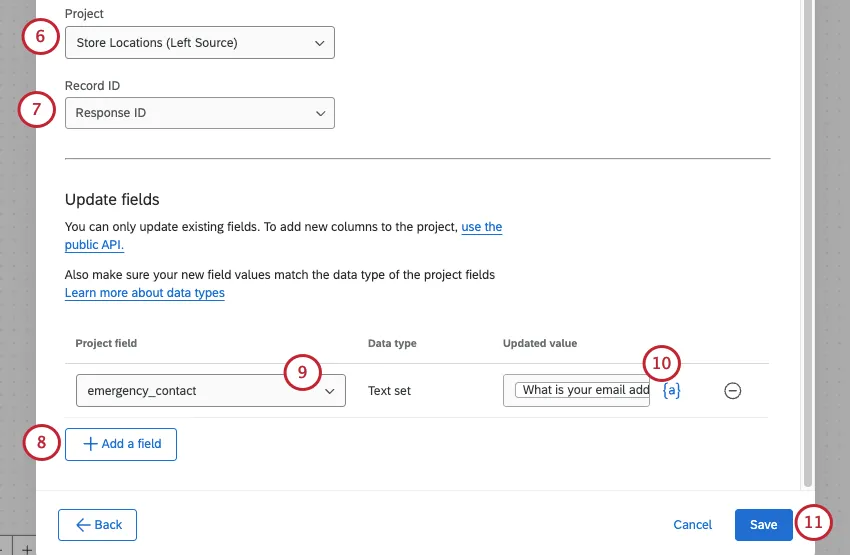
Choose a field used to identify the record.
Qtip: This could be Record ID, which is the internally generated ID, or it could be a unique ID you set during project creation.
Click Add a field.
Select the project field you’d like to update.
Use the piped text menu, {a}, to select the dynamic value you’d like to save for the field (usually the output from the intermediate task defined in step 3). Alternatively, you can hard code a value by typing it directly in the box.
Once you’ve added all of the fields you want to update, click Save.
That's great! Thank you for your feedback!
Thank you for your feedback!