

Tips & Tricks for Social Listening
What's on this page
Attention: This feature is only available to users on the new simplified pricing and packaging plans or customers who actively participated in the Preview Program for this feature. For more information, see Qualtrics Public Preview. If you have questions about your Qualtrics pricing and packaging plan, reach out to Account Services.

About Social Listening Tips and Tricks
While you are setting up social listening, you may run into some questions about social media account setup, field types, required data, or other configurations. On this support page, we try to cover some of the most common solutions, troubleshooting tips, and requirements.
Connecting Social Media Accounts to Workflows
One of the first steps when you select a social data extraction task is to connect to a social media account to Qualtrics workflows. Your organization’s Facebook or Instagram accounts can be added for a particular account, or an admin can make them widely available for other users in their license to connect with.
To connect a social media account to Qualtrics, you will need to be able to be able to personally log into that account.
Attention: To use the Instagram extraction task, your account needs to be linked to a Meta Business Account. See requirements for Instagram accounts.
Adding an Account
The following screenshots and steps to log in may vary based on the social media account you’re connecting to. However, the concepts are the same.
Qtip: These steps assume you already made a social channels project and made a workflow inside the project.

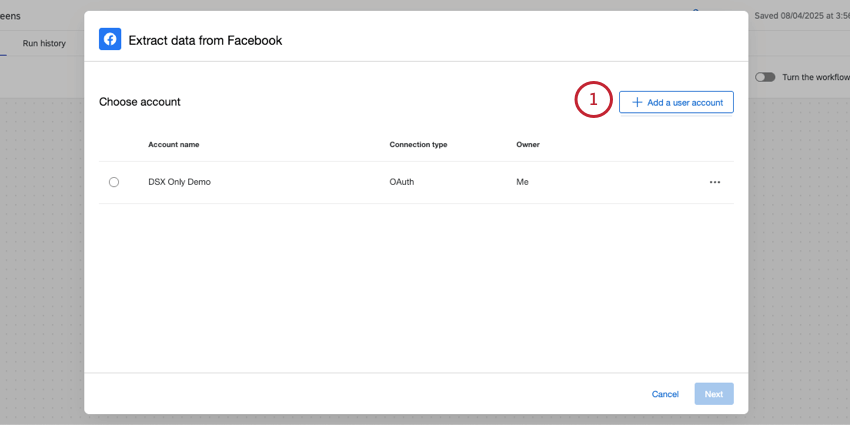
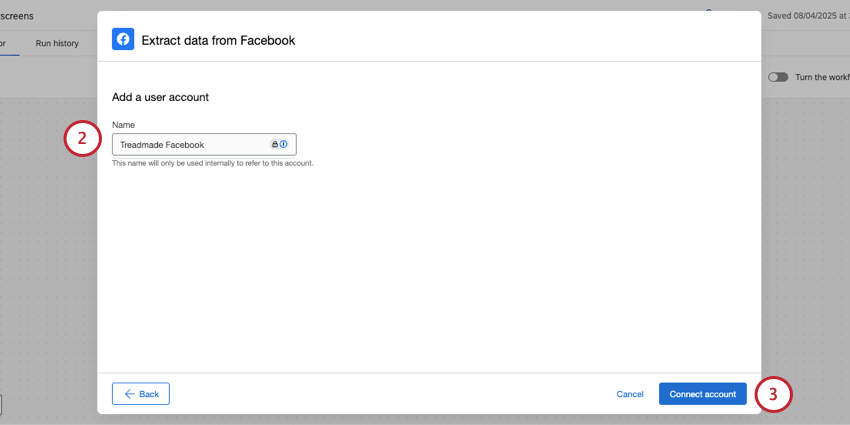
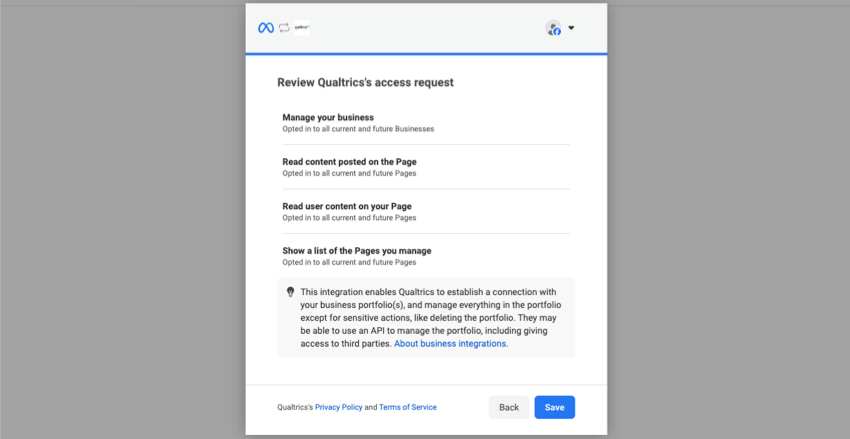
Once your connection is set up, you’ll be taken back to Qualtrics to complete your workflow task.
Adding and Managing Accounts as a Brand Administrator
If you are a Brand Administrator, you can control what Qualtrics users have access to these social media accounts so they can use them with workflows. You can also add, edit, and remove accounts as needed.
When looking for an extension with the admin tool, they’ll match the exact task name:
- Extract data from Instagram
- Extract data from Facebook
For steps, see the following support pages:
Refreshing Your Social Media Account Connection
The following screenshots and steps to log in may vary based on the social media account you’re connecting to. However, the concepts are the same.
Qtip: If you need multiple people to be able to refresh the same workflow, make sure you share the project with the Qualtrics user you want to refresh it, and make sure they have access to the Facebook login.
Qtip: You can quickly navigate to your extension account by clicking Refresh account in the Account access section of your project. From here, edit the account to refresh your account credentials.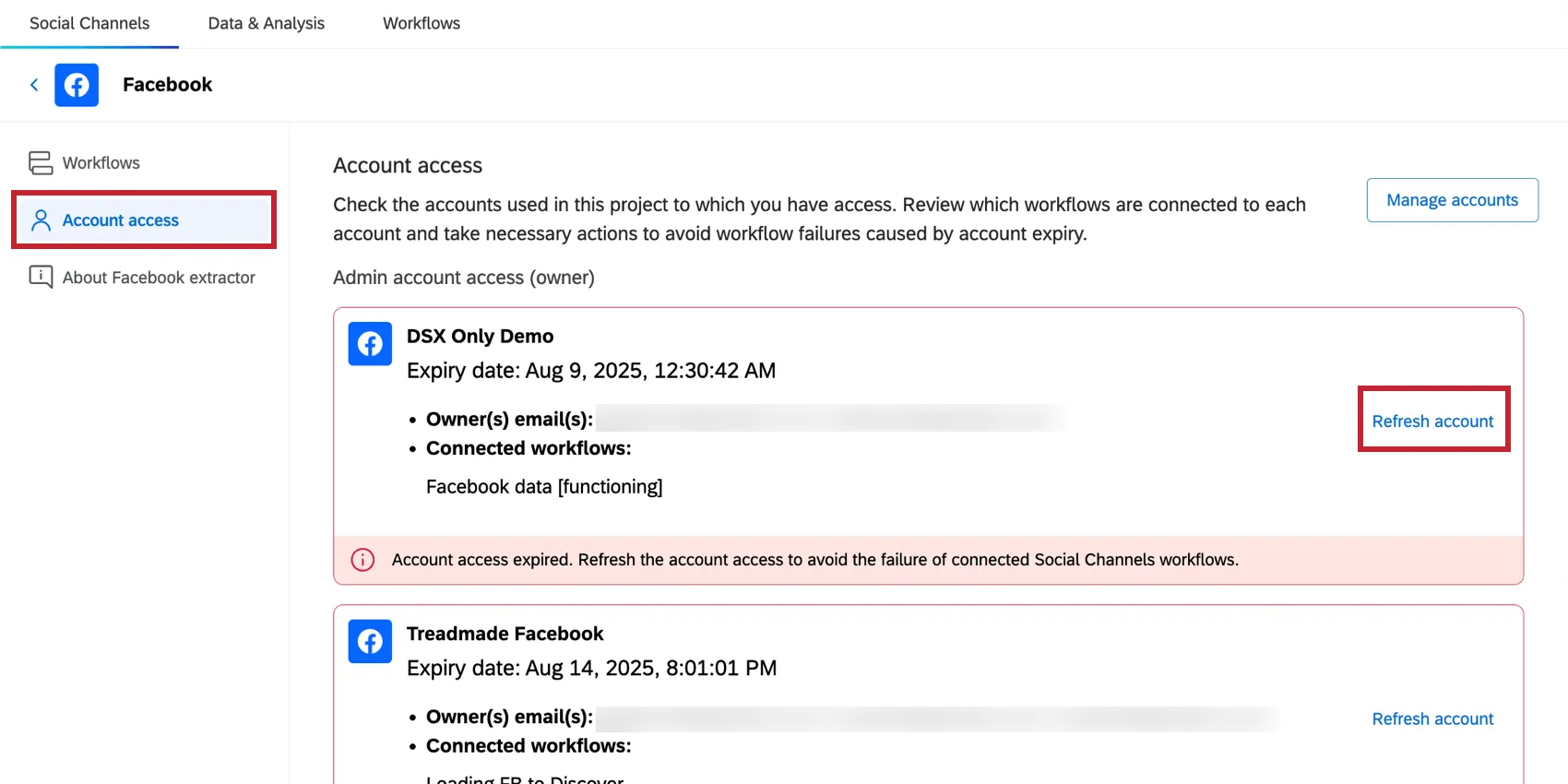
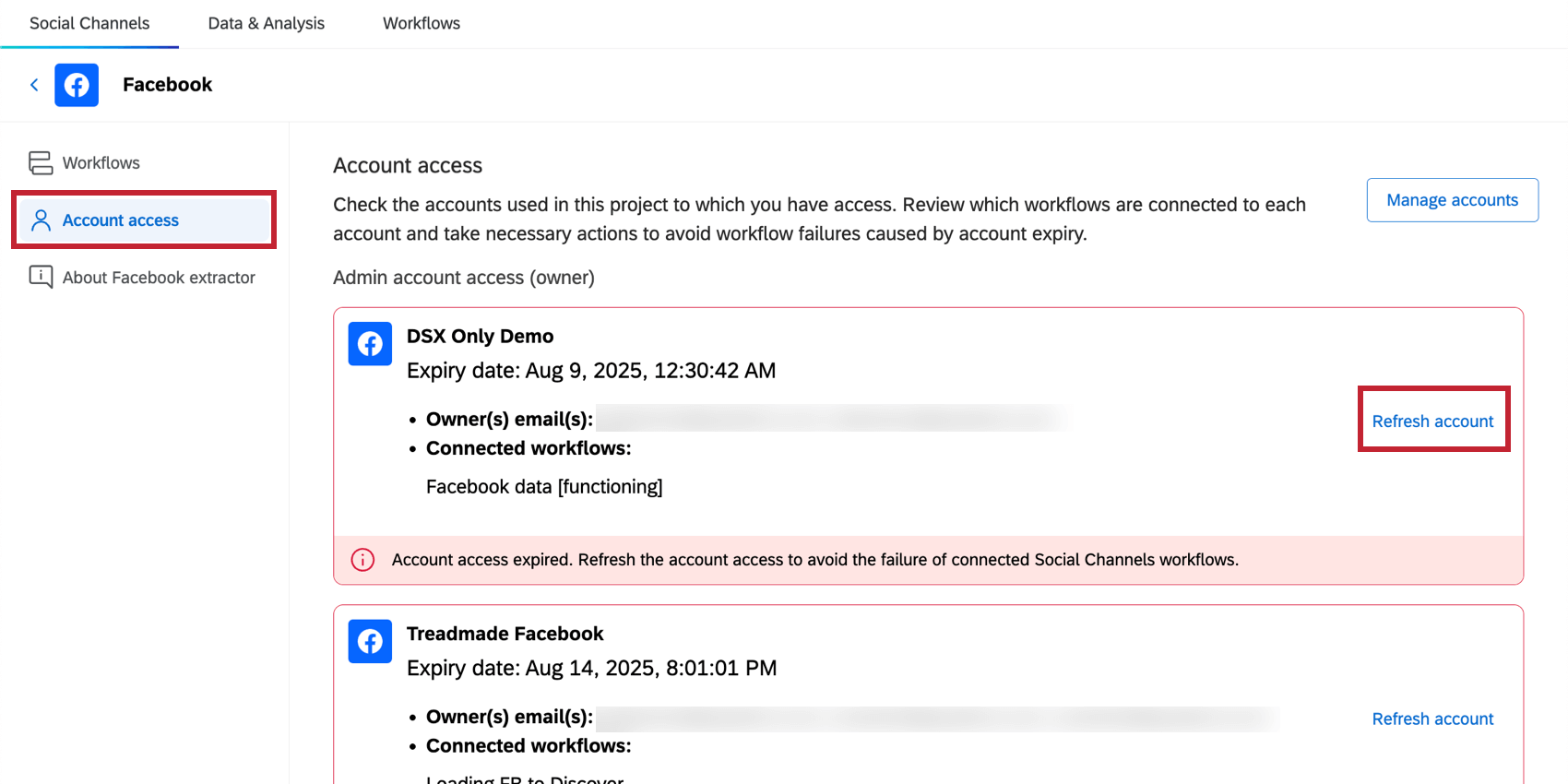
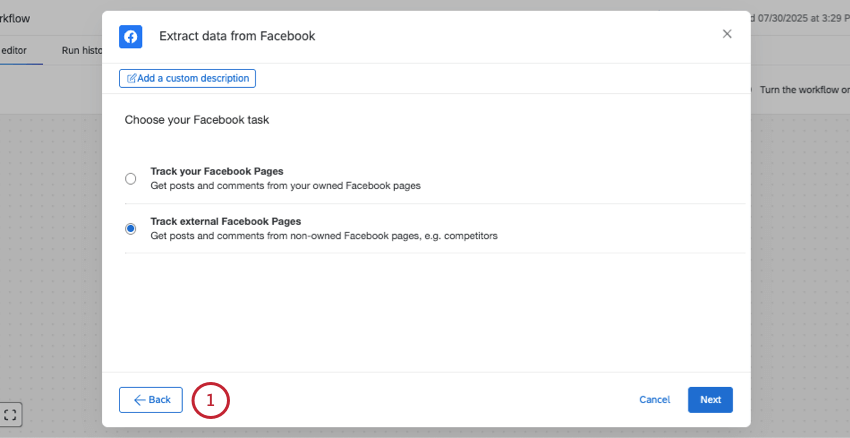
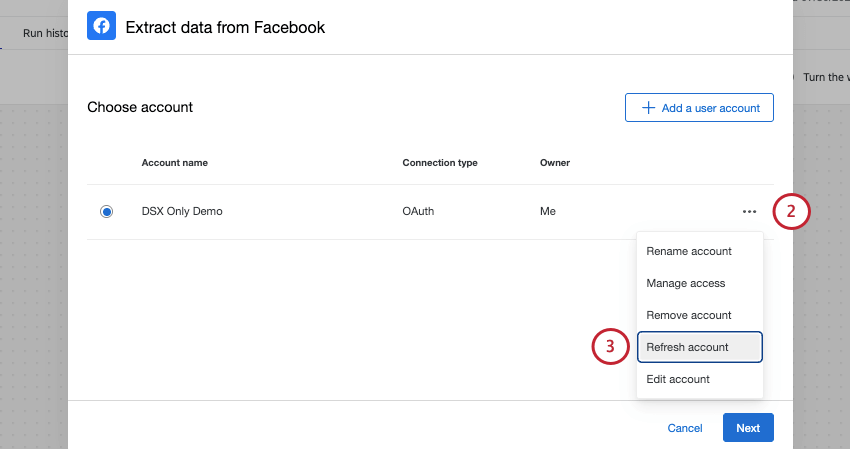
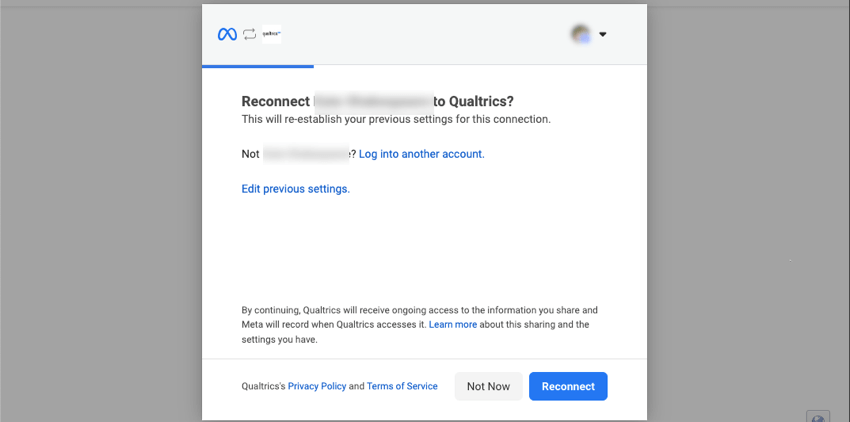
Attention: The connection between your Facebook user account and Qualtrics needs to be refreshed every 90 days. If you don’t perform this task, your Facebook or Instagram extraction may not execute and will cause your workflow to fail.
Troubleshooting Facebook Data Extraction
These are troubleshooting tips tailored to the Extract data from Facebook task.
Tracking your own profile
Every Facebook account comes with a user token rate limit. This rate limit is shared across any applications that your Facebook account is using and unknown to Qualtrics. This means Qualtrics cannot guarantee how much data you can pull from Facebook to Qualtrics.
While from the Qualtrics side, there is a limit of posts and comments that can be extracted per day, due to Facebook use token rate limits, we cannot guarantee data will not be cut off before that point.
Tracking external profiles
While there is a limit of posts and comments that can be extracted per day, we cannot guarantee that this exact limit will be pulled, due to how these records are registered with the Facebook API. For example:
- Edits to comment text are treated as entirely new comments.
- Two comments on the same post with the exact same date_created and content (including photos) will be considered the same comment.
- Posts older than two weeks are not tracked. Workflows will not capture new comments on those posts, and new comments do not result in the post being tracked again.
- When a profile you don’t own posts a comment or reply, the following fields will be empty:
- author
- author ID
- externalreferenceid
- Url
Troubleshooting Instagram Data Extraction
No Instagram Business Account profiles with access to manage
You may receive the following error message:
“No Instagram Business Account profiles found that [your Facebook account] has access to manage.”
Make sure you have met all of the account requirements listed here. After that, try refreshing your account.
Type of content
The Extract data from Instagram task can only pull information from profiles you own.
For photos, reels, and videos, Qualtrics can only pull the caption and a link to the full post. This task can also pull comments and replies to these posts, in addition to hashtags on the profile.
Qtip: Instagram post metrics (like count, reply count) are pulled when the workflow runs and are not refreshed again.
Gaps in Instagram data
Every Instagram account comes with a user token rate limit. This rate limit is shared across any applications that your Instagram account is using and unknown to Qualtrics. This means Qualtrics cannot guarantee how much data you can pull from Facebook to Qualtrics.
While from the Qualtrics side, there is a limit of posts and comments that can be extracted per day, we cannot guarantee that this exact limit will be pulled, due to Instagram use token rate limits.
Changing Tracked Hashtags
Changing the hashtags tracked by a business account requires disabling the tracking of a hashtag for a week and altering the query the following week.
To change the hashtags you track, remove it from your list of tracked tags for a week. The following week, you’ll be able to add a new hashtag.
You can remove tracked tags by editing your workflow, clicking Validate, then Save.
Qtip: This is the process for changing tracked tags regardless of whether you have hit the 30/30 limit.
Available Data from Social Accounts
Required Social Data Fields
This table has a list of all of the fields required for a social post, their field types, and descriptions. Each one of these fields appears in all data pulled from Facebook and Instagram.
The field type recommendations can be applied in the data loader and/or in the dashboard data mapper. Mapping correctly in the data loader will ensure the most accuracy.
| Field | Field type | Description |
|---|---|---|
| externalReferenceId | Text Value or Text Set | A unique ID that the social platform has assigned to the post. This field is not available for Facebook comments on profiles you don’t own. |
| content | Open Text | The full text of the mention. |
| uniqueId | Text Value | A unique ID assigned by the Qualtrics platform. This ID is unique across all social integrations. |
| source | Multi-Answer Text Set or Text Set | The website the mention was found on. For example, “Facebook.” |
| dataType | Multi-Answer Text Set or Text Set | The type of the mention. For example, “Post,” “Comment.” |
| updatedAt | Date | The date when the mention was last updated in the social platform. In UTC format. |
| createdAt | Date | The date when the mention was posted. In UTC format. |
Additional Social Data Fields by Platform
In addition to required fields, there is other information available for the social data you extract. The information included with social data varies based on the social platform the data came from.
The field type recommendations can be applied in the data loader and/or in the dashboard data mapper. Mapping correctly in the data loader will ensure the most accuracy.
Qtip: Title, sentiment, and tags are reserved fields that don’t currently apply to any of the currently supported social platforms.
| Field | Field type | Description | ||
|---|---|---|---|---|
| externalReferenceParentId | Text Value | A unique ID assigned to a parent of this mention. E.g., when the mention is commented on Facebook, the parentId will be the original post’s ID. | Yes | Yes |
| externalReferenceIdsRootPath | Multi-Answer Text Set | Unique IDs assigned to the parents of this mention. For example, if we have a Facebook comment, the path from the root is [“FacebookPageID”, “FacebookPostID”, “FacebookCommentID”]. | Yes | Yes |
| authorId | Text Value | A unique ID for the author in the social platform (e.g., Facebook userID). | Yes (owned profiles only) | Yes |
| author | Text Value | The nickname, username, or full name of the person who posted a mention. The name depends on the site it is from. | Yes (owned profiles only) | Yes |
| url | Text Value | The URL of the mention. | Yes (owned profiles only) | Yes (owned profile post and comments only) |
| language | Multi-Answer Text Set or Text Set | The shortcode for the language in which the mention was written. | No | No |
| shareCount | Numeric Value | The number of times that the mention has been shared in the social platform. For example, the number of retweets on X.com, or the number of shares on Facebook. | Yes (values are not refreshed) | Yes (only available for owned content; values are not refreshed) |
| impressionCount | Numeric Value | The number of viewers of an X.com post. | No | No |
| likeCount | Numeric Value | The number of likes a post has received. | Yes (values are not refreshed) | Yes (values are not refreshed) |
| replyCount | Numeric Value | The number of comments under the mention. | Yes (values are not refreshed) | Yes (values are not refreshed) |
| trackedEntity | Text Value | References the profile, hashtag, or search query associated with a given social mention. For example, if we track the “Qualtrics” Facebook page, this field value would be “Qualtrics.” | Yes | Yes |
| threadID | Text Value or Text Set | A unified unique ID that is shared across the post and all comments and replies underneath it. | Yes | Yes |
FAQs
Why are some of the comments/replies missing from my dashboard?
Why are some of the comments/replies missing from my dashboard?
- Qualtrics pulls posts and comments from the last 14 days for Instagram. If the comments are older, they may have been excluded.
- The workflow prioritizes the most recent data. Depending on the amount of traffic on targeted pages and profiles, this means older comments may not be pulled at first, and it may take a few workflow runs before they are available within Qualtrics for analysis.
- Due to volume and API limits, only a certain amount of data can be pulled into Qualtrics at a given time. Some of these are Qualtrics-imposed limits, while others are due to Facebook or Instagram’s API token rate limits. Unfortunately, while we can help with Qualtrics-related limits, we are not able to retrieve your Meta accounts’ limits.
That's great! Thank you for your feedback!
Thank you for your feedback!