

Social Channels Projects
What's on this page
Attention: This feature is only available to users on the new simplified pricing and packaging plans or customers who actively participated in the Preview Program for this feature. For more information, see Qualtrics Public Preview. If you have questions about your Qualtrics pricing and packaging plan, reach out to Account Services.

About Social Channels Projects
Social channels projects were designed to fulfill your social listening needs. Create exclusive workflows to extract data from platforms like Facebook and Instagram, then store that data in your project for further analysis. While the entire, end-to-end program setup can be found on Social Listening, this page focuses more on how to navigate and share your social channels project.
Qtip: When searching for this type of project on the Projects page or the Catalog, the exact name is Social Channels.


Navigating Social Channels Projects
Social channel projects have 3 main tabs:
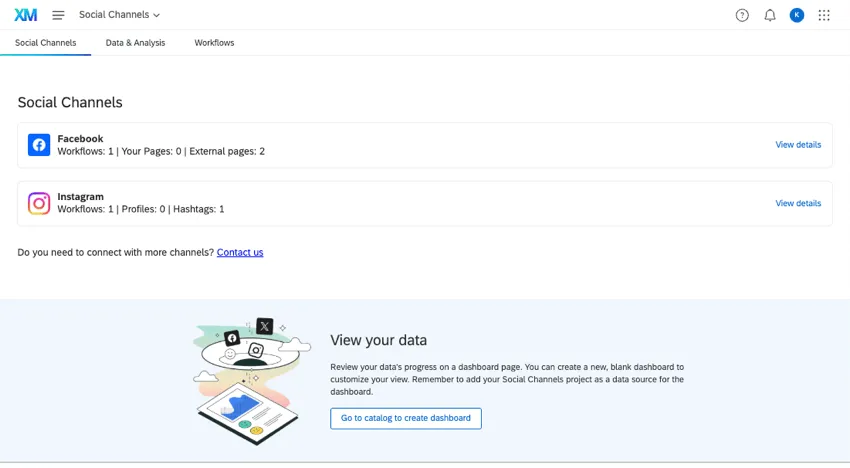
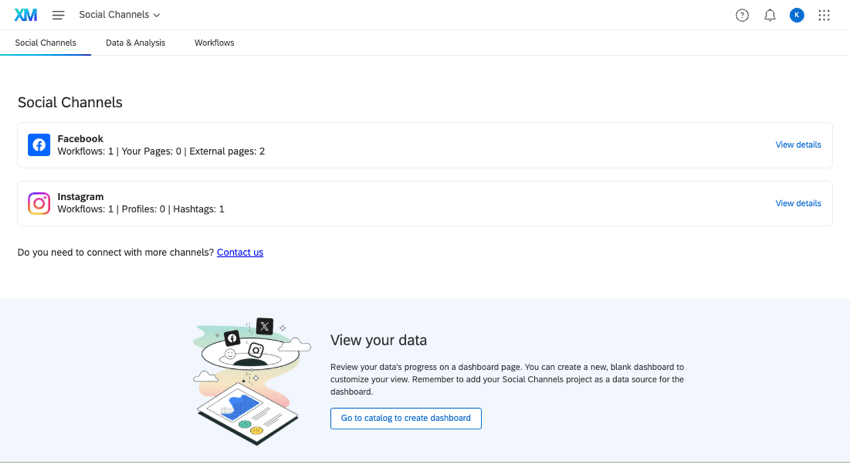
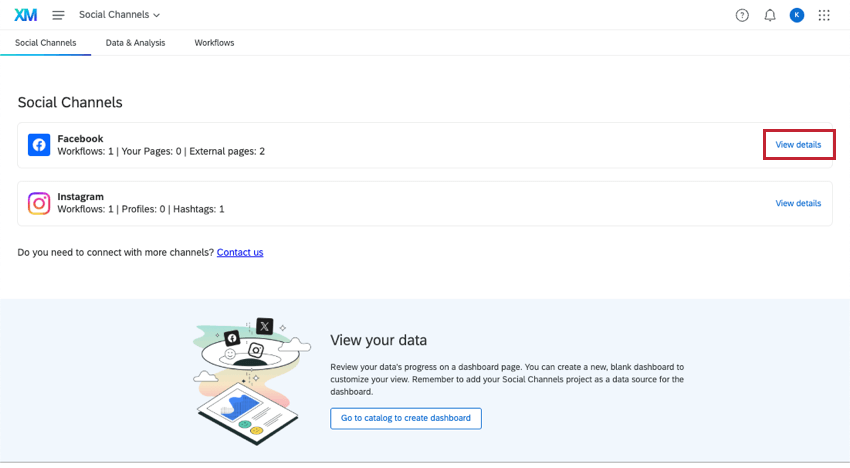
- Social Channels: This is the homepage of your project. Here, you can see all of the channels you’re currently connected to, and view more information about their limits. You can also use the button at the bottom to create a dashboard project.
For more, see the following resources: - Data & Analysis: As your workflows pull social data, those posts and comments will appear in this tab. Use this space to browse data and perform introductory analysis.
- Workflows: Use this tab to set up automations called “workflows,” which work by extracting data from social platforms on a regular schedule of your choice.
Limits on Social Data Extraction
Qtip: If you’re interested in increasing your daily limits for these features, please reach out to your Technical Success Manager.
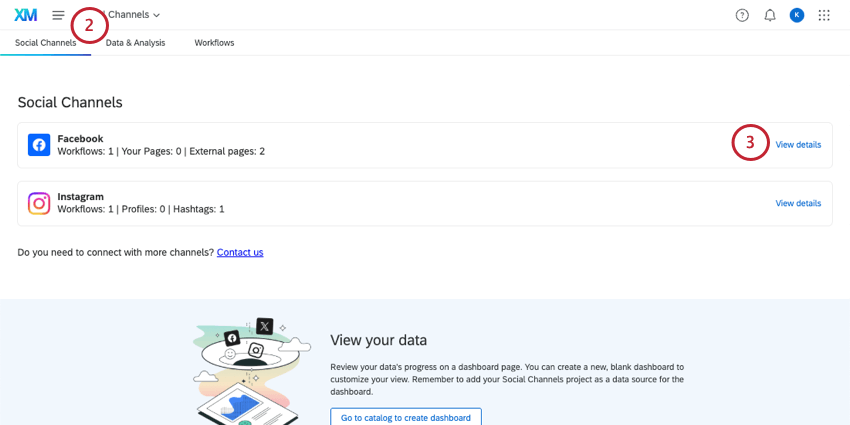
Regardless of whether you plan to pull data from Instagram, Facebook, or any other social platform, Qualtrics workflows have limits of what they can pull in a day. To find those limits and how close you are to meeting them, do the following:
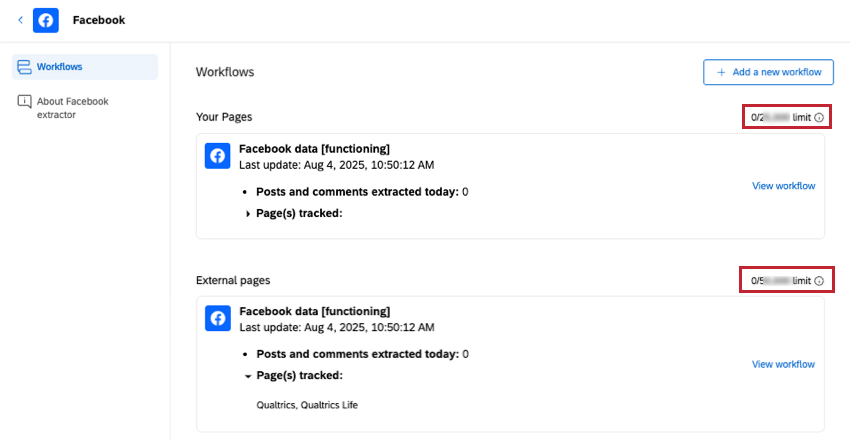
These numbers represent the overall daily limit for social posts that can be extracted for one social account. Your progress towards this limit is also shown.
Qtip: Daily job limits reset at midnight in the UTC time zone, regardless of your user account’s time zone.
Social Extractor Details
You can view more details about a social data extractor by clicking View details next to it.
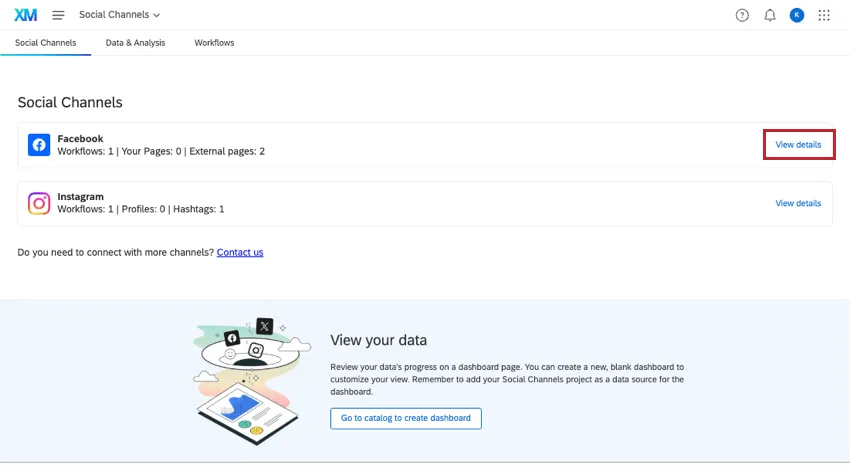
On the details page of a social channel, you’ll see 3 different sections:
- Workflows
- Account access
- About
Workflows
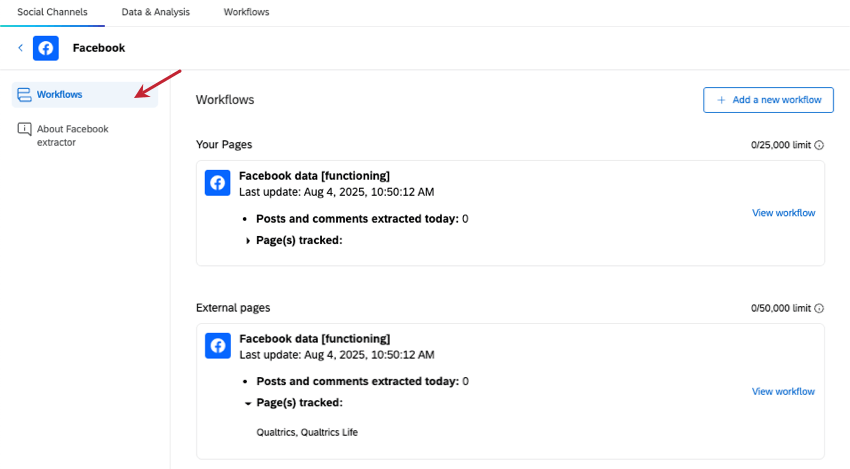
In the Workflows section, you can:
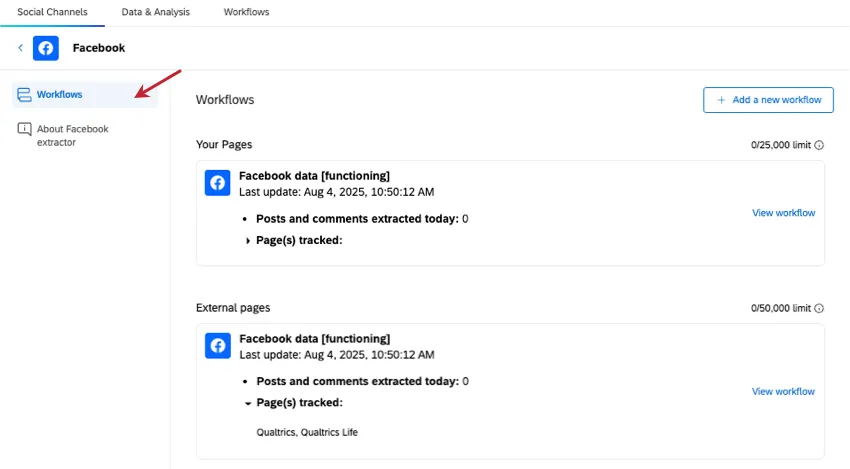
- Click the Add a new workflow button to create workflows.
- View summaries of created workflows listed under each tracking type, including:
- Last updated date and time.
- Number of posts/comments extracted that day.
- Names of extracted social profiles.
- Use the view workflow button to navigate to and edit specific workflows.
Account Access
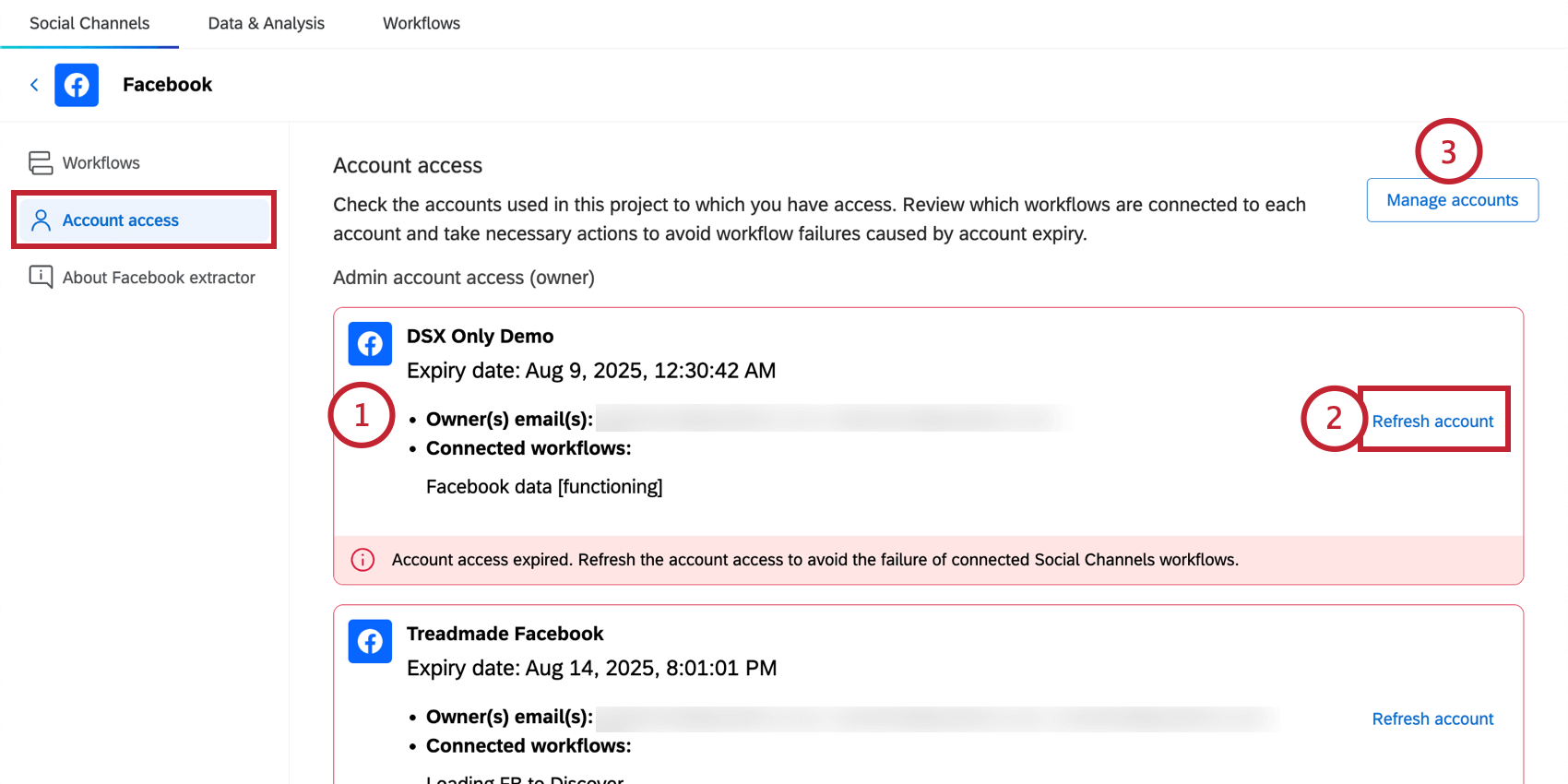
The Account Access section allows you to check the accounts that are used in the project that you have access to (either as an owner or read-only access). Here, you can review which workflows are connected to each account and refresh any connections, if necessary.
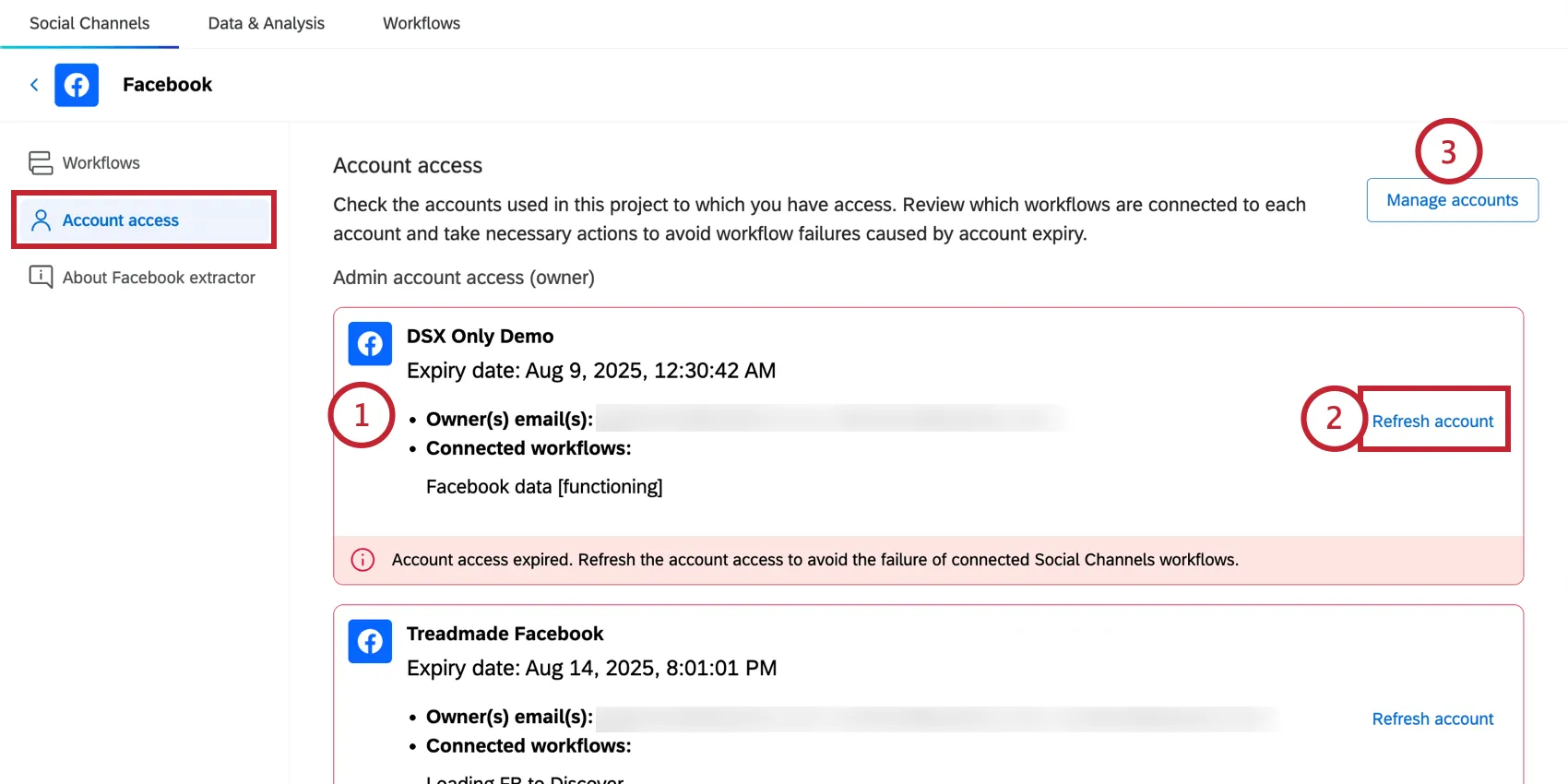
- Account name
- Expiration date
- Owner(s) email address(es) Qtip: Owner email is hidden if you have read-only access.

- Name of workflow connected to account
- Warning message if account access is expired
Qtip: If you have read-only access, this button will say “See workflows list” instead. You can click this to be brought to the Workflows page, where you will be able to see who owns the workflow, allowing you to contact them letting them know the account is expired.
Qtip: If you are an account owner, you will receive email and in-product notifications before your account expires. You will be notified 7 days, 3 days, and 1 day before expiration.
About the Extractor
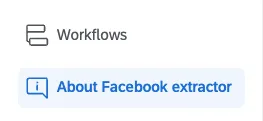
Under these social channel details, you’ll also see an “About” page; for example, “About Facebook extractor.” This page can vary by social channel, but generally contains information about the extractor’s formatting requirements and limits.
Data & Analysis in Social Channel Projects
As your workflows pull social data, those posts and comments will appear in the Data & Analysis tab. Use this space to browse data and perform introductory analysis. Here’s the functionality you can expect in this tab, with links to the appropriate support pages:
- Editing Responses
- Export Data
- Re-Import Data Qtip: The option to re-import data allows you to edit data that’s already in your project. You cannot import new social data using the Data & Analysis tab, and must instead use workflows to extract data from social sites.Qtip: Unique IDs are automatically assigned in social channel projects. You can find the unique ID for a particular response by exporting or viewing your data and checking under uniqueId.
- Recorded Responses
- Filtering Responses Qtip: Filters in Data & Analysis do not transfer to the dashboard, or vice versa.
- Field Editor Qtip: Want to add new fields or change a field type before you even start building a dashboard? You can do that in the field editor!
Using the Workflows Tab
Workflows extracting data from social channels, like Facebook and Instagram, can only be created in your social channels project. But once they exist, you can access them in your project’s Workflows tab, or with your stand-alone global workflows.
You can also create and customize workflows from this page. Below, we’ll show how you can make a workflow without the guided flow you see on the main Social Channels tab of our project.
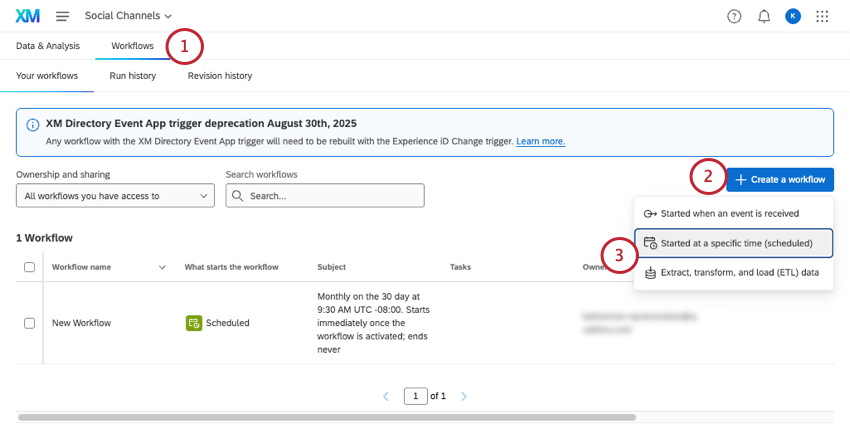
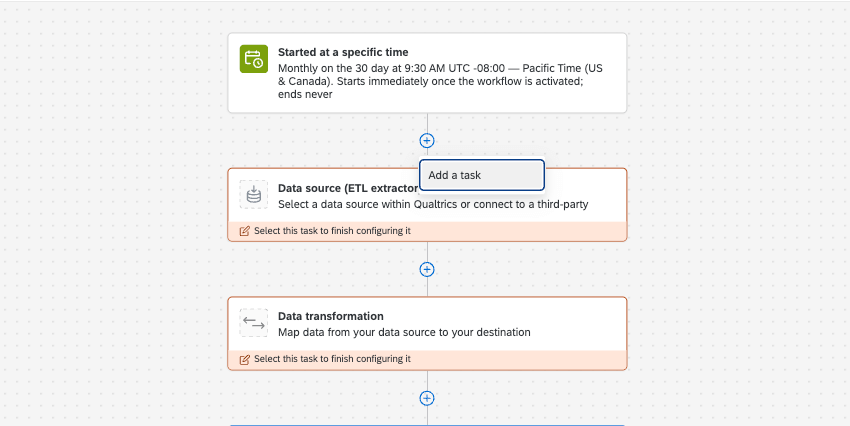
Qtip: You will also be able to immediately run the workflow after it’s created, if you choose.

Inviting Collaborators to Social Channels Projects
You can invite other Qualtrics users to create and edit your social channels project.
Collaboration works the same with social channel projects as it does with reputation management projects. For steps, see this page on collaboration.
Qtip: Remember to make sure your collaborators have the correct user permissions to use social channel projects.
FAQs
Why are some of the comments/replies missing from my dashboard?
Why are some of the comments/replies missing from my dashboard?
- Qualtrics pulls posts and comments from the last 14 days for Instagram. If the comments are older, they may have been excluded.
- The workflow prioritizes the most recent data. Depending on the amount of traffic on targeted pages and profiles, this means older comments may not be pulled at first, and it may take a few workflow runs before they are available within Qualtrics for analysis.
- Due to volume and API limits, only a certain amount of data can be pulled into Qualtrics at a given time. Some of these are Qualtrics-imposed limits, while others are due to Facebook or Instagram’s API token rate limits. Unfortunately, while we can help with Qualtrics-related limits, we are not able to retrieve your Meta accounts’ limits.
That's great! Thank you for your feedback!
Thank you for your feedback!