

Single-Instance Incentives
What's on this page
Warning: We recommend you take extra care when setting up surveys that involve incentives (e.g., with incentives described on this page, setting up anonymous raffles, or setting up your own incentive survey). Using the correct settings and configuration is essential to ensure that the incentives are restricted to your intended respondents. Without appropriate settings, it may be possible for people to take advantage of your survey distributions and claim the incentives. Please carefully review the settings you can use to protect your survey on the Security Survey Options page.

About Single-Instance Incentives
Incentives are a great way to increase respondent engagement and improve response rates. As the name suggests, single-instance incentives are only set up for one survey at a time. They allow you to reward your respondents for participating in your survey.
Currently, you can add incentives to your survey by integrating with:
BHN Task
Qtip: If you don’t see the BHN task, contact your Brand Administrator to make sure they’ve installed the extension.

Attention: The BHN task is not supported on FedRAMP brands because it does not meet FedRAMP certifications.
BHN Rewards (formerly known as Rybbon) helps you reward your survey takers with incentives. To use the Qualtrics-BHN integration, select the BHN Rewards task when setting up your workflow. You can click the information icon on the task to view support documentation and contact information for getting help.
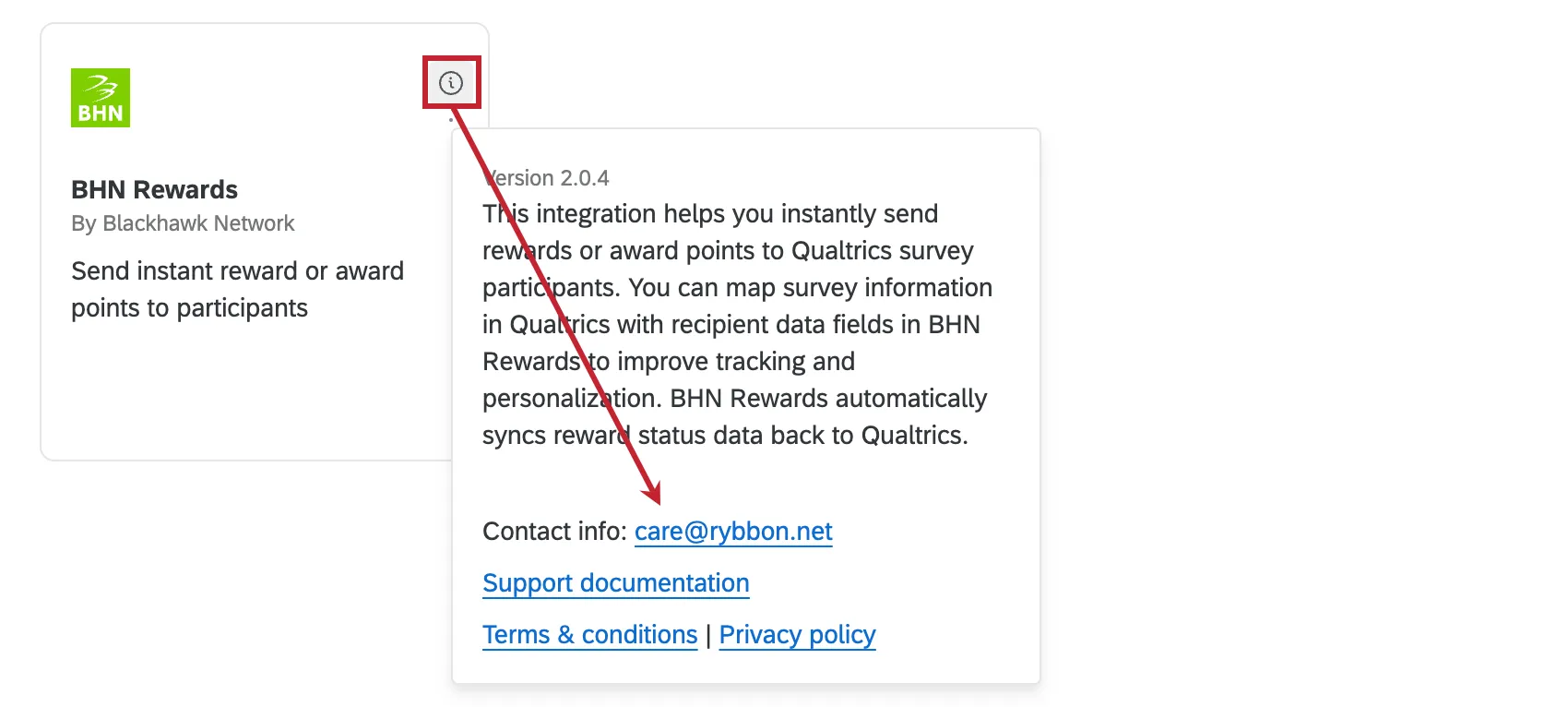
For more information on setting up the Qualtrics-BHN integration, see this BHN support page.
Tango Task
Qtip: If you don’t see the Tango task, contact your Brand Administrator to make sure they’ve installed the extension.
Attention: The Qualtrics-owned Tango Card task was replaced with the Tango task described here, which is a third party extension owned by Tango.
Tango helps you reward your survey takers with incentives when completing your survey. To use the Qualtrics-Tango integration, select the Tango task when setting up your workflow. You can click the information icon on the task to view support documentation and contact information for getting help.
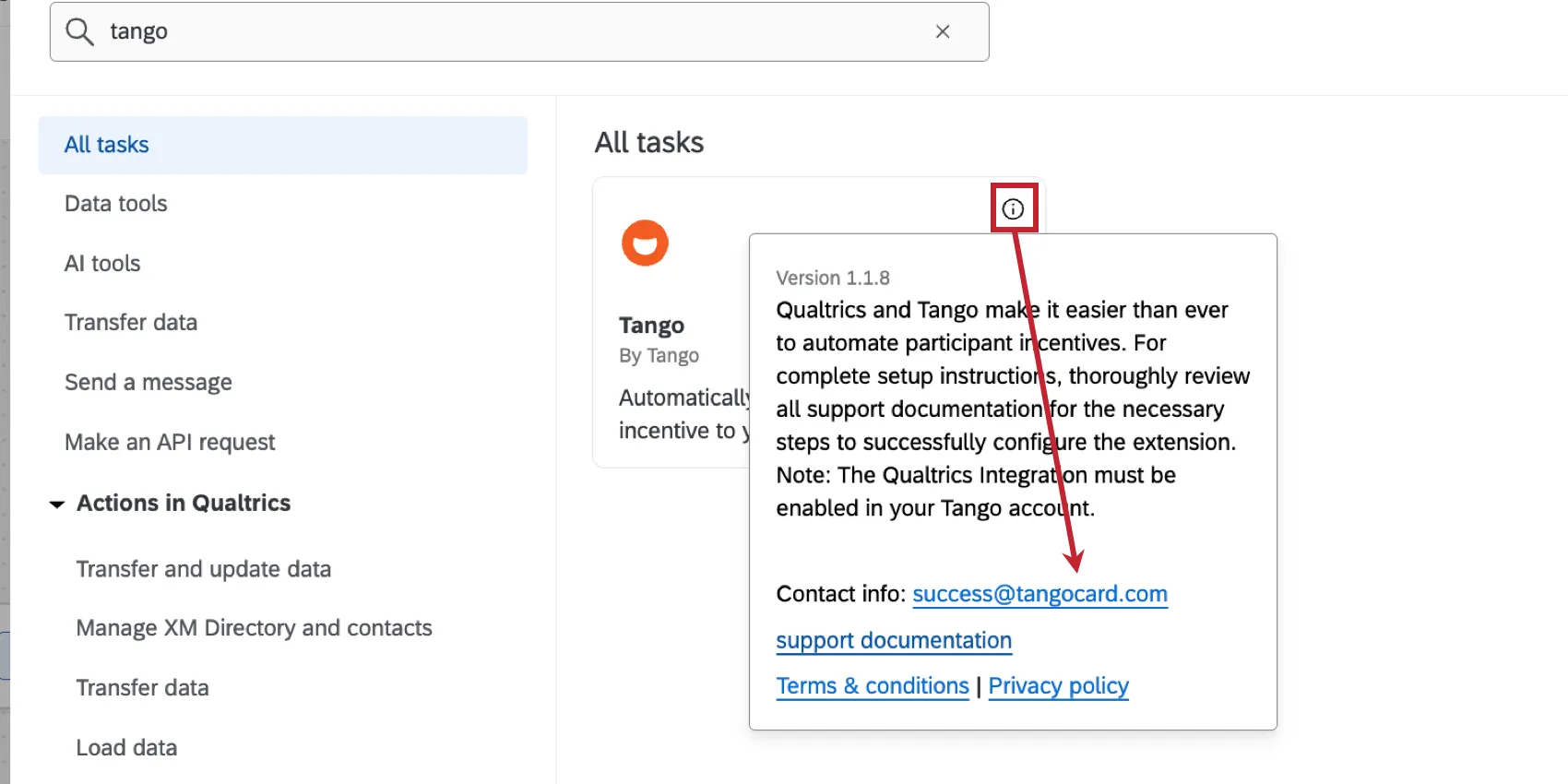
For more information on setting up the Qualtrics-Tango integration, see this Tango support page.
FAQs
Is there a minimum amount of incentive I have to include?
Is there a minimum amount of incentive I have to include?
Can users award incentives retroactively?
Can users award incentives retroactively?
What are workflows? / Where are actions?
What are workflows? / Where are actions?
There are no changes to workflow functionality as part of this update.
How can I tell the difference between first party and third party extensions? Where do I go for support for either kind?
How can I tell the difference between first party and third party extensions? Where do I go for support for either kind?
How do I add or remove an extension from my Qualtrics account?
How do I add or remove an extension from my Qualtrics account?
That's great! Thank you for your feedback!
Thank you for your feedback!