

Teams & Ticket Assignment
What's on this page
Attention: You are reading about a feature that is not currently available for all clients. If you’d like more information or to purchase access, talk to your Account Executive.

About Teams & Ticket Assignment
Your team consists of other individuals who are assigned to the same role as you. This allows administrators to set up teams of users to work on tickets. This also allows supervisors to check on the status of tickets for members of their entire team to see how they are doing.
Reassigning Tickets
Users can assign any ticket to users in their brand.
Attention: To reassign tickets, the Access Organization Address Book permission must be enabled.
Qtip: When a ticket is reassigned, the ticket will be owned by both the individual user and the team.

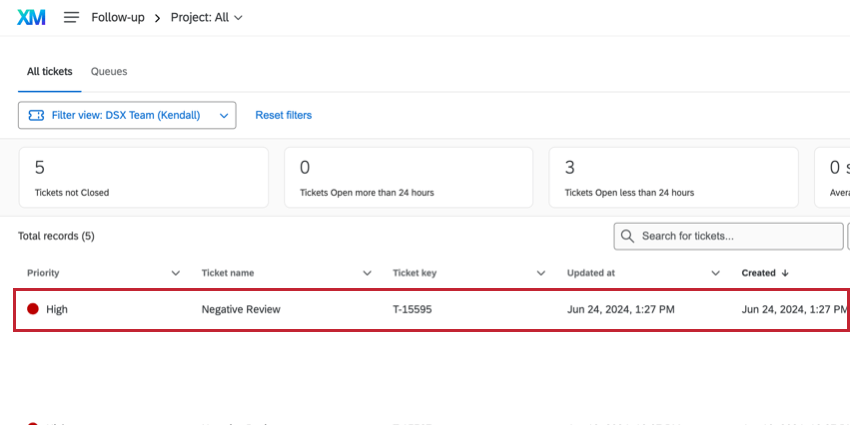
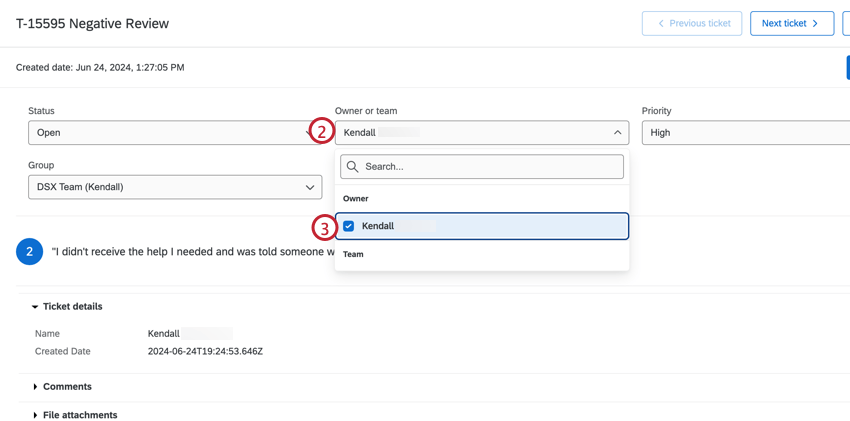
Attention: When ticket forwarding is enabled, tickets are reassigned automatically. Ensure that ticket forwarding is not interfering with your ticket before reassigning an owner.
Qtip: If your ticket has been assigned to a group, then you can make it so that when you search for users to assign the ticket to, only members of that group appear. This can help you from accidentally assigning a ticket to someone outside the specified group. (Brand Administrators and Tickets Admins will be able to reassign tickets to anyone they want, regardless of the ticket group.) To get this ticket group feature enabled, reach out to Account Services.
Qtip: You can add or view comments on the ticket by clicking the Comments section.
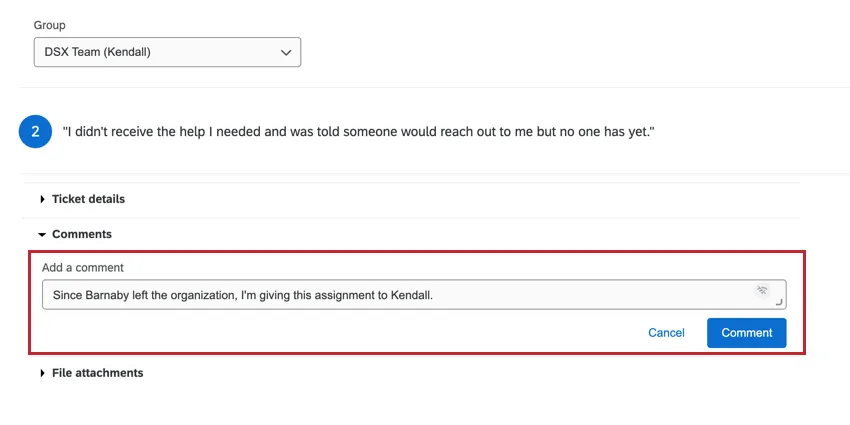
Reassigning Tickets to Individual Users & Teams
When reassigning tickets, please keep the following in mind:
- A ticket can be assigned to a team, an individual user, or both a team and an individual user.
- Once a ticket has been assigned to an individual user, it always needs to be assigned to an individual user. You can assign the same ticket to a team as well, but it will also have an individual owner. You can still reassign the ticket to a different individual user.
Manage Teams
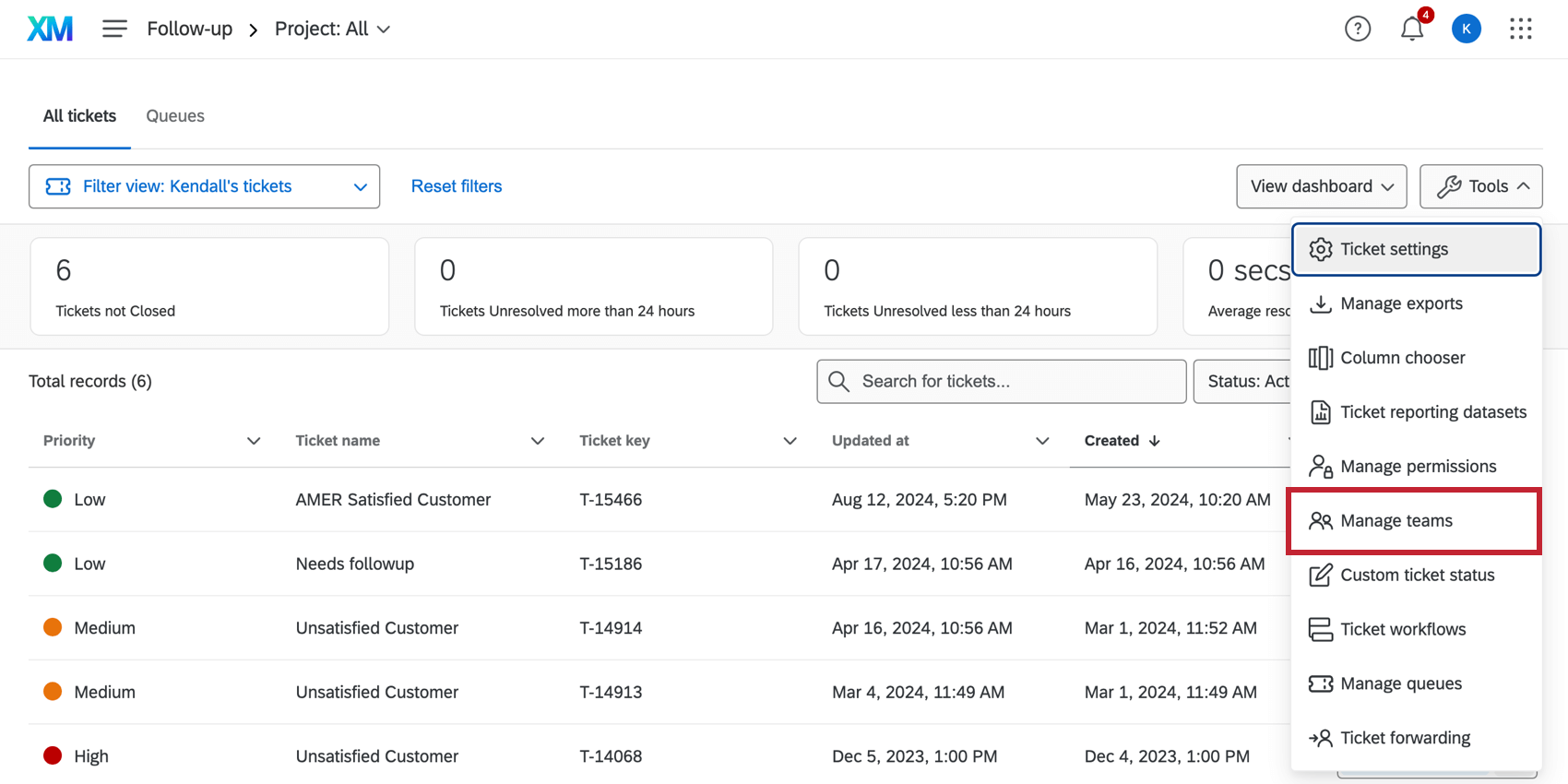
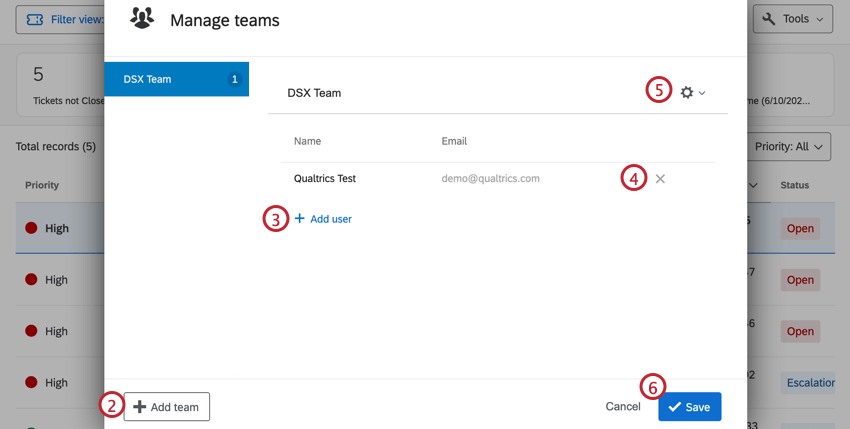
In addition to single users, you can also assign your ticket tasks to a team of users. When Brand Administrators go to the Follow-Up page, they can create these teams and manage who belongs to them.
Qtip: If you have access to CX Dashboards, tickets teams are the same as user roles in CX Dashboards. Contact your Brand Administrator or your Qualtrics Account Executive if you are unsure about your account access.
Changing Ticket Statuses
Users can change the status of a ticket if the ticket is assigned to them or their team. Administrators can change the status of any ticket regardless of assignment.
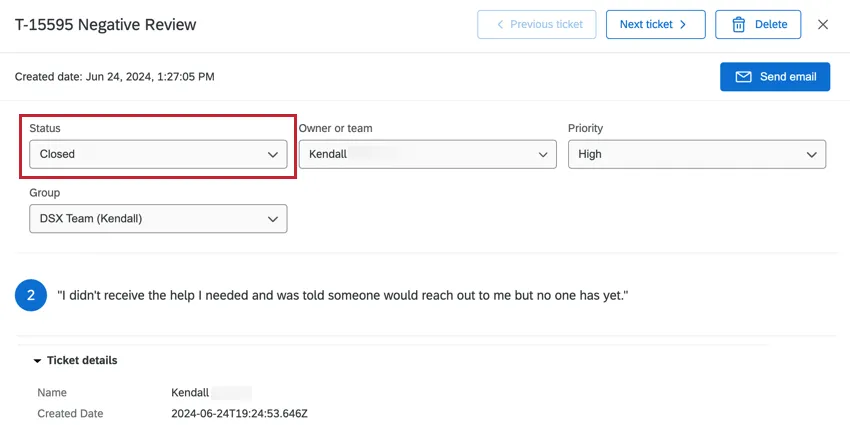
To change the status of a ticket, click on the box under Status and change it to the desired status.
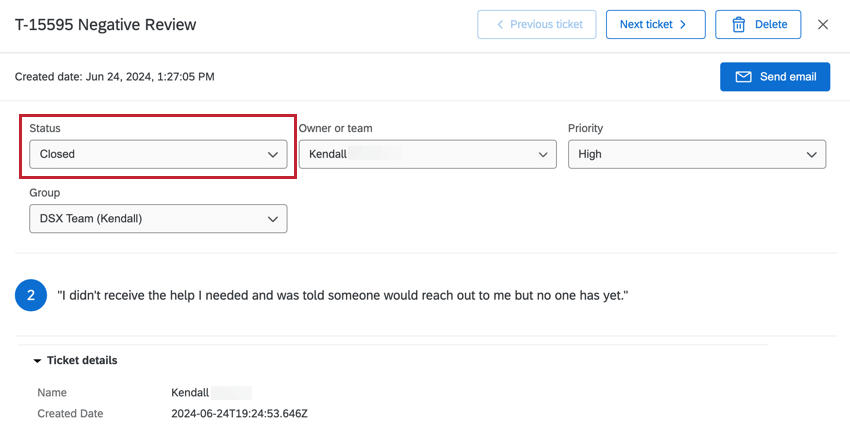
Qtip: Some tickets have custom settings that require you to add additional information to the ticket before you can change the status to Closed. In this case, be sure to carefully read the instructions!
Dynamic Ticket Assignment
Tickets are usually assigned to just one user or team at a time. However, it is possible to assign tickets to users or teams based on Embedded Data that you set in the Survey Flow. This way, you can build a series of dynamic conditions in the Survey Flow off which you assign tickets.
See the Dynamic Ticket Assignment page for instructions on how to set this up. This workflow requires that Tickets Task and the Survey Flow be modified.
That's great! Thank you for your feedback!
Thank you for your feedback!