

Page Breaks
What's on this page
About Page Breaks
By default, your survey questions will be displayed together on 1 page, but breaking your survey into multiple pages can help prevent survey fatigue and improve your respondents’ experience.
Adding Page Breaks Manually
Once you are inside the Builder section of the Survey tab, there are 2 ways to manually add page breaks.
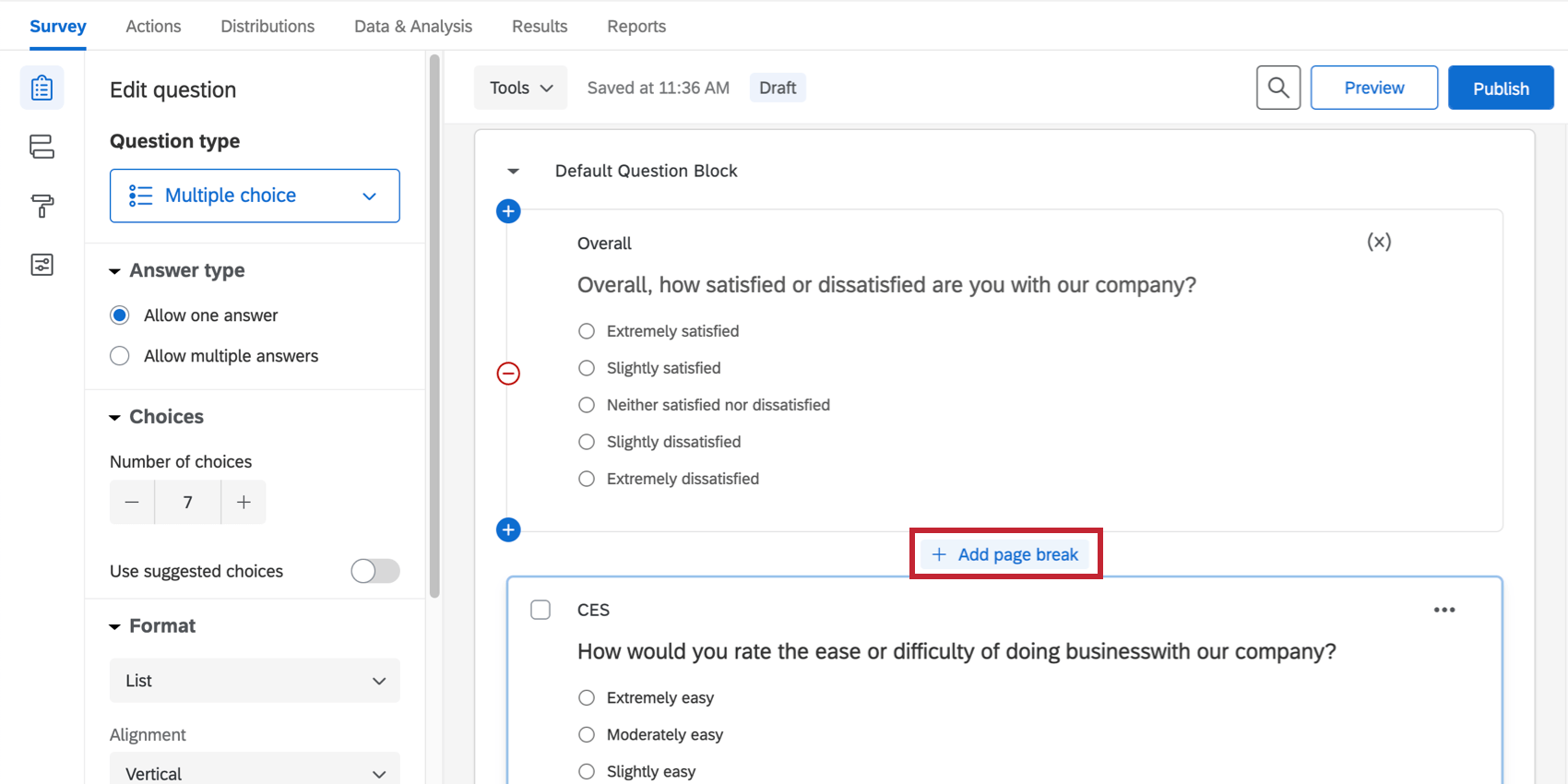
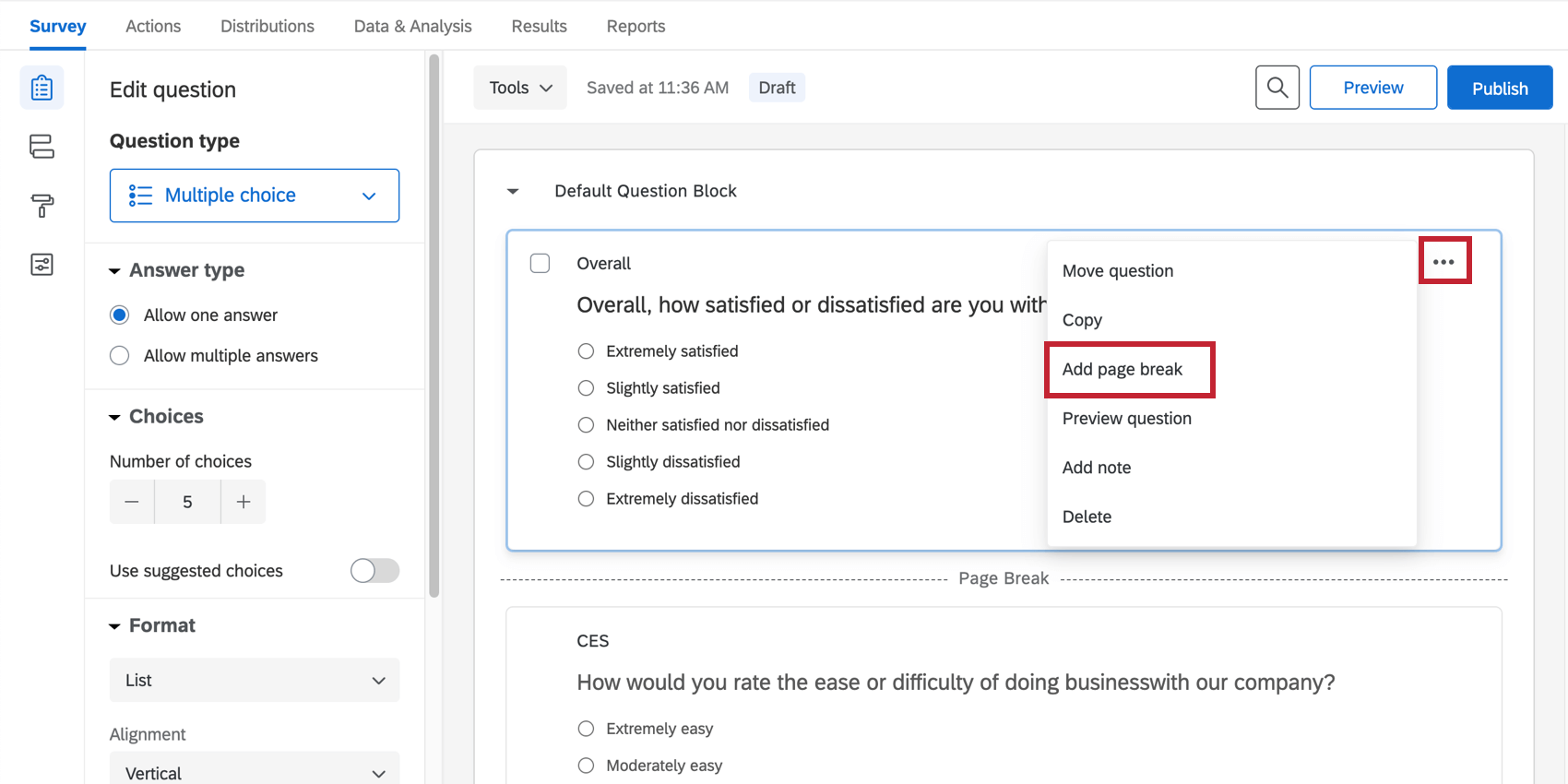
The questions above the page break will appear on one page, and the questions below the page break will appear on the next.
Qtip: To delete a page break, hover your mouse over the page break and click the red minus button. As with questions and blocks, you can also click and drag the page break to move it to a different location in your survey.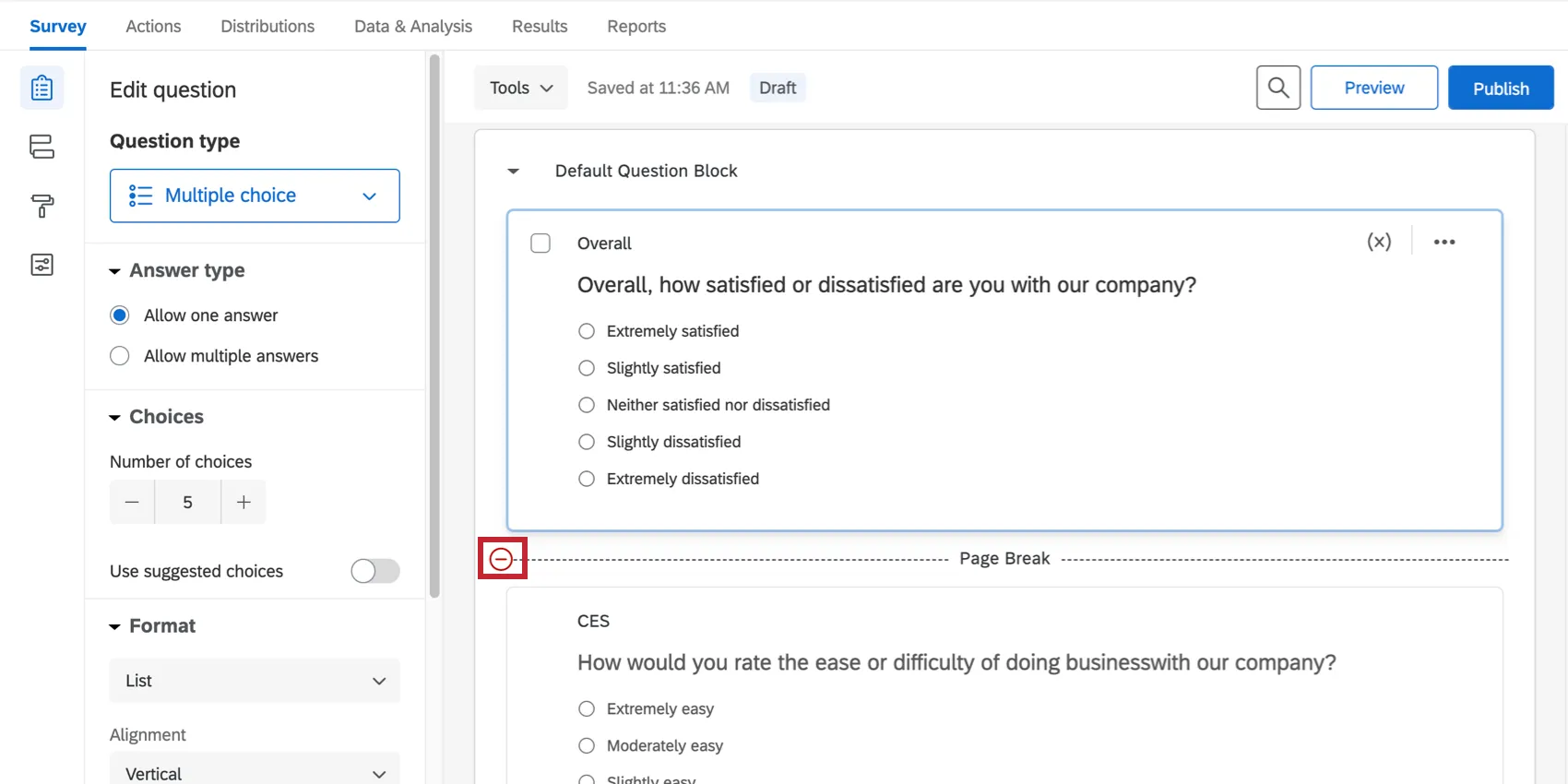

Adding Page Breaks Automatically
Instead of adding page breaks manually for large surveys, you can use the Questions Per Page option in the Look and feel menu. Click on the General tab and specify how many questions per page you want in your survey.
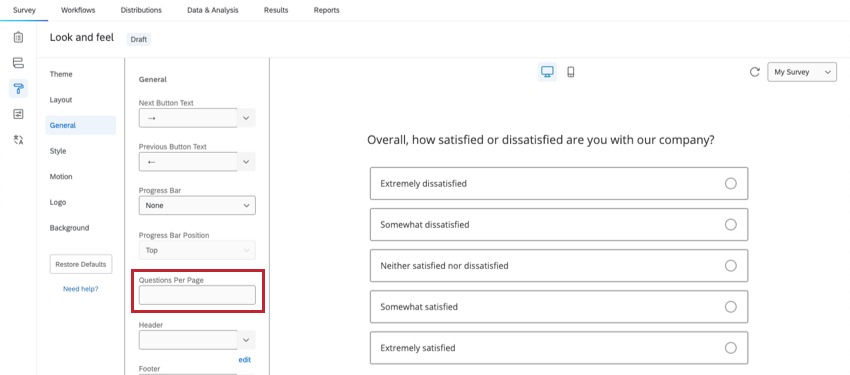
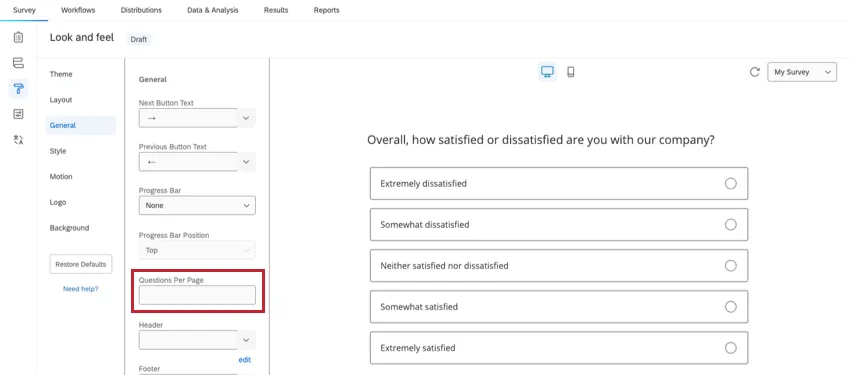
Qtip: Be aware that if you add a questions per page limit of 1, a page break will be inserted after every question. If you would like your survey to vary with some pages containing more questions than others, you’ll want to manually insert your page breaks throughout the survey.
Using Page Breaks with Other Features
Understanding how page breaks interact with other features within Qualtrics can be helpful when designing your survey.
- Piped Text: If an instance of piped text refers to an answer in a previous question, then you need to place a page break between those questions. If there is no page break, the piped text won’t pull in any information and will instead appear blank.
- Blocks: Page breaks automatically occur between blocks.
- Skip and Display Logic: Page breaks automatically occur between questions when using skip logic or display logic.
Qtip: In some instances, you can use in-page display logic to avoid having a page break between questions with display logic.
- Timing Questions: The timing question type records how long respondents spend on a page, so timing questions must be on the same page as the questions they are timing. If you are using timing questions, you won’t want to set automatic page breaks in the Look and feel menu, and should use manual page breaks or blocks instead.
Adding Page Breaks to Different Project Types
Page breaks can be added to just about every type of project where you customize a survey. The options described on this page are available in:
That's great! Thank you for your feedback!
Thank you for your feedback!