

Autocomplete Questions
What's on this page
About Autocomplete Questions
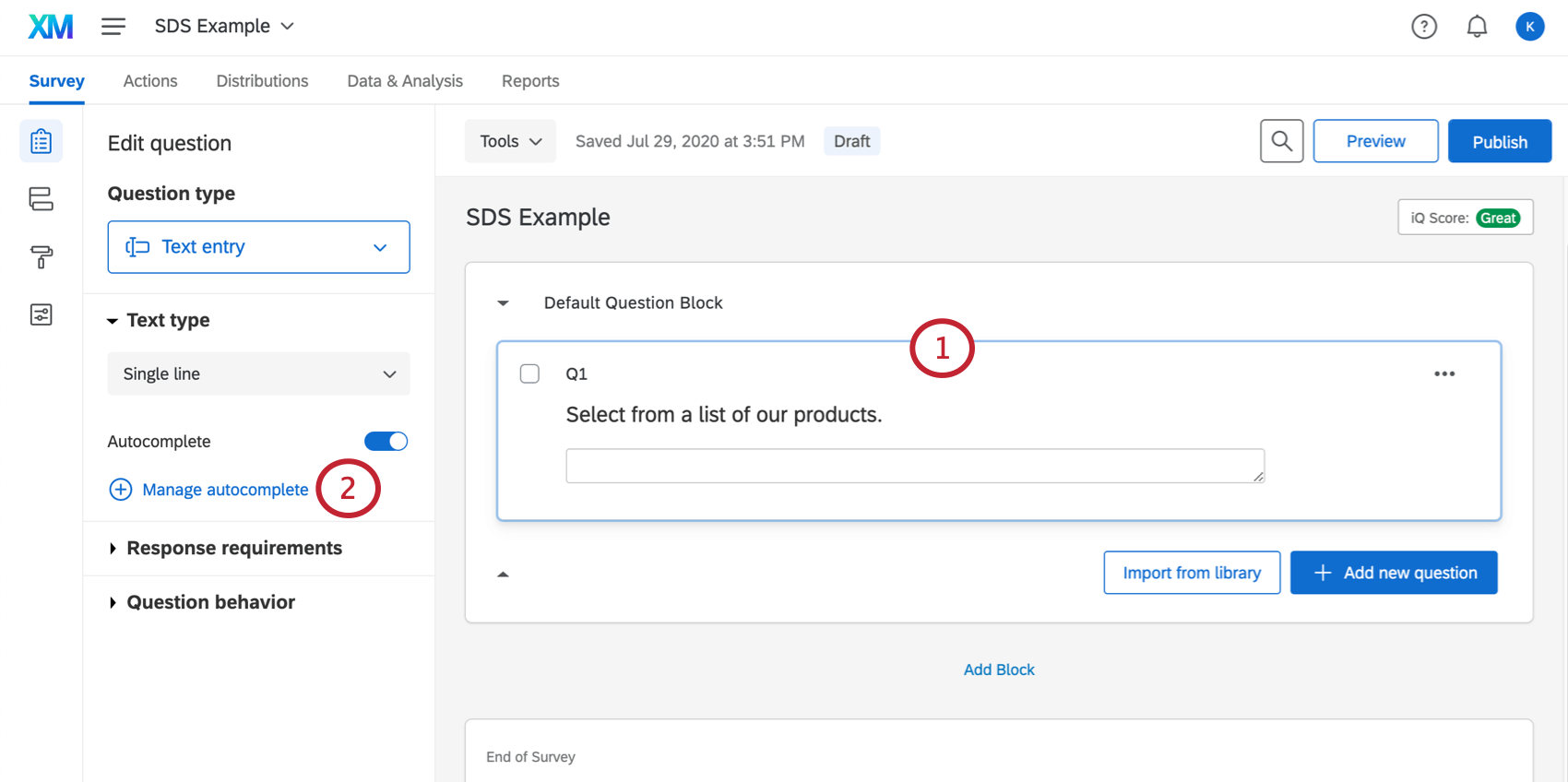
Autocomplete is a text entry question type that can guess the answer a respondent’s going to give. It draws on a list of preexisting answers, which it may provide as options as the respondent types their answer. You may choose to only let the respondent provide a predetermined answer, or to provide their own if none apply.
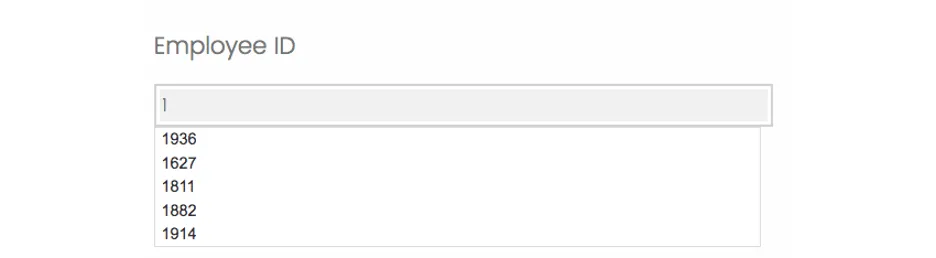
Qtip: Autocomplete questions can only show up to 10 suggestions a a time.
In addition to drawing on a static list of options, your autocomplete can provide suggestions from Google Maps, or a file you uploaded to Qualtrics. Drawing from a file is known as using a supplemental data source.
Qtip: To set up supplemental data sources, you will need the permission Autocomplete with Supplemental Data enabled. Talk to your Brand Administrator about enabling this permission.
Setting Up Autocomplete Questions
Qtip: A source is important in determining where the Autocomplete question derives its suggested responses from. Autocomplete cannot suggest answers if it doesn’t have information to draw on.
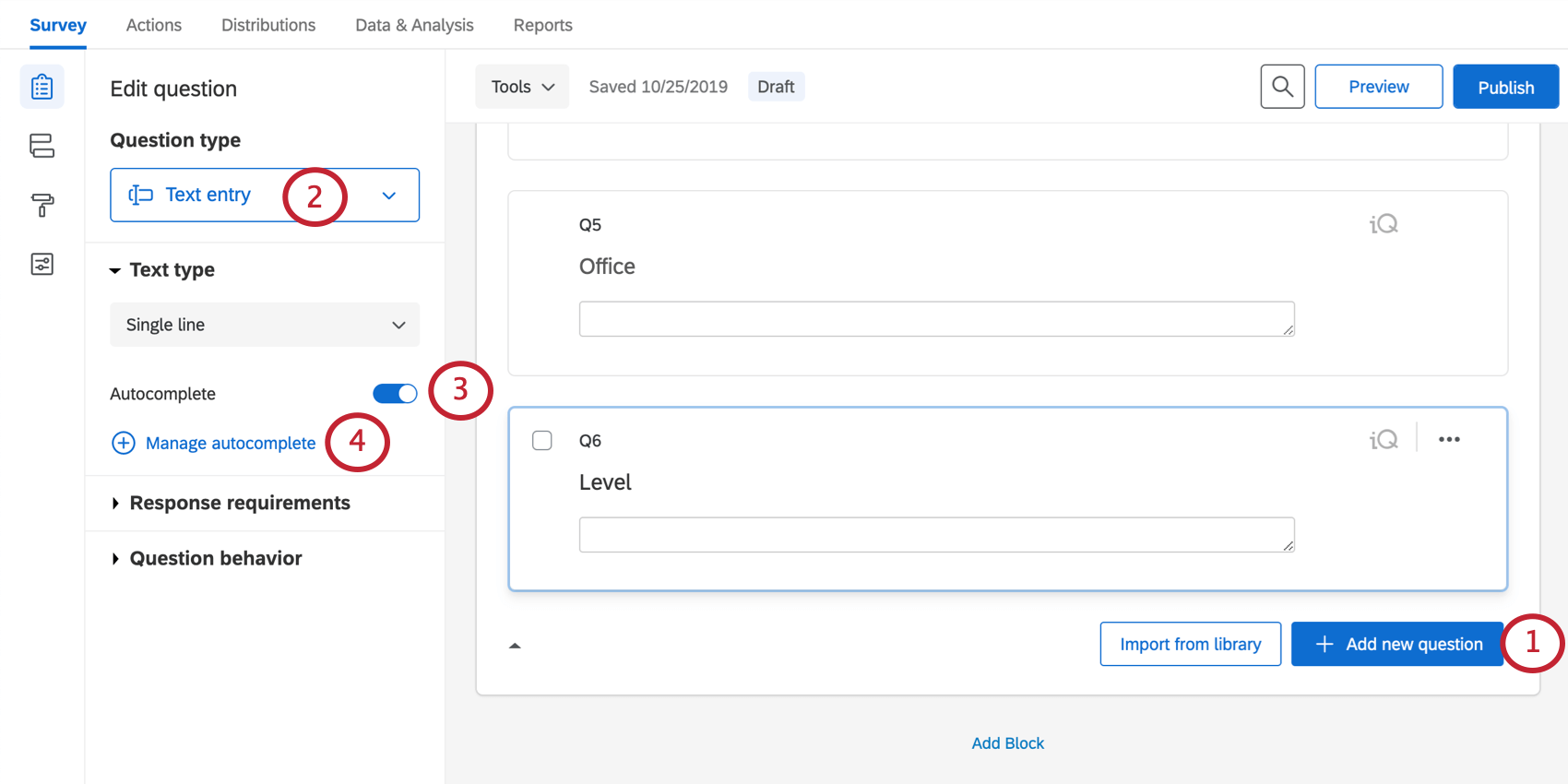
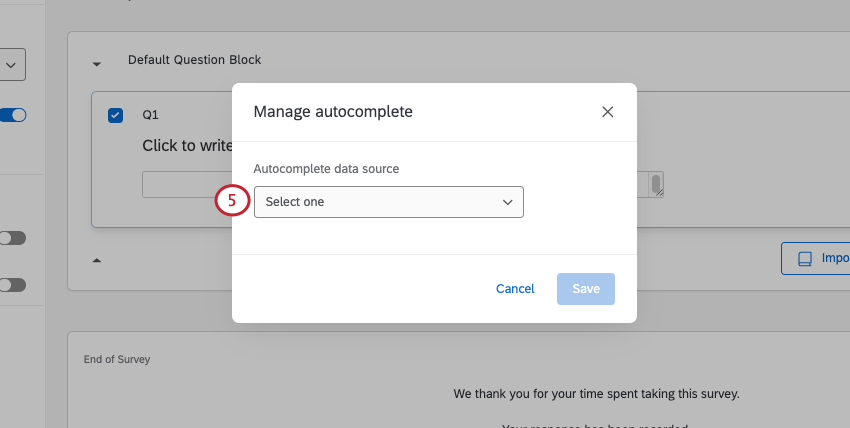
- Supplemental Data: The autocomplete fills in with data from another source in Qualtrics. Great for when you want to draw data from a large store of data. See Autocomplete with Supplemental Data for a detailed list of steps.
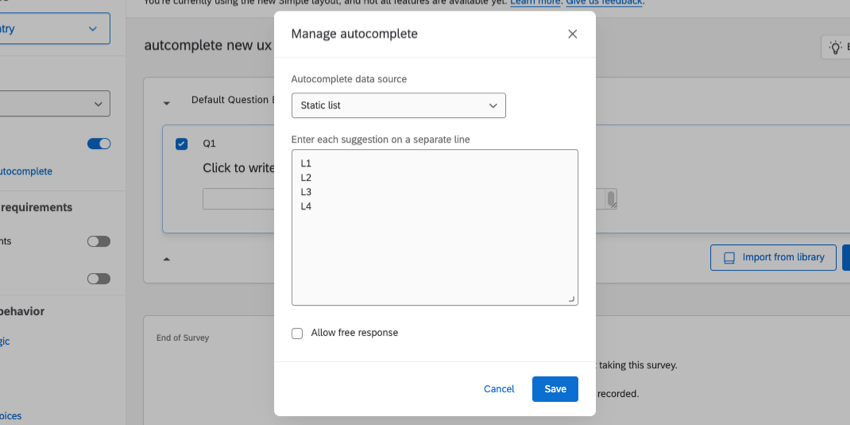
- Static List: Write out the list of options your autocomplete question should have. Each option in the list should be separated by 1 line. If you already have a line-separated list in another document, you can copy and paste the options into the box.
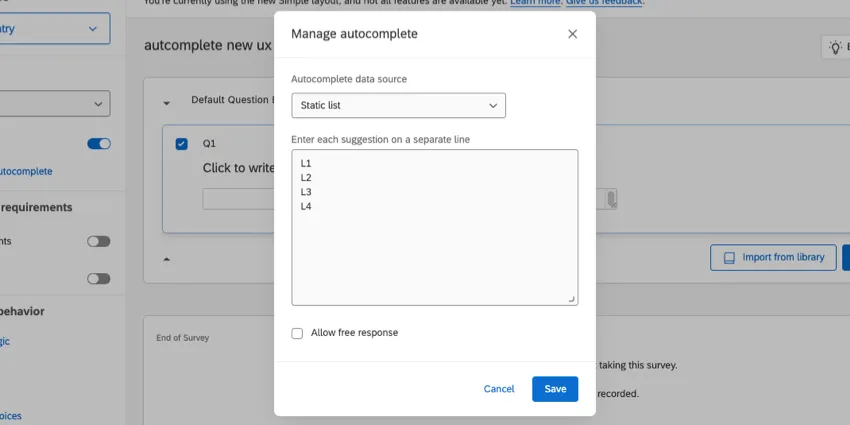 Qtip: If you have a small list of answers and are looking for a simple setup, choose Static List as your Data Source.
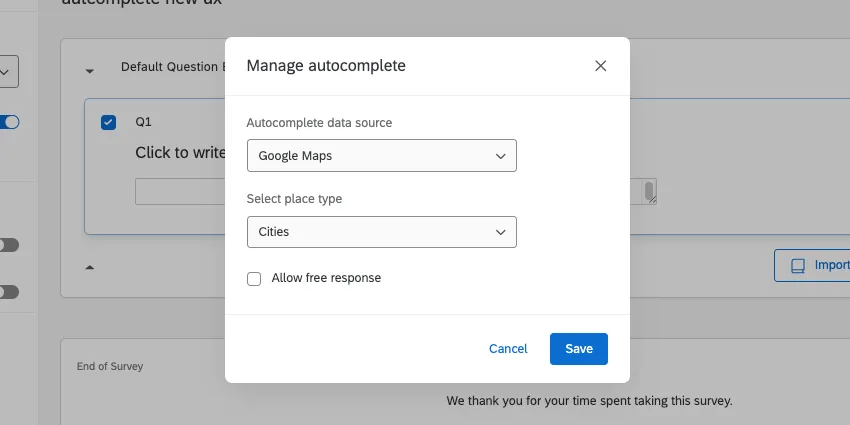
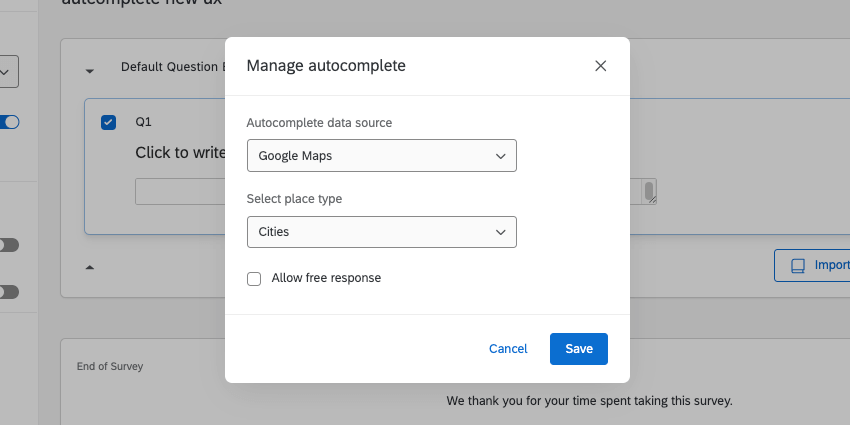
- Google Maps: The autocomplete question make suggestions from Google Maps. See Google Maps Place Types for an explanation of the options available.
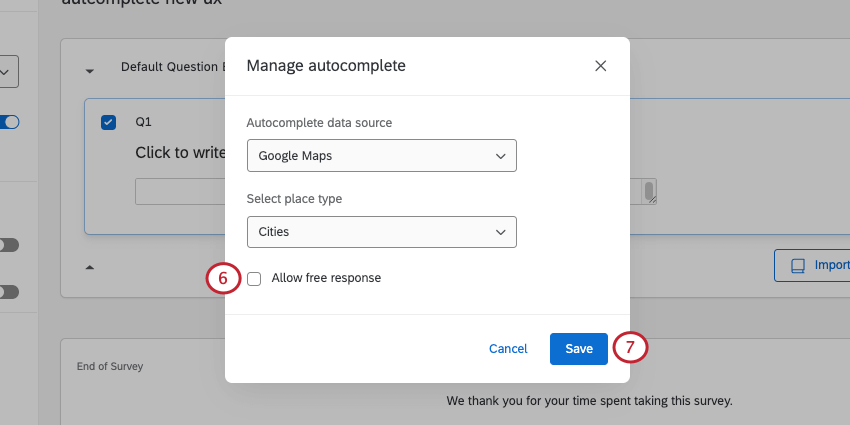
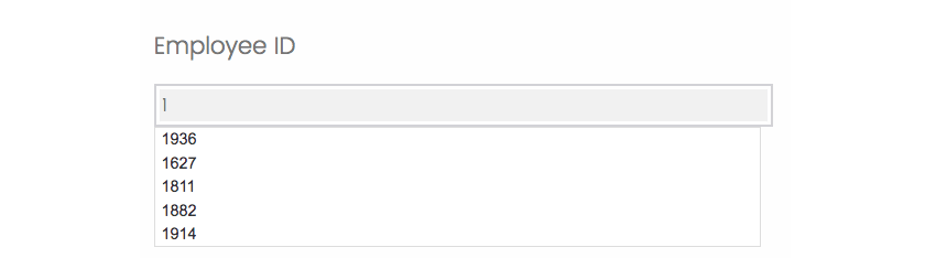
Qtip: You can still set a Validation Type for this free response, meaning you can still restrict what kind of answer is given. For example, for numeric Employee IDs, you probably only want a respondent to give numbers. In that case, select Content Validation and then Number.
Attention: Be mindful of enabling or disabling autocomplete after you have begun collecting data! This could invalidate your survey’s results. See Testing/Editing Active Surveys for more information about what edits are OK in a survey with data.

Google Maps Place Types
Attention: Google Maps Place Types are not supported on FedRAMP brands because Google Maps is not FedRAMP compliant.
You can draw answers from Google Maps in your autocomplete questions. Below is an explanation of the different place types you can select.
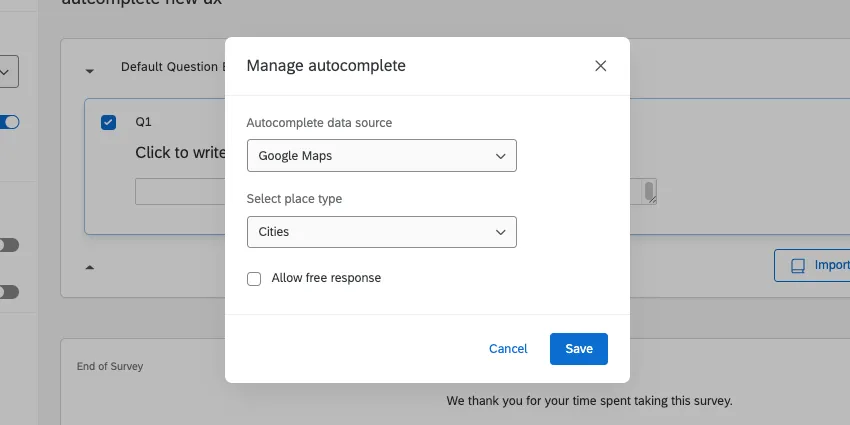
- All Types: Draw anything from cities to places of business.
- Addresses: Pull exact addresses. This can be helpful to ensure respondents give the correct shipping or contact information.
- Regions: While cities and states are included, this is useful to draw on other regions such as Counties and Provinces.
- Cities: Draw information from specific cities.
- Establishments: Places of business, with everything from restaurants to grocery stores to amusement parks.
Autocomplete with Supplemental Data
Supplemental data sources are useful when your autocomplete question is going to give recommendations on large data sources.
Attention: When working with an autocomplete question that pulls from a supplemental data source, the auto populate feature only pulls words if the letter you enter is the first letter of the word. For example, if you are searching for the term “Team 4,” you will need to start your search by typing out the word “team.” Searching just “4” will not pull “Team 4” as a result.
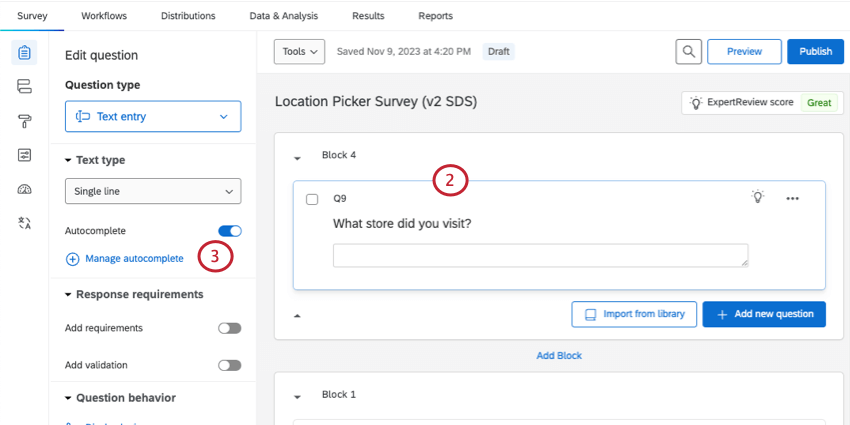
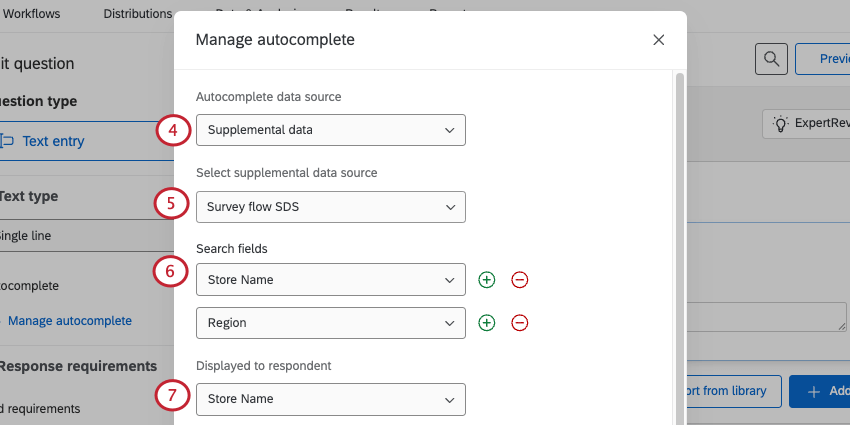
Qtip: You can also select Create new supplemental data source to create a new SDS. This SDS will be saved in your library if you ever want to edit it later.
Qtip: You can add up to 5.
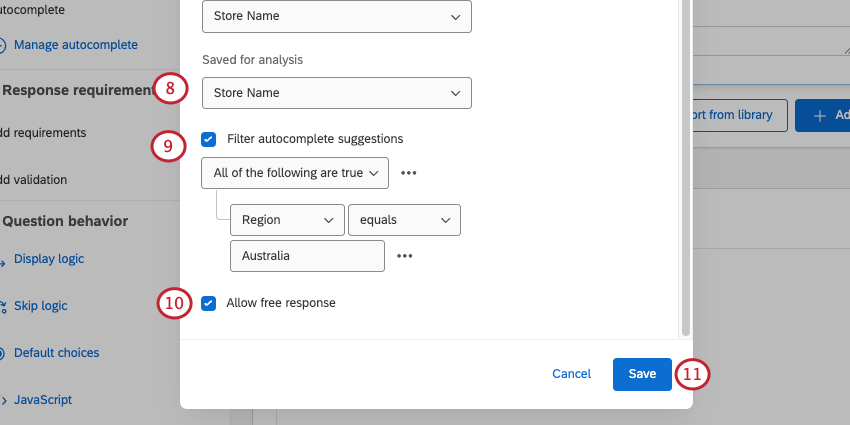
Qtip: Normally, all of these fields should be the same value. However, there are some use cases where this can differ. For example, Display and Search would be different if you want someone to search their Last Name in order to find their Employee ID. If you want to analyze data using Divisions instead of Roles, the Search and Display fields may be Role, while the value saved is the corresponding Division the Role belongs to.
Example: Your SDS has international store data, but your surveys vary by region. Filter the autocomplete in your Australian survey to only show Australian stores.

Qtip: For help building filters, see Basics of Building Conditions, New Conditions and Condition Sets, and All vs. Any.
Attention: Autocomplete with Supplemental Data does not support default choices.
Setting Up Survey Translations
When working with a translated survey, you will want to make sure the data your respondents see is translated to provide the best survey experience possible. To do this, you’ll need to create and translate a supplemental dataset.
Translating Your Supplemental Data
In order to display translated data to your survey respondents, you’ll need to add the following to the data you want to import:
Example: 1 of your products is an apple pie. You are surveying English, French, and Spanish-speaking customers. Instead of just 1 row that says “Apple Pie,” you have 3 rows – Apple Pie, Tarte aux pommes, and Pie de manzana – 1 for each translation.
Example: We’ll display “Product Name” to our customers in either English (EN), French (FR), or Spanish (ES). We’ve identified the “Language” of each row in our supplemental dataset file.
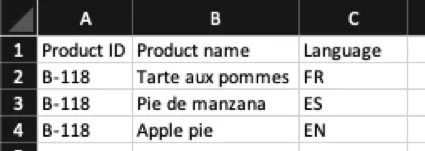
Each of our example products also has a unique “Product ID” regardless of the translated value for “Product Name.” As we bring this data into the survey for our respondents, we’ll display “Product Name” to them, but we can use the “Product ID” to tie all responses about a specific product together for analysis regardless of the language the survey-taker spoke.
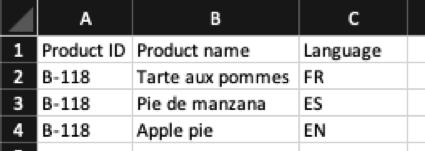
When you’re ready, upload the file as an SDS to your library.
Autocomplete Question
Set up your autocomplete question source to pull from the translated Supplemental Dataset.
In our example, we want to both display and let respondents search by “Product Name.” For our analysis, we want the “Product ID” instead. This makes sure we can group responses for the same product together, regardless of what the translated value was for our respondents.
To make sure French respondents only see “Product Names” in French, we need to apply a filter. In Qualtrics surveys, there’s an automatic embedded data field created called “Q_Language”. This field is set to whatever language the respondent is taking the survey in. We can filter our options using the “Language” field from our supplemental dataset and the “Q_Language” field in the product survey.
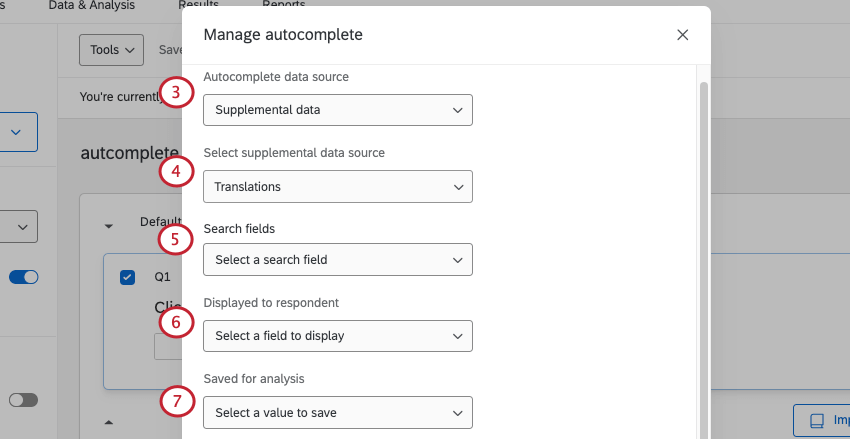
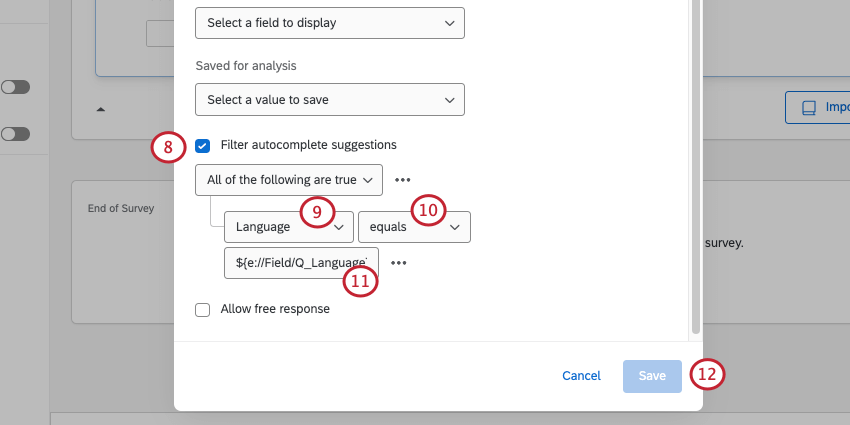
${e://Field/Q_Language}
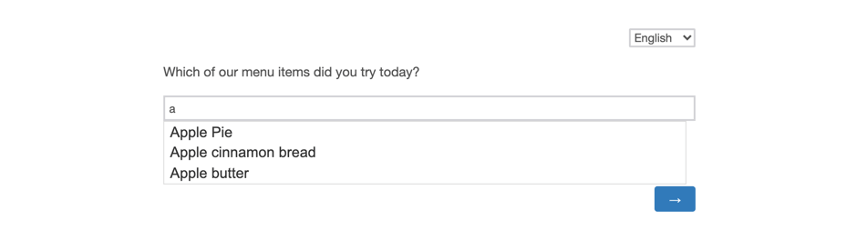
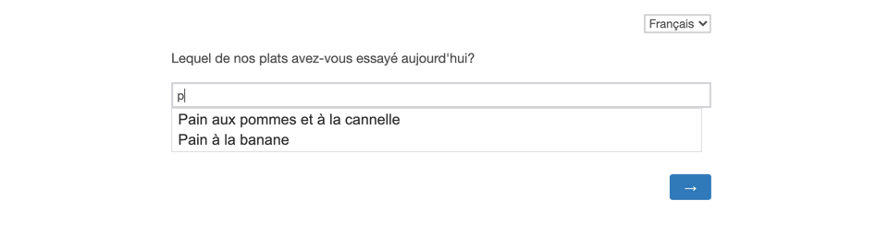
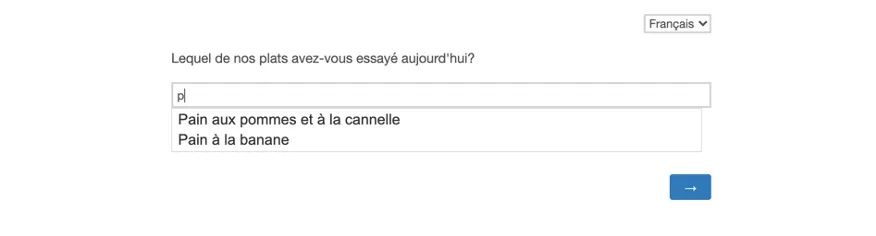
Now when customers take the survey, they will be presented with translated Product Names.
In English:
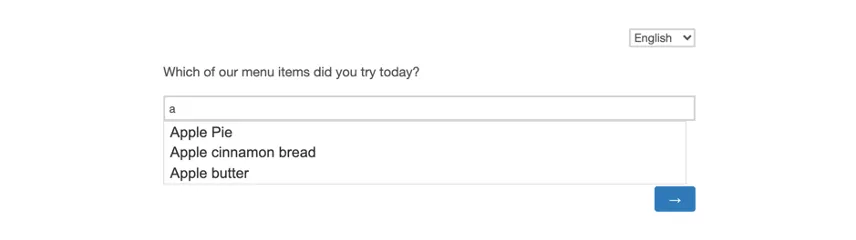
In French:
Finding Values Using the Supplemental Data Element
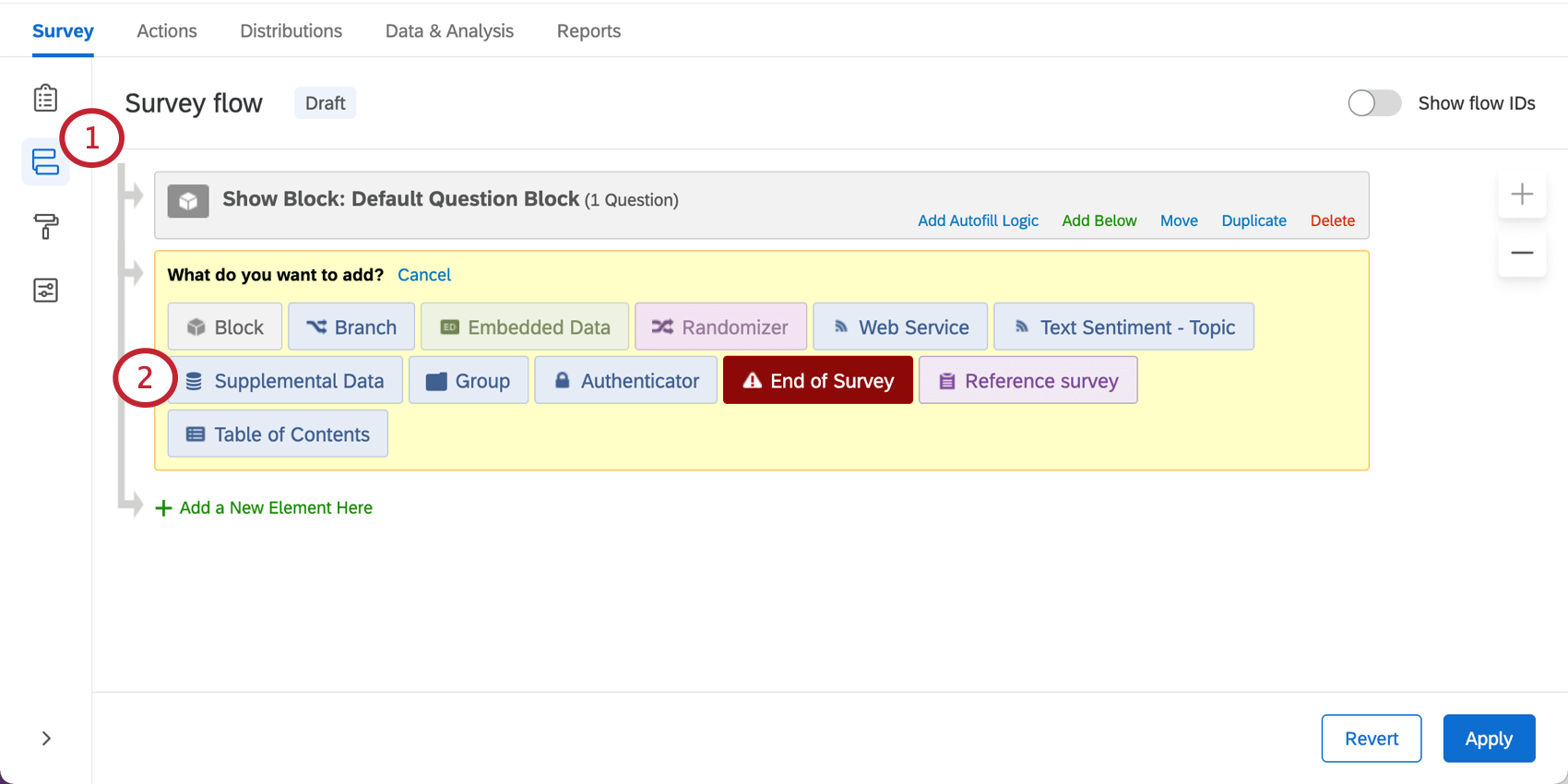
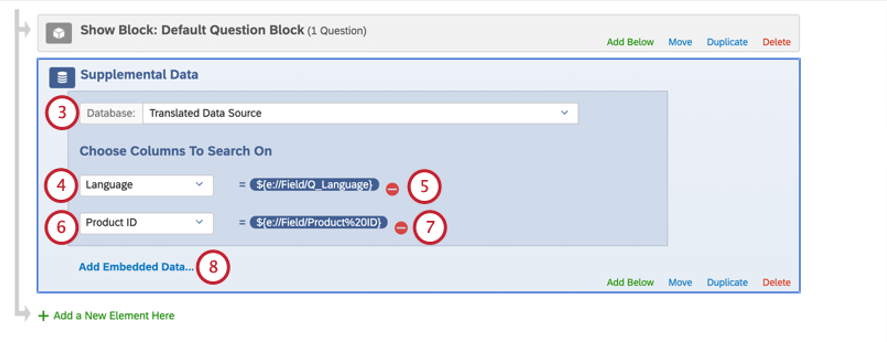
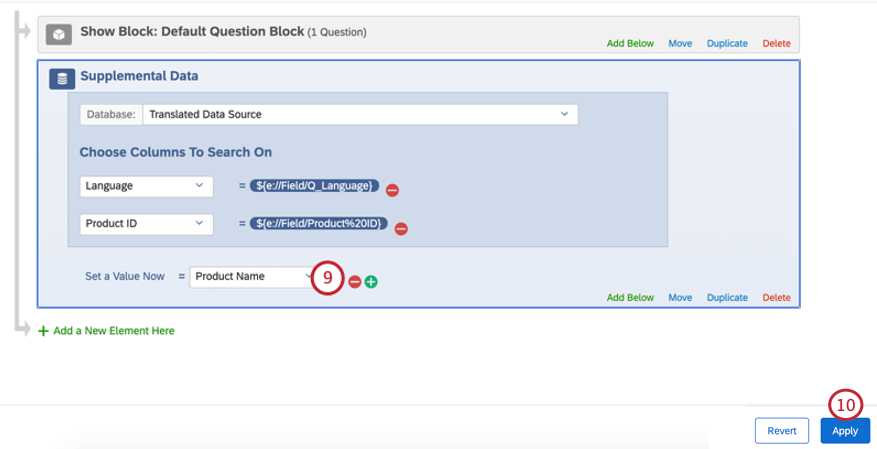
In some cases, you may need to find the value of a field in your supplemental data by searching on 1 or 2 other fields you already have saved. For instance, you may want to display the value of a field in your survey. The supplemental data element in the survey flow can be used to search and pull in these values.
Example: We already have access to an embedded data field called “Product ID” in our survey and we need to retrieve the translated “Product Name.” We want to be able to show the translated Product Name in our survey using piped text.
FAQs
What kind of project can I use this type of question in?
What kind of project can I use this type of question in?
That's great! Thank you for your feedback!
Thank you for your feedback!