

Question Blocks
What's on this page
About Question Blocks
Blocks are used to group and organize the questions in your survey. You can think of blocks like chapters in a book; each block has its own content, and together they form a cohesive survey. Every survey has at least 1 question block. To learn more about creating and managing blocks, see block options.
Typically, questions are separated into blocks to conditionally display an entire set of questions, or to randomly present a set of questions. This can be achieved with branching and randomization options found in the survey flow.
Example: In academic research, you might have 2 sets of questions: one for a control group of participants and one for an experimental group. Instead of creating 2 surveys, you could create 2 blocks of questions within a single survey and randomly assign participants to one block or the other.

In your survey flow, you can organize your question blocks. This lets you choose when and in what order the questions in your survey appear, allowing you to design a survey that displays exactly what you want when you want it.
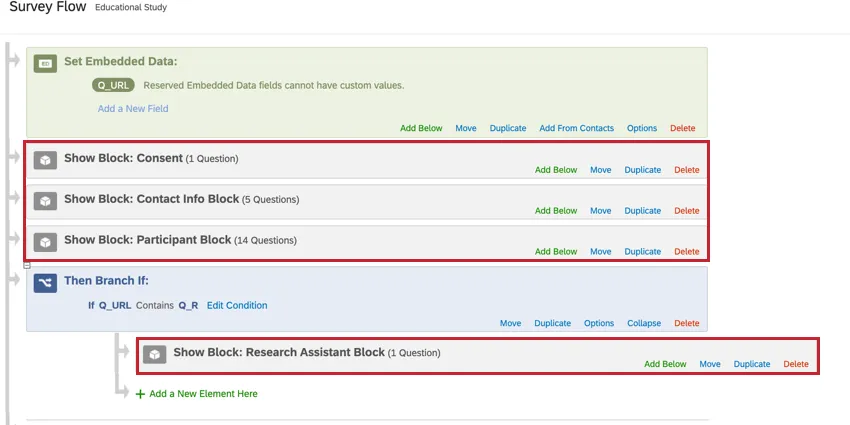
Blocks can also be used to organize longer surveys. For example, the first 2 questions in your survey can be placed be in a block called “Introduction,” and the rest of your survey questions in a block called “Main Survey.”
Adding a Block to Your Survey Flow
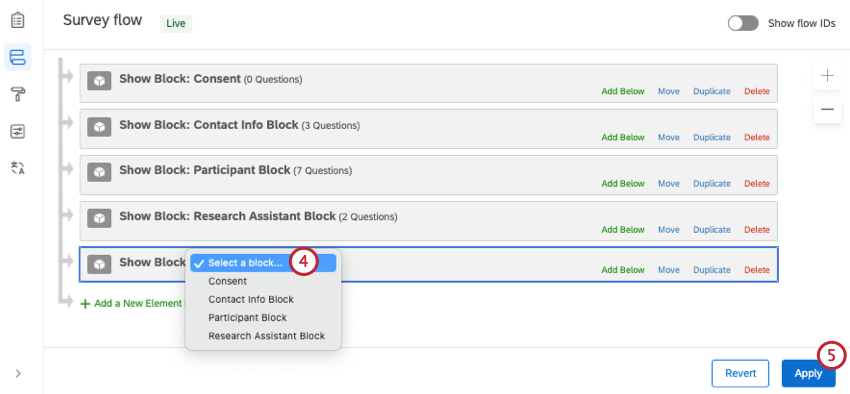
Qtip: Every time you create a new block, it will automatically be added to your survey flow. The order of the blocks in the survey editor will match the order of blocks in the survey flow. If you need to move a block in your survey flow, see Making Edits in the Survey Flow.

Attention: Blocks in the survey editor do not all have to be used in the Survey Flow. However, only blocks that are in Survey Flow can be seen by respondents, shown/exported in the Data & Analysis tab, or be used in Reports. You can add or remove blocks in Survey Flow at any time without invalidating or losing collected data.

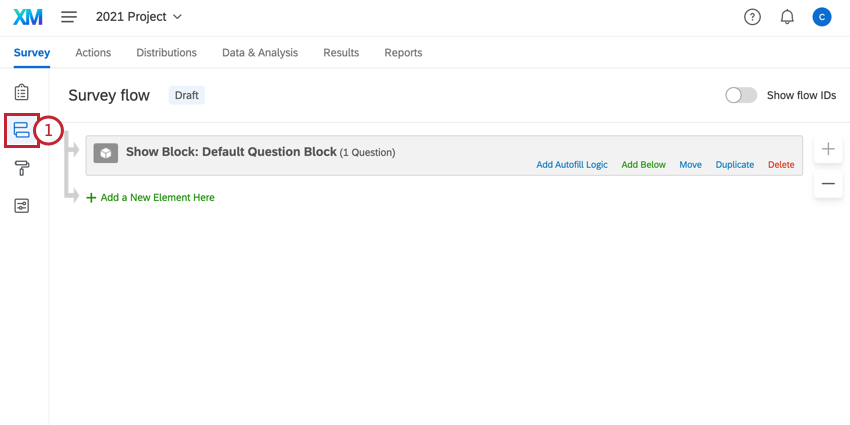
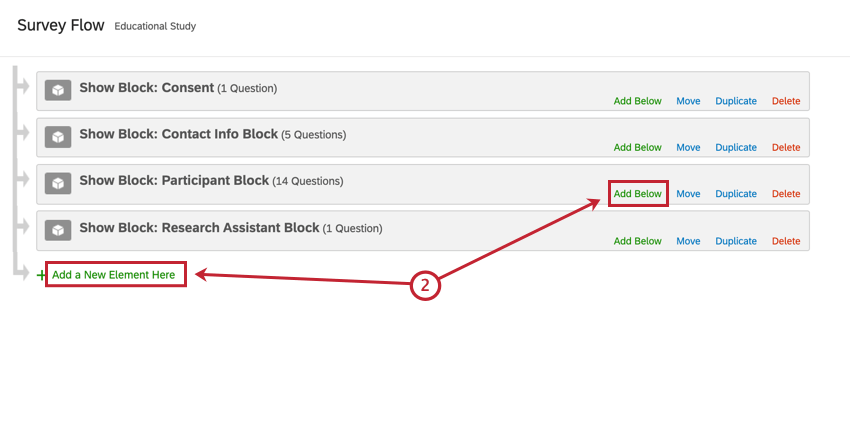
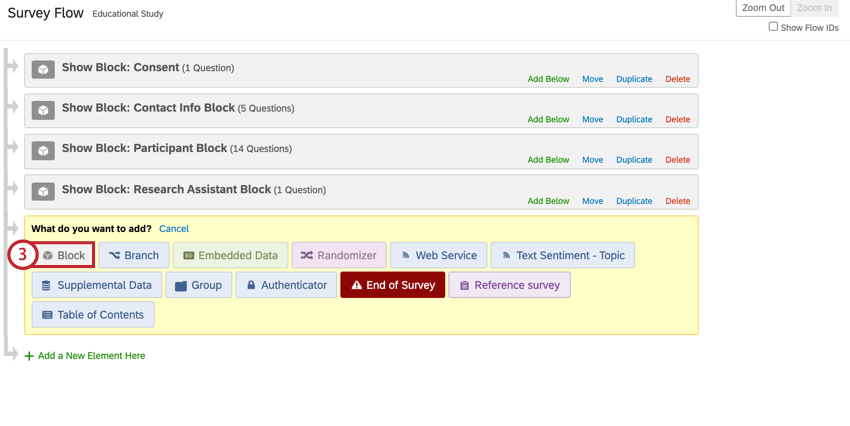
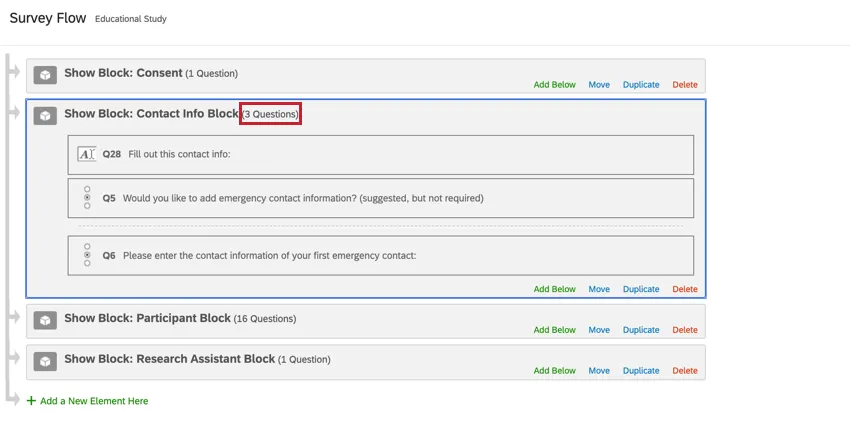
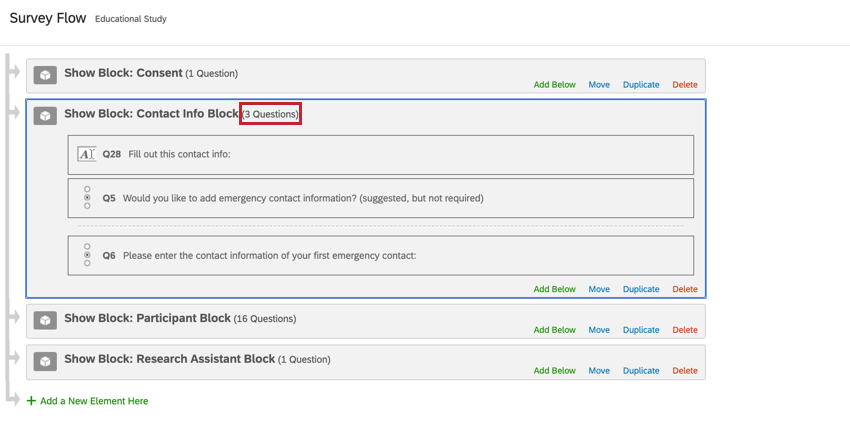
Qtip: To see which questions are in a given block, click the bracketed question count to the right of the block name. Collapse the list of questions by clicking the question count again.
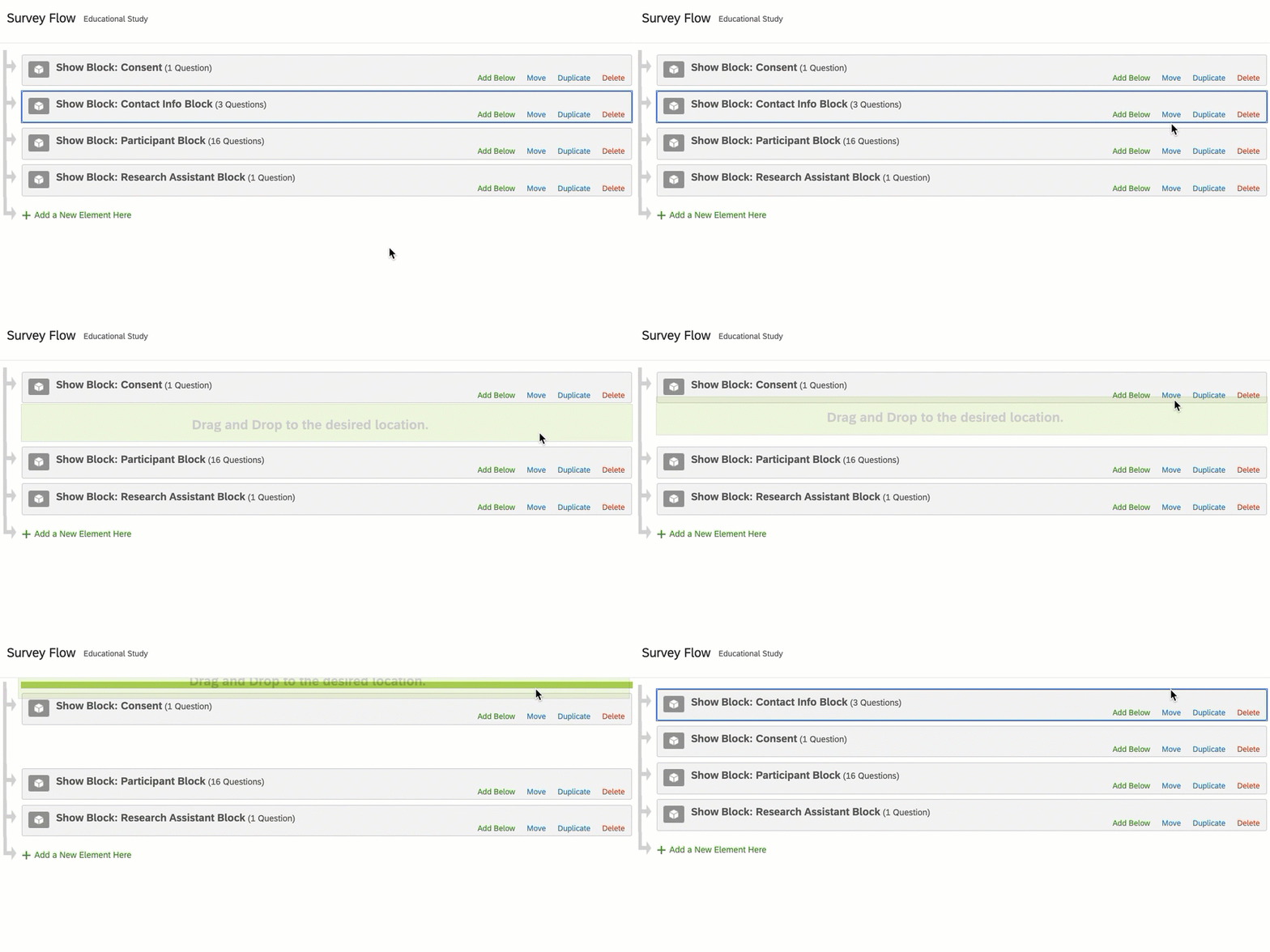
Qtip: If you need to rearrange your blocks in the survey flow, click Move and drag & drop the block to the desired place. Note that rearranging blocks in your survey flow will also rearrange them in the survey editor.
Showing the Same Block Multiple Times
You can have the same block appear multiple times in your survey flow, but the questions will only appear once in your results. If a respondent sees the same block a second time in a survey, they’ll see—and be able to modify—their previous responses. While not common, this can be useful in some situations, such as having the respondent double-check their contact information before submitting their response. However, duplicating a block is most commonly used to have it shown in separate branches in the survey flow, not to show the same questions twice.
Qtip: Showing the same block multiple times in the survey flow is different from copying a block in your survey editor. Copied blocks are separate from each other (the same as having 2 different blocks), and the questions from each block show up separately in your results.
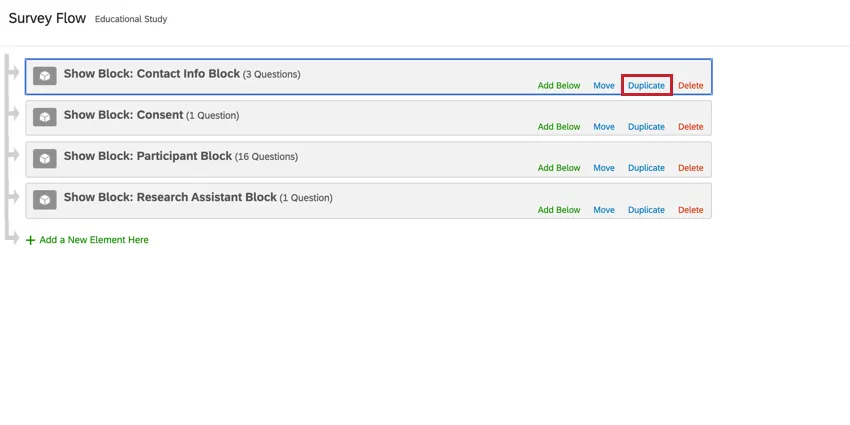
To duplicate a block in your survey flow, click Duplicate. You can then move the block to where you want it to appear in your flow.
Example Use Cases
The following use-cases are for using the same block multiple times in your survey flow:
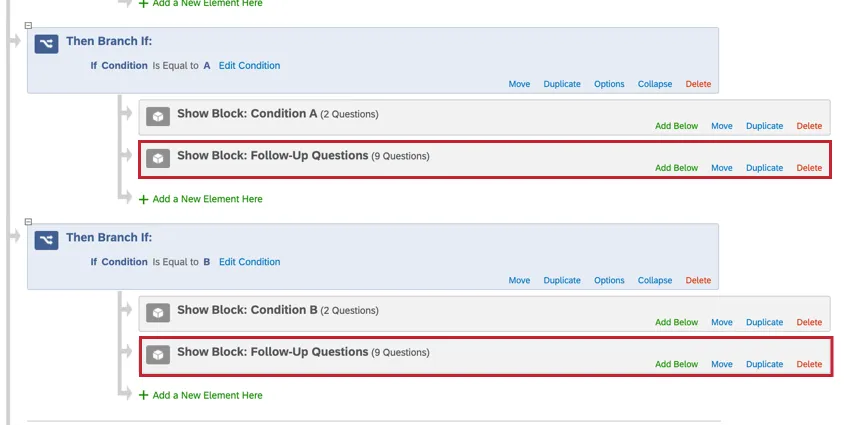
In this example, an A/B test is being run where a respondent is randomly shown one of 2 conditions. However, the follow-up questions we ask in each condition are the same, so the follow-up question block is duplicated and included in each branch.
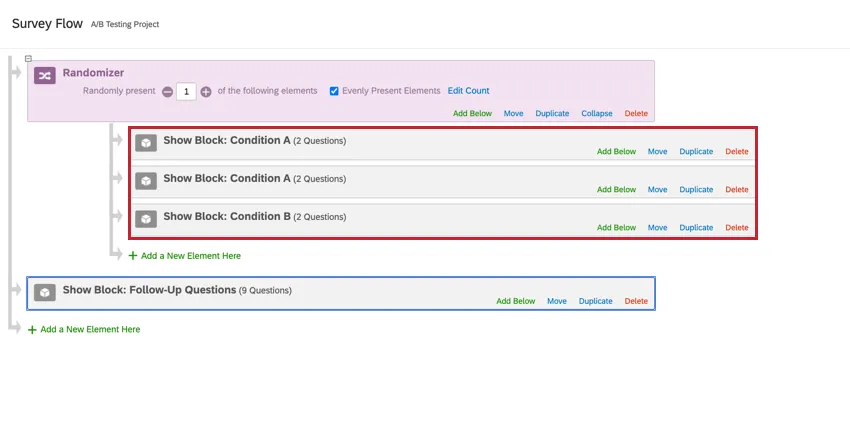
In this example, duplicate blocks are used to artificially weight a block when using a randomizer set to evenly present elements. This will result in condition A being seen by ⅔ of respondents, while condition B will be seen by ⅓.
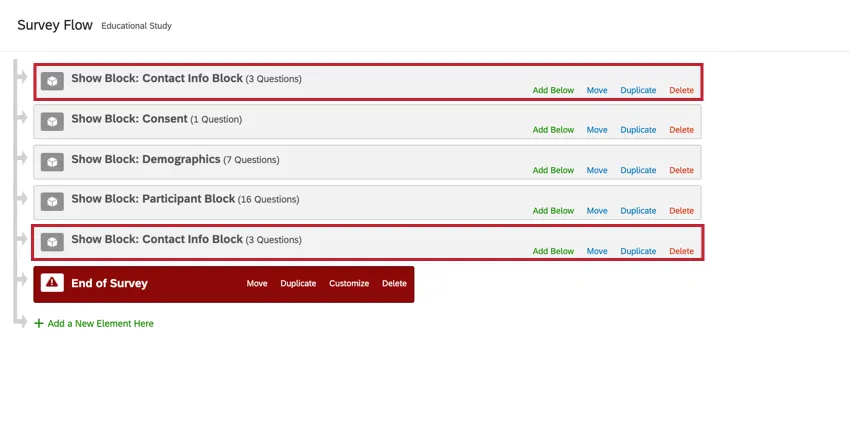
In this example, respondents are asked to provide their contact information at the beginning of the survey. The contact information block is duplicated at the end of the survey so respondent can verify their contact information before submitting their response.
Types of Projects this Feature Is Available In
Blocks are compatible with every type of project that lets you customize a survey. This includes:
FAQs
A block has a red error message at the top of it saying "Not in Survey Flow". What does this mean?
A block has a red error message at the top of it saying "Not in Survey Flow". What does this mean?
That's great! Thank you for your feedback!
Thank you for your feedback!