

CX Dashboard Viewer
What's on this page
About CX Dashboard Viewers
With CX Dashboards, you can share dashboards with anyone in your license. This page will detail what dashboard viewers have access to and the various ways they can troubleshoot if they’re having issues.
Qtip: If this page has not resolved your issues or answered your questions, please reach out to the individuals who sent you your dashboard invitation for additional assistance.

Logging In
When you are invited to a dashboard, you will receive an email with a link. Click this link to log into your dashboard.
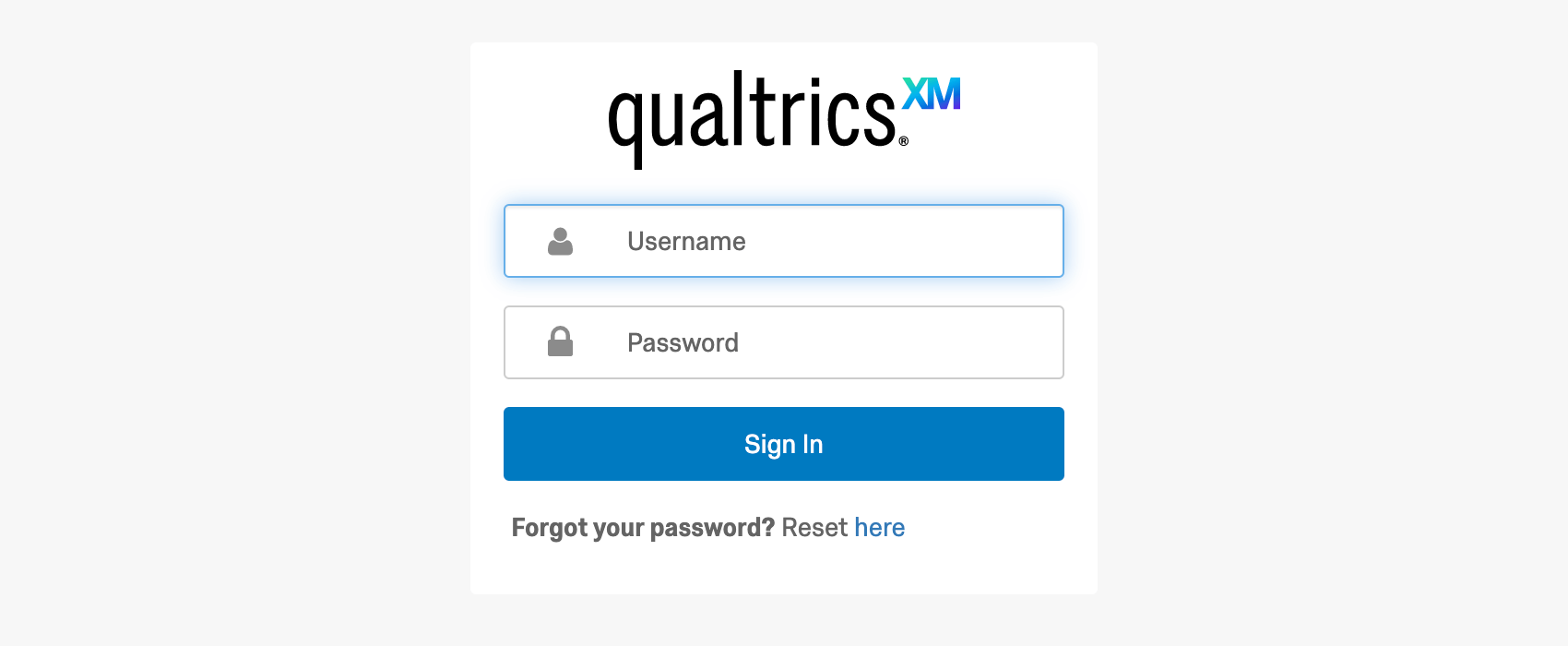
Qtip: Forgot the link? You can log into all your dashboards by going to datacenter.qualtrics.com/vocalize. The datacenter is what usually comes before qualtrics.com when you’re logged in, and differs per company. For example, in the screenshot above, the datacenter is co1.
Password Reset
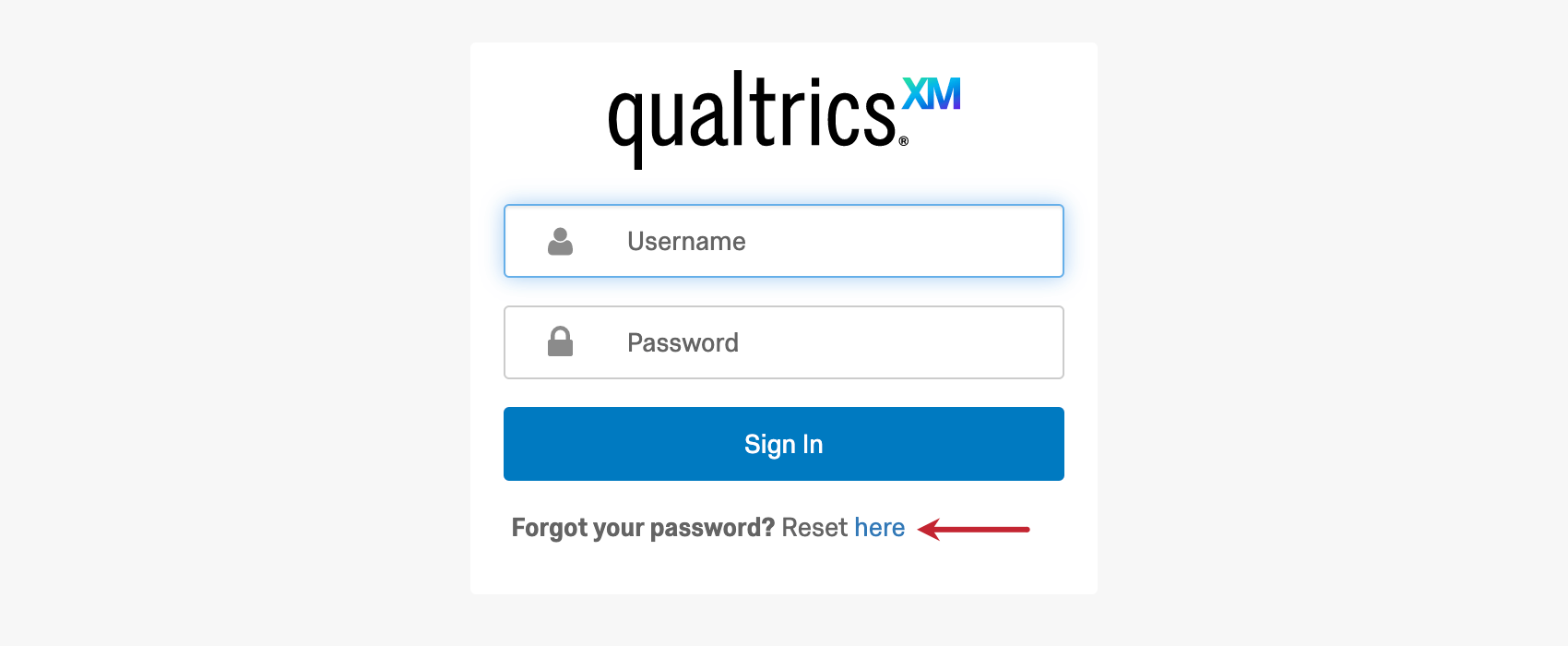
If you don’t remember your password, that’s ok! Go to the login link, find where it asks, Forgot your password? Then click Reset here.
Enter the username or email address of your dashboard login (this will usually be your company email) complete the captcha. Click Send reset email to finish.
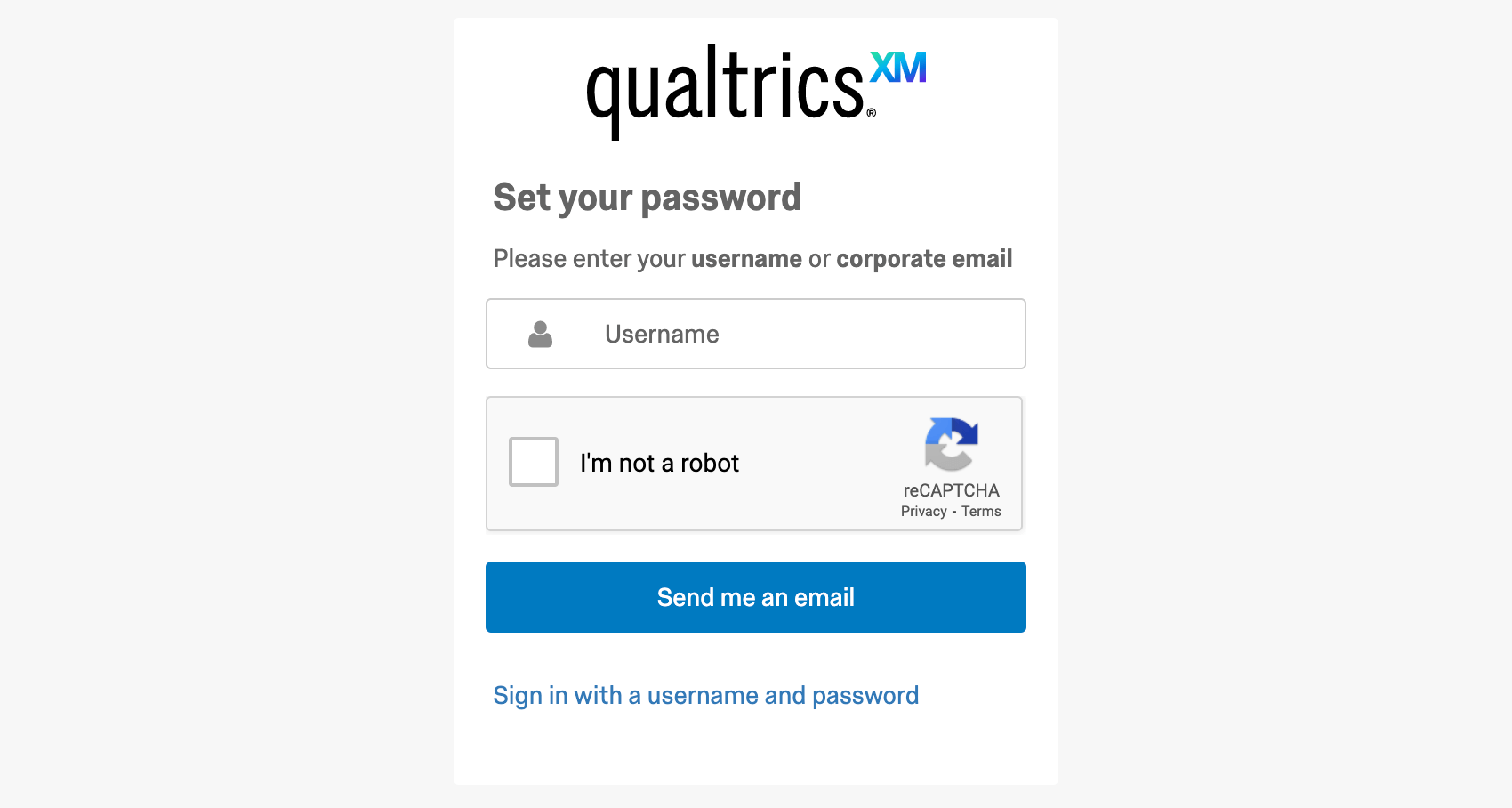
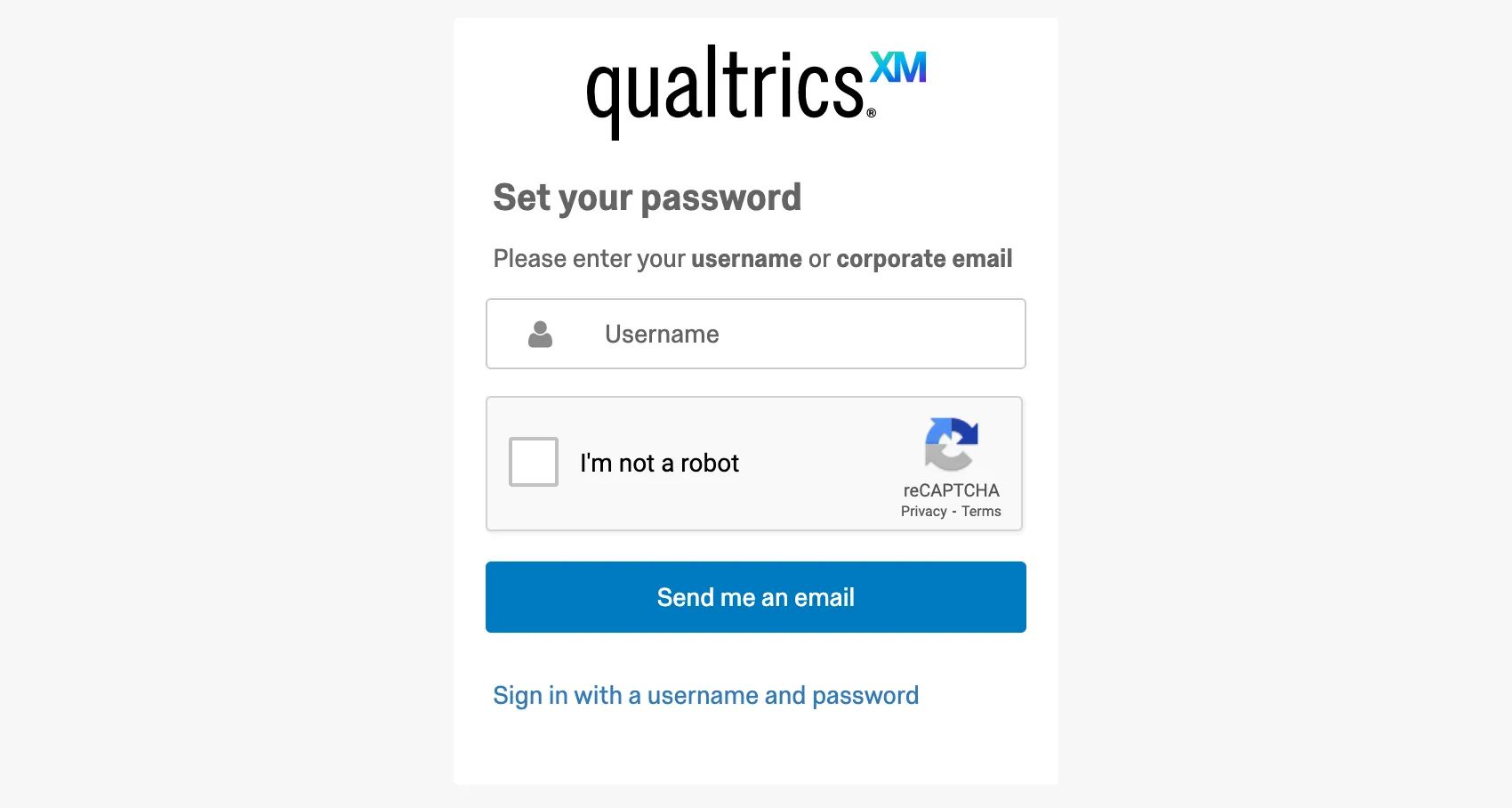
If for some reason the reset link does not arrive, check your email’s Spam or Junk folder. If you try again and it still doesn’t arrive, then contact the individuals who sent you your dashboard invitation.
Navigating the Dashboard
Sometimes you may be invited to view more than one dashboard for the same company or project. You don’t need to log in and out to access your various dashboards. Instead, click the dashboard selection dropdown menu and click the name of the dashboard you’d like to view.
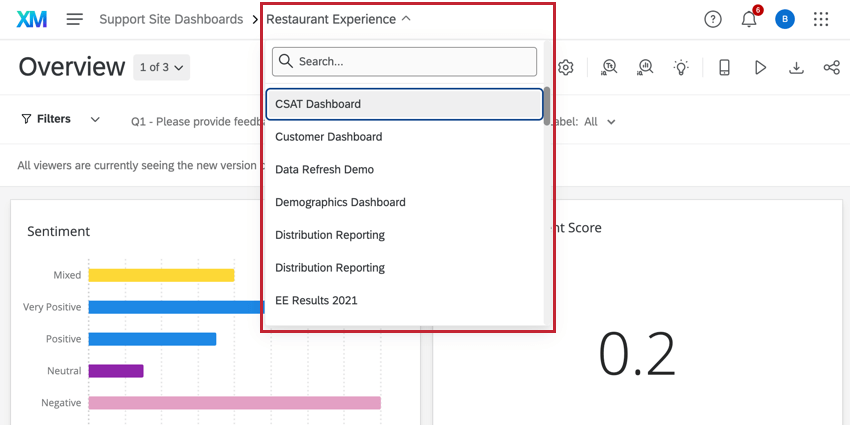
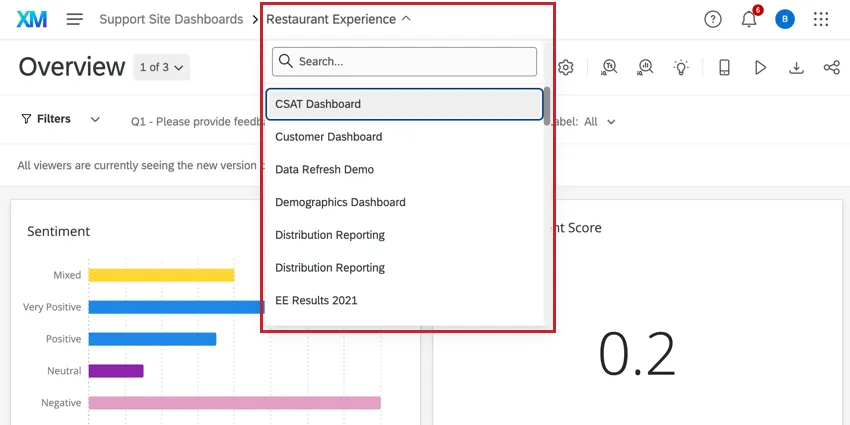
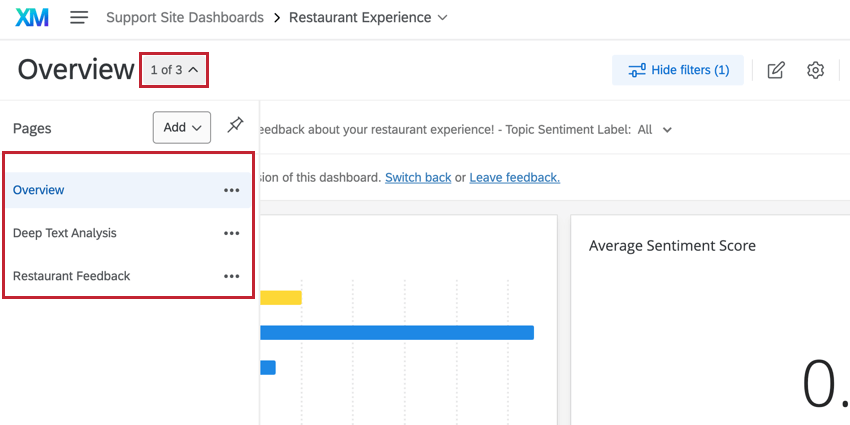
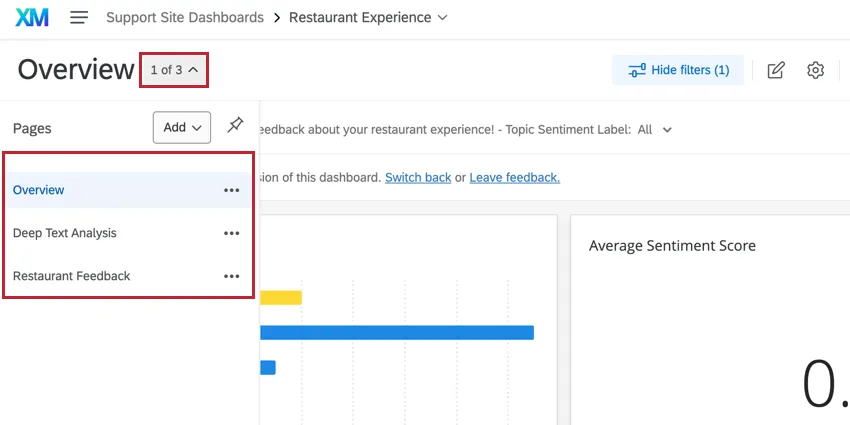
In addition, dashboards can have separate pages. These are useful for organizing data. With the page navigation to the left of the dashboard, you can choose which of these pages to view.
Filtering Data
One of the benefits of dashboard reporting is the use of dynamic filters. When logged into your dashboard, you can change the filters and watch your data adjust in real time to fit the criteria.
Click the filter you wish to adjust. Then click the values you want to include, so that each one has a check mark next to it. Click a value again and remove the check mark to exclude it from the filter. In the example below, All is selected.
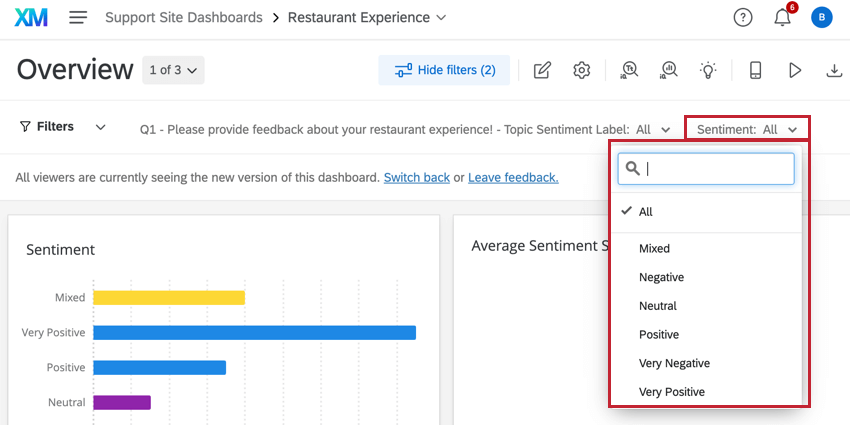
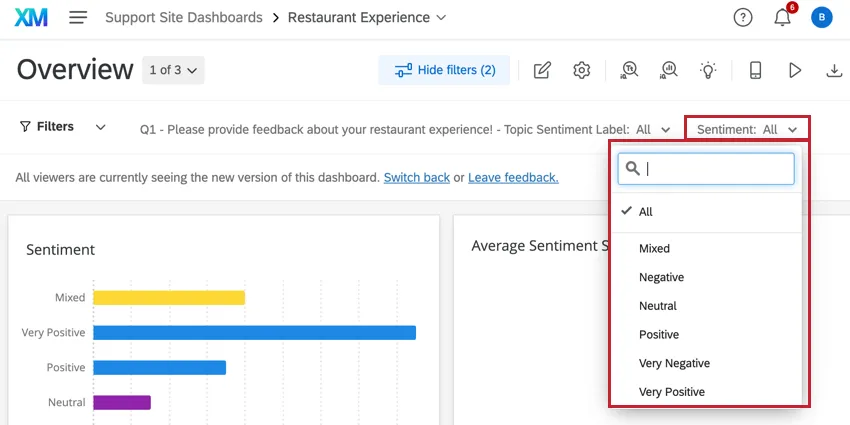
Your filters affect one page at a time. This is so the type of information you access can be more easily separated by page.
Downloading Content
Not everyone has the ability to download content from the dashboard. However, if your organization has decided to allow certain content to be downloaded, there are two ways to tell.
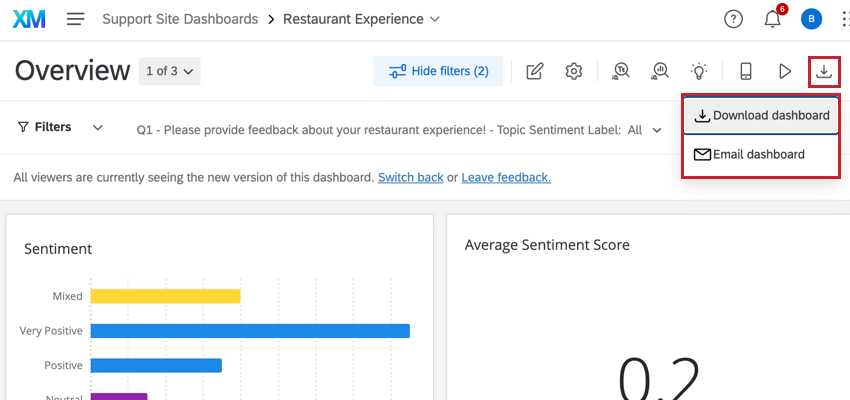
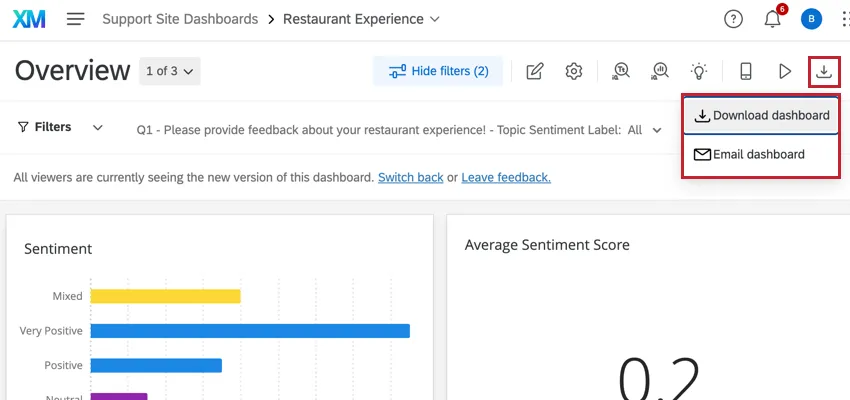
If dashboard itself can be downloaded, you will see an Export dashboard button. Click this to choose Download dashboard, select export options, and start the download.
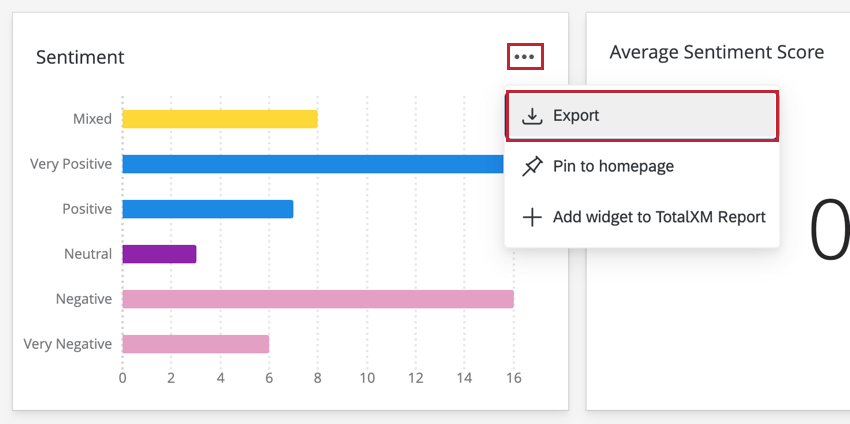
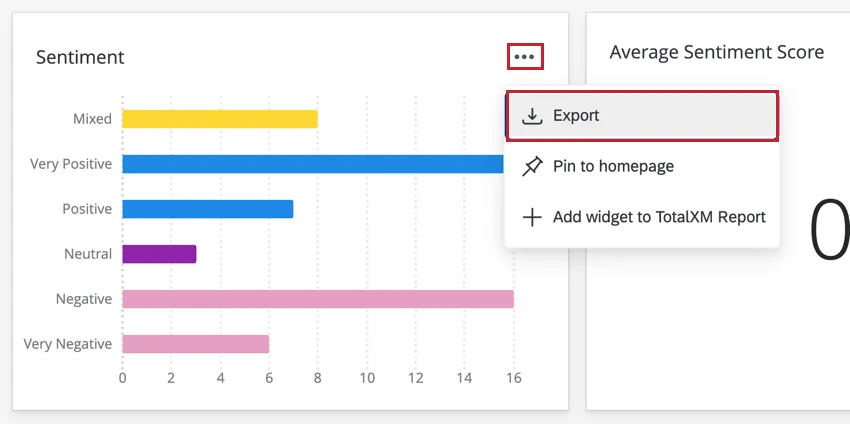
If widgets themselves can be downloaded, you’ll see a download icon in the upper-right corner of the widget. This download can be a CSV or TSV table of the data displayed in the widget or a JPG or PDF image file of the widget.
Kiosk Mode
CX Dashboards is commonly used as a display on television screens or projectors. In Kiosk mode, CX Dashboards will automatically rotate through your pages after 30 seconds or so.
To learn more about using Kiosk Mode, see the linked support page.
Email Dashboard
You can set up a single or recurring email with the dashboard’s data. You can either attach the dashboard as a PDF or embed the dashboard right into the email.
To learn more, see the Email Dashboard support page.
Qtip: If you are emailing a regular page, data adjusts based on filters added and User Attributes that apply to your recipient. However, when sharing a private page, note that the recipient will see the exact same data that you see.
Editing Dashboards
Some dashboard viewers are allowed to edit the dashboard. If you see an Edit dashboard button on the top of your dashboard, then you are one of these viewers.
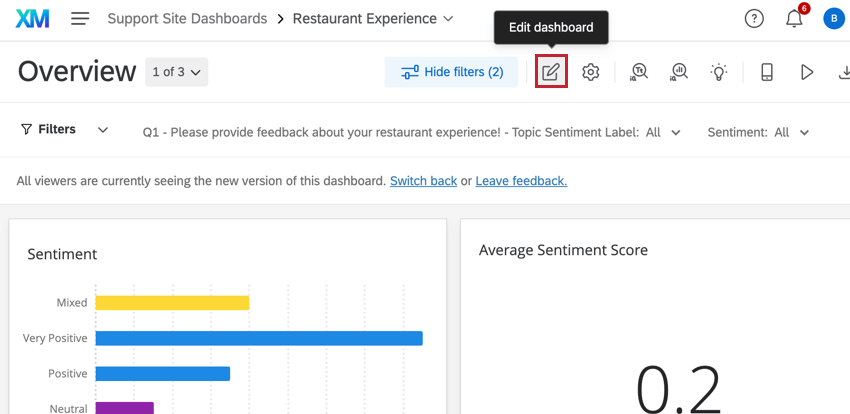
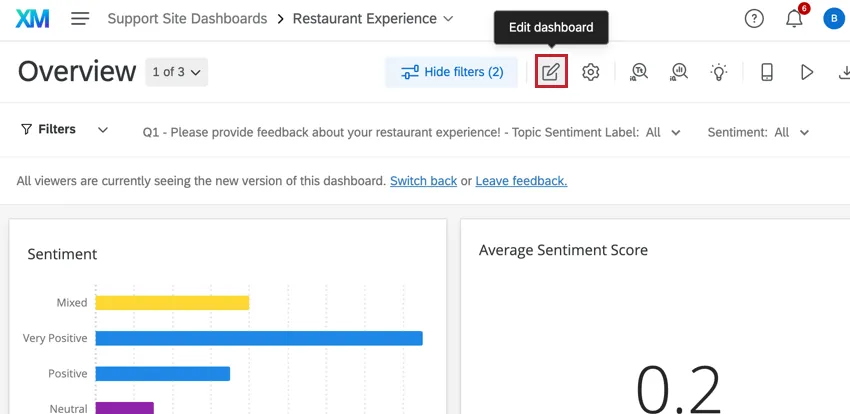
You can learn how to customize your CX Dashboard by navigating the CX Dashboards support pages listed in the menu along the left of this page.
Navigating to Dashboards from the Projects Page
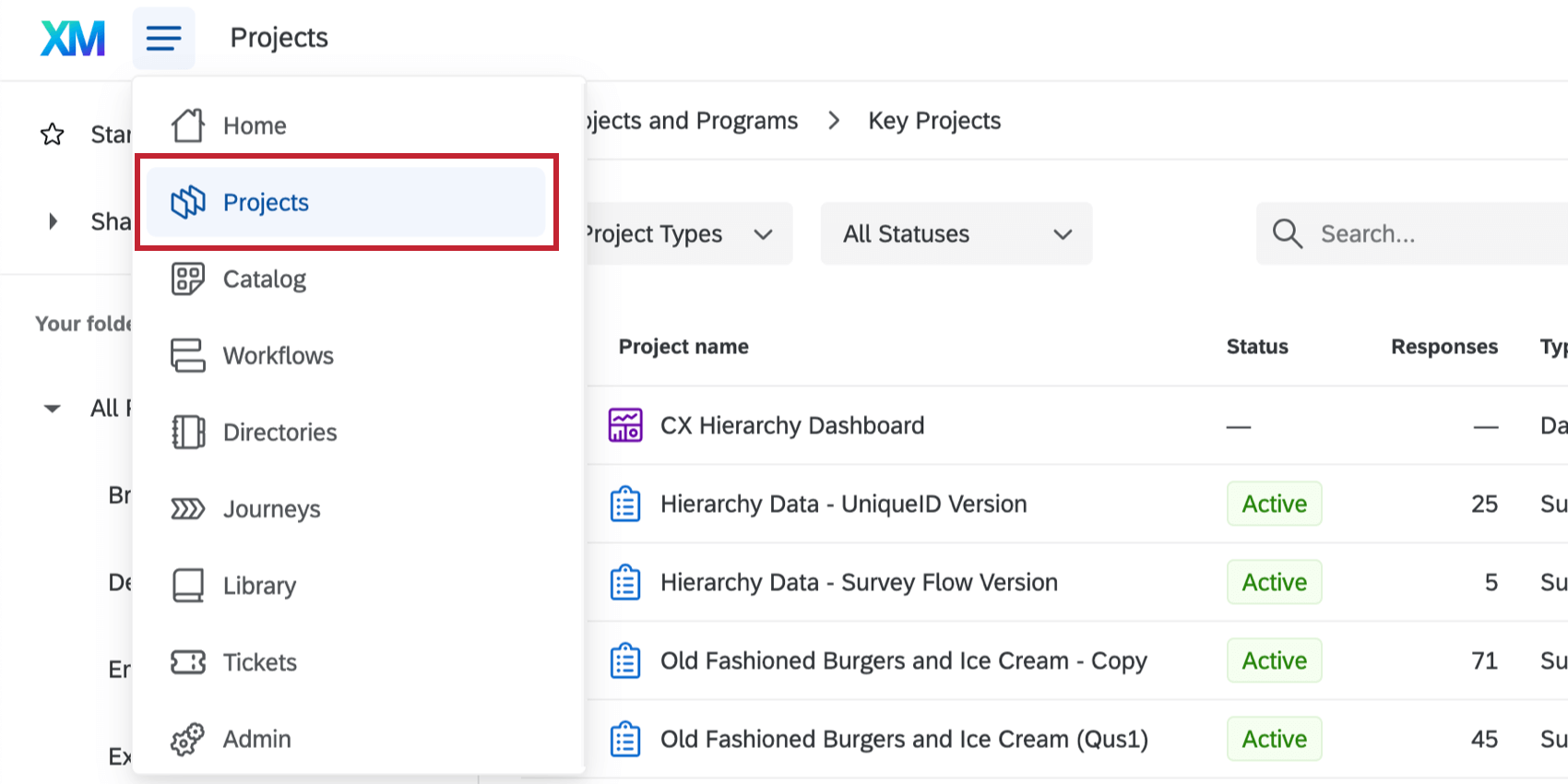
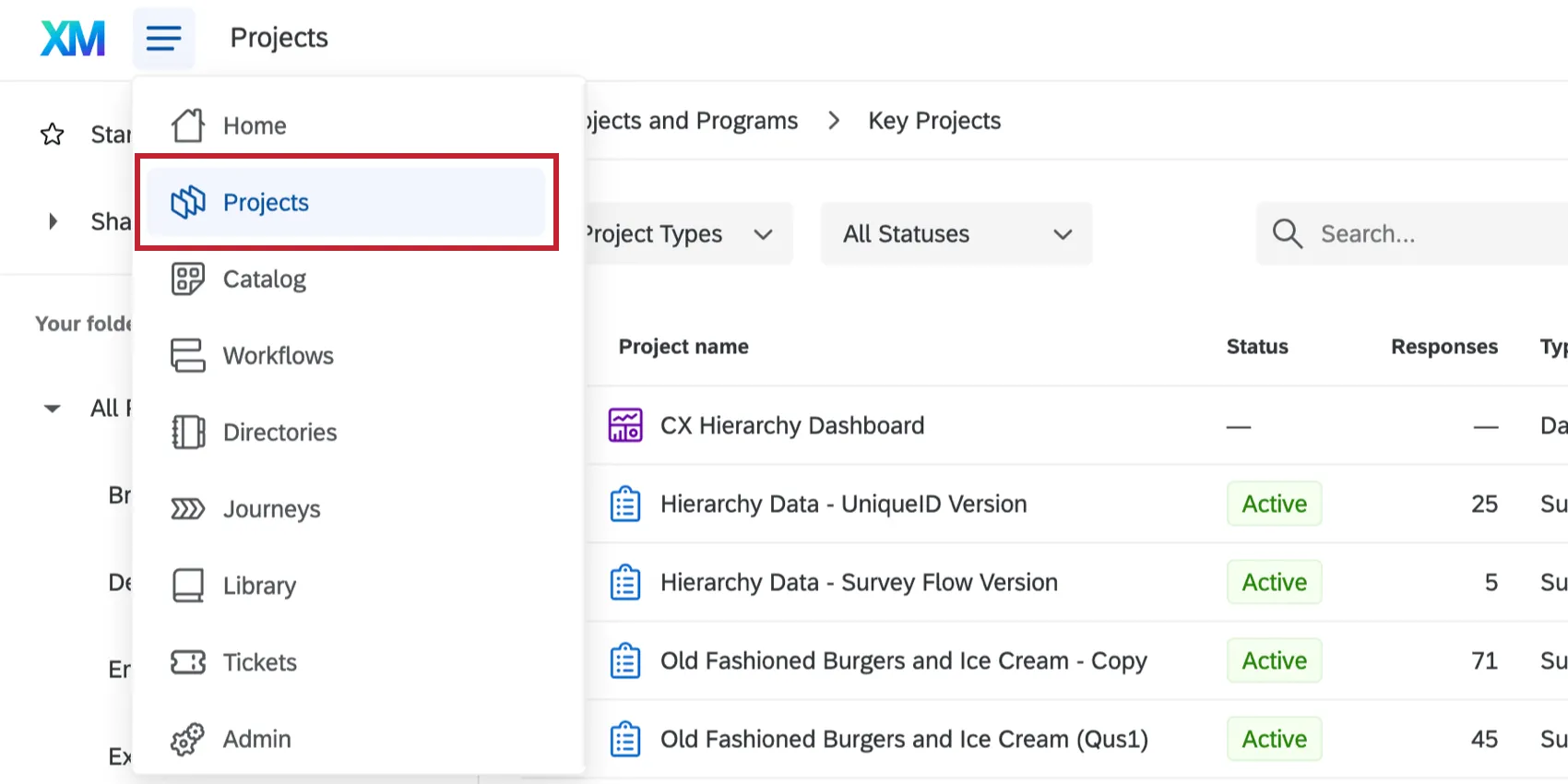
There may be times that you accidentally navigate away from your dashboard. If you go to the Projects page, it will bring you to a page with a list of projects. Your dashboard will appear on this page; click its name to return to it.
Qtip: Have you been told to follow up on tickets? Do you want to change your password or your account language? See the linked support pages.
That's great! Thank you for your feedback!
Thank you for your feedback!