

Adding Dynamic Org Hierarchies to CX Dashboards
What's on this page
About Adding Dynamic Org Hierarchies to CX Dashboards
This page will go over the steps for configuring dynamic org hierarchies so they can be used to filter data in CX Dashboards. Thus dashboard users will only be able to see data according to their level in an employee hierarchy.
Before you can add a dynamic hierarchy to your dashboard, you must meet the following requirements:
- Your brand uses unique identifiers.
- You’ve added users to your dashboard project via the User Admin
- You’ve created an org hierarchy.
- You have a survey that contains the users’ unique identifiers.
Qtip: Only Brand Administrators can add org hierarchies to dashboards.

Please note that this page describes functionality that is different from dashboarding in Employee Experience projects.
Adding a Dynamic Org Hierarchy to a Dashboard
Once you have made sure that unique identifiers are attached to your dataset, you can add the dynamic hierarchy to the dashboard with the following steps.

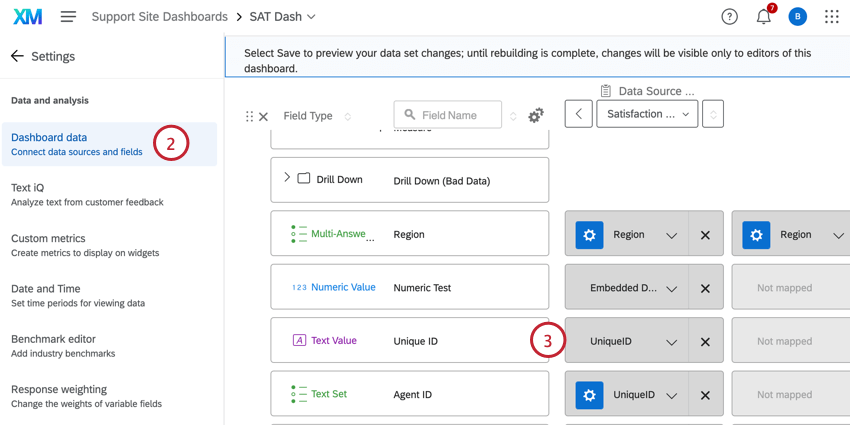
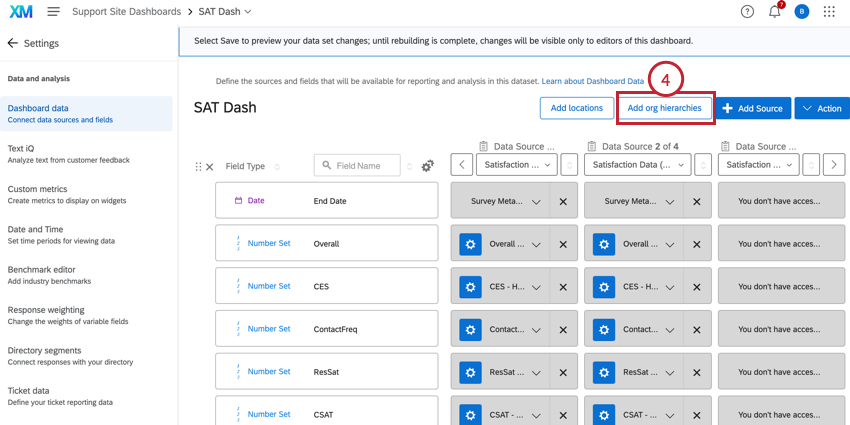
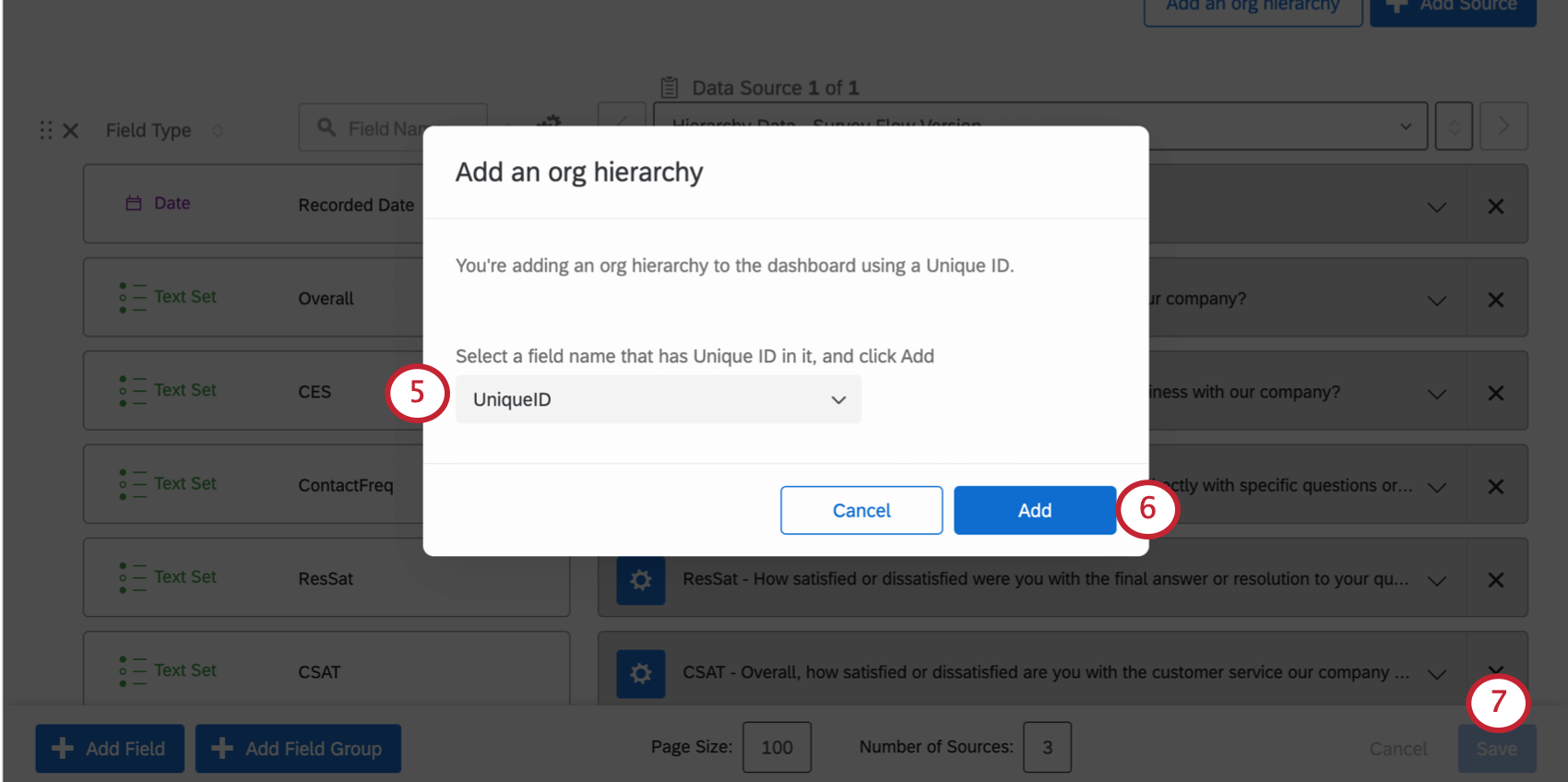
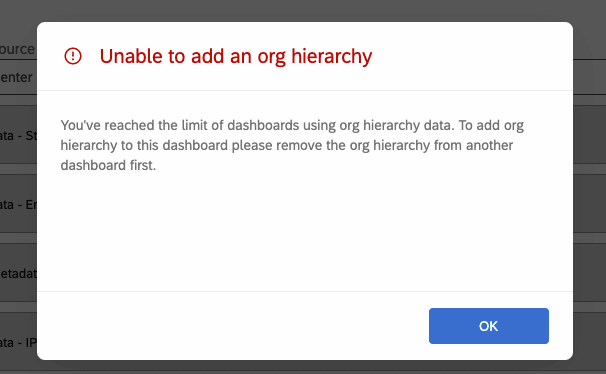
Qtip: You can add hierarchy data to a maximum of 7 different dashboards per all the users in the brand (not per user). If the limit of dashboards has been reached, you won’t be able to create new org hierarchies in dashboards, and you won’t be able to copy a dashboard that has an org hierarchy in it. You have to remove the org hierarchy from another dashboard to resolve this.
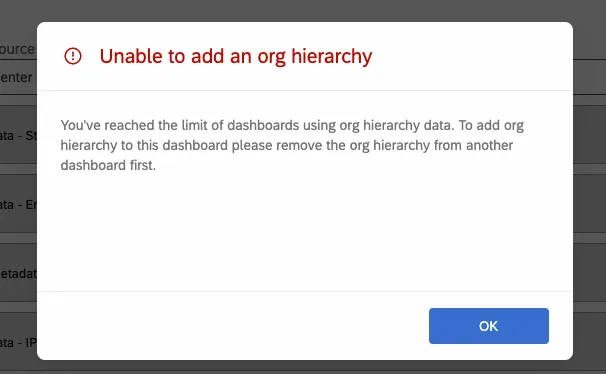
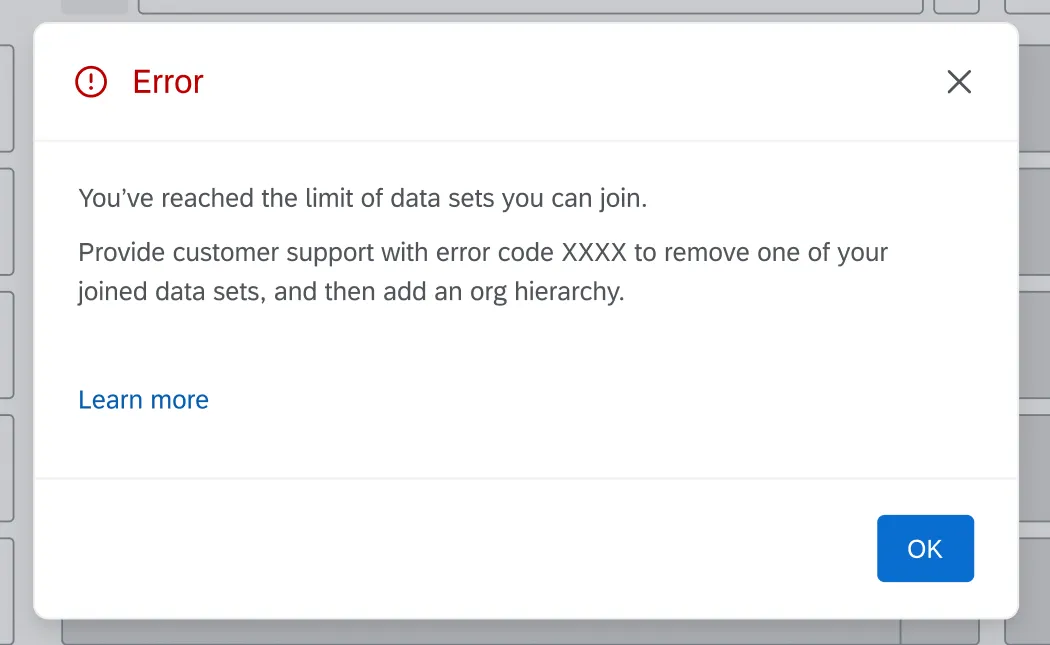
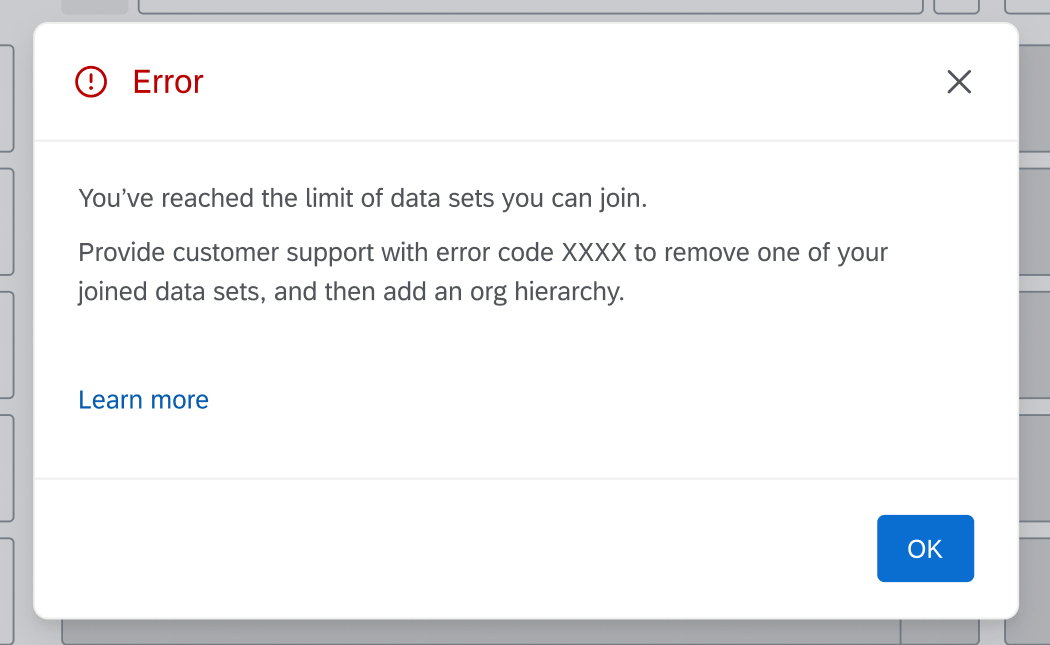
Qtip: If you have any custom “joined datasets,” your dashboard will be limited to 3 such data sources. If your dashboard already has three joined data sources, you will not be able to add the org hierarchy, and you will see the message shown below. If you are unsure whether you have “joined datasets,” reach out to your contact in Engineering Services. If you have not purchased Engineering Services, it is highly unlikely that you have joined datasets.
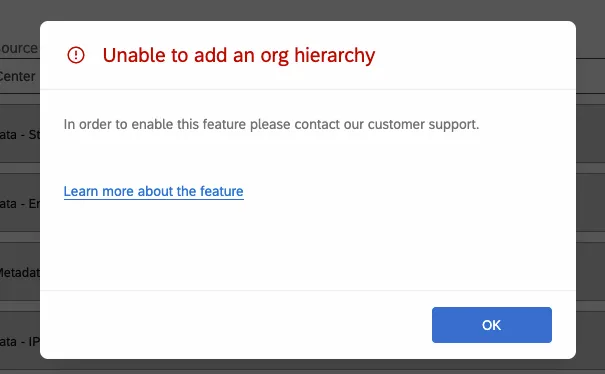
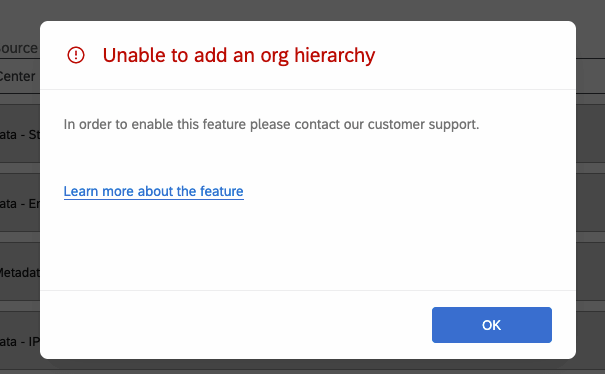
Qtip: If your brand does not meet platform prerequisites for supporting org hierarchies in CX dashboards, you will be asked to contact customer support so these prerequisites can be enabled.
Adding an Org Hierarchy Filter to a Dashboard
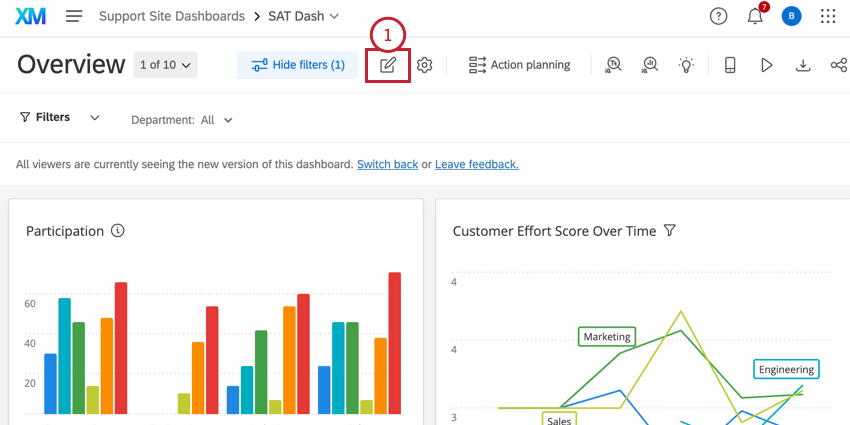
After adding a hierarchy to your dashboard, you can apply the hierarchy as a dashboard filter.
Qtip: Org hierarchy filters will not be visible on ticket reporting or action planning pages of the dashboard.
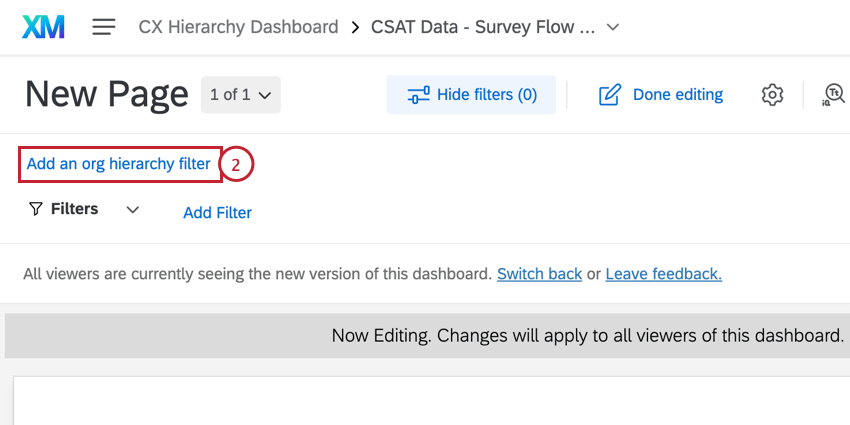
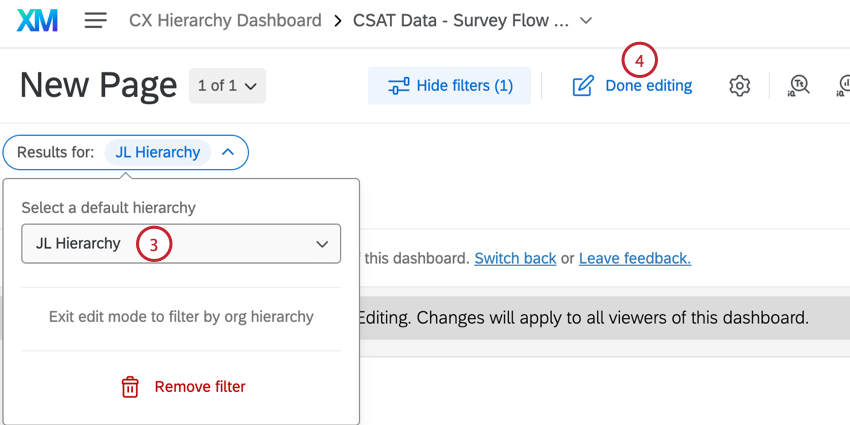
Qtip: Your dashboard can only have one org hierarchy filter on it at a time.
Using an Org Hierarchy Filter
Using an org hierarchy filter in a CX Dashboard works exactly the same as using an org hierarchy filter in an Engagement Dashboard. To learn more, see the following Engagement Dashboard pages:
Attention: Please keep in mind that the above links go to specific sections within Engagement Dashboard pages that also apply to CX Dashboards. The other sections you see on the linked page will not necessarily match CX Dashboard functionality!

Qtip: When adjusting user permissions, remember to always work out of Roles in the User Admin page.
Removing an Org Hierarchy from a Dashboard
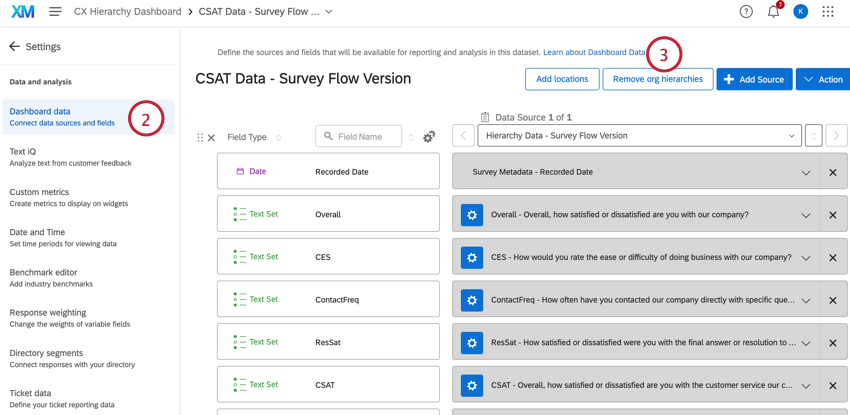
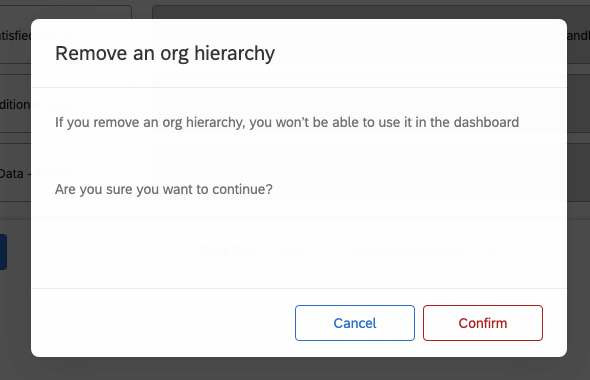
Qtip: If your dashboard had an org hierarchy filter on it, it will be automatically removed from your dashboard.
Using Org Hierarchy Metadata Fields in a Dashboard
Adding org hierarchies to your dashboard allows you to access the metadata fields used to configure those hierarchies in your dashboard. These fields are available in any widget that is compatible with embedded data fields. Org hierarchy metadata fields follow the syntax: [field name]_[hierarchy name]_[hierarchy ID].
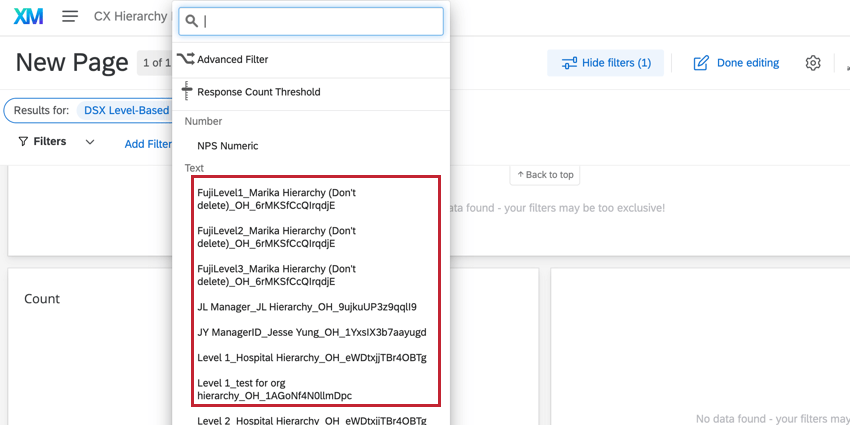
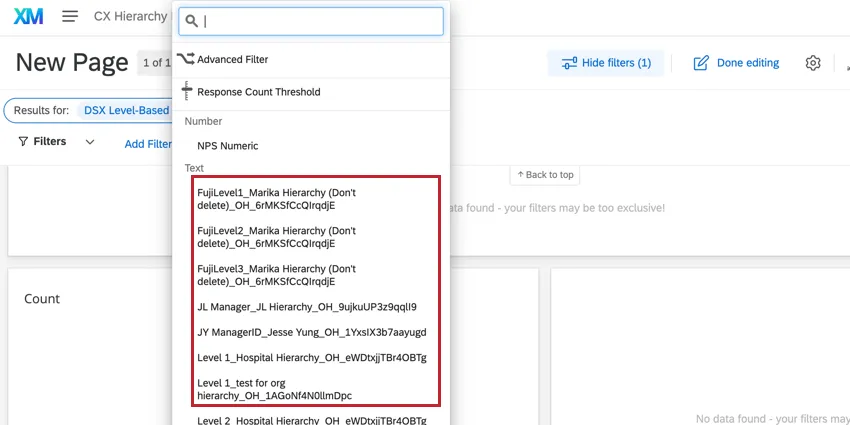
Qtip: Hierarchy metadata fields can only be added to your dashboard when using a parent, child, or level based hierarchy. Ad-hoc hierarchies are not currently supported.
When using hierarchy metadata in widgets or page filters, the Label feature can be used to rename the org hierarchy field to provide more clarity for end users.
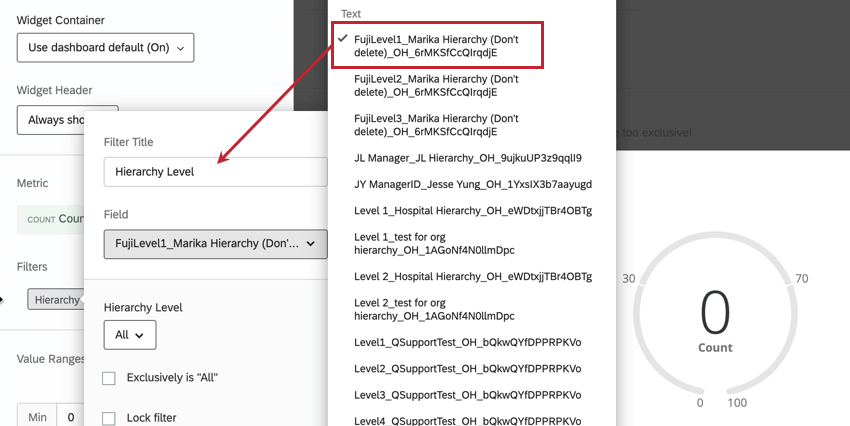
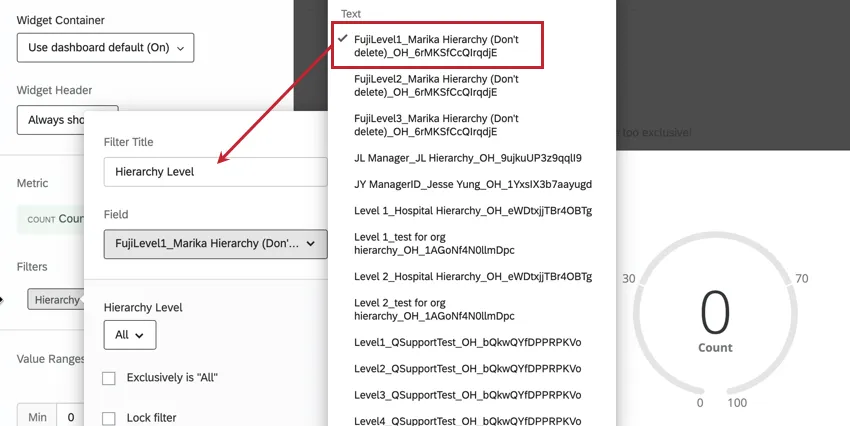
Qtip: Fields named Q_Units and Q_PrimaryUnits are fields that identify every unit in your hierarchy and are used to support the hierarchy filter.
REFRESHING ORG HIERARCHY DATA
To access newly added metadata fields, you will need to refresh your org hierarchies. You can only refresh org hierarchies once every 3 hours.
Attention: Refreshing org hierarchies in dashboards with joined org hierarchies will reindex the dashboard. Your previous data will still be available to view while the newer data loads.
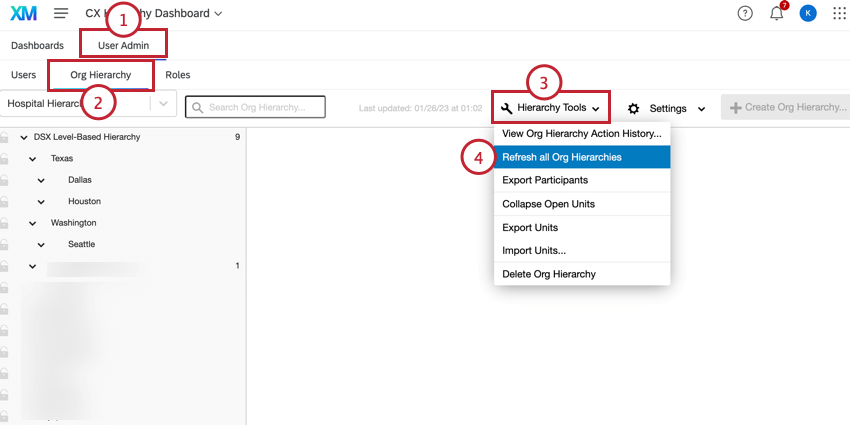
Qtip: If the Refresh all Org Hierarchies button is grey, the dataset has been refreshed within the last three hours and you will need to wait in order to refresh again.
That's great! Thank you for your feedback!
Thank you for your feedback!