

Applying Dashboard Filters (Studio)
What's on this page
About Applying Dashboard Filters
Filtering data lets you focus on the results that are most important to you and get insights into the performance of different groups. Once a dashboard has filters on it, viewers are free to adjust them as needed, so long as those filters aren’t locked.
Qtip: If you filter data while the dashboard is set to view, your selections will not affect other users. If you filter data while the dashboard is set to edit, you’ll adjust the default filters that are applied when visitors view the dashboard.

Reloading a dashboard resets dashboard filters to their default values.
Qtip: If you’re viewing a book with several dashboards, switching between the book’s tabs does not reset filter values.
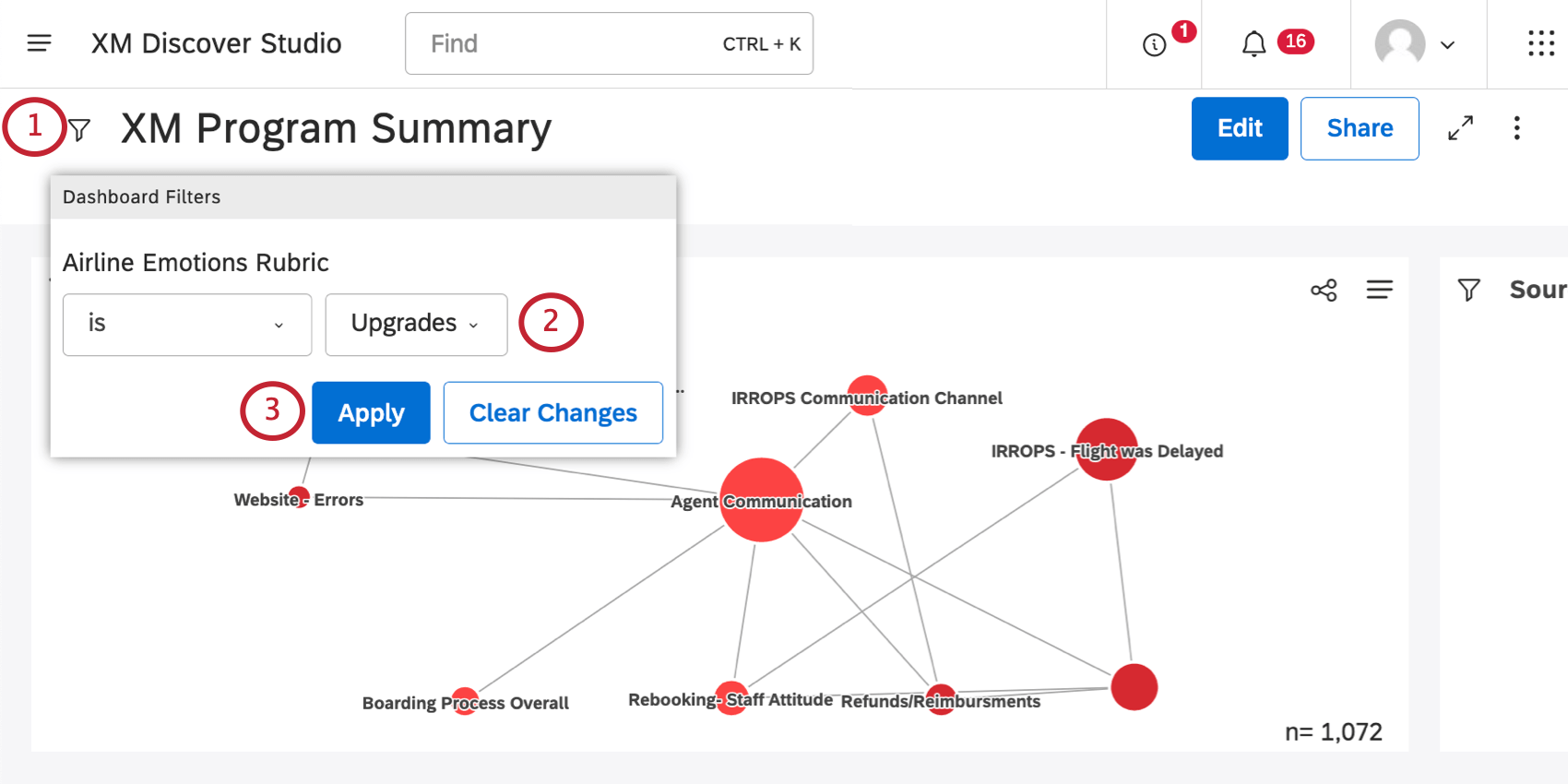
Applying Dashboard Filters
Qtip: If you’re a dashboard editor, make sure you’re not in editing mode, unless you want to change preselected values.
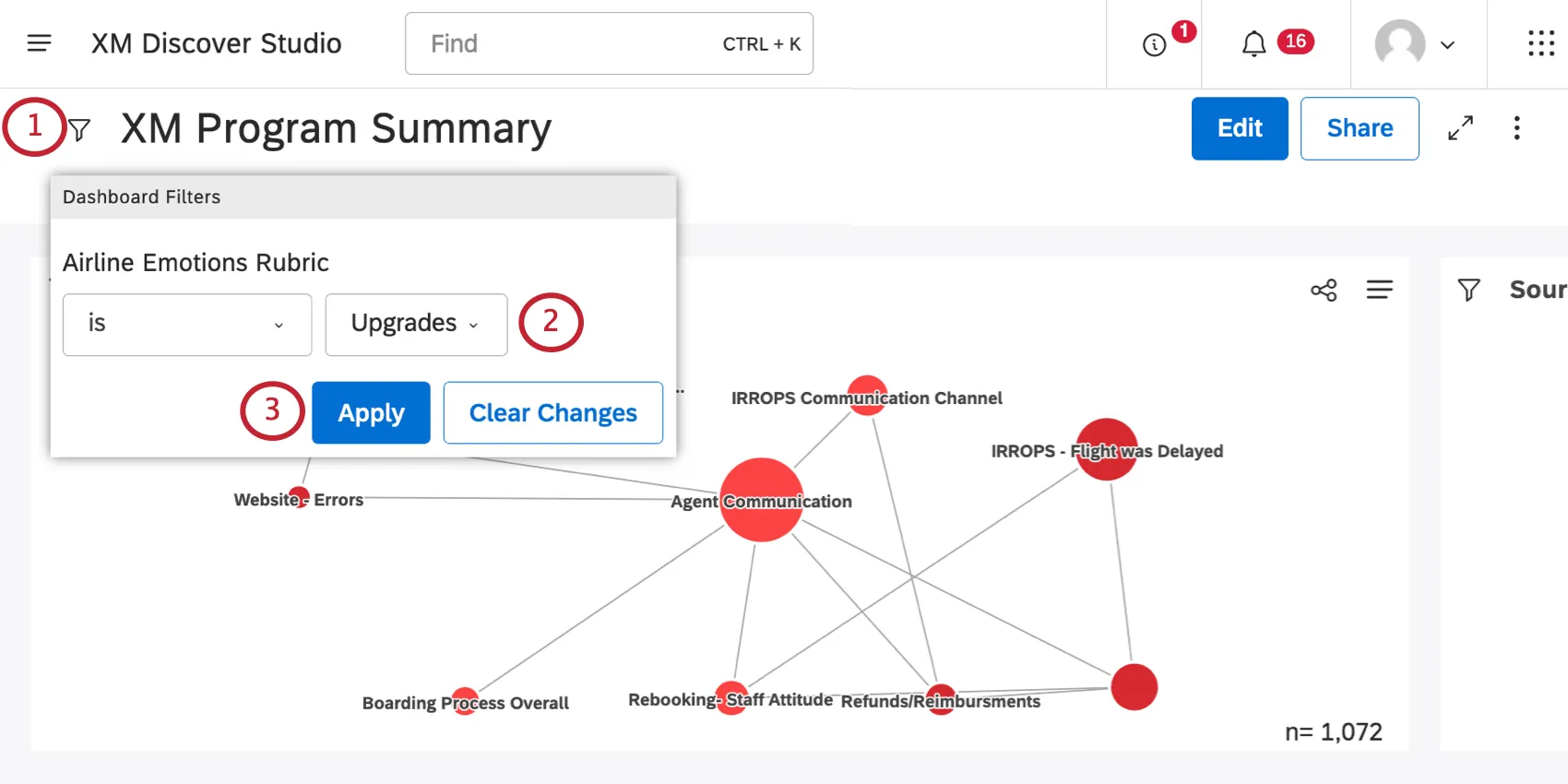
Qtip: You won’t be able to change a locked filter while the dashboard is in viewing mode.
Qtip: See Managing Long Filter Lists later in this page for tips on finding the right values.
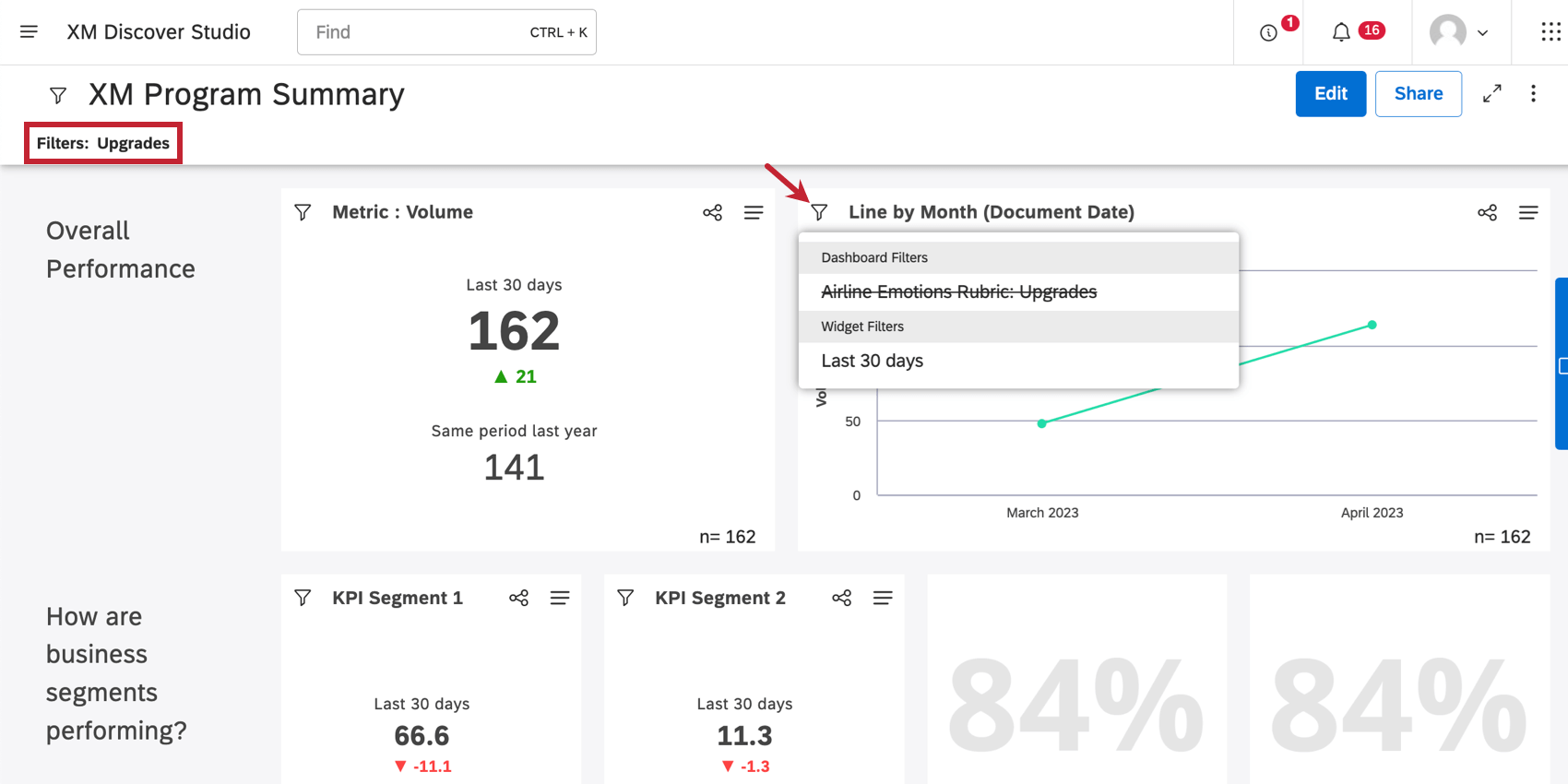
Applied dashboard-wide filters are displayed in the Filters section under the dashboard’s name and in every widget’s filters drop-down in the Dashboard Filters section.
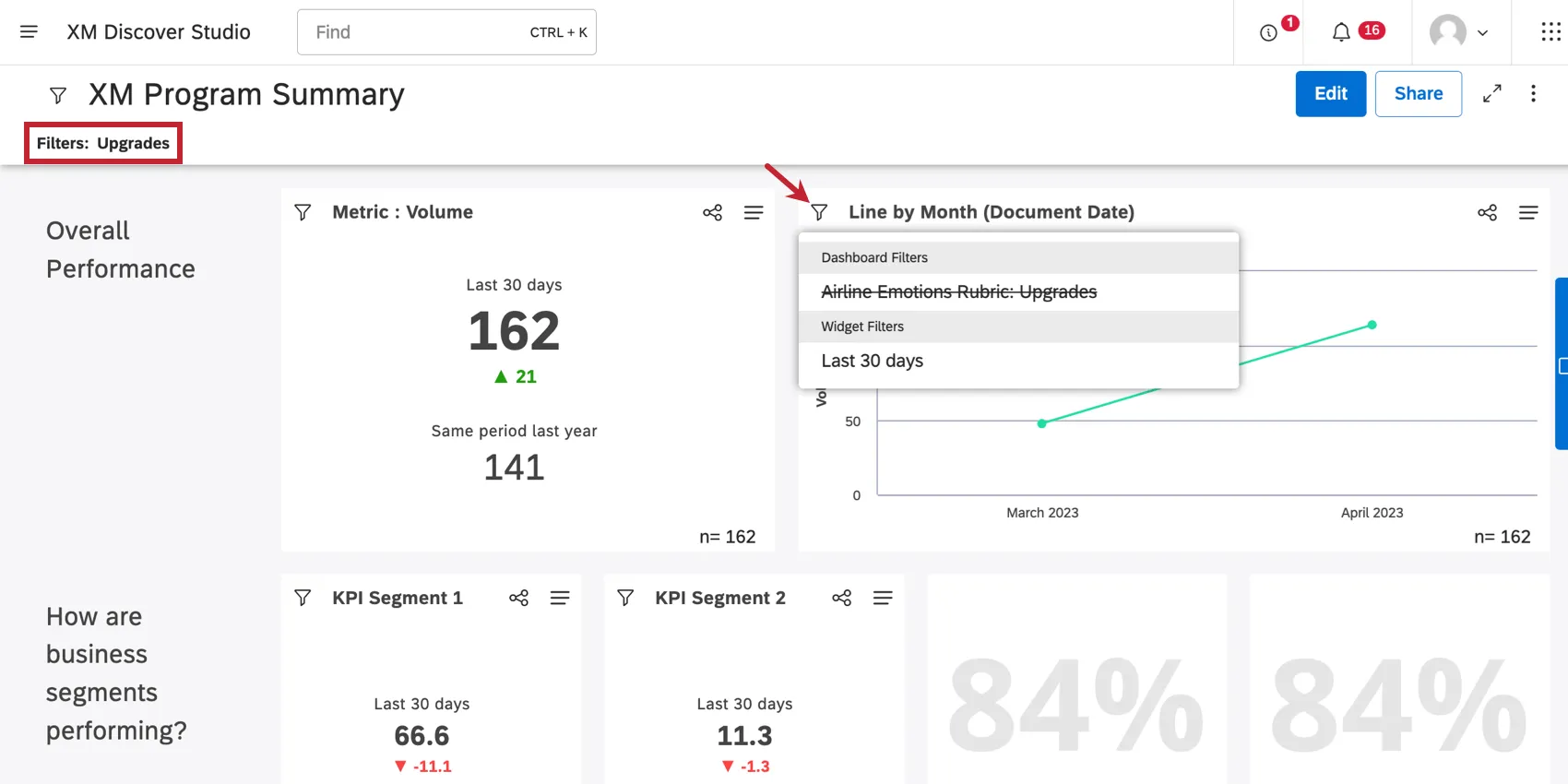
Qtip: In view mode, dashboard viewers will only see saved filters that dashboard editors have explicitly applied to the dashboard or shared with the viewer.
Managing Long Attribute Lists
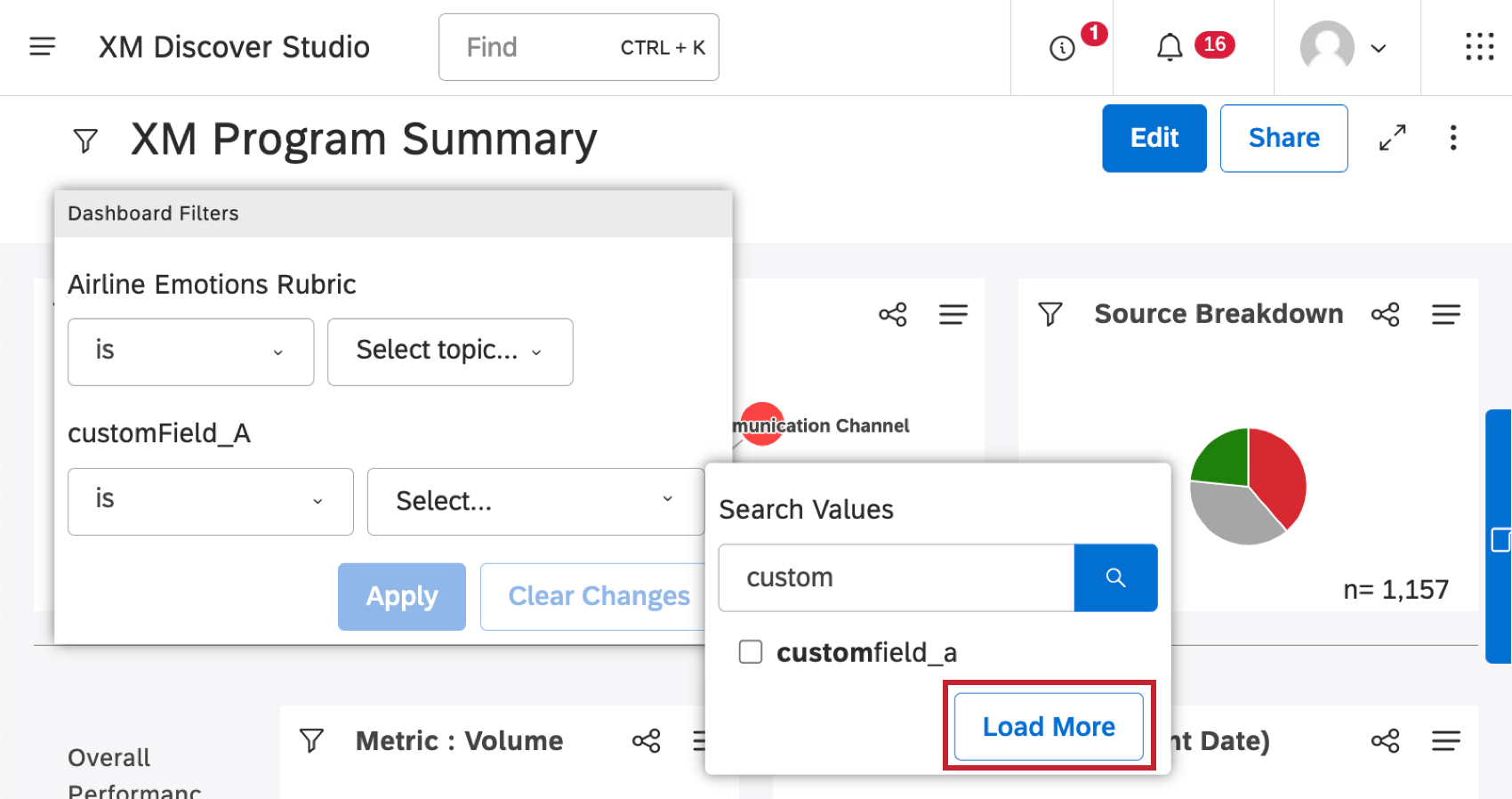
Sometimes, attributes may have so many possible values that it’s hard to find the right ones for your filter. First, try typing the first letters of what you’re looking for to see matching values.
Qtip: As attributes and NLP entities can have a significant number of values, you might need to type several characters to get a refined list of results.
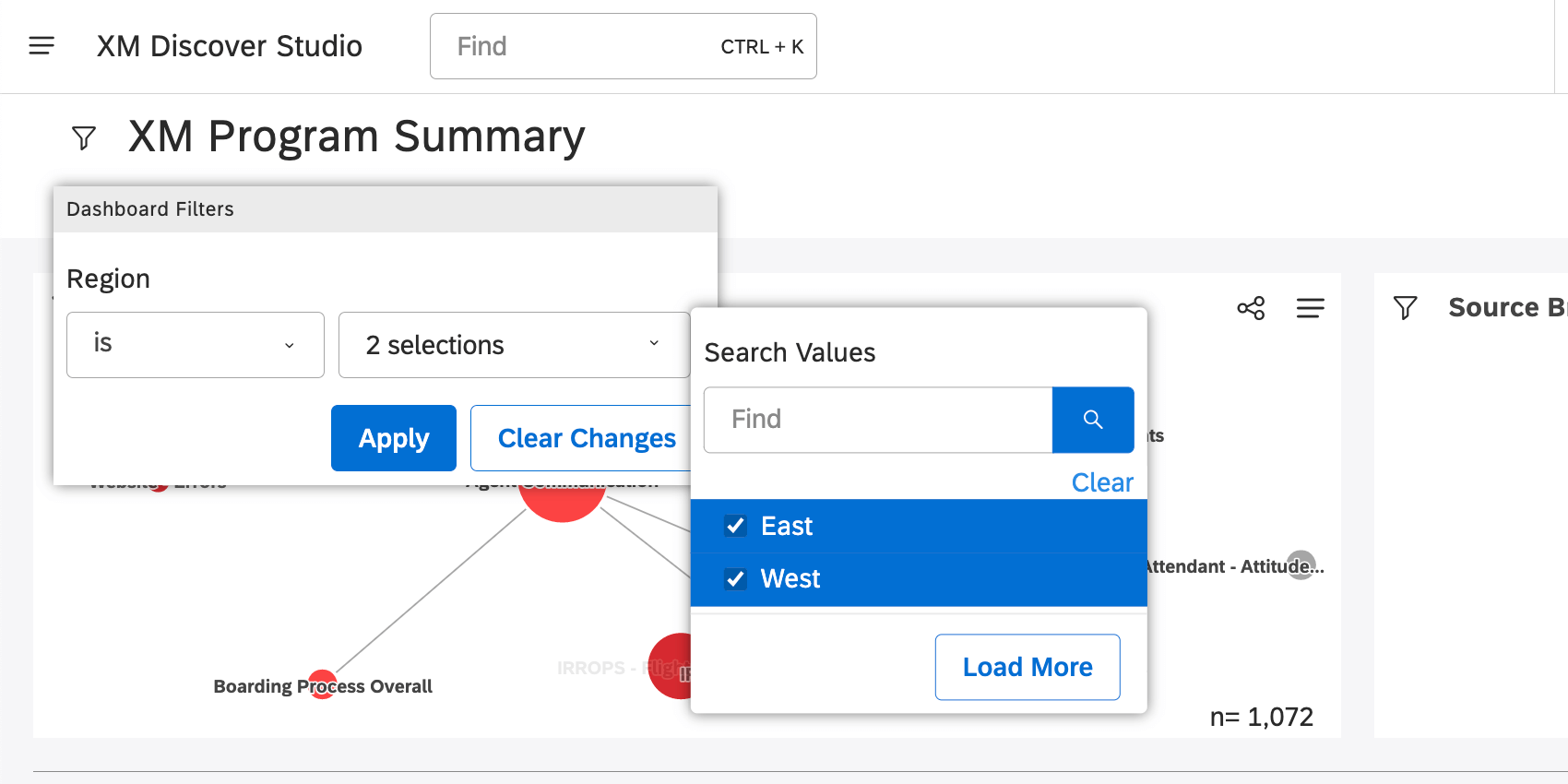
If the value you’re looking for is not in the first 20 values, click Load More to show the next 20 values.
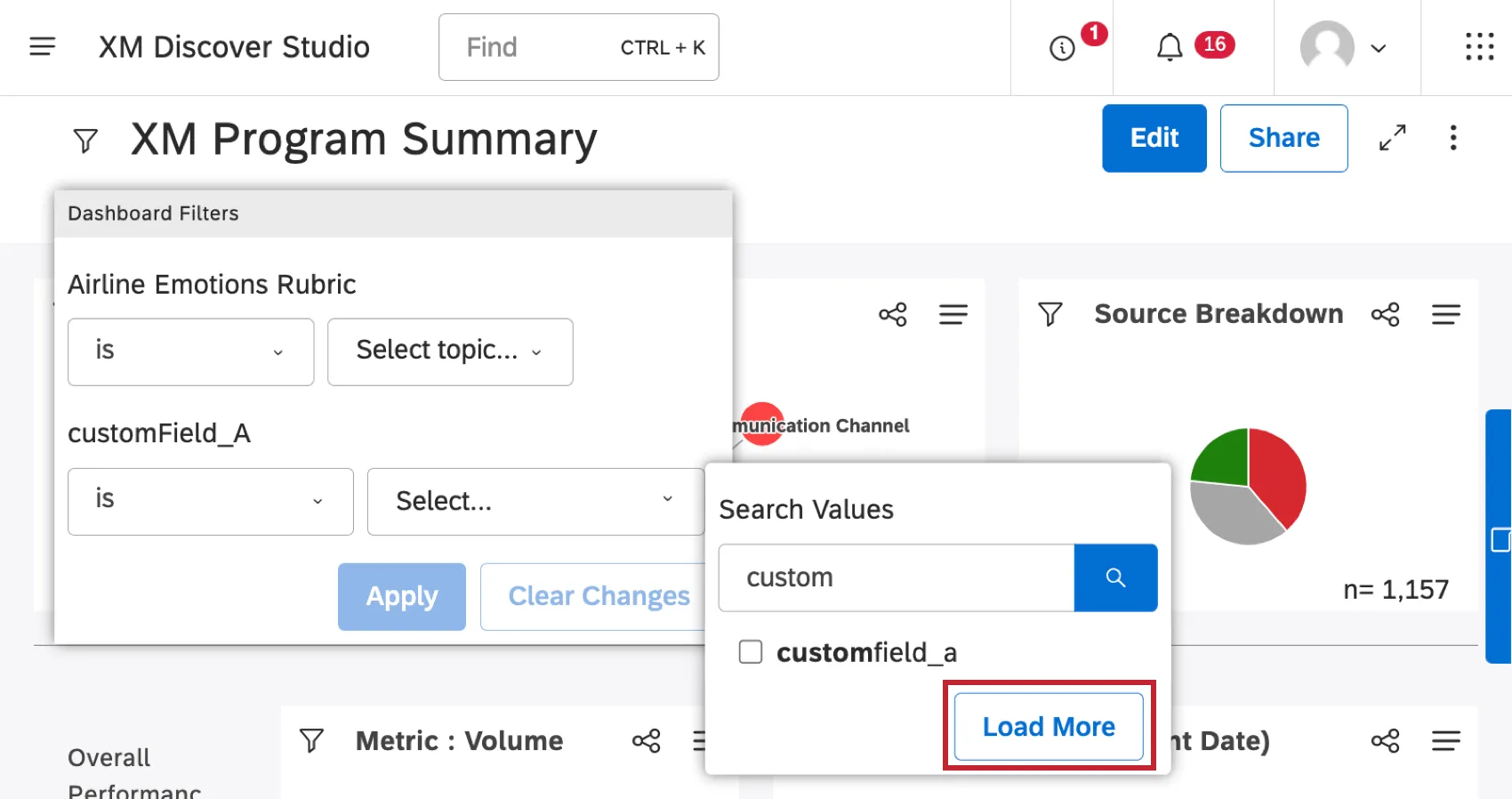
Qtip: If the values have been updated while you were looking at the dashboard, you can also use the Load More button to load them.
How Multiple Selections Interact
Often, there will be more than one filter on the dashboard that you can adjust. How multiple selections interact depends on how they were applied.
Multiple Selections in a Single Filter
For any single dashboard filter dropdown, sometimes multiple values can be selected. This section explains this behavior depending on the type of filter.
Qtip: For an explanation of each type of filter, see Available Filter Types.
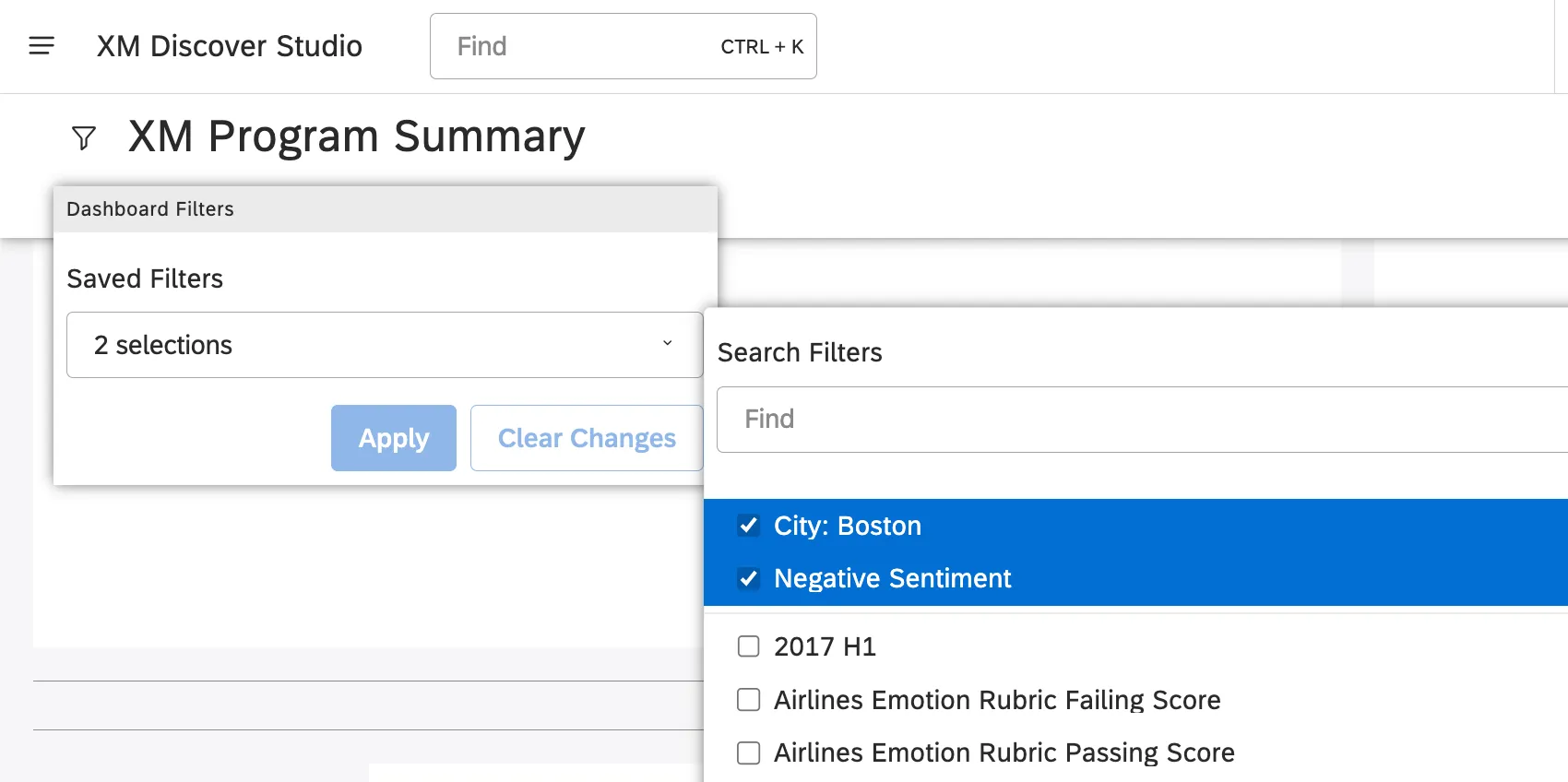
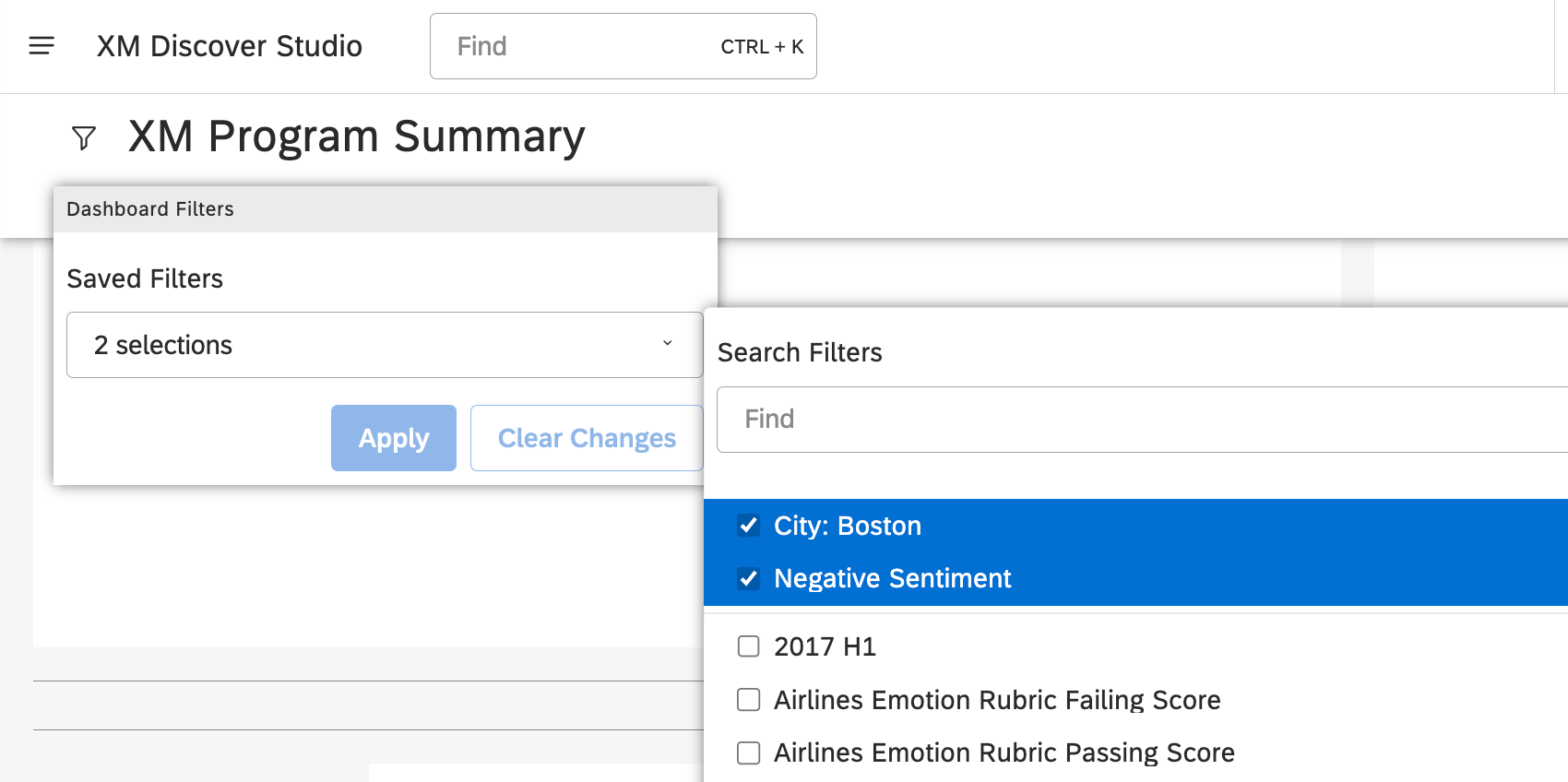
- Saved Filters: The conditions of all of the selected filters are applied. Example: Here, we’ve selected City: Boston and Negative Sentiment. This selection will only return results that match both filters (i.e., records with negative sentiment from Boston).

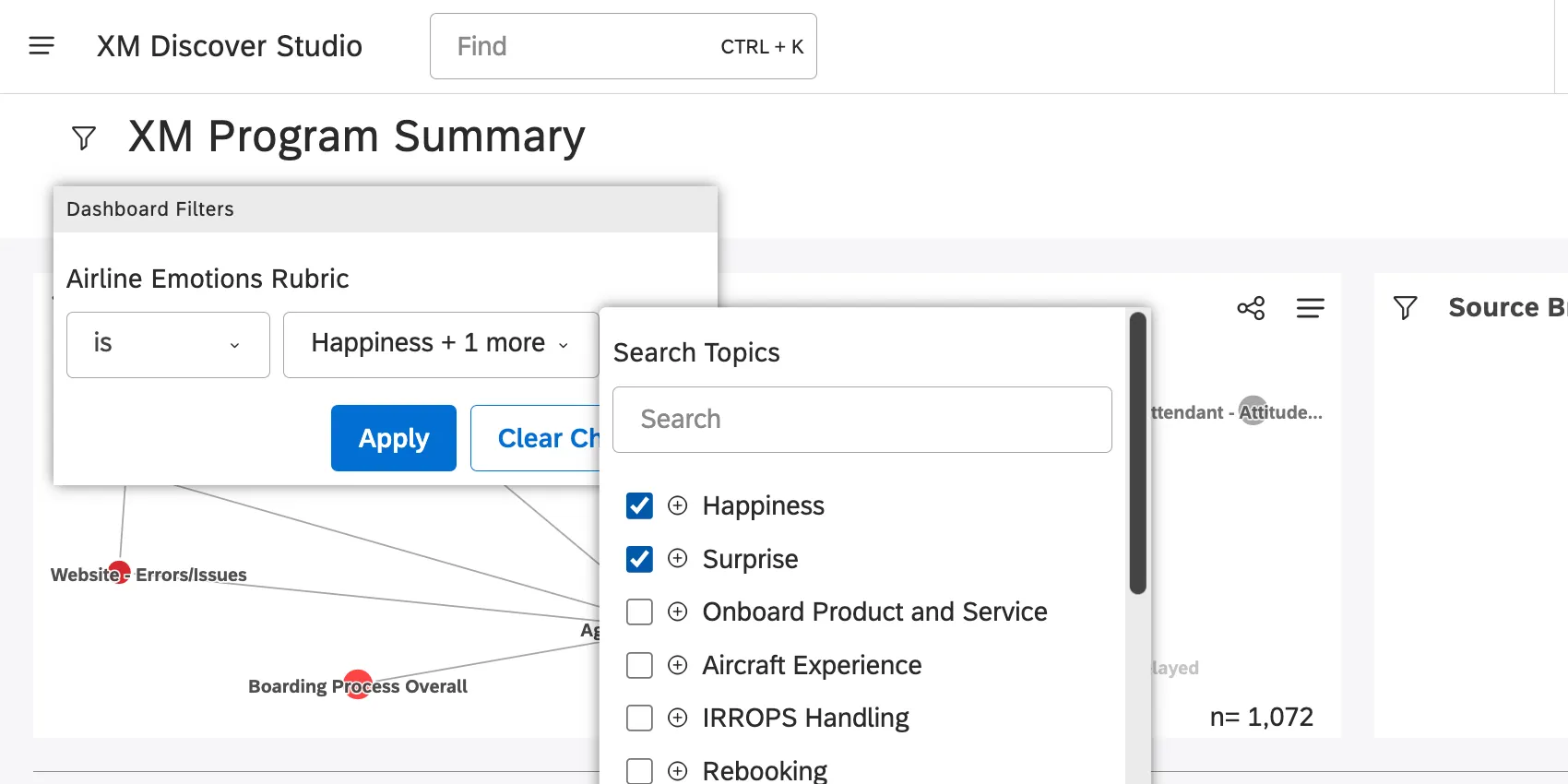
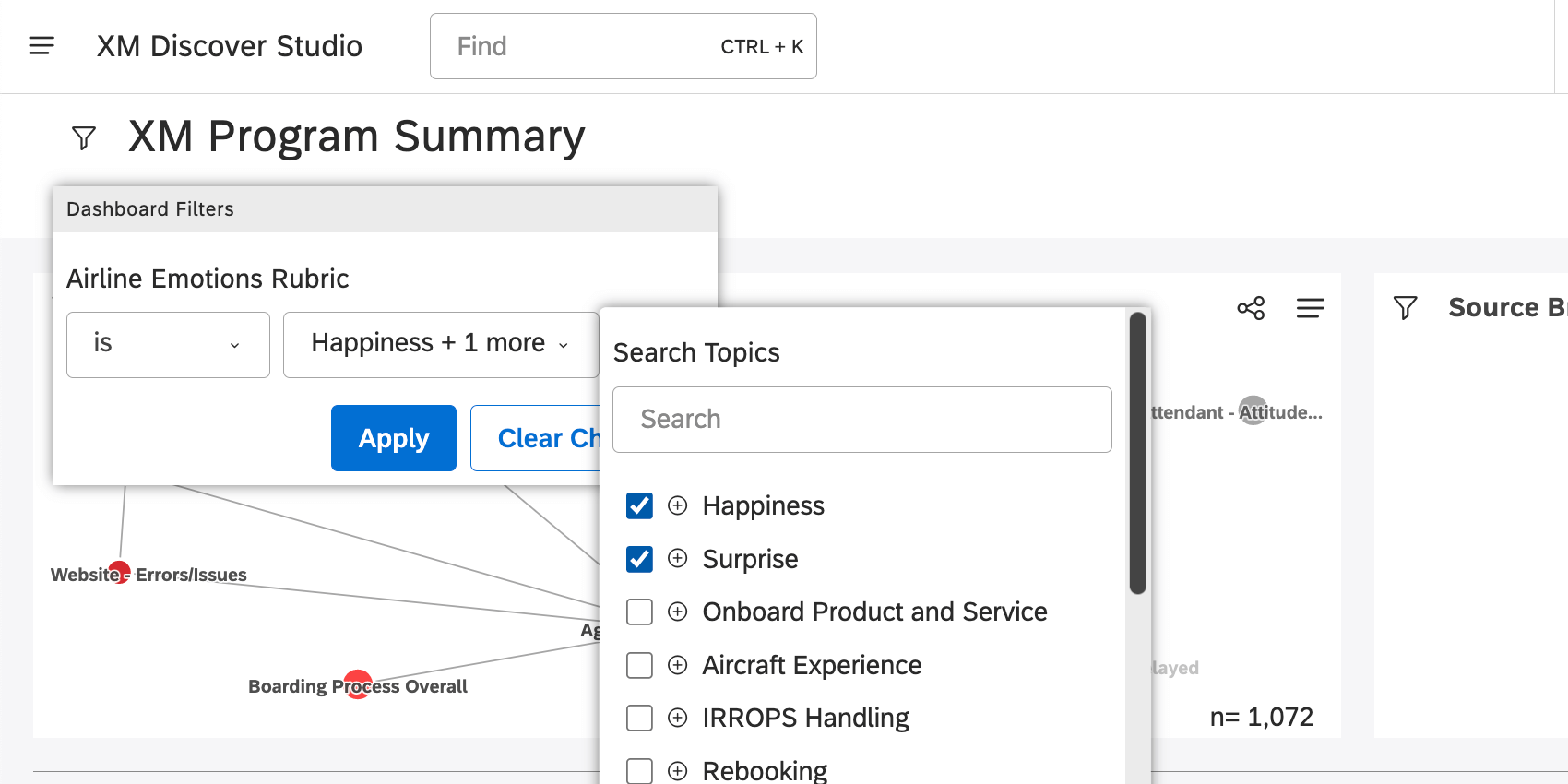
- Topics: The conditions of any of the selected filters are applied. Example: Here, we’ve selected Happiness and Surprise. This selection will return results that match either Happiness or Surprise.
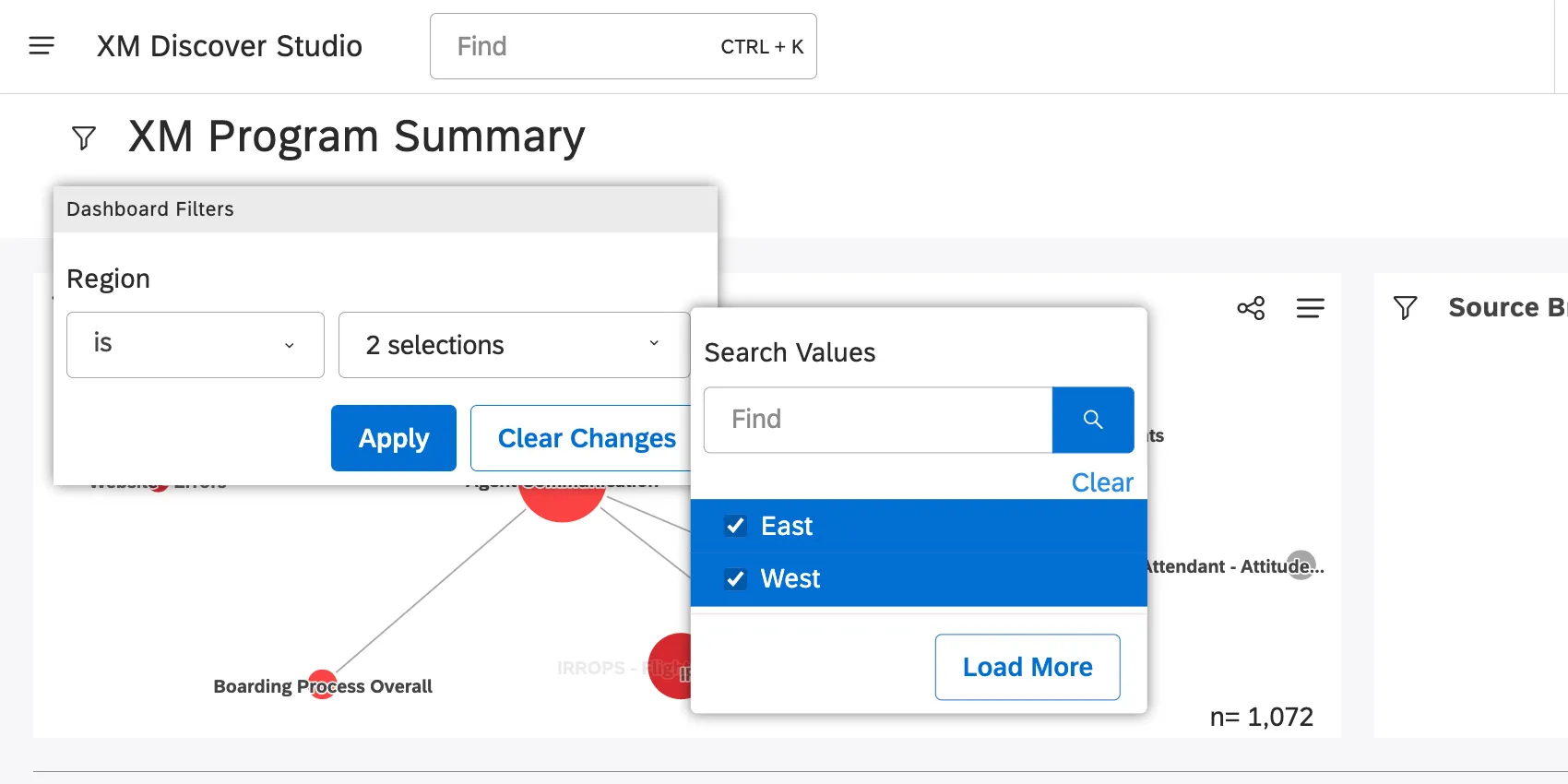
- Attributes: The conditions of any of the selected filters are applied. Example: Here, we’ve selected East and West. This selection will return results that match either East or West.
Multiple Selections in Multiple Filters
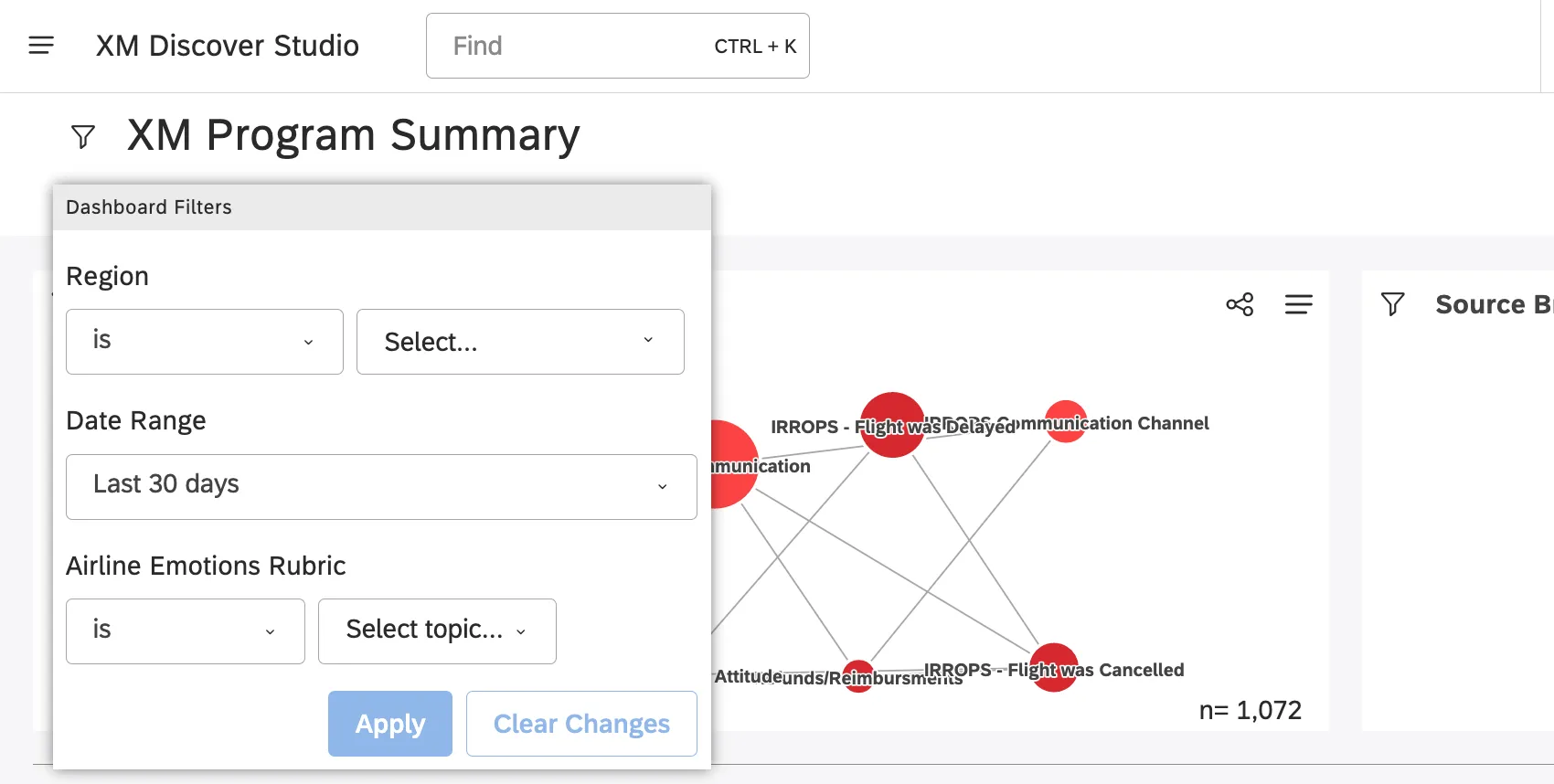
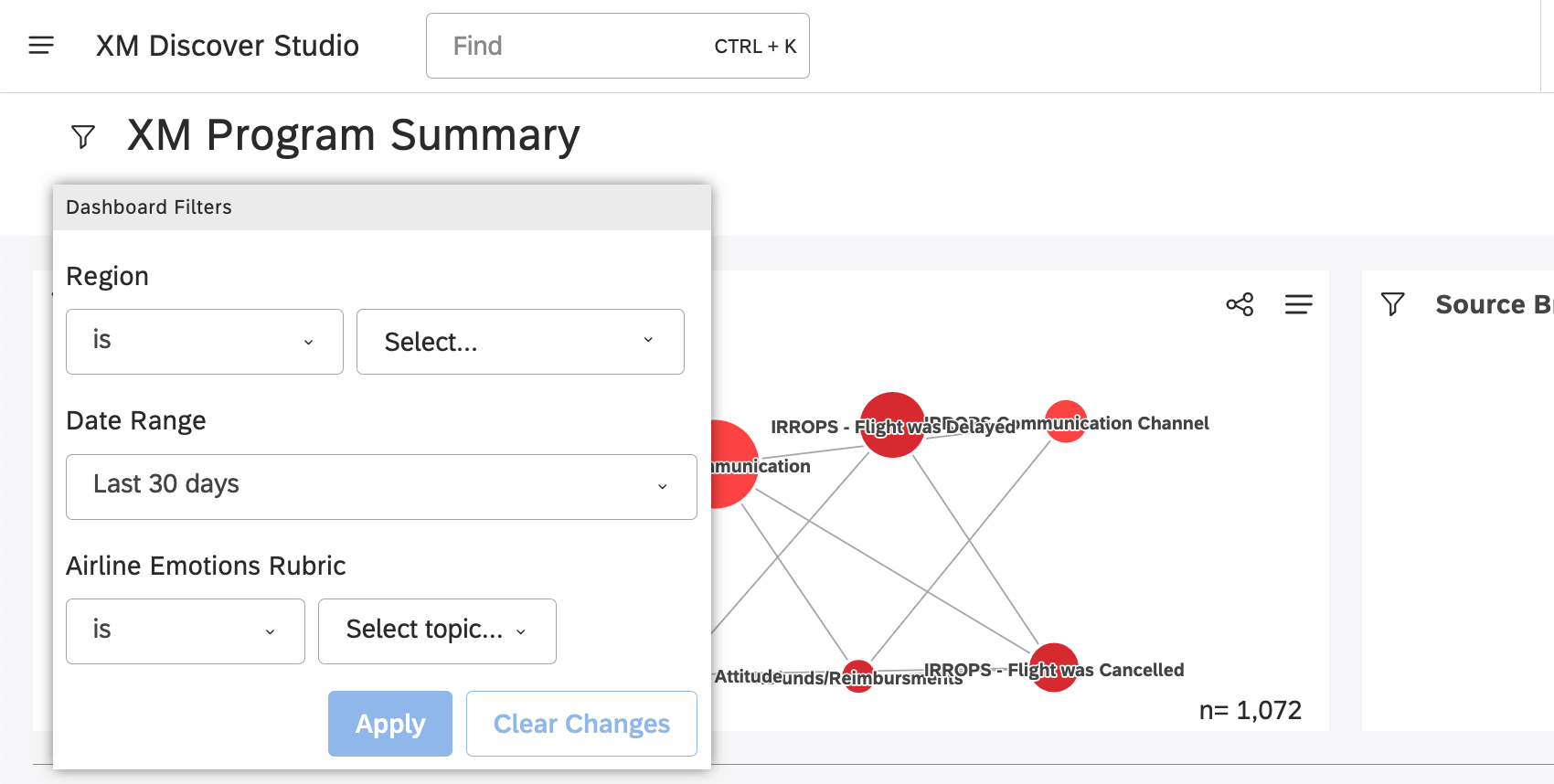
If you have multiple filters (not just selections in the same filter), each of these filters are combined so that they must all be met.
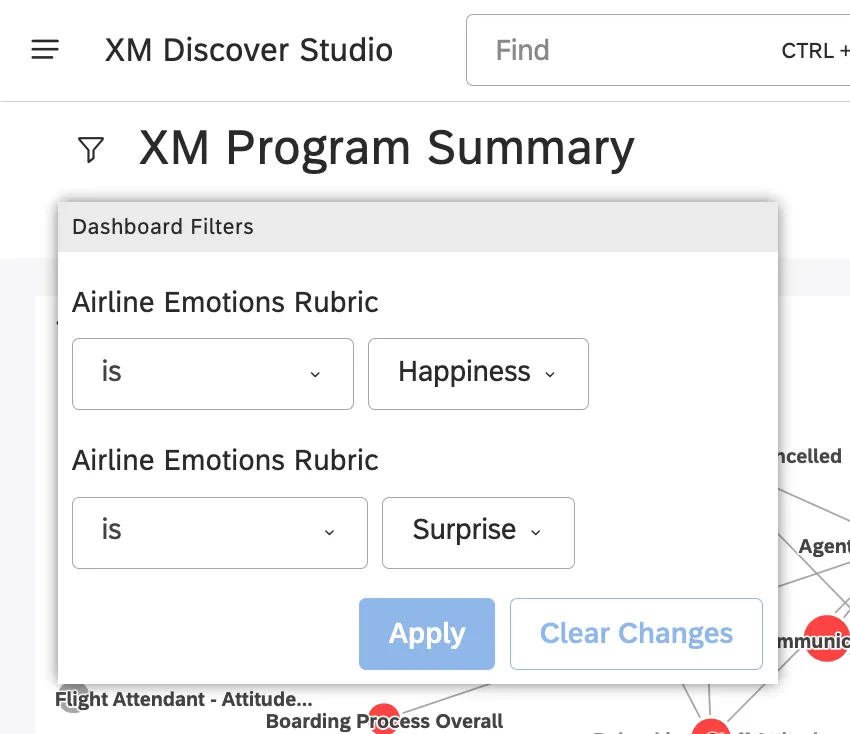
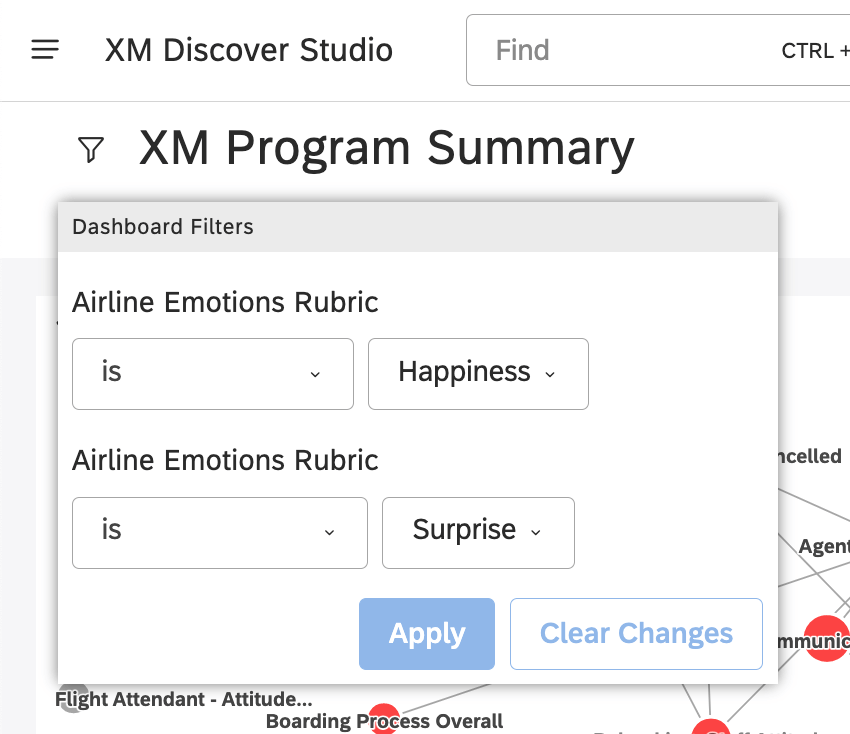
You can add the same categorization model twice in different filter dropdowns.
Example: If you add Happiness and Surprise topics in different filters, this will only return results where happiness and surprise are mentioned together.
How Dashboard and Widget Filters Interact
When both dashboard-wide and widget-specific filters are applied, they are combined as follows:
- By default, dashboard filters that are saved, attribute, or topic filters are combined with widget filters. That means results must meet dashboard filters of those types and widget filters.
- You can set a widget to ignore specific types of dashboard filters.
- Unless you set your widget to ignore them, dashboard date range filters completely replace widget date range filters.
That's great! Thank you for your feedback!
Thank you for your feedback!