

Navigating Dashboards Using Explorer (Studio)
What's on this page
About Dashboard Explorer
Dashboard Explorer is where you view and manage all dashboards and books you own or that other users have shared with you.
Opening Dashboard Explorer
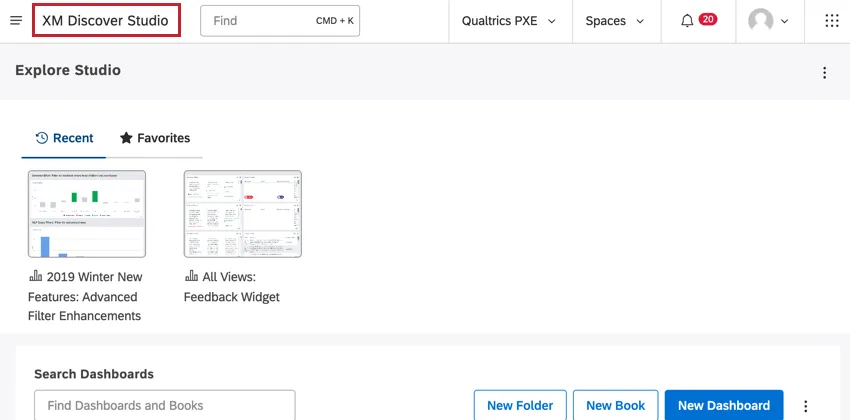
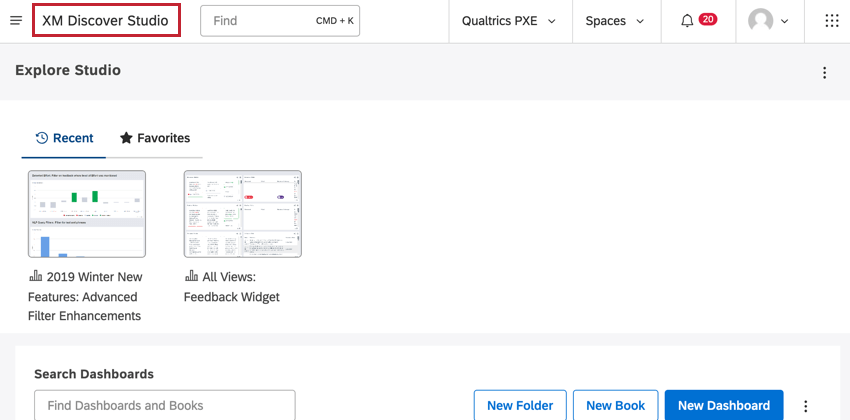
Click the logo in the upper-left corner. If there is no logo, click the XM Discover Studio title in the upper-left corner.
Dashboard Explorer Basic Overview
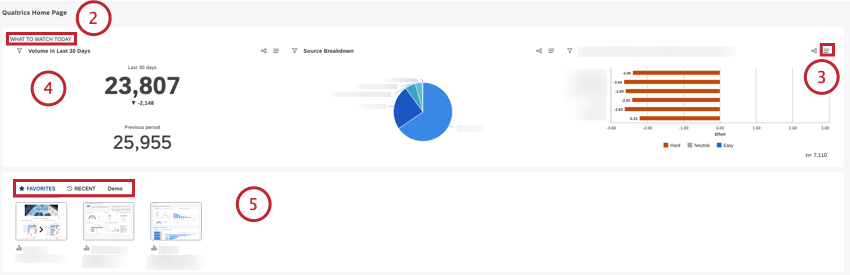
- What to Watch Insights: display two, three, or four widgets with key insights defined in the Layout Options section.
- Show Quick Insights: display XM Discover Search, an intelligent search assistant that helps you to explore and investigate insights.
- Dashboard Carousel: display the thumbnail carousel of books and dashboards. Qtip: For more information on creating and configuring a homepage, please see Creating a Homepage in Studio.

- RECENT: Shows dashboards and books you viewed recently (sorted left to right from most to least recent).
- FAVORITES: Displays dashboards and books you marked as favorites.
- Custom tabs: Shows custom tabs that display dashboards and books based on their labels.
 Qtip: See Dashboard Explorer Carousel Settings for information on how to add custom tabs and manage the carousel.
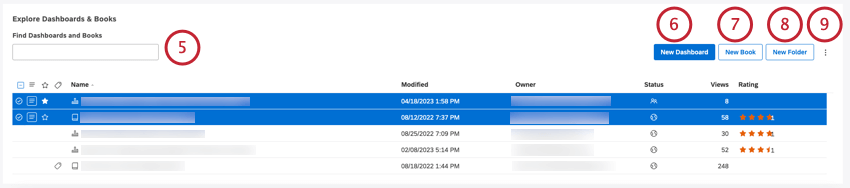
- Type dashboards to only see dashboards.
- Type books to only see books.
- Type labels to only see dashboards and books that have labels.
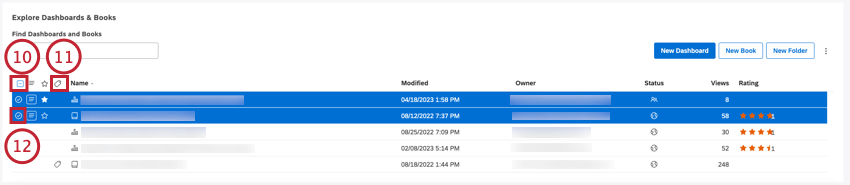
Qtip: Selections do not apply for items that are hidden and invisible or filtered out by a search query.

Qtip: Use shift-click to select multiple items at once.
Qtip: Multiple selections share the same actions menu.
Dashboards and Books Table
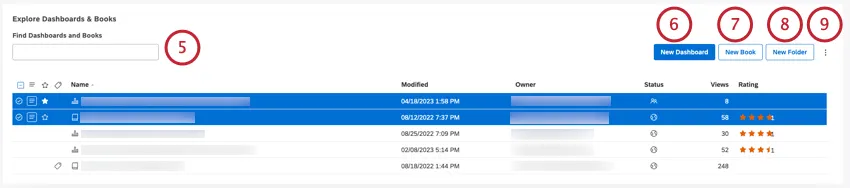
The Dashboards and Books table provides the following information:
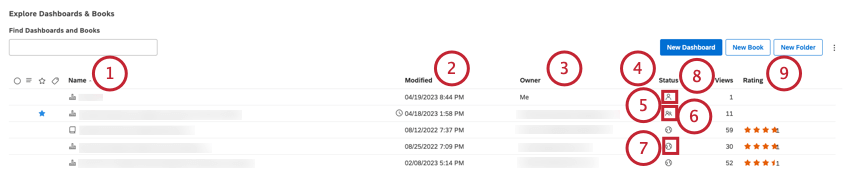
Finding Dashboards and Books
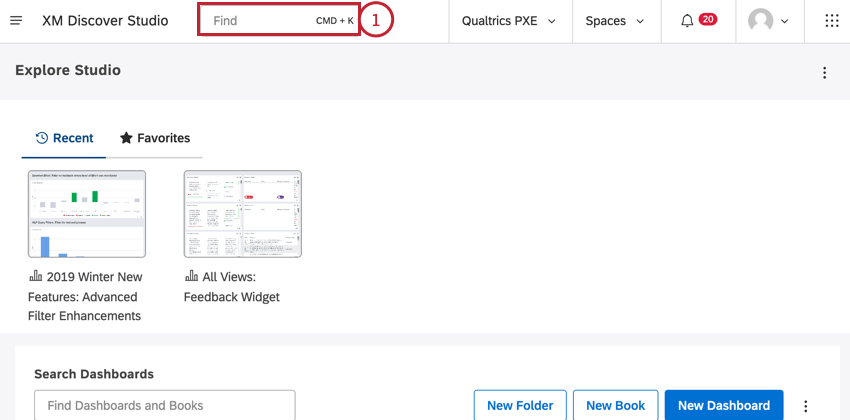
When in dashboard explorer, you can find a particular dashboard or book using any of the following methods:
- Look through the dashboards and books you viewed recently under the RECENT tab.
- Quickly access your favorite dashboards and books under the FAVORITES tab.
- Find dashboards and books by name or by label using the search field on top of the dashboards and books table. Qtip: Type the word dashboards into the Search box to display just the dashboards to which you have access (regardless of whether the word “dashboards” is in their name). Type the word books to display just the books. Type the word labels to display dashboards and books that have labels.
- Sort objects by name, date modified, author, or view count by clicking the corresponding column headers. Click a header several times to switch between ascending and descending sorting.
Hiding Dashboards and Books
If you do not want certain dashboards or books to appear in dashboard explorer, you can hide them.
Here’s how it works:
- Hiding a dashboard or book only affects its visibility in your dashboard explorer.
- Hidden items will still appear in the RECENT and FAVORITES tabs in your thumbnail carousel.
- You can access hidden dashboards and books by switching their visibility on, as well as unhide them altogether.
Qtip: Alternatively, you can organize dashboards and books into folders but folders cannot be hidden.
Hiding dashboards and books is a two-step process: first, you mark selected items as hidden, then you switch their visibility on or off.
Switch Hidden Items Visibility On or Off
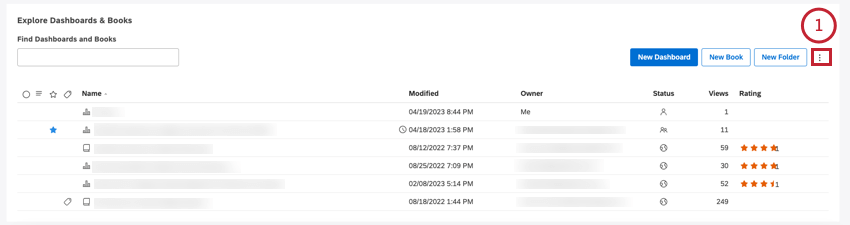
- Show All Hidden (visibility is off). Indicates that hidden items are currently not shown. Click to show them.

- Hide All Hidden (visibility is on). Indicates that hidden items are currently shown. Click to hide them.



Mark an Item as Hidden
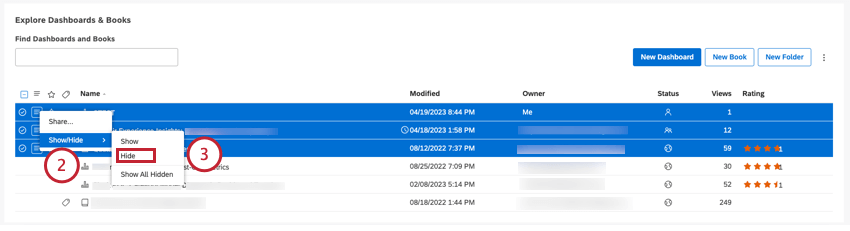
Hidden items will no longer be shown in Dashboard Explorer unless their visibility is switched back on.
Mark an Item as Not Hidden
Once a dashboard or book is hidden, you can unhide it.
Qtip: Hidden items are displayed using lighter colors.
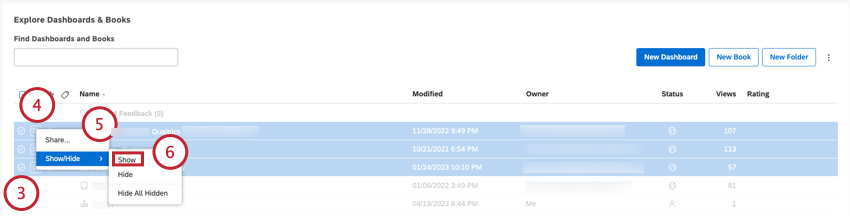
Creating a Folder
You can use folders to organize dashboards and books in Dashboard Explorer. Folders are always displayed at the top, followed by dashboards and books in alphabetical order.


Attention: Folder name must be unique per user.

Once a folder is created, you can expand the actions menu next to it and perform the following actions:
- Create New Dashboard: Create a dashboard inside this folder.
- Create New Book: Create a new book inside this folder.
- Add Subfolder. Create a nested folder (up to 5 levels deep).
- Rename. Change folder name or description.
- Delete Folder. Delete a folder (without dashboards). See Deleting a Folder.
- Delete Subfolder (for nested folders). Delete a subfolder (without dashboards).
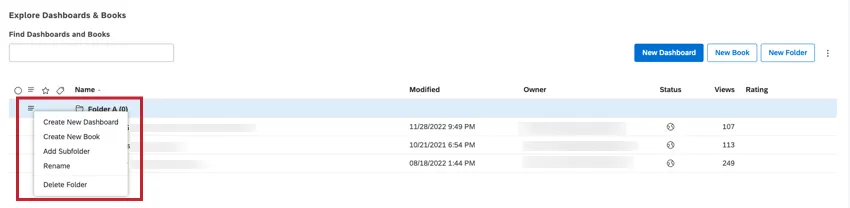
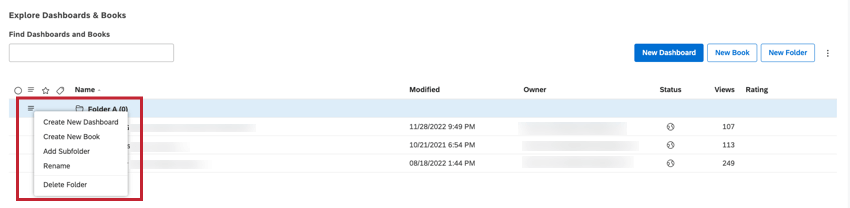
You can also move objects to this folder.
Moving Items to a Folder
After you have created a folder, you can move your dashboards and books to that folder.
Qtip: When a folder is deleted, the dashboards and books that were in it are moved to the root folder.
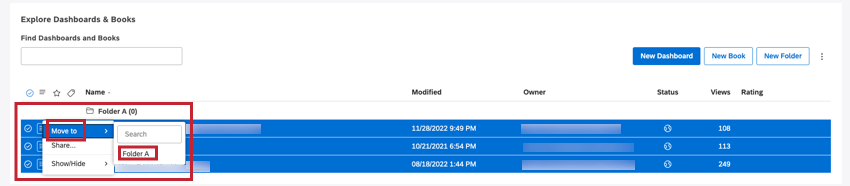
Qtip: If you need to move several items, select them using the check boxes on the left. Multiple selections share the same actions menu.
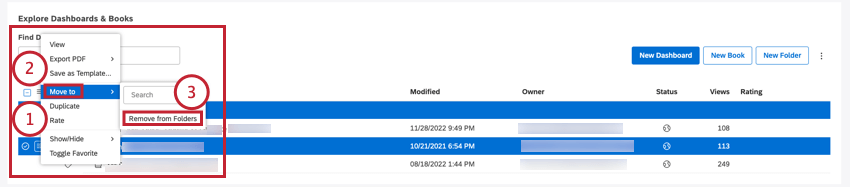
Move an Item to the Root Folder
Create a Dashboard Inside a Folder
Deleting a Folder
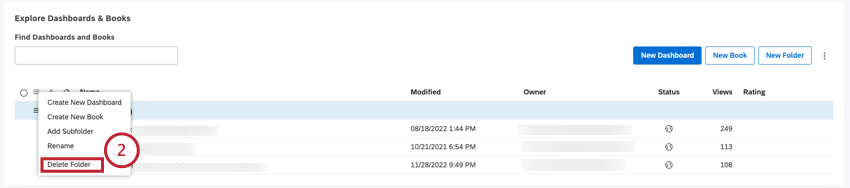
You can delete folders in Dashboard Explorer.
Qtip: If you choose to delete a folder that contains dashboards or books, they will be moved to that folder’s immediate parent (or root folder for top-level folders).
Adding Dashboards and Books to Favorites
Studio provides several ways to quickly access your favorite dashboards and books. You can mark any number of dashboards or books as your favorites to have them handy in the FAVORITES tab of Dashboard Explorer. You can also set one dashboard or book as your homepage to go straight to it when you sign in to Studio.
Marking Dashboards or Books as Favorites
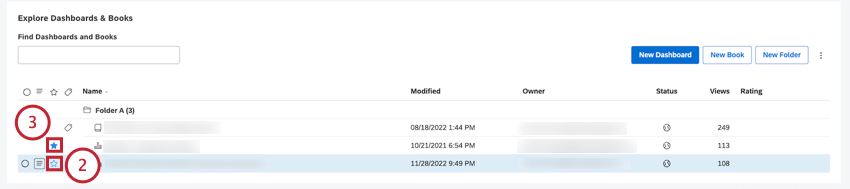
Items marked as favorites become available in the FAVORITES tab of Dashboard Explorer.
That's great! Thank you for your feedback!
Thank you for your feedback!