

Experience Design for Workplaces: Office Program
What's on this page
About the Experience Design for Workplaces: Office Program
When designing an in-person office space, it is important to consider an office that meets your employees’ specific needs. The Experience Design for Workplaces: Office XM solution is created for company leadership and human resources teams to ensure employee feedback is considered in the development and implementation of an office location.
Solutions are different from templates, in that templates create a survey for you, whereas solutions take you step by step through the survey creation, distribution, and reporting process. You can look through a list of solutions in the XM Marketplace.
Qtip: For a general guide on using XM Solutions, see Guided Solutions.

Creating an Experience Design for Workplaces: Office Program
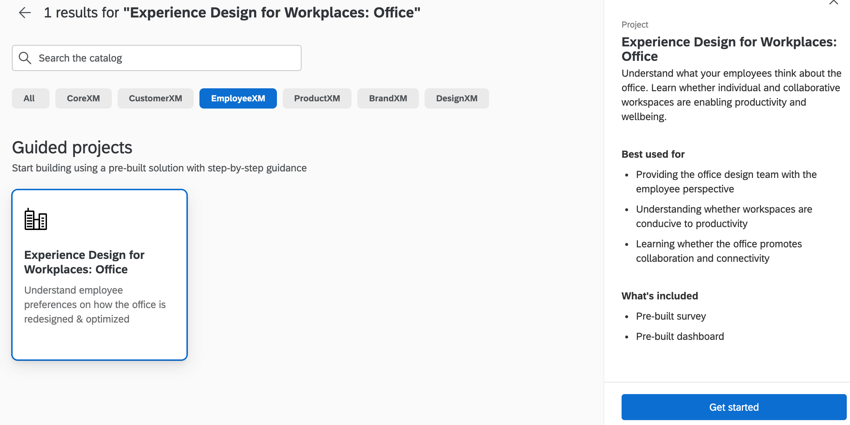
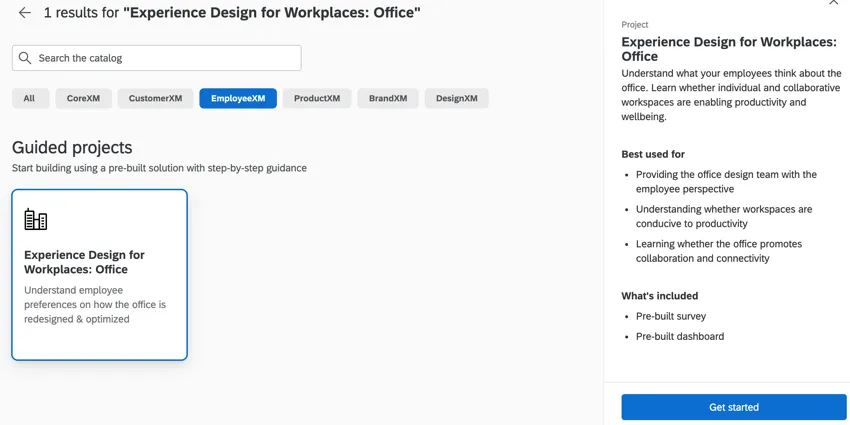
You can create an Experience Design for Workplaces: Office Program by going to the Catalog and either searching it by name or looking in Guided projects after filtering for EmployeeXM. After you’ve found the solution, click Get started to begin setting it up.
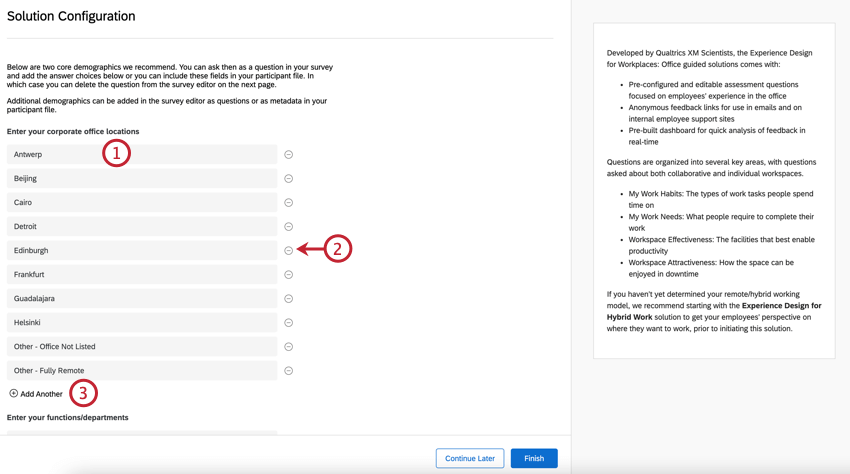
Before you can launch your program, you need to fill out your current office locations and your company’s functions and departments.
Afterwards, your survey will load in the survey editor for you to edit and preview.
Qtip: This solution has the same features as an Ad Hoc Employee Research project. See Types of EX Projects for more information about features available in this project type.
Included with Each Experience Design for Workplaces: Office Program
Each program you create contains:
- Guidance on survey editing Attention: Since this solution uses a prebuilt dashboard, any changes you make to your survey will not be automatically reflected in your dashboard. See Dashboards Tab for more information about editing your dashboard.

- Guidance on adding participants
- Guidance on dashboards
Adding Participants to Your Program
You must add your employees as participants to your program so you can survey them. Adding participants to your program is the same as any EX project. See the following resources for more information:
- Participants Basic Overview (EX)
- Preparing Your Participant File for Import (EX)
- Adding and Removing Participants (EX)
Dashboards Tab
When you visit the Dashboards tab of your program, you’ll find a premade dashboard developed by subject matter experts. You need to collect data before it will populate with data. Otherwise, the widgets will be empty when you edit the dashboard.
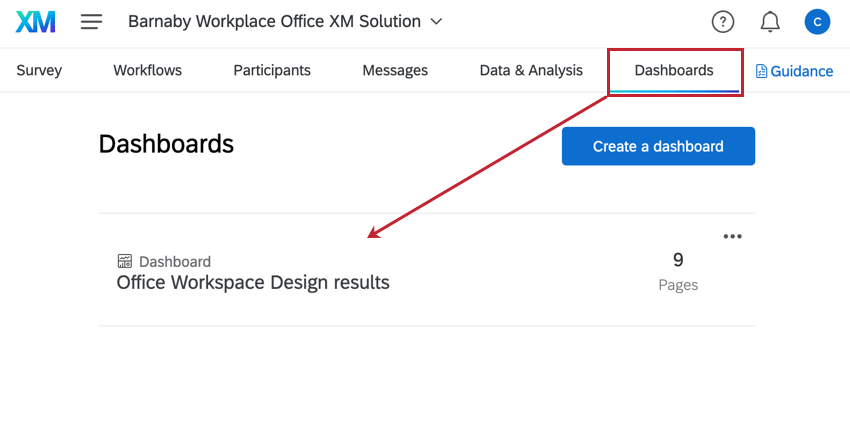
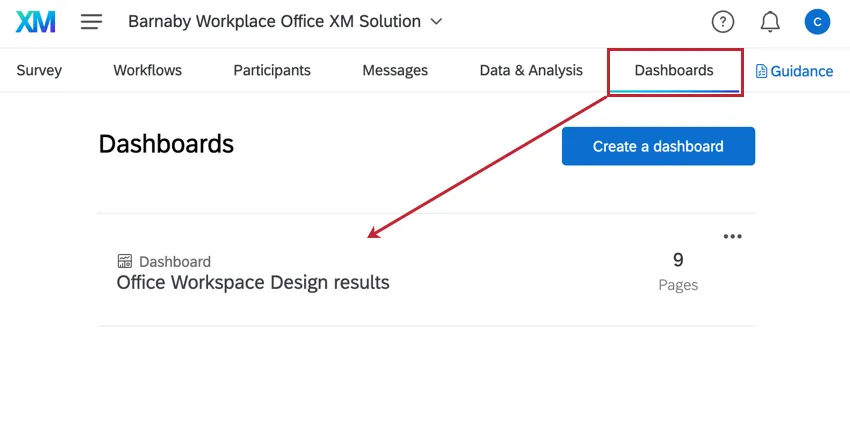
You can edit this dashboard just like any other – mapping new fields, adding new widgets, or removing content as needed.
EX Dashboards Fundamentals
Editing dashboards and granting access in guided solutions is the same as editing a dashboard in a regular EX project. Check out these introductory pages to get started.
- Dashboard Basic Overview (EX)
- Adding & Removing a Dashboard (EX)
- Filtering Dashboards (EX)
- Dashboard Settings (EX)
- Widgets Basic Overview (EX)
Unavailable Dashboard Features
The following features are not available in the Dashboards tab of this program:
- Action planning
- Org hierarchies & org hierarchy dashboard filters.
That's great! Thank you for your feedback!
Thank you for your feedback!