

Translating Conjoints & MaxDiffs
What's on this page
About Translating Conjoints & MaxDiffs
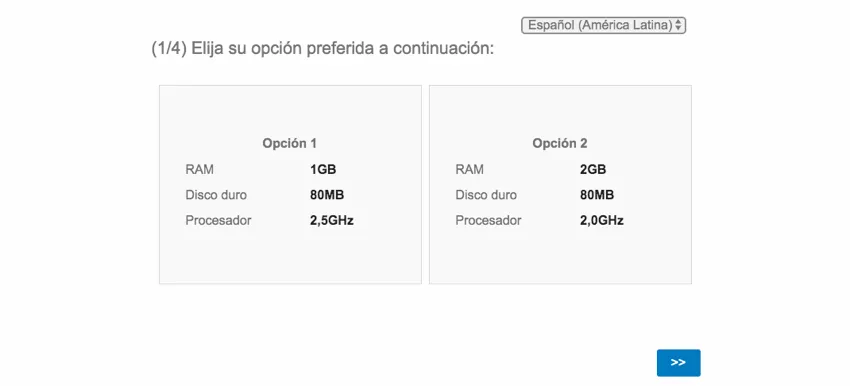
It’s important to gather feedback from lots of different populations, and to appeal to respondents in their native language. You can translate conjoint and MaxDiff projects so that they are accessible to respondents from all over.
Qtip: Saving translation changes (both manual and imported) to an active conjoint or MaxDiff project will erase the existing data from the analysis. See Editing an Active Conjoint or Editing an Active MaxDiff for more details.

Manually Editing Translations
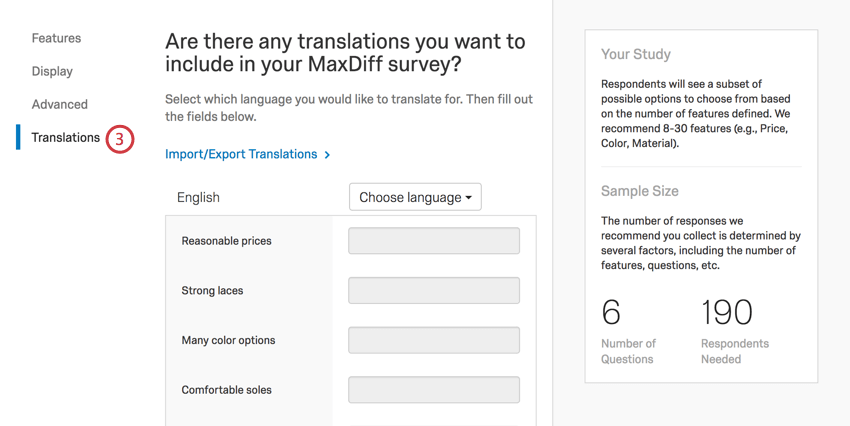
This section goes over how you can translate each attribute by entering the translation in the field. This type of translation is best if you only have a few attributes, and should always be completed before you collect responses.
Attention: If you have demographic or other additional questions in your survey, the survey translation tool is where you translate these. This section only covers how to translate conjoint and MaxDiff-specific content.

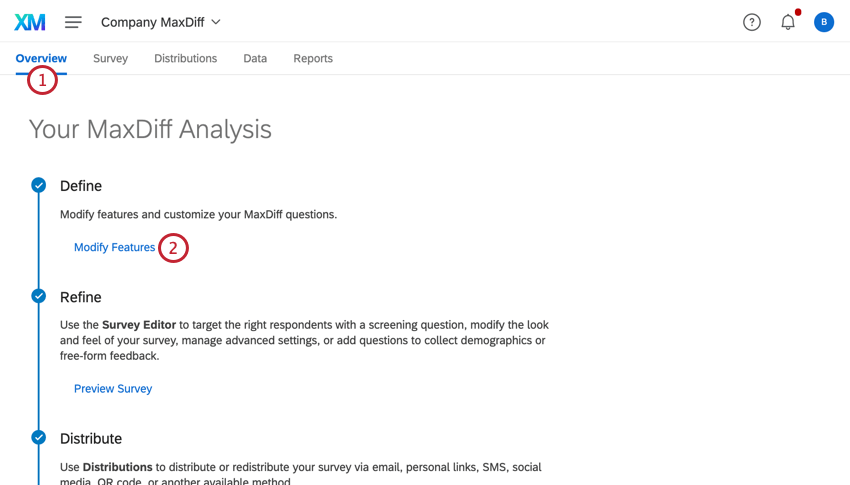
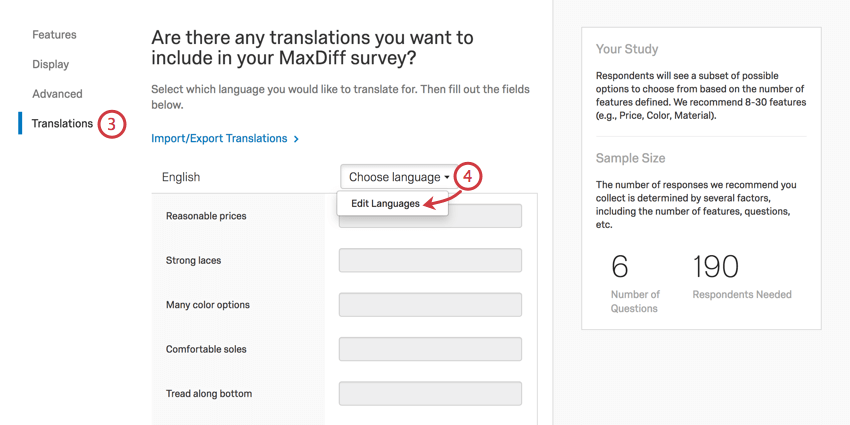
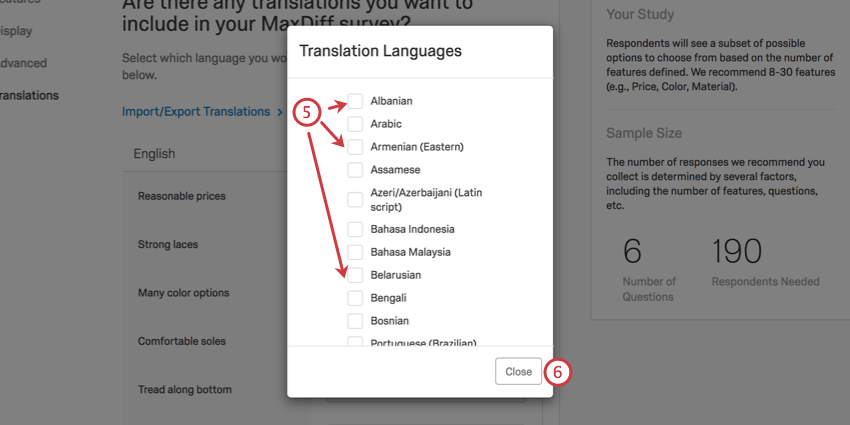
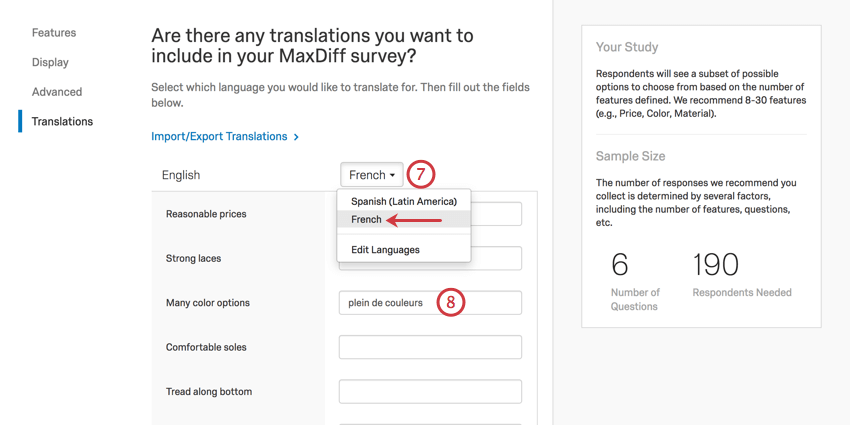
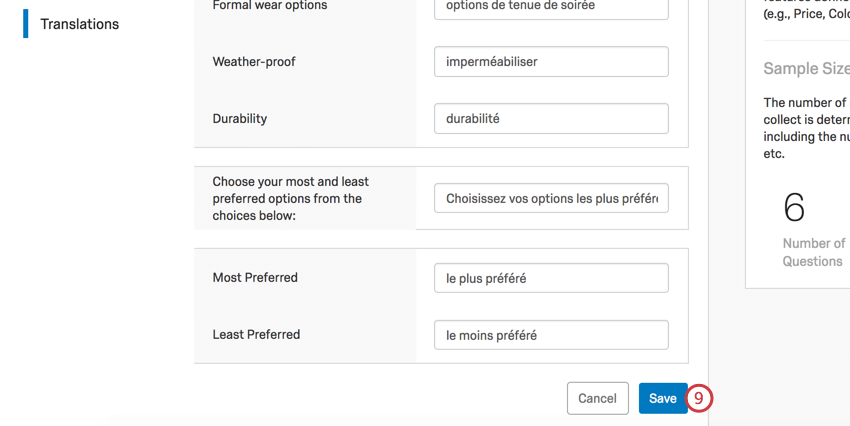
Qtip: Fields left blank will default to the survey’s default language. If you wrote your survey in English and don’t enter a French translation for “red,” then the option will be “red” in French.
Importing Translations
You can import multiple translations all at once as a spreadsheet instead of manually entering them into Qualtrics. When you import a translation, you are importing the translation for both the standard survey questions and the unique conjoint / MaxDiff content. Like manual translations, imported translations should be added before you collect any data.
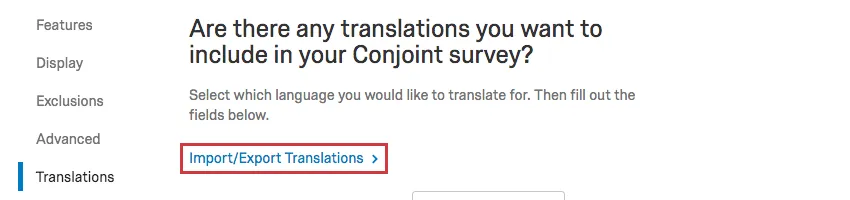
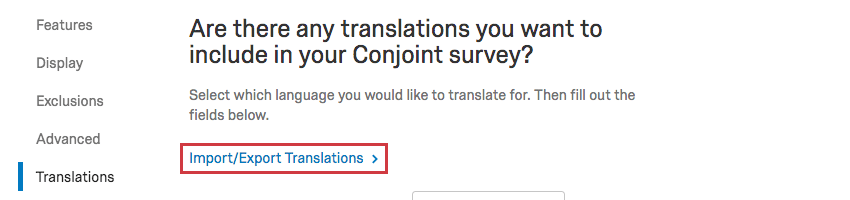
Qtip: If you’re already inside the Translations section of your Attributes, you can also click Import/Export Translations to complete the steps below.
Exporting a translation file
This step is important because it will provide you will a file template for your translations.
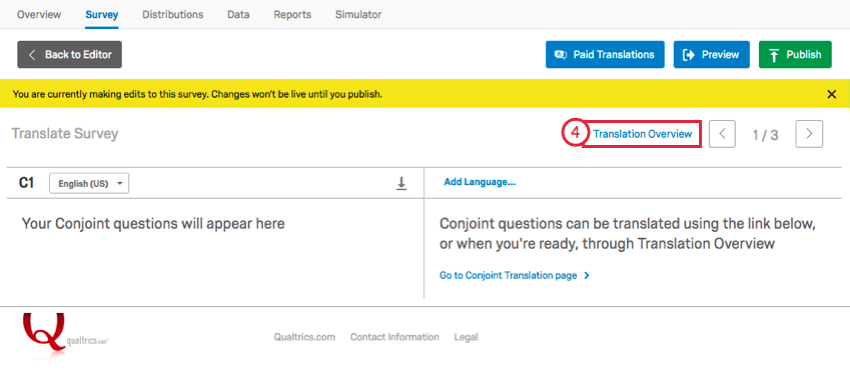
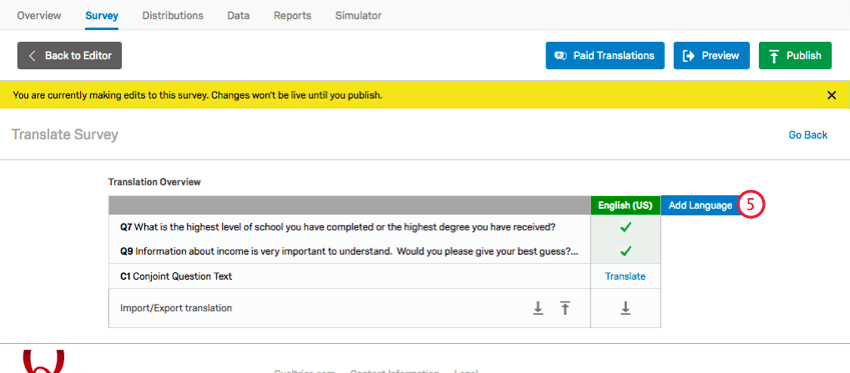
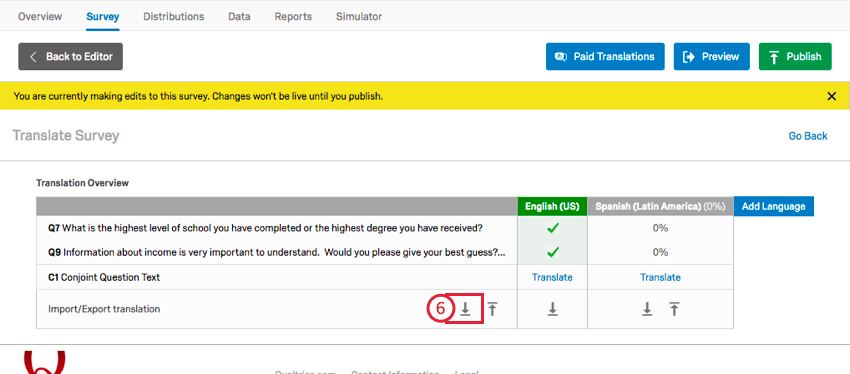
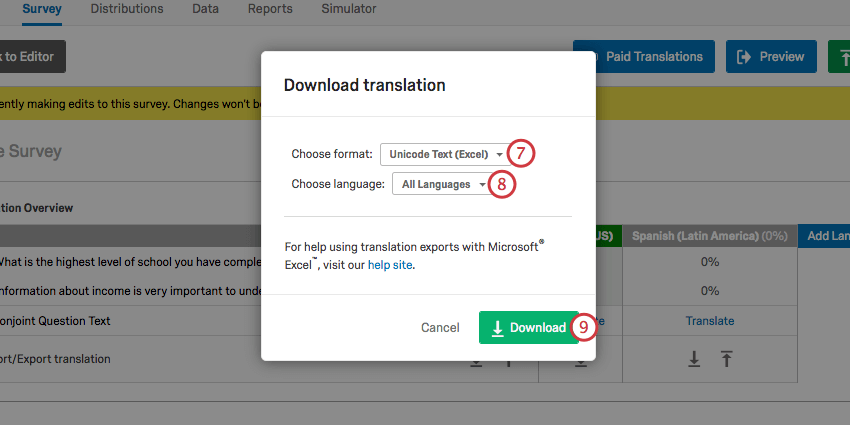
Qtip: In most cases, we recommend the Unicode Text (Excel) format. Like Unicode CSV, this can be opened in Excel. However, unlike Unicode CSV, Unicode Text understands and preserves non-ASCII characters (for example, 是 or ñ) when saved in Excel. For more information about non-ASCII characters in CSV/TSV files and troubleshooting tips, go to the CSV/TSV Upload Issues support page.
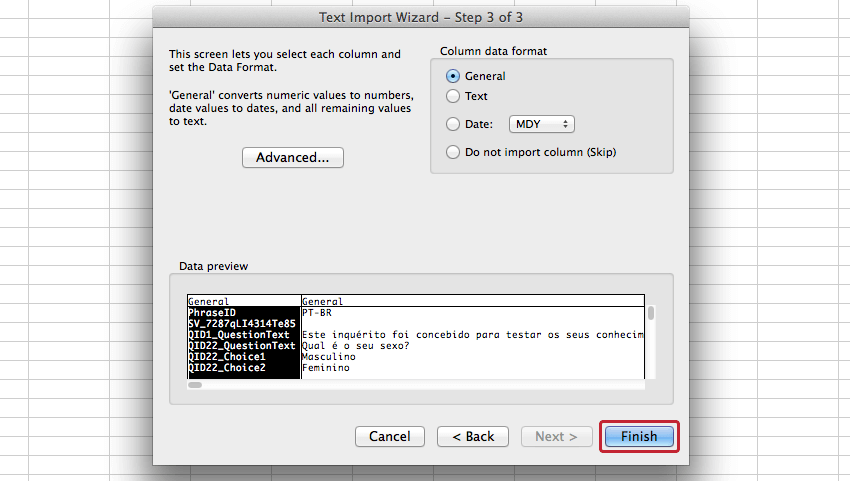
Qtip: Unicode Text (Excel) will open in a text editor by default. Follow the steps below to properly open the file in Excel, or just right-click the file and choose to open it in Excel.
Opening a translation file in Excel
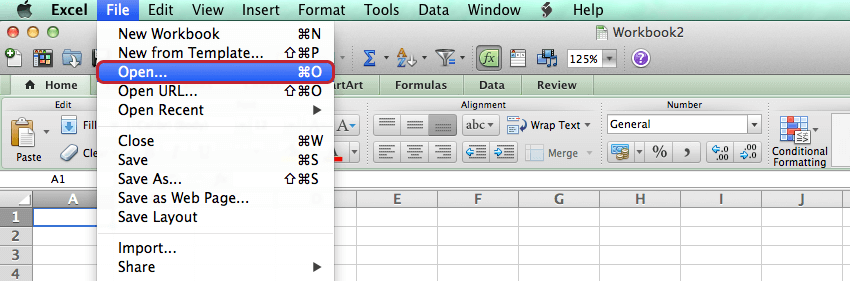
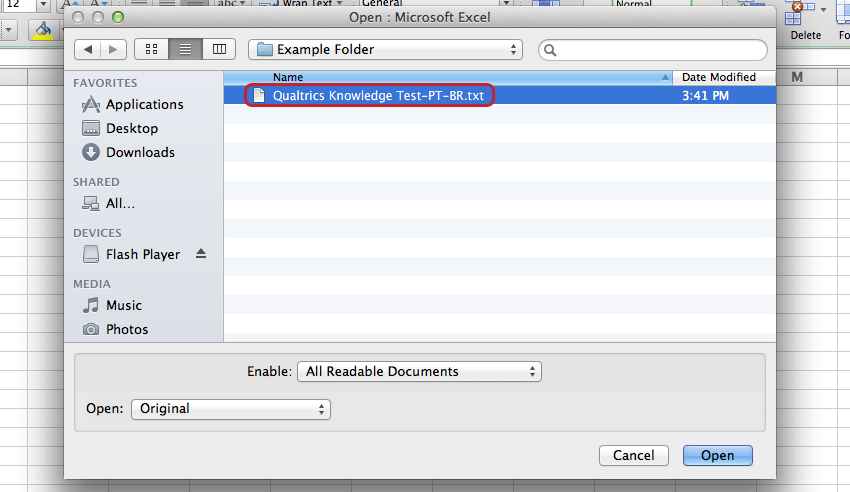
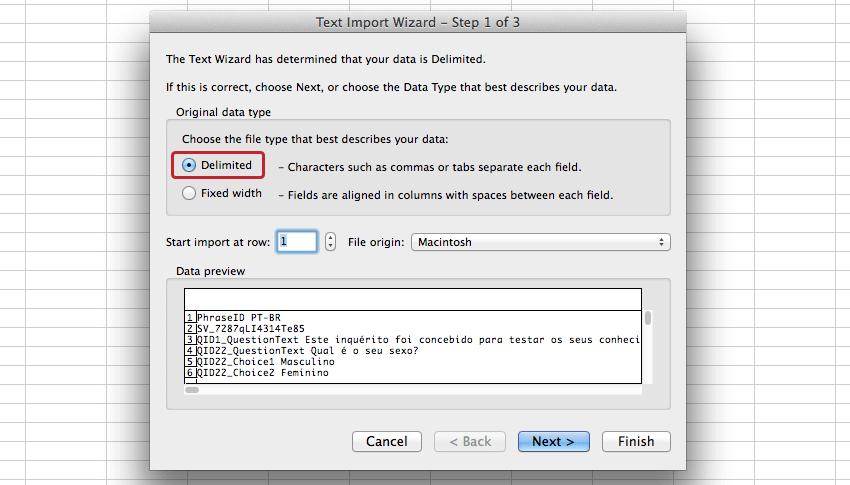
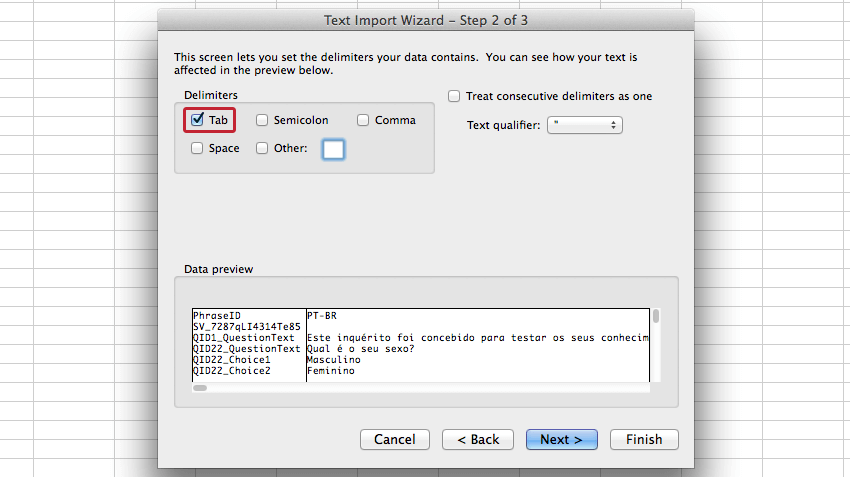
Editing the Downloaded Translation Files
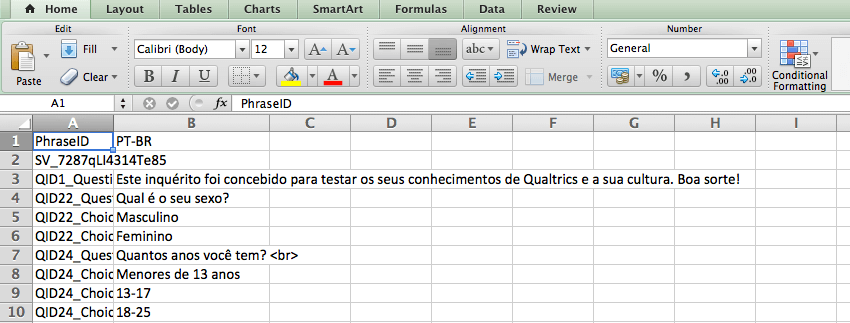
Unicode Text (Excel) and Unicode CSV both have the following layout in Excel:
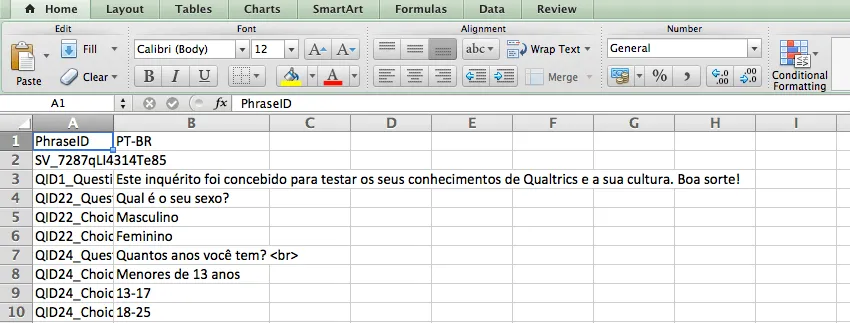
In these files, a row is provided for each item to be translated, with a column for the language downloaded.
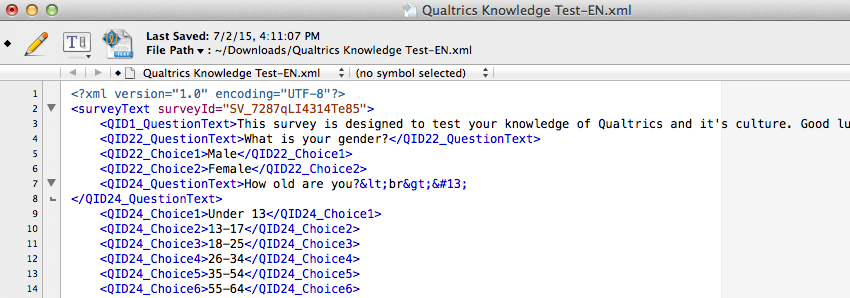
XML can be opened in your preferred text editor and will have the following layout:
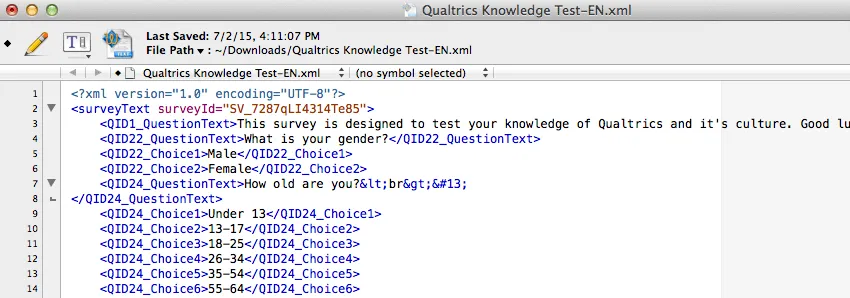
In XML, an element is provided for each item to be translated. A child element is provided for each language downloaded.
Importing a translation file
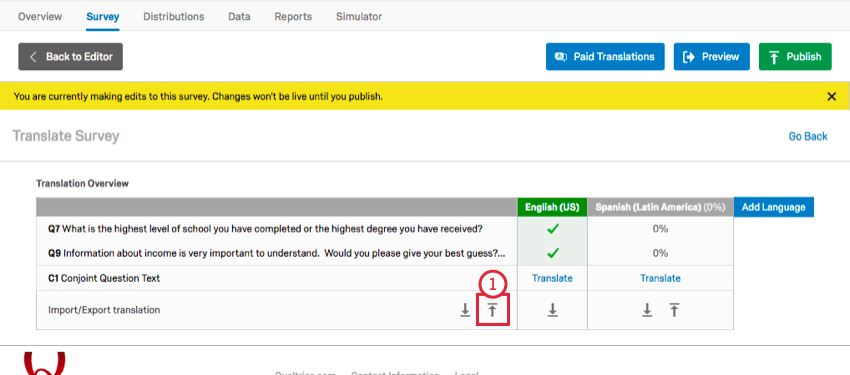
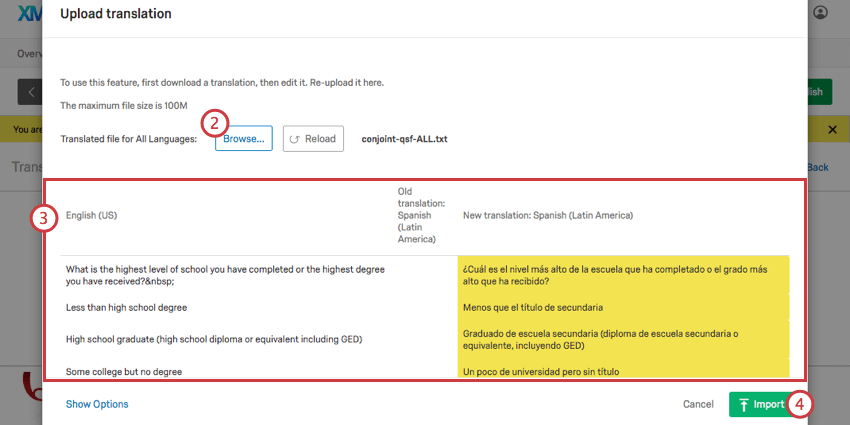
Qtip: The import screen may only show the language you currently have pulled up in Translate Survey.
Merging Translations
When you are importing a translation, removing rows removes those translations.
Example: Question 1 is translated, but question 2 is not. You export your file for translation, and delete the rows that have question 1’s translation. Then you translate question 2. You import the file, but when it’s done uploading, now question 2 is translated in your survey, but question 1 is not!

However, if your survey is already partially translated, you probably don’t want to import all the content you’ve translated already, and would rather exclude those rows. Luckily you can do this – just upload the new translations and merge the two together.
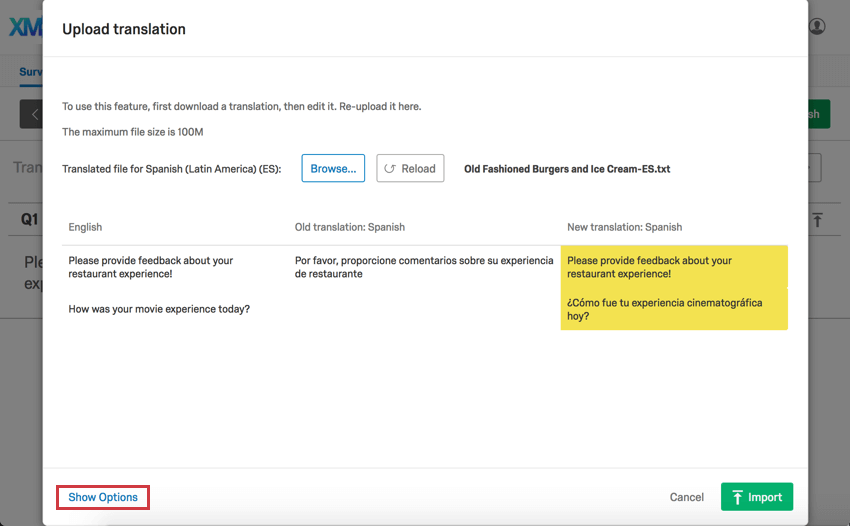
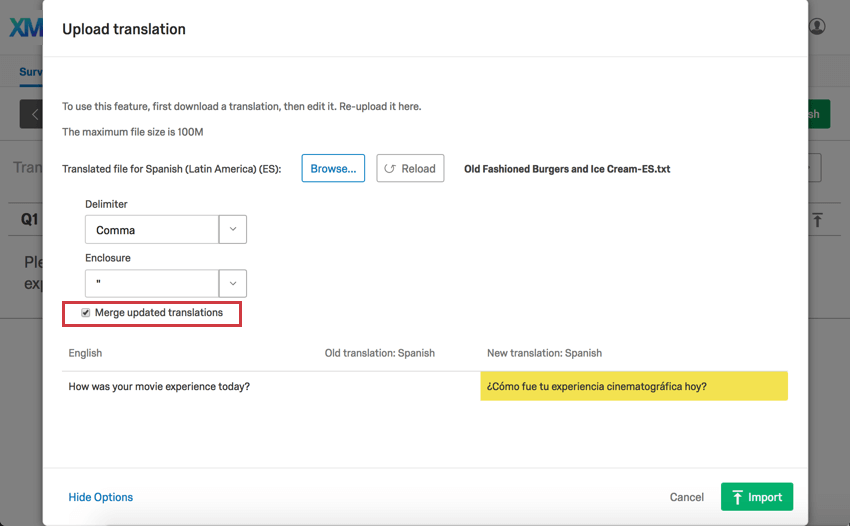
Note how in Step 1, question 1 (in yellow) will revert back to English. But after we select Merge updated translations in Step 2, we only see question 2’s translation, meaning it is the only question that will be affected by this translation import.
Available Language Codes
Whenever you need to specify the language for a participant, whether in a contact list, query string, or as the column header in a translation upload, you will need to use the correct language codes.
See the Available Language Codes support page.
Navigating to Conjoint & MaxDiff Translation
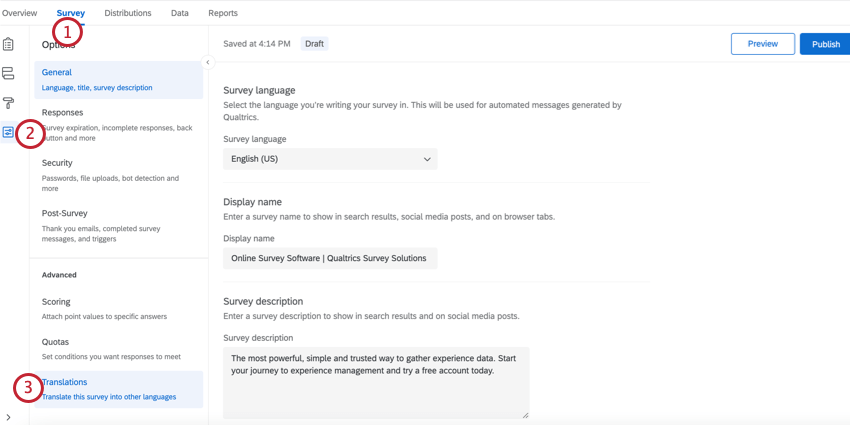
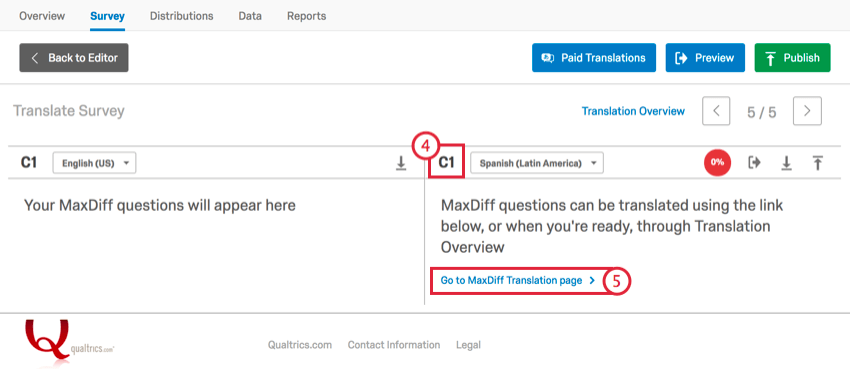
In addition to going through the Overview tab, there are several other ways to access the translation tool. Essentially, you just need to navigate to where you edit your Attributes, and from there go to the Translations section.
Survey Tab
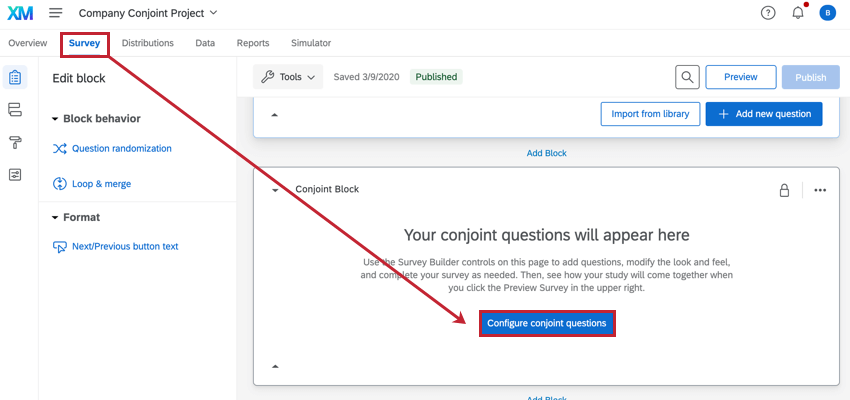
Survey Options
That's great! Thank you for your feedback!
Thank you for your feedback!