

Translating Messages (EX & 360)
What's on this page
Qtip: This page describes functionality available to Engagement, Ad Hoc Employee Research, and 360 projects. For more details on each, see Types of Employee Experience Projects.

About Translating Messages
You can save translations of your email messages (EX|360). These translations are automatically associated with the original message, so that you can send the same message in many languages without having to schedule separate emails to separate groups.
Specifying a Participant’s Language
Before you send out your translated messages, you will need to specify a language for each of your participants. That way, Qualtrics knows which messages to send to which participants.
You will want to include a column called Language when you upload your participants (EX|360). In this column, you’ll assign every participant a language code rather than writing out the name of the language. See our list of available language codes.
If you’ve already uploaded a participant, you can also edit their language by searching for them in the Participants tab and clicking their name (EX|360). Then add a field named Language and set it equal to the desired language code.
Qtip: The language code you include as metadata in the participant list determines the language email the participant receives, provided you have translated your email messages. It does not affect the language of the survey.
Attention: Qualtrics does not dynamically change an email based on browser language setting. A language must be assigned to a participant before the email messages are sent out in order to have the correct message translation appears. Be sure you don’t skip this step!

When languages aren’t specified
It’s important to make sure participant, survey, and message languages are aligned. For example, if a participant doesn’t have a language assigned to them in their metadata with a corresponding message translation, the participant will instead get a message in the base language of the survey.
However, if the base language of a survey doesn’t have a matching message translation, the participant will receive a message in the language of the distribution’s sender. The sender’s language is the language their account was set to when they sent the message.
Example: Barnaby has a survey in French (FR), English (EN), and Spanish (ES).
- The survey’s base language is set to French (FR).
- Barnaby’s account language is set to English (EN).
- The participant Matilda is set to Latin American Spanish (ES).
When Barnaby translates the message from English (EN), he accidentally uses European Spanish (ES-ES) and Canadian French (FR-CA).
Because of how Barnaby translated the message, there’s no Latin American Spanish message (ES), and the survey’s base language (FR) doesn’t have a matching message either (FR-CA). So Matilda is given the English (EN) message.

Translating Employee Experience (EX) Messages
In the following steps, we’ll show how to translate emails for Engagement, Lifecycle, Ad Hoc Employee Research, and Employee Journey Analytics. For more on different types of Employee Experience projects, see the linked page.
Qtip: If you’re using an existing library message, you can also translate the message right in the library instead. See also Employee Experience message types.
Qtip: Automatic machine translation is not available in Employee Experience messages, only in library messages.
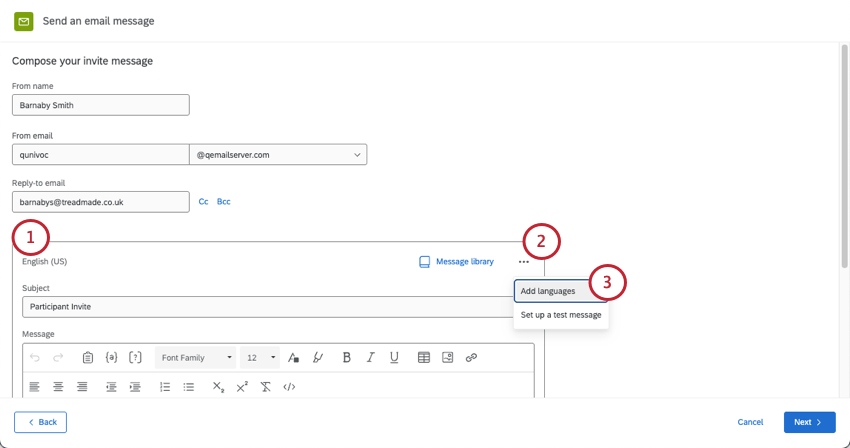
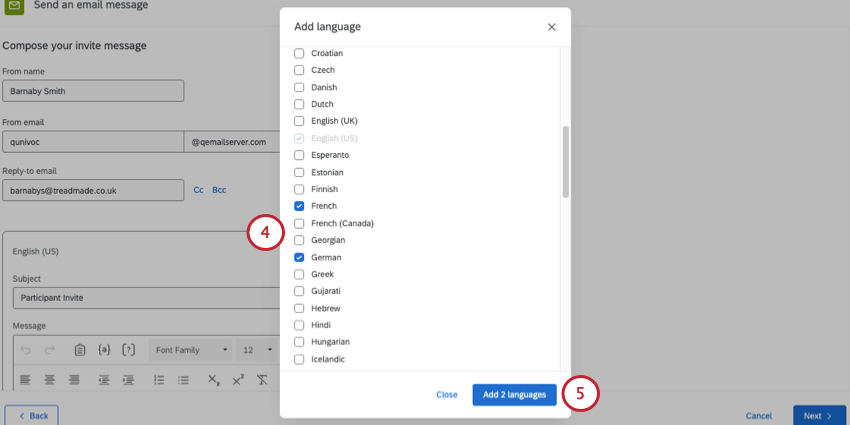
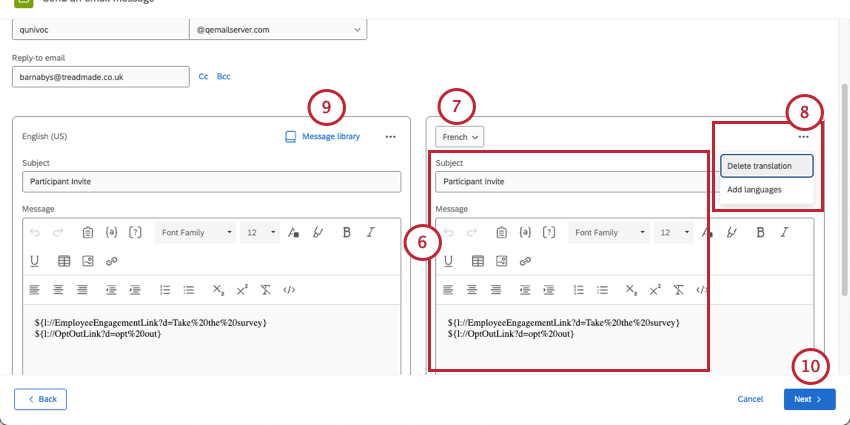
Qtip: See more on customizing EX emails.
- Delete translation: Delete the translation. This is a good option not just to remove a translation altogether, but to start over and redo a language.
- Add languages: Add more languages to translate the message into.
Translating 360 Email Messages
Follow the instructions in this section to translate email messages for 360 projects.
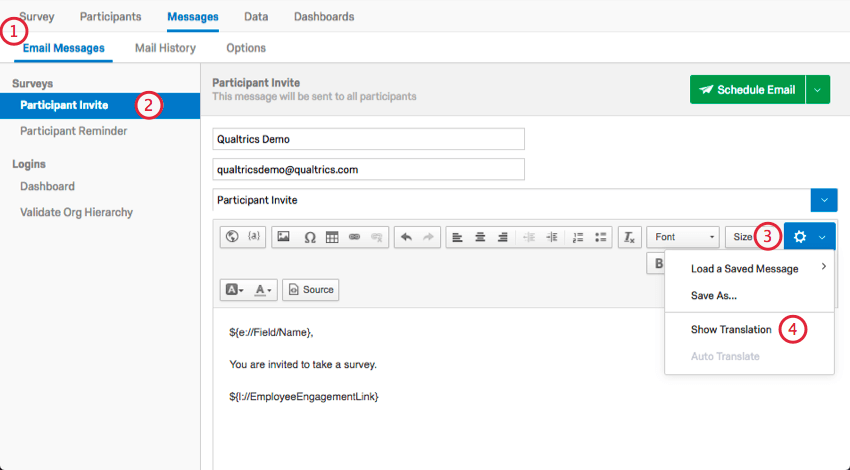
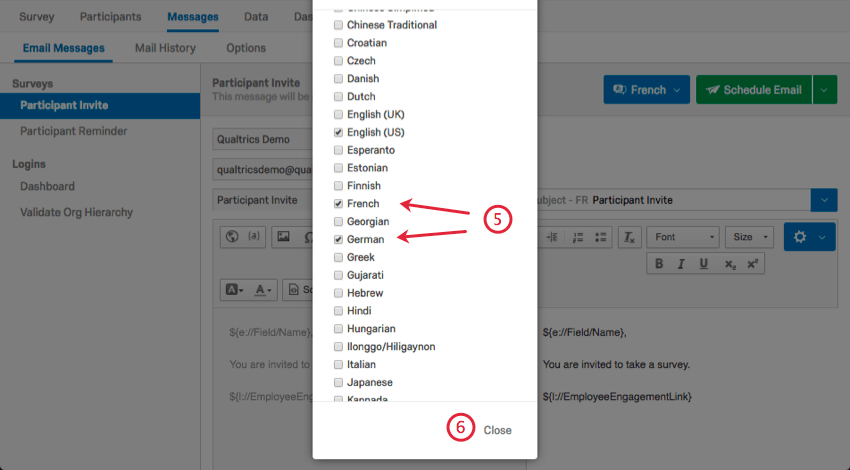
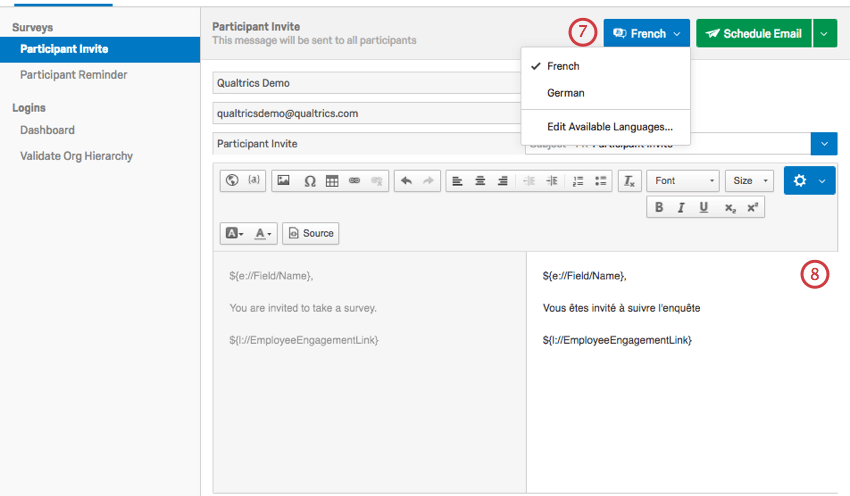
Qtip: When you save Employee Experience messages to your library that have been translated in your Email Messages section, the translations are also saved. However, you can still create translations right inside the Library. Visit the linked support page for more details on how.
Additional Options
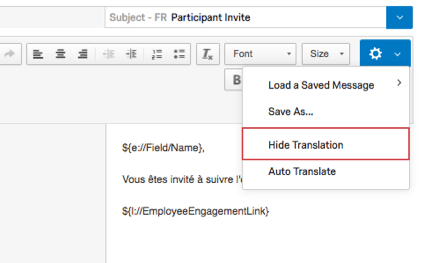
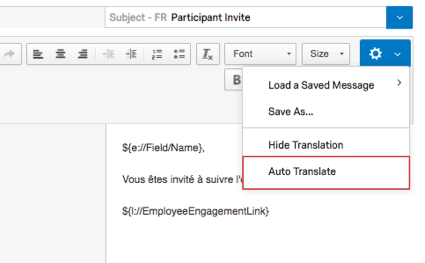
When you’re finished writing your translations and want to close the editing pane, you can click the message editor options icon on the far-right and select Hide Translation.
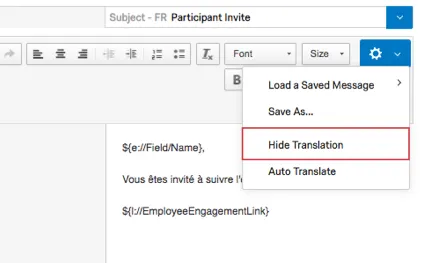
Qualtrics also offers an automatic translation feature. If you’d like Google Translate to translate these messages for you, click the message editor options icon on the far-right and select Auto Translate.
That's great! Thank you for your feedback!
Thank you for your feedback!