

Dashboard Data (EX)
What's on this page
Qtip: This page describes functionality available to Engagement, Lifecycle, Ad Hoc Employee Research, Pulse, and 360 projects. For more details on each, see Types of Employee Experience Projects.

About Dashboard Data
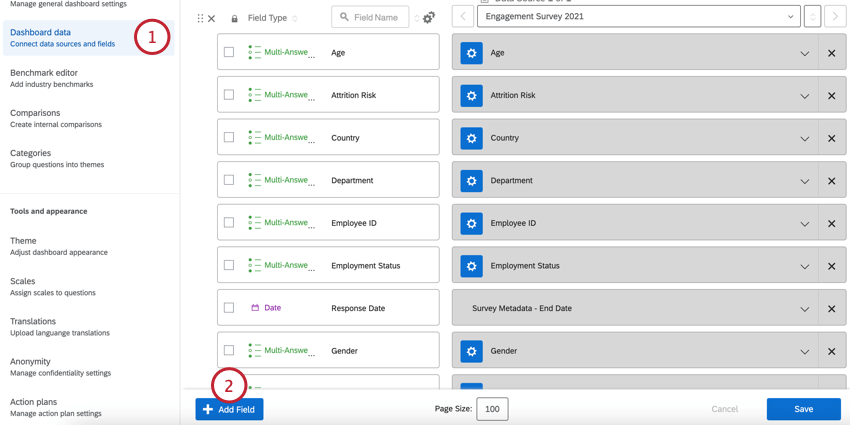
The dashboard data tab consists of all the fields (questions and metadata) available in your dashboard. It tells the dashboard what format these fields should be in so that they are compatible with the correct widgets. This is also where you can add additional sources to include in your dashboard.
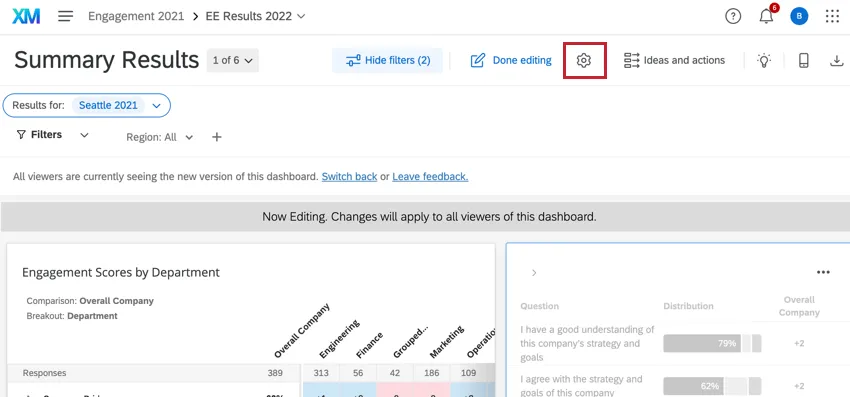
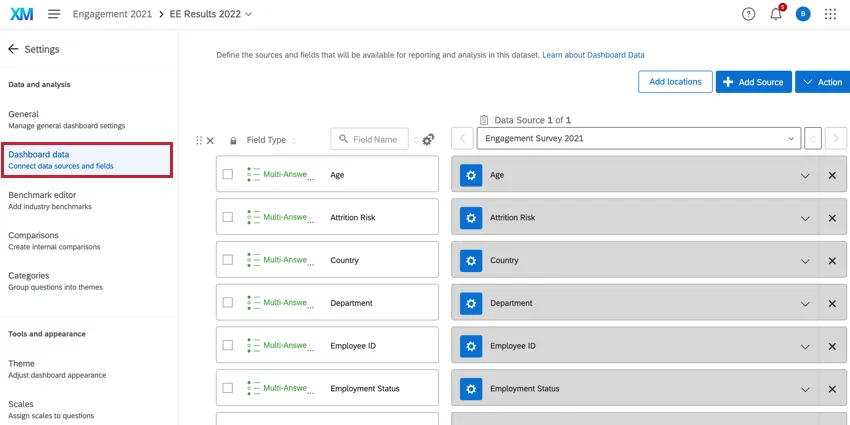
You can access dashboard data by opening your dashboard, going to the Settings, and selecting Dashboard data.
Mapping Fields
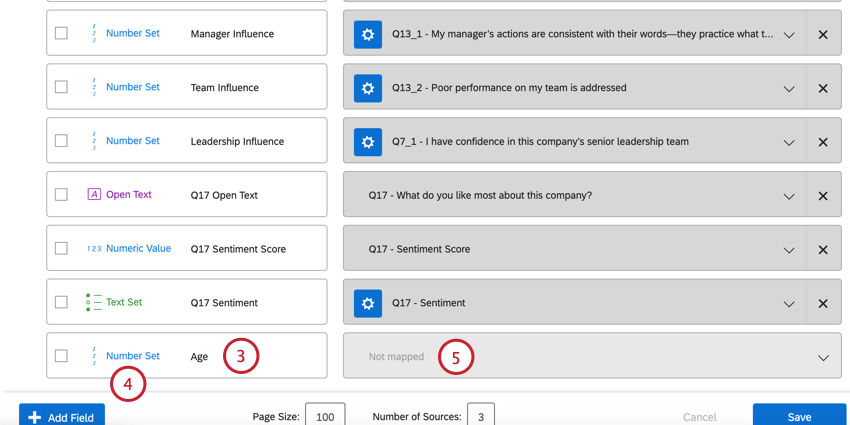
Whenever you create a new dashboard, many of your fields will be automatically mapped for you. However, when you add variables or metadata to your project after the dashboard has been generated, these fields are not automatically added to the dashboard data, so you will need to map these fields manually.
Attention: If you edit a question in your survey after mapping your fields, the edits will not automatically appear in the dashboard. You will need to remap your field by deleting it and re-adding it. Be careful when editing existing questions as it’s possible to invalidate collected data. To see what changes are allowed, read our Testing & Editing Active Surveys page.

Qtip: Updating the field’s name will not affect your survey and will only be visible within the dashboard.
Qtip: If you’re not seeing the field you wish to map, try clicking Show All.
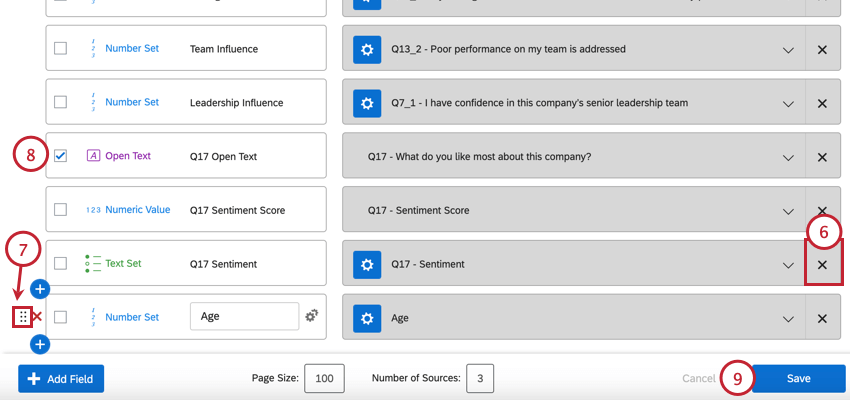
Qtip: Fields marked as sensitive will be hidden to dashboard viewers, unless the participant has special permission to view sensitive fields. See our Permissions section for more details on how to enable or disable these permissions.
Attention: Derived data are any custom fields or scoring categories you’ve created in your source project. Derived data based on metadata fields cannot be mapped to your EX dashboards or used in widgets to display data.
For 360 dashboards, scoring categories are read-only and cannot be edited in the dashboard data.
Deleting Fields
Warning: Once you delete a field, the action cannot be undone. Additionally, deleting fields can break widgets that are using the field you wish to delete. Proceed with caution.
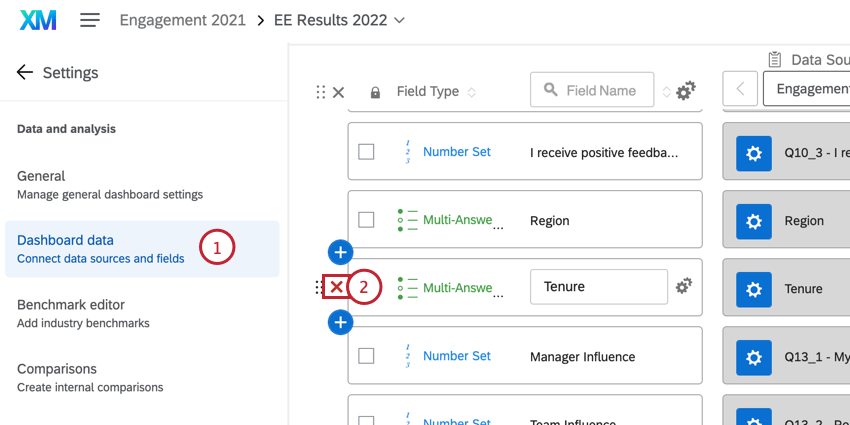
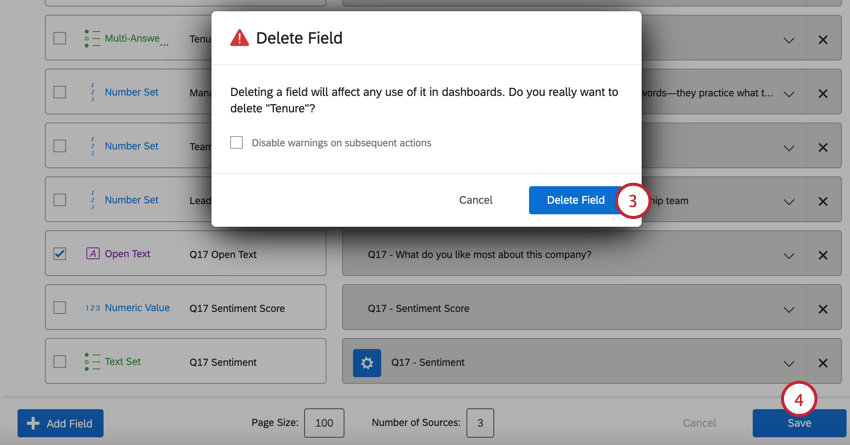
Qtip: If you’re deleting a lot of fields and don’t want to be warned every time, select Disable warnings on subsequent actions. This warning will come back if you leave the dashboard data and return.
Recoding Fields
If your data isn’t populating in the widgets the way you want it to, you can recode values in the dashboard. Recoding allows you to group data or change how it appears in widgets – for example, by conveniently shortening how choices are labeled, and changing text to numbers. Only Text Set, Multi-Answer Text Set, and Number Set field types can be recoded.
Qtip: If you’re looking to change the coded values for responses exports, check out the recode values feature in the Survey tab rather than the dashboard. The linked support page is for survey proejcts, but functionality is the same in Employee Experience projects.
Recoding Fields
In your dashboard’s Settings tab, go to Dashboard Data.
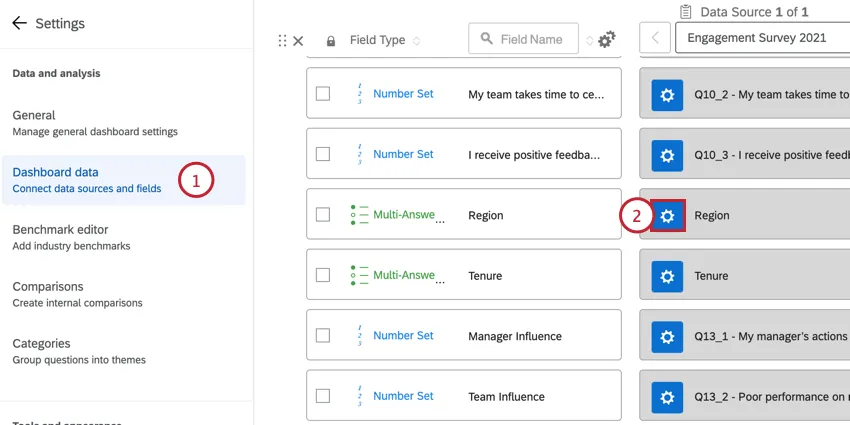
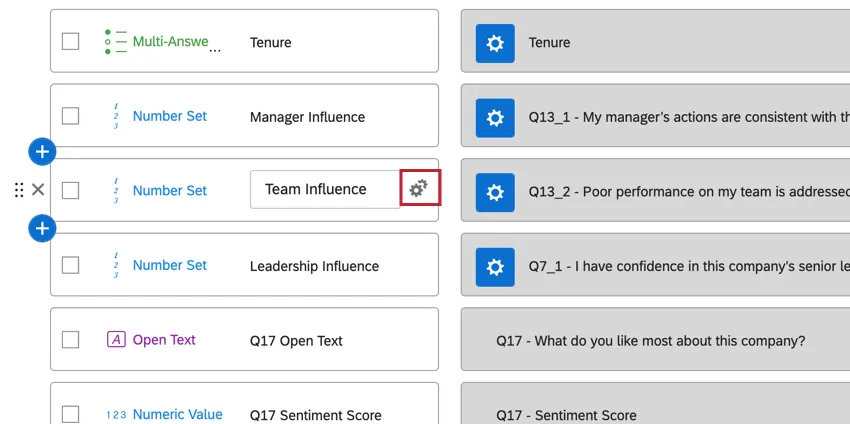
Click on the field settings icons next to the field whose recode values you want to change.
Change the recode values for any of the labels. This may be an open field, or a dropdown menu.
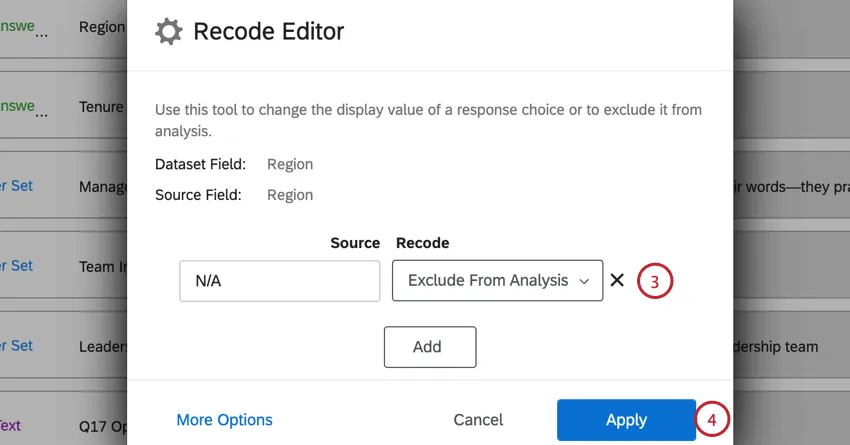
Qtip: If an option is excluded from analysis, it will be hidden from widgets, filters, and other parts of the dashboard. For example, let's say you have the City field, and decide to exclude the value "Tokyo" from analysis. If you try to filter the page or a widget by City, Tokyo won't be an option. Likewise, if you try to display answers where City is "empty," the Tokyo responses will be included, displaying as blank instead.
Qtip: Note that the recode values are limited to the field type that you have designated. For example, if you want to recode a 7 point agreement scale into 2 agreement “groups” (e.g. Agree or Disagree), the field type must be Text Set or Multi-Answer Text Set instead of a Number Set, because the recoded values will be text instead of numbers.
Attention: Fields mapped as a Number Set may only be recoded in whole integers, i.e. 1, 2, 3, etc.
Click Apply.
Click Save before leaving the dashboard data.
Qtip: For Number Set fields, a color will appear in between the Label and Recode columns. These colors are determined by the Scales settings.
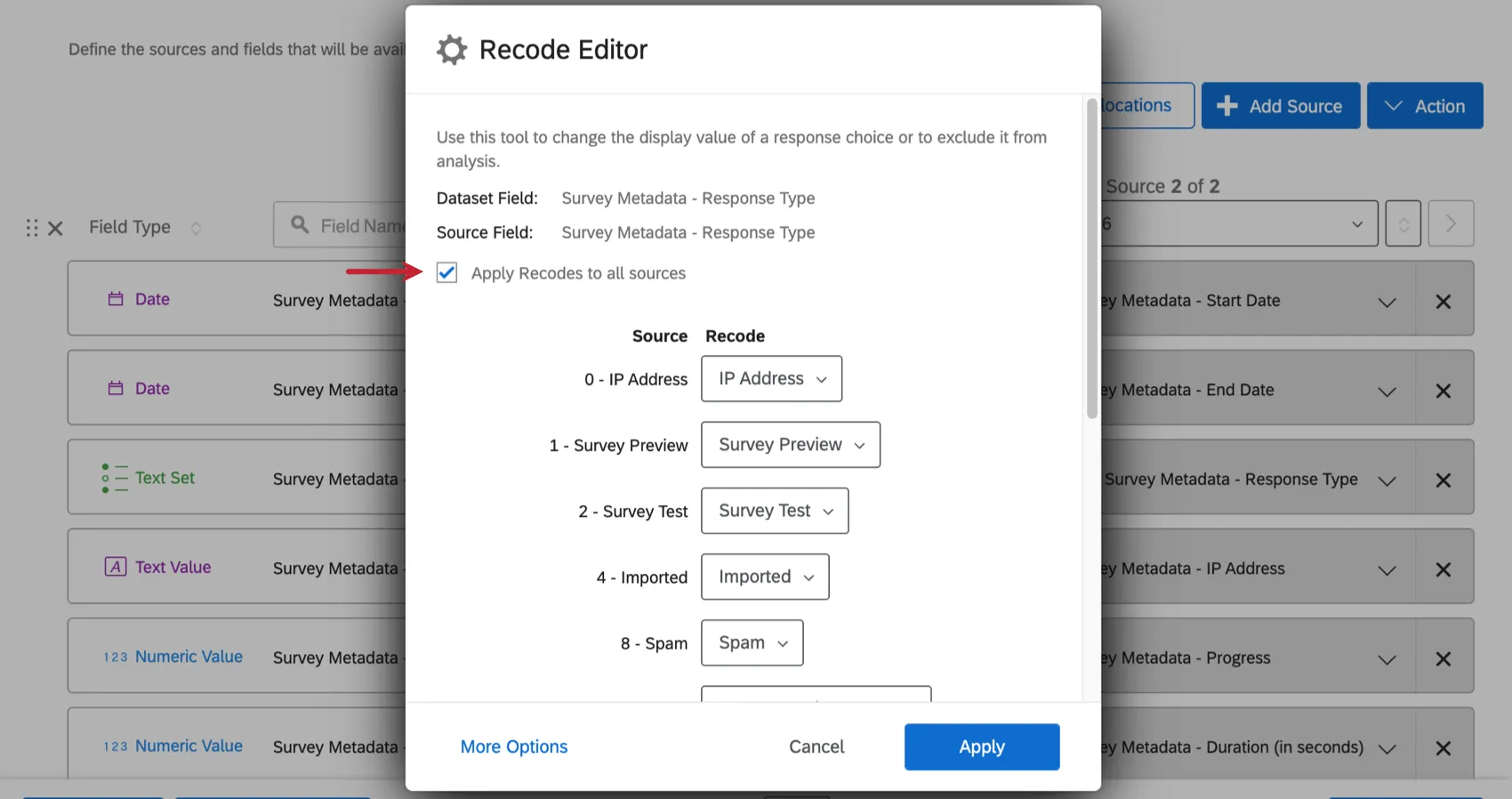
Qtip: If you have multiple sources mapped in your dashboard, and would like the change you’re making to be applied to the field across all dashboard sources, you can select Apply Recodes to all sources before you save. For example, you’d like to exclude the Department “Sales” from analysis. Apply Recodes to all sources ensures that for the “Department” field in the 2017, 2018, and 2019 projects mapped in the dashboard, Sales is excluded from analysis.
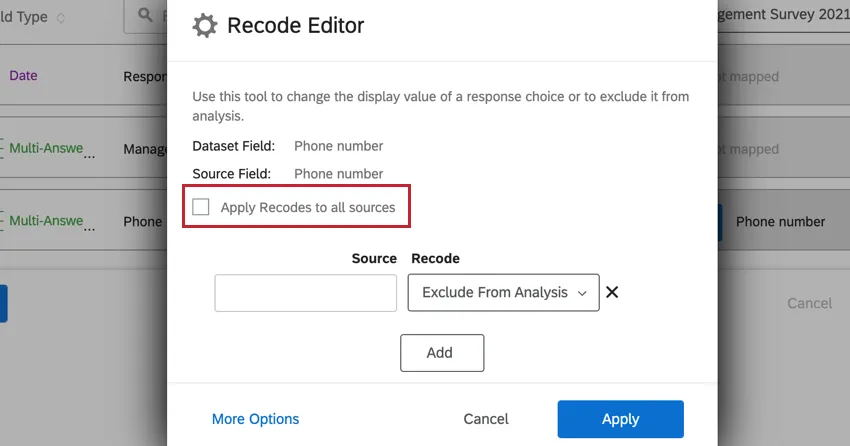
“Apply Recodes to all sources” only works for changes made in that session. If you saved, forgot to apply all, and then went back and applied all, your previous change won’t be pushed to the other dashboard sources. Only new changes you make will be applied.
Changing Labels
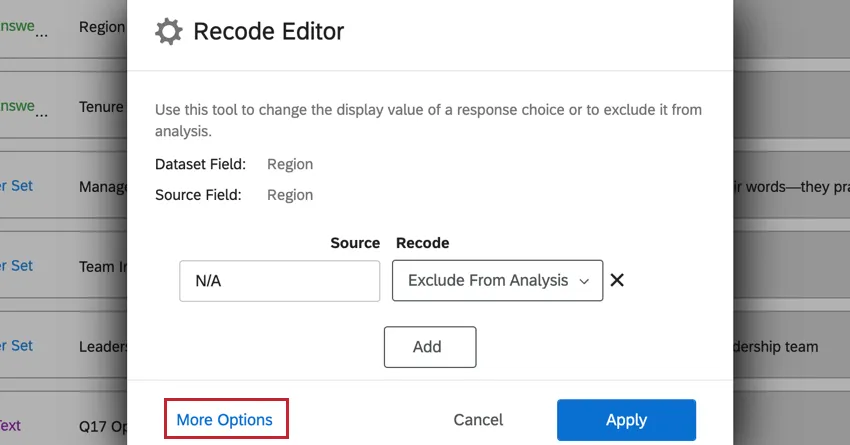
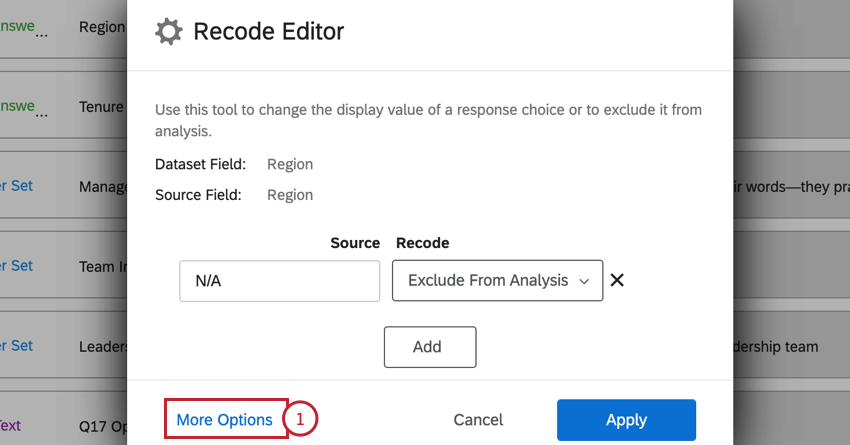
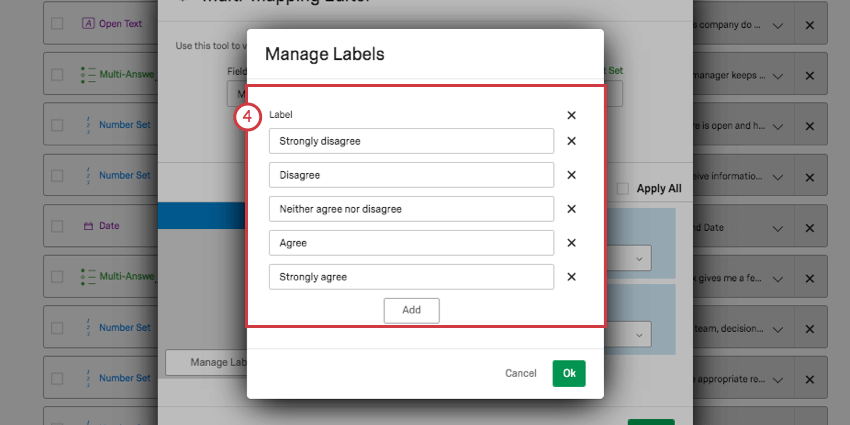
You can change the way values are labeled for Text Set and Multi-Answer Text Set fields. Click More Options in the lower-left of the recode editor.
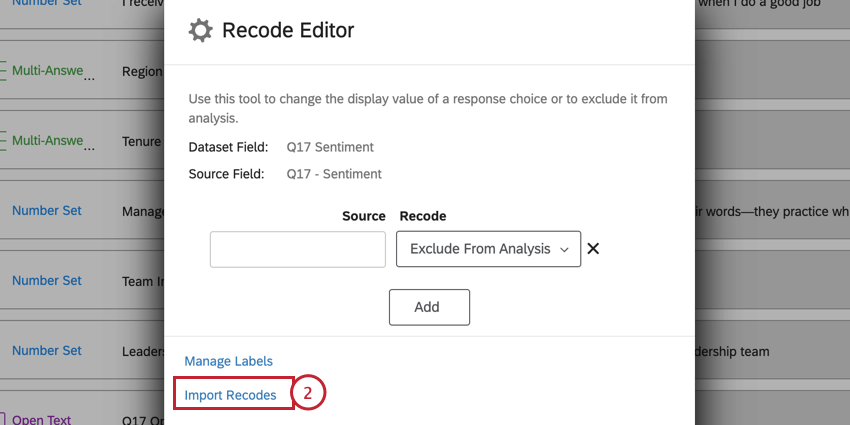
Then, click Manage Labels.
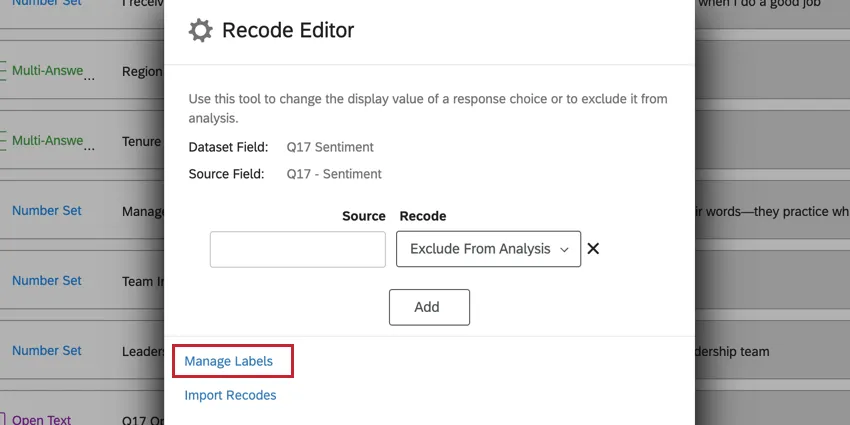
Once opened, you have the freedom to change spelling, capitalization, and/or wording of how these values will appear when loaded into your dashboard’s widgets.

You can add additional labels by clicking Add, or remove labels by clicking X.
Importing Recode Values
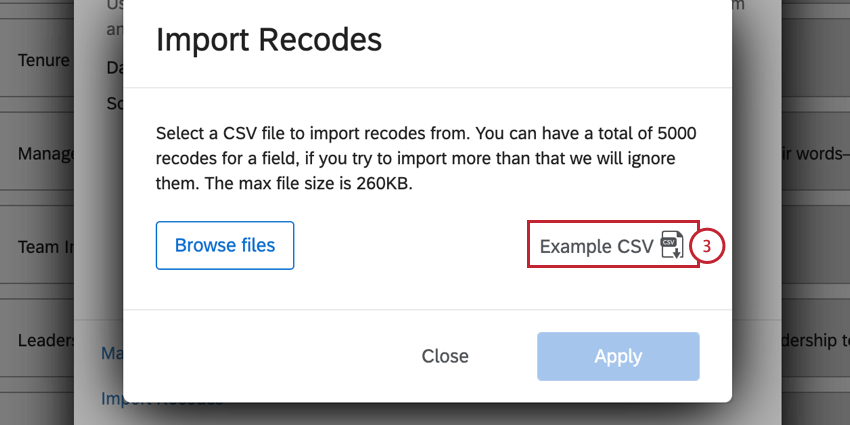
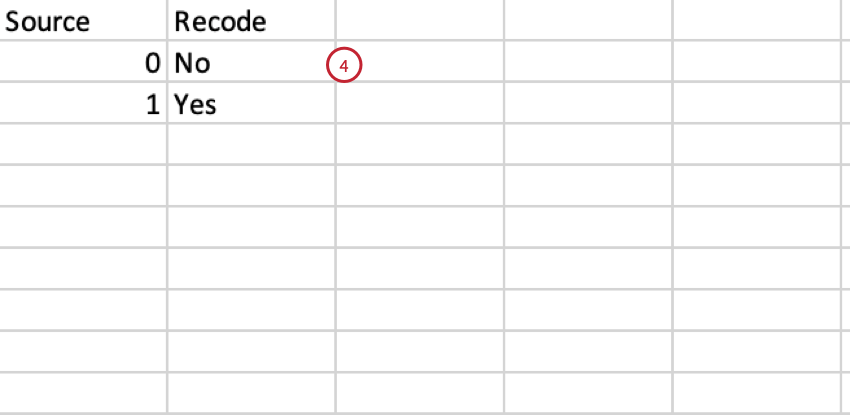
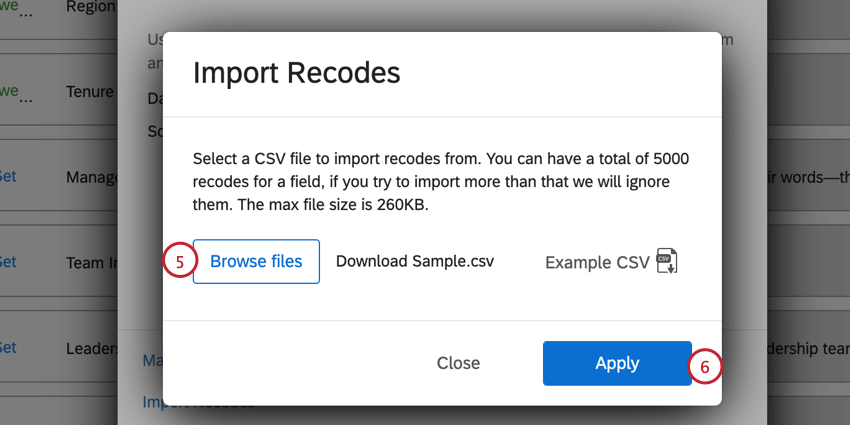
If your field has many values you need to edit, you can choose to import an Excel spreadsheet saved as a CSV with your recode values, instead of typing each one manually.
Qtip: A field can have a maximum of 5000 recode values. The maximum file size is 260KB.
Cleaning Up Data
Another use case for recoding values is for cleaning up and consolidating inconsistent data. For example, if some of your values for a single metadata field are “US,” some are “USA,” and some are “United States,” Qualtrics will interpret these as 3 different values. You can correct or group these inconsistent values by recoding them all to one value, like “US.”
Alternatively, if your metadata field had values of “US,” “UK,” and “SK,”, you may want to recode them to be “United States,” “United Kingdom,” and “South Korea” to make them more understandable when they display on the widgets.
This is also very useful when mapping multiple years’ projects together if your metadata values change from one year to the next.
Apply Recodes to All Sources
When you’re editing the recode values of an type of field and you have added multiple sources to your dashboard, you can easily apply the changes you’re making to the same field across all of your sources. Select Apply recodes to all sources before you save your changes.
Recode Editor Error Messages & Troubleshooting
You may encounter a few different error messages when recoding your fields. These errors are built to preserve your data’s integrity and prevent incorrect analysis of engagement results. Below is a list of common error messages, their causes, and how to fix them.
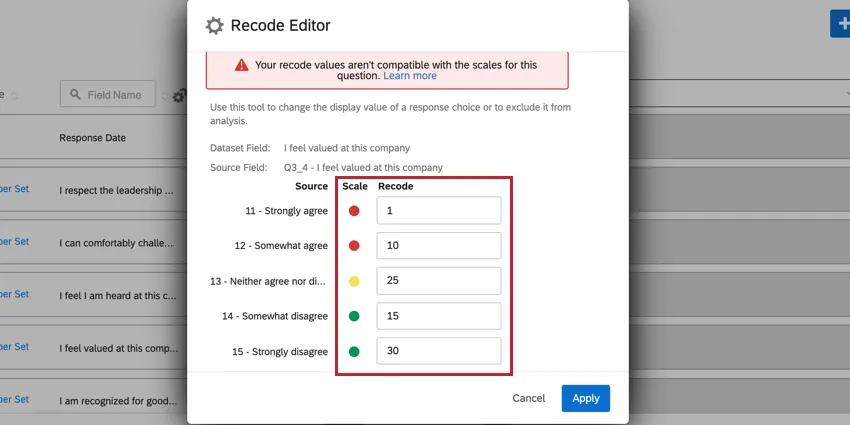
Your recode values aren’t compatible with the scales for this question. This error appears when you are attempting to assign the same recode value to multiple scale points and the scale points are in different favorability categories. To fix this, you’ll either need to assign your scale points different recode values, or change your scale so that the scale points are in the same favorability category.

Qtip: This error can also appear when your scale points aren’t recoded as a progressively increasing or decreasing scale. In the below image, 1 and 10 are assigned to unfavorable scale points, 25 is assigned to the neutral scale point, and 15 and 30 are assigned to the favorable scale points. Since these numbers aren’t progressively increasing with favorability, the recodes are invalid. A suggested fix for this situation would be to use 1, 10, 15, 25, 30 as the recode values.
Changing a Field’s Date Format
Qtip: You cannot do this with Qualtrics date fields such as the Start Date and End Date in a survey; these are formatted automatically.
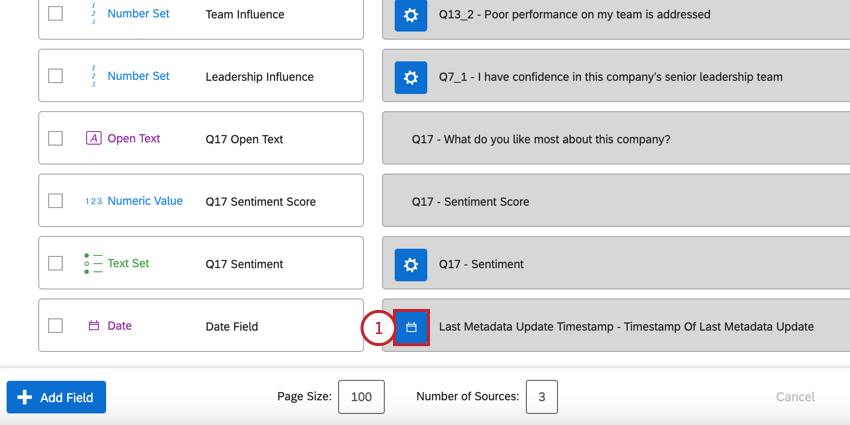
You can tell the dashboard what format and time zone each custom date field is in. This helps the dashboard accurately reflect the date in GMT format.
Qtip: The EX Dashboard itself always shows data in GMT. This dashboard-wide time zone cannot be changed.
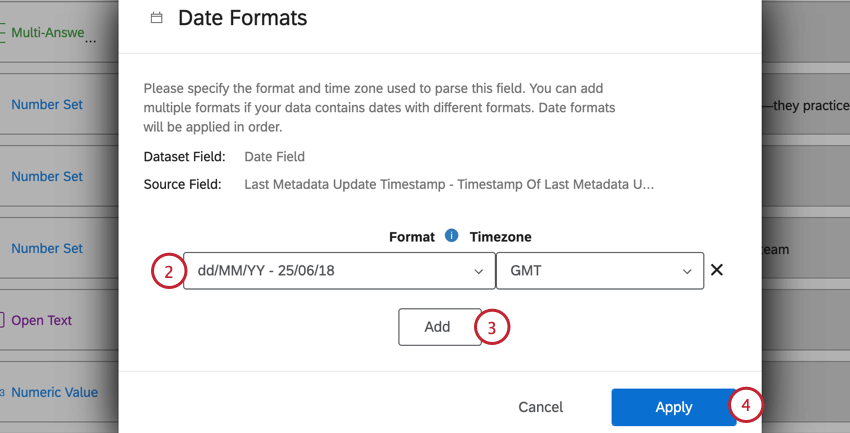
Qtip: The list of date formats is not all inclusive. If you are using a date format that is not in the list, you’ll need to create a custom date format by following the below steps.
Adding a Custom Date Format

If you select Custom, you can define your own special date format.
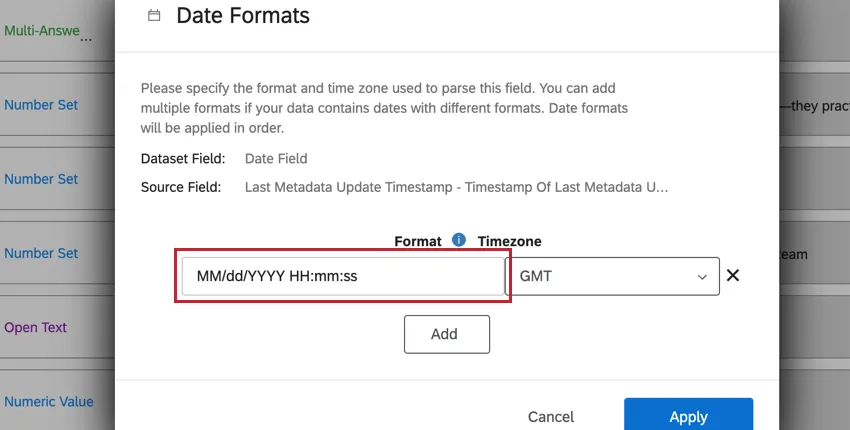
To specify a custom format, please use the following symbolic syntax:
| Symbol | Meaning | Presentation | Examples |
|---|---|---|---|
| G | era | text | AD |
| C | century of era (>=0) | number | 20 |
| Y | year of era (>=0) | year | 1996 |
| x | weekyear | year | 1996 |
| w | week of weekyear | number | 27 |
| e | day of week | number | 2 |
| E | day of week | text | Tuesday; Tue |
| y | year | year | 1996 |
| D | day of year | number | 189 |
| M | month of year | month | July; Jul; 07 |
| d | day of month | number | 10 |
| a | halfday of day | text | PM |
| K | hour of halfday (0~11) | number | 0 |
| h | clockhour of halfday (1~12) | number | 12 |
| H | hour of day (0~23) | number | 0 |
| k | clockhour of day (1~24) | number | 24 |
| m | minute of hour | number | 30 |
| s | second of minute | number | 55 |
| S | fraction of second | number | 978 |
| z | time zone | text | Pacific Standard Timee; PST |
| Z | time zone offset/id | zone | –0800; –08:00; America/Los Angeles |
| , | escape for text | delimiter | |
| ‘ ‘ | single quote | literal | ‘ |
For example, if you have date and time data in this format: Tue, 10–25–2015, 8:42pm should be presented in the Date Format field as E, MM–dd–yyyy, K:ma.
Adding Additional Sources
If you’ve run multiple Employee Experience projects of the same type (e.g., multiple engagement surveys), you can compare and contrast their results in the same dashboard. If the surveys contained the same questions or metadata, you can even map over which fields are the same for more dynamic comparisons.
How to Add Sources
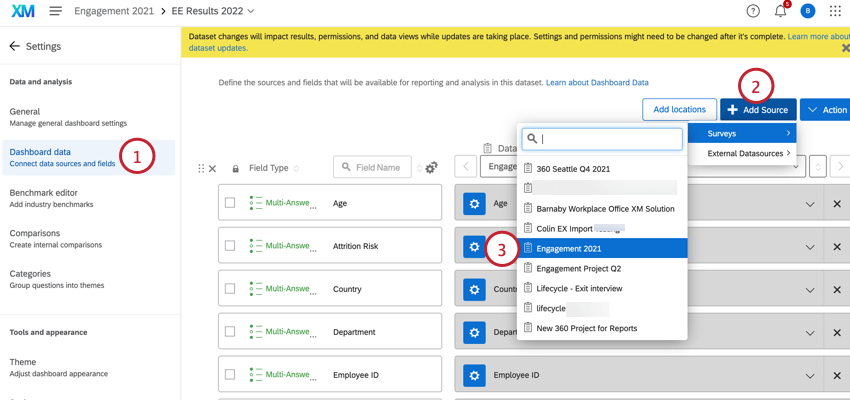
Qtip: Automatic Mapping will save you time by searching for similar fields and matching them. Be sure to always verify that the mapping was done to your liking and there are no issues.
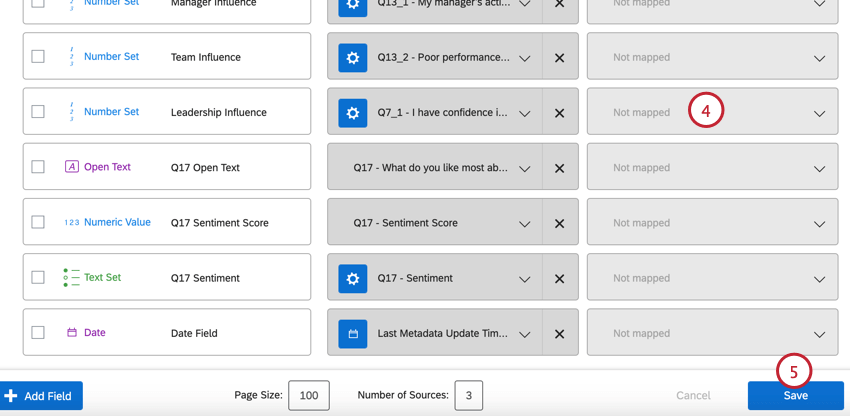
Qtip: You can map as many data sources as you want, but you cannot map the same data source twice.
Qtip: Sometimes when your screen width is too small or your Number of Sources at the bottom of the mapper is set to a lower number, your additional data sources will be hidden. In this case, just click the arrows next to the source names to reveal them.
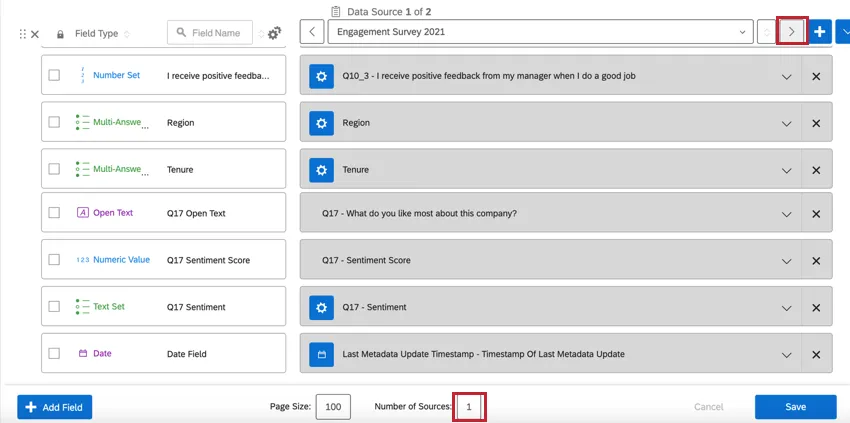
To merge data into the same field for use in comparisons, map both sources on the same row of the field you want to merge. Make sure that the fields you are merging are extremely similar – for example, be sure that the question type, field type, and number of scale points on the question are the same.
Example: If two surveys use 7-point satisfaction scales, then it is fine to merge both questions in the same field. However, you shouldn’t merge a 7-point satisfaction scale question with a 5-point satisfaction scale.

Interaction Between Sources
There are two ways that multiple sources can be treated in a widget, depending on the type of widget you’ve chosen.
For a majority of widgets, there’s one source specified in their options, meaning that they will only show data for one source at a time, unless a comparison has been added to that widget.
However, some widgets will combine the results of all the sources mapped in the Dashboard Data into the results they show. These widgets include:
- Gauge chart widget
- Simple chart widget
- Number chart widget
- Pie chart widget
- Simple table widget
For the widgets listed above, you will need to use a widget-level filter to ensure only one dataset source is displayed in the widget. You can even lock this filter, if you don’t want dashboard users to adjust it.
Dataset Utilization Limits
Our data platform imposes a limit on the number of times a single data source can be used in active datasets. Currently, a single data source can only be in 50 active datasets to guarantee timely data processing. For external data, the limit is 5 active datasets. These limits are subject to change over time as our platform and features grow. If your datasource reaches this utilization limit, an error dialog is displayed while adding the source in the data mapper or copying the dashboard.
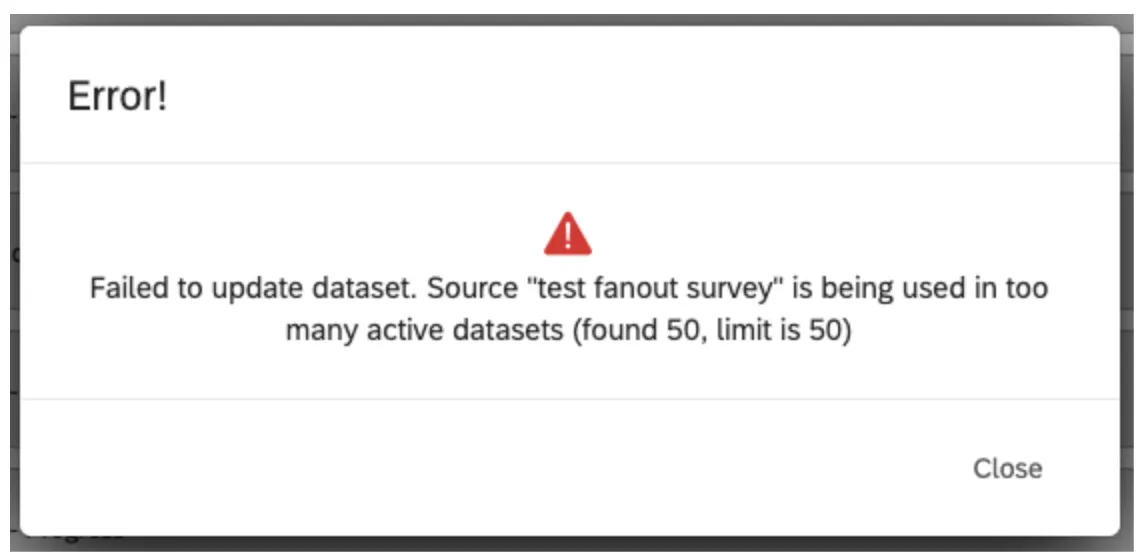
Qtip: For example, a survey used in two dashboards creates three active datasets (1 for data & analysis, 2 for EX dashboards). An active dataset is a dataset that has been accessed within 30 days.
Multi-Mapping Editor
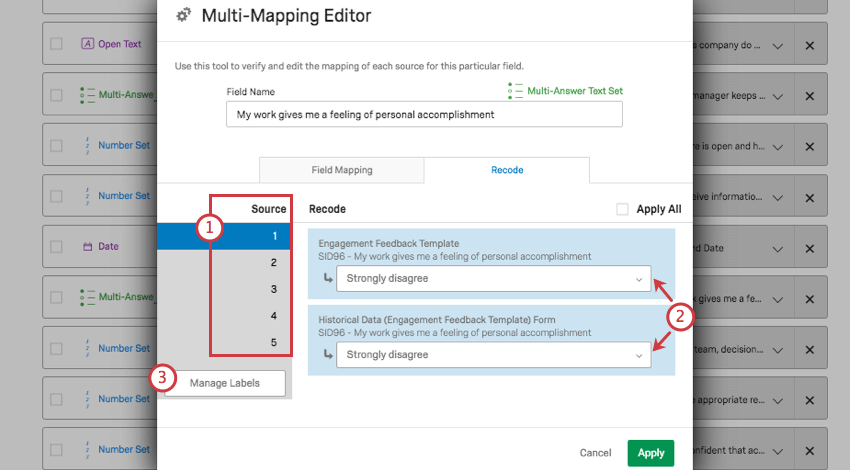
When you’ve added multiple sources to your dashboard, there is an additional recode editor that makes mapping the same fields across multiple sources much easier.
Field Mapping Tab
Using the blue dropdowns, you can choose the field from each source that should correspond to the same dashboard field.
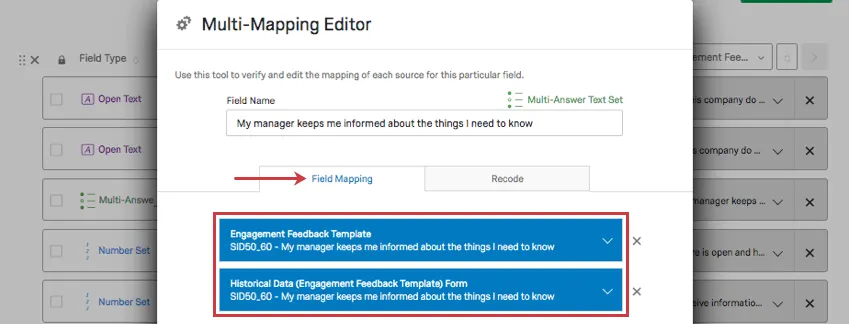
Qtip: Click the X to remove a mapping.
Recode Tab
Here, you can ensure the recode values are the same for each field being mapped together.
Drill Down Fields
Drill down fields allow you to organize and manage hierarchical information so that individuals can easily filter entire groups or subgroups without selecting dozens of options. For example, you can select all cities in California by selecting California at the state level rather than going through and selecting every city manually. This flexibility makes it very easy to quickly compare 2 groups of data or dive deep into a group to see what your employees are saying.
For EX dashboards, drill down fields are commonly used to display:
- Hierarchical text topics from Text iQ
- Layered filtering for participant metadata (e.g., drilling down from region to country to city)
Creating a Drill Down Field Group
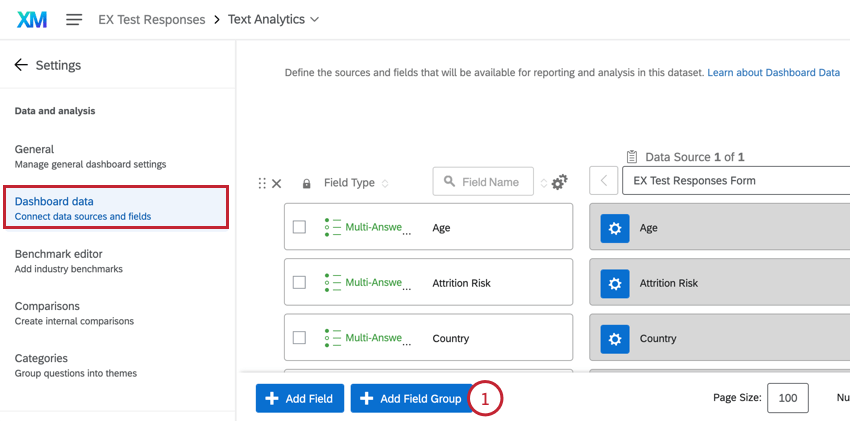
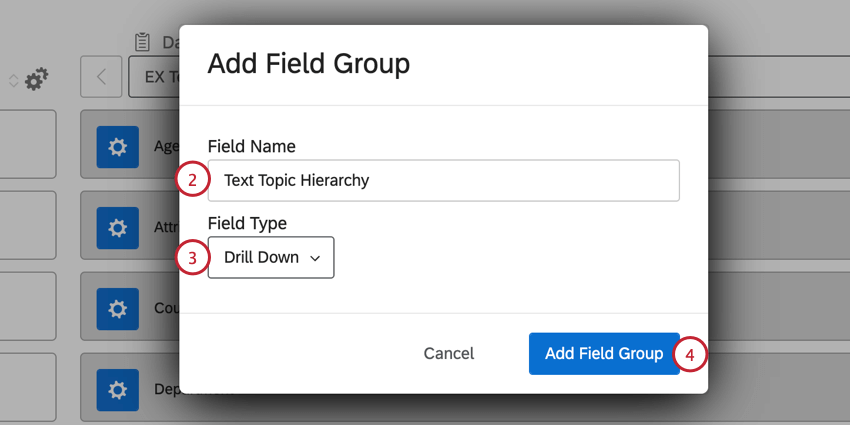
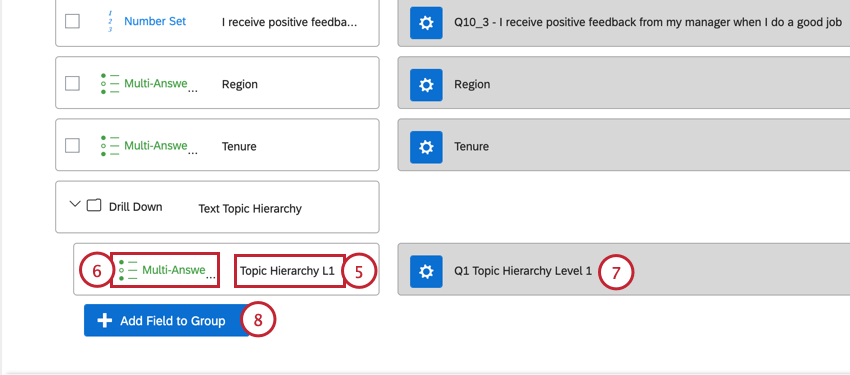
Attention: Make sure to add fields nested inside the drill down in the order that individuals will be using them (e.g., Country, State, and then City). This also affects the order they appear in filters.
FAQs
If I have two sources mapped in my Dashboard Data, how can I make it so this widget only displays data from a single source in my EX dashboard?
If I have two sources mapped in my Dashboard Data, how can I make it so this widget only displays data from a single source in my EX dashboard?
Why do I not have any data options in the Scorecard widget in my EX dashboard even though I’ve mapped over everything for my project?
Why do I not have any data options in the Scorecard widget in my EX dashboard even though I’ve mapped over everything for my project?
How do I get historical data into my EX dashboard?
How do I get historical data into my EX dashboard?
That's great! Thank you for your feedback!
Thank you for your feedback!