

Setting Up Manager Assist
What's on this page
Qtip: This page describes how to configure Manager Assist as a Brand Administrator. For information on using Manager Assist as a standard user, see Using Manager Assist.
About Manager Assist
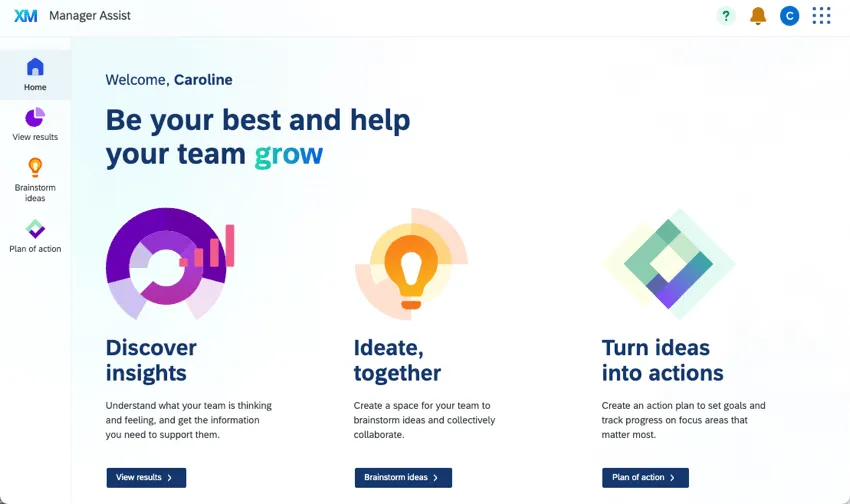
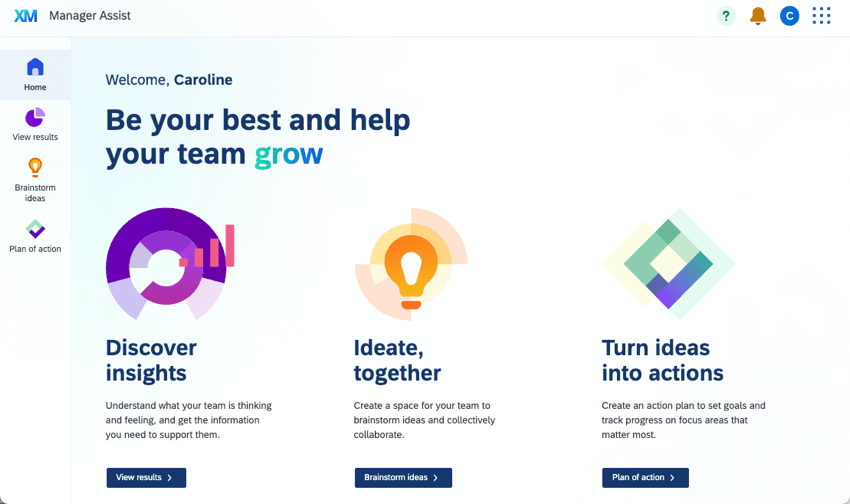
The Manager Assist app is a centralized workspace where managers can view and act on employee experience insights. Within Manager Assist, managers can view all of their Employee Experience dashboards and related tools, such as action planning and idea boards. Manager Assist is available for any brand with access to Employee Engagement projects.
Manager Assist can only be configured and activated by users with the Manage Manager Assist permission enabled. Brand Administrators have this enabled by default. Once it is activated, all users with the Use Manager Assist permission have access to this app. See Permissions for more information.
Attention: Manager Assist is enabled by default for all brands created after May 13, 2024. Brands created before this date have to configure Manager Assist for it to be visible.

Configuring Manager Assist
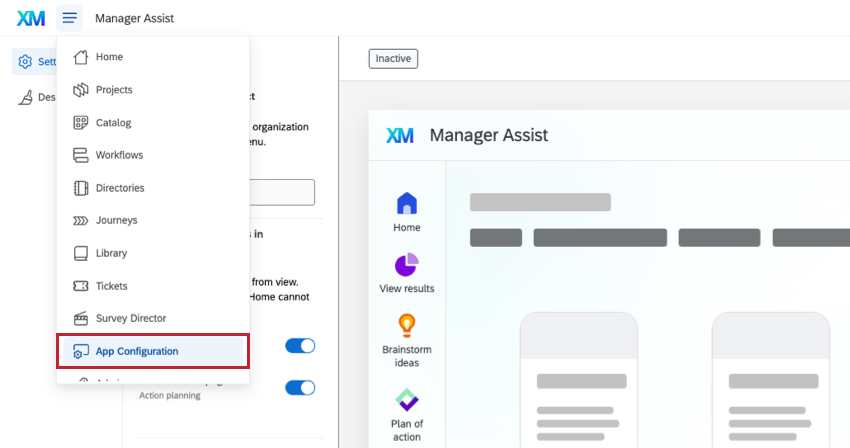
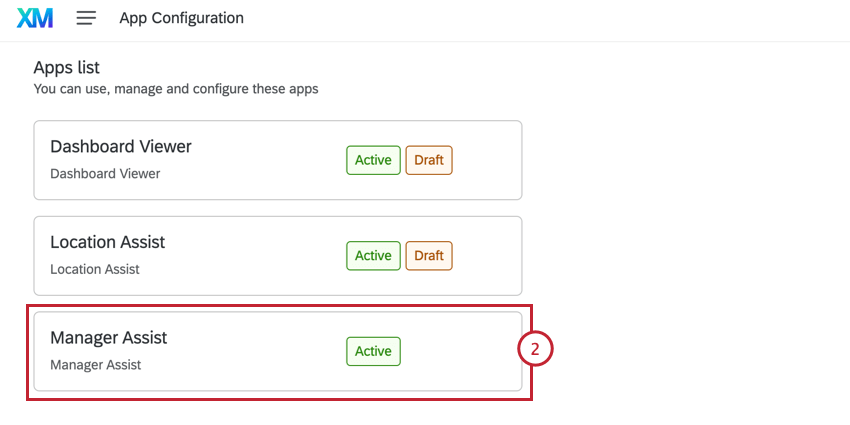
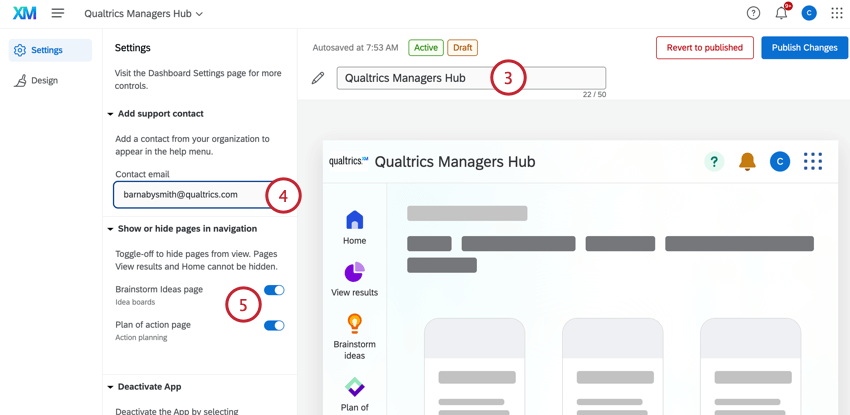
If you are a Brand Administrator, you can configure Manager Assist for your organization. As you make changes, the preview on the right will update dynamically with your choices. After Manager Assist is activated, changes you apply will impact all users in your organization.
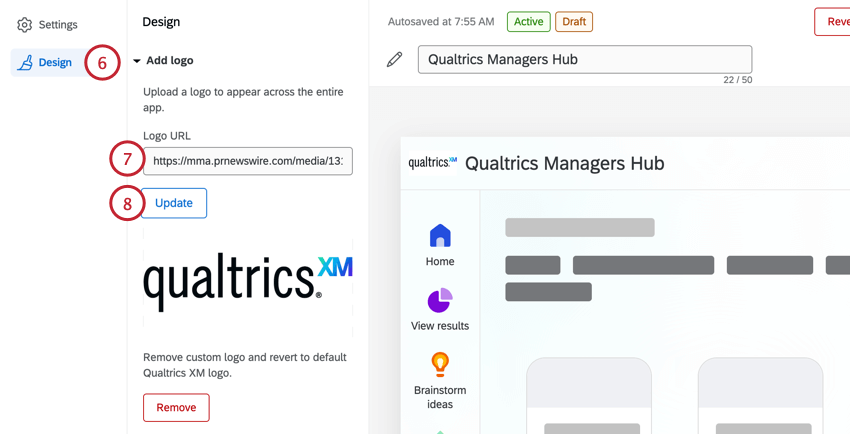
Qtip: This logo will appear in the top-left corner of Manager Assist for your entire organization.
Viewing Manager Assist Status
While configuring Manager Assist, you can view the status in the top-left corner of the preview.
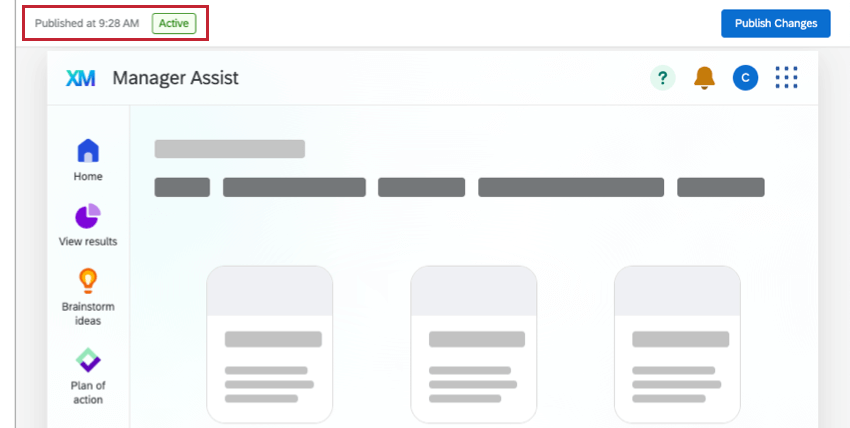
The available statuses are:
- Inactive: Manager Assist is not activated. Select Launch Preview to begin activating it.
- Preview: A preview of Manager Assist is live for administrators. Select Activate to roll it out to your whole organization.
- Active: Manager Assist is activated. Published changes will be visible to anyone with access.
Previewing Manager Assist
If you are a Brand Administrator, once you’ve configured Manager Assist you can enable a preview for users with the Manage Manager Assist App permission before it is available for your whole organization. See Previewing Apps for instructions for activating the preview.
Attention: Manager Assist is available in 40 different languages. To see how the preview looks in different languages, change your account language within user settings.
Activating Manager Assist
Once you’ve configured and activated the preview for Brand Administrators, you can activate Manager Assist for all managers within your organization. See Activating Apps for instructions for activating the app.
Deactivating Manager Assist
See Deactivating Apps for information on deactivating Manager Assist.
Permissions
There are 2 permissions that control who has access to Manager Assist. You can use these permissions to restrict who can view and edit Manager Assist.
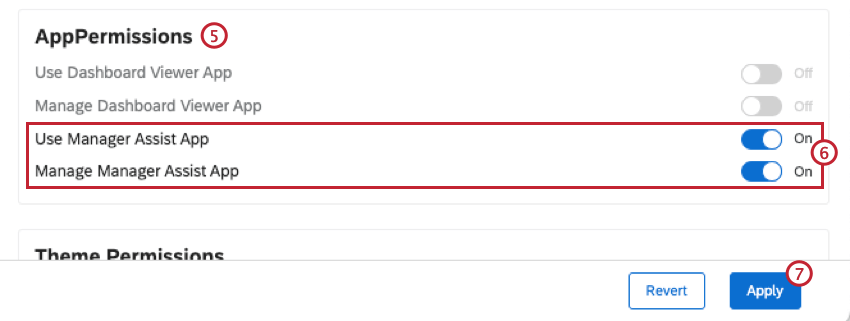
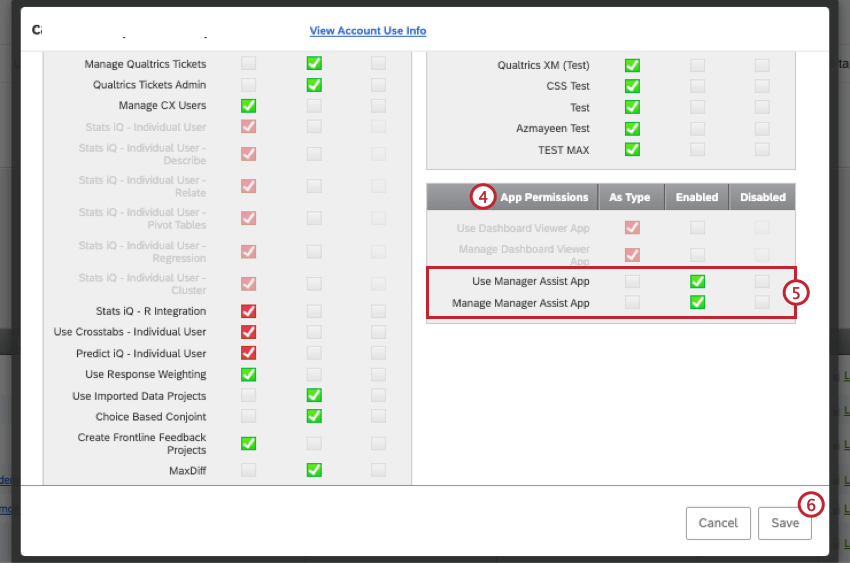
- Use Manager Assist App: This permission allows users to use Manager Assist once it is fully activated. This is enabled by default for Brand administrators, Employee Insights Admins, EX Administrators, and Participants. See Existing User Types for more information on these user types. Qtip: Users with only this permission enabled will not be able to see the Manager Assist preview.

- Manage Manager Assist App: This permission allows users to configure, preview, and activate Manager Assist. This is enabled by default for Brand Administrators.
User Types
Follow these steps to enable Manager Assist permissions for specific user types.
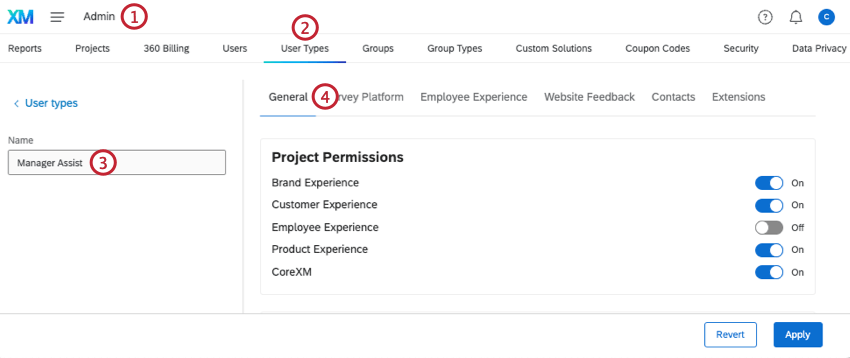
Attention: Manager Assist permissions can only be enabled and disabled for custom user types, not default user types.
Individual Users
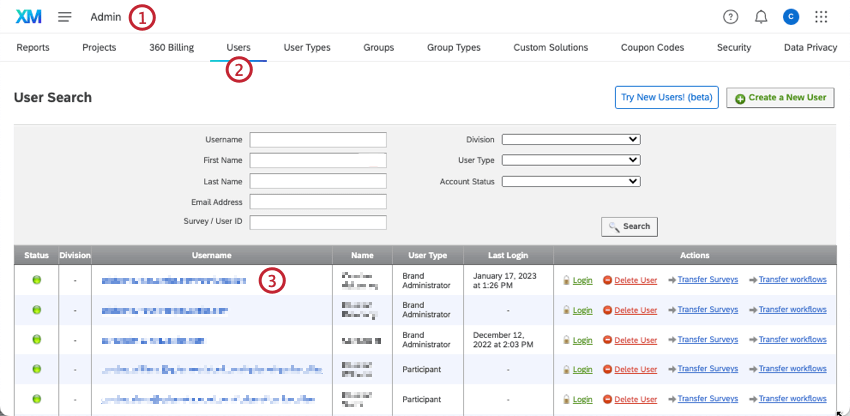
Follow these steps to enable Manager Assist permissions for an individual user.
Types of Dashboards Included in Manager Assist
All dashboards your user has access to will appear on their View Results page. To share dashboards, see our resources on Configuring Dashboard Access.
Just about every dashboard the user has access to that’s categorized as Employee Experience will be shown on this page. This includes:
- Engagement
- Pulse
- Lifecycle
- Ad Hoc Employee Research
- Assorted EX XM Solutions, such as the Diversity, Equity, and Inclusion Solution
360 and Employee Journey Analytics dashboards are not shown in Manager Assist.
That's great! Thank you for your feedback!
Thank you for your feedback!