

Word Cloud (Results)
What's on this page
Qtip: There is a new version of Results available. To opt in to the new Results Dashboards, navigate to the Results tab and click Try it now.


About Word Clouds
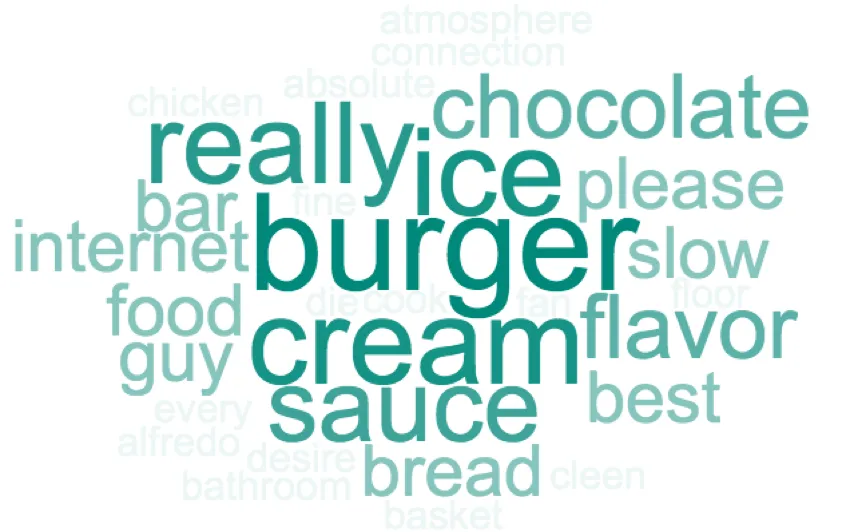
Word Cloud visualizations allow you to view the most repeated words found in your results from Text Entry questions. This visualization displays a cluster of words, with the size of a word indicating how often the word appears in your responses.
Attention: The word cloud visualization supports the following languages: English, Danish, Dutch, Finnish, French, German, Hungarian, Italian, Norwegian, Portuguese, Romanian, Russian, Spanish, Swedish, and Turkish.

Customization Options
For general settings, see the Visualizations Overview support page. Read on for settings specific to the Word Cloud.
Max Words
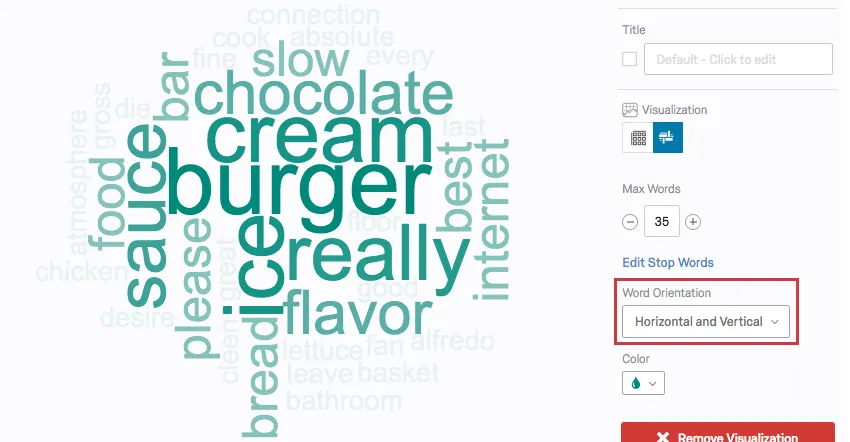
You can use the Max Words setting to determine how many words should appear in your Word Cloud. By default, this count is set to 50, so your visualization will display the 50 most used words from your results.
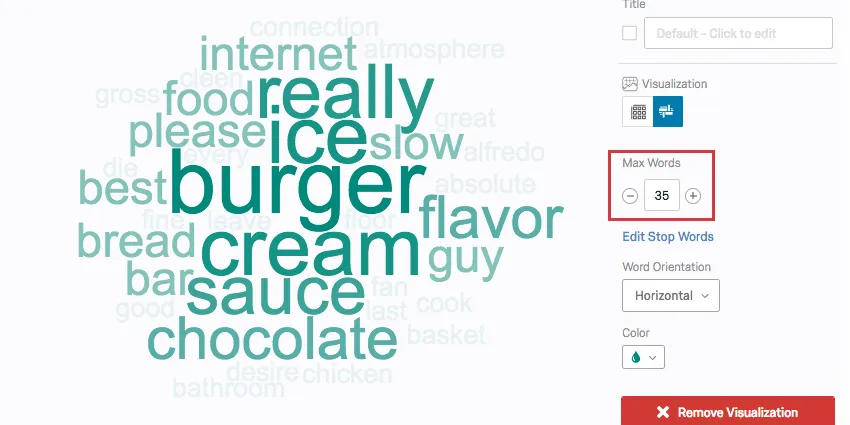
You can adjust the setting by clicking the plus or minus signs, or you can click directly into the text box and enter a specific value.
Stop Words
By default, the Word Cloud visualization will filter out articles (a, an, the) and other common but not meaningful words. You can choose to filter out additional words by using the Stop Words feature. To add a word to the stop list, just click Edit Stop Words, enter the word, and click Add.
Qtip: If you are adding a word to the stop list that has an apostrophe (don’t, can’t, it’s, etc.), be sure to use a curly quote ( ’ ). A single curly quote can be typed in using these keyboard shortcuts: OPT + SHIFT + ] (Mac) or ALT + 0146 (PC)
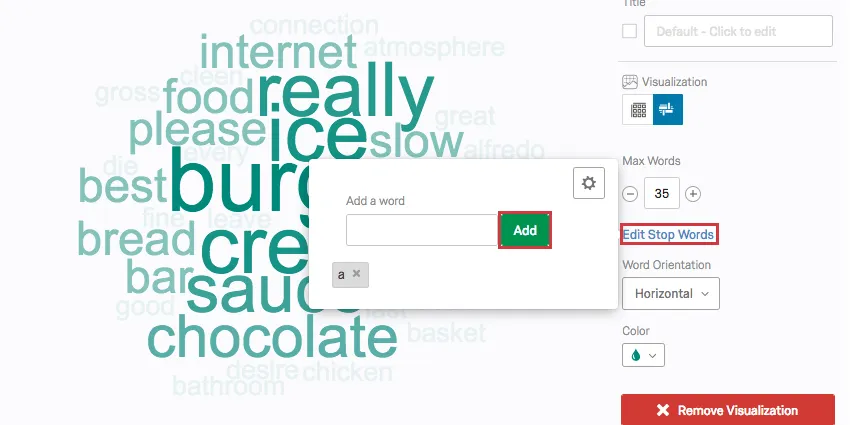
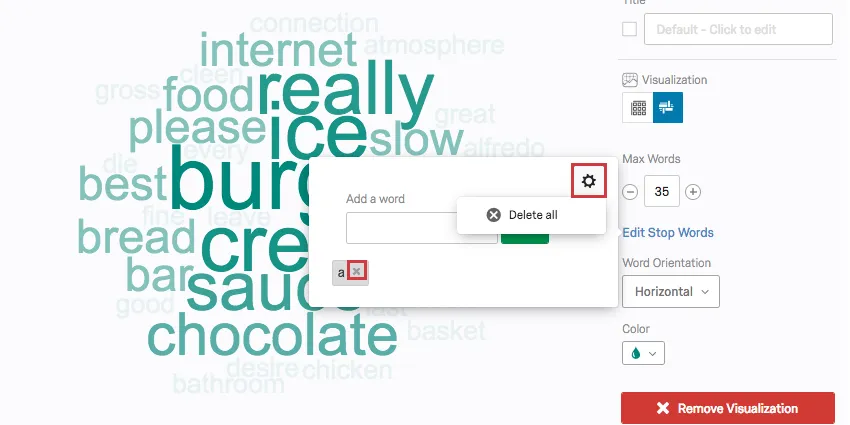
You can remove individual words from the stop list by clicking the X next to the word, or you can completely clear the stop list by clicking the gear dropdown and selecting Delete all.
Word Orientation
By default, the words in the Word Cloud visualization are laid out both horizontally and vertically. You can adjust this orientation by using the Word Orientation feature. Just click the dropdown and choose which orientation style you prefer: Horizontal, Horizontal & Vertical, or Angled.
Color
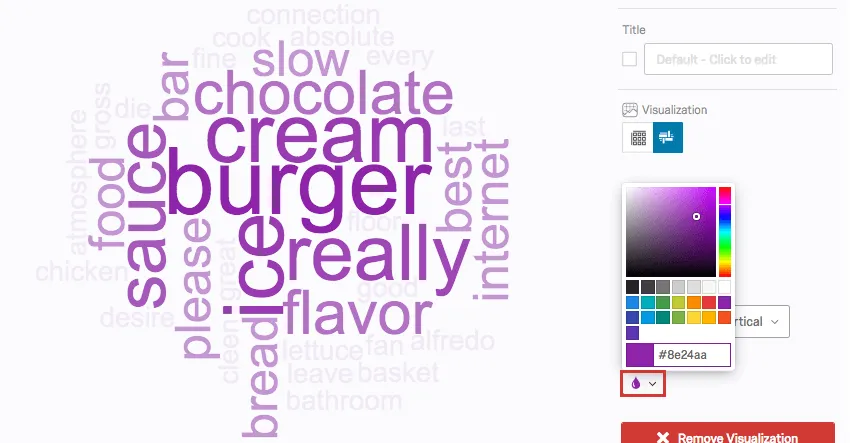
You can change the color theme of your Word Cloud by using the Color setting. Just click the color dropdown and select a new color. The words in the visualization will take on various shades of the selected color, with bigger words appearing darker and smaller words appearing lighter.
Compatibility
Word Clouds are compatible with all open-text fields that do not have numeric validation on them. This includes:
- Text Entry questions
- Form field questions
- Open text fields on other questions, such as Text Entry Matrix Tables, text entry columns on Side by Sides, and “Other” text boxes
- Text type Embedded Data
- Text type manual variables
- Highlight questions
That's great! Thank you for your feedback!
Thank you for your feedback!