

Interview Selector Question
What's on this page
Attention: This feature is only available to users on the new simplified pricing and packaging plans or customers who actively participated in the Preview Program for this feature. For more information, see Qualtrics Public Preview. If you have questions about your Qualtrics pricing and packaging plan, reach out to Account Services.

About Interview Selector Questions
Attention: This question type is only available in the New Survey Taking Experience.
Attention: This question type is only available to users with Strategic UX, Strategic Research, or Strategy & Research license types.
The interview selector question type allows survey participants to schedule a live interview with moderators. Participants select their preferred interview times and provide their contact details. They will then receive a Zoom link for the scheduled interview. Interviews are recorded and stored within the Audio & Video library where they can be analyzed.
To access this question type, you must create a Moderated User Testing or In-Depth Interviews project.
Setting Up an Interview Selector Question
After creating a Moderated User Testing project, an Interview Selector question will automatically be created in your survey. Follow these steps to finish configuring the question:
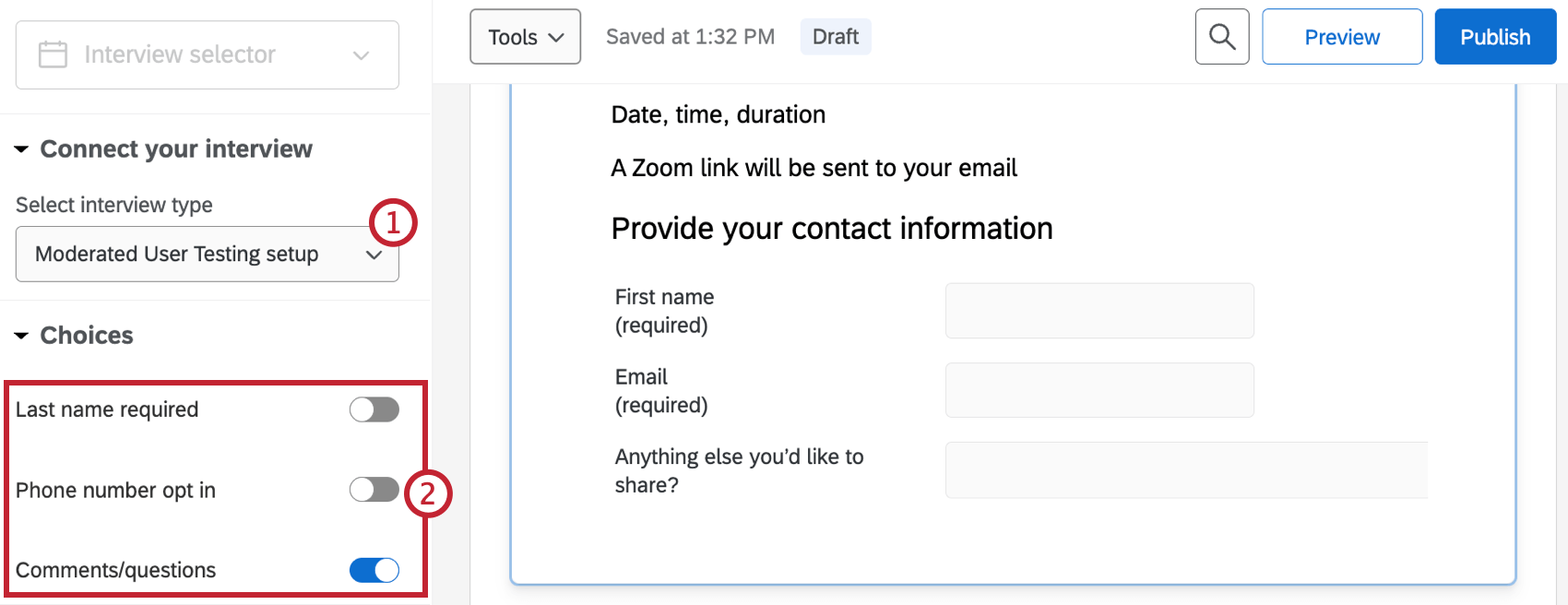
Attention: If you don’t select an interview type, your survey will not allow respondents to schedule interviews.
- Last name required: Require respondents to enter their last name.
- Phone number opt in: Allow respondents to add their phone number.
- Comments/questions: Provide a space for respondents to add additional information.
Respondent Experience
When you get to the interview selector question, you’ll see a calendar where you can select a date and time to schedule an interview. You can also use the dropdown in the top-left to select your time zone.
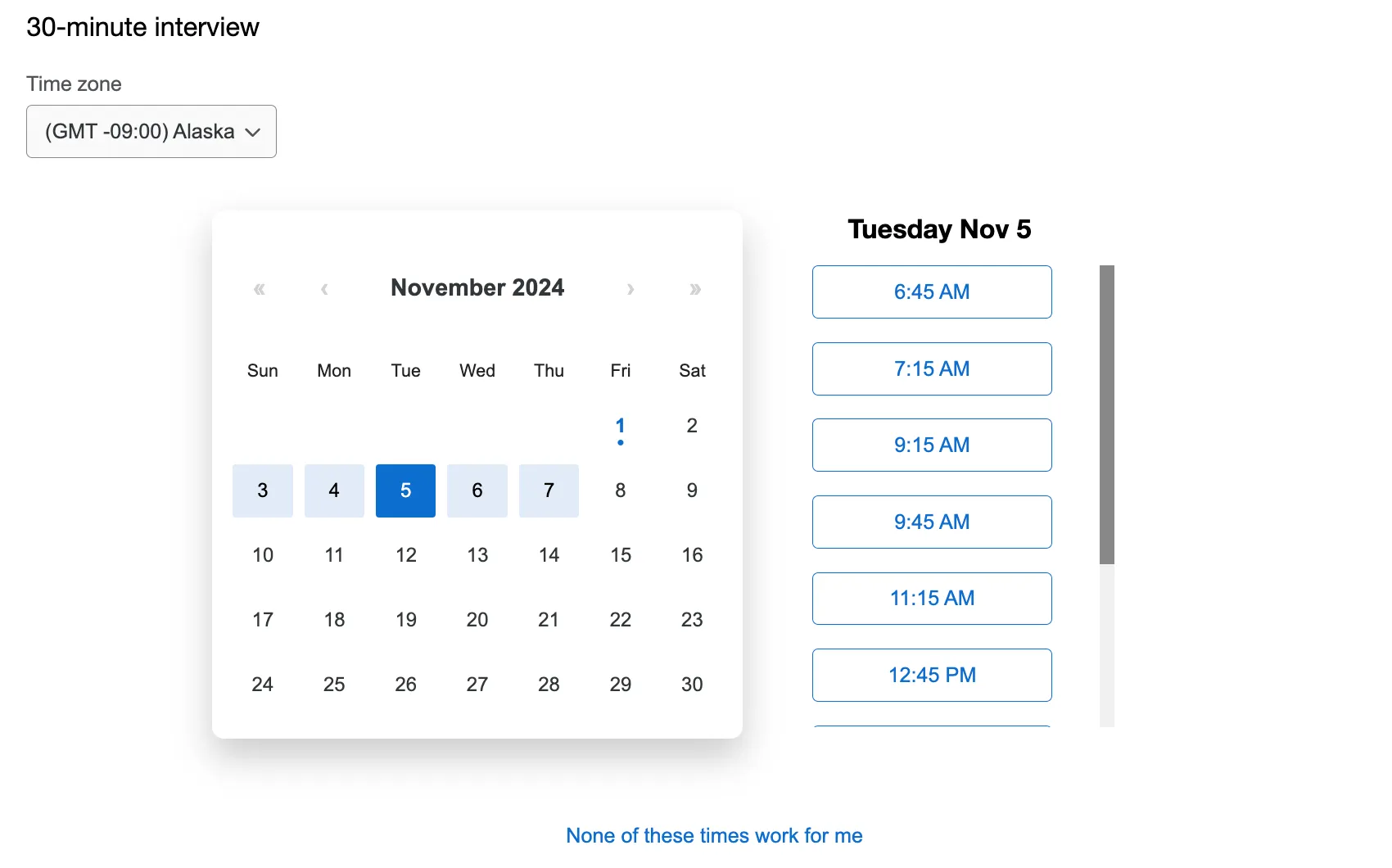
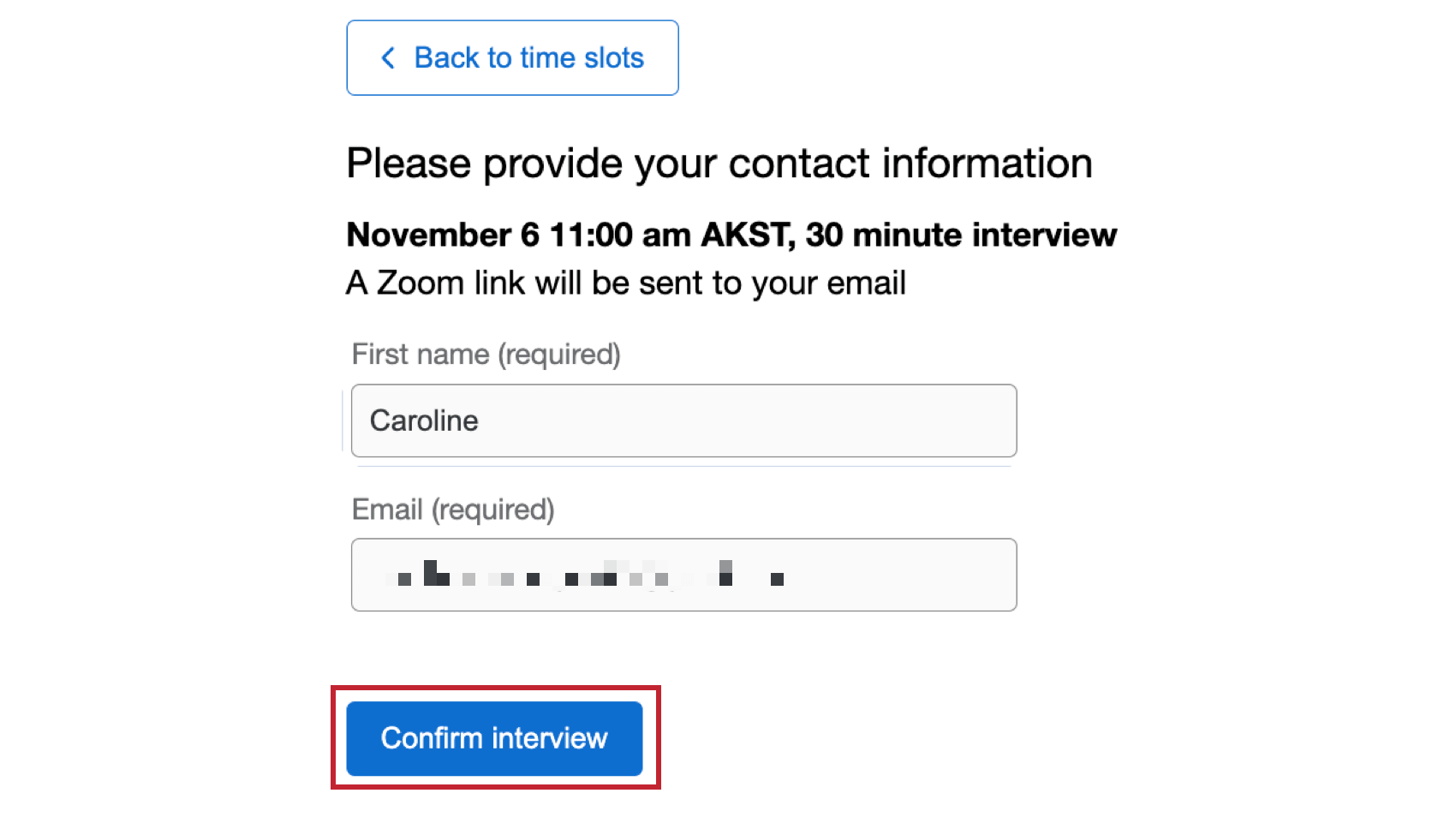
Click on a time slot to select it. You’ll be asked to provide your contact information so a Zoom link can be emailed to you. Click Confirm interview to confirm your interview time slot.
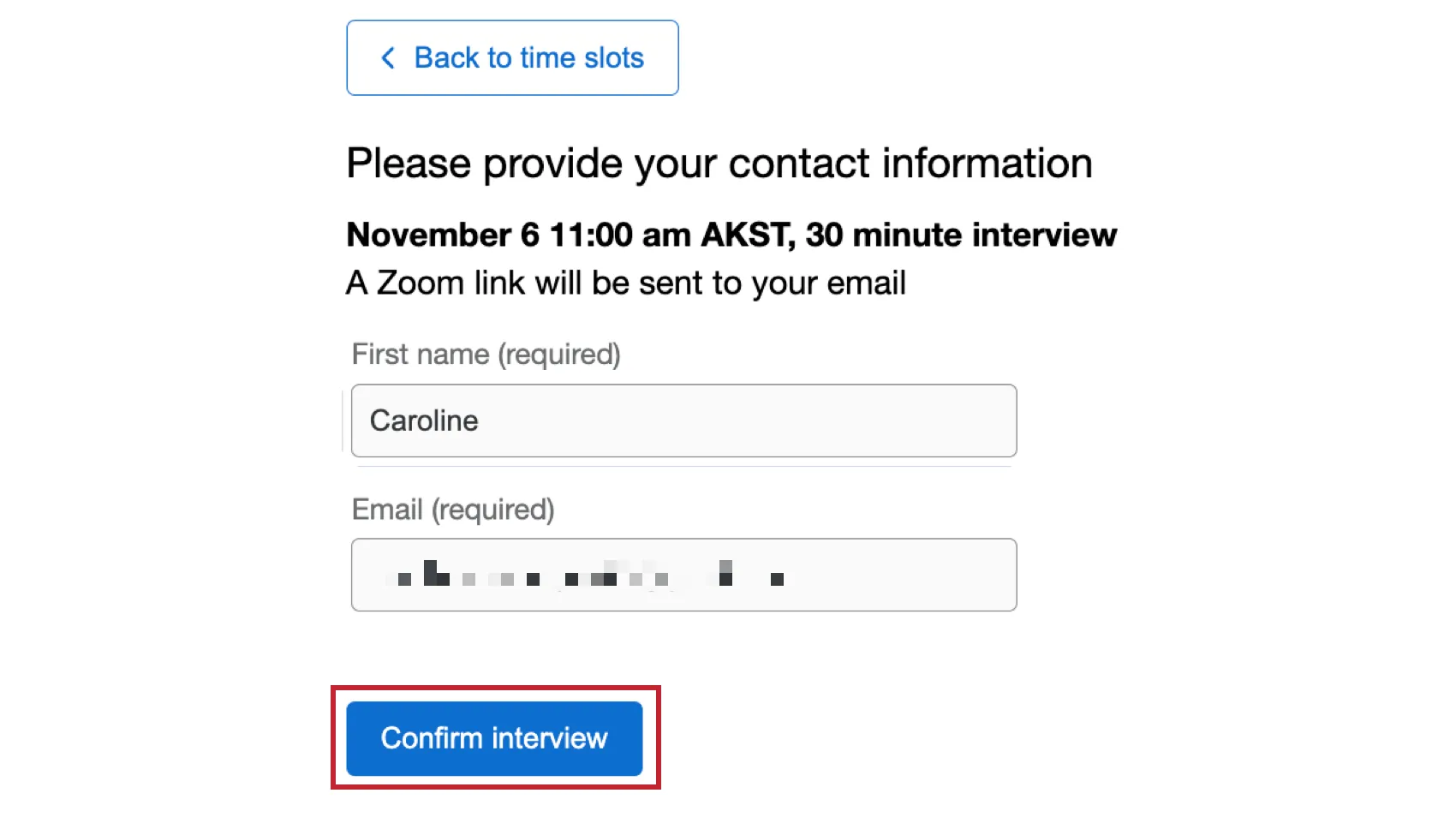
Attention: Make sure to continue through the survey and submit your response after confirming your interview time slot.
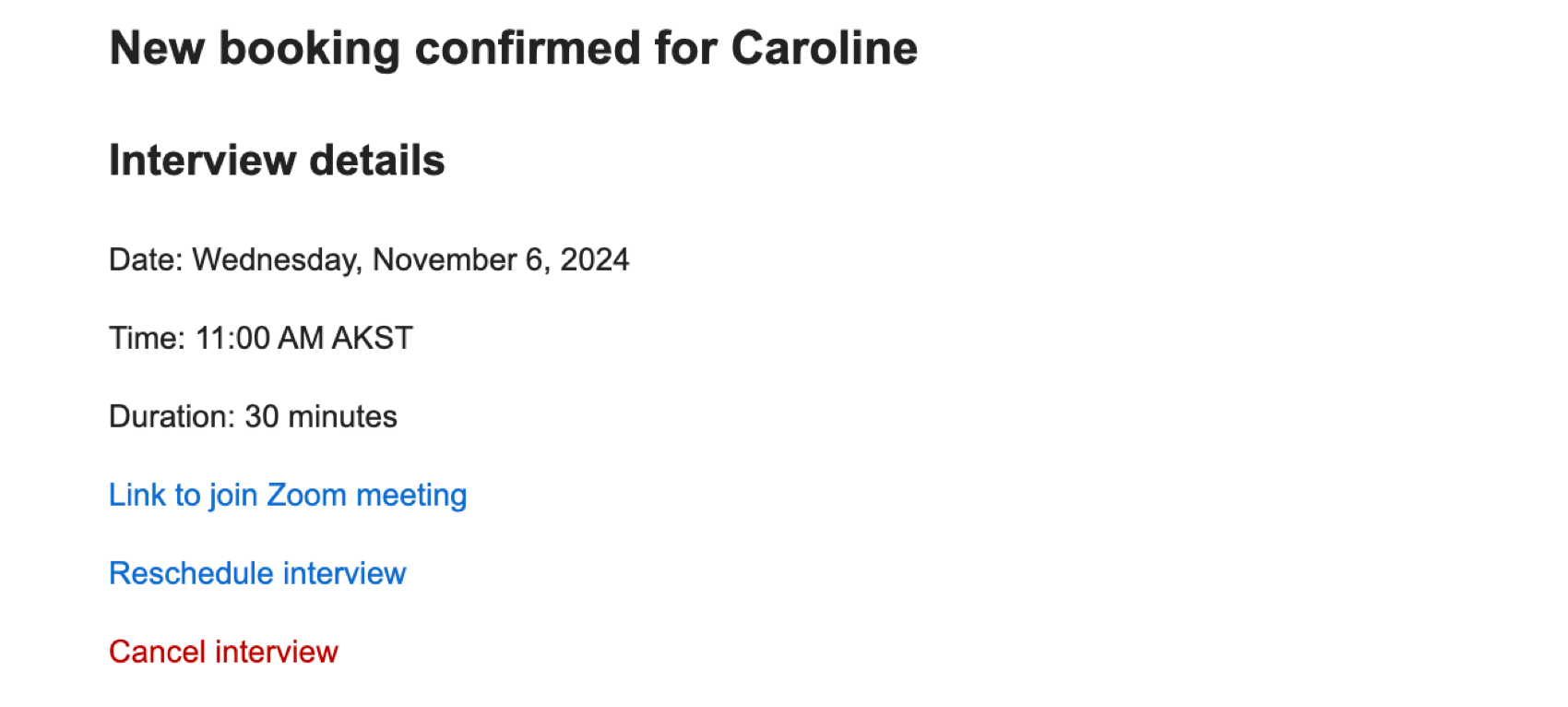
Once your interview is confirmed, you’ll receive an email with the interview details and a Zoom link. There are also links to reschedule or cancel the interview.

Qtip: If you reschedule or cancel your interview, you and the interview moderator will receive a confirmation email, and the original booking links will no longer be valid.

Zoom Interviews
Joining the Meeting
Participants can use the link in their interview confirmation email to join the Zoom interview. Moderators can join the Zoom interview by using the link in their interview confirmation email, or by using the links in the Bookings tab.
Qtip: Participants are able to join the meeting room 30 minutes prior to the interview. If they join early they will be redirected to the waiting room.
Meeting Recordings
Recordings are automatically started when the moderator(s) joins the Zoom meeting. When the interview is complete, the recorded video will automatically be uploaded to the Audio & Video tab. If there is only 1 person in the Zoom meeting or no audio is recorded, the recording will not be saved.
Qtip: You can choose to pause or stop the recording and then resume it. If you pause the recording and then resume it, you’ll have 1 recording for the interview. If you stop the recording and then resume it, you’ll have multiple recordings for the interview.
Qtip: Depending on the interview duration and video size, it may take several hours for a response to be uploaded to the Audio & Video tab.
Attention: Every minute of uploaded video/audio will count as one response towards your response limit.
Data & Analysis
Recorded interviews will be available in the Audio & Video Editor in the Data & Analysis tab. From here you can view transcripts, make clips from audio and video responses, build highlight reels, and leverage AI-driven insights to identify themes in your video responses. For more information, see Audio & Video Editor.
That's great! Thank you for your feedback!
Thank you for your feedback!