

Date Time Segmentation
What's on this page
About Date Time Segmentation
Date time segmentation is useful for industries that use shifts for employee scheduling. The purpose of this functionality is to make it easier to report on performance metrics for individual shifts, allowing you to pinpoint the times of day that customer satisfaction may increase and where it may decrease.
Example: You have different employees working in your shop on different days of the week. You ask customers to rate their interaction with an employee immediately after they buy something. Date time segmentation can help you see if there are particularly high or low ratings for particular shifts, so you know where to focus improvement efforts.
On this page, we’ll talk about what you need to set up in order to report on date and time segments in your dashboard.
Types of Compatible Dashboards
Qualtrics has a few types of dashboards available. This feature can be found in the following dashboards:
- Dashboard projects (i.e., CX Dashboards)
- Employee Engagement
- Lifecycle
- 360
- Pulse
- Ad Hoc Employee Research
- Employee Journey Analytics
- Brand Experience
Qtip: Date time segments may need to be mapped as multi-answer text sets in order to work with widgets exclusive to Employee Experience (such as heat map). Date time segments will work as text sets with most other widgets.

Please note that not all licenses include all of these types of dashboards.
Data Requirements
Date data
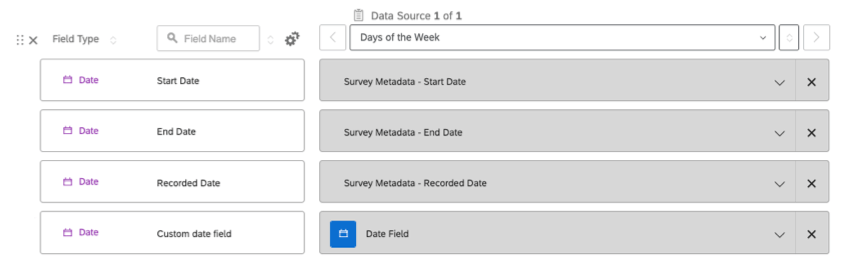
It is important to include date fields in your data. Survey data includes date fields by default, such as end date, start date, and recorded date.
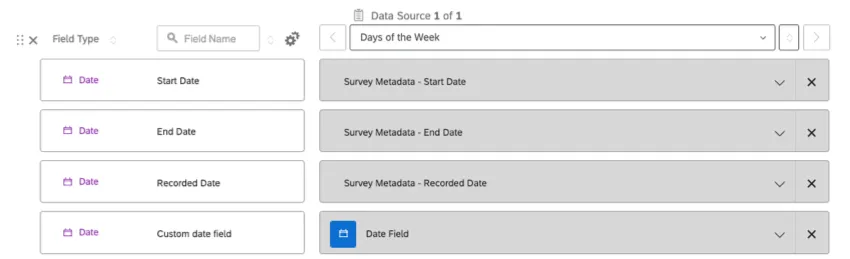
You can also use any custom date fields you want, such as transaction date. Custom date fields should be ISO 8601 format. You can use any time zone. Times should be on a 24 hour clock.
Example: YYYY-MM-ddTHH:MMZ is in ISO 8601. For example, 2022-12-31T23:45Z.
Qtip: For help formatting custom date fields, see Date Field Format.
Additional breakout information
Date time segments allow you to break out your data by the shifts you’ve created and the day of the week. If you want to further break out your data by fields like location or representative, you will have to make sure to include that information in your data.
Creating Date Time Segments
Date time segments allow you to define your business’s shifts so you can more easily report on their performance. Once your dashboard data is mapped, follow the steps below to create date time segments.
Qtip: You should have data mapped in the dashboard before you add date time segmentation. If your dashboard is brand new, we recommend waiting for data to load in the dashboard before adding date time segmentation.

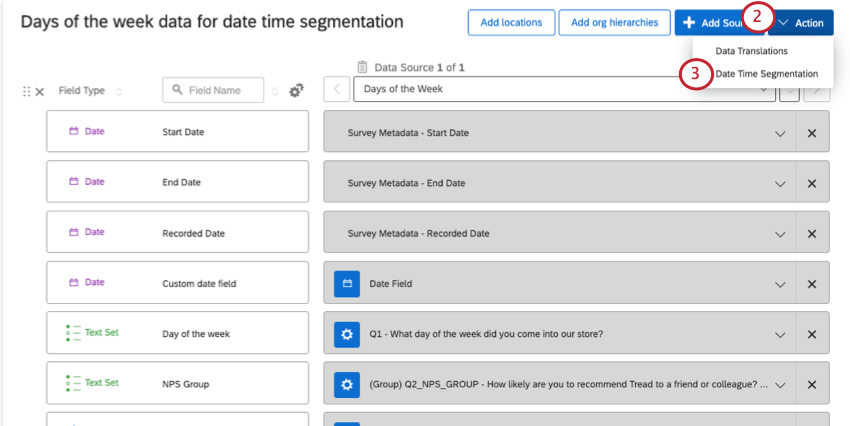
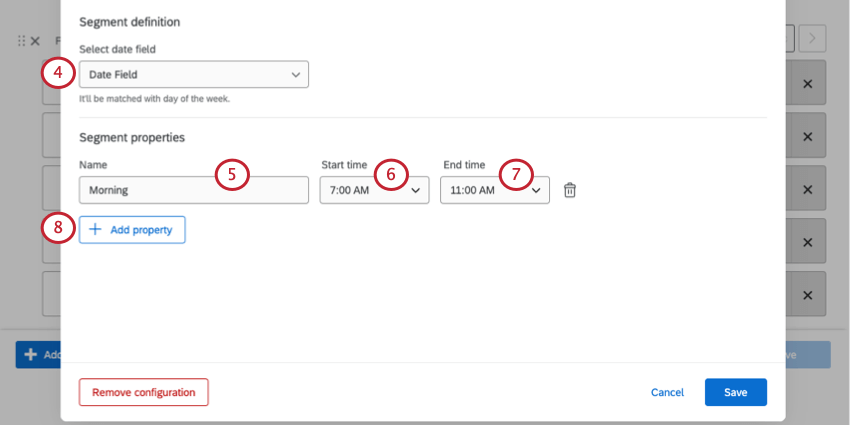
Example: Our segments are based on employee shifts. We name them after the time of day when these shifts take place.
Attention: Segments cannot overlap. For example, you cannot add 7am-3pm, 8am-4pm, and 9am-5pm as segments, because they all overlap from 9am-3pm.

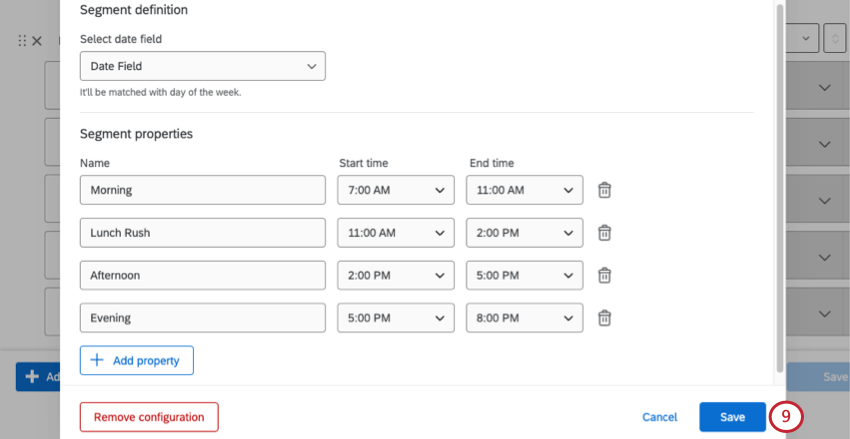
Qtip: You do not have to include every time period in your segments. In our example, we do not cover data from 8pm-7am, because that’s when our store is closed.

Qtip: Date time segments work for dashboards with more than 1 data source. Data sources must be added before date time segments are created to be included in the segmentation.
Recoding the Day of Week Field
Attention: The “Day of week” field is based on the UTC time zone. Even if your dashboard is set to a different time zone, the day of week is based on the date in the UTC time zone.
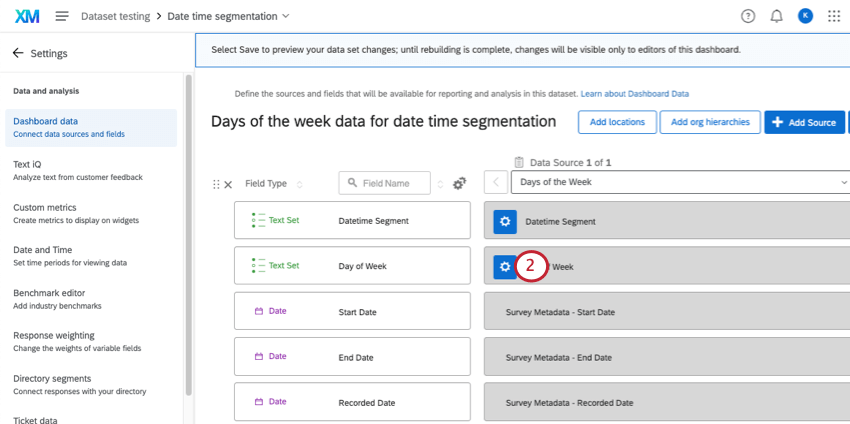
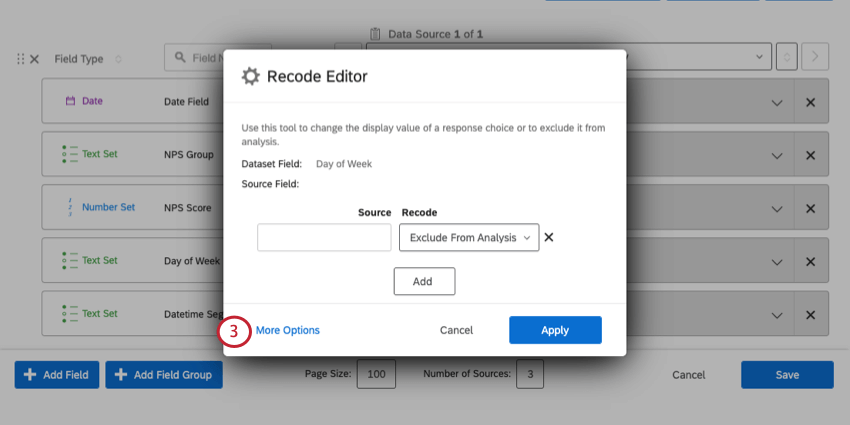
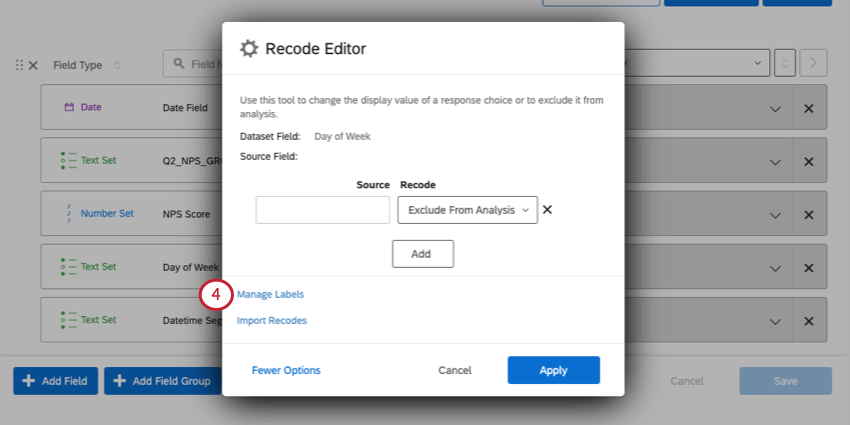
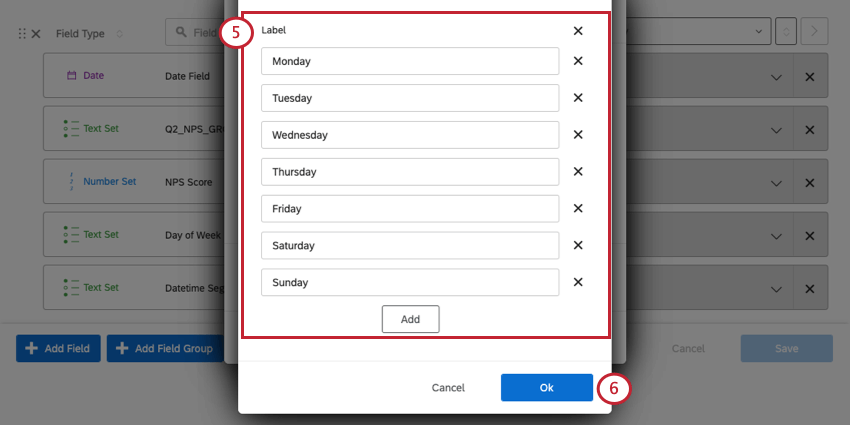
When you create a date time segment, a “Day of Week” field is added to your dashboard data. By default, the day values are mapped from 1-7. However, to make this data easier to read on a dashboard, we recommend recoding these values to the names or abbreviations of week days.
Qtip: Keeping the number in the weekday name can make widget sorting easier. For example, “1 – Monday” instead of “Monday.”
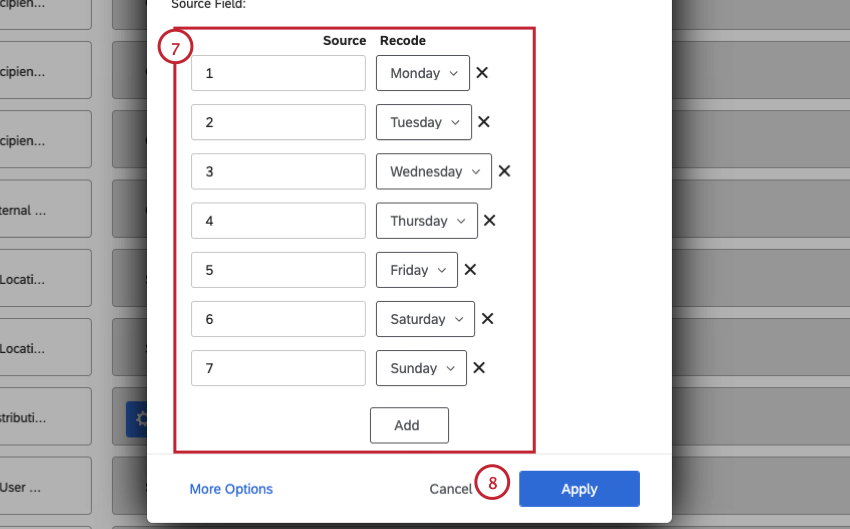
- 1 – Monday
- 2 – Tuesday
- 3 – Wednesday
- 4 – Thursday
- 5 – Friday
- 6 – Saturday
- 7 – Sunday
Reporting on Date Time Segments in Widgets
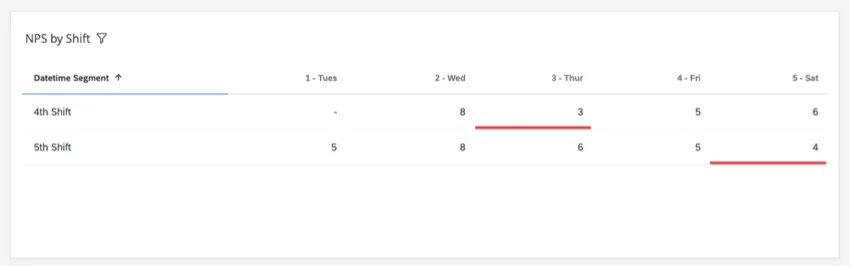
You can now add the “Datetime Segment” field to any widget compatible with text set fields. In this section, we’ll show you how to create a simple table that highlights metrics that are particularly high or low.
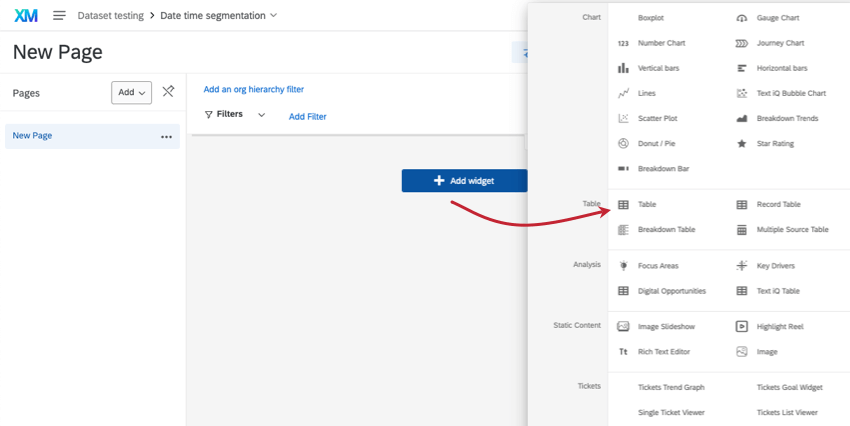
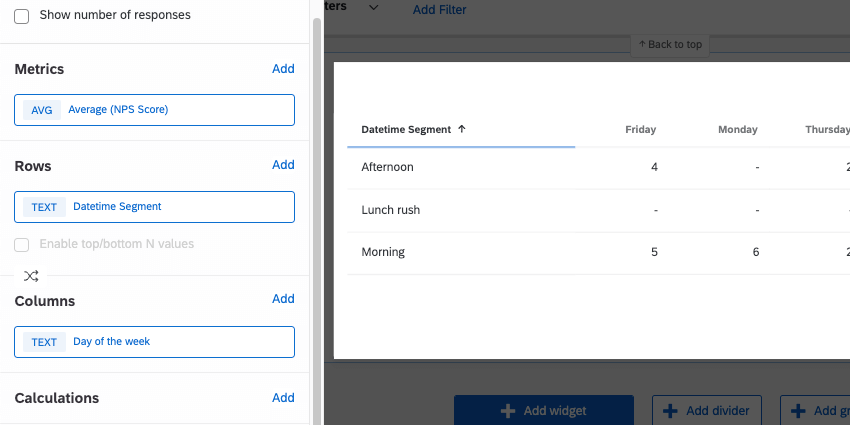
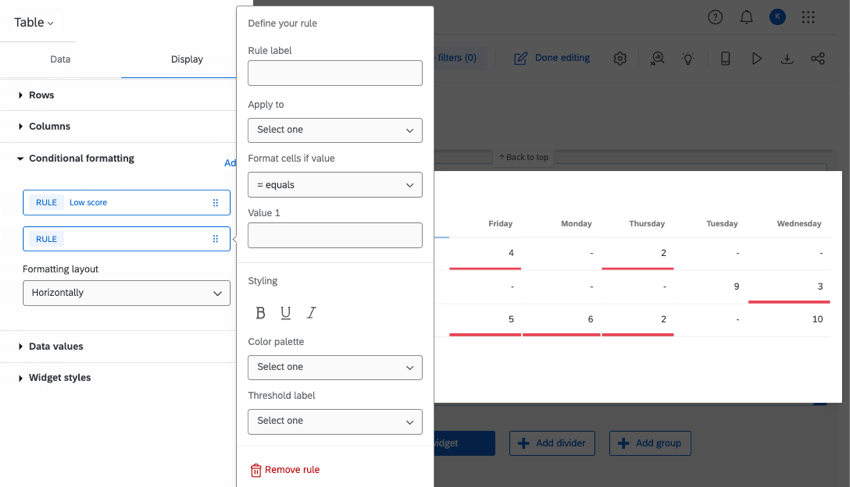
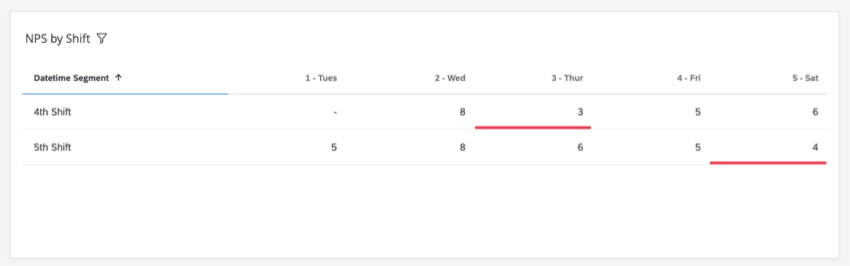
Example: Here’s a widget where we highlight average NPS scores that are less than or equal to 4. This shows us we may need to make some changes to the fourth shift on Thursday and the fifth shift on Saturday.
Troubleshooting
If you’re having trouble getting date time segments to display properly in your dashboard widgets, try the steps in this section.
Qtip: A simple number chart that displays response count or a record grid that shows a list of responses can help you figure out if your data is finished loading.
Example: For example, let’s say it’s December 31, 2022, at 8:45pm in Pacific Standard Time. This becomes 2022-12-31T20:45-08:00.
Qtip: See this external documentation for more details on ISO 8601. See Date Field Format (CX) for more on configuring these settings in Qualtrics.
- If you use custom date fields set to a particular time zone, your segments should match that same time zone.
- Default metadata fields like start date, end date, and recorded date are in UTC (Coordinated Universal Time). Your segments should also be in UTC. Example: Your business is located in Los Angeles, California, and is on Pacific Standard Time (PST). You choose to create date time segments with the default “End Date” field. You want to create a shift that lasts from 9am-5pm in PST. In UTC, this is 5pm-1am.

- Segments cannot overlap.
- It is fine to leave some time periods unmapped.
- Segments do not need to be the same length.
- Segment names can include any letter, number, spaces, or underscores ( _ ). Segment names can be up to 64 characters long. Names should not be empty.
FAQs
Is this feature compatible with data models?
Is this feature compatible with data models?
That's great! Thank you for your feedback!
Thank you for your feedback!