

Saving Dashboard Data Edits
What's on this page
Attention: This page contains information relevant to all kinds of dashboards in Qualtrics, including CX and EX dashboards.

About Saving Dashboard Data Edits
Most changes to fields, like adding or deleting a field or changing a field’s type, will cause the dashboard’s data to reindex. Reindexing is when the dataset is rebuilt to fit the changes you’ve made. It may take minutes to hours, depending on the size of your dataset.
Dashboard viewers can continue to access the previous version of the dashboard during indexing, instead of seeing partial data. Dashboard viewers will see new data when reindexing is complete. Dashboard editors will have a banner showing reindexing progress and have the option to see partial data as it comes in. This means you don’t have to wait for weekends and off hours to update dashboards, or worry about negatively impacting daily work that involves these dashboards when you push an update during work hours.
Qtip: For EX dashboards, updating responses with current metadata and updating invited counts will not cause the dashboard to reindex. Instead, dashboard viewers will see applicable changes in real time as these jobs run, including appropriate error messages in the response rate widget while the update invited counts job runs.

Qtip: Sometimes, Text iQ will require dataset rebuilds. These dataset reindexes will prevent access to Text iQ, but the rest of the dashboard data will still be available to viewers. The dashboard data will not begin reindexing.
Important Considerations for Project Administrators and Dashboard Editors
As a dashboard editor, you can edit the fields of the dashboard’s data source in the Dashboard Data page of the dashboard’s settings:
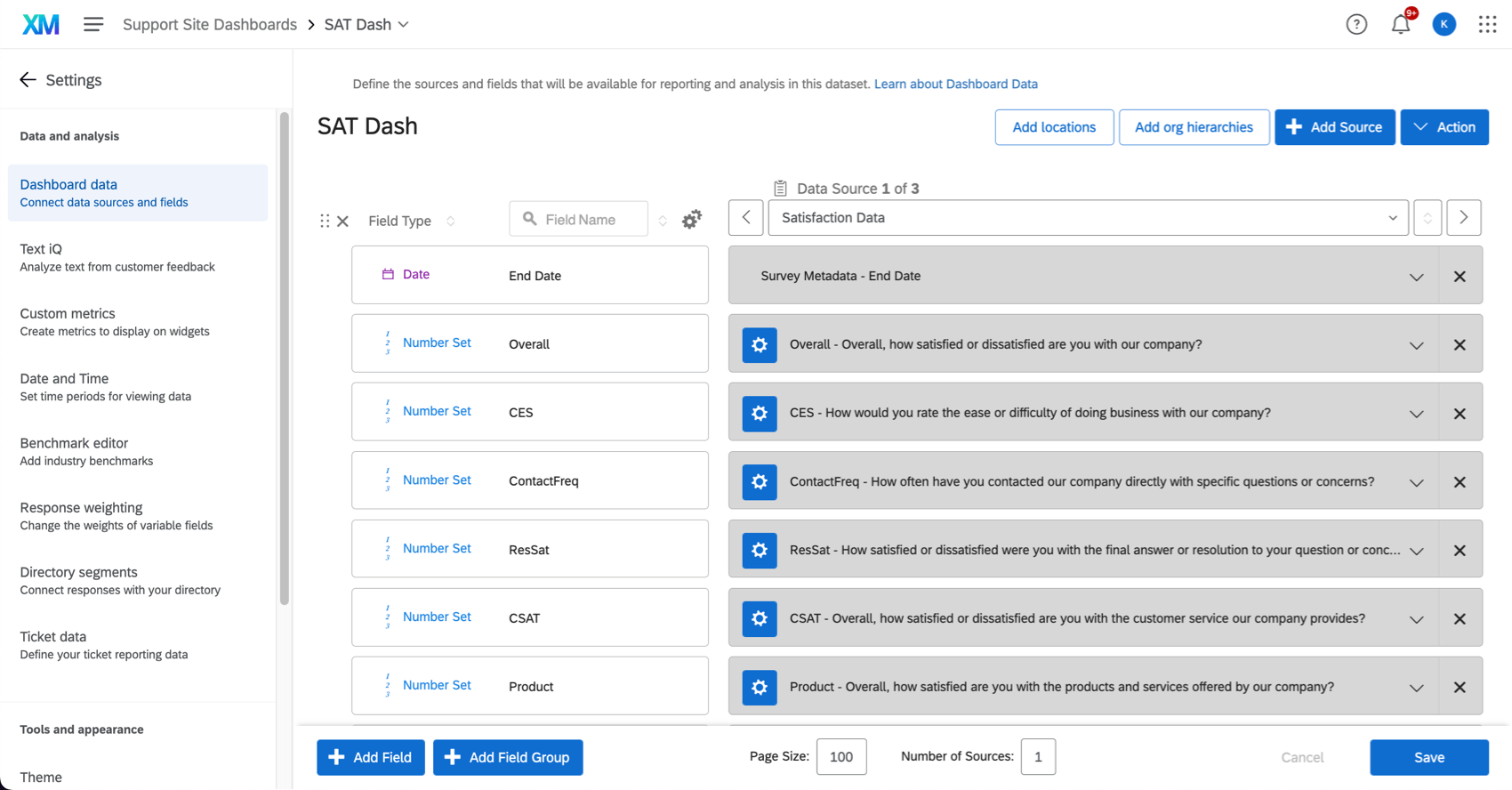
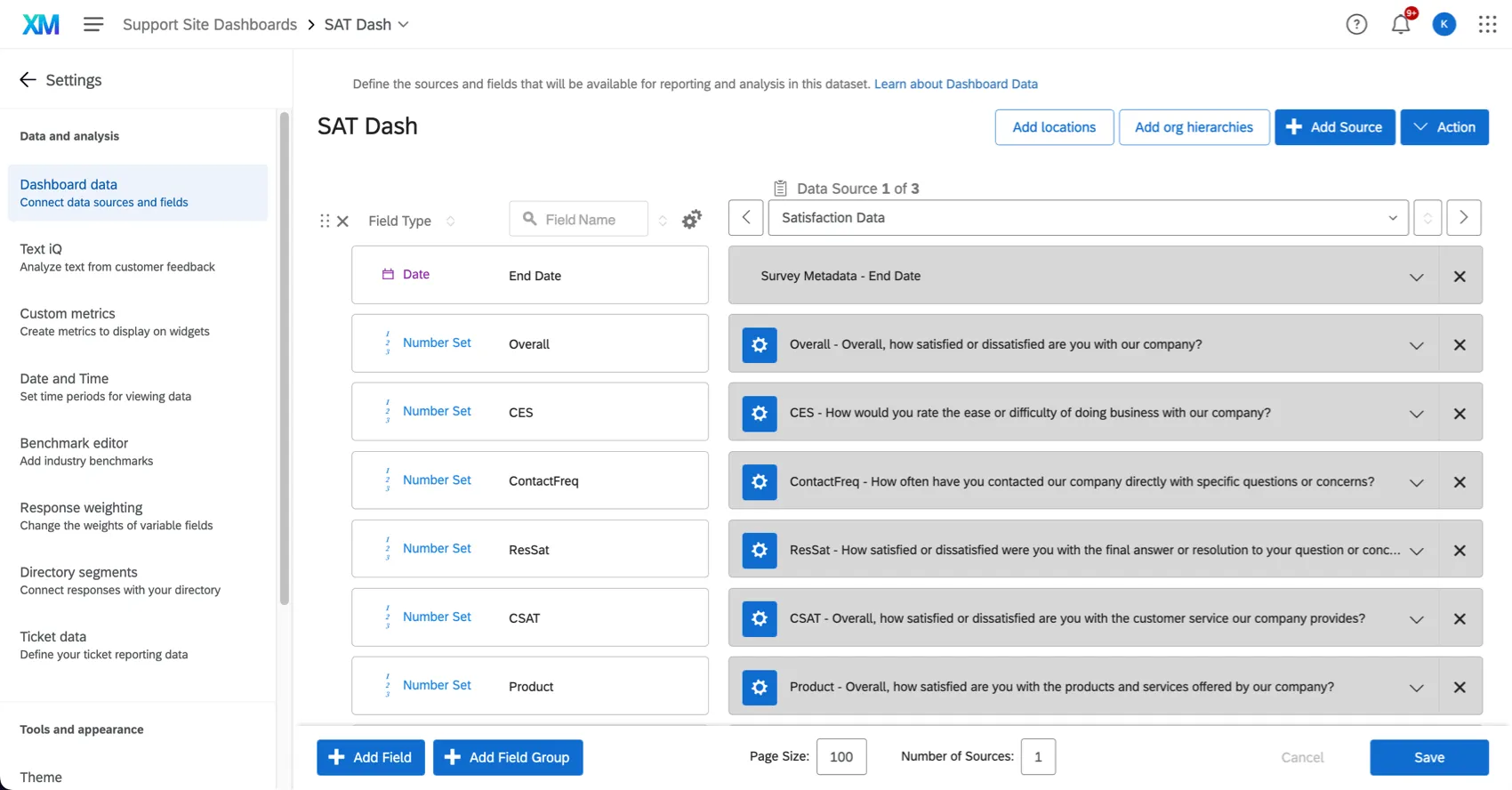
When editing the dashboard data, it’s best to make all necessary changes before clicking Save. If you save multiple times, it’ll submit multiple dataset reindexes, which may slow down the process.
Once you’ve completed all your changes, click Save. You’ll then see a modal that says the dashboard data will reindex. While reindexing occurs, the currently published version of the data will still be available for dashboard viewers.
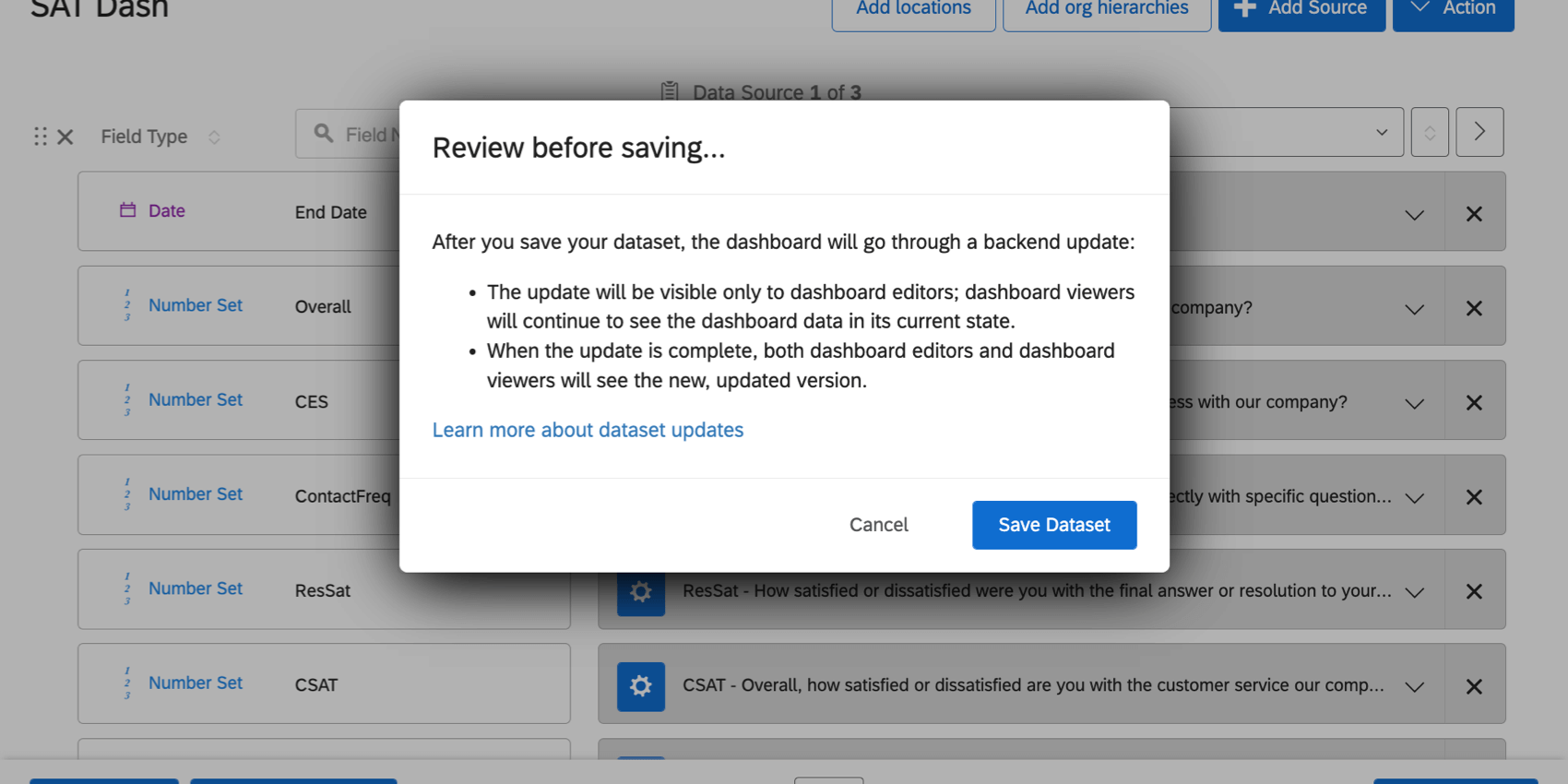
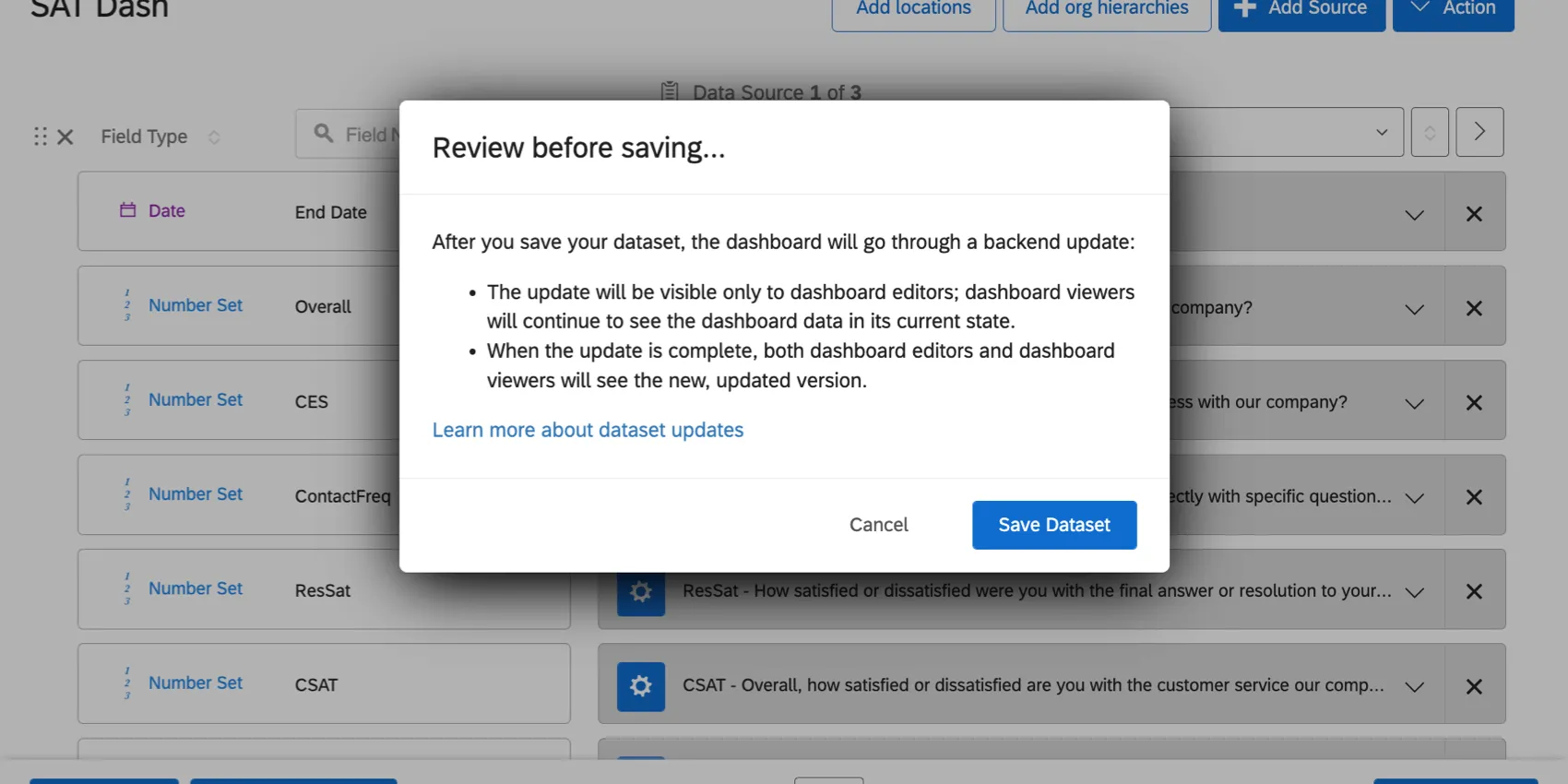
After navigating back to the dashboard, you’ll see the latest progress on the data being reindexed, meaning some widgets will display partial data. However, dashboard viewers will not see partial data. They will continue to see the last published dataset until your changes are finished reindexing.


Viewing the Published Version as a Dashboard Editor
After data starts reindexing, a banner will show up with the percentage of completion for the reindexing process. You can click the link in the banner to view the currently published version of the dashboard, which is what dashboard viewers see.

Qtip: Viewing the published version as a dashboard editor will show what dashboard viewers see, which excludes private pages. You cannot view the published version if you are publishing the dashboard for the first time.
Important Considerations for Dashboard Viewers
Dashboard viewers will continue to be able to use the dashboard without any downtime while data is reindexing.
Qtip: While the dashboard is reindexing, any new data that’s collected (i.e., new survey responses) won’t be added to the dashboard. New data will only be added after the dashboard is finished reindexing.
Qtip: For EX dashboards, you can prevent dashboard viewers from interacting with the dashboard during reindexing by using the maintenance mode setting.
If dashboard viewers are still viewing the previously published version of the dataset when reindexing is finished, a banner will appear and let them refresh the page to view the latest version of the data.


Maintenance Mode for EX Dashboards
Qtip: This option only applies to EX dashboards, such as dashboards in Engagement, Pulse, Lifecycle, and other Employee Experience projects.
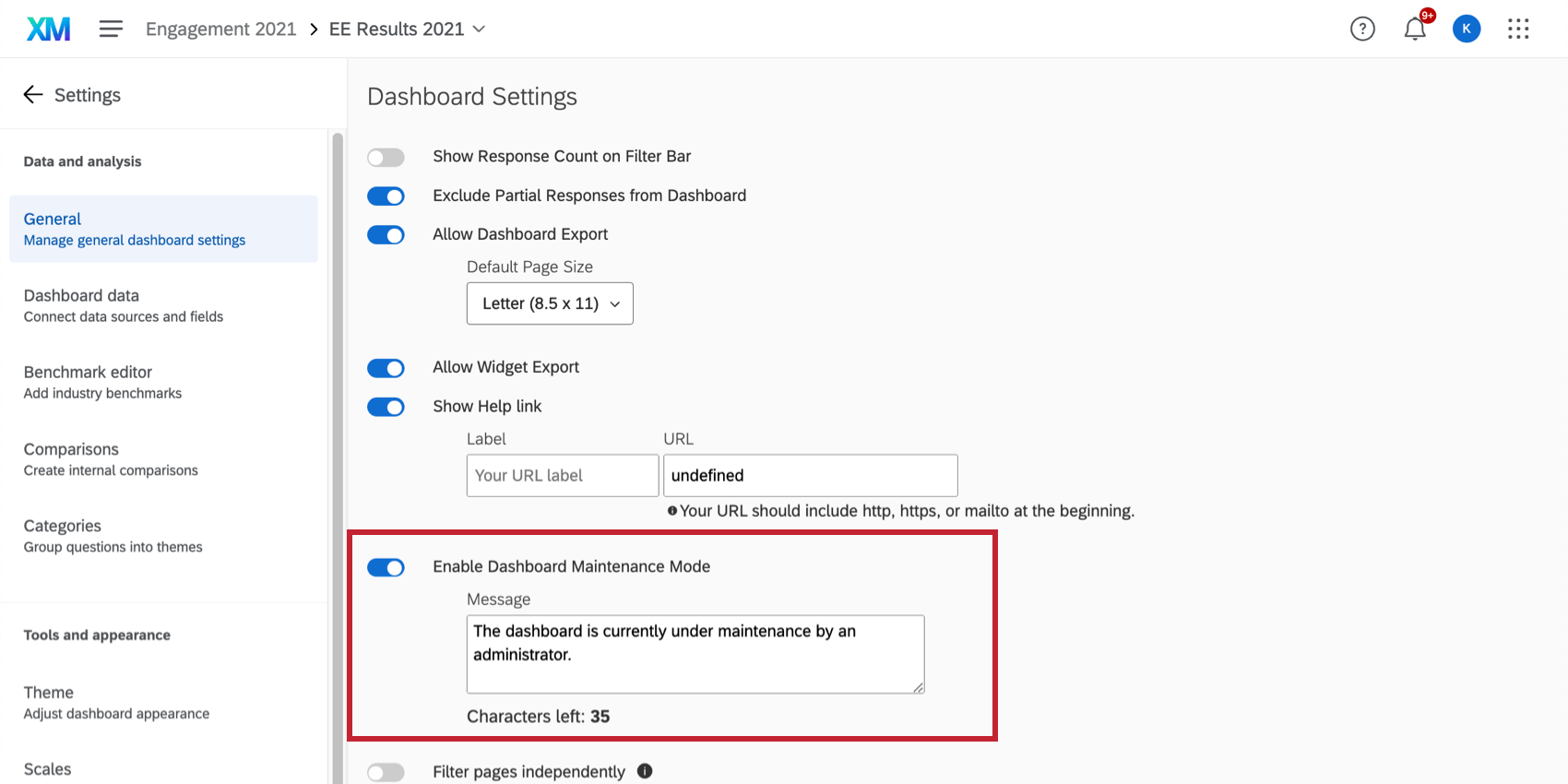
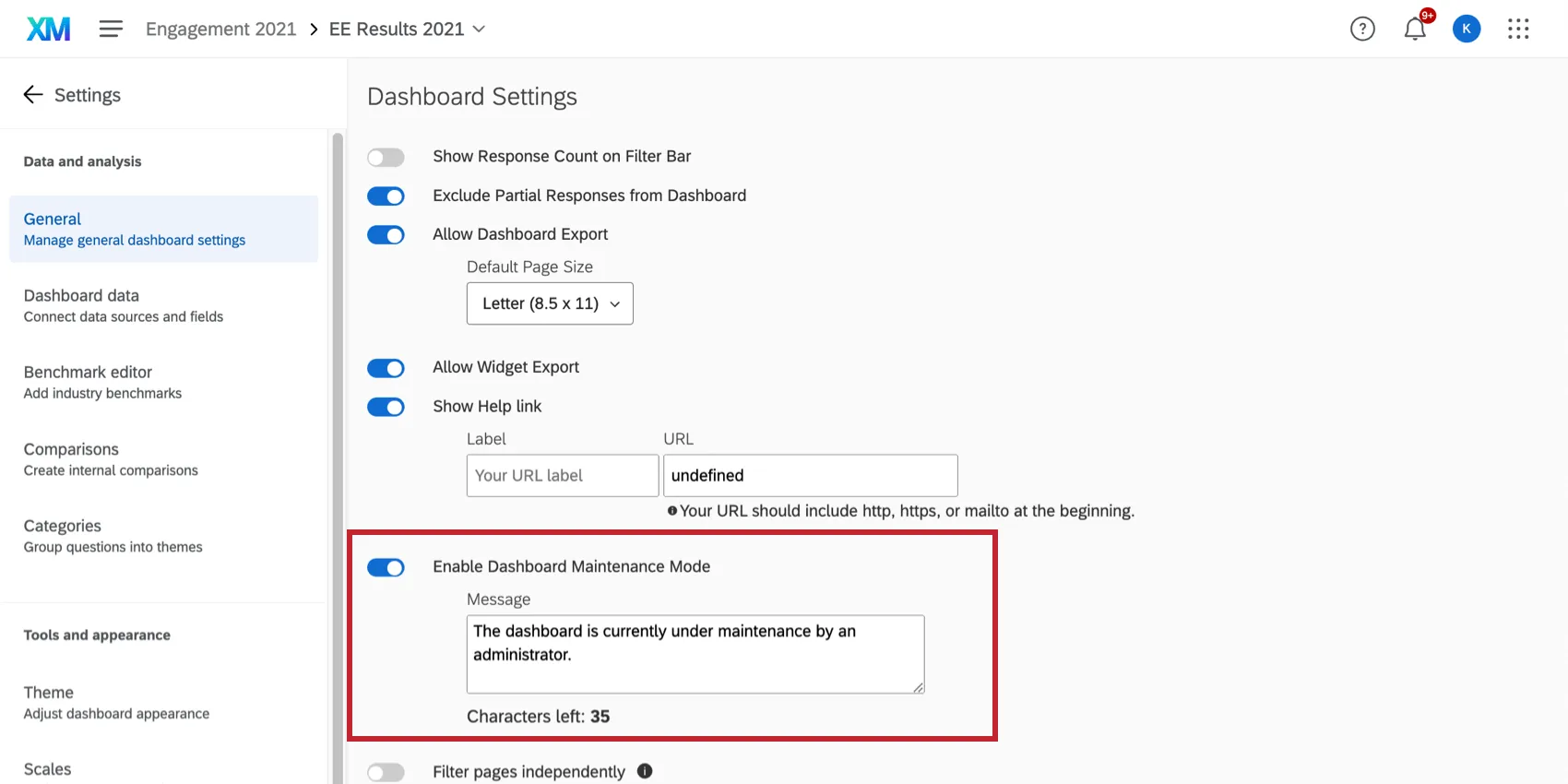
Rather than giving dashboard viewers access to the previous data, you can instead make the dashboard data inaccessible to dashboard viewers during reindexing.
To do so, enable dashboard maintenance mode. If you are a dashboard editor, you will see the dashboard and be able to make edits, but dashboard viewers with no editing access will only see the message.
Qtip: For more general dashboard settings, see Available Dashboard Settings (EX).
Common Causes of Reindexing
While not an exhaustive list, this section details some common actions that may cause your dashboard to reindex.
Dashboard Data Mapper Actions
- Loading a dashboard page with any data-accessing widget for the first time.
- Loading data that has not been accessed in 30 days.
- Loading data that has been edited. This includes:
- Adding, changing the type, or deleting fields in the survey or dashboard.
- Editing an active survey.
- Enabling TextiQ on a new field in the survey or dashboard.
Data Modeler Actions
- Recoding any field in the source of a data model, even if the edited field is not used in the data model.
- Periodic dataset updates in the data modeler.
- Making any change to a derived field in the source of a data model.
- Making any changes to a source joined on the right side, if the source is one of the following features:
- Location data in dashboards.
- Segment data in dashboards.
- Dynamic org hierarchies in dashboards.
FAQs
What are CX Dashboards?
What are CX Dashboards?
Can Dashboards projects only be used for customer experience research?
Can Dashboards projects only be used for customer experience research?
What are EX Dashboards?
What are EX Dashboards?
That's great! Thank you for your feedback!
Thank you for your feedback!