

Editing a Data Model (CX)
What's on this page
About Editing a Data Model
Once you’ve created a data model, you may need to make edits to it. The edits covered on this support page include:
- Removing elements.
- Changing the fields you can map in your dataset.
- Managing labels.
If you want to map multiple sources together or join data, see Unions and Joins. For how to create or use a field group, see Field Groups (CX). For recoding values, see Recoding Data Model Fields.
Qtip: A. “node” refers to any element in a data model. This includes sources, unions, joins, and output datasets.

Editing a Data Model
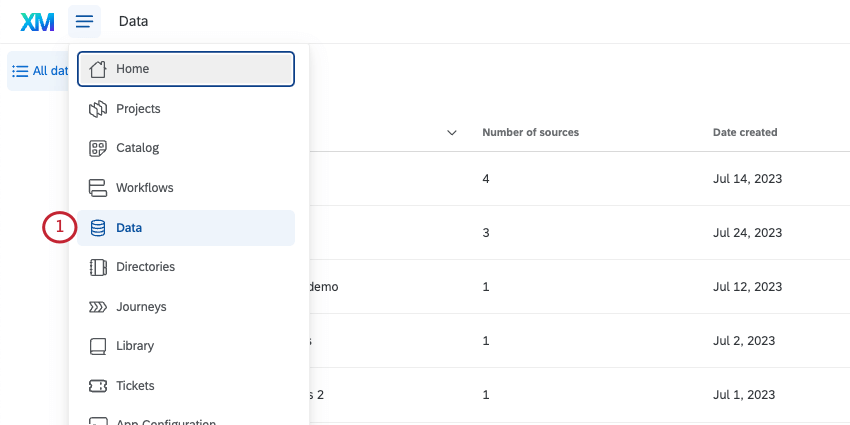
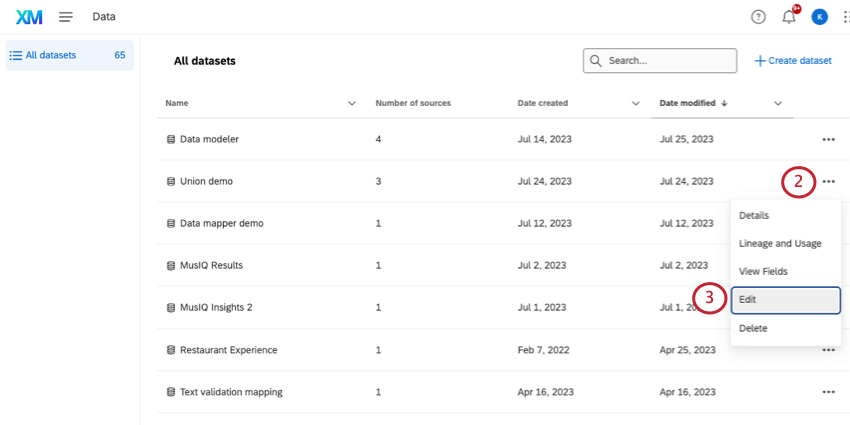
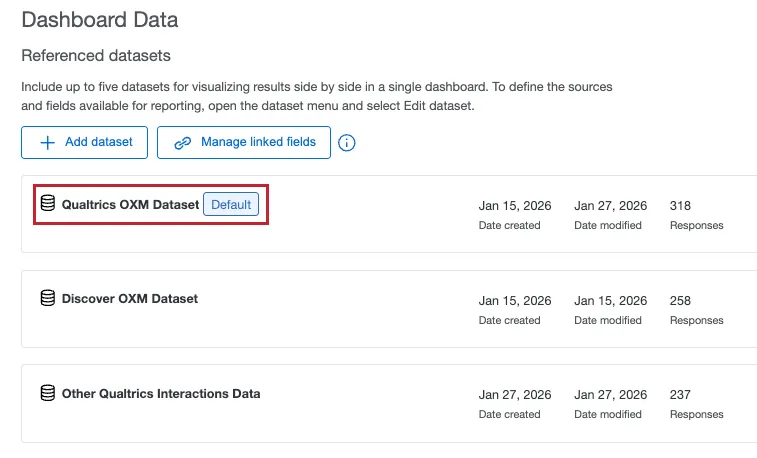
Qtip: If your data model has been added to a dashboard, you can also edit it right from that dashboard. Open your dashboard settings, go to Dashboard data, and click the name of the dataset you want to edit. Often, there may be only 1 dataset in your dashboard.
Aggregation
Data aggregation transforms many data rows into a single summary value. It does this by performing calculations across your data, such as summing up totals, finding an average, counting the number of items, or identifying the minimum or maximum value within a group. The resulting numbers can act as summaries, giving you key insights from a larger dataset.
Enabling aggregation
Aggregation is not enabled by default in a CX data model. To start using this feature:
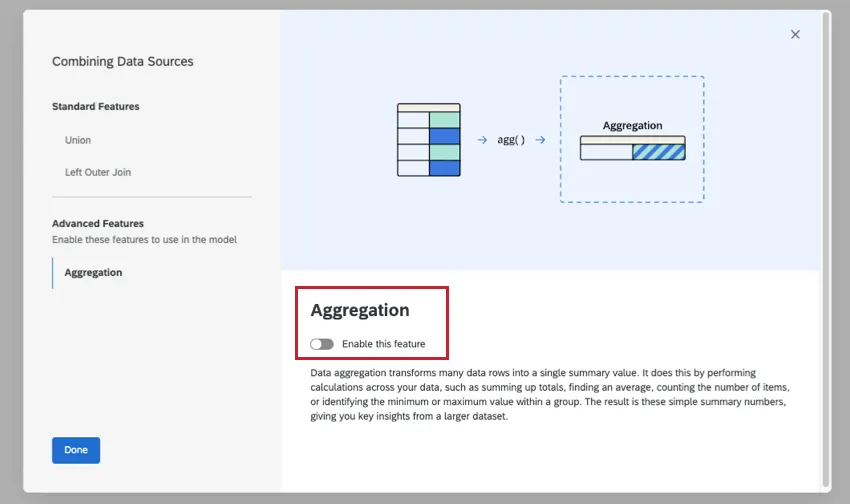
When you first create a dataset, this modal will open. Select Aggregation from the left, then click Enable this feature.
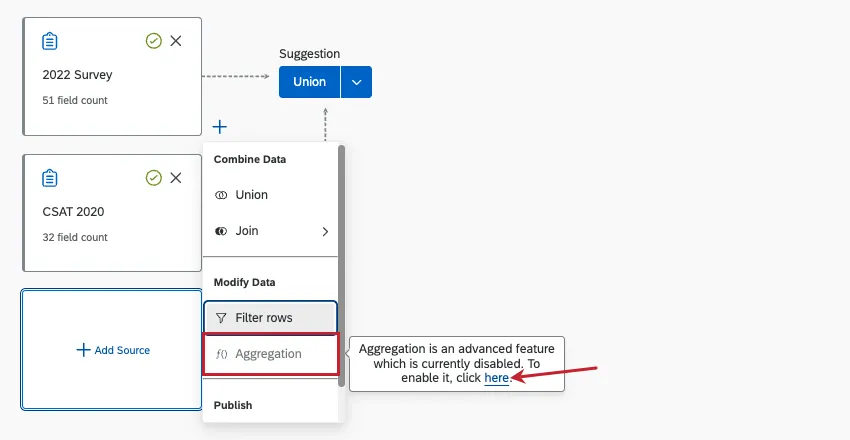
When you click the plus sign ( + ) to add a node, you can highlight over Aggregation, then click the link to enable aggregation.
Aggregating entire rows
See Aggregating Data Model Rows for step by step instructions on aggregating rows. Note that while the linked page discusses EX + CX reporting functionality, the steps to aggregate data in a CX dataset are the same, except you will be combining 2 CX sources instead of EX and CX.
Filtering Rows
Filtering rows in your data model narrows down the responses included in your dataset. For example, you can narrow down data by embedded data, only capturing a particular date or region.
For more detailed steps, see Filtering Rows. Although this linked page is for data models in EX, the functionality is the exact same in CX data models.
Removing Nodes from the Data Model
Warning: Be careful when editing a data model that’s currently in use. If you delete a node (union, join, or source), then add the same node back, it’s treated as a brand new, separate node. That means you will have to readjust any widgets that use fields that were deleted and re-added.

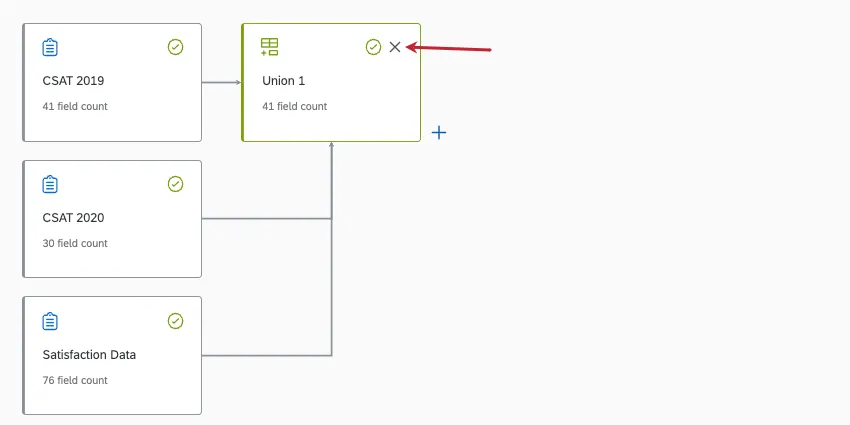
To remove a source, a union, or a join, click the X in the upper-right.
Warning: We recommend you avoid removing output datasets where possible. Output datasets contain field groups and other final edits, and removing them can negatively affect your dashboard setup or require you to redo a lot work to recreate fields and groups.
Adding a New Field
There are many reasons you might need to add a new field to your data model. For example, if you added a new field (or column) of data to your source after you published your data model, or if you changed your mind about a field you didn’t map earlier.
You can add a new field to many nodes, including:
- Data sources
- Unions
- Joins
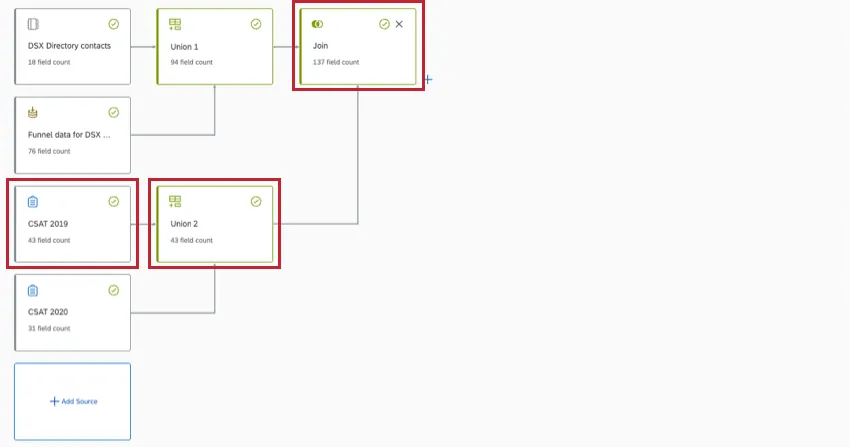
However, adding a field to one node will not automatically carry it into any other connecting nodes. You must add the same field to its source and to each following node to include it in your dataset output.
Example: You added an Education field to your CSAT 2019 survey. To get Education into your final dataset, you need to first add it to your CSAT 2019 source, then in Union 2 and the Join. The field doesn’t need to be added to Union 1 because it isn’t connected to the CSAT 2019 survey.

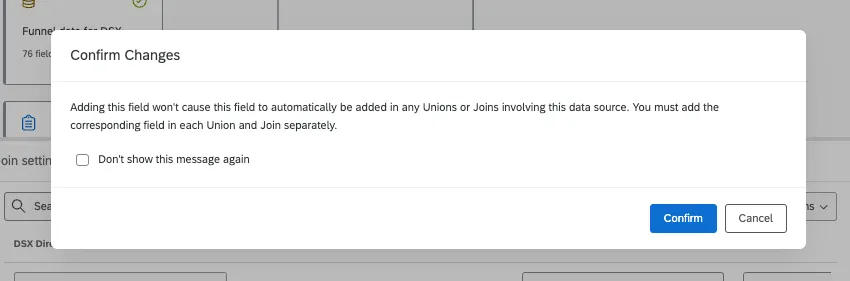
Select the data source, union, or join that you’d like to add a field to.
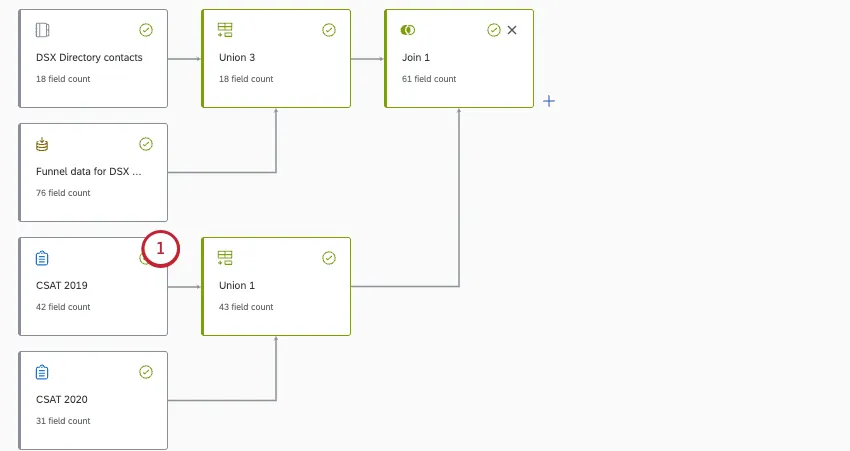
Stay in the Field editor.
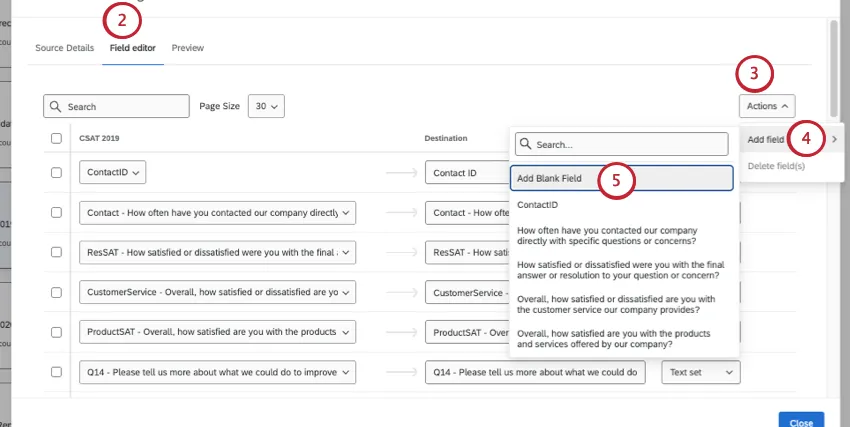
Click Actions.
Hover over Add field.
Select Add Blank Field.
Map and name the dashboard field.
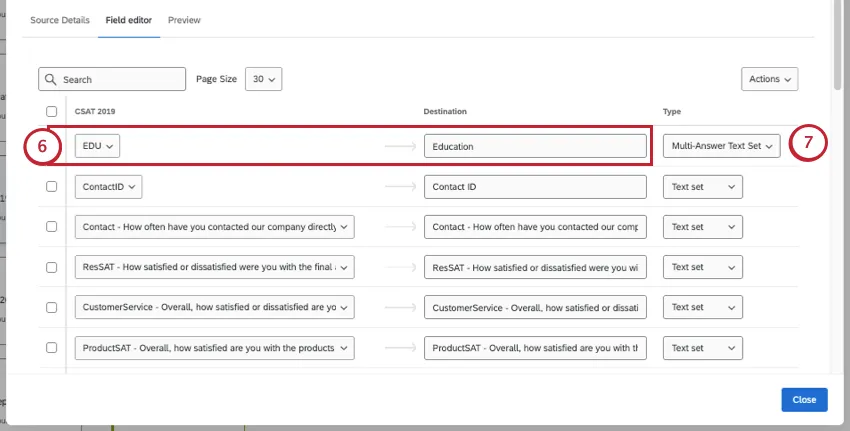
Select the field type.
Add the same field to any following unions, joins, or output datasets that are connected.
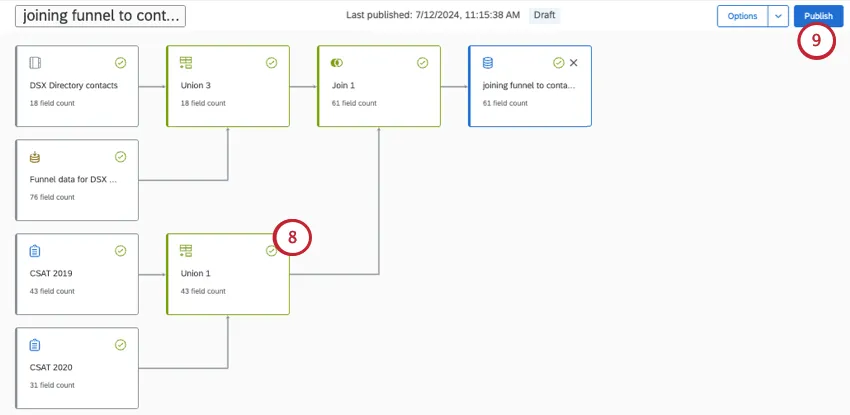
Attention: When mapping the same field across multiple nodes, be careful to use a consistent field type. For example, if your CSAT is a Number Set at the source, it should be a Number Set in any unions and joins that follow. If you change the type in one node, you must change it across all of the others. If the type differs for each version of the field, there could be unintended effects, such as certain values not carrying over.
Publish your data model.
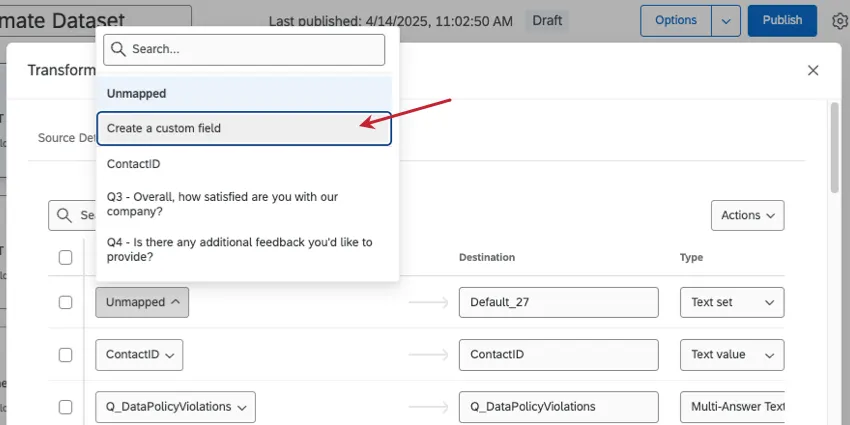
Qtip: Rather than mapping a dashboard field to a source field, you can also map to a static value that will be the same for every row of data in the data source. First, click Create a custom field.
Add your static text in the window that opens.
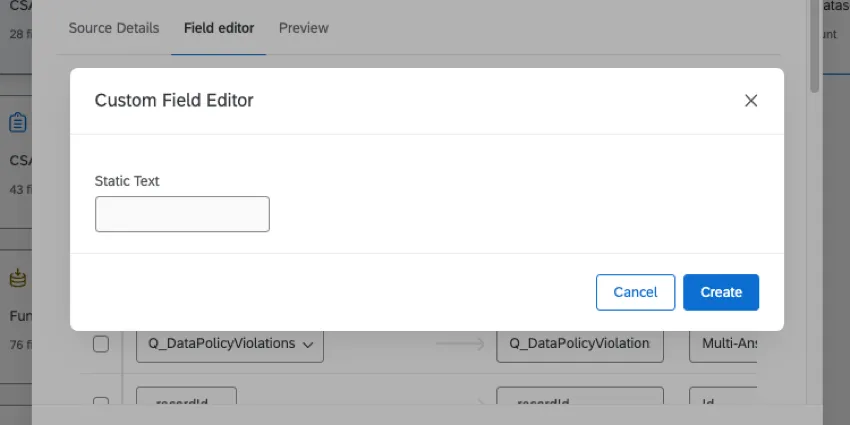
To learn more, see Static Text.
Deleting Fields
Attention: Make sure the field is deleted from every node in the data model. Deleting the field from the source removes the data from the dataset, but it will leave an empty field in any unions or joins that use that source.
Click the source that contains the field you want to delete.
Stay in the Field editor.
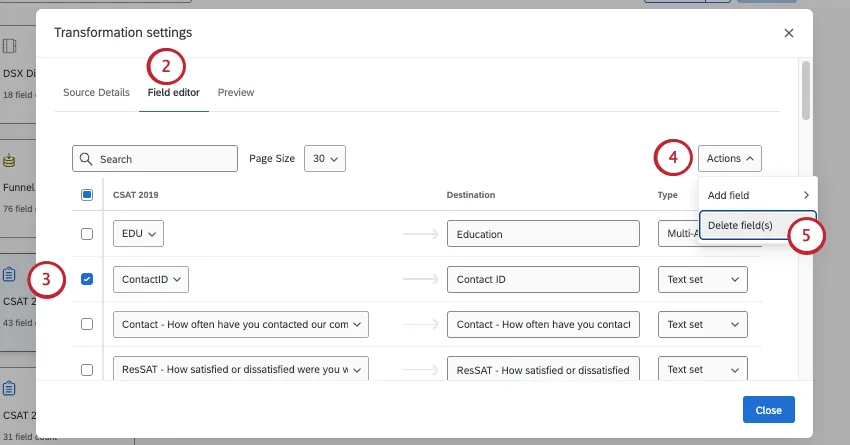
Select the field (or multiple fields).
Click Actions.
Select Delete Field(s).
Select any following unions, joins, or output datasets. Delete the field from those nodes, too.
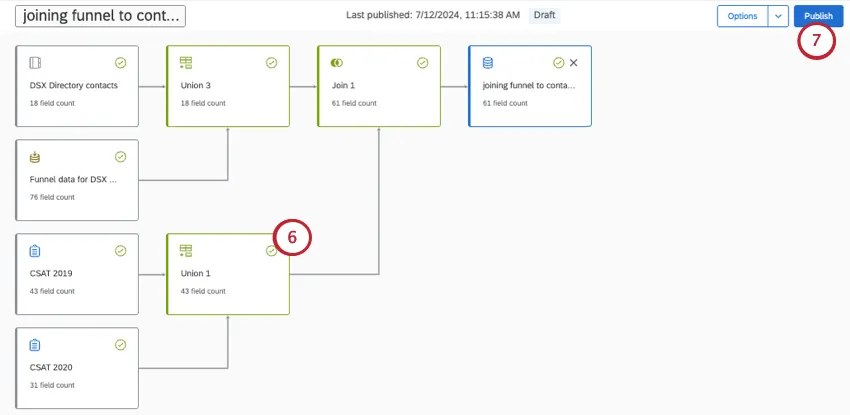
Publish your changes.
Editing Dataset Fields
There are many changes you can make to your dataset fields. Different types of field edits can be made to the source, unions, or the output dataset.
To edit a source, union, join, or output, first click on it.
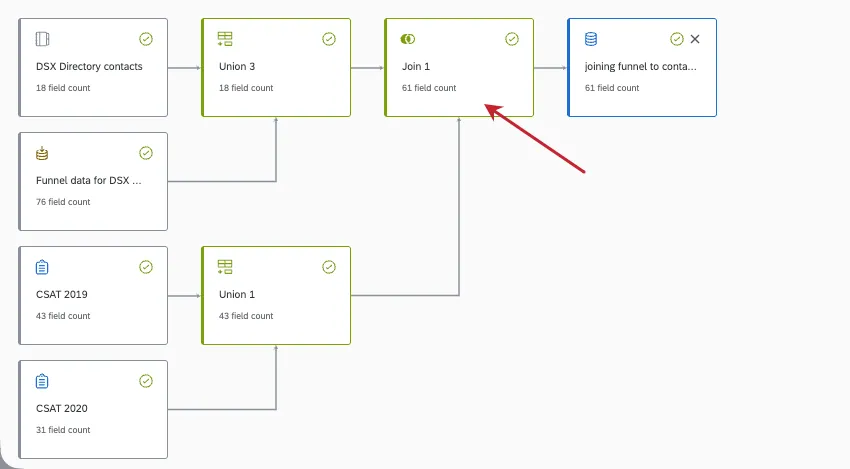
Editing source fields
Editing unions
See Unions (CX) for specific steps on:
- Mapping the same field from multiple sources together.
- Separating fields.
Editing joins
With joins, you can merge data rows based on a common field, such as a unique ID. See Joins (CX) for more details.
Editing output datasets
Data Model Version History
Whenever you publish your data model, it’s added to the version history. A data model’s version history lets you view, preview, and restore previously published versions (within the last 10 days) of a dataset, eliminating the need to manually rebuild a previous setup from scratch.
Attention: If you update your data model externally (using features like Text iQ or weighting) you will not be able to restore previous versions, though you can still view them.
Attention: You can only view, preview, and restore versions created within the last 10 days.
Viewing the Version History
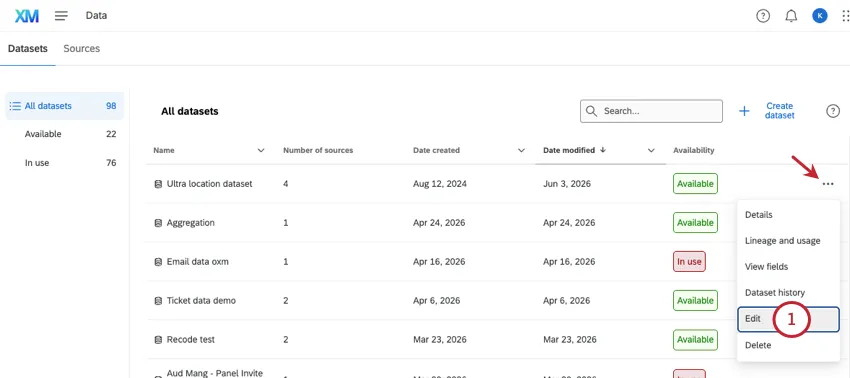
Click Options.
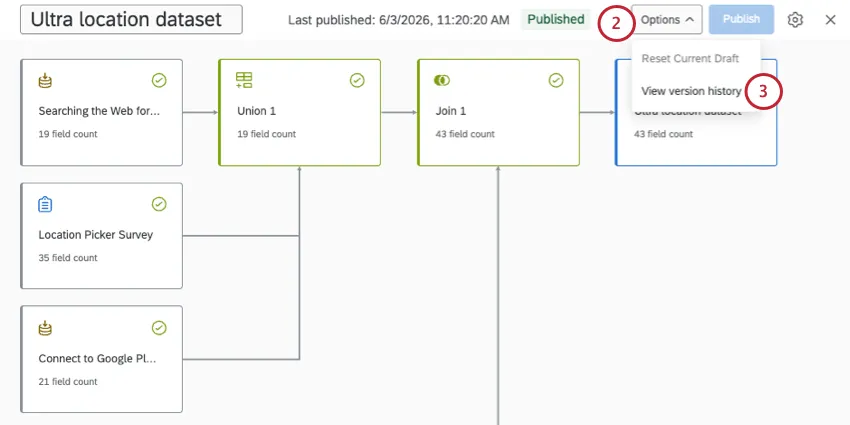
Select View version history.
All available versions are listed on the left. For each version, you’ll see who published it, a description, and the time and date that the version was saved (in your account’s time zone).
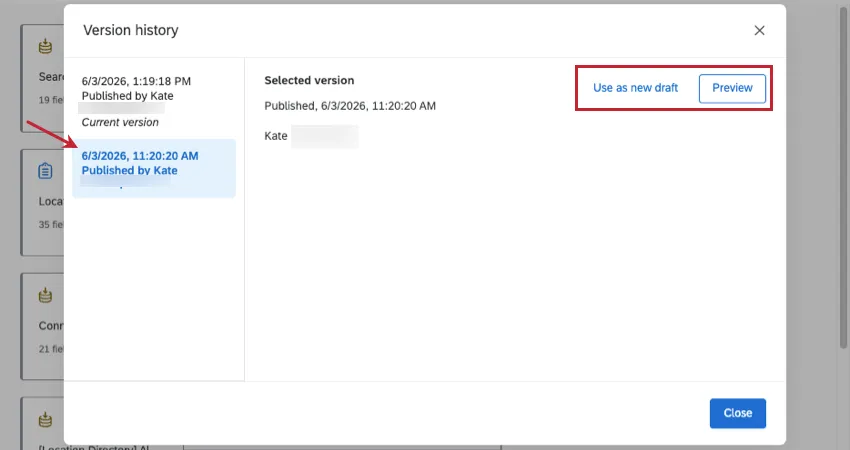
Qtip: The optional description field that appears when you publish the data model is the same description that will appear in the version history.
When you select a version from the history list, you can Preview it or restore it (Use as new draft).
Previewing and Restoring Previous Versions
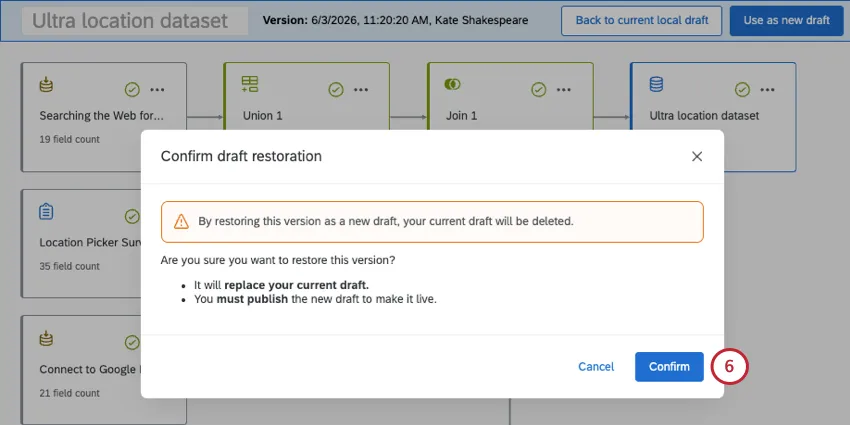
Attention: By restoring an older version of your data model, your current draft will be deleted.
Select a version from the history.
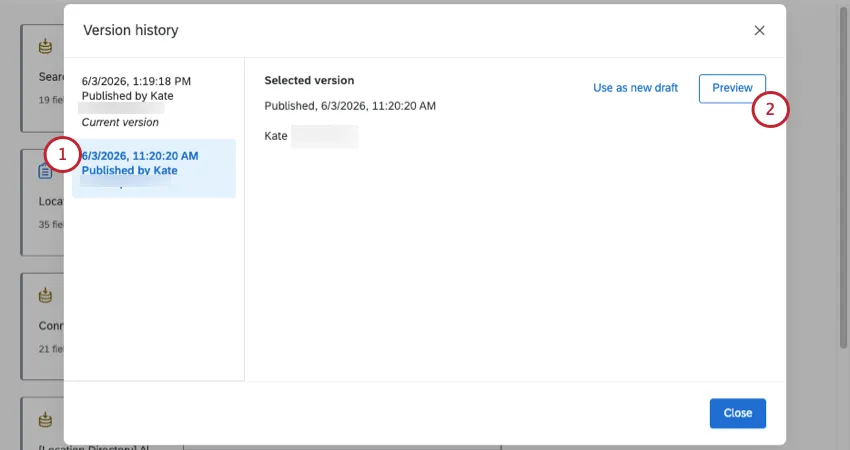
Click Preview.
You can’t make edits to this preview yet, but you can click nodes to see how they’re set up.
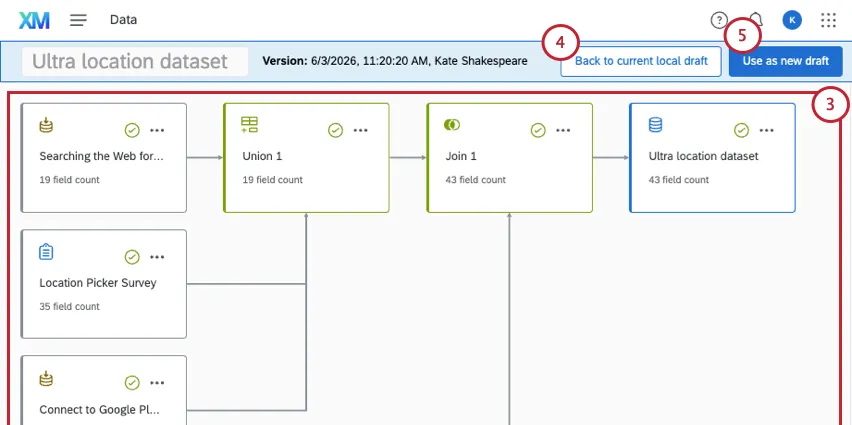
Example: You can view the fields mapped, how a join is set up, exact filters being used, and so on.
If you don’t want to use this version, you can click Back to current local draft to exit the preview.
If you want to use this version, click Use as a new draft.
Read the warning, and click Confirm.
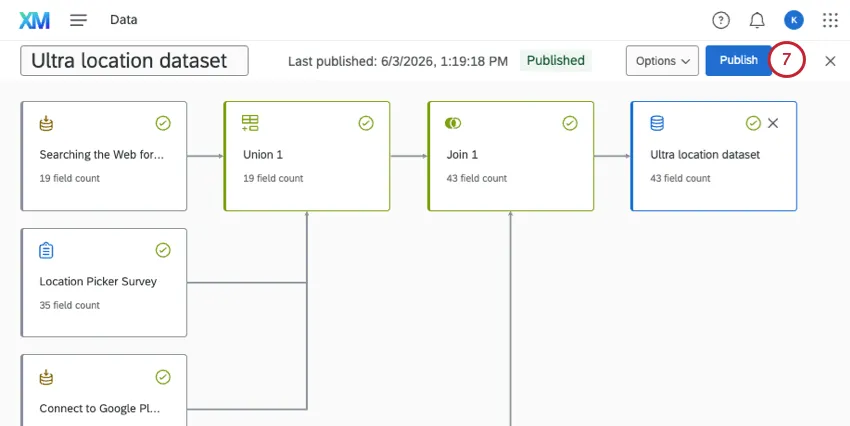
From there, you can make edits as needed, and publish your dataset once you’re ready.
Data Model Drafts
A draft is created whenever you edit an existing data model and leave the page without publishing. Your data model will have a “Draft” label added to the top of the page.
So long as you haven’t published your changes yet, you can remove all of the edits you’ve made since you last published your dataset. Just click Options and then select Reset Current Draft.
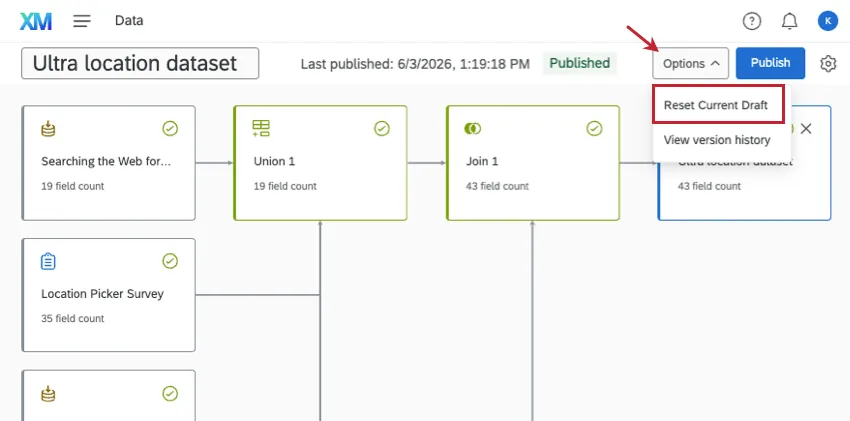
If you’d like to save your changes instead, click Publish. Publishing applies the data model to the underlying data, so if a draft exists, then the model used in your dashboard may be outdated until you publish changes.
FAQs
How many columns / unique fields can my dataset have?
How many columns / unique fields can my dataset have?
Is there a limit to the number of data sources you can add in each dataset?
Is there a limit to the number of data sources you can add in each dataset?
How many dashboard datasets can I create?
How many dashboard datasets can I create?
How many times can I use the same data source in a dashboard dataset?
How many times can I use the same data source in a dashboard dataset?
Are changes to data models reflected immediately in dashboards?
Are changes to data models reflected immediately in dashboards?
If you have multiple sources of the same type in your dataset (such as tickets and surveys), we generally recommend creating unions before you create joins.
What’s the difference between data sources and datasets?
What’s the difference between data sources and datasets?
Learn more about these key terms.
What if I don't see any recommendations in my data model?
What if I don't see any recommendations in my data model?
Recommendations are only available for specific combinations of source types: surveys, support tickets, voice/chat interactions, and funnel (distribution) data. If your model uses data types that don't fall into these categories, no recommendations will appear.
Do I have to use the data model’s recommendation?
Do I have to use the data model’s recommendation?
No. Recommendations are optional. You can ignore them and configure any node manually at any time.
Why did my data modeler recommendation disappear?
Why did my data modeler recommendation disappear?
Recommendations are based on the current state of your data model. If you delete a source, add a new one, or change a configuration that makes a previous recommendation no longer applicable, the data modeler will remove that suggestion and recalculate based on the updated model.
That's great! Thank you for your feedback!
Thank you for your feedback!