

Managing Datasets from the Data Page
What's on this page
About Managing Datasets from the Data Page
The Data page lets you see all of the datasets ever created for your CX and BX dashboards. On this page, you can create new datasets, see where every dataset is being used, and manage your datasets.
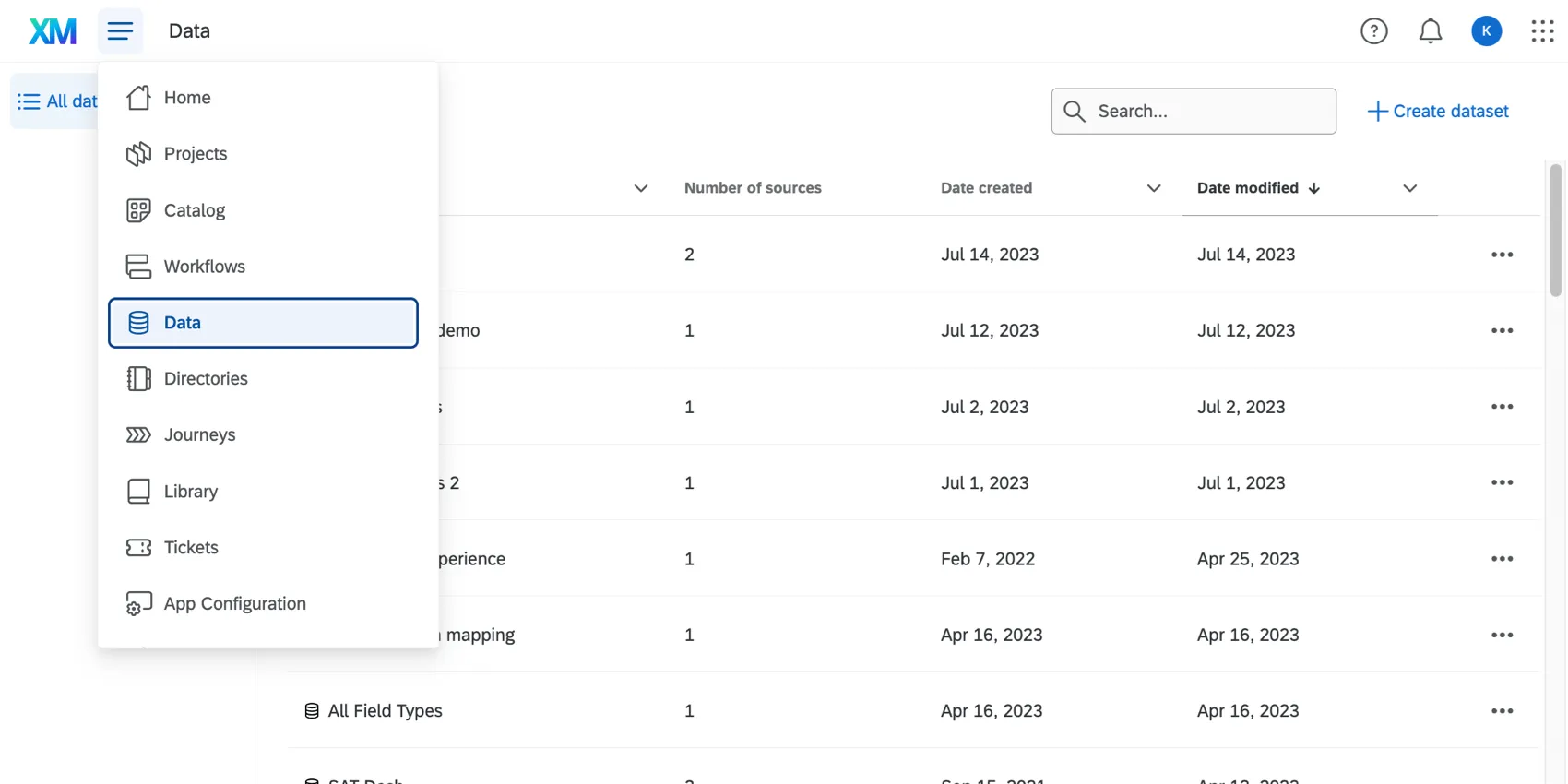
Qtip: To access the Data page and create dashboard datasets, you need the Use CX Dashboards permission.

Attention: This feature does not include any EX dashboard datasets, such as engagement, lifecycle, pulse, or ad hoc employee research projects.

Qtip: Confused about what datasets are vs. data sources? Not sure how to tell the data mapper and modeler apart? Learn more about these and more key terms.
Viewing Datasets
You can sort datasets by name, date created, and date modified. Use the search bar to find datasets by name.
Qtip: Dashboard datasets you created before the Data page was enabled in your organization will also appear on this page. These datasets are named after the dashboards they belong to.
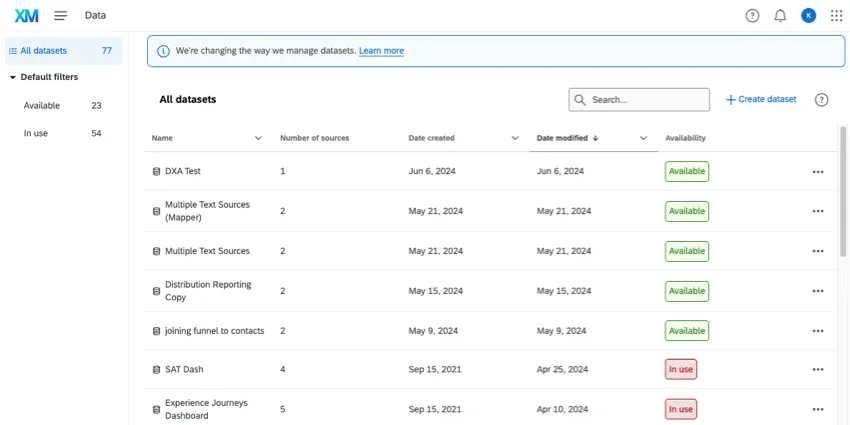
For every dataset you’ve created, you can see:
- Name
- Number of sources
- Date created
- Date modified
- Availability (whether the dataset is currently in use by a dashboard or not)
On the left, you can filter for all available datasets, or all datasets in use.
Viewing Data Status
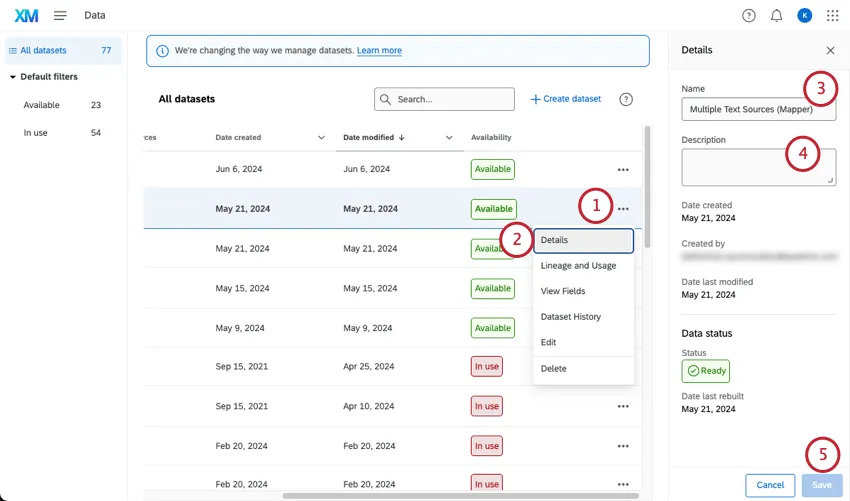
When you open the dataset’s Details, you can view more information about the dataset, such as when it was created, who created it, and when it was last modified.
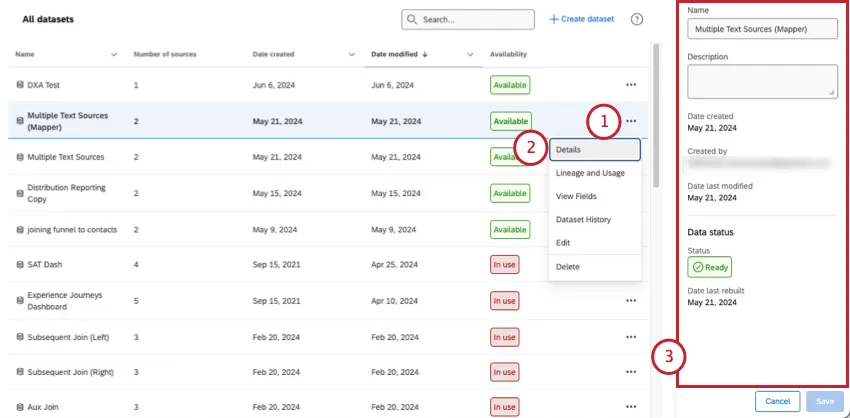
You can also get more information on the Data Status. The data status shows you whether your data is in the process of being prepared, or whether it can be viewed.
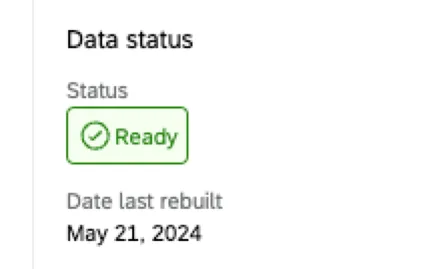
- Not ready: The data will require some time to be prepared on the backend before it can be viewed. This usually happens when the dashboard is first opened, and the data has to be “indexed” for the first time.
- Rebuilding: The data is in the process of being prepared on the backend.
- Ready: The data is ready to be viewed.
You’ll also see the date the dataset was last rebuilt (otherwise known as reindexing).
Qtip: To learn more about reindexing, see Saving Dashboard Data Edits.
Finding Dashboards Connected to Datasets
Attention: Right now, each dataset can only be used in 1 dashboard.
You can see how each of your datasets are being used. This can help you understand the impact of dataset edits before you make them.
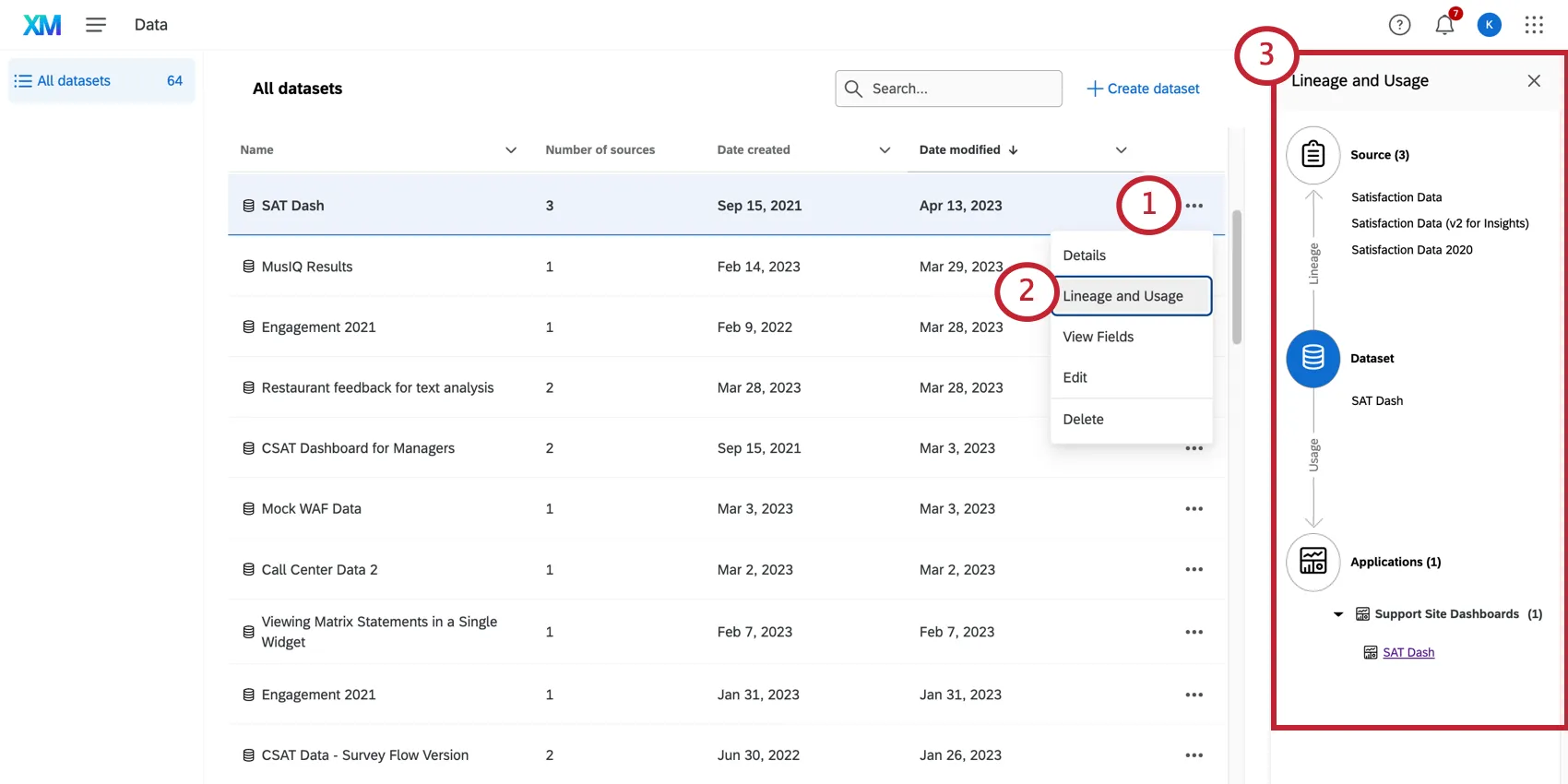
Qtip: You can click a dashboard’s name to go directly to the dashboard.
Qtip: The Lineage and Usage can also be used to see which business cases use the dataset. For more details on business cases, see the Business Outcome Simulator support page.
Editing the Dataset Name and Description
Qtip: On this menu, you can also view the date your dataset was created and the date it was last modified.
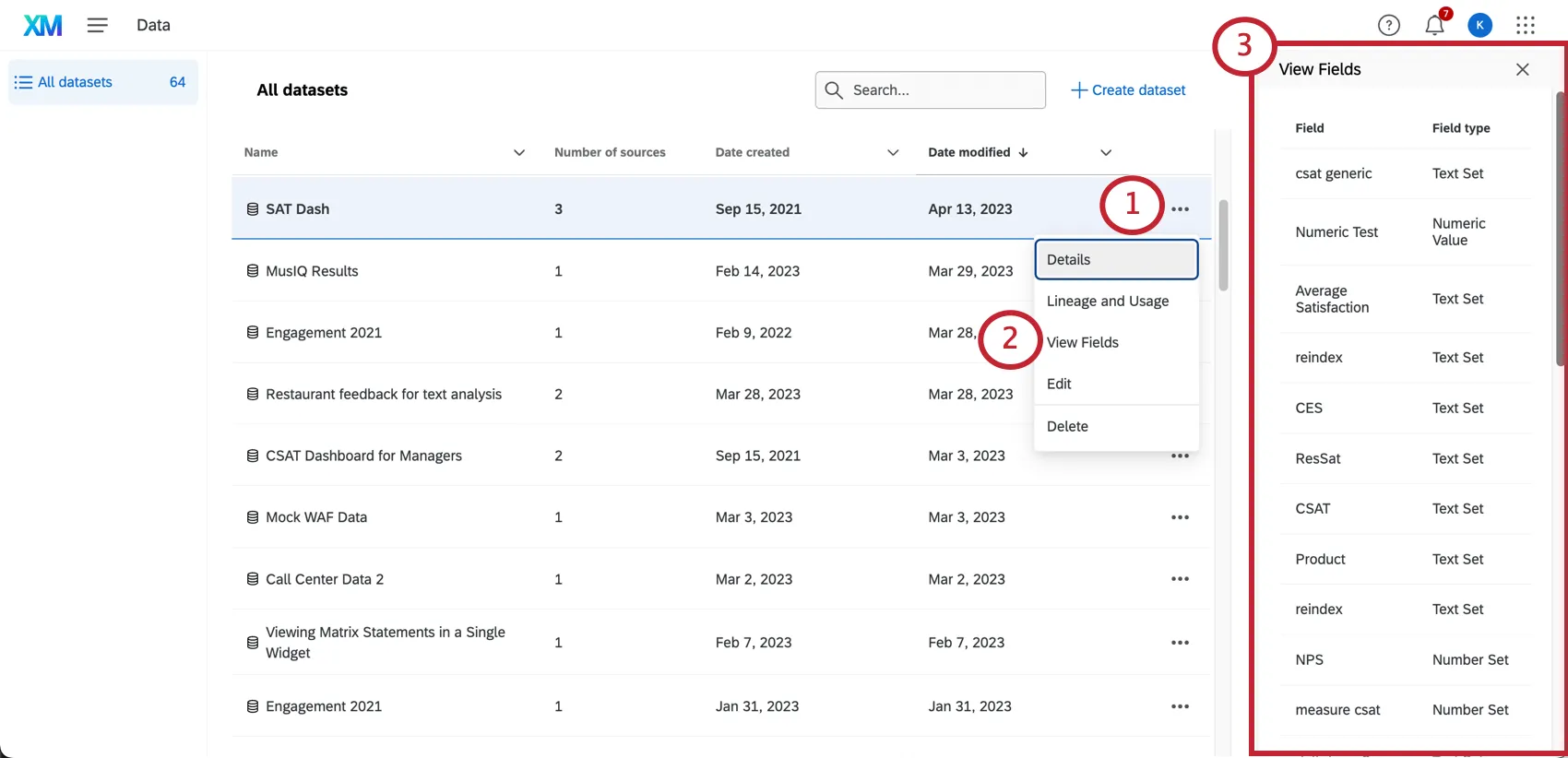
Viewing Dataset Fields
Qtip: This section explains how to look at a list of all of the fields in your dataset. To edit those fields, see Editing a Dataset.
Viewing the Dataset History
The dataset’s history will show you every time a dataset’s edits were published, and every time a dataset was rebuilt. Entries will only appear for up to 90 days.
Qtip: Dataset rebuilding is an automatic process. Some dataset edits, such as adding or removing a field, result in the dataset needing to be rebuilt. If data is not accessed for a long time, it may need to be rebuilt before it can be viewed.
All changes are recorded as “Dataset schema updated.”
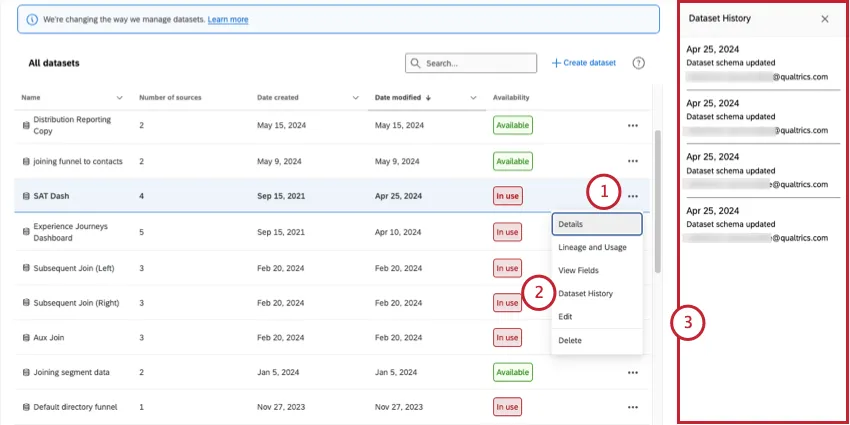
Qtip: You cannot view the specific edits made.
Editing a Dataset
Click the 3 dot menu and select Edit to edit your dataset.
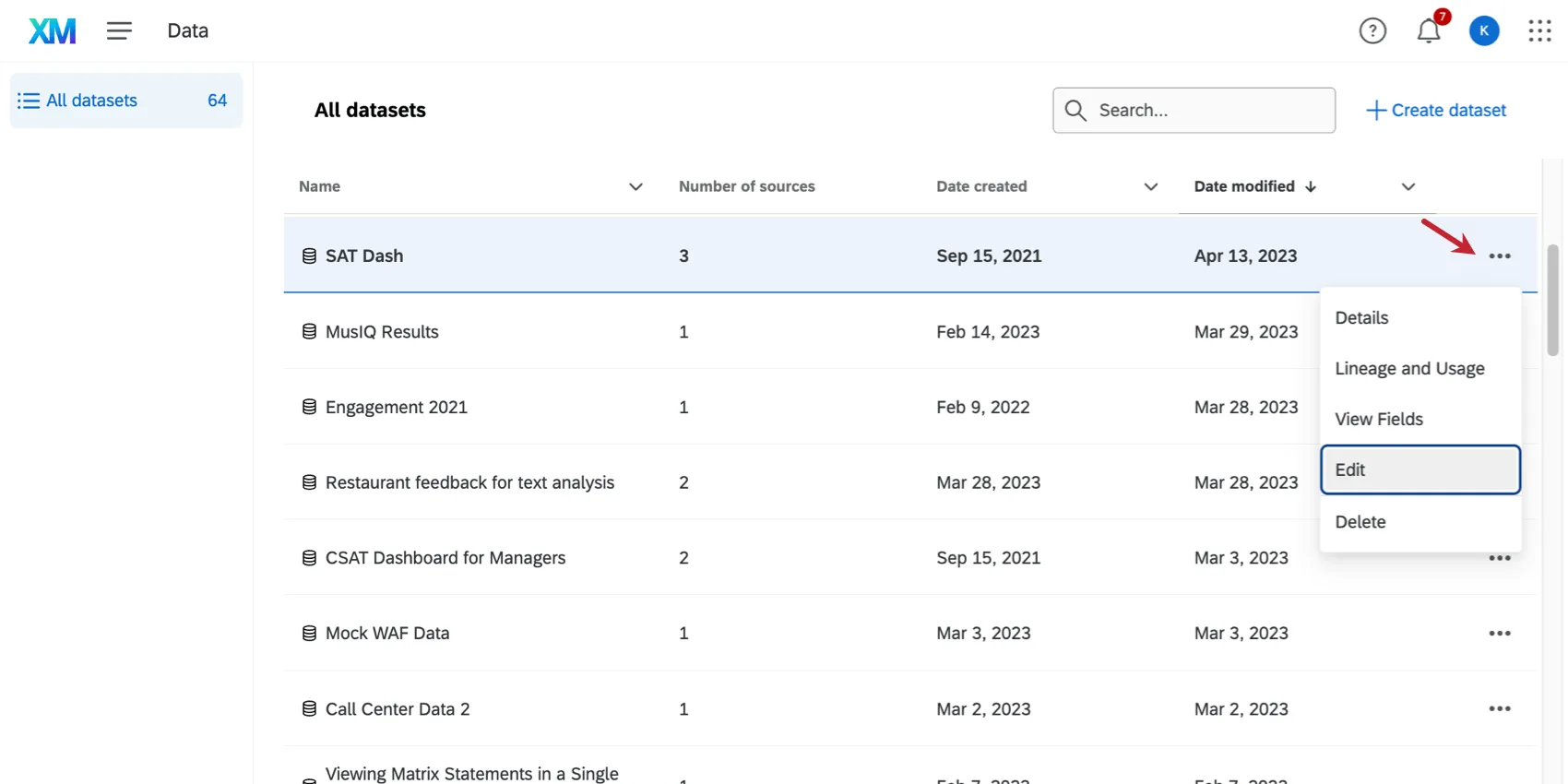
For information on editing datasets and their sources, see Creating a Dashboard Dataset.
For resources on editing fields, see pages on either the Data Mapper (CX) or Data Modeler (CX).
Deleting a Dataset
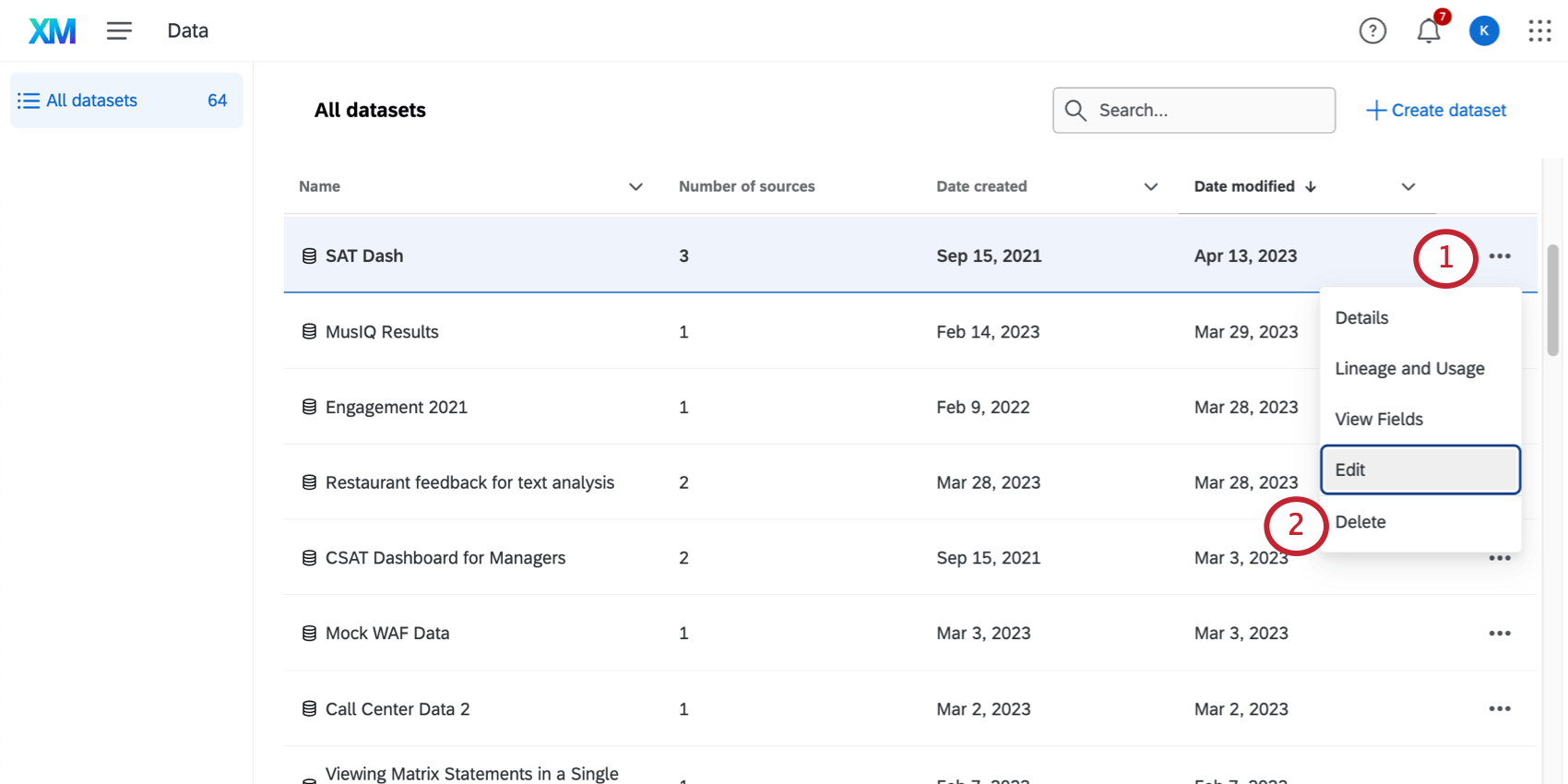
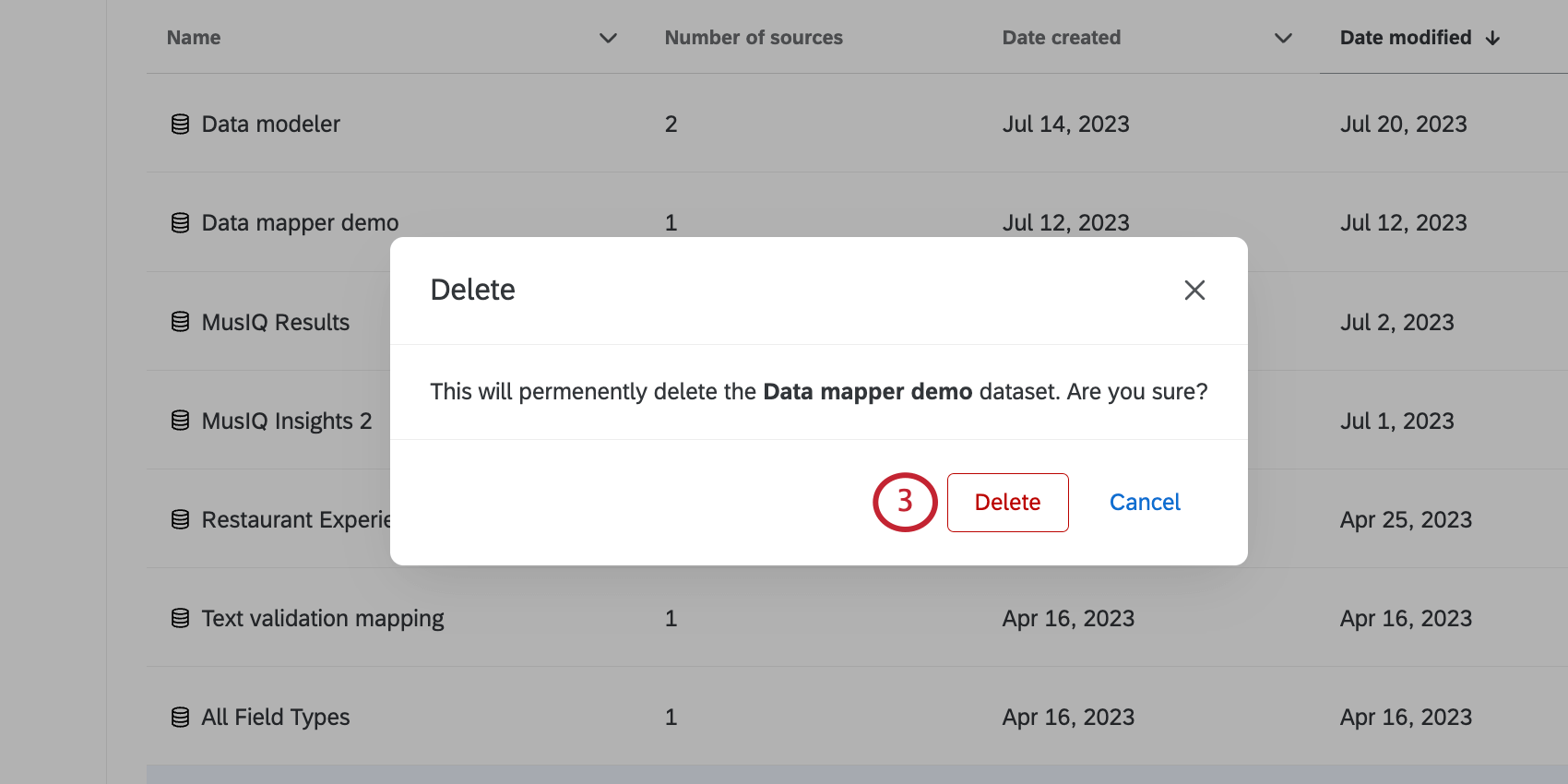
Attention: Make sure to consider the impact on your dashboards before you delete a dataset. You will not be able to delete datasets that are actively being used unless you remove the dataset from those dashboards or delete those dashboards first.
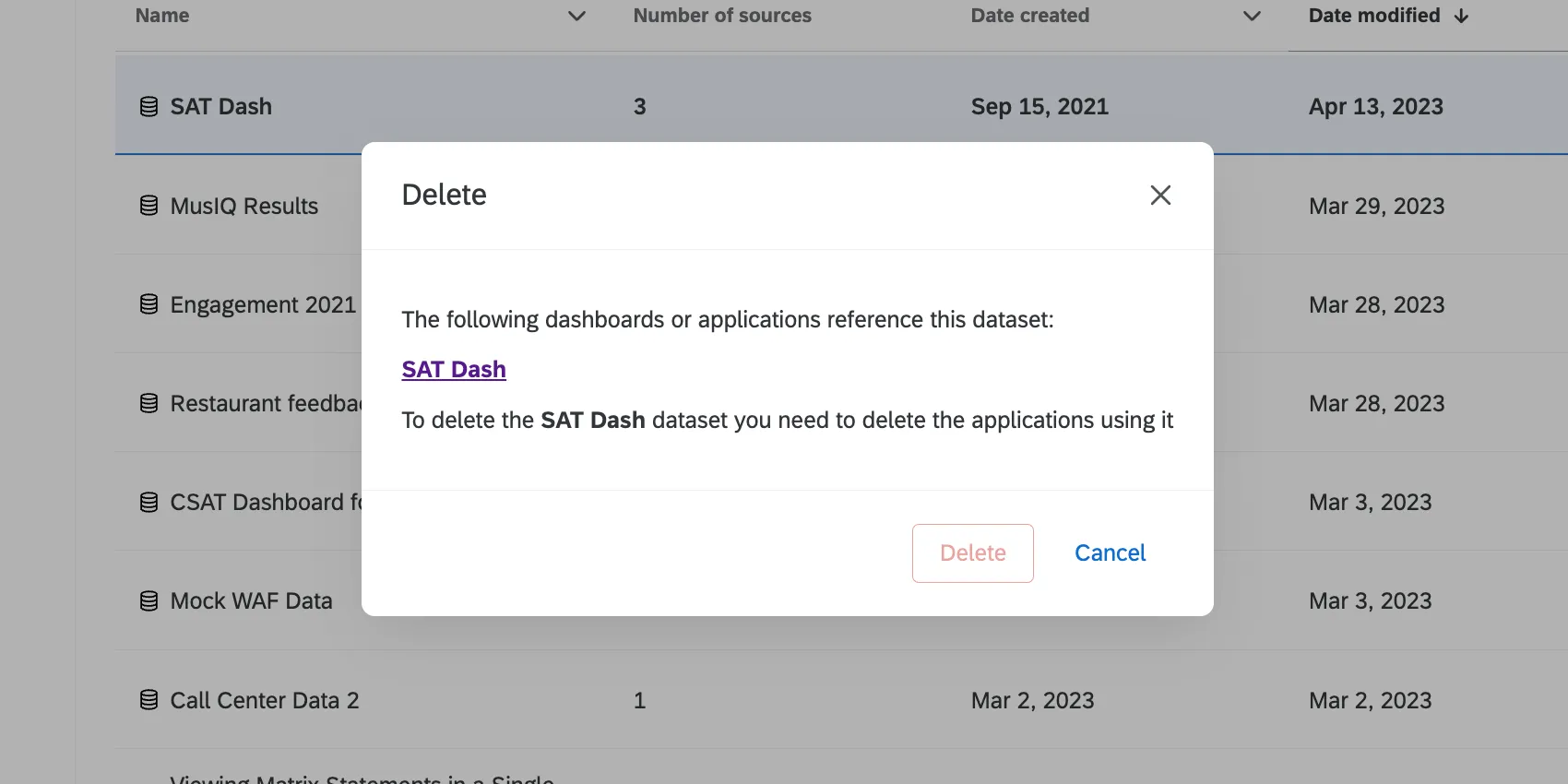
Warning: Deleting a dataset is permanent. Once a dataset is deleted, it cannot be retrieved.
That's great! Thank you for your feedback!
Thank you for your feedback!