

Word Cloud Widget (CX & EX)
What's on this page
About Word Cloud Widgets
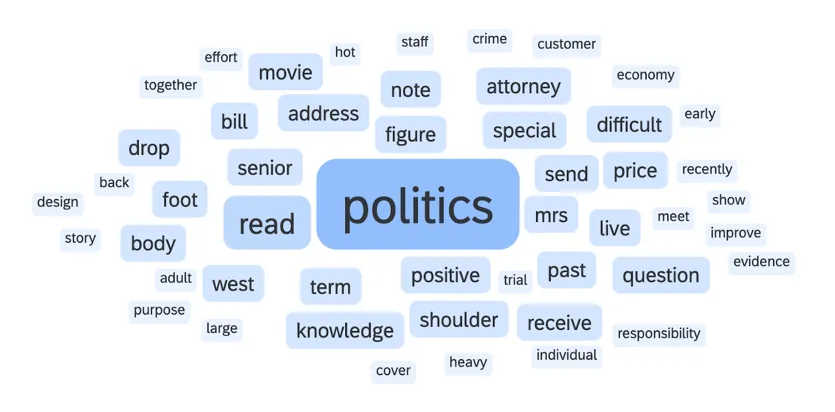
The word cloud widget allows you to quickly see and filter your dashboard based on open-ended text responses. It displays words from Open Text fields in a specified color with more frequently used words appearing larger than less frequently used words.
Attention: The word cloud widget supports the following languages: English, Danish, Dutch, Finnish, French, German, Hungarian, Italian, Norwegian, Portuguese, Romanian, Russian, Spanish, Swedish, and Turkish.

Types of Dashboards
This widget can be used in a few different types of dashboard. This includes:
- CX Dashboards
- Results Dashboards
- Employee Engagement
- Lifecycle
- 360
- Pulse
- Ad Hoc Employee Research
- Employee Journey Analytics
- Brand Experience
Field Type Compatibility
Only Open Text field types can be used in word cloud widgets.
New Widget Customization
Attention: This section is for the new word cloud widget. When creating the widget in your dashboard, select New Word Cloud.
For basic widget instructions and customization, visit one of our general widget overview support pages (CX|EX). Continue reading for widget-specific customization.
Basic Setup
Each word cloud can visualize a single open-ended question at a time. After adding the widget, click on the Source dropdown menu and select the open-ended question you want to use.
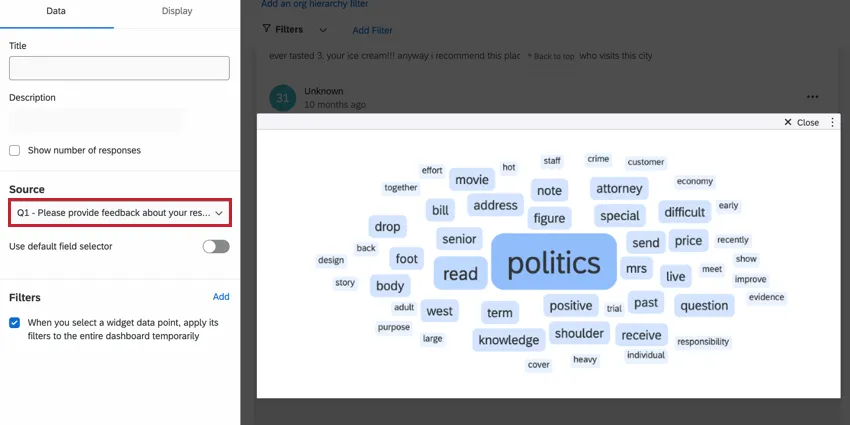
If desired, you can select multiple open text fields by enabling Use default field selector when editing your widget. If you’ve added multiple fields to your widget, a dropdown filter will appear on the widget for dashboard viewers to change which source field is displayed.
Max number of words
By default, the widget will display 50 unique words. However, you can choose to display more or fewer words. To change the number of words displayed in the widget, go to the Display options and change the Max number of words.
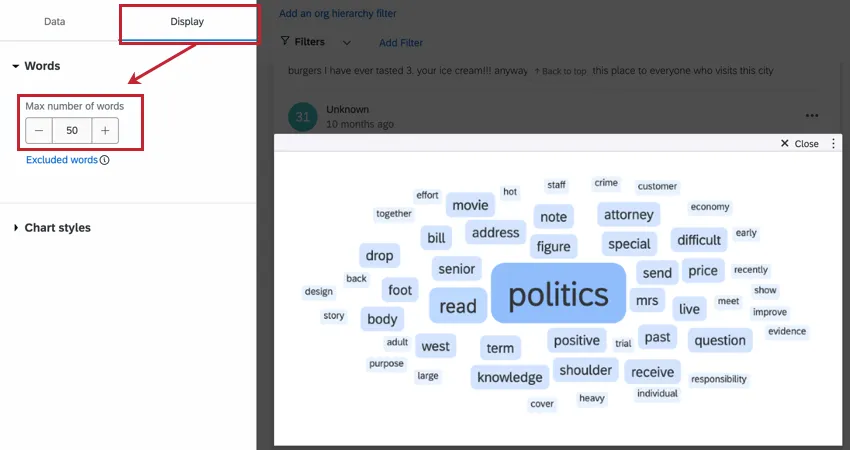
Qtip: You can choose to display up to a maximum of 100 words or a minimum of 10 words.

Qtip: If the widget is set to be a small size and the max number of words is a large number, only the amount of words that can reasonably fit in the widget will be shown. If all of your words are not displaying, try resizing your widget so it is bigger.
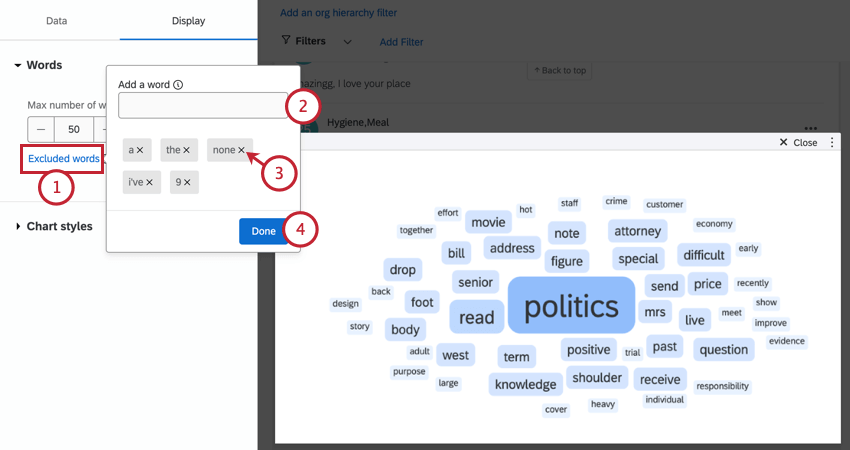
Excluded words
Filters
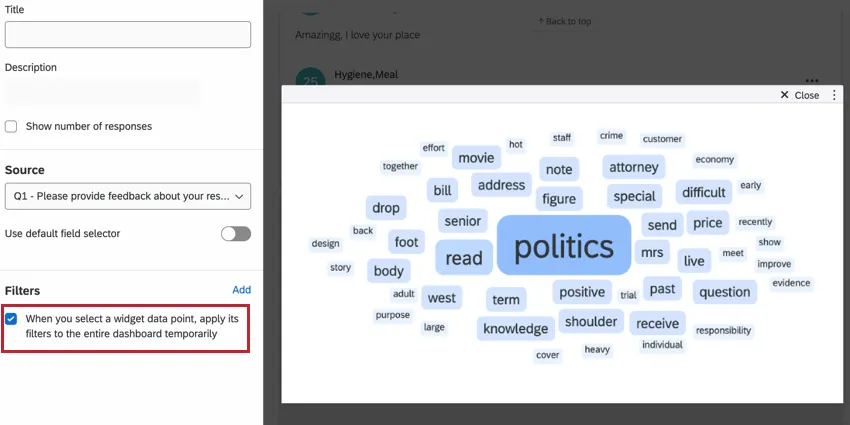
In the Filters options section, you can choose how your word cloud behaves when a word on it is clicked. If you’d like your dashboard to automatically filter the dashboard for responses containing that word, enable the When you select a widget data point, apply its filters to the entire dashboard temporarily option.
Legacy Widget Customization
Warning: Legacy widgets will eventually be migrated to the new version of the word cloud described above. Follow the instructions in Migrating Legacy Word Cloud Widgets if you’d like to migrate your widget early.
Attention: This section is for the legacy word cloud widget. When creating the widget in your dashboard, select Word Cloud.
For basic widget instructions and customization, visit one of our general widget overview support pages (CX|EX). Continue reading for widget-specific customization.
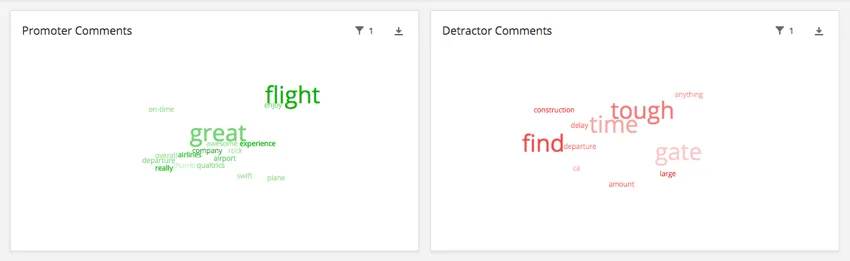
Customizations unique to the word cloud widget include the following:
Basic Setup
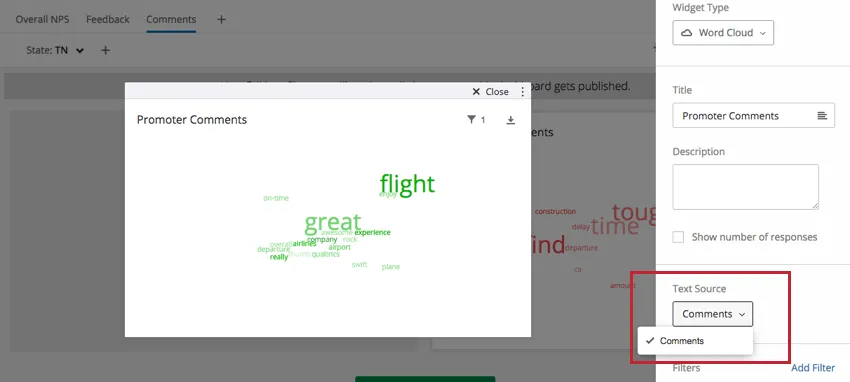
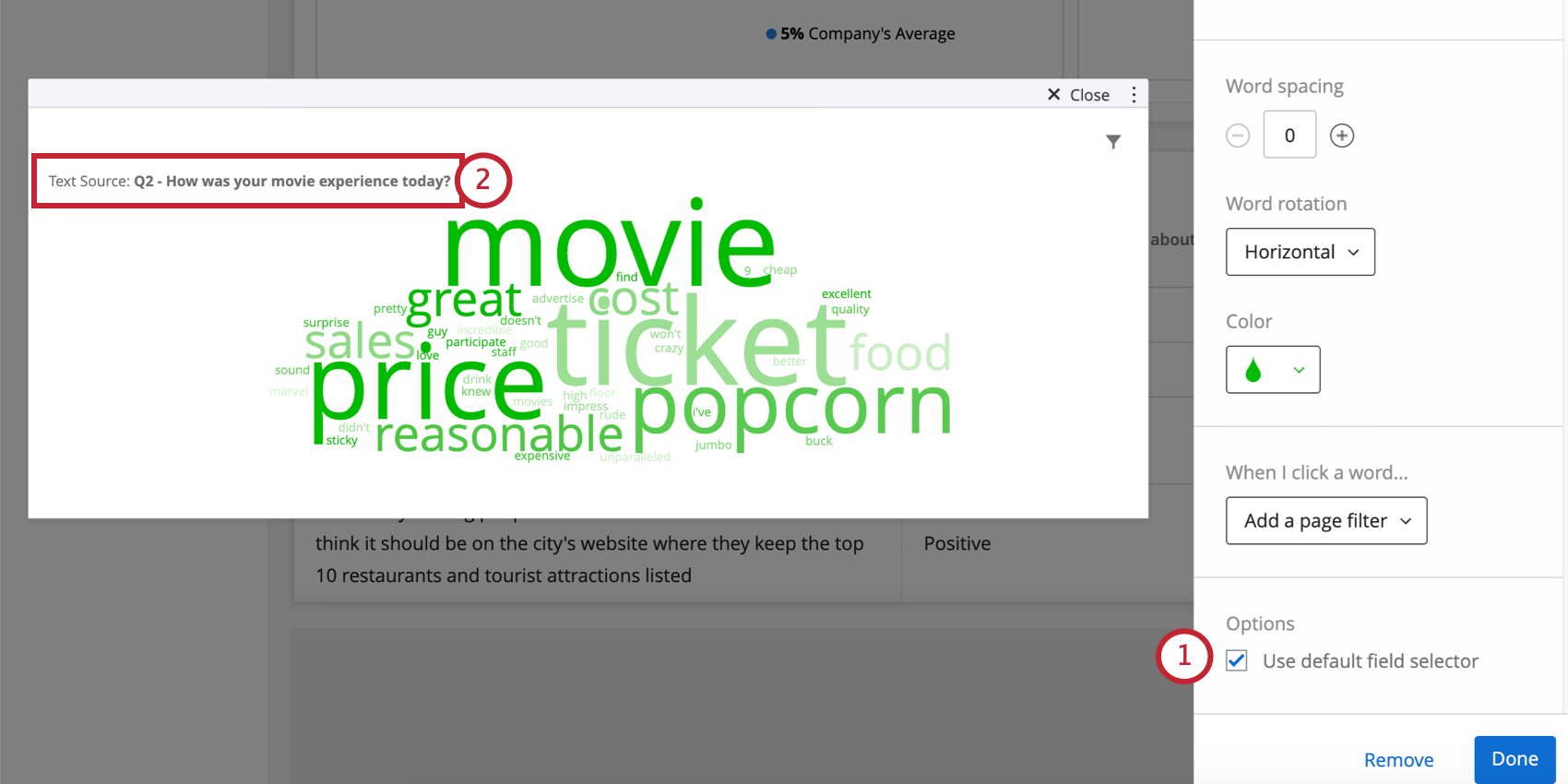
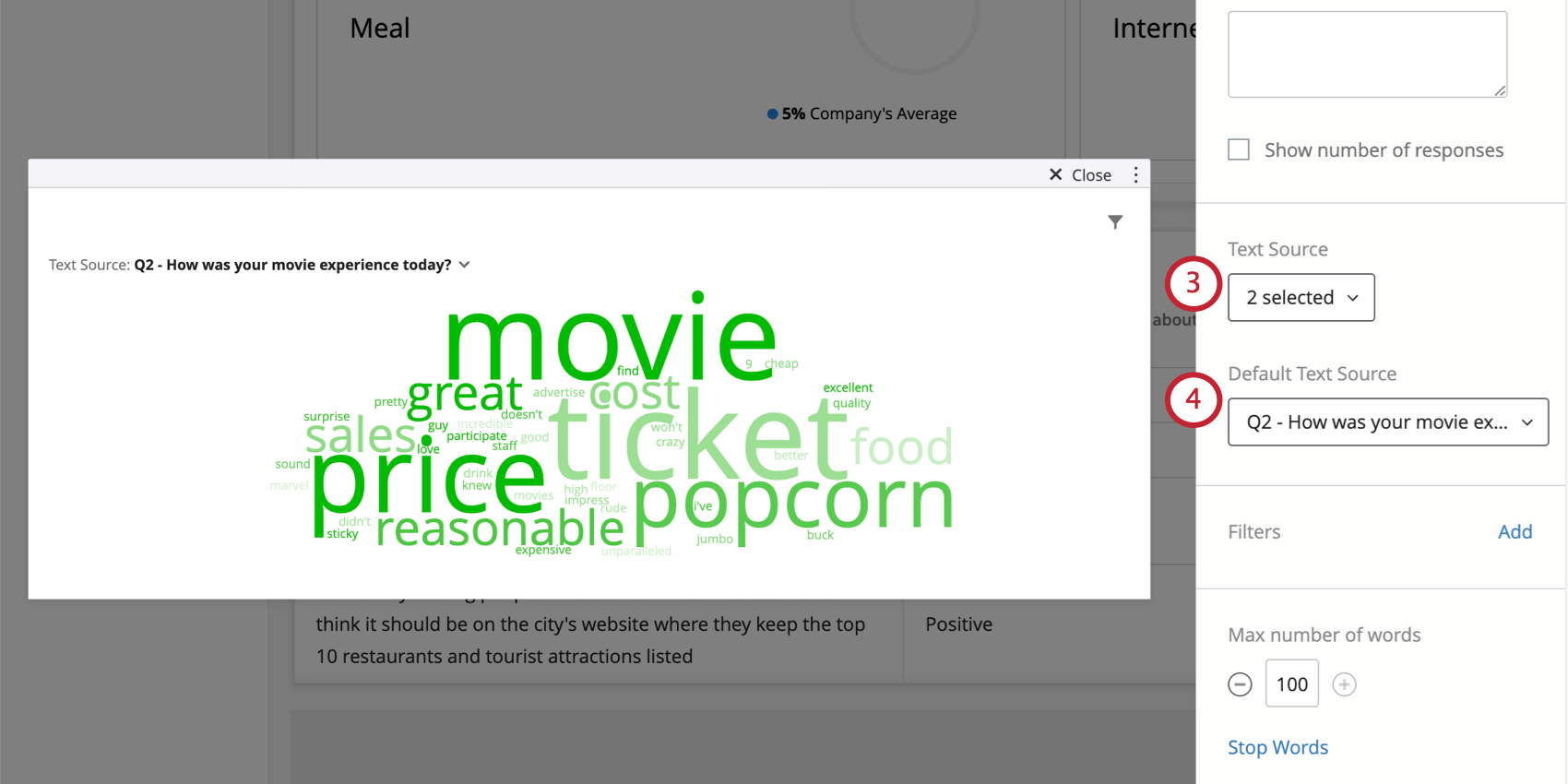
Each word cloud can visualize a single open-ended question at a time. After adding the widget, click on the Text Source dropdown menu and select the open ended question you want to use. If desired, you can select multiple open text fields by enabling Use default field selector when editing your widget. See the below section for more information.
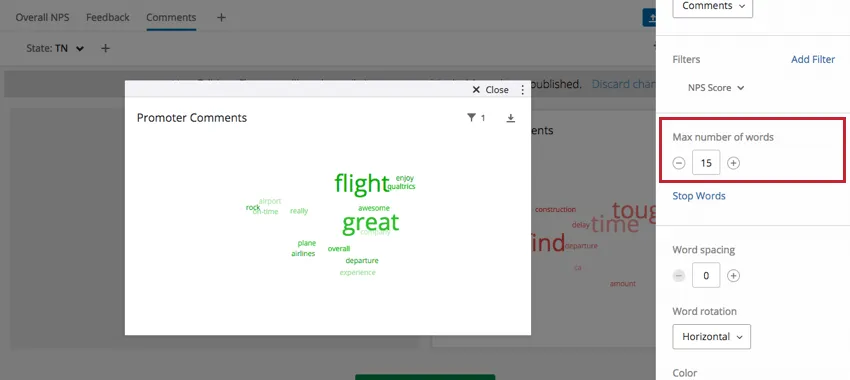
Max number of words
The total maximum number of unique words displayed is 100, but you can reduce this even further.
Stop Words
This option allows you to exclude certain words from your word cloud. By default, “a” and “the” are excluded.
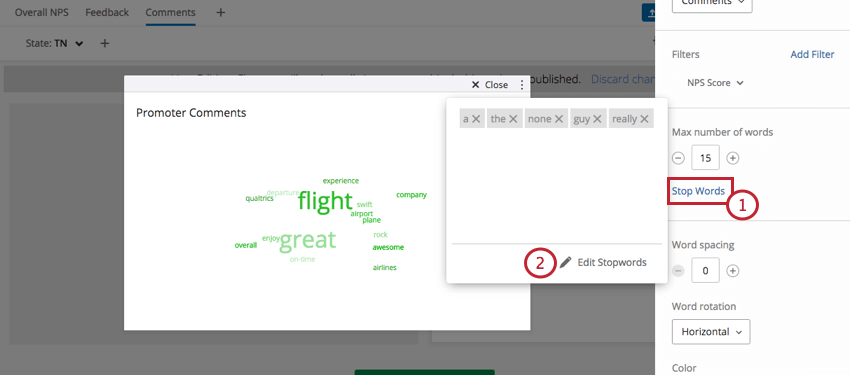
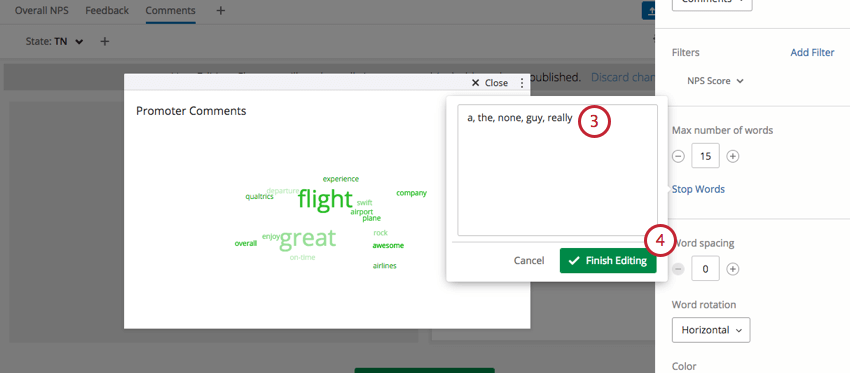
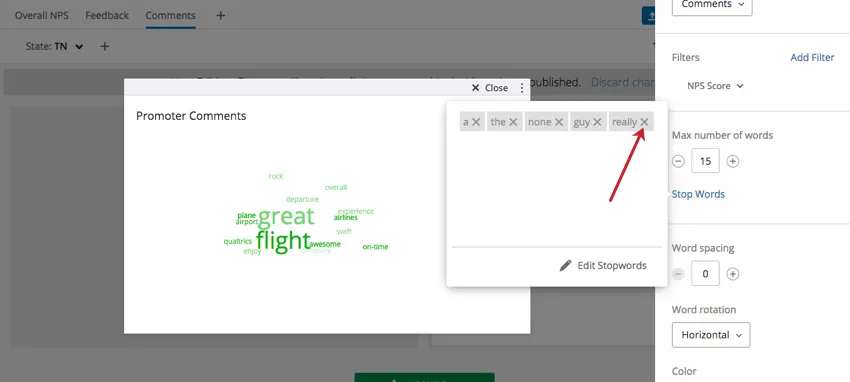
Qtip: To remove a stop word, click the “X” next to the word you want to remove.
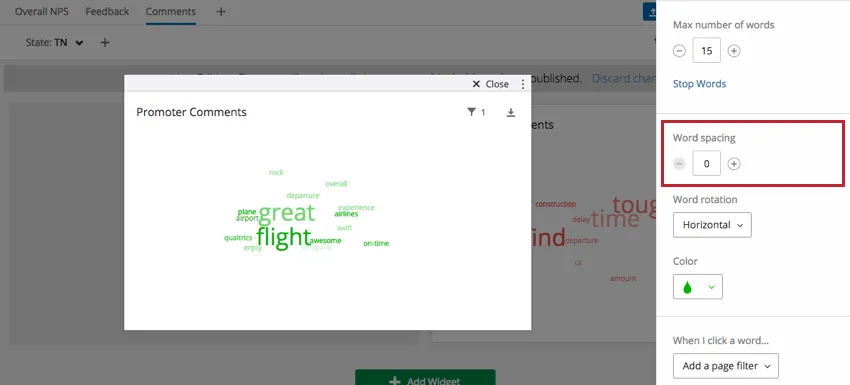
Word spacing
Add or remove extra space between the words in your word cloud.
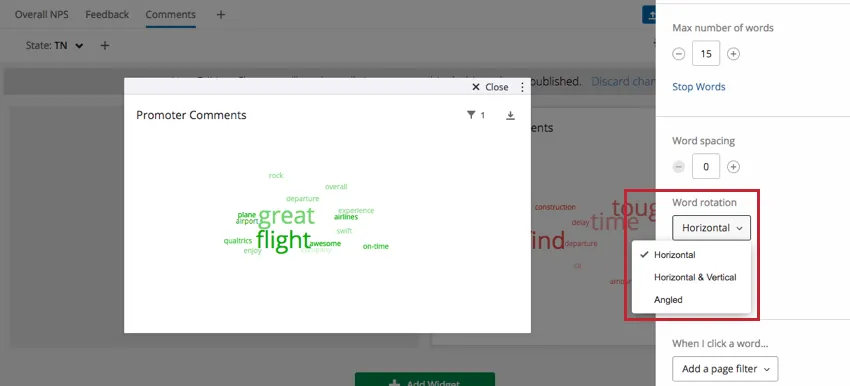
Word rotation
Choose from horizontal, horizontal & vertical, and angled orientations.
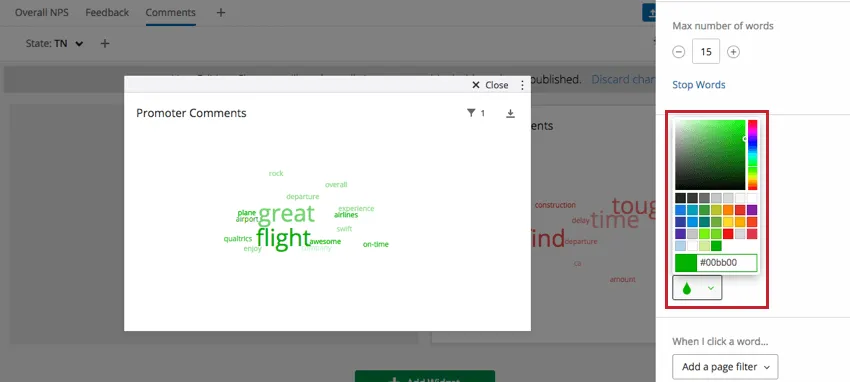
Color
Select the color for all words in your word cloud. Your words will take on various shades of this color. There is no pattern to the lightness or darkness of a word.
Using multiple text sources
If you’d like to add multiple text sources to your word cloud and give users the freedom to switch between which fields they’re viewing, do the following:
Migrating Legacy Word Cloud Widgets
Attention: All legacy word cloud widgets will eventually be automatically migrated to the new version described on this support page. You can follow the instructions below to migrate your widget early and provide feedback about the migration experience.
You can update a legacy widget to the new version by clicking the Change now link at the top of the customization panel.
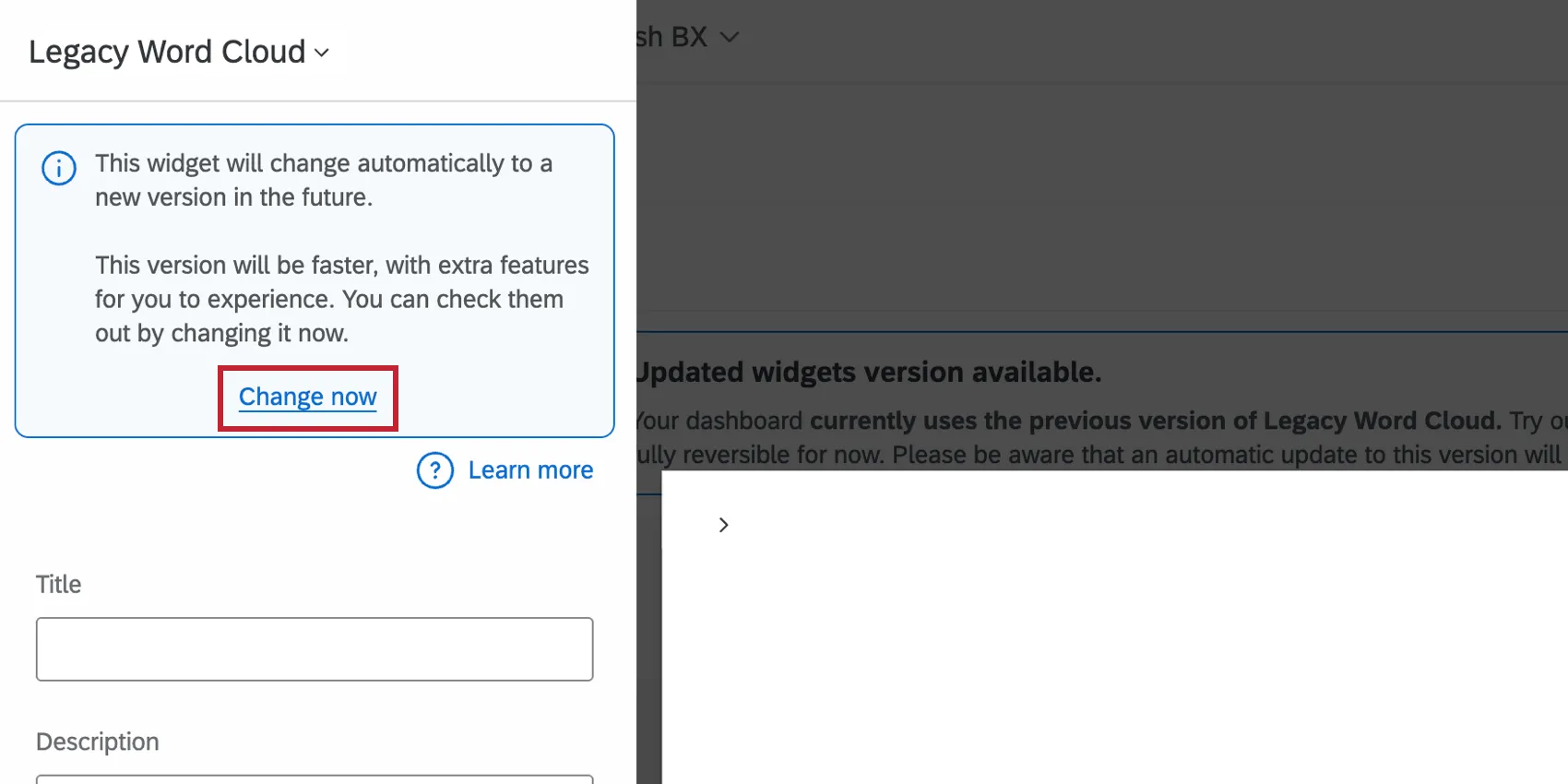
The widget will refresh to the new version while keeping your existing settings. You can then customize your widget further; see New Widget Customization for more information.
Providing Feedback and Reverting Changes
We’d love to hear any and all feedback you have about the widget migration experience. Follow the below steps to submit feedback to us. You can also temporarily revert your widget back to the legacy experience if you wish.
In your updated widget, click Undo at the top of the customization panel.
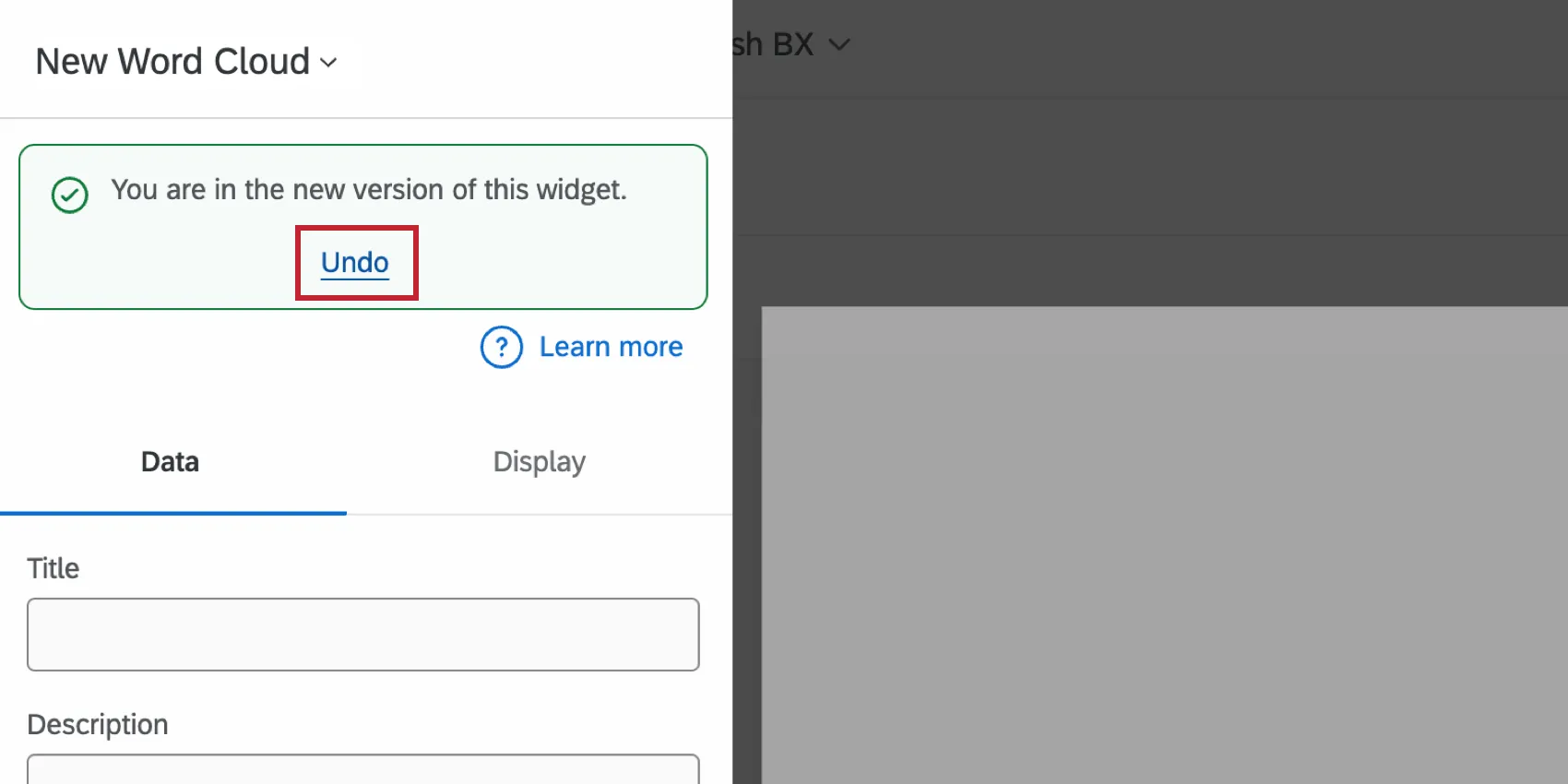
To provide feedback, click the Leave feedback link in the popup message. This will open a survey in a new tab in your browser window.
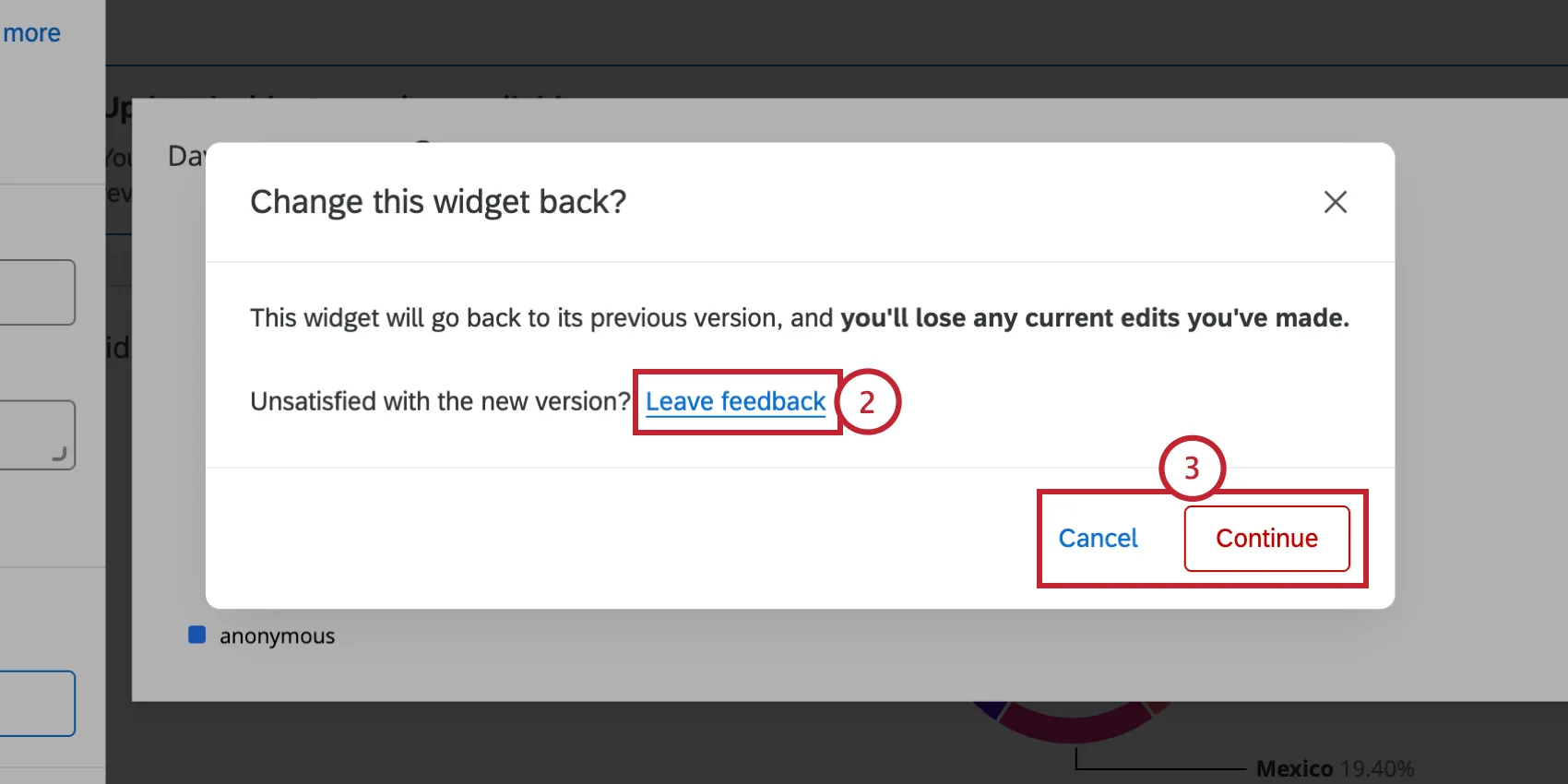
- To revert your widget to the legacy version, click “Continue.” To keep the newer version of the widget, click Cancel instead.
Attention: If you revert back to the legacy widget, any edits you’ve made will be lost. All widgets will eventually be permanently migrated to the new widget experience automatically.
FAQs
Can I bring more than one open-ended text question into a single Word Cloud widget in CX Dashboards?
Can I bring more than one open-ended text question into a single Word Cloud widget in CX Dashboards?
To add multiple open-ended text fields into your Word Cloud widget, enable the Use default field selector option and then select your fields in the Text Source dropdown. Your Word Cloud widget will display banner showing the field that's being viewed. Click this banner to adjust the displayed field.
That's great! Thank you for your feedback!
Thank you for your feedback!