

Highlight Reel Widget
What's on this page
About Highlight Reel Widgets
If you have a video response question in a survey, you can display highlight reels created from the videos in your dashboard. Dashboard viewers can watch the highlight reel in the dashboard and download it to their device. You can also display data associated with your collected videos, such as the video transcripts and video size.
Qtip: Highlight reels must be created in the audio & video editor before they can be added to the highlight reel widget.

Types of Dashboards
This widget can be used in a few different types of dashboard. This includes:
Dashboard Data Mapping
To use the highlight reel widget, map a survey containing your video response question to your dashboard as a data source.
A video response question has 4 associated dashboard fields:
- Name: This field contains the file name associated with a video. It is mapped as an open text field.
- Size: This field contains the size of a recorded video in bytes. It is mapped as a numeric value field.
- Type: This field displays the format the video is saved in. It is mapped as a text set field.
- Video Transcript: This field contains the automatically generated video transcript. It is mapped as an open text field.
Widget Customization
This section covers the customization options unique for a highlight reel widget. For a general overview of adding dashboard widgets, see Building Widgets.
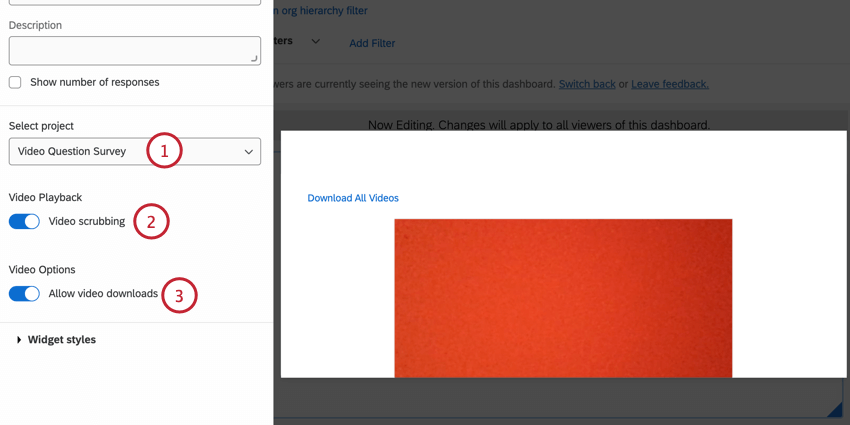
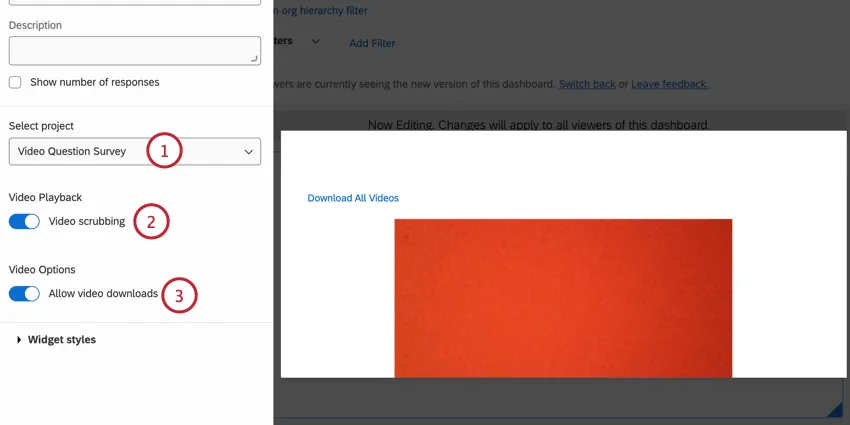
Dashboard Viewer Experience
When viewing a highlight reel widget in a dashboard, you can do the following:
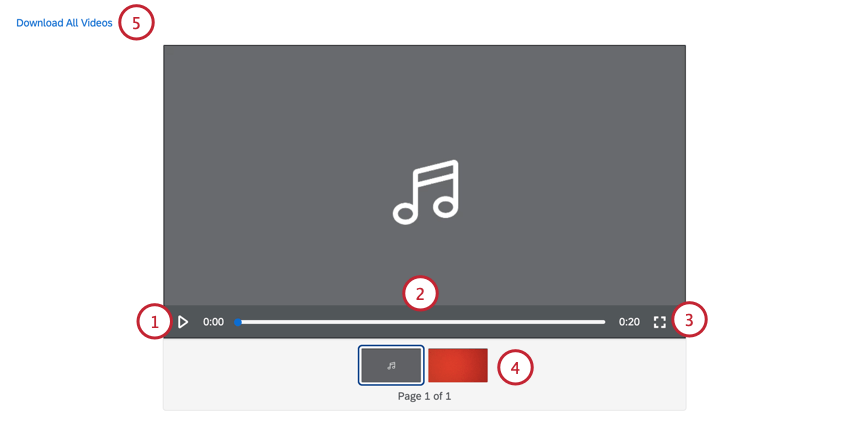
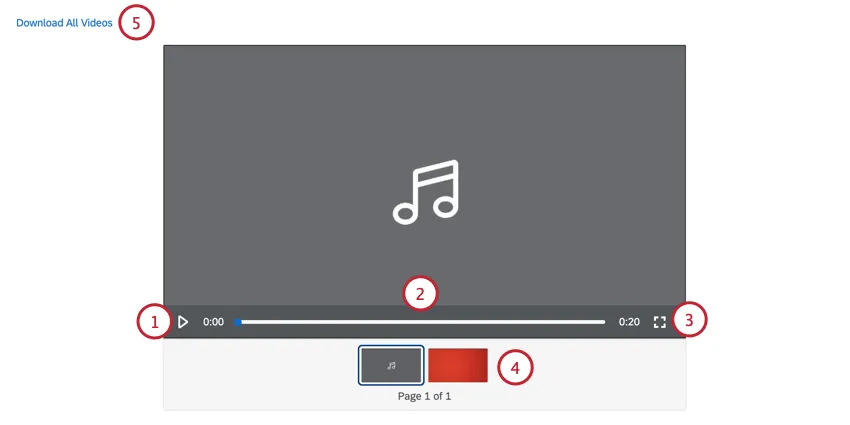
FAQs
How do I add imported video and audio data to my dashboard?
How do I add imported video and audio data to my dashboard?
On the other hand, survey projects with video questions can be mapped to both data models and data mappers.
That's great! Thank you for your feedback!
Thank you for your feedback!