

Managing Creatives in the List
What's on this page
About the Creatives List
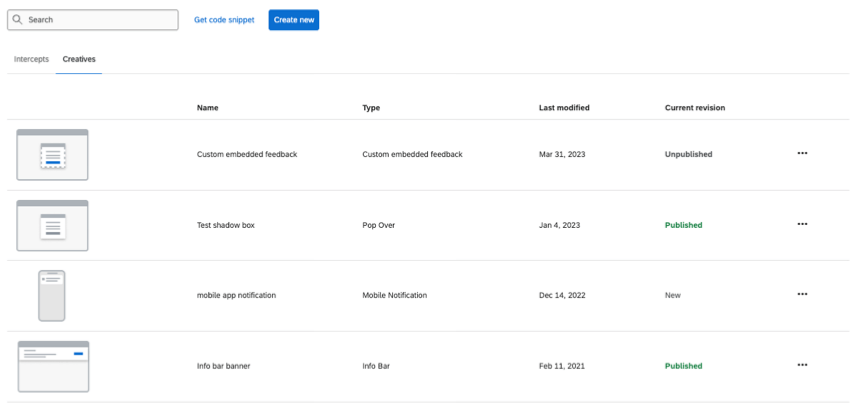
You can view all of the creatives you’ve made (and make more) by going to Intercepts, then Intercepts list, then Creatives.

On this page, you can create, delete, and rename your creatives, or save them to the library. You can also copy your creatives to other Website & App Insights projects or retrieve various IDs.
Qtip: If you don’t have access to any of the features described on this page, reach out to your Account Executive. For more information about the differences between Digital Feedback and CustomerXM for Digital, see Digital Feedback vs. CustomerXM for Digital.

Making a New Creative
See Making a Standalone Creative.
Making a Creative from the Library
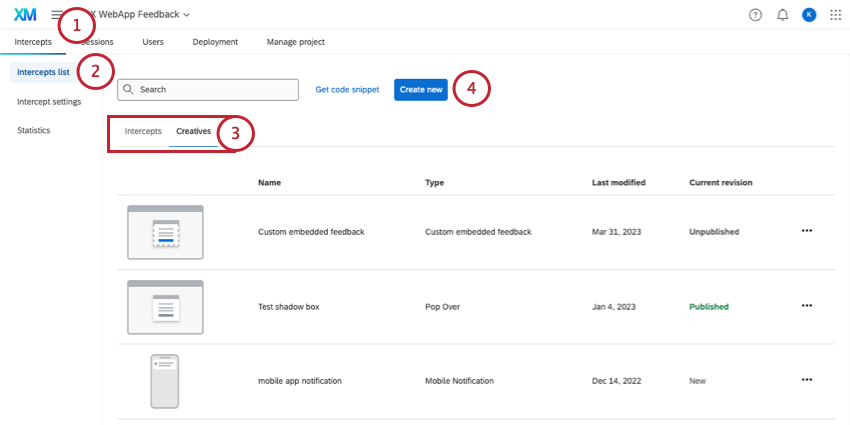
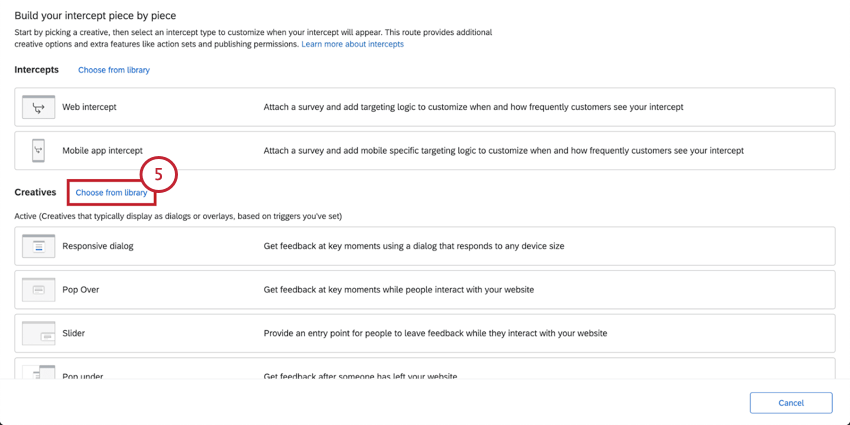
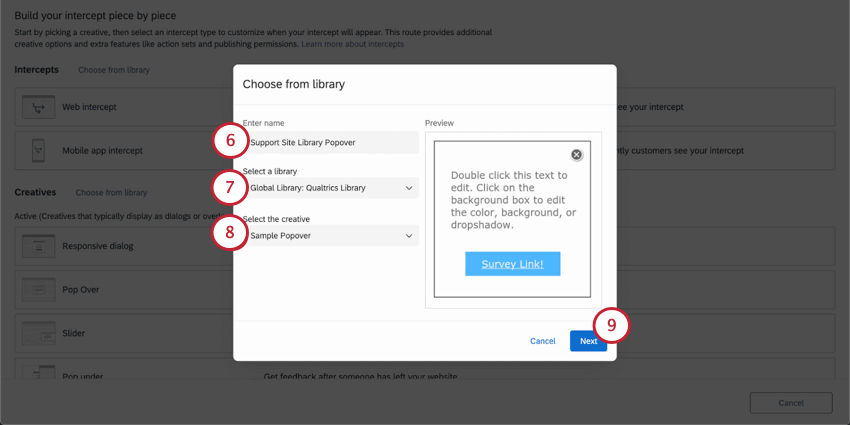
Qtip: A preview of the creative will appear below so you can double-check you’ve selected the correct one.
Columns of Information
For each creative, you can see:
- Name (alphabetical)
- Type of Creative
- Last Modified date
- Current Revision (Published or Unpublished)
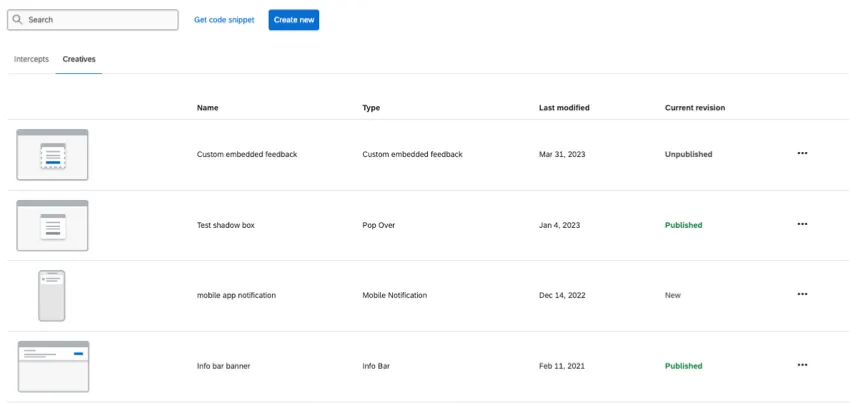
The Search bar allows you to find creatives by keywords in the Name or Type. For example, searching “Pop” wouldn’t just find all creatives with “pop” in the name, but all pop overs, pop ups, and pop unders in the project.
Qtip: There is also page navigation at the bottom of the creatives list.
Managing Creatives in the List
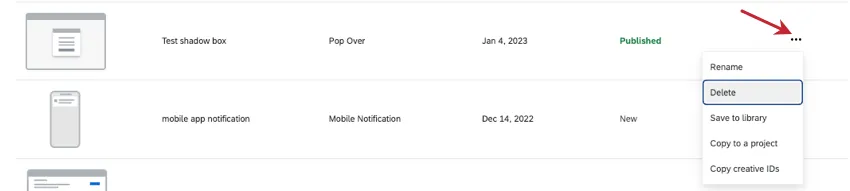
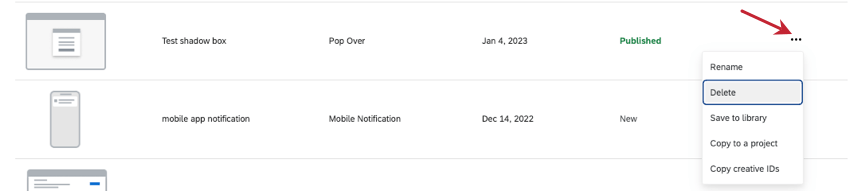
Click the dropdown to the far-right of the creative to reveal a list of actions.
- Rename: Rename the creative.
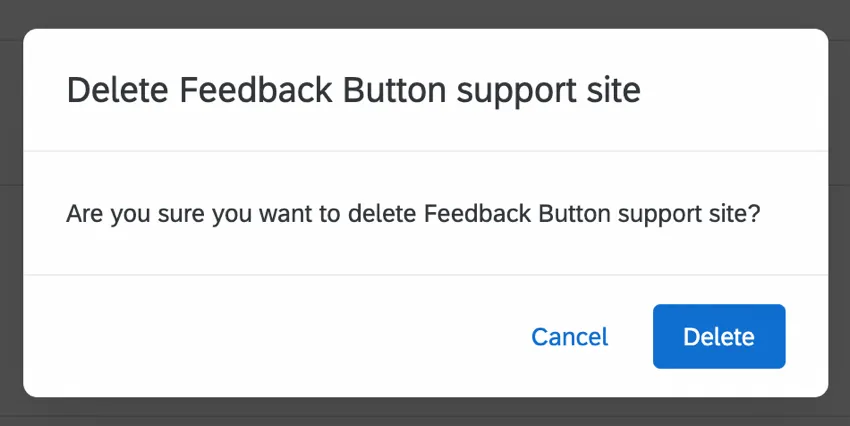
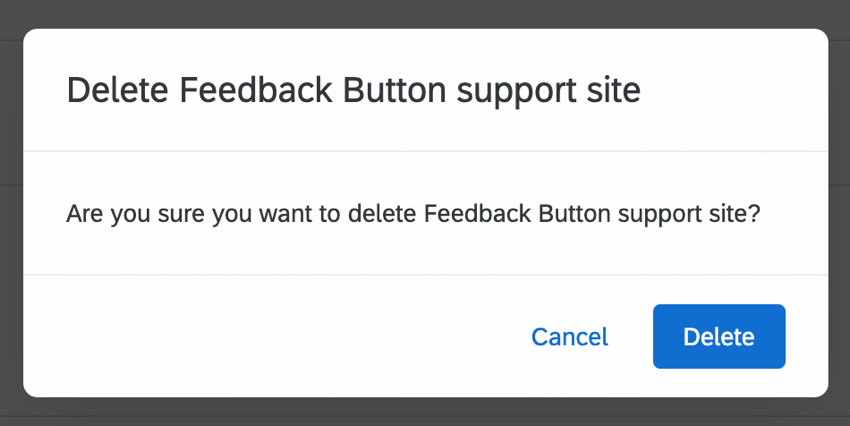
- Delete: Permanently delete the creative. Heed the warning before you click Delete.
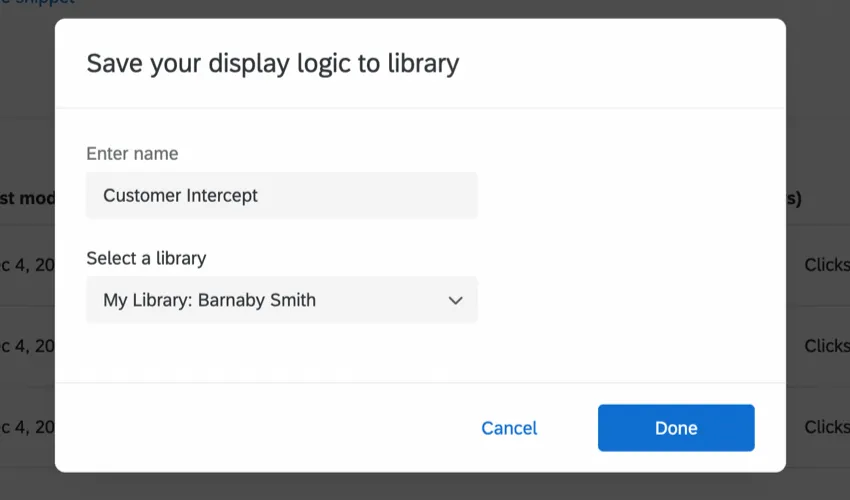
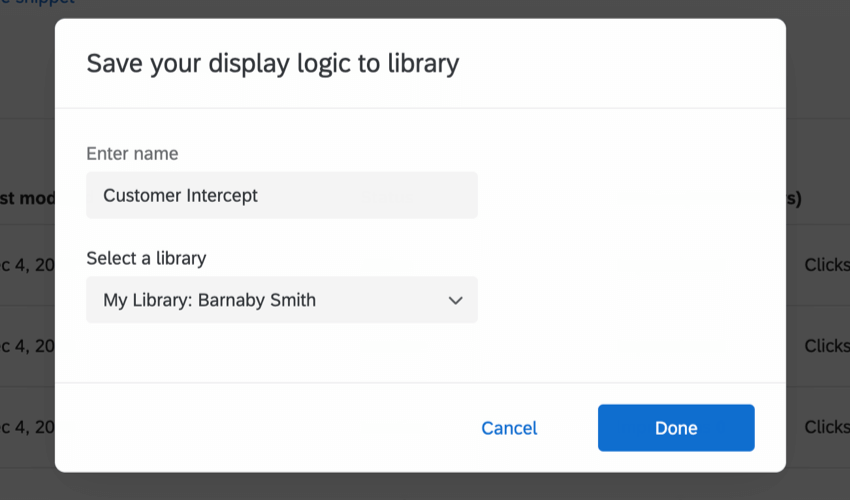
- Save to Library: Save the creative to a Library of your choice, so it can be copied into different projects later.
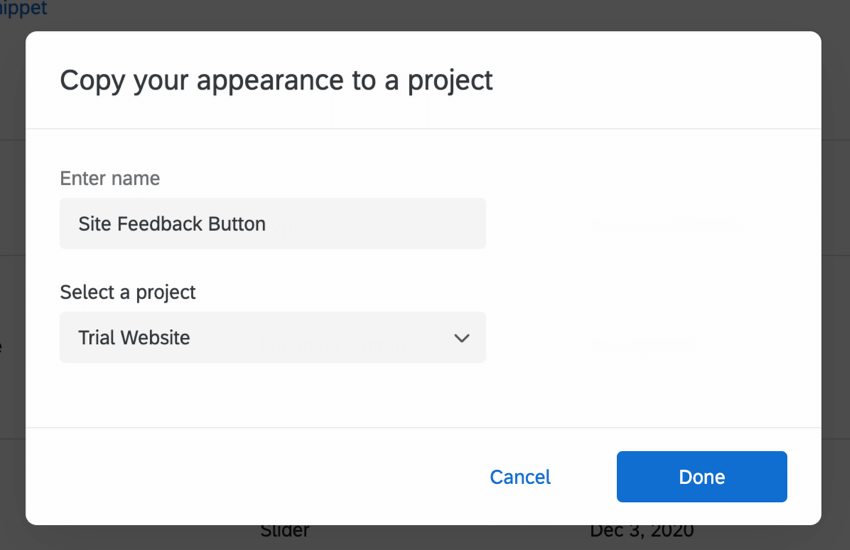
- Copy to a Project: Create a copy of the creative to a project of your choice.

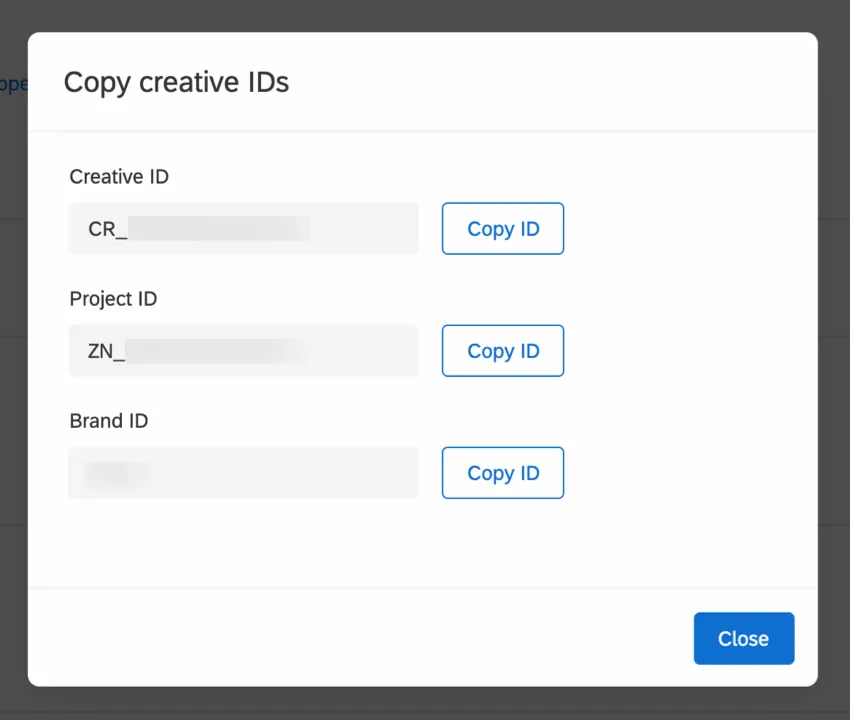
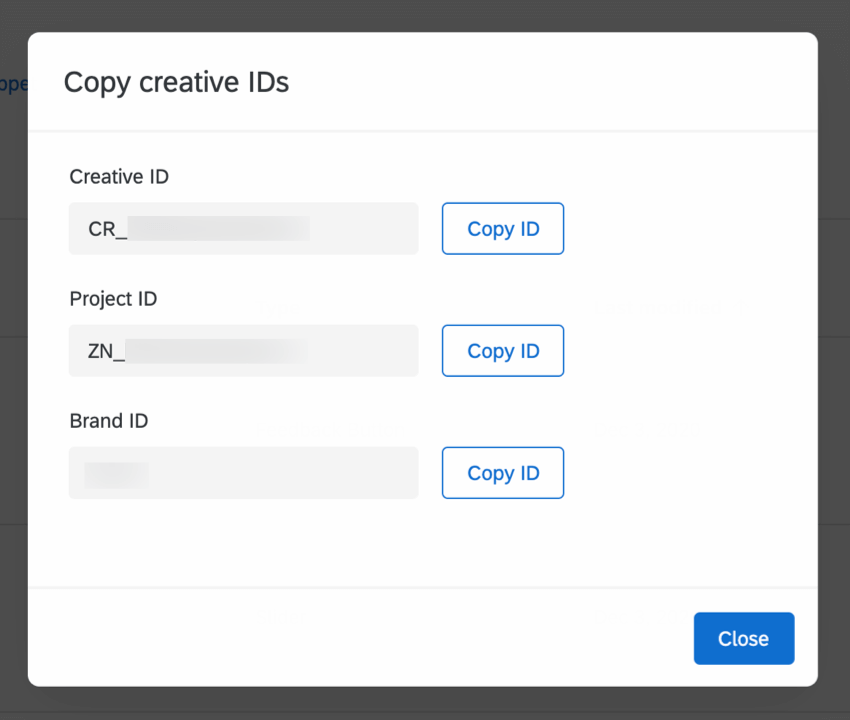
- Copy Creative IDs: Copy the creative IDs by clicking Copy ID next to the desired ID.

That's great! Thank you for your feedback!
Thank you for your feedback!