

User Info Conditions
What's on this page
Qtip: If you don’t have access to any of the features described on this page, reach out to your Account Executive. For more information about the differences between Digital Feedback and CustomerXM for Digital, see Digital Feedback vs. CustomerXM for Digital.
About User Info Conditions
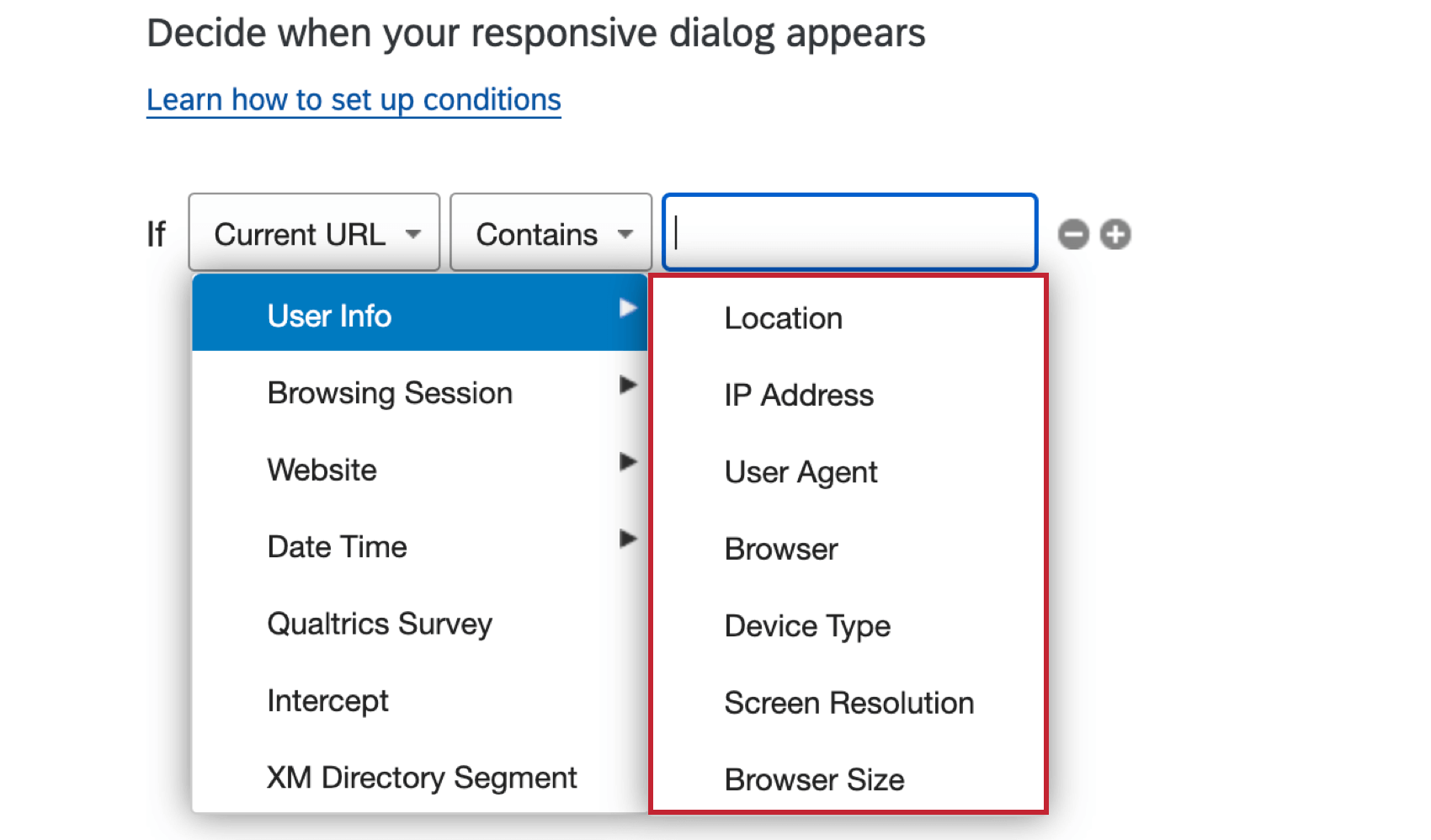
The User Info conditions allow you to target visitors based on demographic information, such as their location or their device type. On this page, you will learn about the different User Info conditions and how to apply them in your intercept.
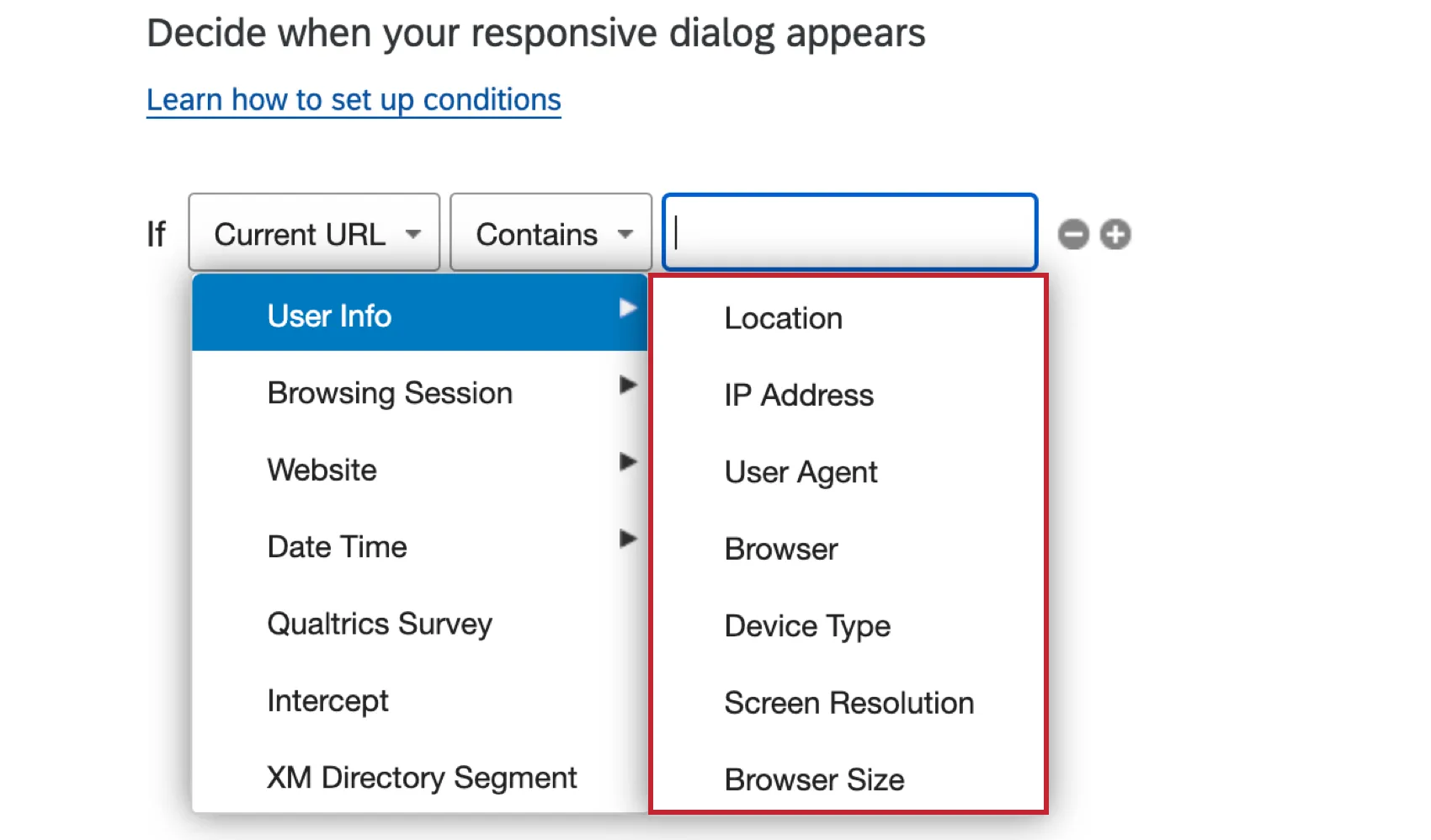
Location
Using Location, you can target visitors from a specific area.
To set up Location targeting
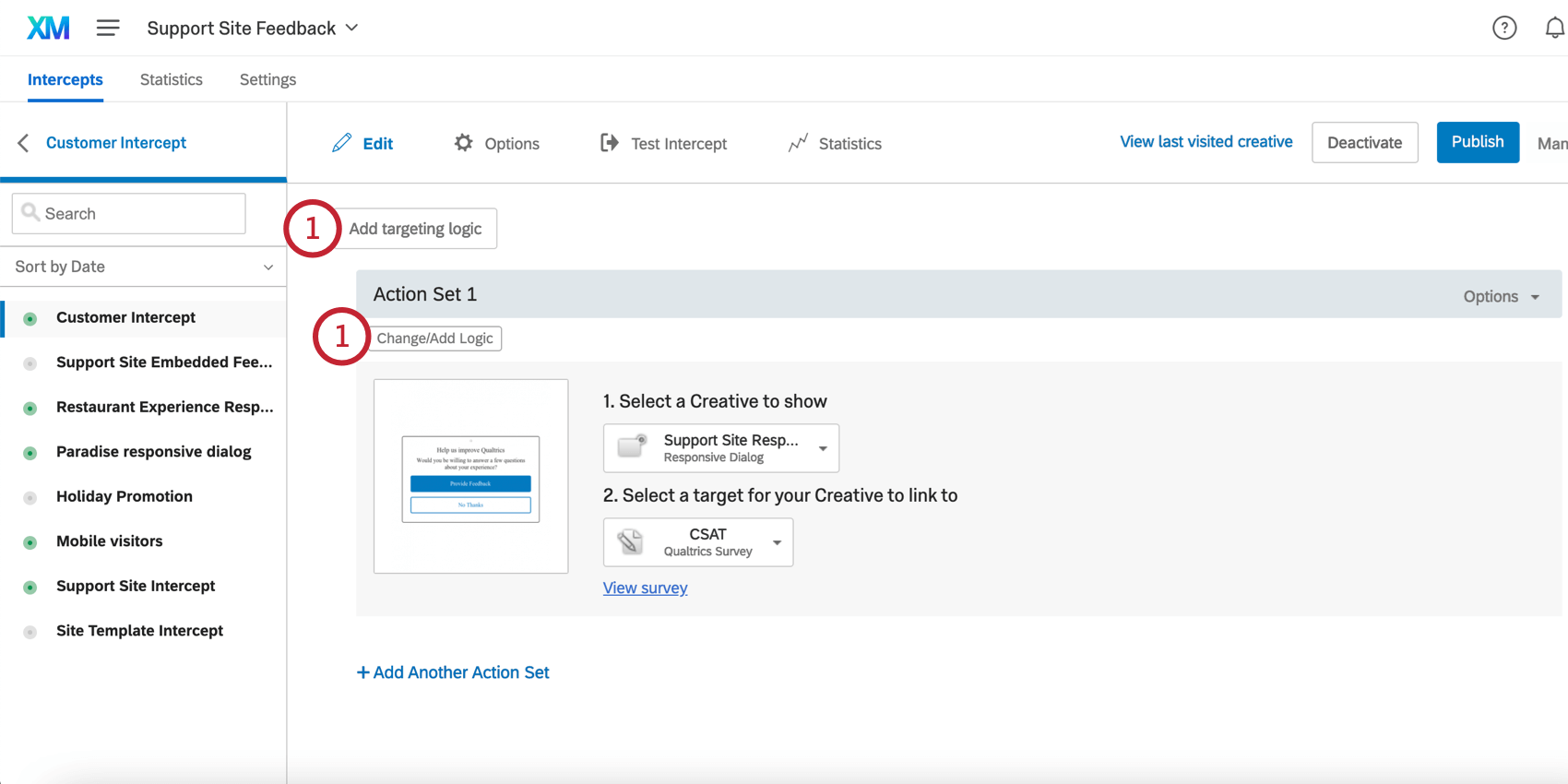
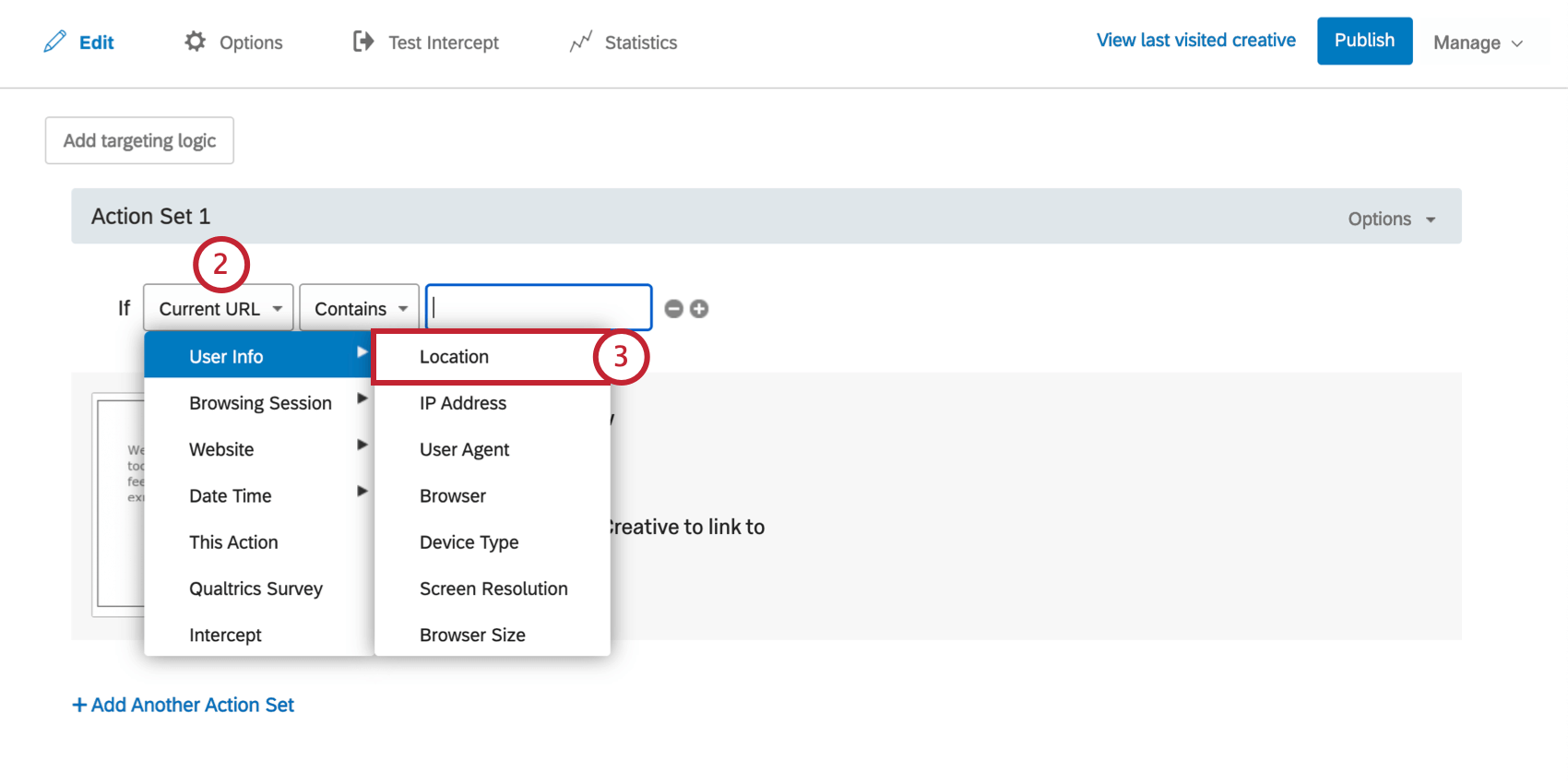
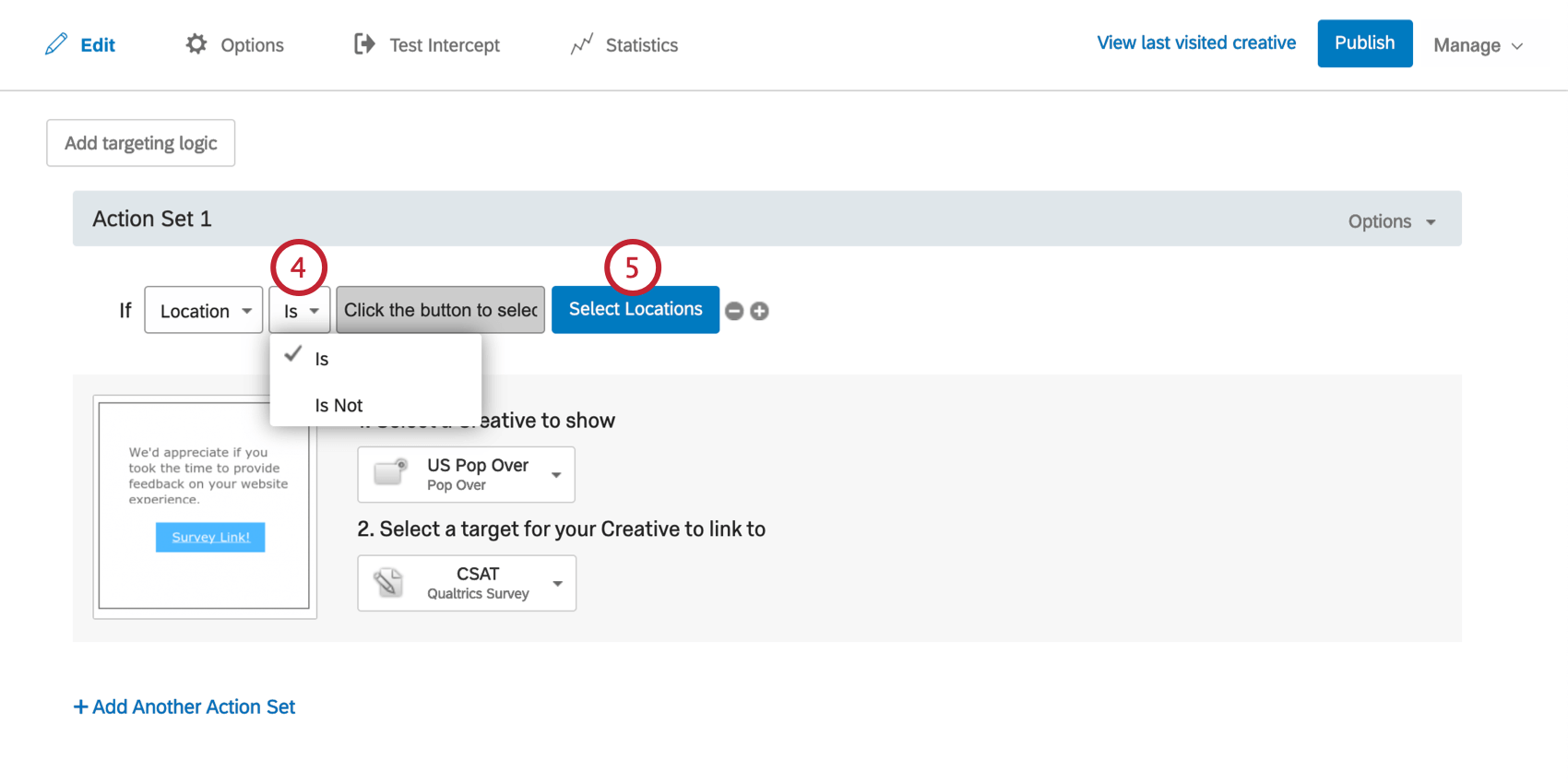
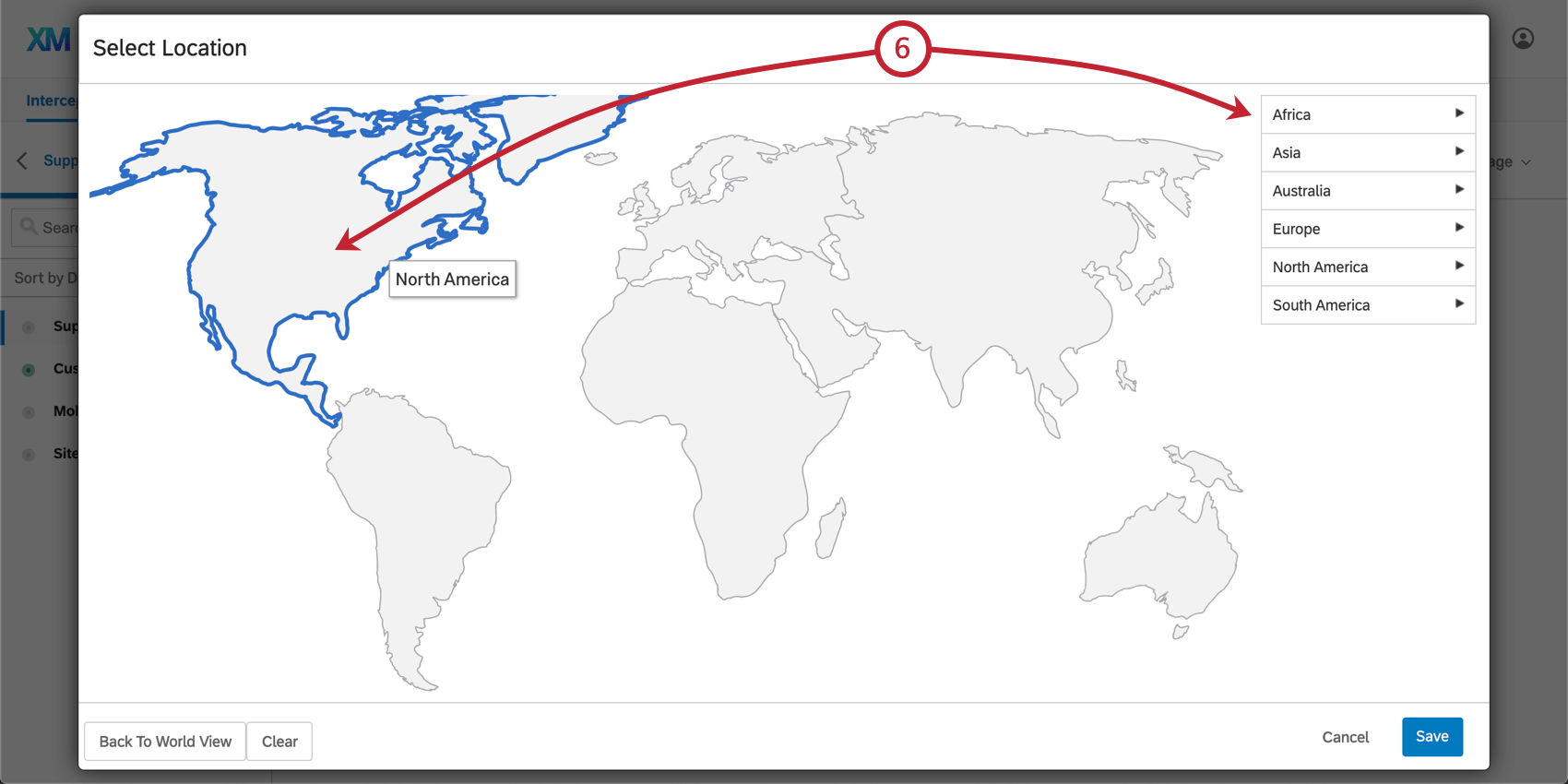
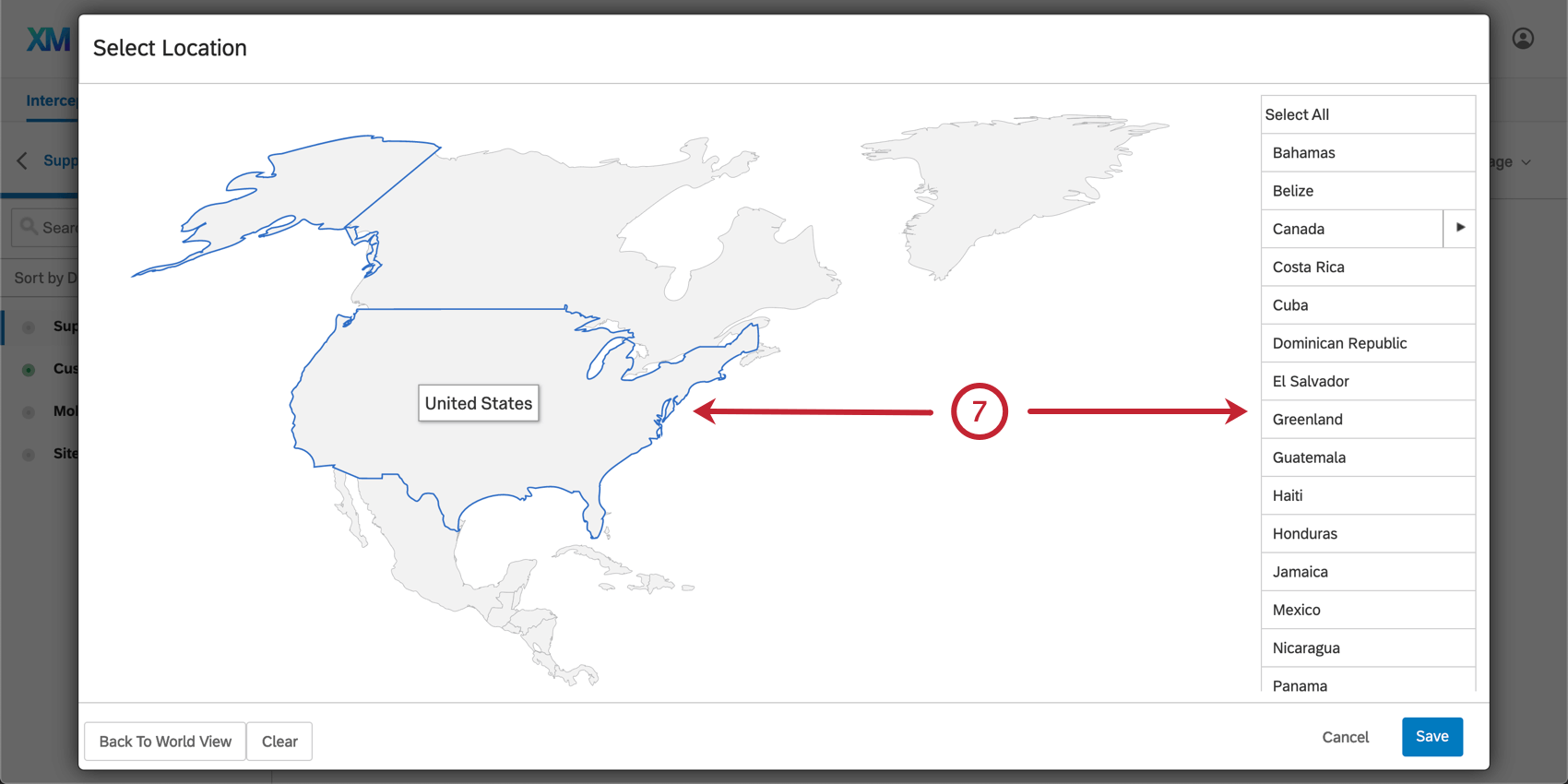
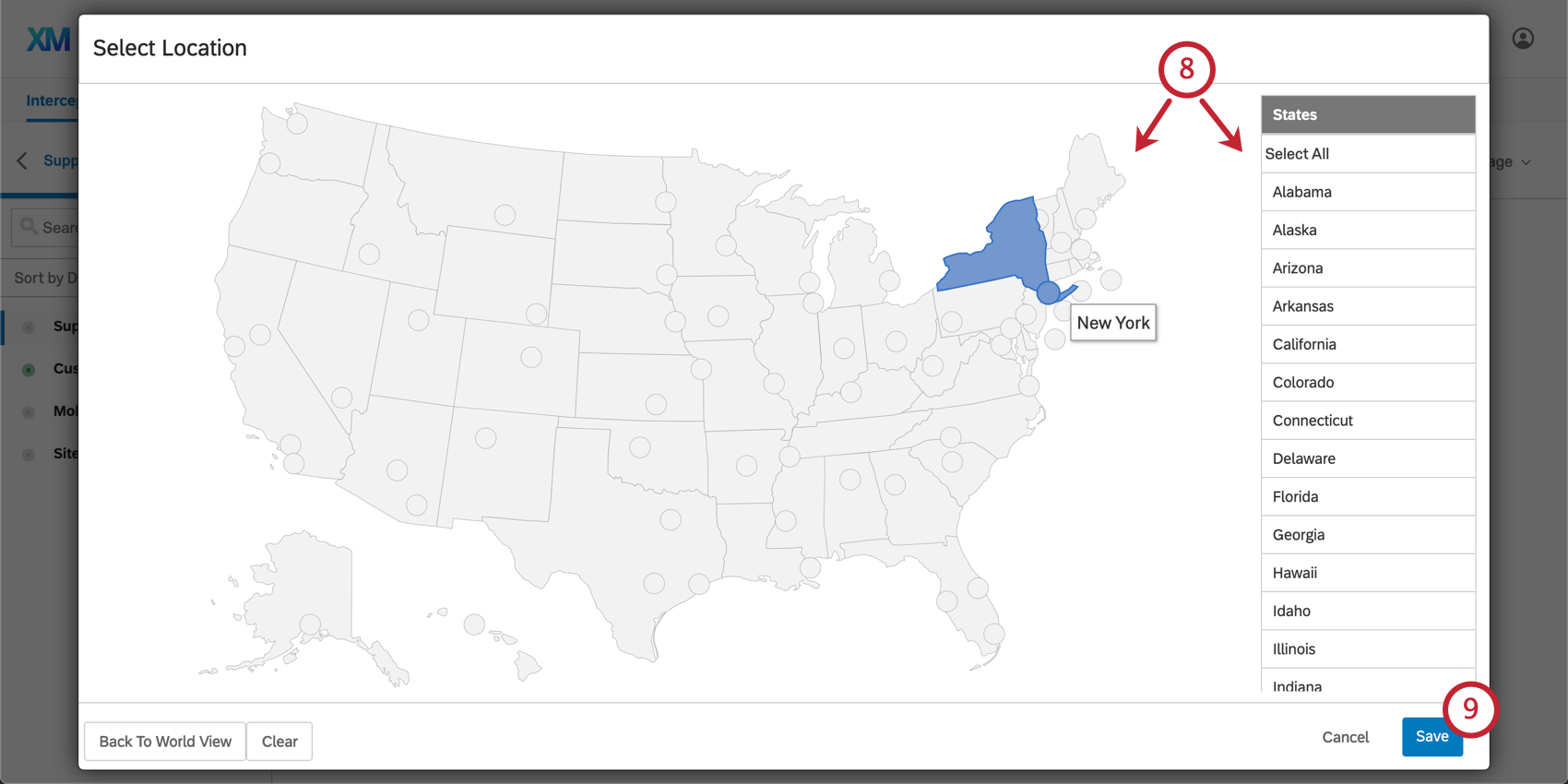
Attention: If you are using Location Targeting, this step is required. For example, to target the entire United States, you would click Select All when prompted to select states and cities.

Qtip: Website Feedback uses the visitor’s IP address to approximate their location, according to the MaxMind GeoIP database. Regions are presented according to data accuracy. In Canada, targeting is available at the province level. In the United States, it is available at the state level, and in some cases the metropolitan area level. In other countries, targeting is available only at the country level due to low accuracy. Targeting is 99.8% accurate on the country level, 90% accurate on the state level, and 83% accurate on the US city level within a 40 kilometer radius.
IP Address
Using IP Address conditions, you can target or exclude specific visitors from seeing your creatives. For example, you could use IP Address targeting to exclude those in your office from seeing a creative. This is useful for projects such as satisfaction surveys, where having employee responses might invalidate data. In the testing/demo phase of your implementation, you could use IP Address targeting to only display the creative to those visiting your webpage from your office’s network.
To create an IP Address condition
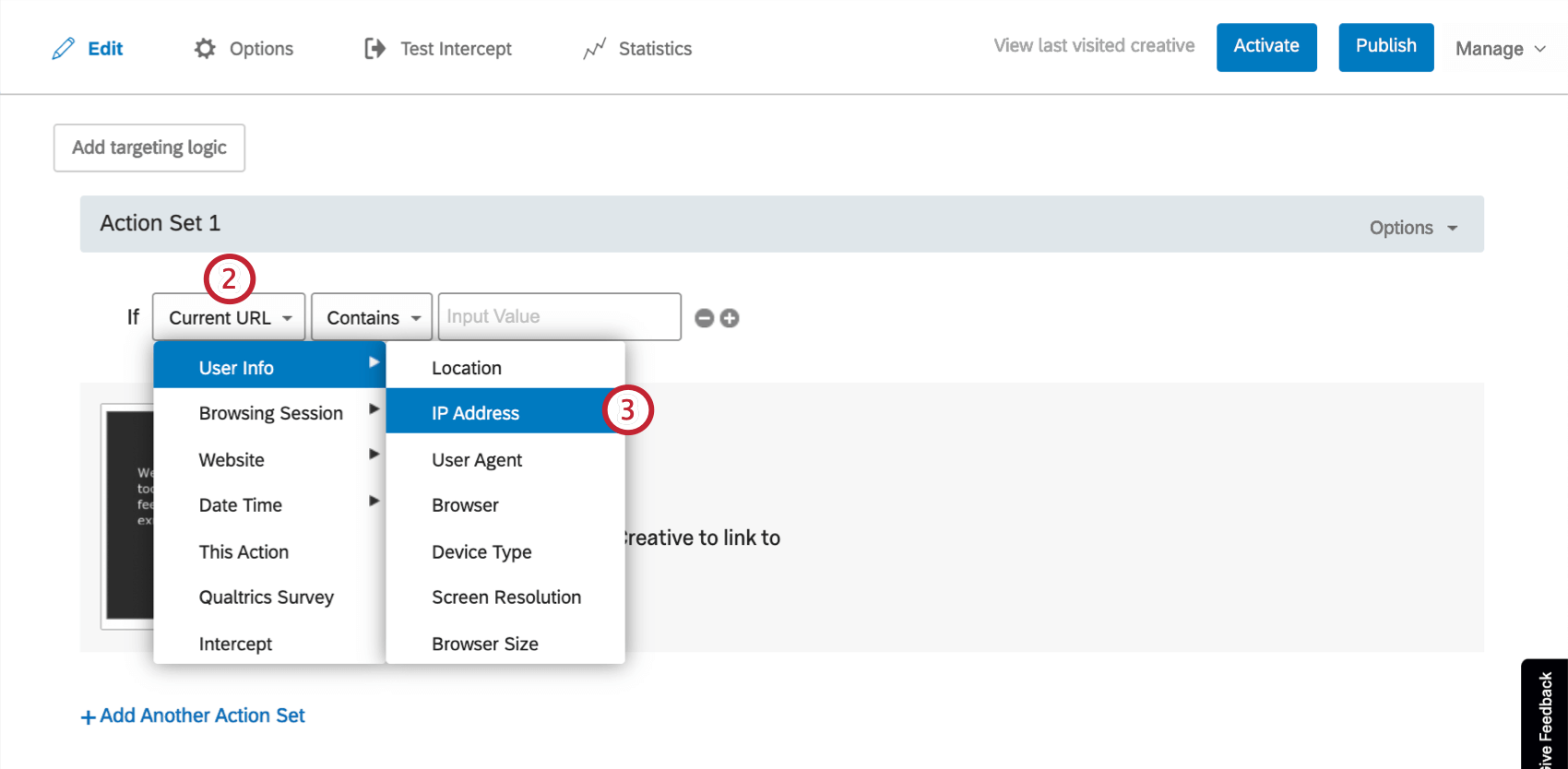
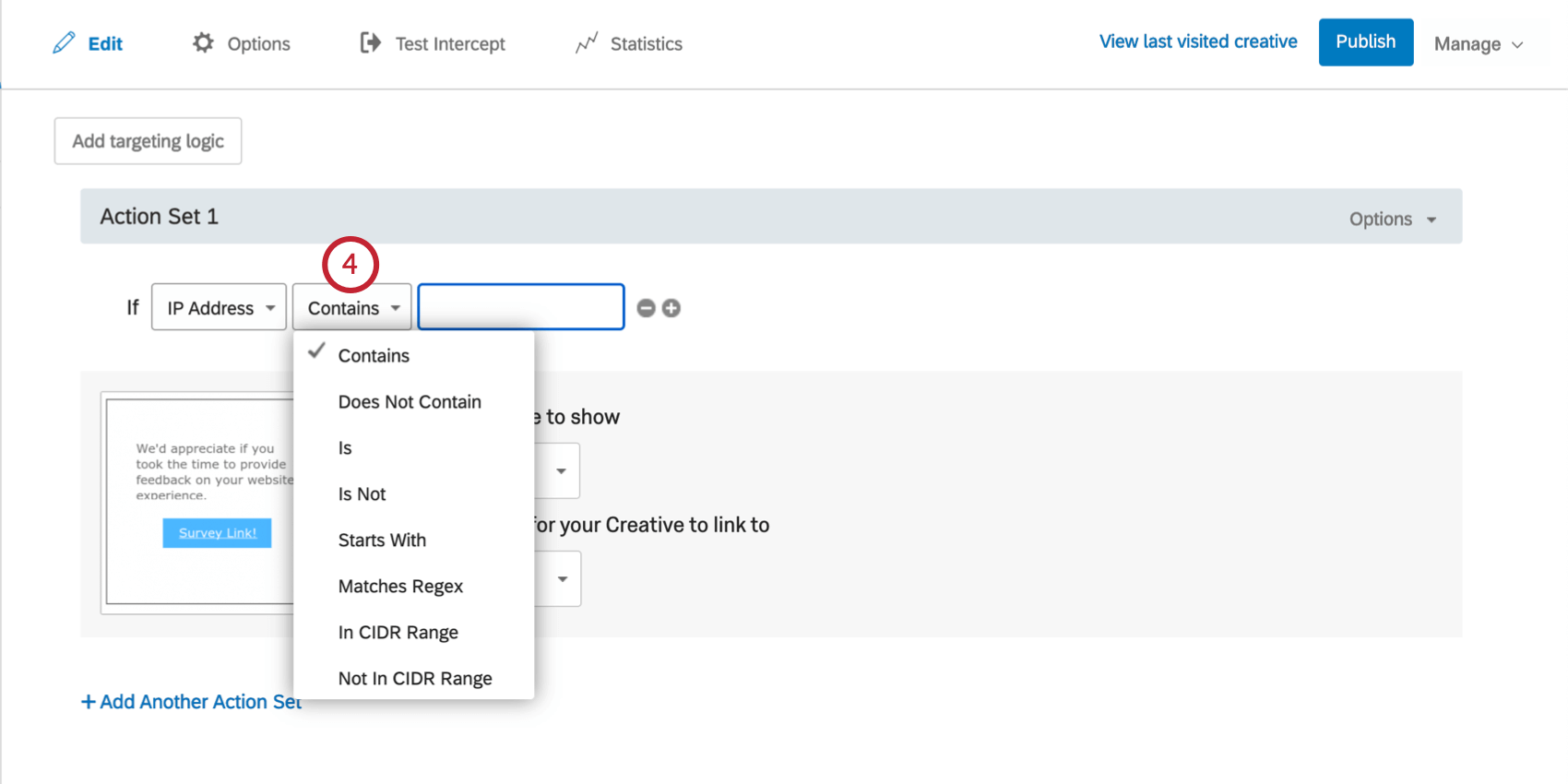
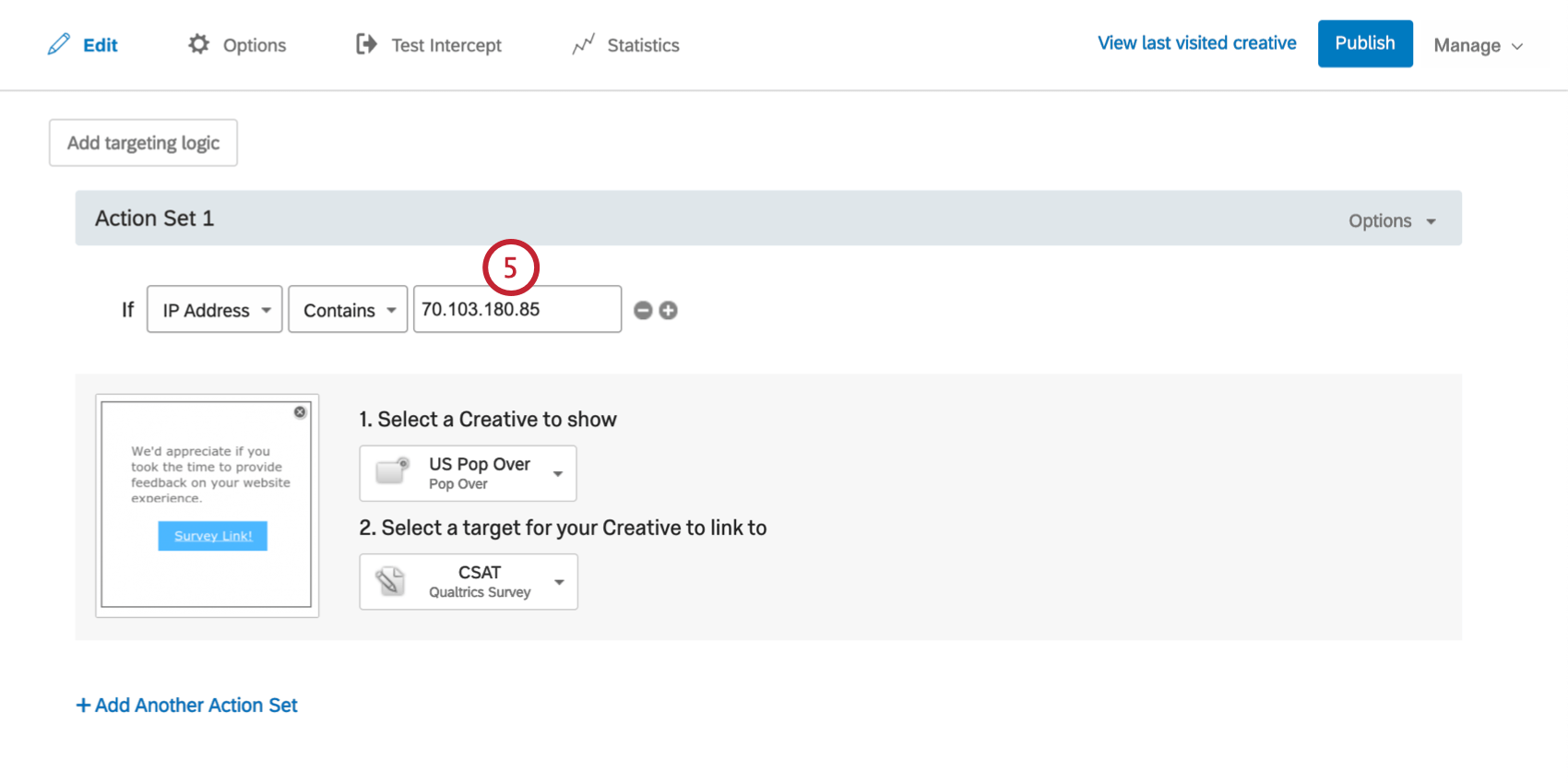
Qtip: Not sure what your IP address is? Google “What is my IP” to find out! Not sure what CIDR Range of IP addresses to use? Your internal IT department can usually provide this information.
User Agent
If you are more accustomed to working with User Agent data or would like to prevent individuals with a specific browser version from seeing a creative, you can add intercept display logic using the User Agent condition. User Agents record information about a visitor’s browser and operating system so it can be used in logic to target this kind of information.
To create a User Agent condition
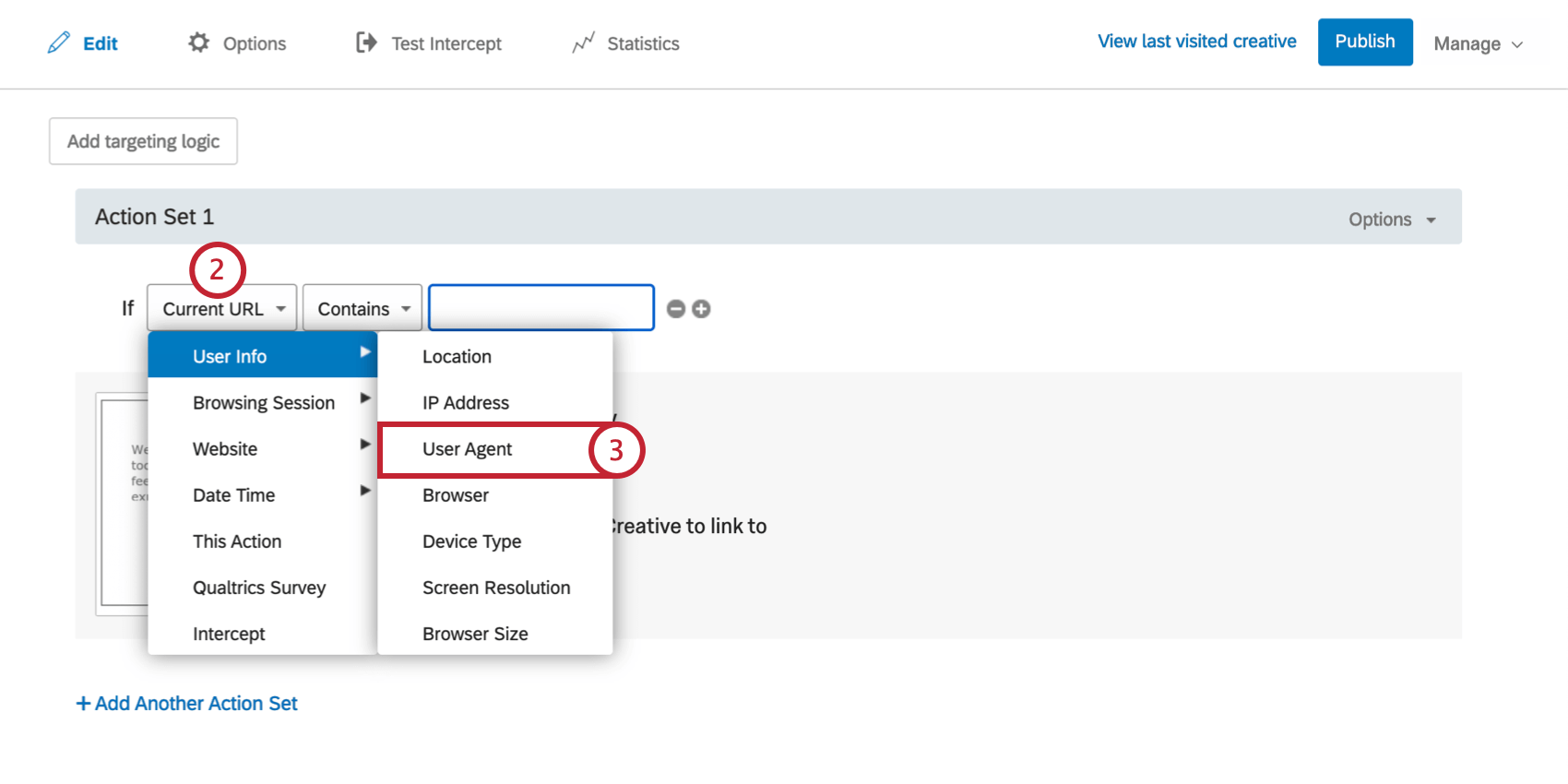
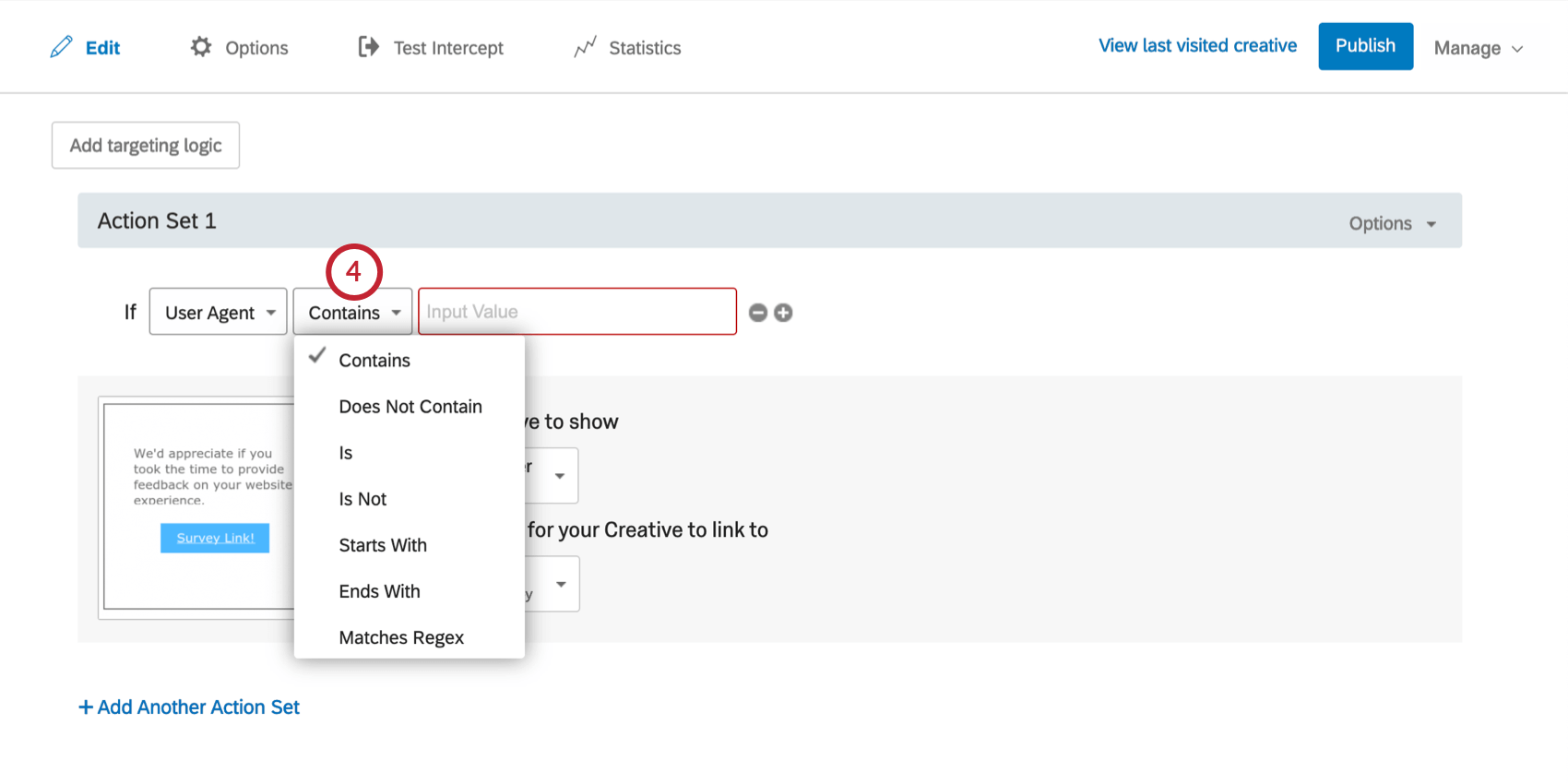
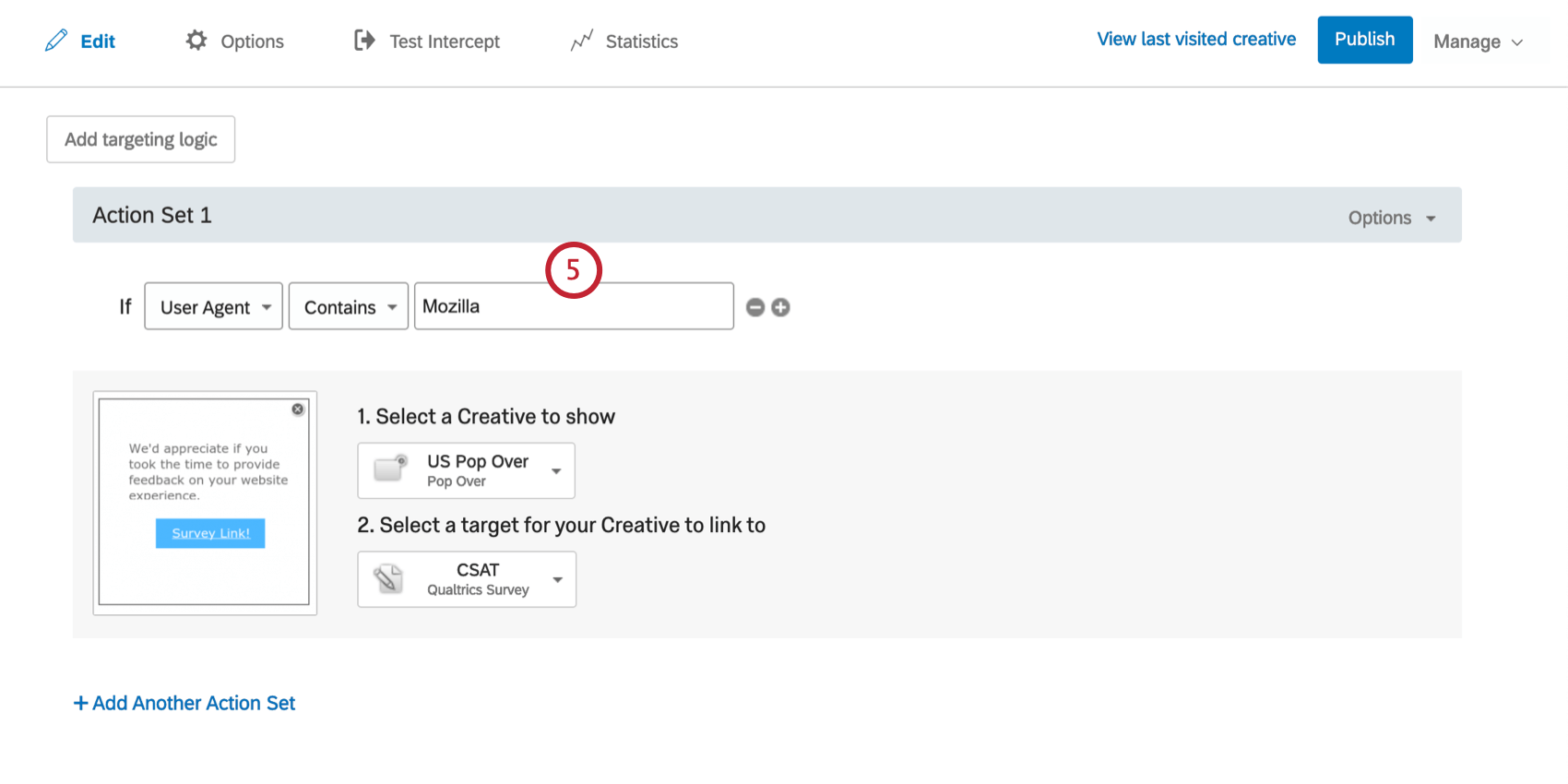
Qtip: The content of an individual’s user agent could look like Mozilla/5.0 (Macintosh; Intel Mac OS X 10_13_1) AppleWebKit/537.36 (KHTML, like Gecko) Chrome/62.0.3202.94 Safari/537.36, for example. Be sure to set a value for your condition that can be found in a User Agent string.
Browser
Use this option to target visitors based on what browser they are using. For example, in older versions of Internet Explorer, you may want to show a creative inviting the visitor to upgrade their browser. You can also target device types in the Action Set Options.
To create a Browser condition
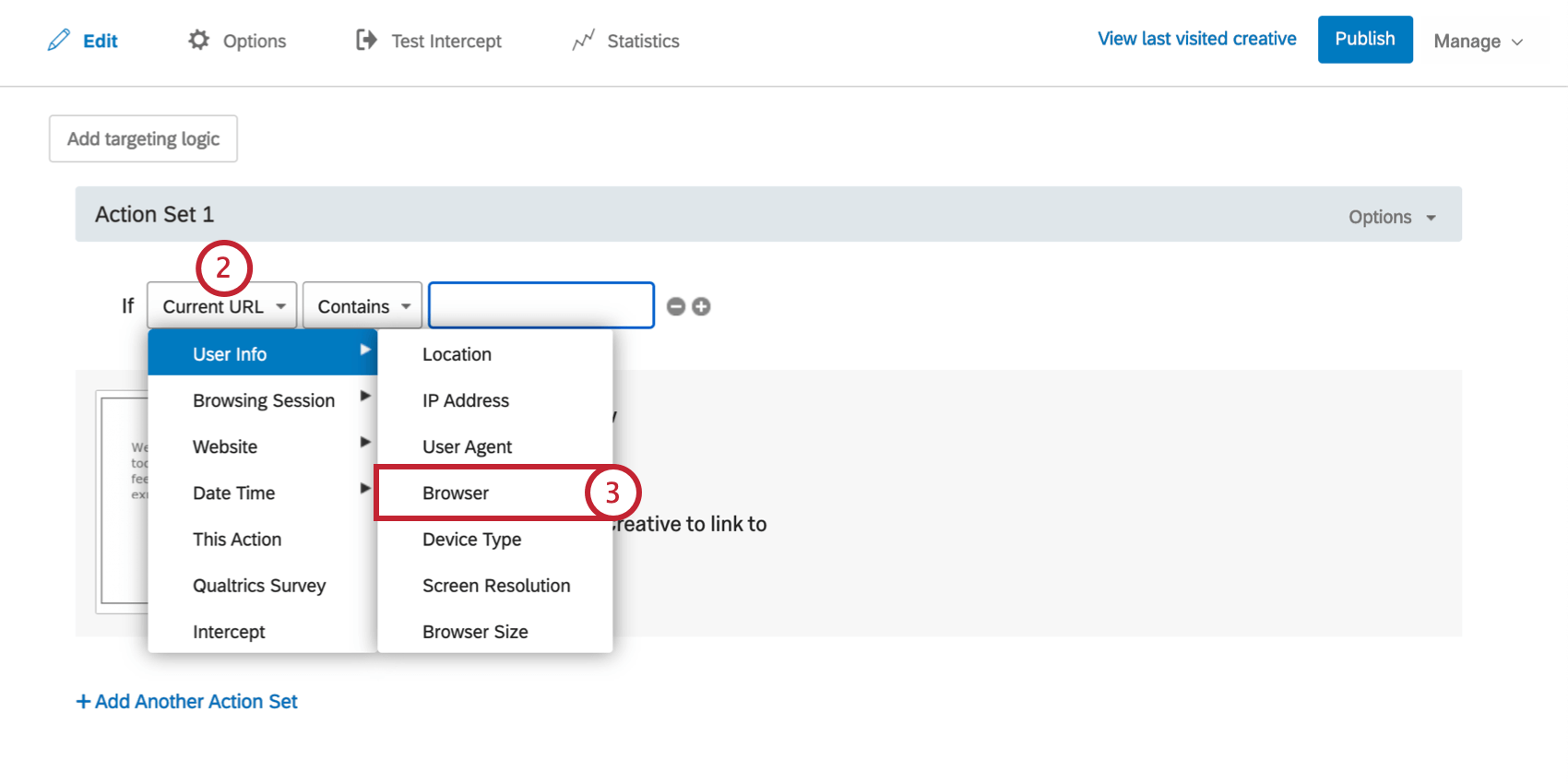
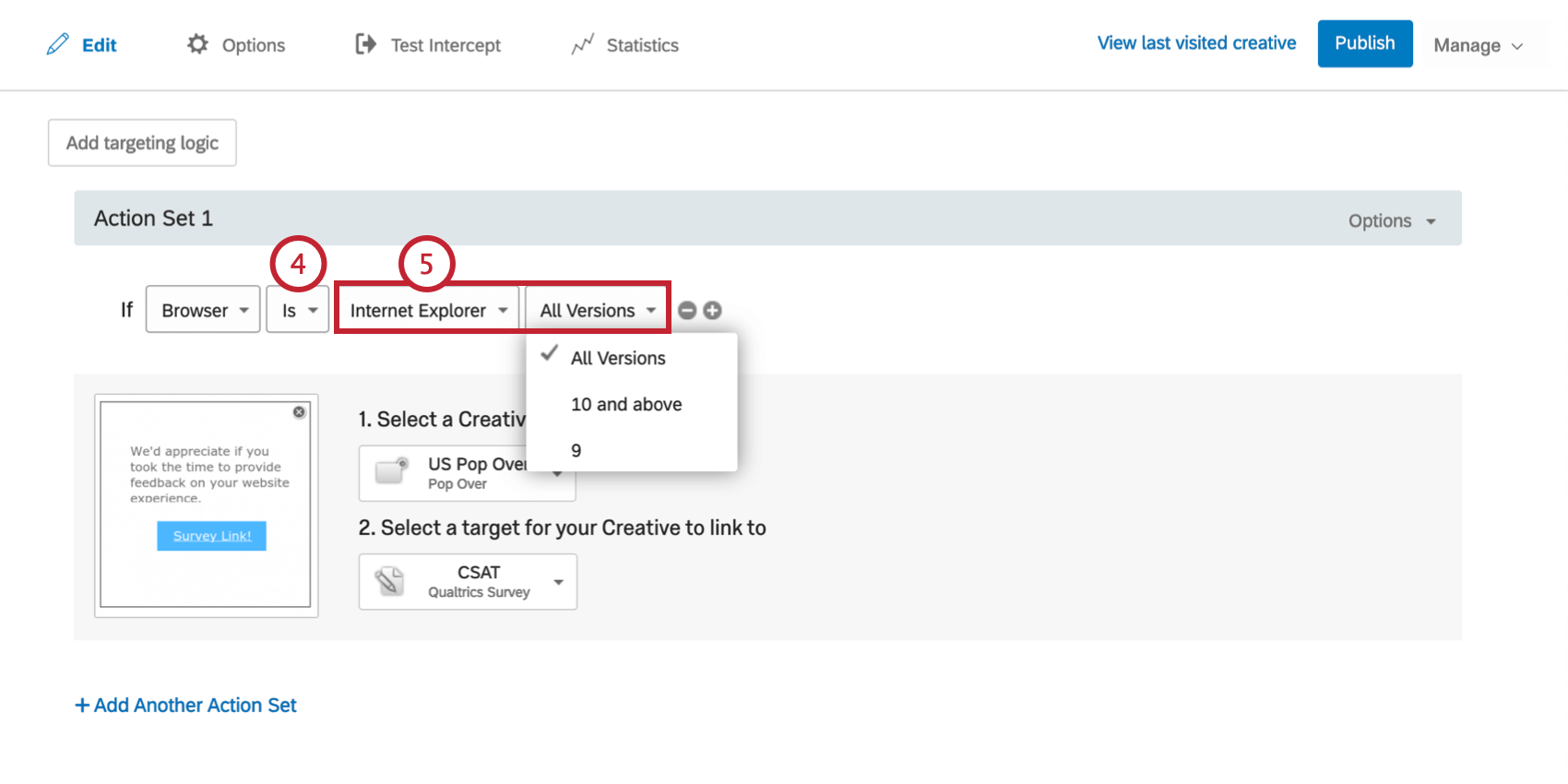
Qtip: For all browsers except Internet Explorer, you can only select All Versions for the browser version.
Device Type
Certain creatives may work best on certain platforms. For instance, a Pop Over that looks great on a laptop may be difficult to navigate around on a mobile phone. Device Type targeting allows you to show different creatives depending on which device the visitor is using. You can also target device types in the Action Set Options.
To create a Device Type condition
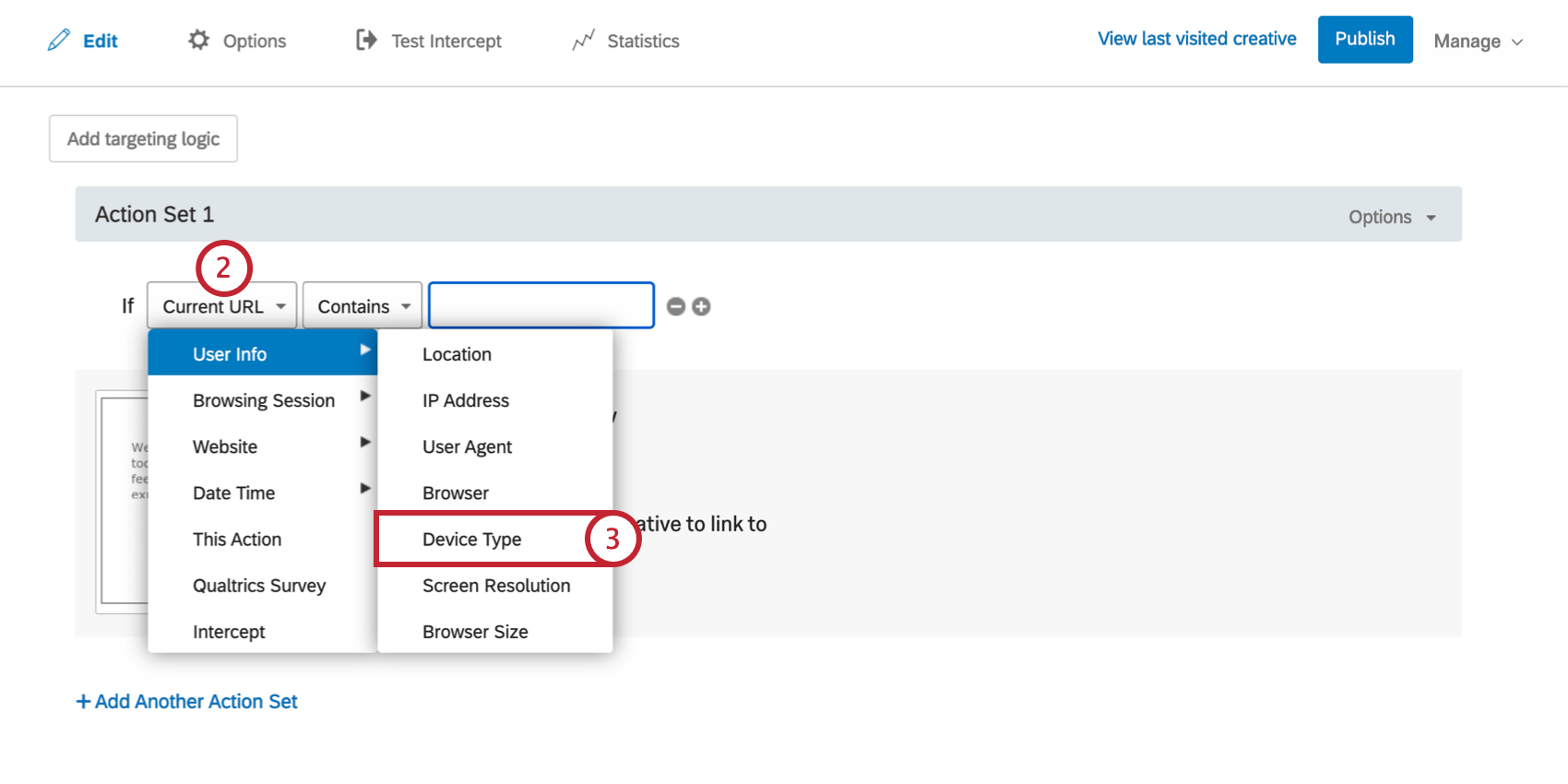
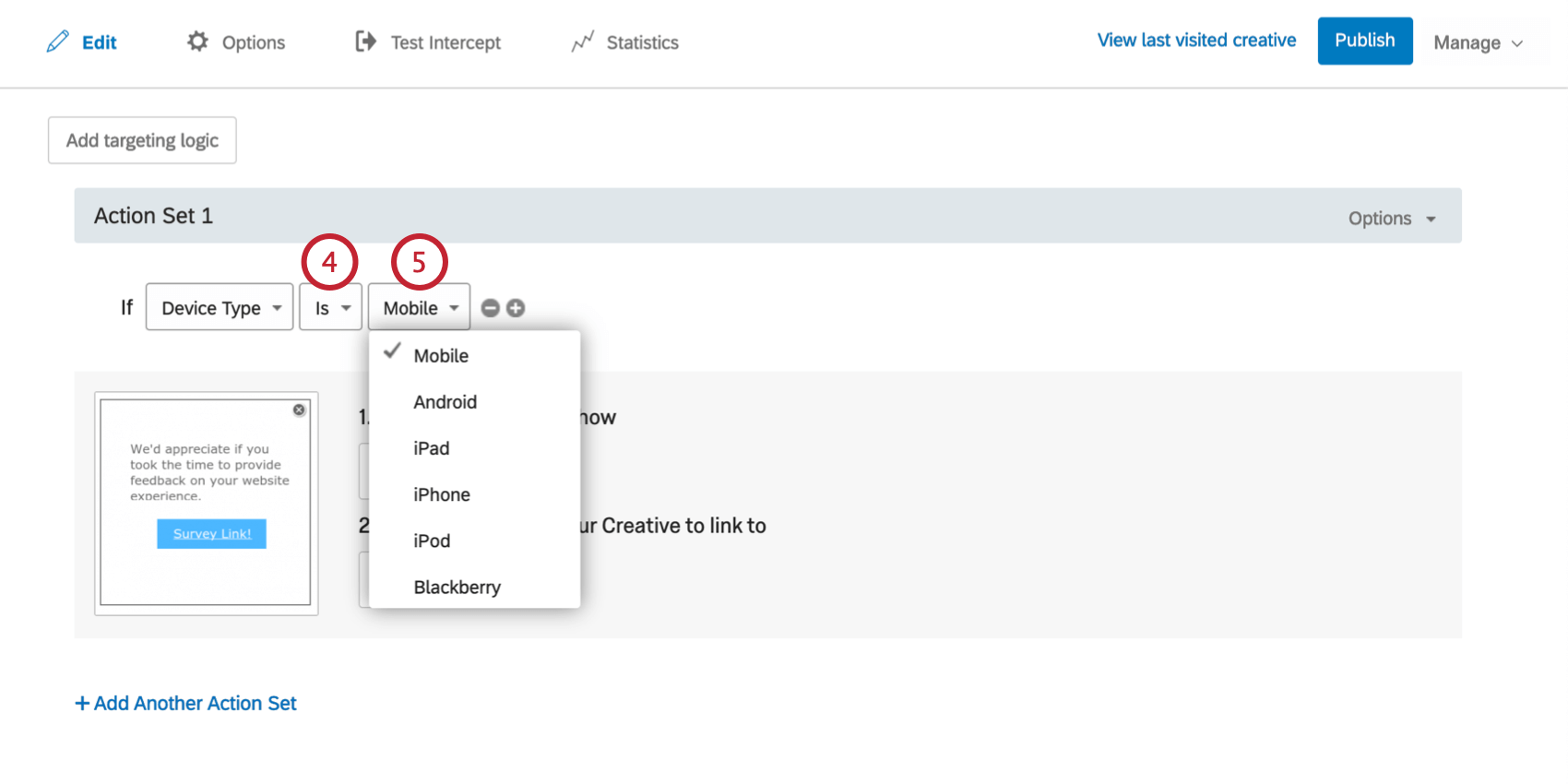
Qtip: Both phones and tablets typically report as being mobile devices. iOS distinguishes between tablets and phones in this reporting, but unfortunately Android does not. One potential way to target Android phones versus Android tablets is to look at screen resolution (see below). For example, you could specify to show the creative designed for phones if the screen width is less than 600px. This would miss newer phones with HD screens, but would accurately target older devices.
Attention: iPad Pros are considered a desktop browser, not a mobile browser.
Screen Resolution
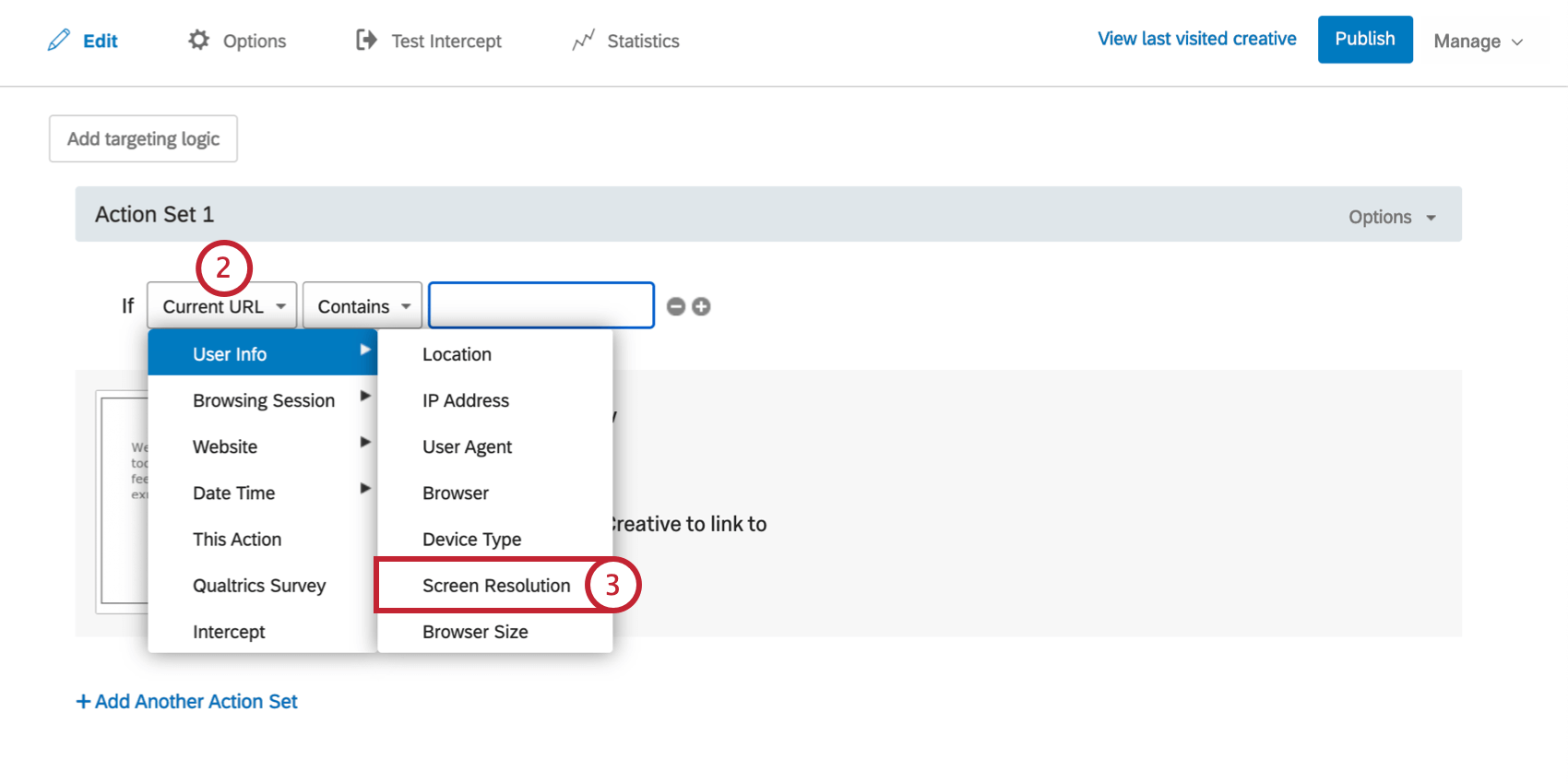
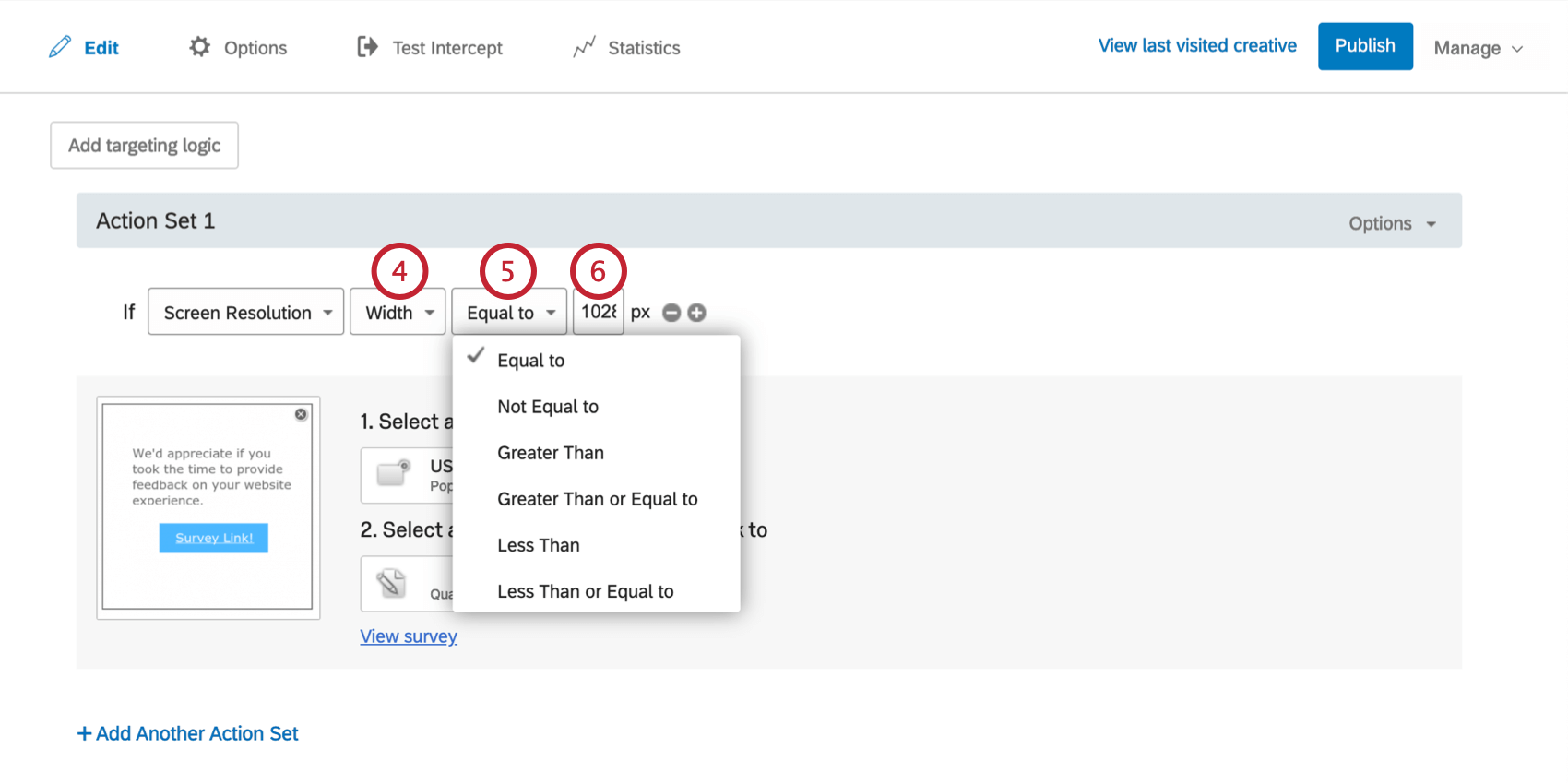
Use this option to target or exclude visitors based on the size of their screen. For example, a 500px-wide Pop Over may not display well on a 400px-wide mobile screen.
Some common screen resolutions:
Resolutions Example Devices 1024×768 iPad 1, iPad 2 2048×1536 iPad 3 2048×1536 iPad Mini 7.9″ retina display 480×320 iPhone 3GS and lower, Android devices 960×640 iPhone 4, iPhone 4S 800×480 Android devices, Windows Phone 7 1280×800 Android tablets like Google Nexus 7, Samsung Galaxy Tab 10.1, Motorola Xoom, Asus Eee Pad Transformer 1024×600 Android tablets like Samsung Galaxy Tab 7 640×360 Symbian3 devices like Nokia C7 854×480 Galaxy S20 Ultra 3200 x 1440 Galaxy S6 10.5 2560 x 1600 Android devices, MeeGo N9 1136×640 iPhone 5 1334×750 iPhone 6, iPhone 6s, iPhone 7, iPhone 8, iPhone SE 1920×1080 iPhone 6 Plus, iPhone 6s Plus, iPhone 7 Plus, iPhone 8 Plus 2436×1125 iPhone X, iPhone 11 ProTo create a Screen Resolution condition
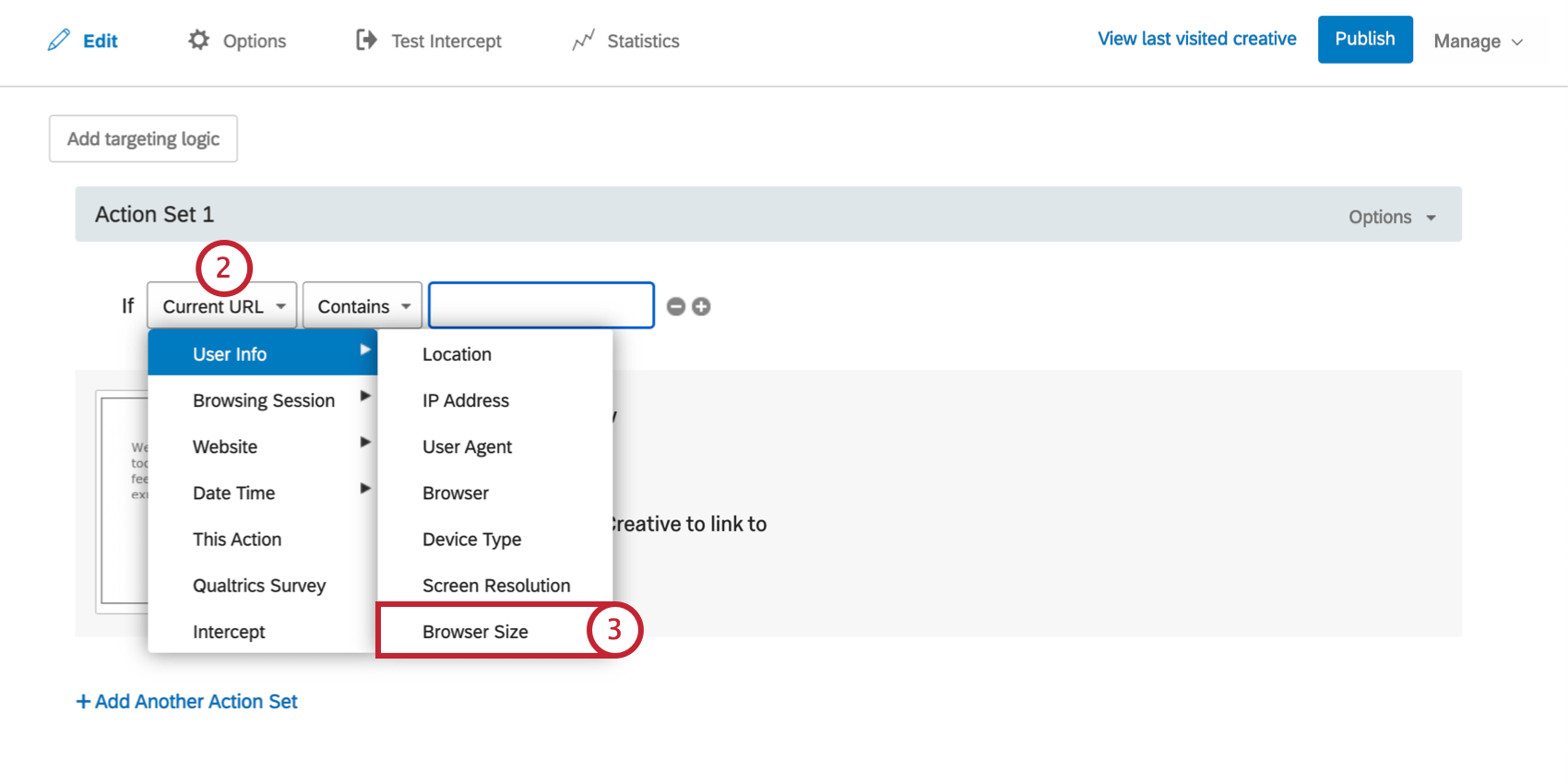
Browser Size
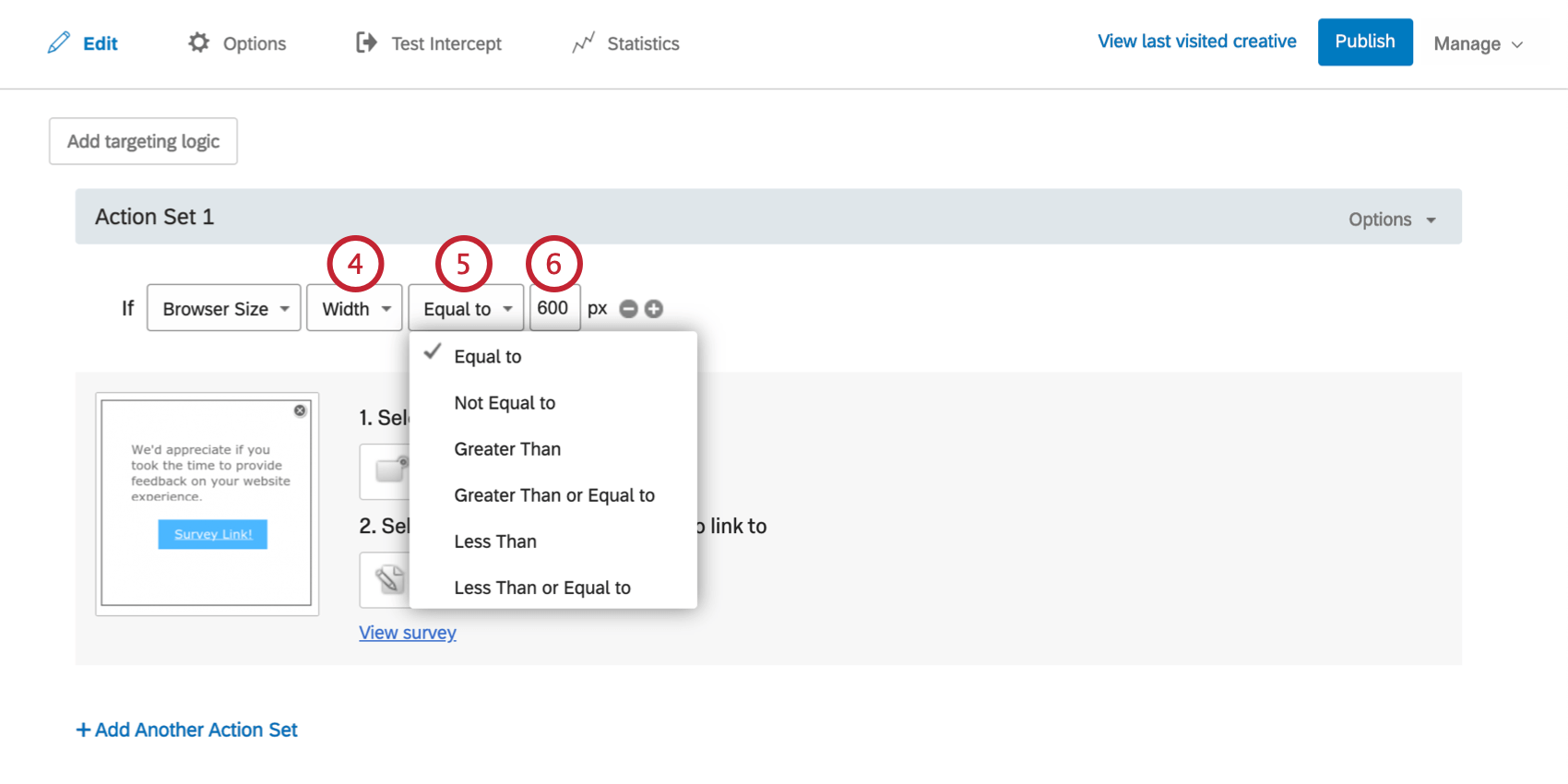
Use this option to target or exclude visitors based on the width or height of their browser window. This could be useful to ensure your creative won’t cover important site content when the visitor is viewing the site in a smaller window. Nearly all of our website visitors have a screen resolution of 1024 x 768 or greater.
To create a Browser Size condition
FAQs
When should I use logic on my action sets?
When should I use logic on my action sets?
For example, since creatives are not responsive to screen size, many users like to implement action set logic focused on whether a website viewer is/is not using a mobile device or whether the website is being displayed on a certain screen size. By using logic in this instance, you are able to target a properly formatted and sized creative to the appropriate person.
Action set logic based on location can even be used to make sure that website viewers are seeing a creative that is written in the language that most likely applies to them.
I activated my intercept, but it‘s not showing up on my site. Why not?
I activated my intercept, but it‘s not showing up on my site. Why not?
- Logic: intercept targeting logic and action set logic are the conditions that must be met in order for an intercept to be displayed to a visitor. Checking this logic will be helpful in discovering why the Intercept is not displaying on a page.
- Logic sets that use “Contains”: A common cause of logic error is the use of the “Contains” vs. “Is.” To say a condition “Contains” means that the parameter you are basing the logic off (i.e., Current URL) will have the specified value present in addition to more information. For example, if I had logic that read as Current URL contains ‘qualtrics’, this would cause the intercept to display on any URL that has the word qualtrics present. The other option you have is using Current URL is [URL]. This condition depends on the visited URL being an exact match. Any differences or additional characters will prevent the intercept logic from passing.
- Intercept Revisions: When making edits to intercepts, changes are not made live until the intercept is published. When publishing an Intercept, a version of the intercept, or a “revision,” is saved. Reviewing the revisions that have been made is very useful for identifying any changes that may have suddenly prevented the intercept from appearing.
- Debug Window: The debug window is an invaluable tool for testing why an intercept is not displaying on a particular page.
For intercepts whose deployment code was implemented before March 2019, to enable the debug window, append a query string to any given URL called Q_DEBUG. This must be prefixed with a ? or a & like the following examples: https://www.qualtrics.com?Q_DEBUG, https://www.qualtrics.com/blog?item=value&Q_DEBUG.
For intercepts whose deployment code was implemented after March 2019, run the following JavaScript snippet in the Console of your web page:
 QSI.API.unload();
 QSI.isDebug = true;
 QSI.API.load();
QSI.API.run();Qtip: The Website Insights debugger does not function if the code has been implemented using a tag manager. Also, if the URL already has a query string with a ?, then the debugger will require a & instead.
- Network Request: Most browsers possess a developer tools menu that allows a user to see a site’s source code, resources, cookies, and network calls. Website Insights possesses a distinct presence in the Network section of these tools. To check for these scripts running, open the developer tools and navigate to the Network section. Once here, reload the webpage and the menu should begin to populate with all network requests being made by the website. To identify Website Insights code, look for calls that begin with ?Q_ZID or ?Q_SID. This is the code itself running checks on the display logic. If you cannot find anything matching this format, then there is an issue with the implementation of your project code. You can refer to our support page on implementation for advice on where is best to place the code.
- Content Security Policy Issues: If you receive a console log that violates a Content Security Policy, there is most likely a restriction on your website that is blocking our intercepts from deploying. We recommend reaching out to your web-development team to resolve. To ensure your intercepts work, we generally recommend allowlisting the following items in your Content Security Policy headers:
- connect-src https://*.qualtrics.com
- frame-src https://*.qualtrics.com
- img-src https://siteintercept.qualtrics.com
- script-src https://*.qualtrics.com
- SPA URL Handling: If your site uses a single-page application (SPA) framework, make sure your code triggers history.pushState() when navigating between views. Some frameworks may re-render or update the URL without pushing a new history entry, which can prevent intercepts from firing. If you're using useEffect or similar lifecycle hooks, make sure your intercept logic runs after navigation is complete.
That's great! Thank you for your feedback!
Thank you for your feedback!