

Action Plan Details Widget
What's on this page
About the Action Plan Details Widget
The action plan details widget gives HR admins and senior leaders more transparency – not just into the areas managers are taking action on, but also how they're addressing problems. Use this widget to see plan owners, due dates, and progress all in one place.
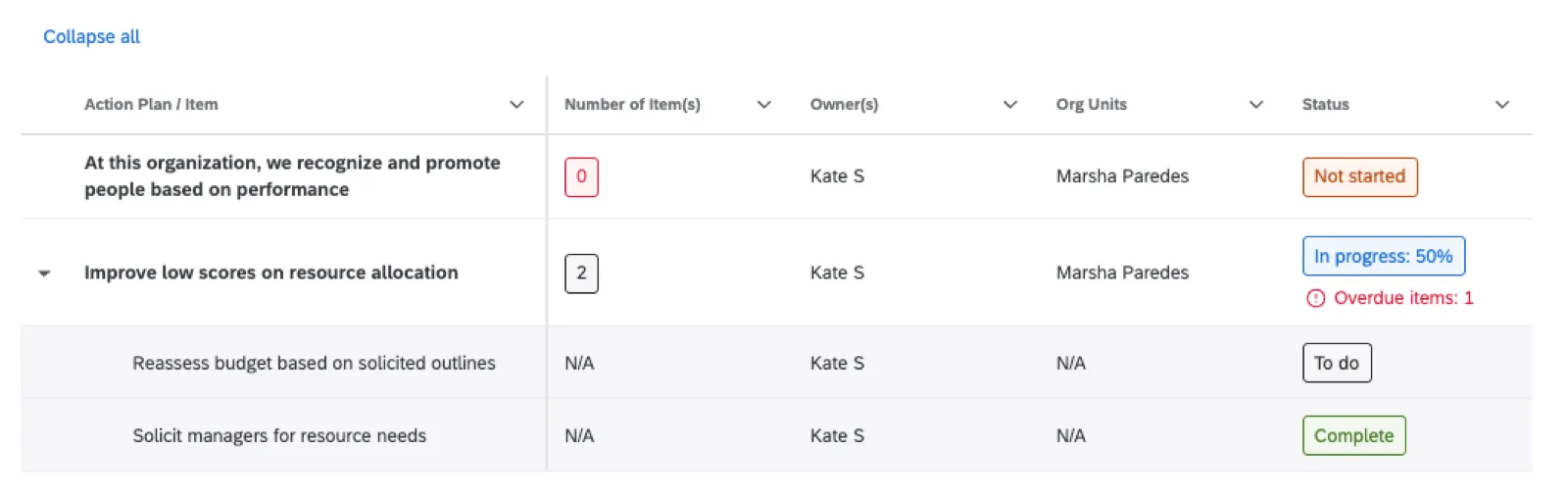
In this widget, each row represents a different action plan. From there, you can customize the information you see for each plan, such as the actions nested under each plan, owner(s), org units involved, and more.
The widget data that a dashboard viewer sees is based on their Restrict action plan reporting data permissions. Learn more at Action Plan Permissions.
Supported Types of Dashboards
Attention: This widget can only be added to action planning pages in your dashboard.

This widget can be used in any dashboard capable of action planning. This includes:
Basic Setup
An admin with editing access to a dashboard can add the action plan details widget to an action planning page. Qualified admins include Brand Admins, EX Admins, and EI Admins.
So long as there are existing action plans in your dashboard, this widget will display data as soon as it’s created, no additional setup required.
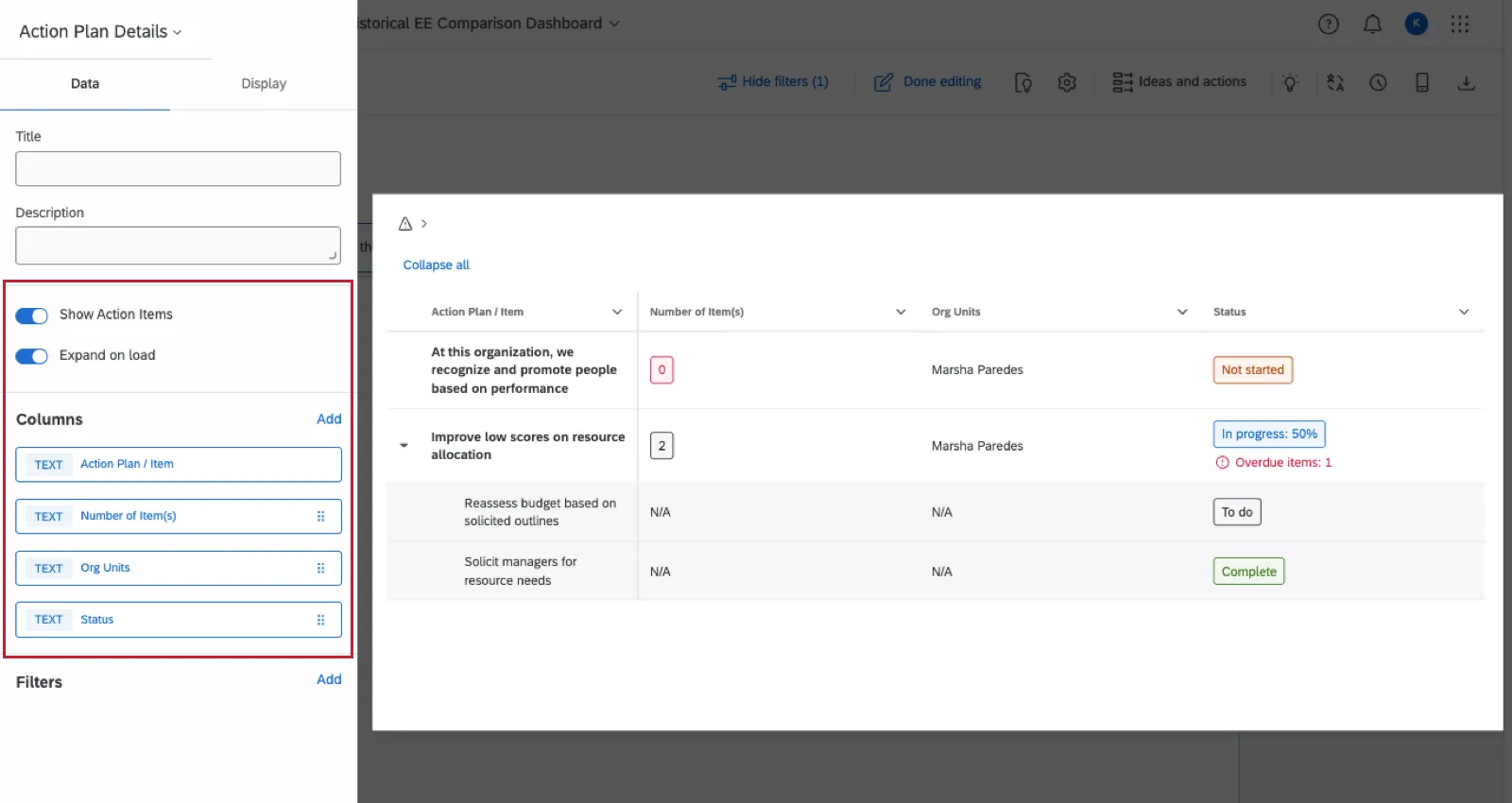
- Show Action Items: When this setting is enabled, then you can click on an action plan to see the specific actions/subtasks nested under it. When this setting is disabled, you’ll still see the top-level action plan, but not the actions/subtasks underneath.
- Expand on load: When this setting is disabled, you have to click an action plan to expand the list of subtasks underneath. When this setting is enabled, everything is expanded by default when you open the dashboard.
The following columns are included by default:
- Action Plan / Item
- Creator
- Owners(s)
- Org Units
- Due Date
- Status
- Number of Item(s)
Qtip: Not all default columns are displayed in the screenshot above.

Qtip: “Item” in this case refers to subtasks – in other words, the actions created within the overall action plan.
Widget Customization
Qtip: For widget editing tips that aren’t specific to the action plan details widget (e.g., resizing, deleting, moving, adding titles), see Building Widgets.
Adding Columns
You can add any action plan field to this widget. Under Columns, just click Add, then select a field.
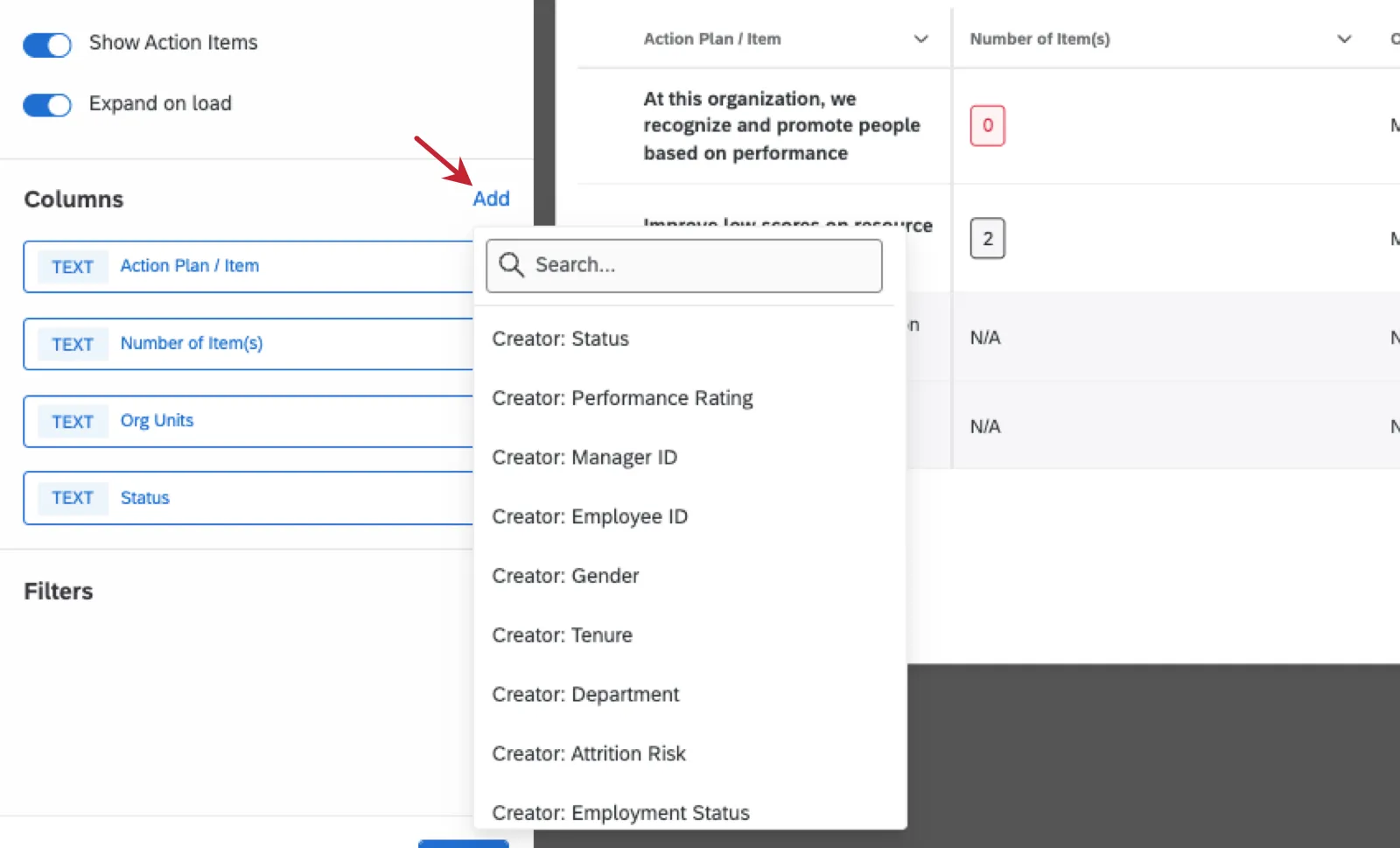
Qtip: Click the dots on the right of a column name to drag and drop the order of columns.
Deleting Columns
To remove columns from this widget, find them under the Columns list in the editor, then click Remove.
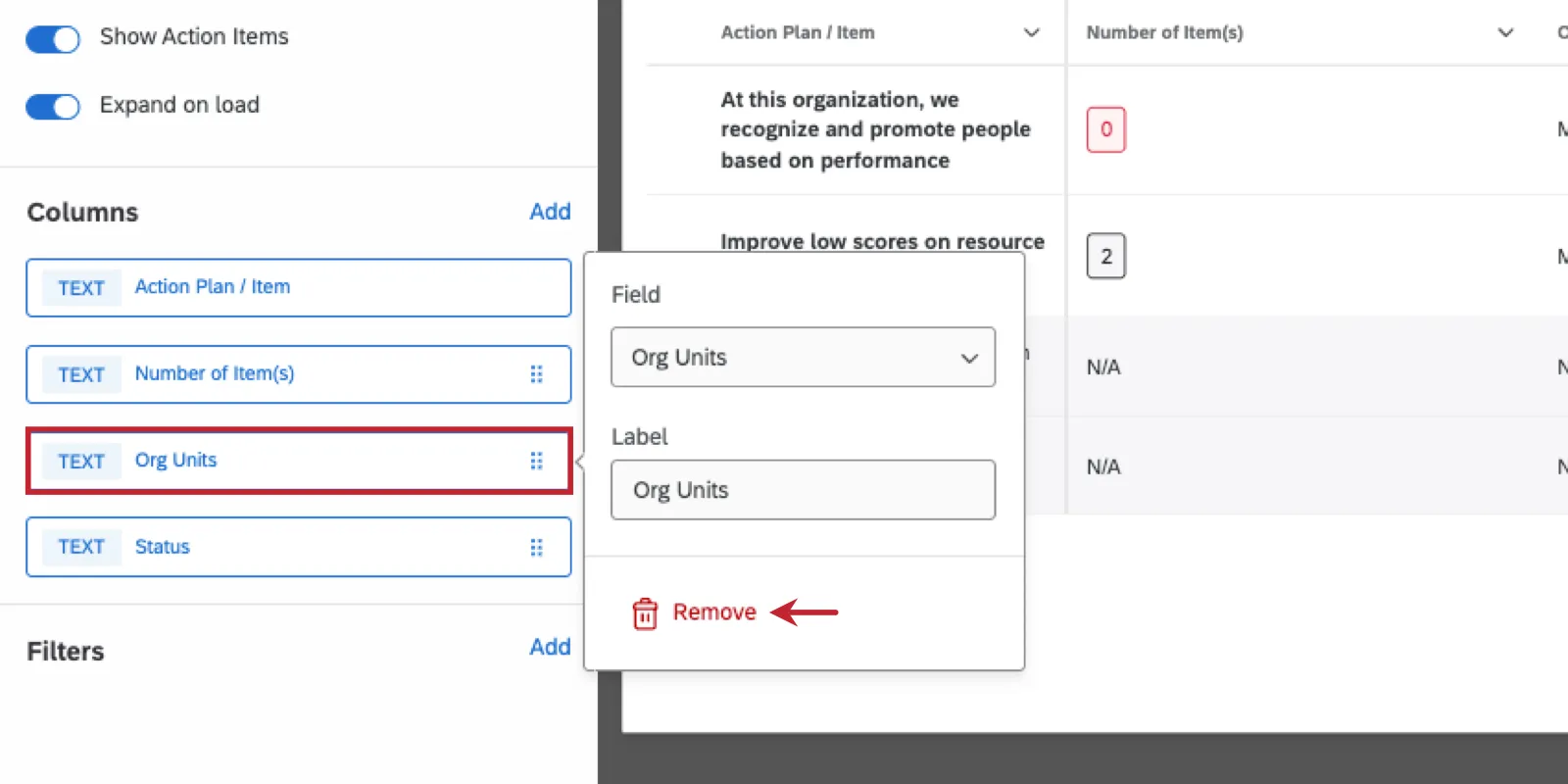
Qtip: You can also click a column from the list to change the label or the field itself.
Filters
You can also add a filter directly to this widget. For steps, see Adding a Widget Filter.
Qtip: Dashboard page filters apply to action plans themselves, not to subtasks (also called "items").
FAQs
How is action planning affected by confidentiality settings?
How is action planning affected by confidentiality settings?
Action planning-specific fields, including the default ones listed here and any custom fields you create, cannot be marked sensitive.
You can create action plans based on any items you'd like on the action planning page. However, if confidentiality settings are hiding items from a widget, like a question list widget, you won't be able to create action plans for those items from the widget itself.
That's great! Thank you for your feedback!
Thank you for your feedback!