

Inserting Content into Report Templates (EX)
What's on this page
Qtip: This page describes functionality available to Engagement, Lifecycle, and Ad Hoc Employee Research projects. For more details on each, see Types of Employee Experience Projects.
About Inserting Content into Report Templates
You will build your report template by inserting various types of content, such as data visualizations, images, page breaks, headers and footers.
Adding Content
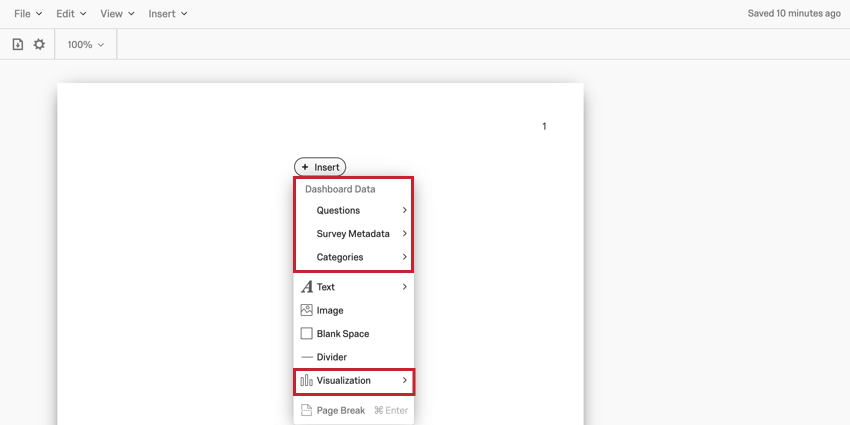
To add content into your report template:
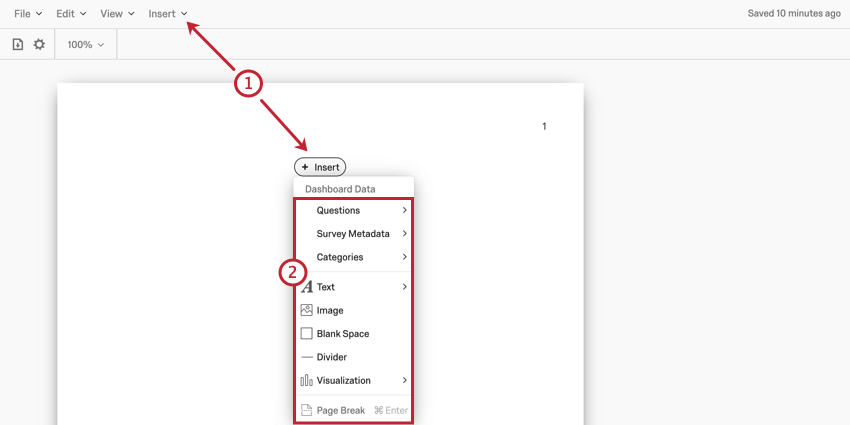
Qtip: The menus that open are mostly the same. The only difference is that you can add Page Headers and Footers from the toolbar menu only.
- Questions, Survey Metadata, Categories, and Visualizations: inserts a data visualization, such as a chart or table, for analyzing your response data.
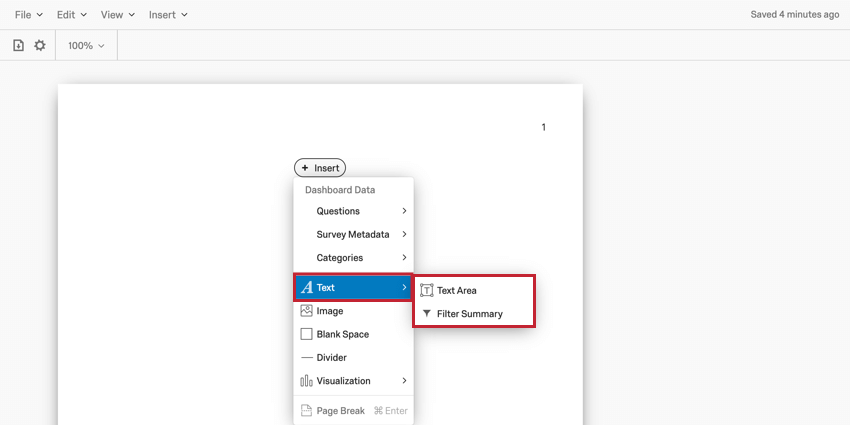
- Text: inserts either a Text Area where you can type text for your report viewers to read or add a Filter Summary which will show you the dashboard filters that are applied when you export your report.
- Image: Inserts an image into your report template. You can choose an image from your Library or provide the URL of an image hosted online.
- Blank Space: Inserts a blank space into your report template.
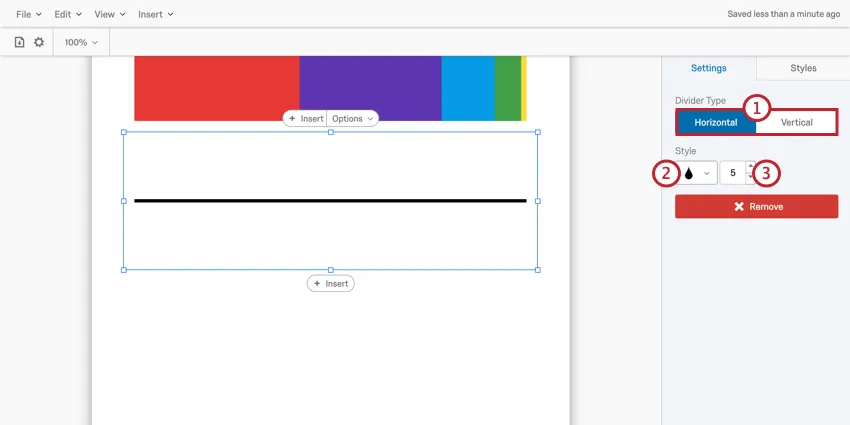
- Divider: Inserts a horizontal or vertical line into your report template.
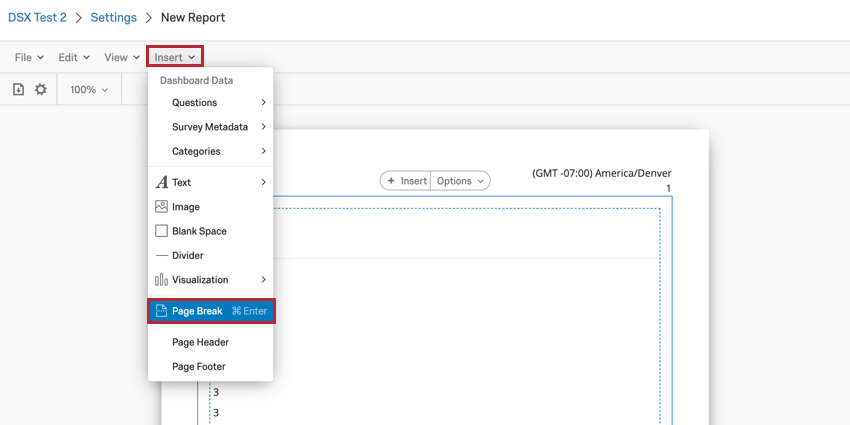
- Page Break: Inserts a page break into your report template.
- Page Header: Add a header to your report template. Qtip: This option is available in the Insert menu from the toolbar only.

- Page Footer: Add a footer to your report template. Qtip: This option is available in the Insert menu from the toolbar only.
Visualizations
The bulk of your report template will be made of data visualizations. You can choose to either insert a specific visualization type and then choose what data is displayed, or choose what data to display, and then pick a fitting visualization.
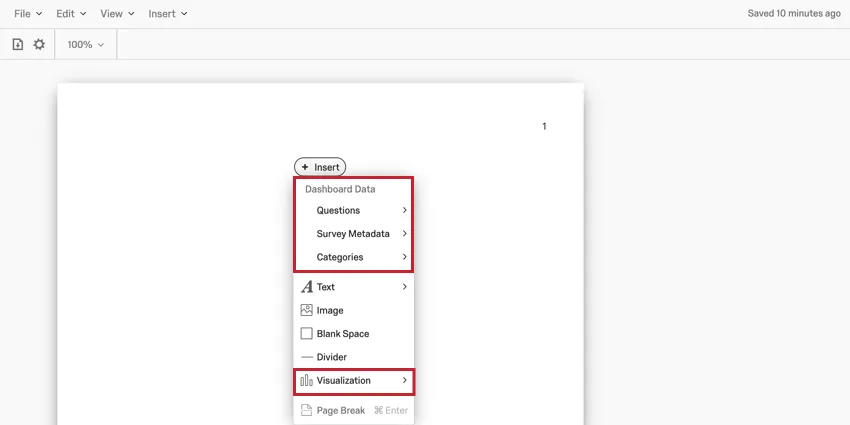
For more information about visualizations, read the Visualizations Overview. For information on any given visualization, check our our List of Report Template Visualizations.
Text
After selecting Text, you can choose to insert either a Text Area or a Filter Summary.
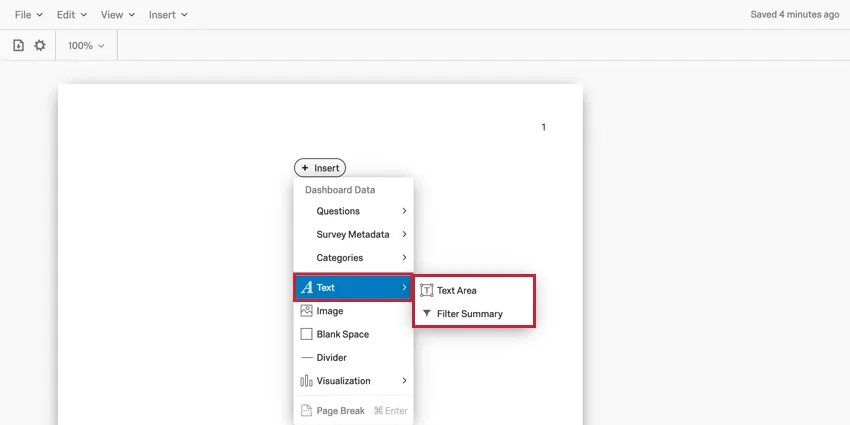
Text Area
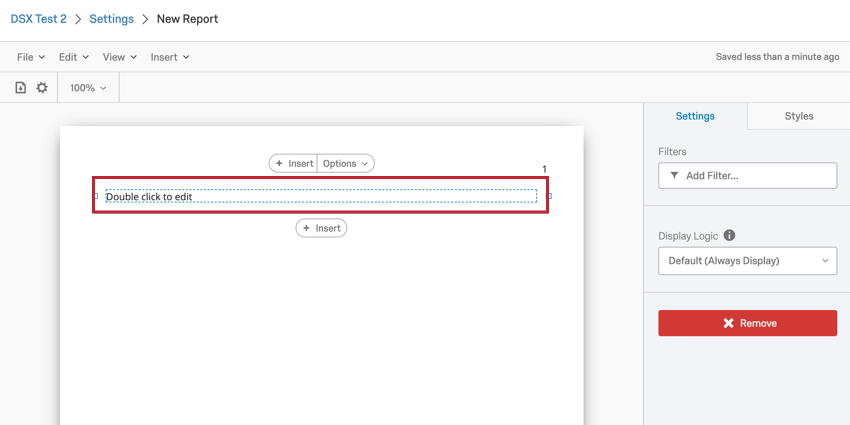
Once a Text Area is added to your report template, double click it to start editing.
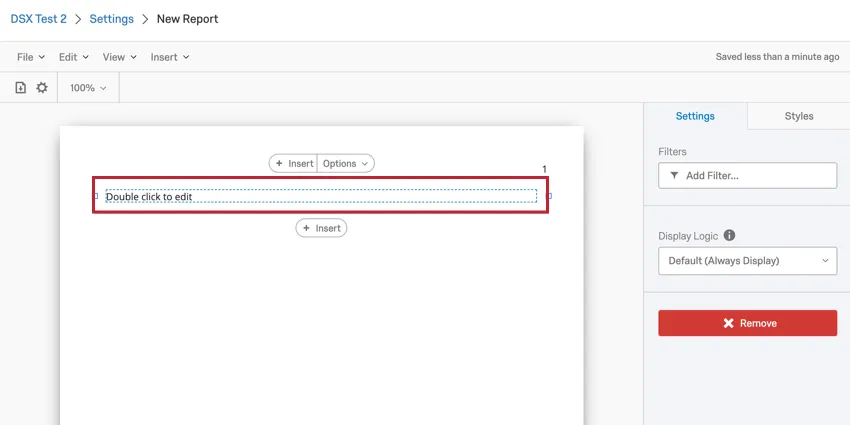
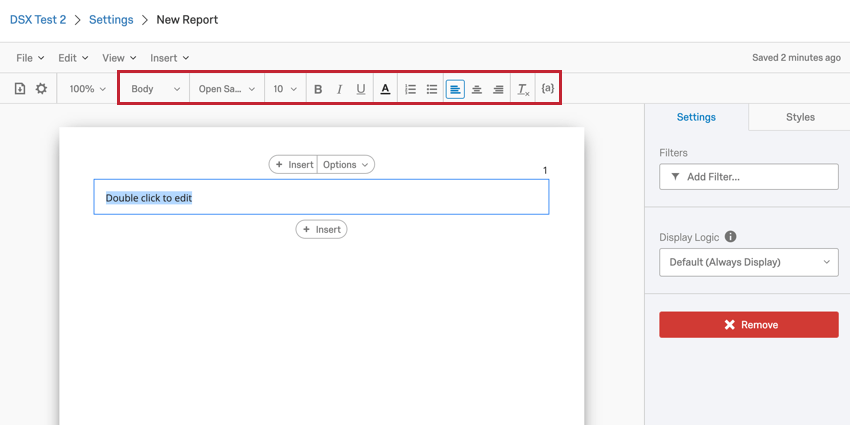
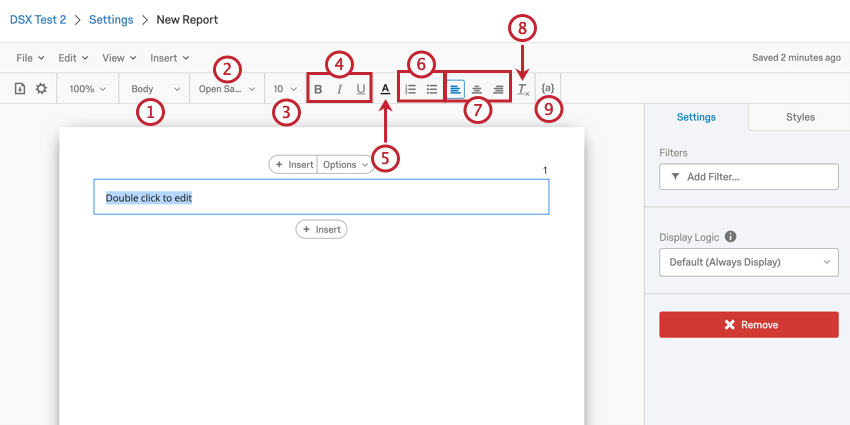
While editing your Text Area, a Rich Content Editor will be added to your report template. Here, you can design the text that goes in your Text Area.
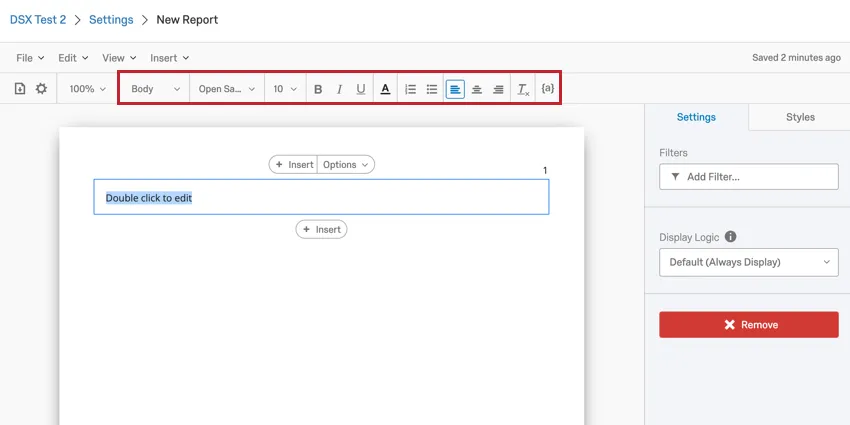
Using the Rich Content Editor, you can do the following:
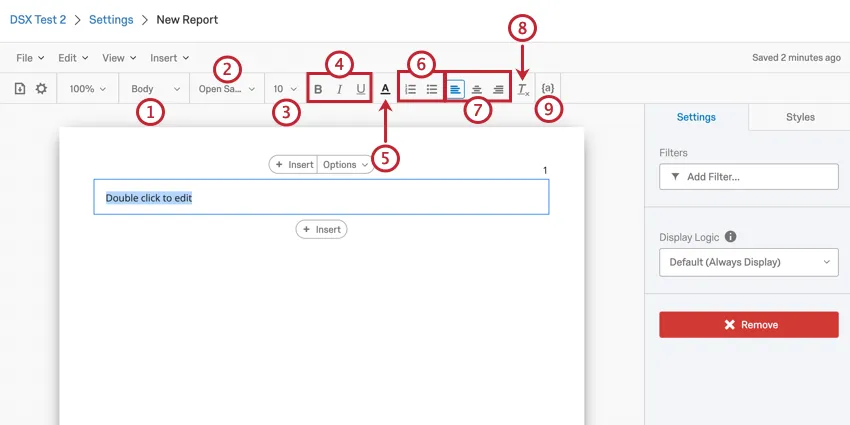
Filter Summary
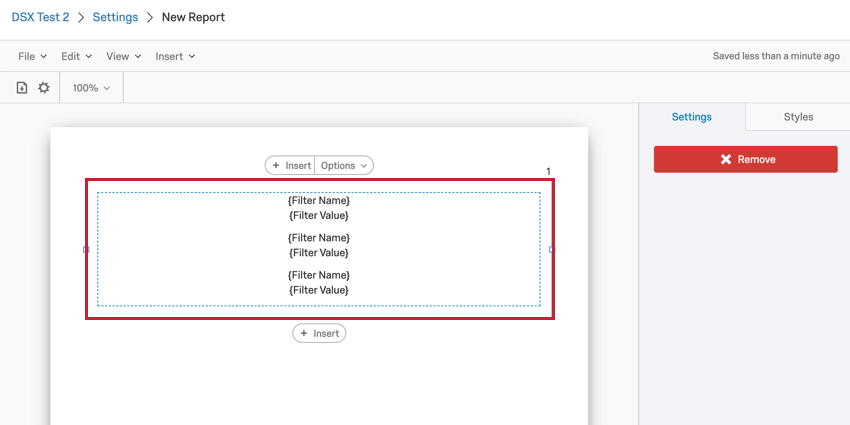
The Filter Summary option will add a text box into your report template that you cannot edit or modify.
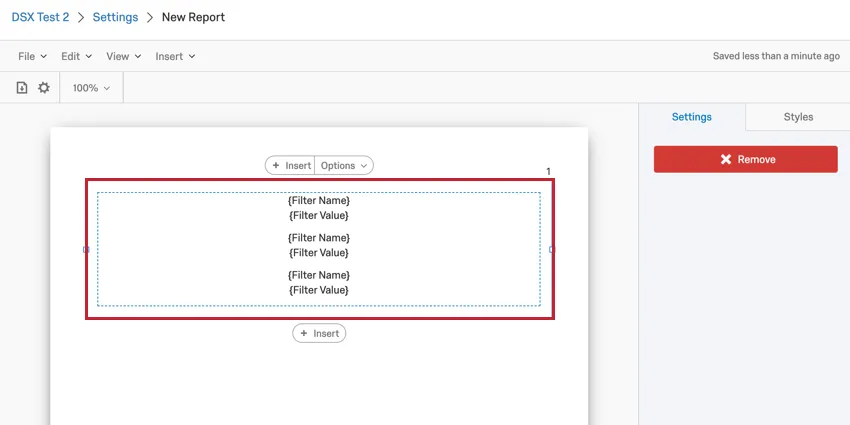
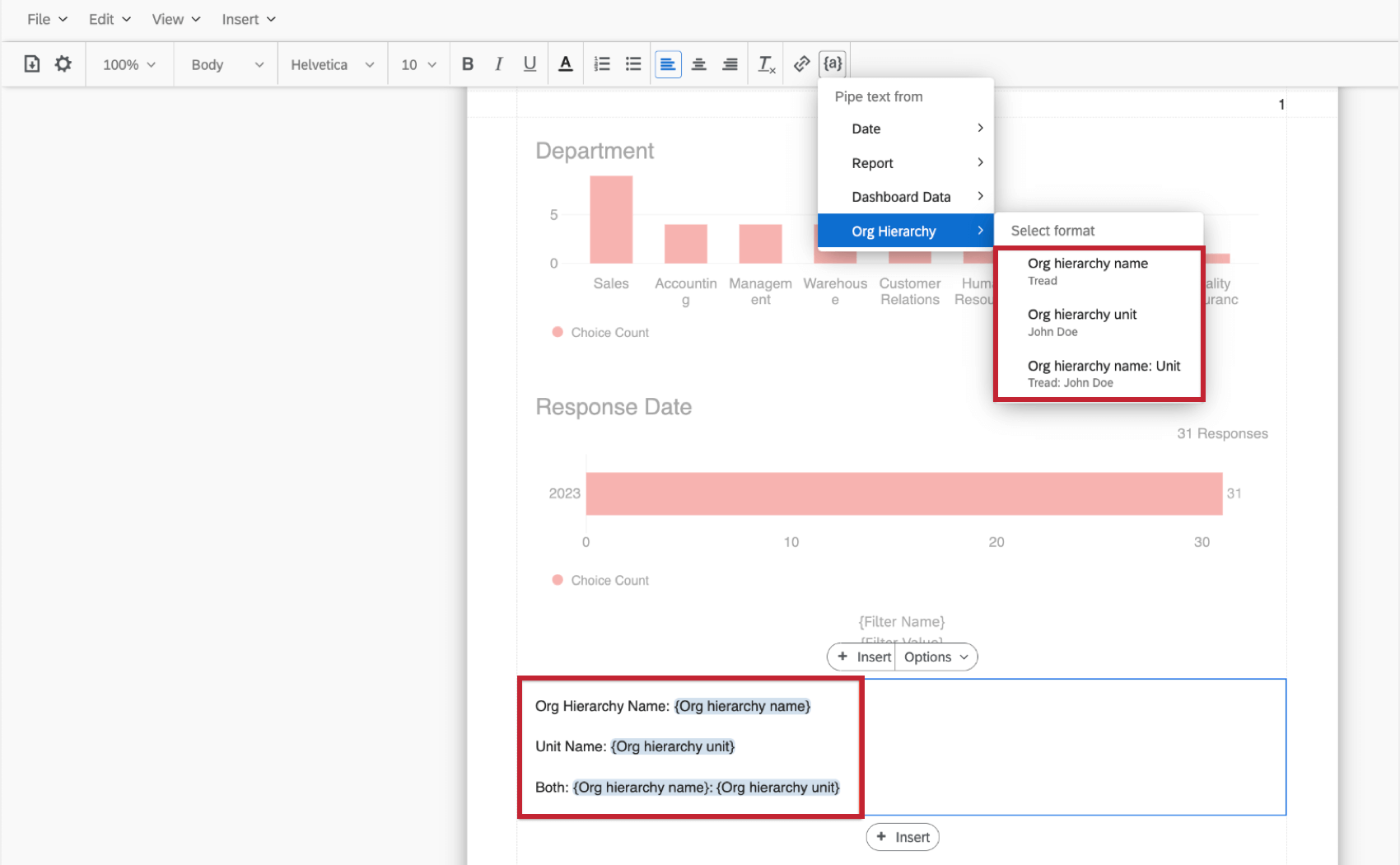
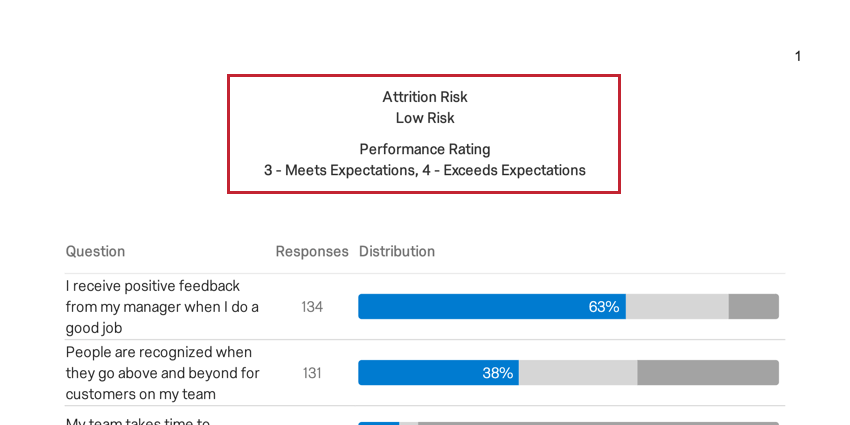
When you export your report, this text box will display the dashboard filters that are applied to your dashboard. This does not include the dashboard org hierarchy filter. If you’d like to show org hierarchy information, add a text area and insert piped text for the hierarchy name and/or unit.
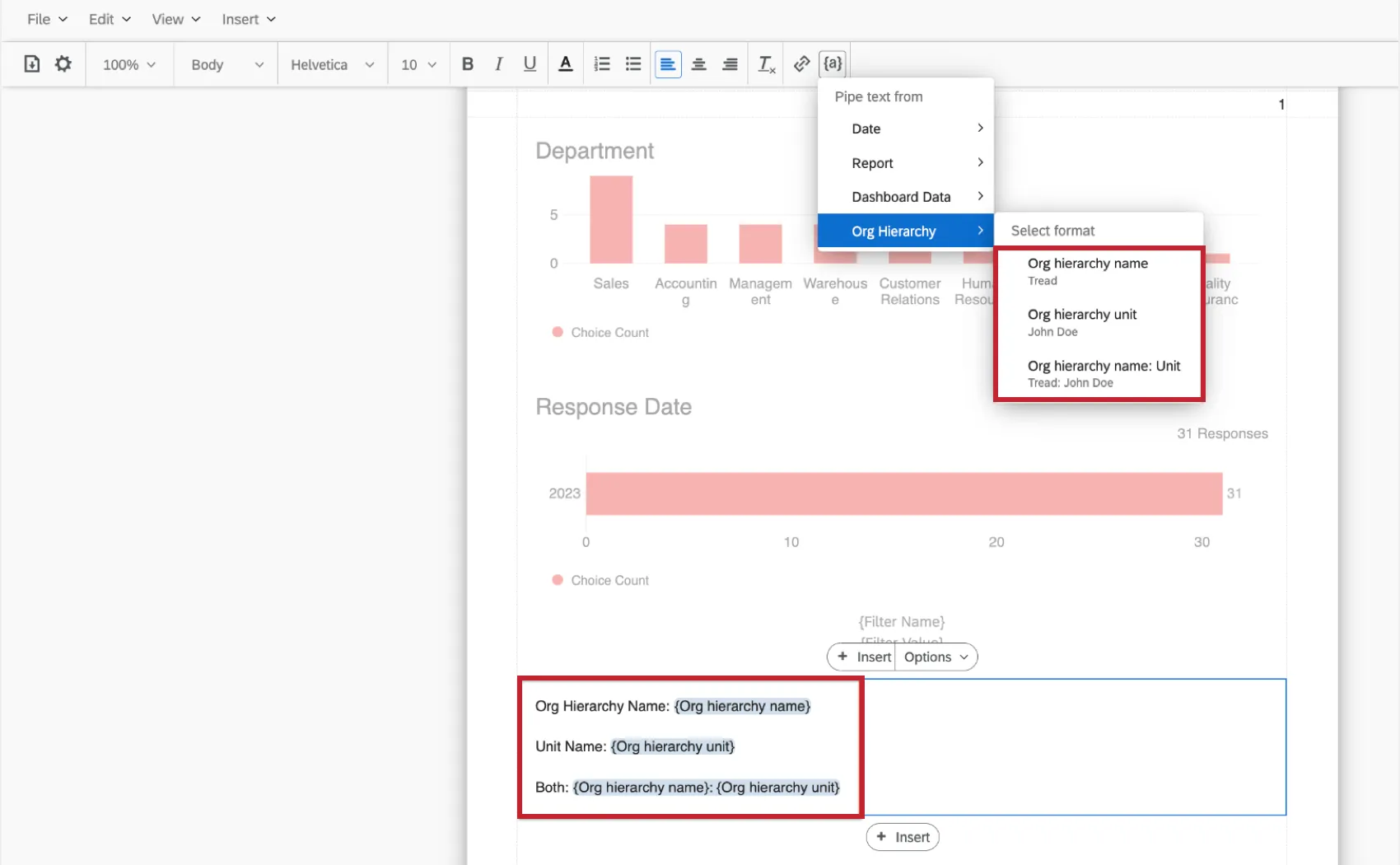
Qtip: Only filters that have been adjusted to filter for a specific field value will be included. Any filters set to display all data for the field will not be included in the filter summary.
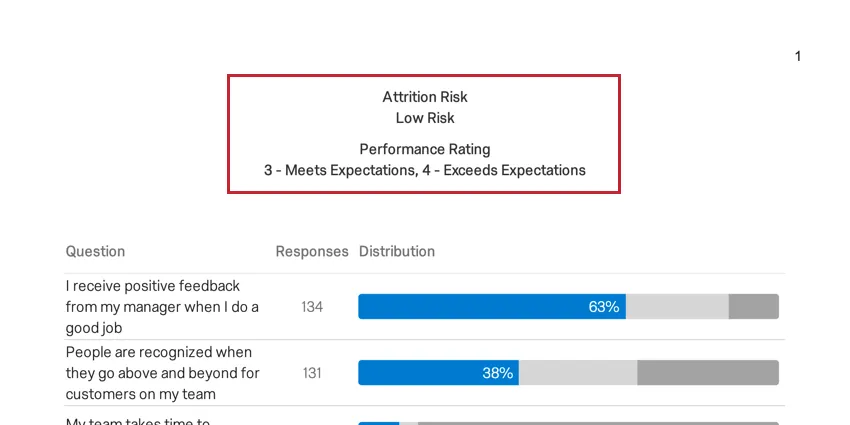
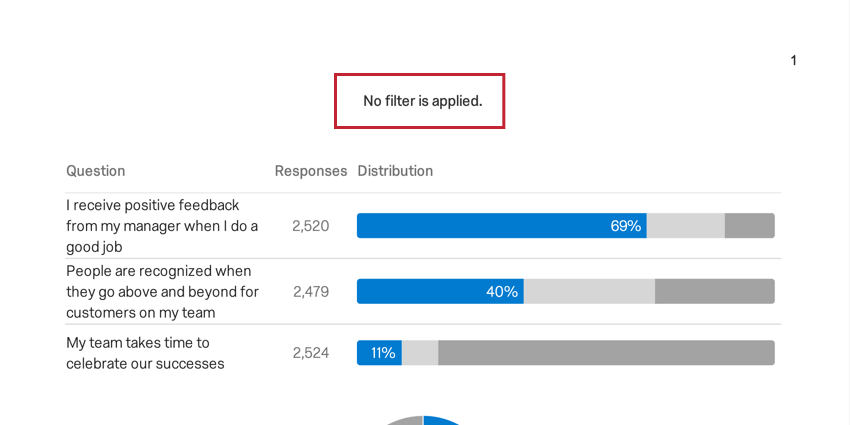
If no filters are applied when the template is exported, the filter summary will say No filter is applied.
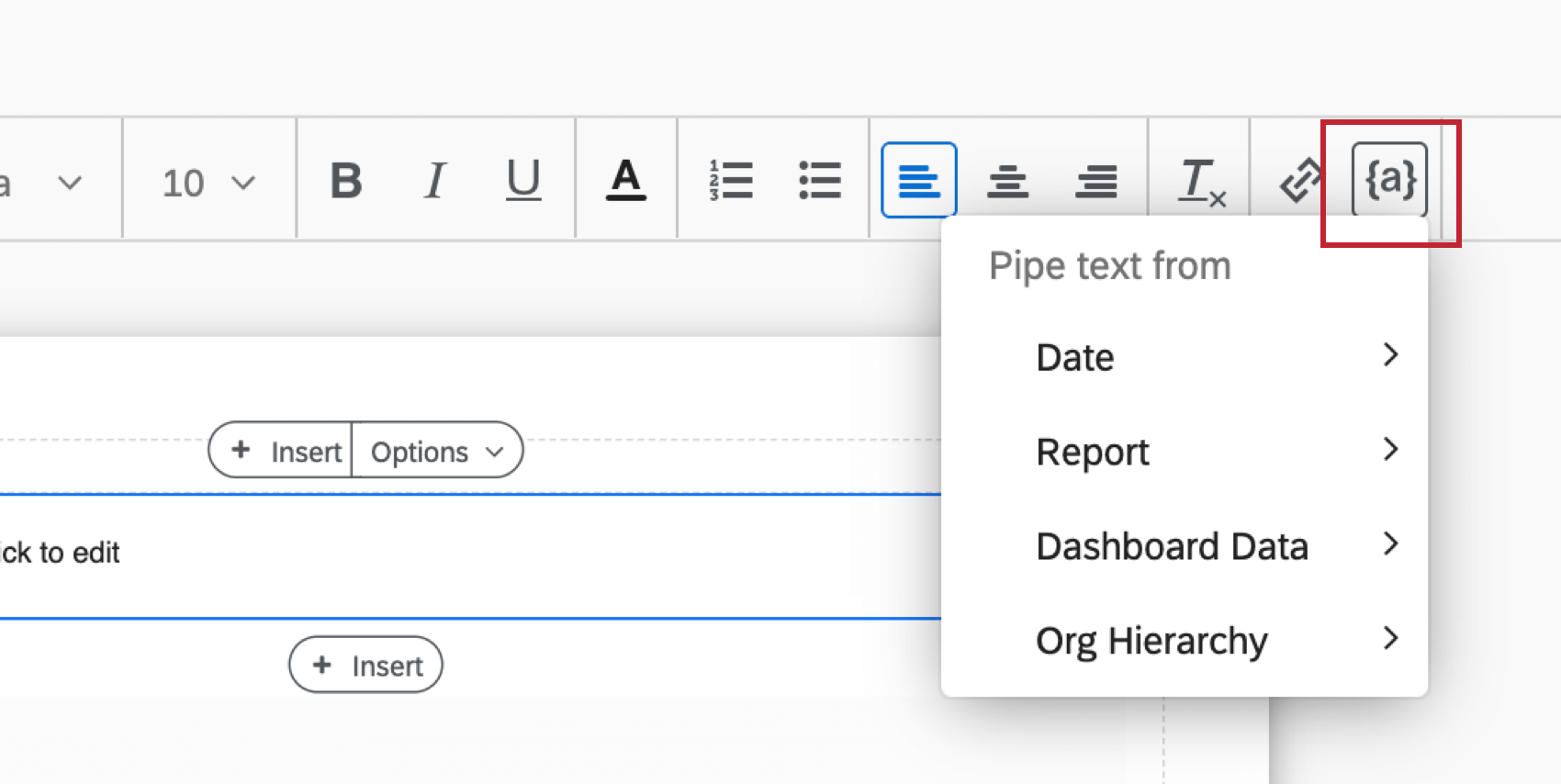
Piped Text
The following types of piped text are available in EX reports templates.
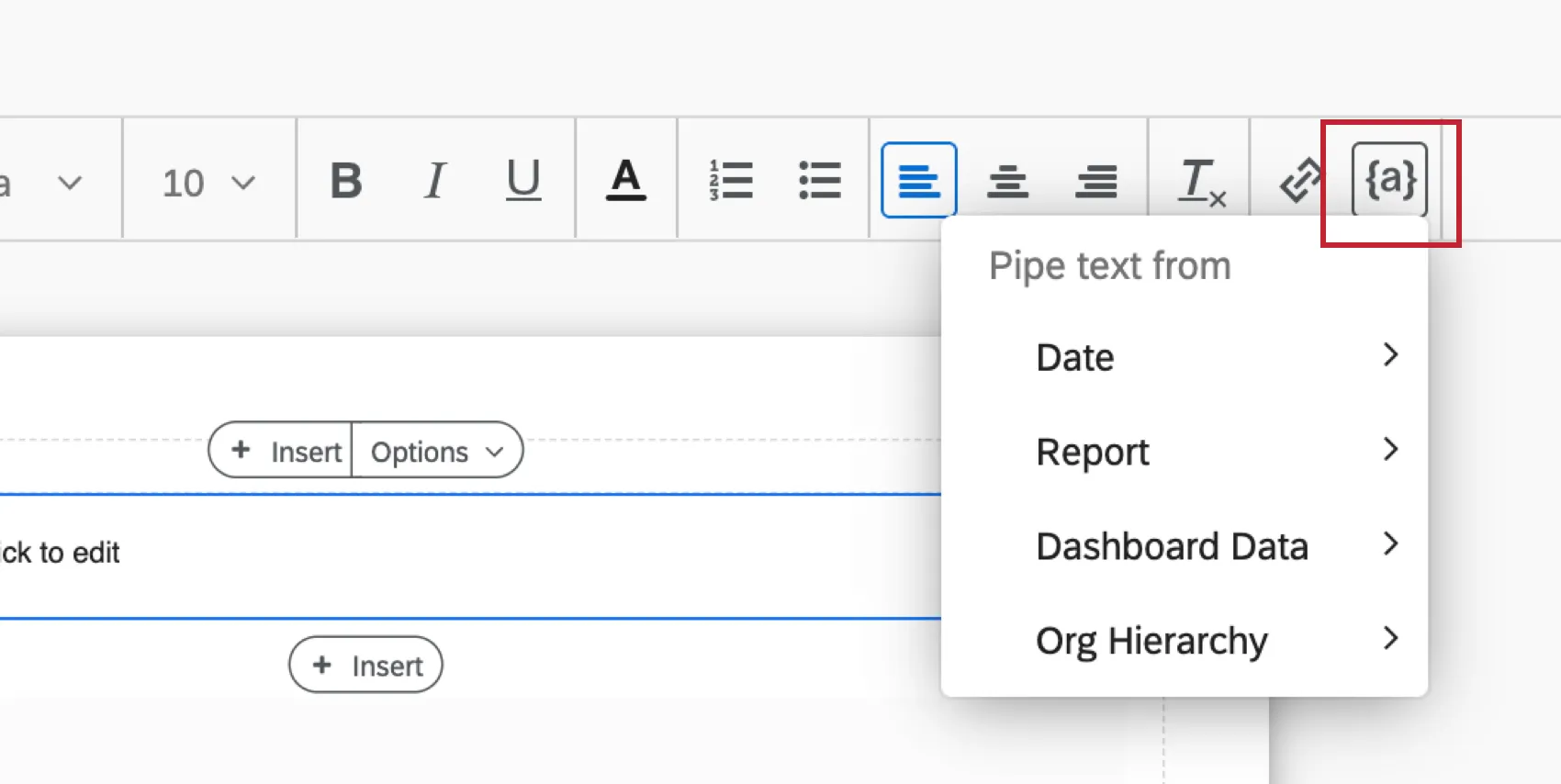
- Date: Displays the date that the report is exported in several optional formats.
- Report: Displays the name of the report template. This name is set when the report template is created.
- Dashboard Data: Displays information from the dashboard, such as name, total responses, questions from the survey, and more.
- Org Hierarchy: Displays the org hierarchy name and/or unit that the user is part of.
Qtip: See Piped Text for general information on using piped text.
Image
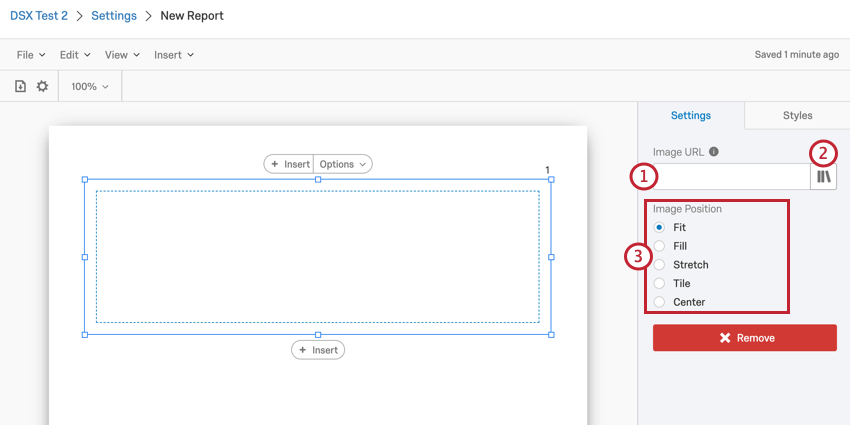
You can insert an image into your report template. To get started, select Image in the Insert menu. After inserting the image placeholder into your report template, click on it to configure your image.
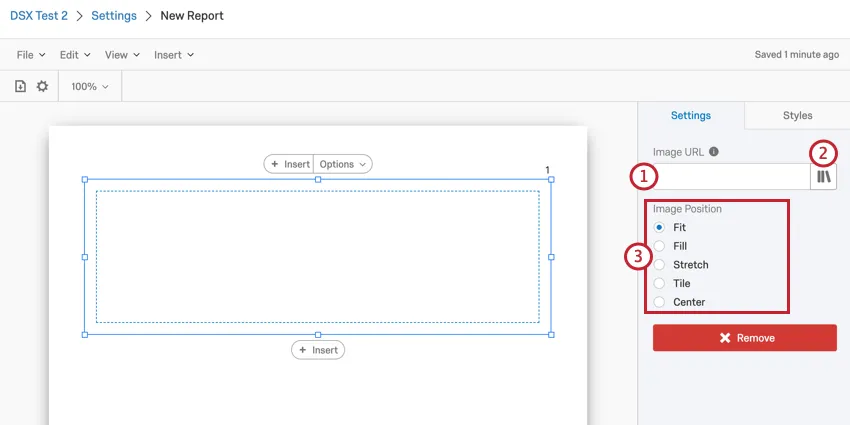
To select and format your image:
Blank Space
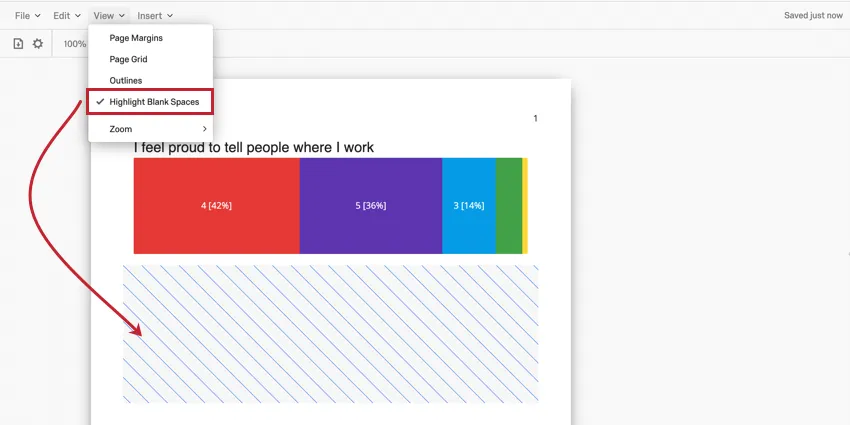
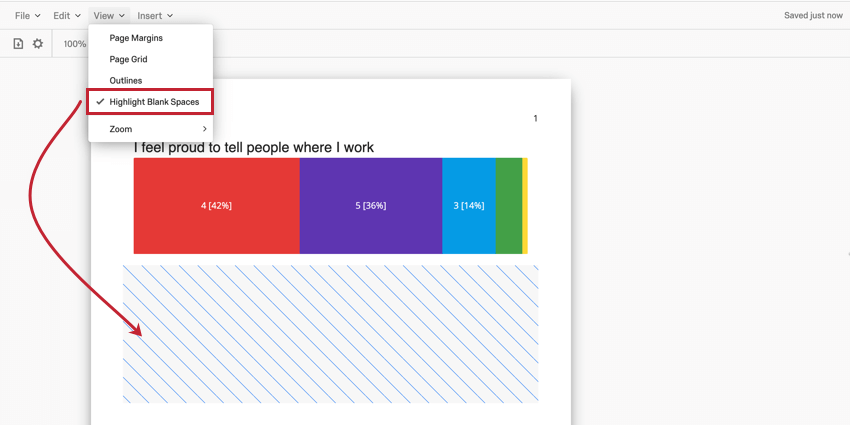
The Blank Space option will insert an empty placeholder into your report template. No data or other content can go in a blank space.
Qtip: Blank Spaces can sometimes be hard to see in your report. To make blank spaces more easily identifiable, enable Highlight Blank Spaces in the View menu. Your blank spaces will still be blank when you export your report.
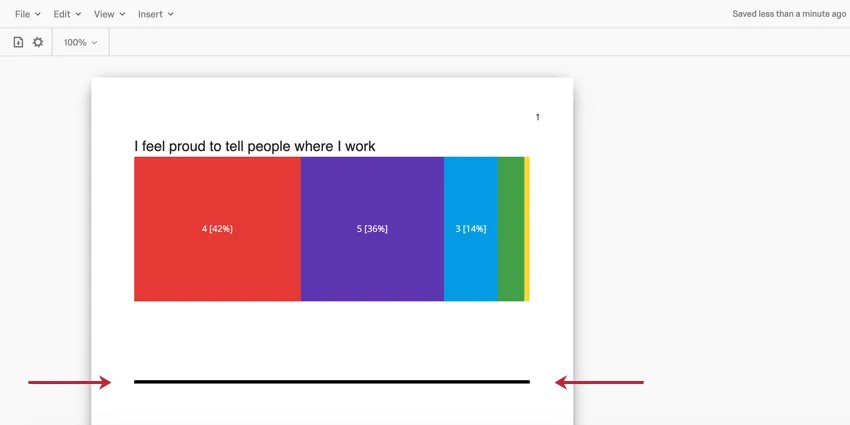
Divider
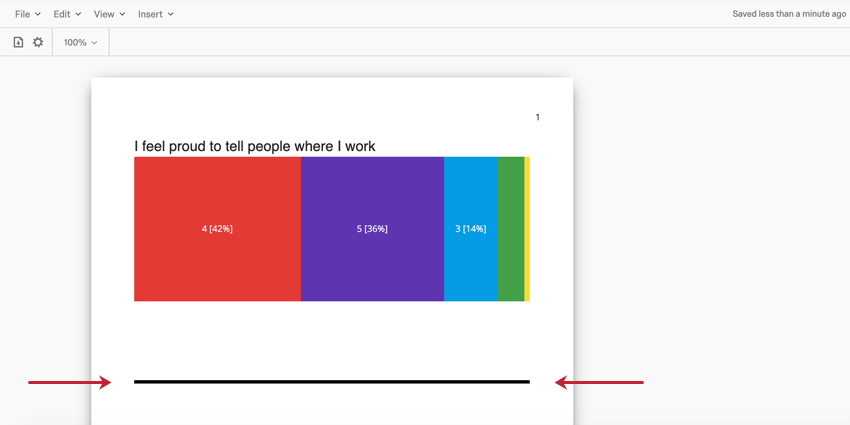
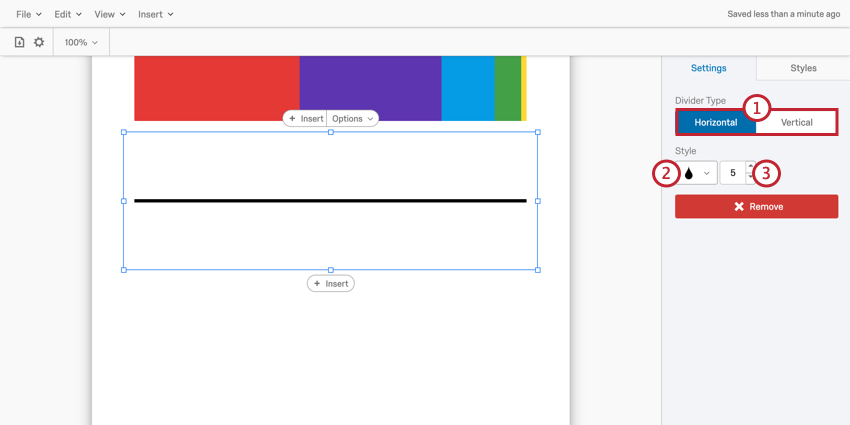
The Divider option will insert a line into your report to be used as a physical division between other pieces of content in your report.
Once inserted, you can edit the following aspects of the divider:
Page Breaks & Deleting Pages
Pages are created automatically when you add visualizations and insert other content. Once a page runs out of room, a new one is automatically created. However, you can also manually insert pages. Inserting a Page Break will move all content below the page break to a new page.
To insert a page break, select Insert and then Page Break.
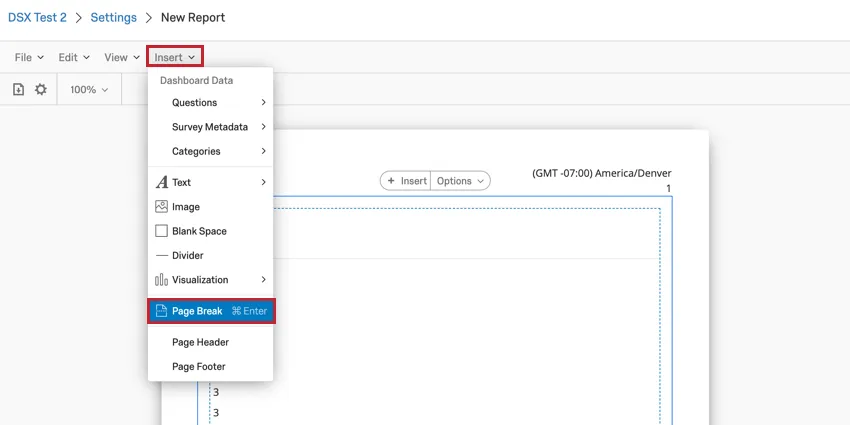
Qtip: You can’t add a page break to a page if the page is completely empty.
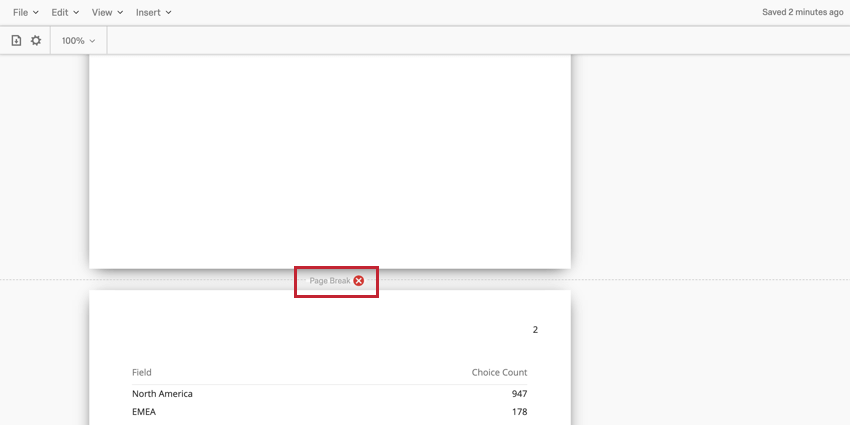
After a page break has been added to your report template, it’ll be found in between your pages in the report template editor. Hover your mouse over the page break and click the red X to remove the page break.
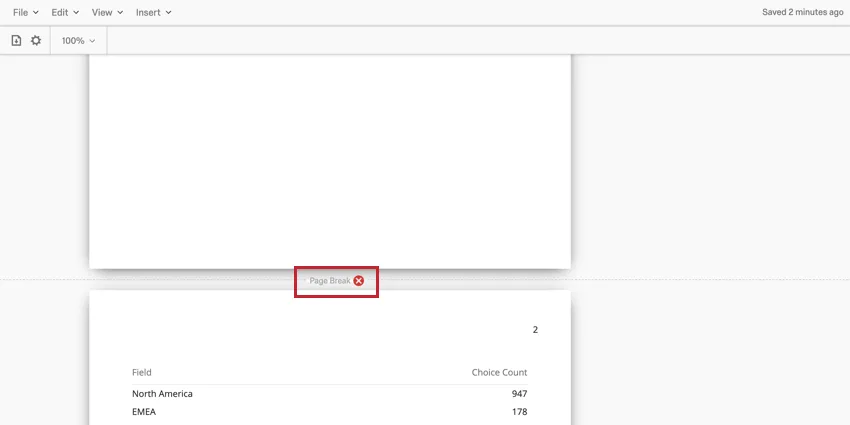
Qtip: Removing a page break will not remove the entire page if there is content on it. You must manually remove the visualizations on a page before it will disappear.
Qtip: If a page is entirely blank, it will not be included when you export the report to PDF. This is true whether there’s two page breaks with nothing between them (or just a blank space), or if the page is blank because display logic has hidden all the visualizations.
Page Header & Footer
Attention: These options are only available through the Insert menu in the report template toolbar.

Clicking Page Header or Page Footer will open the report editor for your header or footer. You can configure the following options:
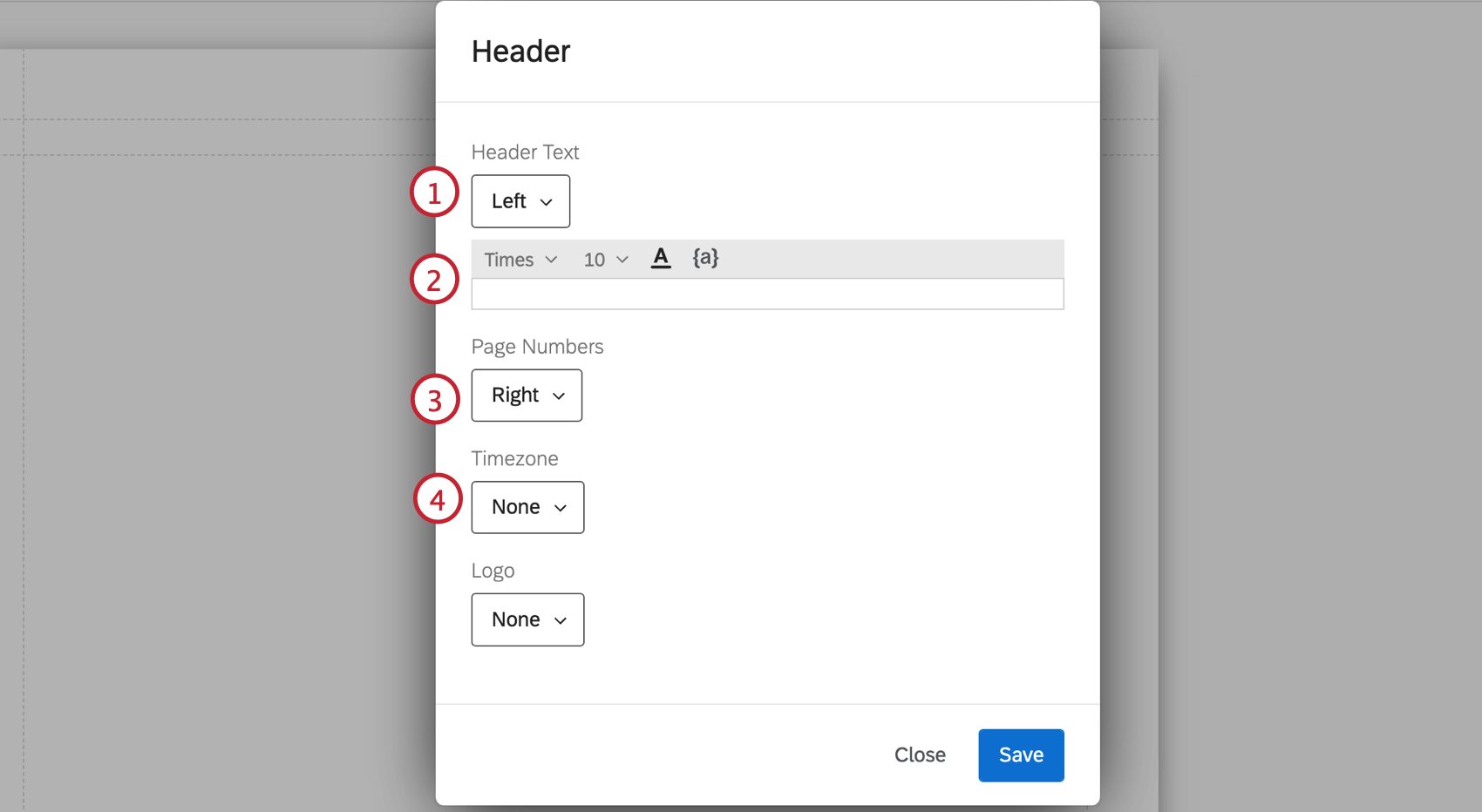
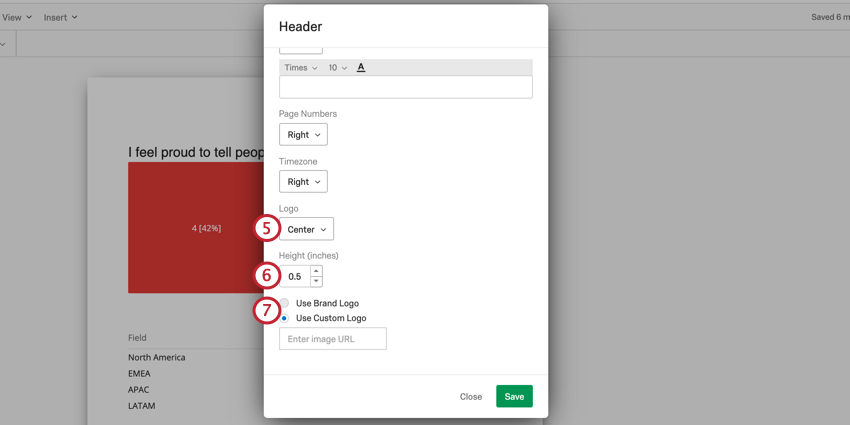
Qtip: If the Use Brand Logo option is grayed out for you, then your brand does not have a logo. Reach out to Account Executive about getting one.
Qtip: If the image you want to use as a logo is saved in your Library, you can copy the image’s URL and use it here.
That's great! Thank you for your feedback!
Thank you for your feedback!