

Step 2: Distributing to Contacts in XM Directory
What's on this page
Distributing to Contacts in XM Directory
Qtip: If you’d like help setting up your survey, check out our Survey Platform support pages. Otherwise, if you’re ready to start distributing, read on!

Once you create a survey and set up your contacts, it’s time to send out some survey invites!
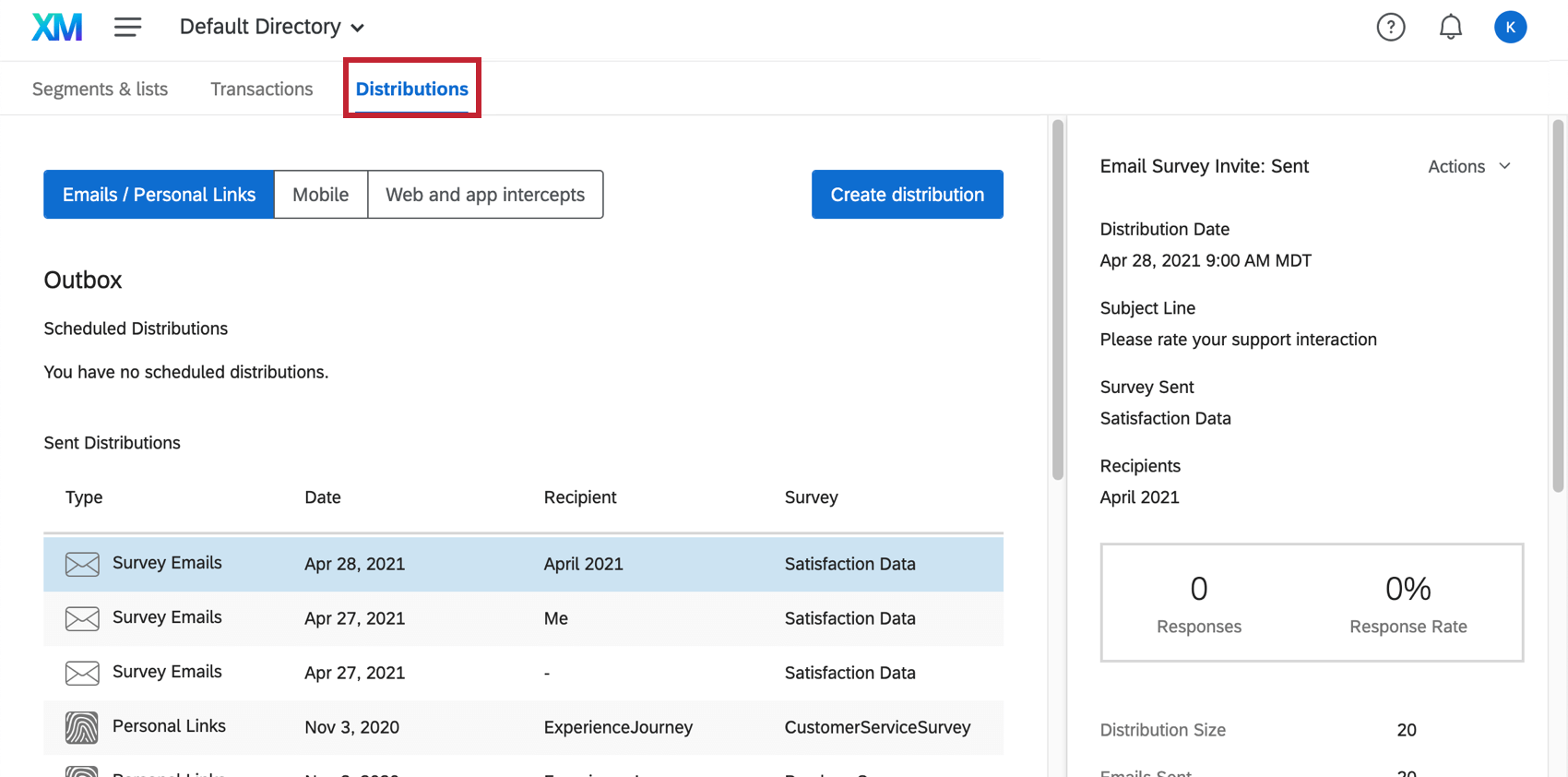
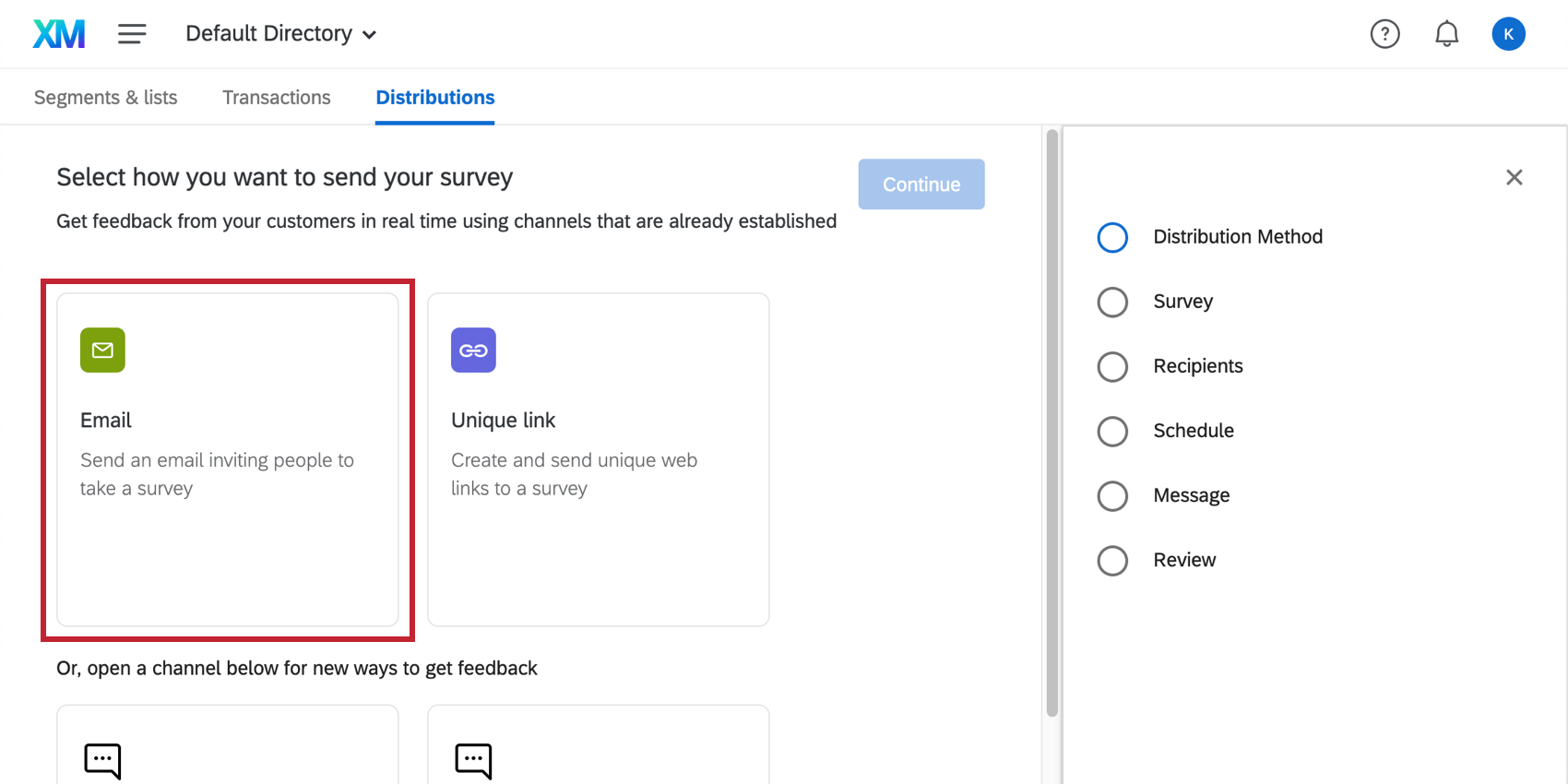
XM Directory allows you to distribute projects directly through the Directories page, so you do not need to switch between XM Directory and a specific project every time you want to send an invite. To get started, go to the Distributions tab and select Create distribution.
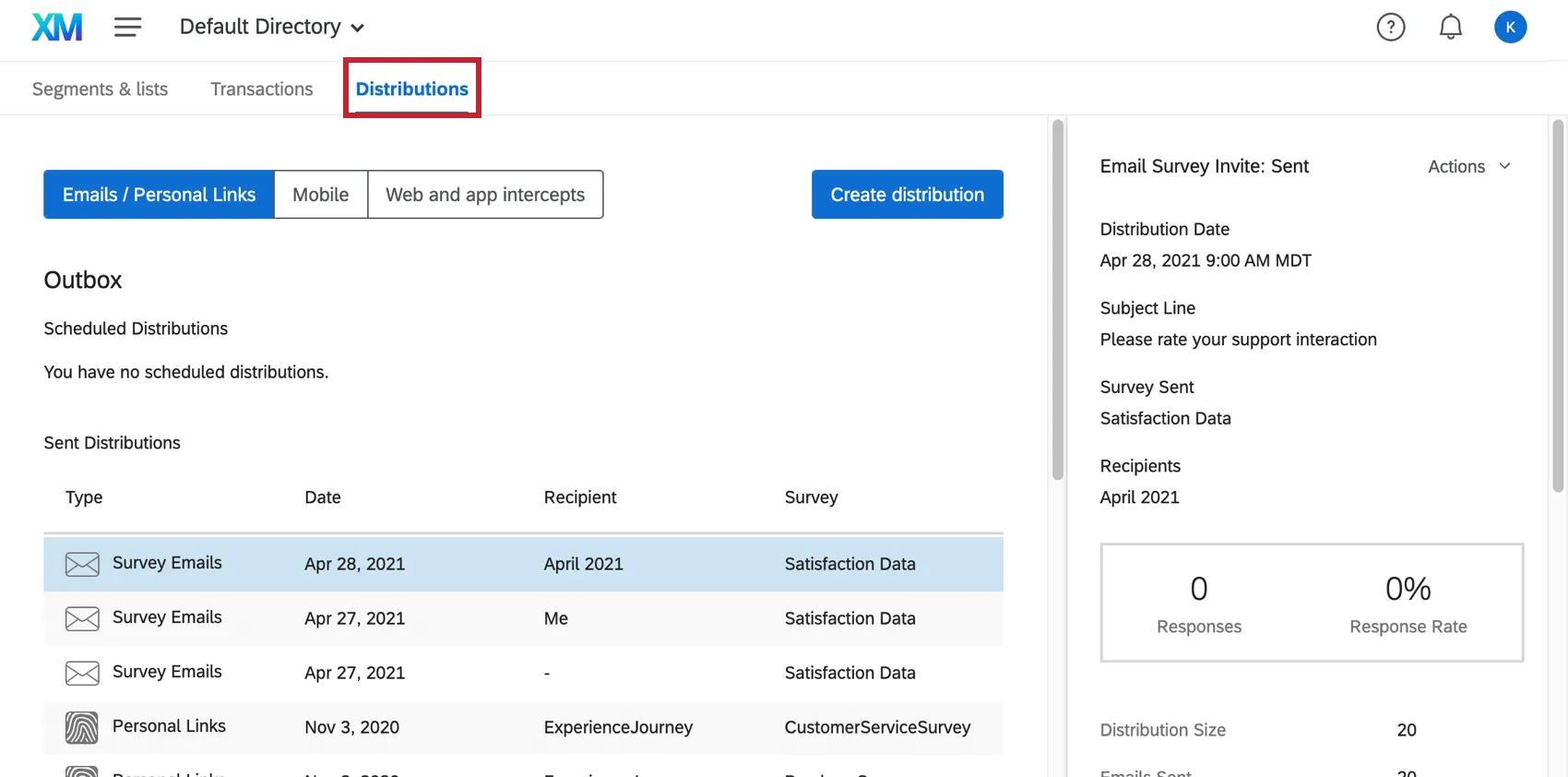
Qtip: You should only send distributions from your own account. Sending a distribution that was created by a collaborator can cause issues.
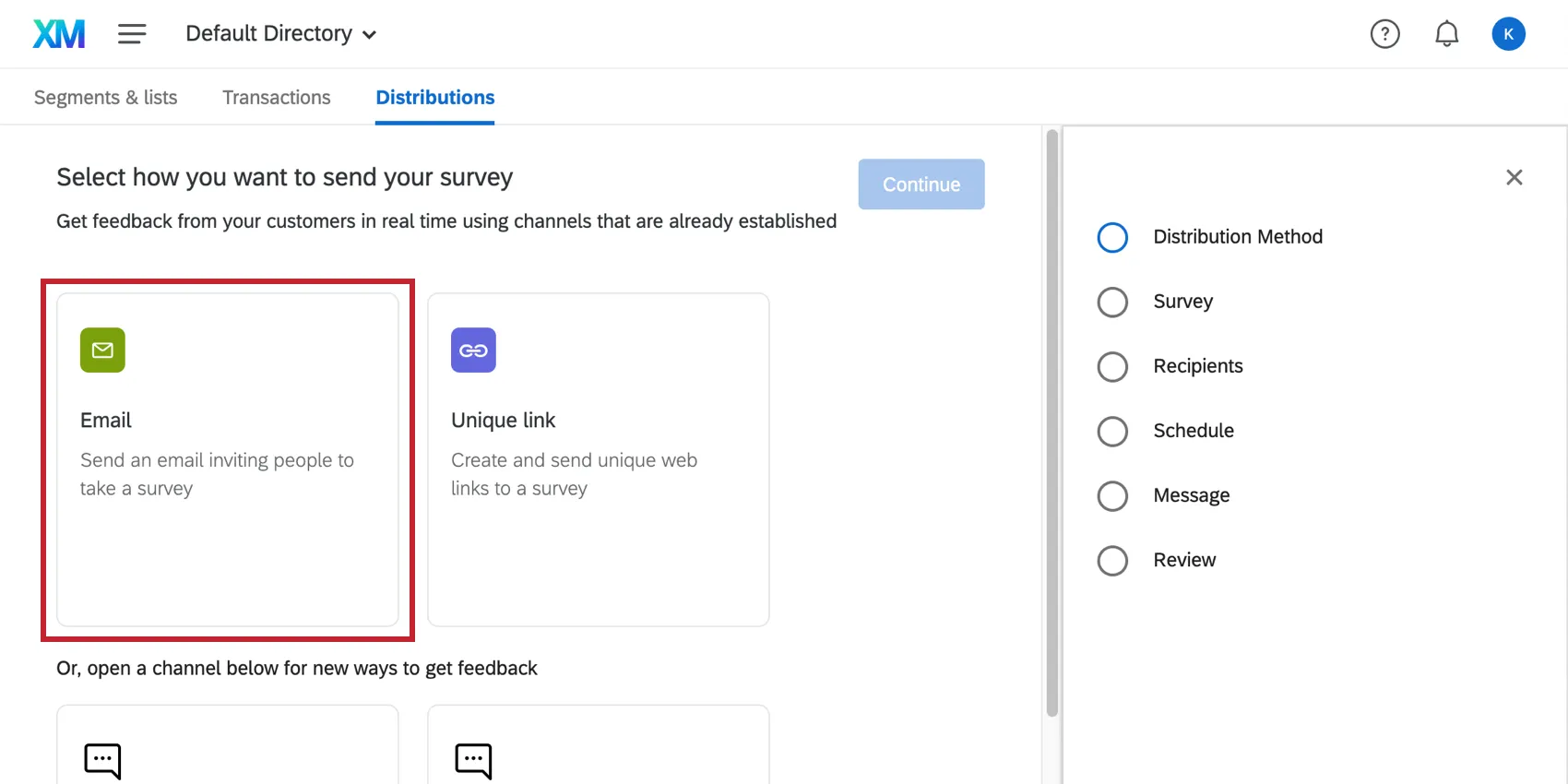
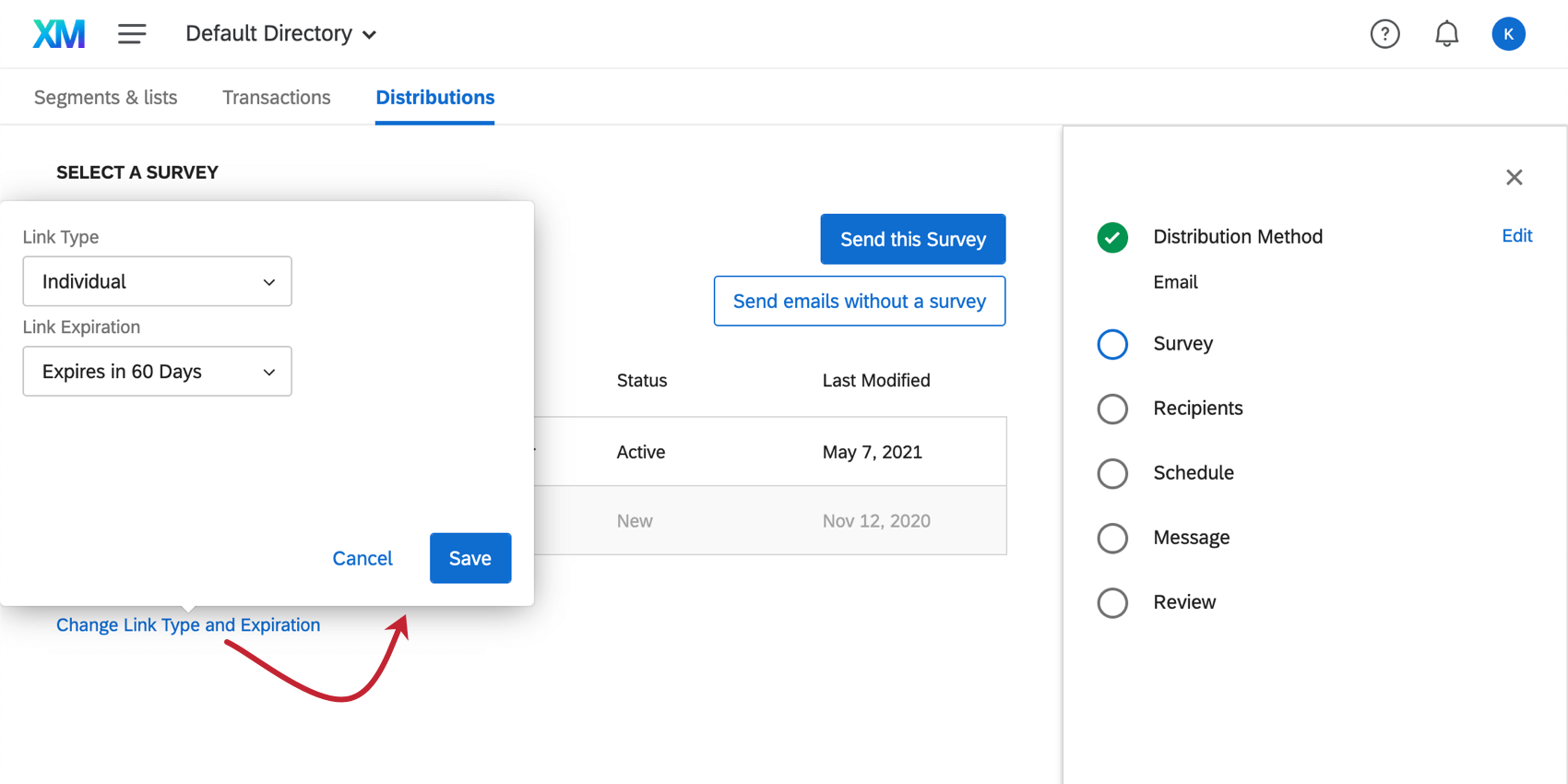
Sending survey invites through email is very easy. When you create a new distribution, the user interface will guide you through the steps you need to complete.
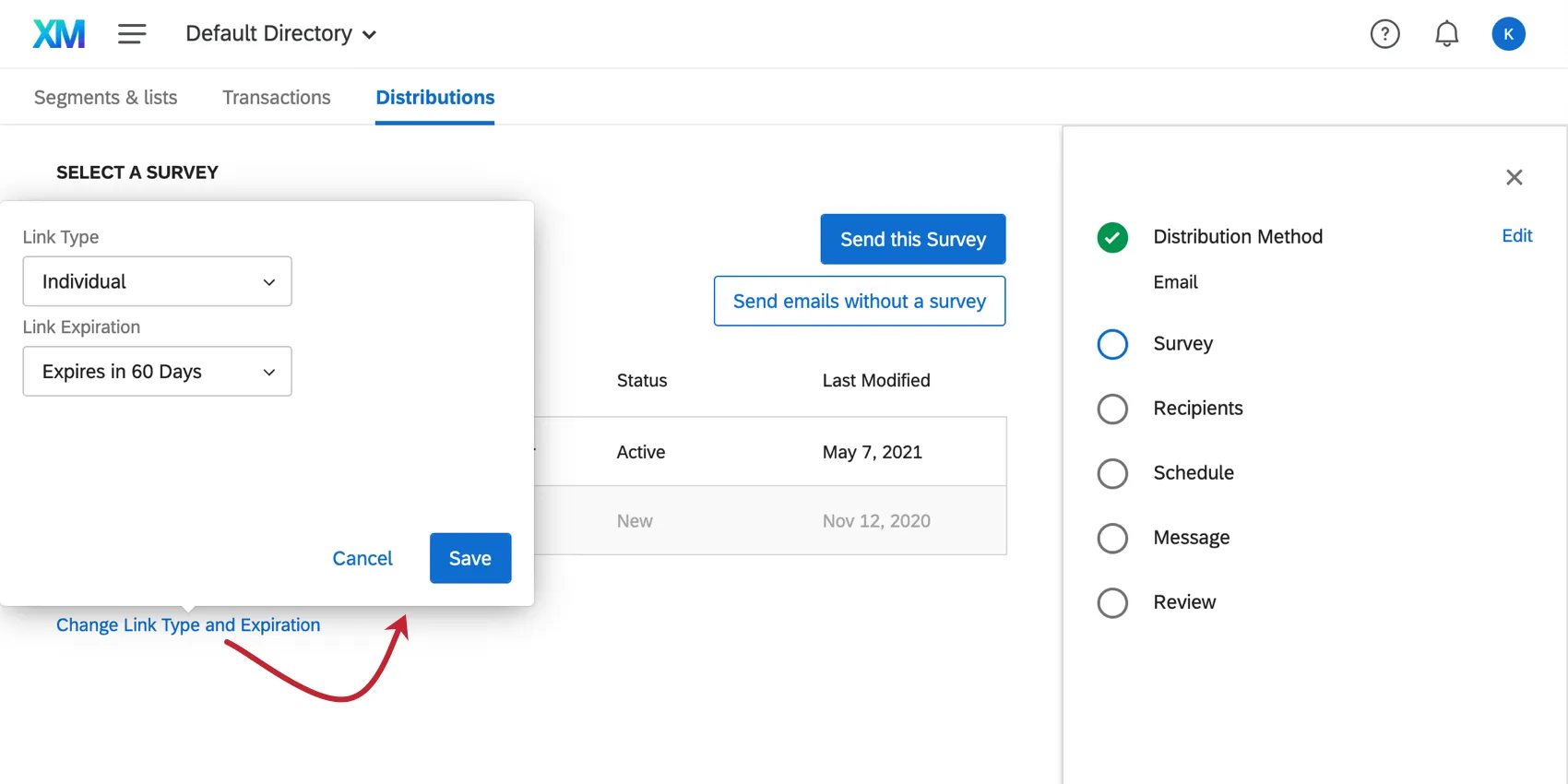
Remember to choose a link type carefully. This option determines whether the respondents’ personal information is recorded, if they can retake the survey, or whether you will be able to send reminder and thank you emails later.
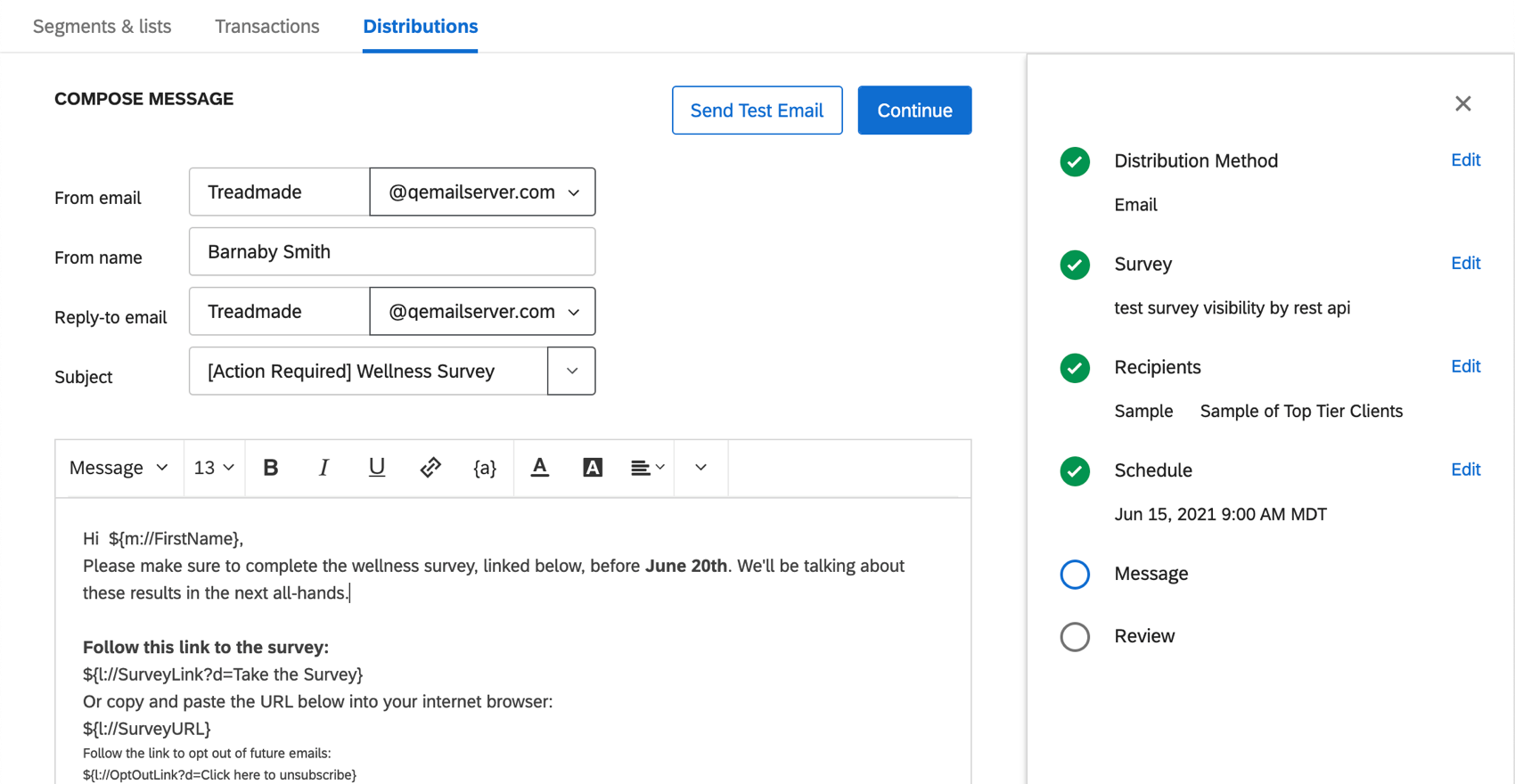
Every email comes ready with a link to the survey and opt-out details. You can customize the message however you want, and even send a test to yourself to check that everything looks correct before officially sending the email.
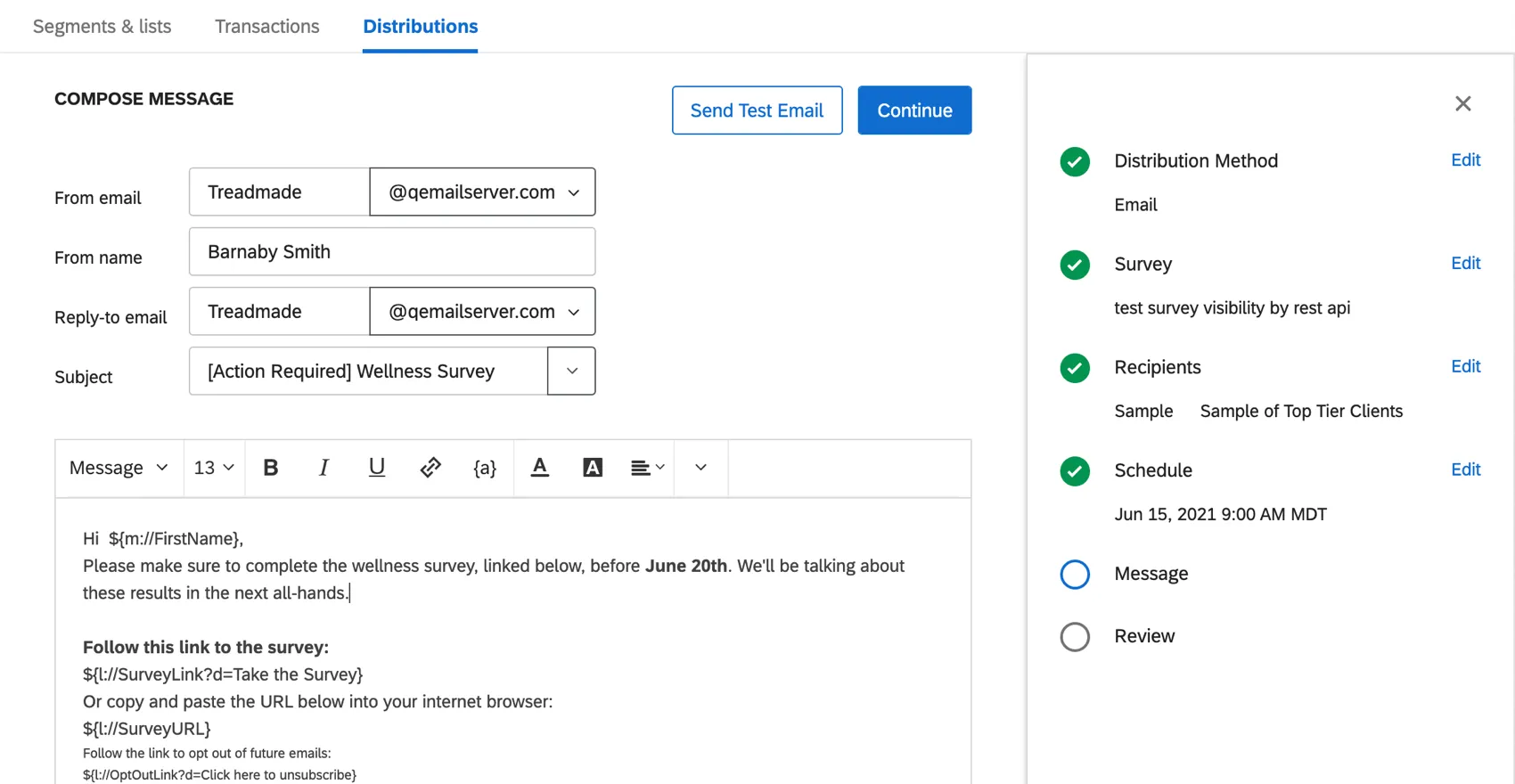
Qtip: See Send Emails in XM Directory for more details.
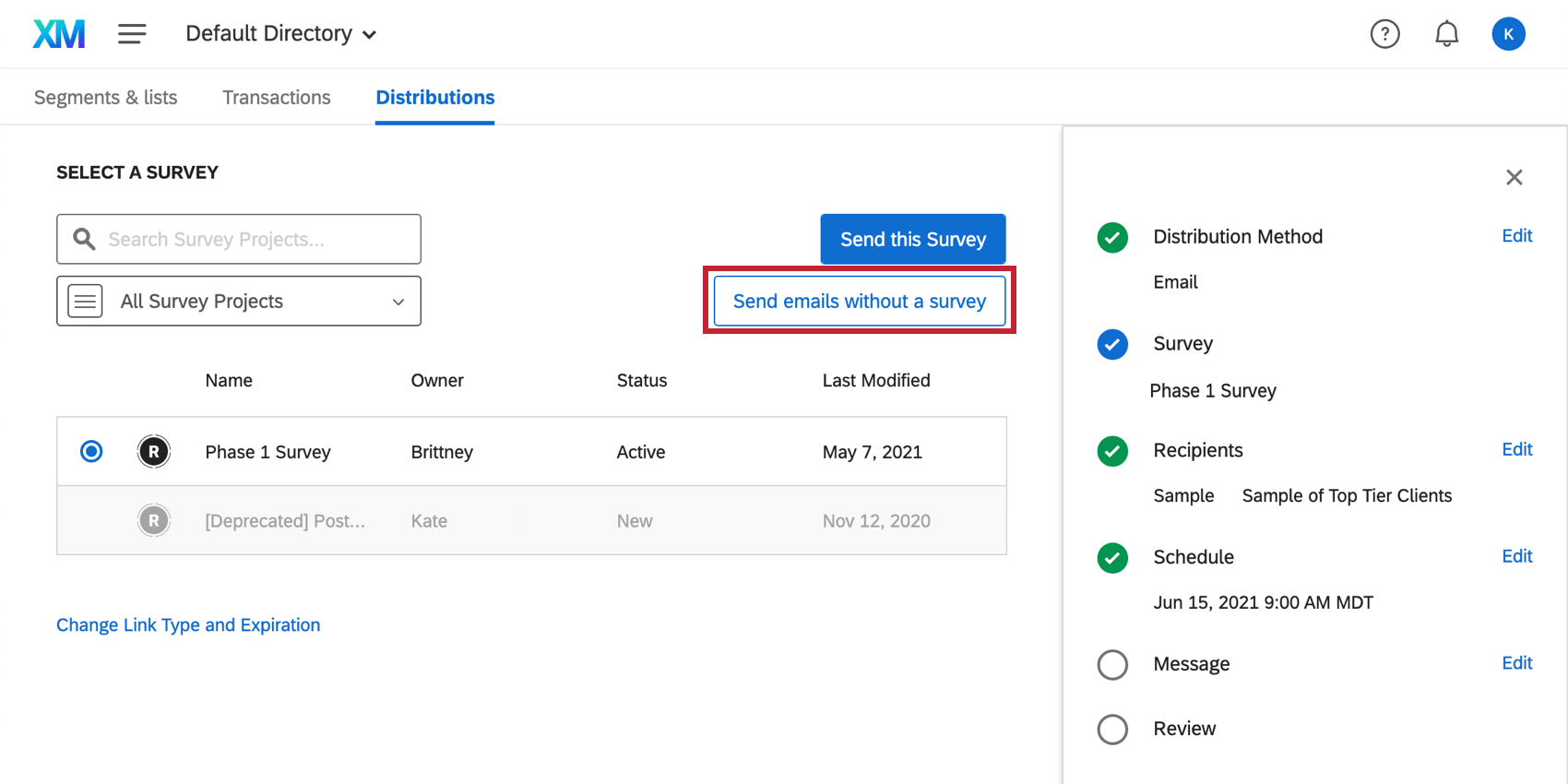
XM Directory also allows you to send emails without a survey. This can be useful for email campaigns, announcements, or general information emails. However, these types of emails do not support reminder or thank you emails.
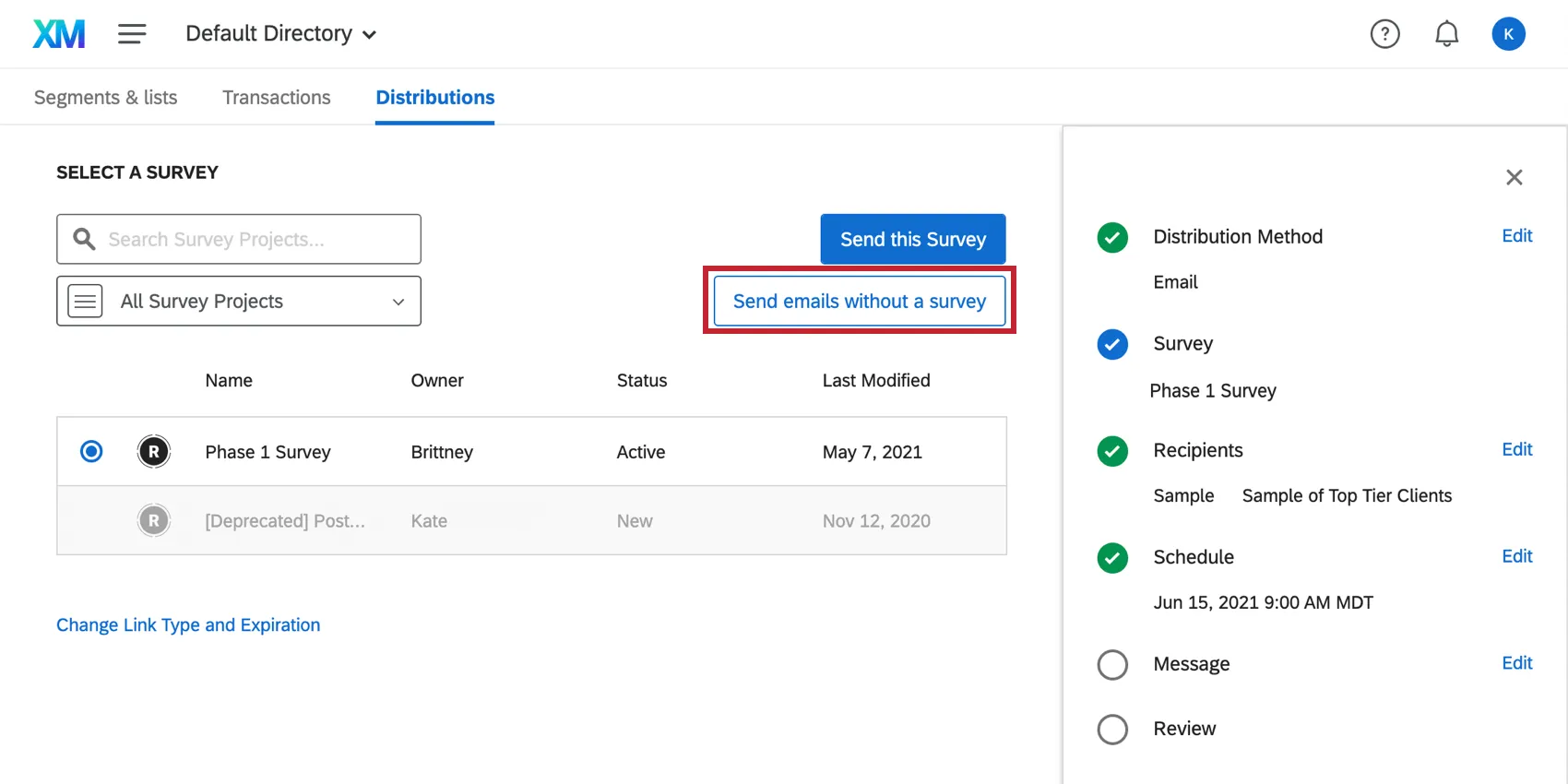
Attention: The more you contact your users with things that disinterest them, the more likely they are to opt out of ALL of our mailings. It’s important to only send a non-invite email if it has a purpose or a benefit for the customer. Furthermore, you may be subject to GDPR compliance. If you are an administrator who is worried about your XM Directory users sending too many non-invites, try implementing Contact Frequency Rules.

Qtip: Prefer to use your own mailer? XM Directory also allows you to download a list of survey links that can be sent through your own email server.
Managing Past Distributions
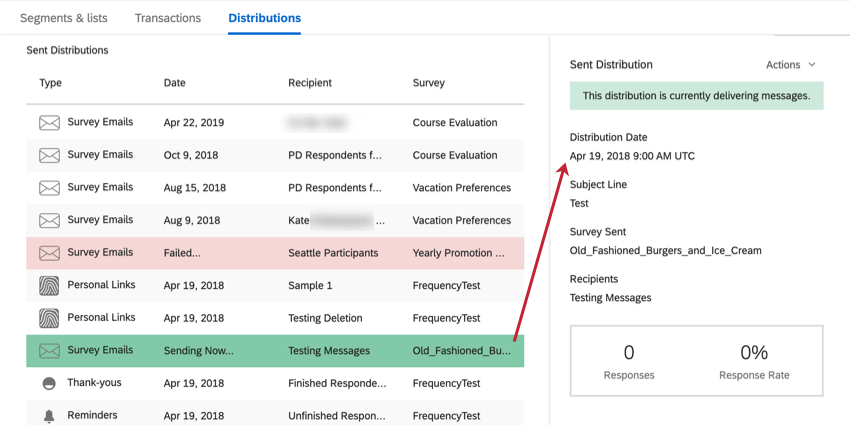
In the Distributions tab, you will see a list of all distributions that have been sent from your account. By clicking on a specific distribution, you can see statistics about the distribution. This includes the size of the list, how many emails were sent, and how many surveys were completed.
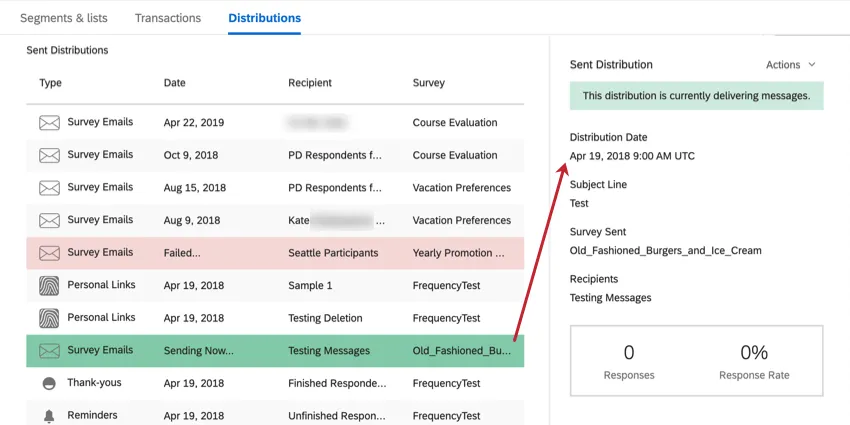
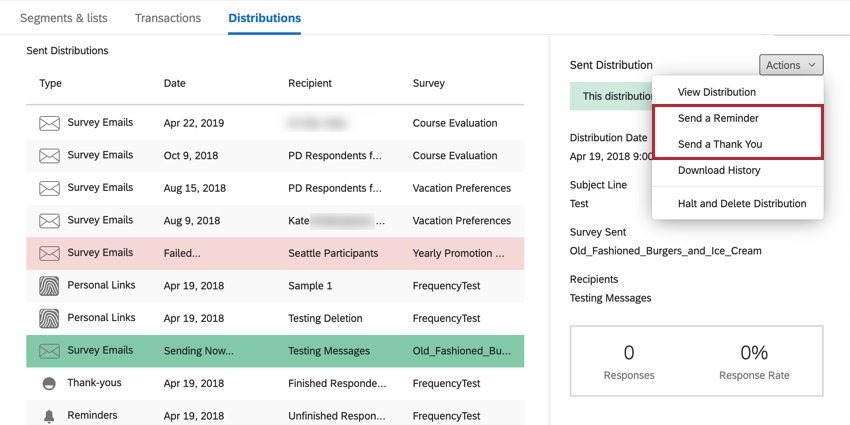
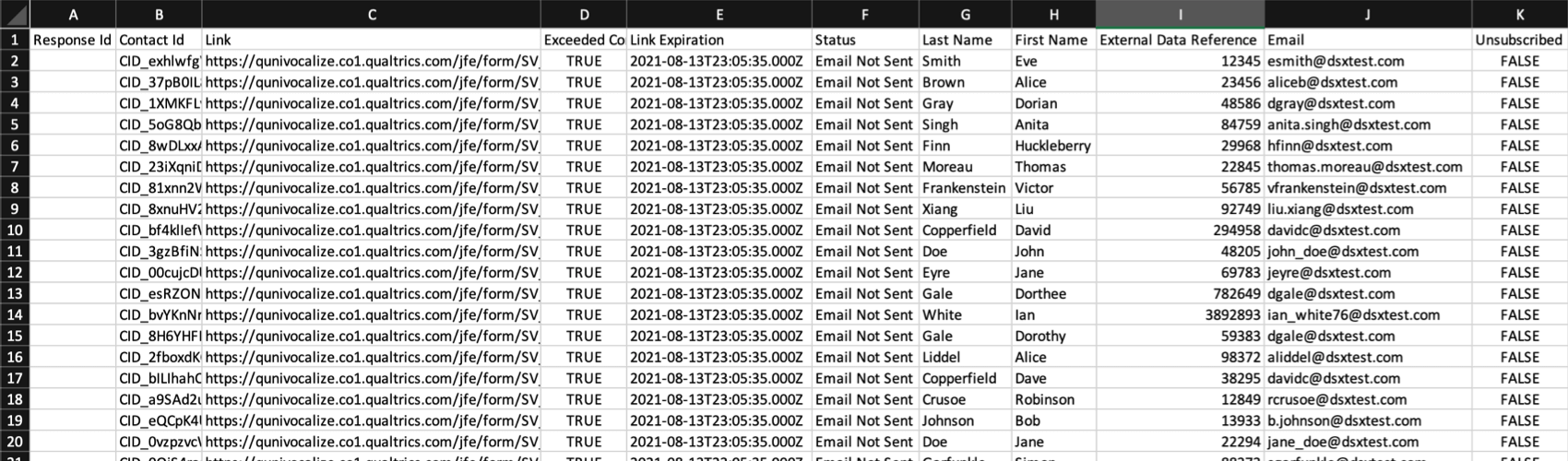
You will also have additional actions you can perform on the distribution. You can view or delete the distribution, or download a CSV file that contains the entire list of contacts in the distribution, their status, and their individual survey link.
In that Actions dropdown, you also have an option to send a reminder or thank you email. A reminder email is sent after an initial invite, asking respondents who have not finished the survey to complete it. This reminder email will go out to respondents who have started the survey but not submitted it, as well as respondents who have not yet started the survey.
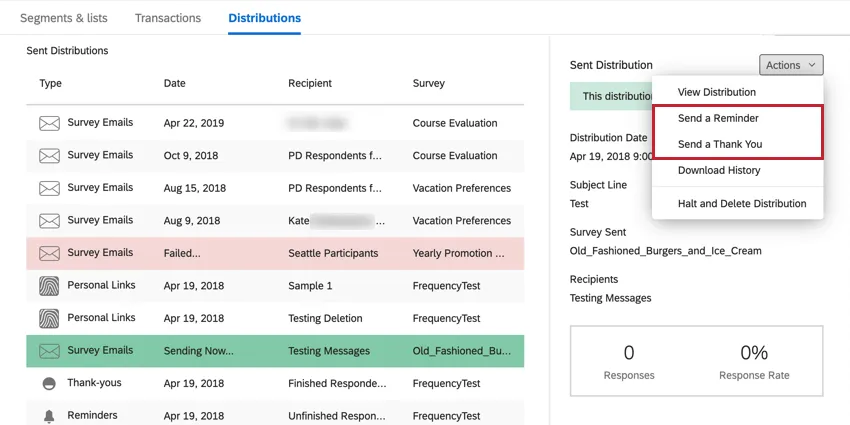
We recommend sending reminder emails between three to seven days after the initial distribution. Thank you emails can be sent as well thanking respondents for completing the survey, and we recommend sending these between three to seven days after the distribution as well. That will give most respondents time to complete the survey and ensures that the thank you email comes in a timely enough manner.
Qtip: For more details on managing past distributions, see Outbox.
Other Distribution Methods
Although email is the most popular distribution type, it isn’t the only method available to you. Below we’ll cover other ways you can use XM Directory to the fullest. Click the linked support pages to learn more about each option.
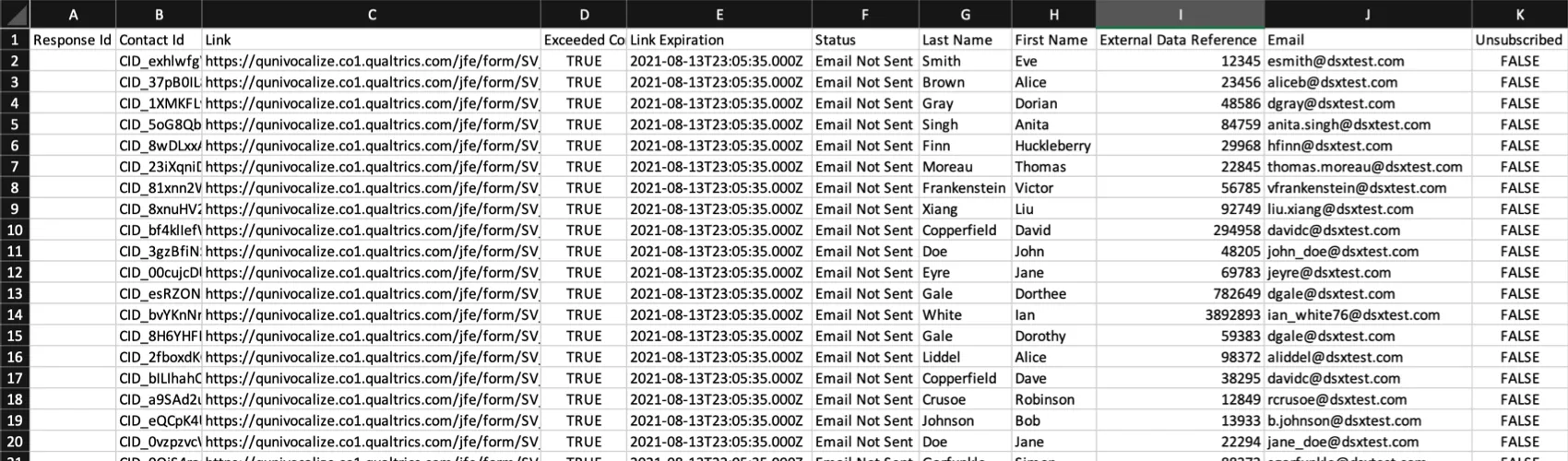
Export unique links: If you don’t want to use the Qualtrics mailer, but do want the benefits of tracking individual responses, you can use your mailing list, sample, or segment to generate a spreadsheet of survey links. You can use this file to distribute the survey using your personal mailer.
Qtip: This option is available to everyone who uses XM Directory to send distributions.
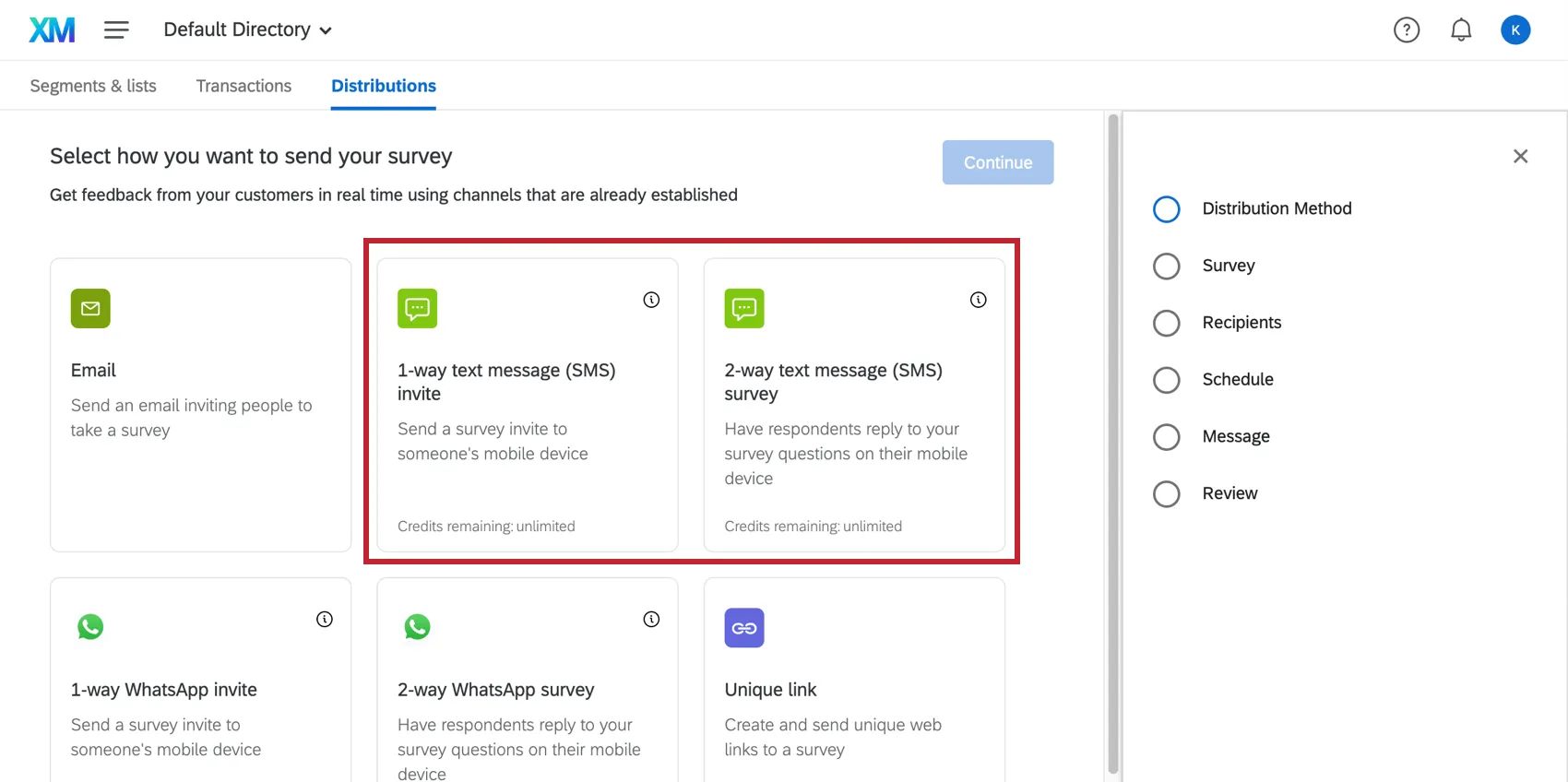
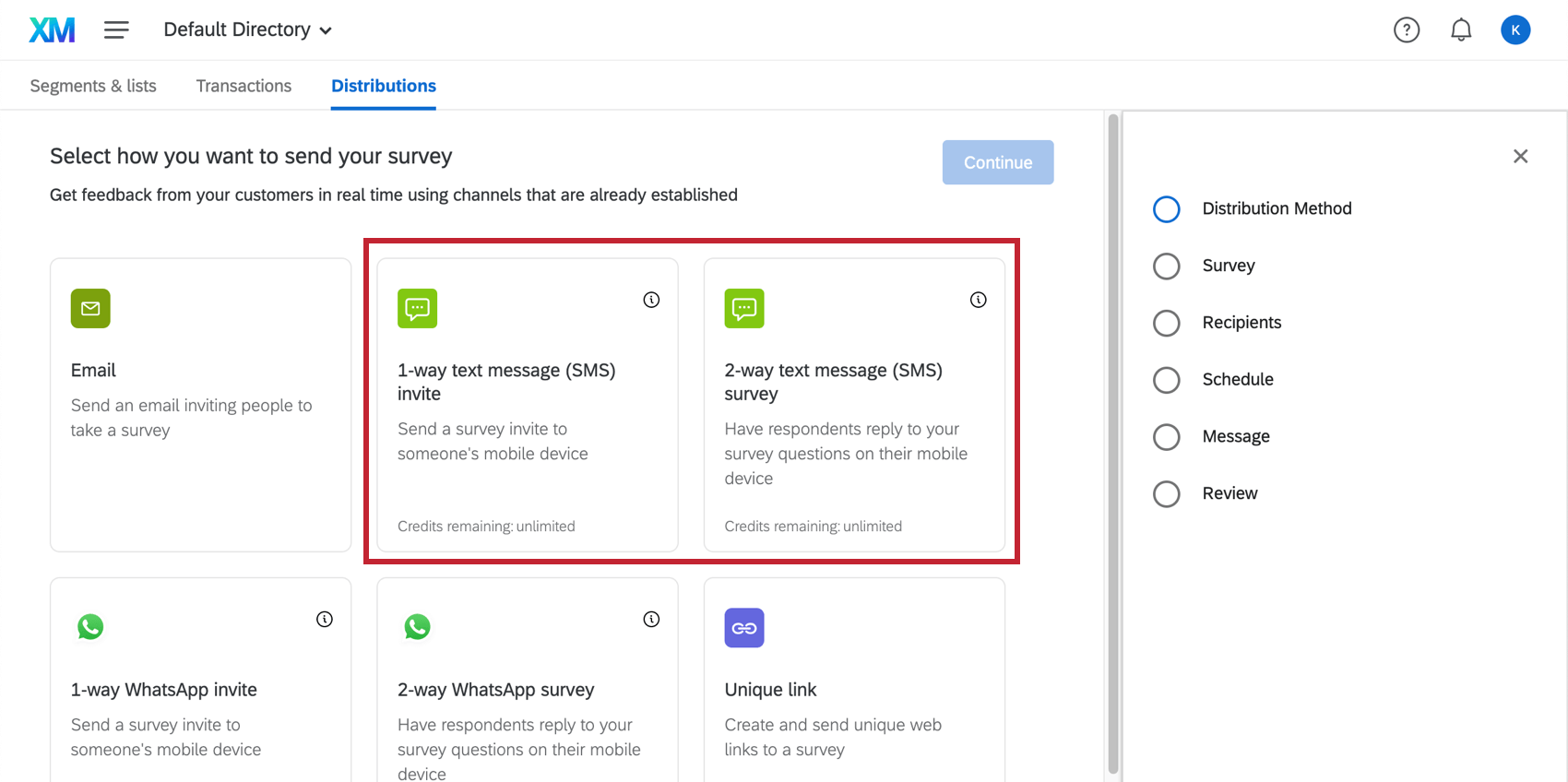
SMS distributions: SMS allows you to distribute surveys through text messages. You have the option of either texting questions directly to respondents that they can respond to, or texting a link to the survey that the recipient can open in their mobile browser.
Qtip: SMS distributions are an add-on feature not included in the standard Qualtrics license.
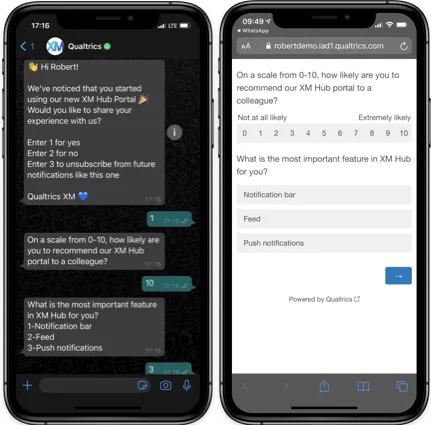
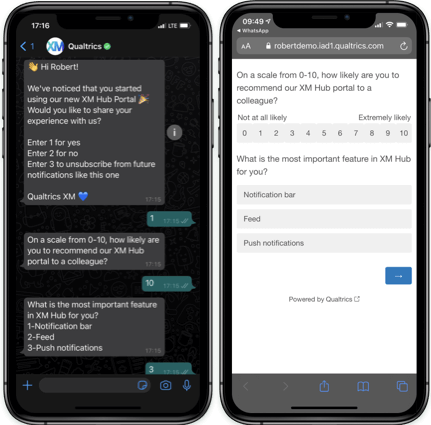
WhatsApp distributions: WhatsApp is one of the most widely used messenger apps in the world. Similarly to SMS, you have two options for distributing surveys through WhatsApp: either messaging questions directly to respondents so they can reply right in the app, or sending a link to the survey that the recipient can open in their mobile browser.
Qtip: WhatsApp distributions are an add-on feature not included in the standard Qualtrics license.
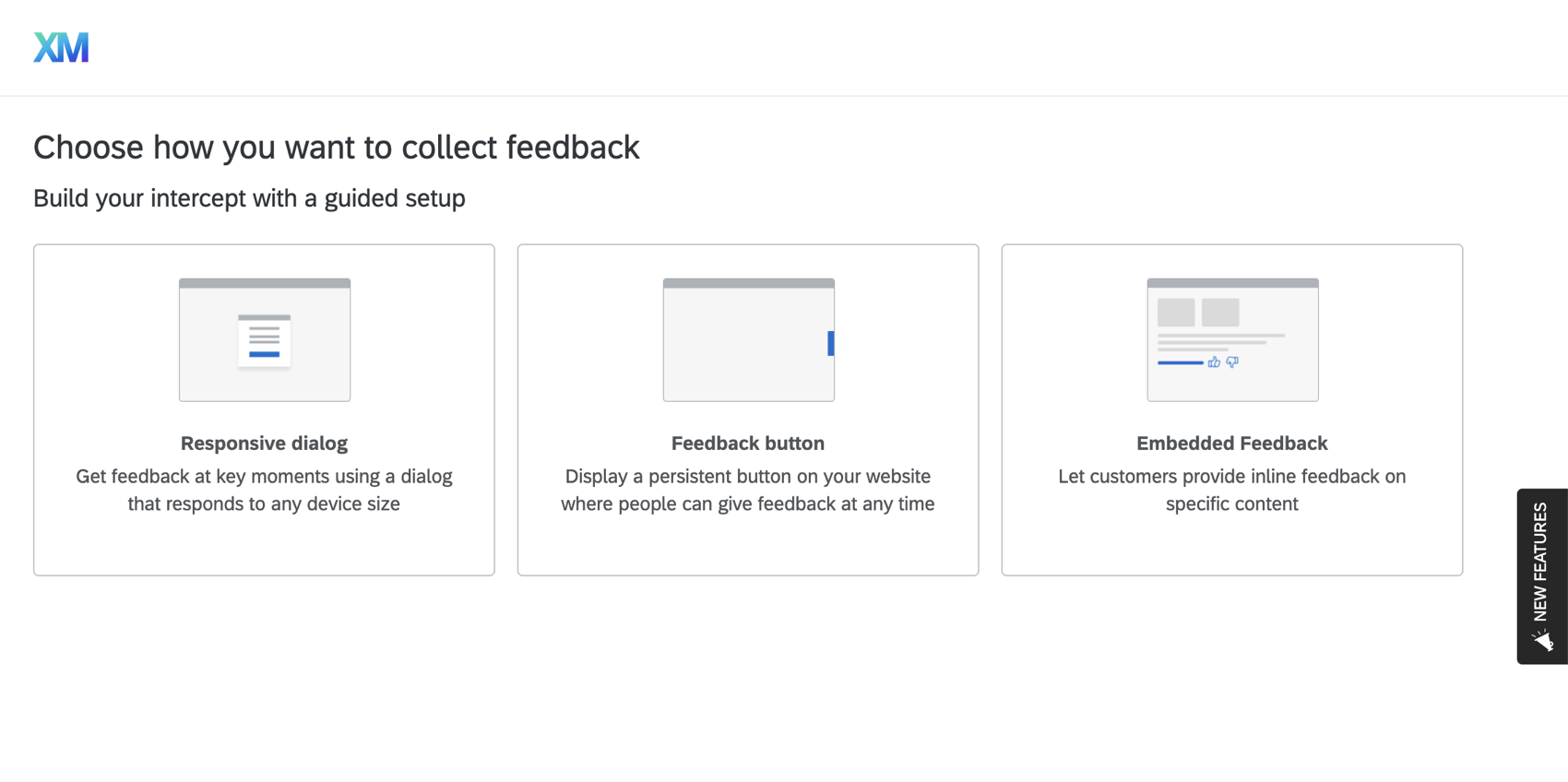
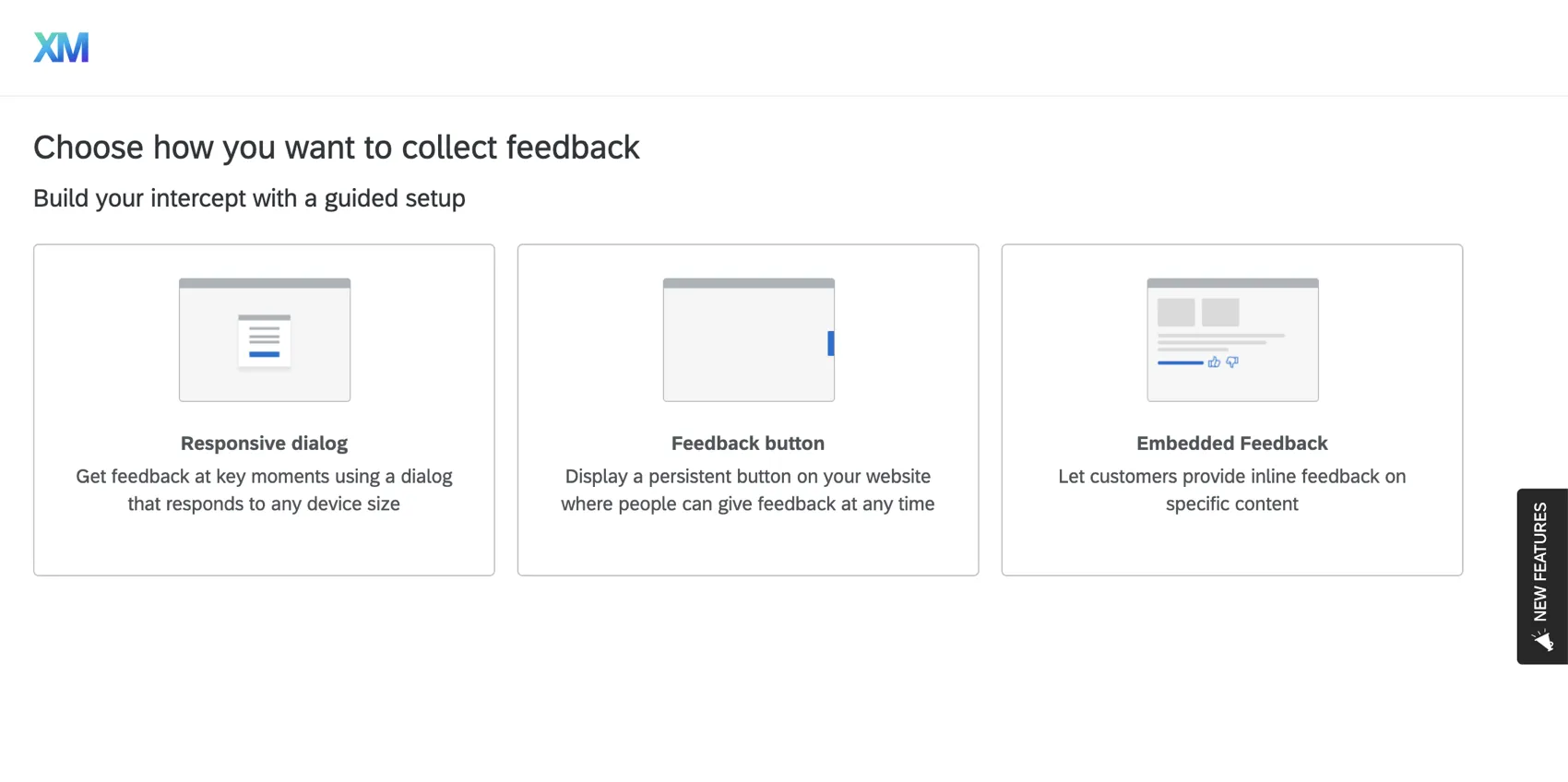
Web and app intercepts: Dynamically collect feedback from your website. Link site survey responses to contacts, use contact frequency rules to moderate what intercepts visitors see, and target specific high-value customer segments with the intercepts on your site.
Qtip: This option is only available to licenses that have also purchased Website / App Feedback. Make sure you work with a web developer in your company when implementing this distribution option.
FAQs
How can I stay up to date on new Qualtrics features?
How can I stay up to date on new Qualtrics features?
To access these release notes, you need an XM Community account. These accounts are free for any users with a Qualtrics account. This support page contains information for how to register an XM Community account.
Once you're logged into the XM Community, head over to the Weekly Product Updates Introduction Post. This post contains all the information you need to get started with subscribing to product updates!
That's great! Thank you for your feedback!
Thank you for your feedback!