

Randomizer
What's on this page
About Randomizers
With a randomizer in your survey flow, you can randomly present question blocks, embedded data, and other survey flow elements to your respondents.
Example: You could use the randomizer element to assign respondents to either a control block of questions or an experimental block of questions.

Adding a Randomizer
Any items in your survey flow can be randomized. This randomization can happen at any point in the flow.
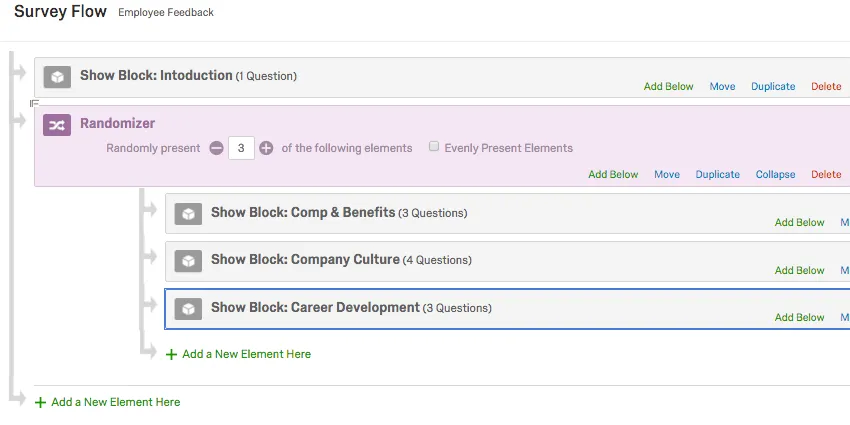
Example: After the Introduction block, respondents will be presented the Comp & Benefits, Company Culture, and Career Development blocks in a random order.
To add a Randomizer
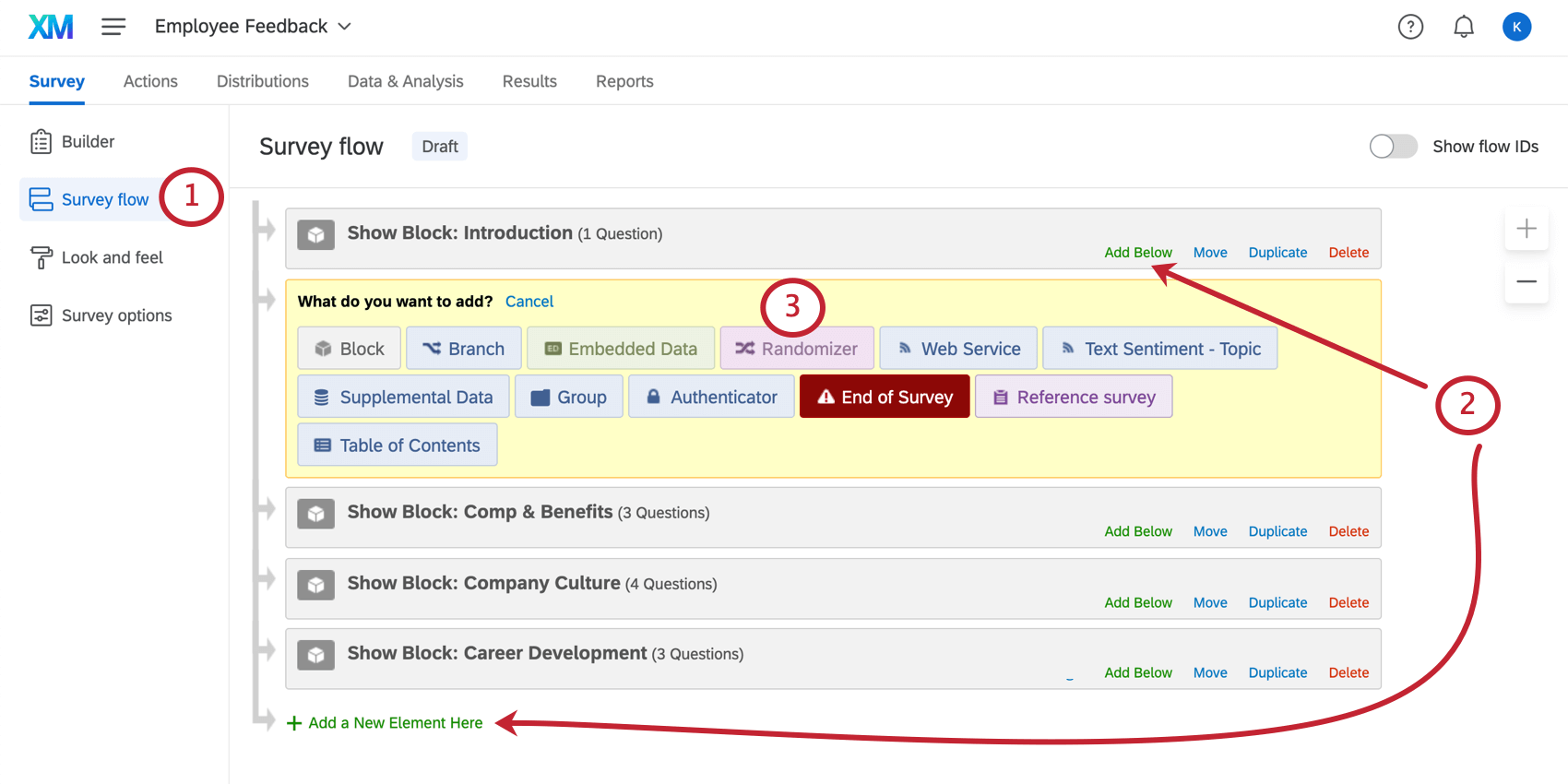
Qtip: If the randomizer isn’t created exactly where you want it in the survey flow, don’t worry. You can move elements in the survey flow by selecting the item and pressing ↑ or ↓ on your keyboard. You can also click and hold Move to drag and drop the element in your survey flow.

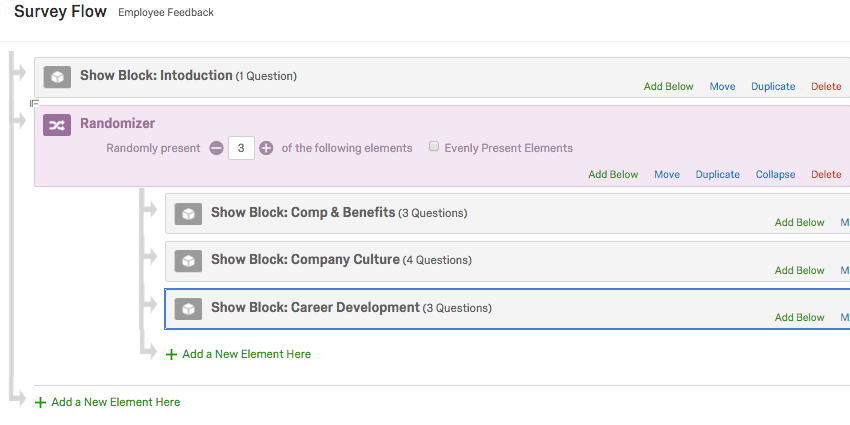
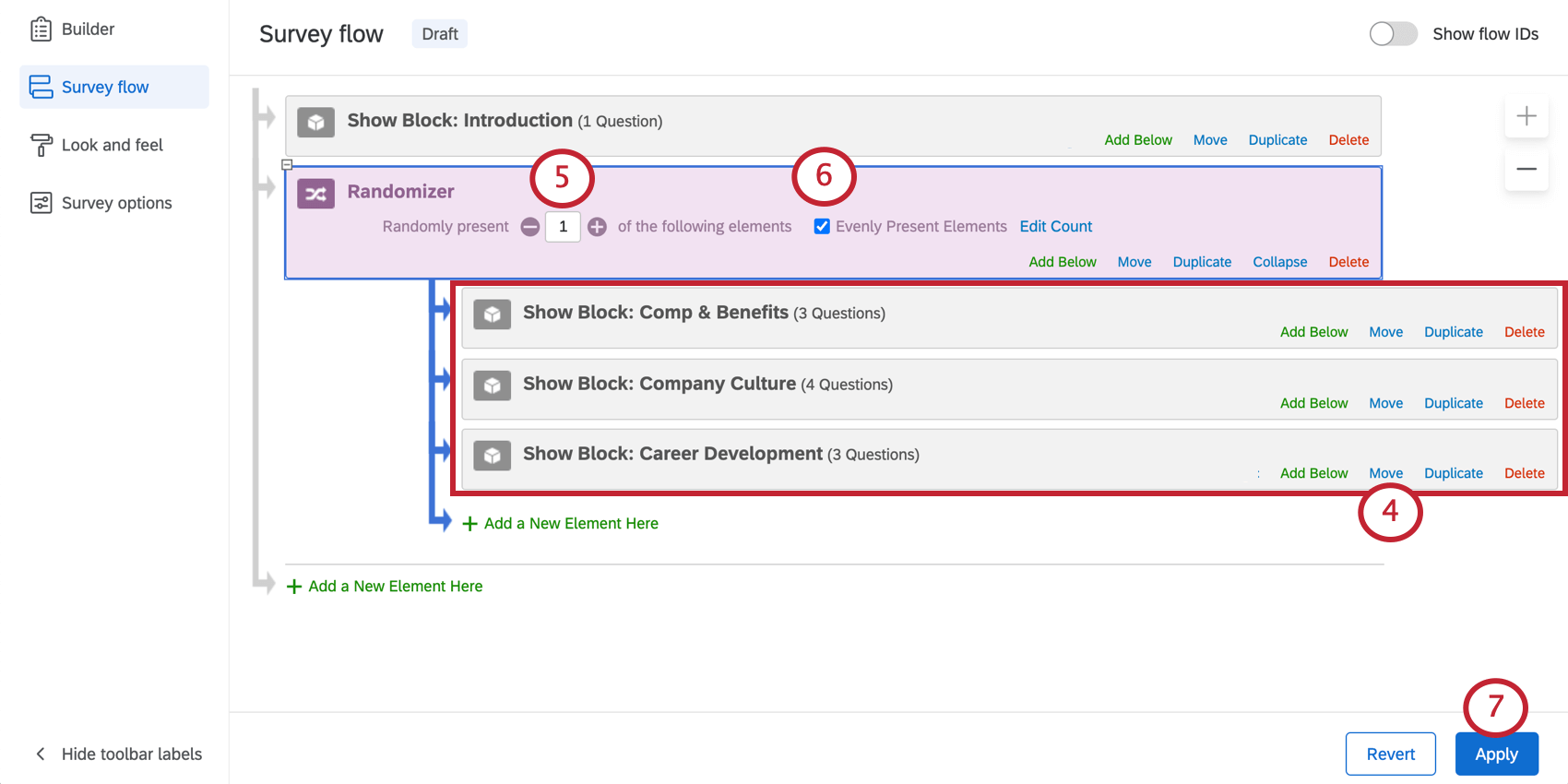
Qtip: Elements included under a randomizer are grouped together, so moving your randomizer in the survey flow will also move the elements within it.
Evenly Present Elements
When selected, “Evenly Present Elements” makes sure that even as elements are randomized, they are randomized evenly. This setting keeps careful watch on the counts to ensure every element is presented an equal number of times.
When deselected, items are randomly presented with no attention paid to whether the number of times they’ve been presented is equal or not.
Qtip: Are you experiencing issues where elements don’t seem to be presented evenly? You should double check your counts and reset them, if necessary.
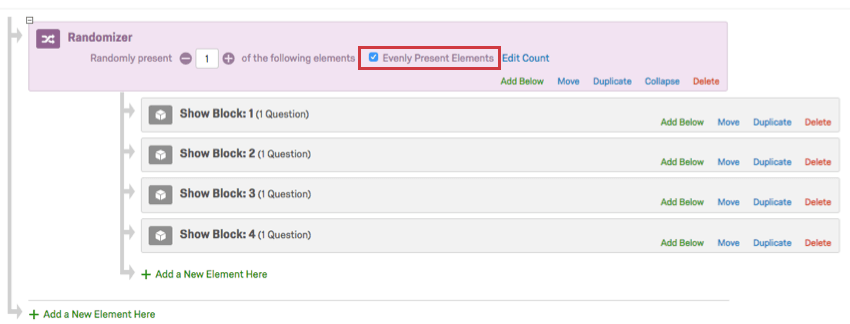
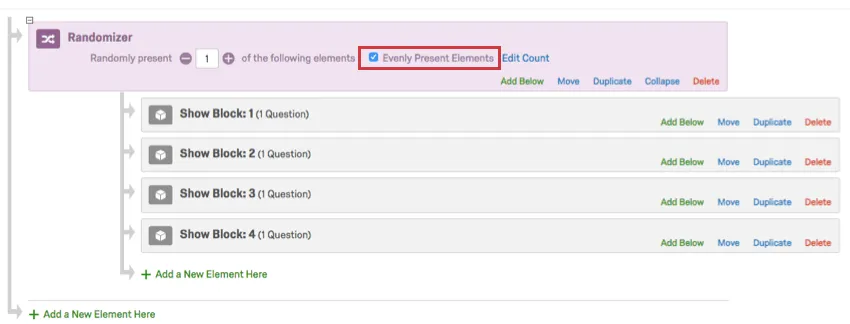
Example: You have Evenly Present Elements selected. You have been randomly assigning respondents 1 of 3 blocks for about a week. 15 people have responded, meaning each block was presented 5 times. You decide to add a new, fourth block. The fourth block may appear 5 times in a row to equalize it with the other blocks. After this, the assignment will be random again.
Editing Counts
When Evenly Present Elements is selected, you can click Edit Count to view how many times each element has been displayed.
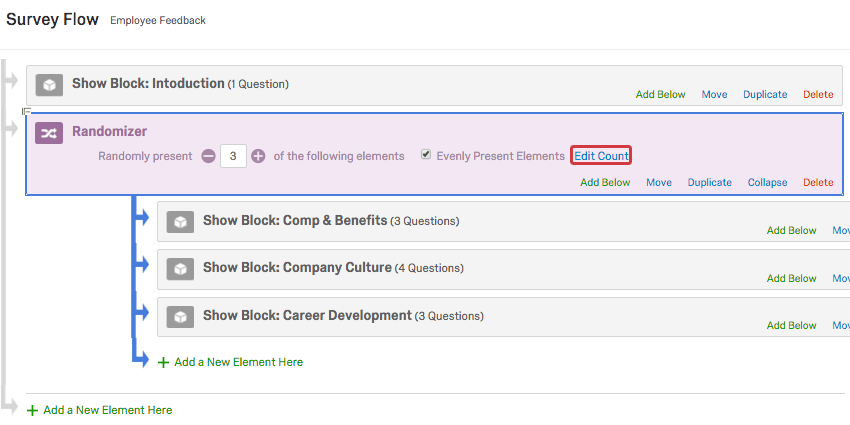
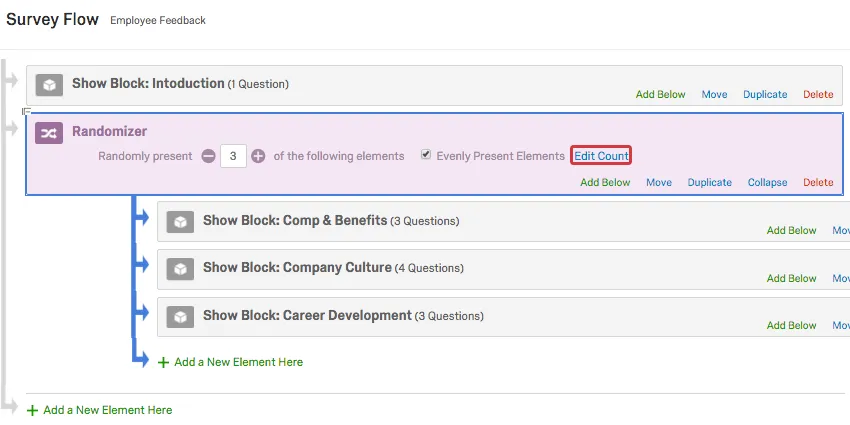
These numbers should be roughly the same, but you can override the counts if you need to temporarily give preference to a specific element. In the below example, if you set question block Comp & Benefits to “5” and the others are set at “15”, the Comp & Benefits block will be displayed 10 times in a row to “catch up” with the other blocks and ensure even presentation.
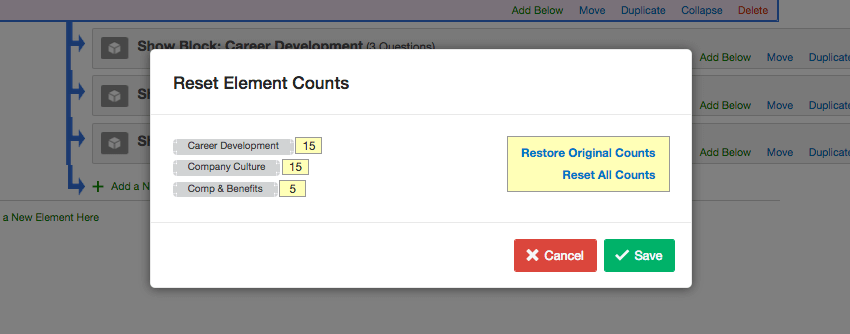
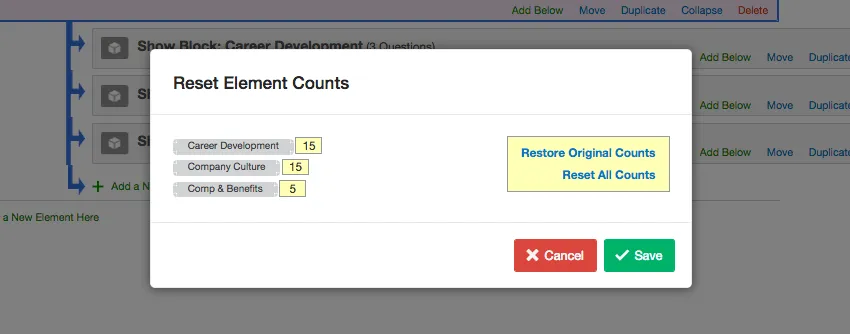
You also have the option to reset all counts back to 0 or to restore all counts to what they were before you changed them.
- Restore Original Counts: This option will restore the counts back to their original number before you edited them. Warning: This option only restores counts for the timeframe in which you have the Edit Counts window open. If you edit your counts, save the changes, then return to edit the counts, the Restore Original Counts option will not revert your counts to before your edits.

- Reset All Counts: This option will set the count for all elements to 0.
Using the Randomizer with Other Elements
In addition to blocks, you can use the randomizer to randomize other elements in the survey flow. For example, you can use a randomizer to randomly assign specific embedded data labels to each respondent or to randomly send your respondents to different survey endings with end of survey elements.
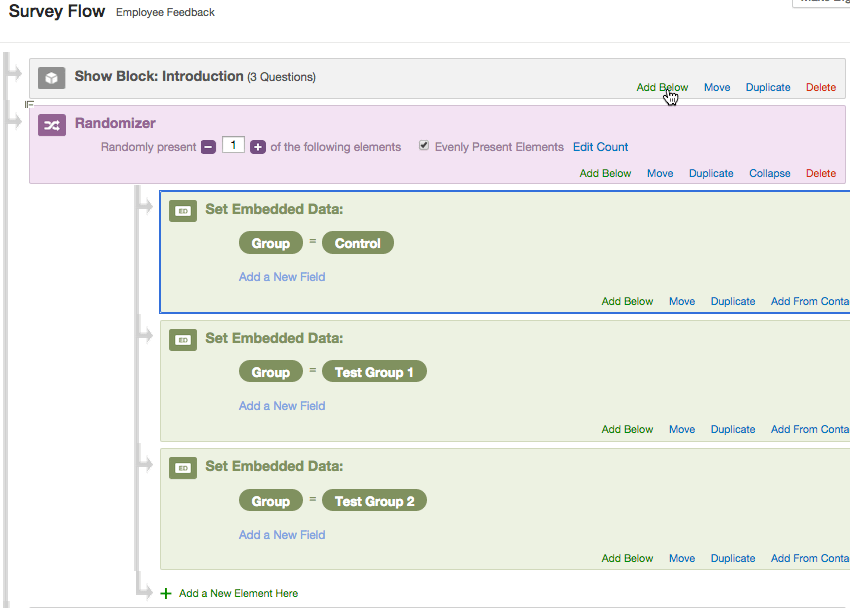
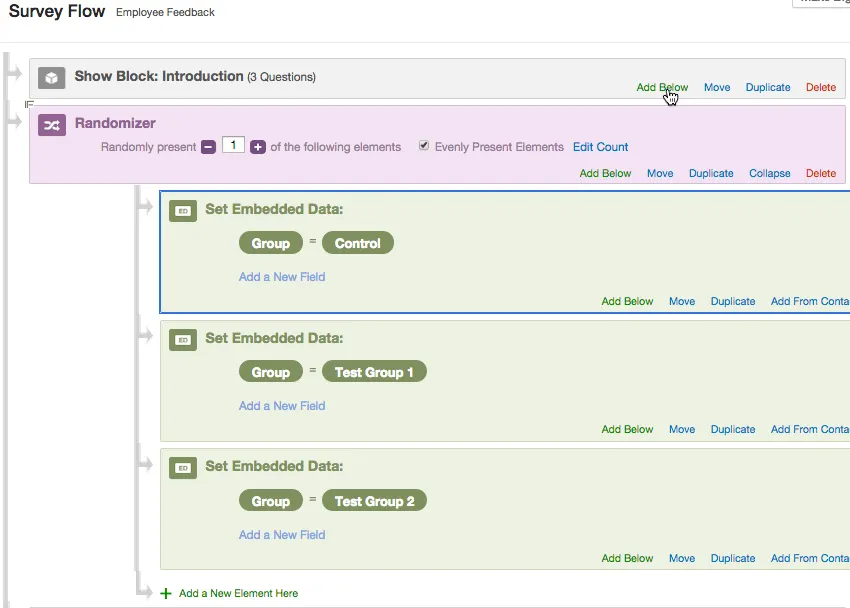
Each respondent is randomly assigned to a group. Later in the survey flow, this group value can be used as criteria in branch logic, display logic, and other logic.
You can also randomize branches to show elements conditionally or to group multiple elements together (like blocks, end of survey elements, and embedded data). Even if you don’t want to conditionally present items, you’ll need to use a branch to group them together.
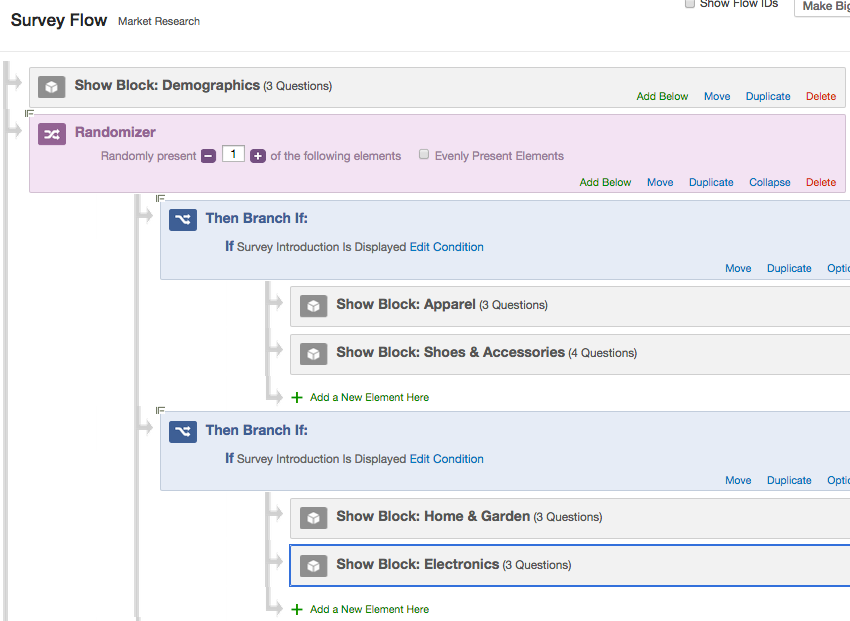
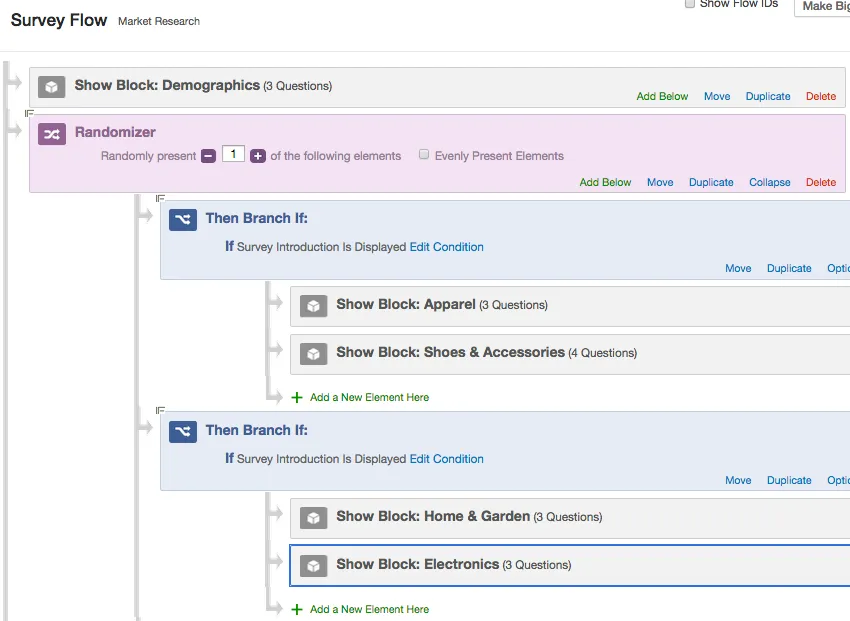
In this survey, respondents are shown the Demographics block, and then randomly assigned to 1 of the 2 branches. If they are assigned to the first branch, they are shown Apparel and Shoes & Accessories and then directed to the end of the survey. If they are assigned to the second branch, they are shown Home & Garden and Electronics.
Qtip: If you are using the randomizer to select branch elements, the randomizer will only select from branches whose conditions are true and would be displayed. This prevents the randomizer from selecting a branch the respondent cannot enter.
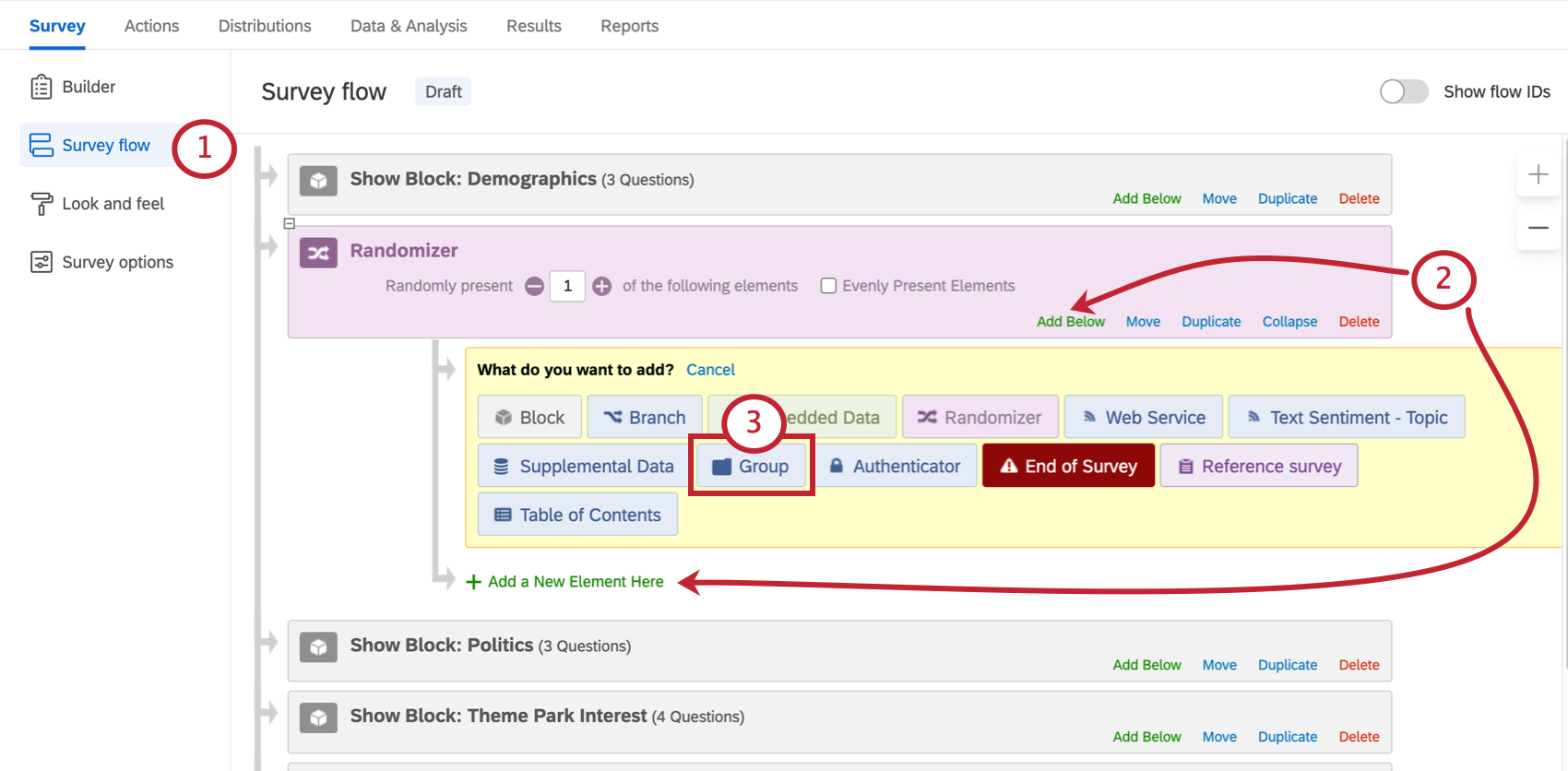
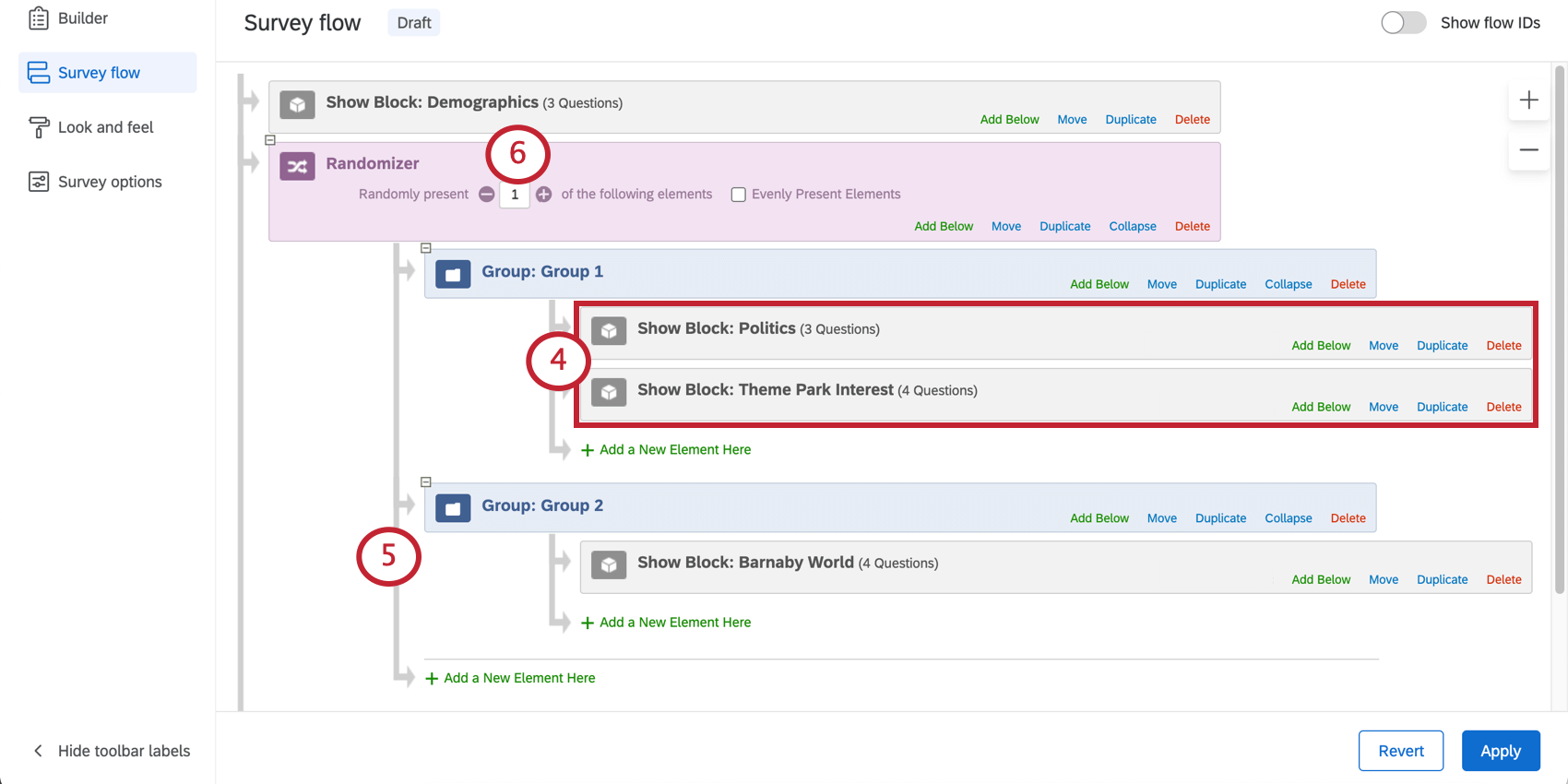
To group multiple elements
If you are not planning on setting different conditions with branches, you can use the group element to keep elements grouped together in the survey flow.
Qtip: Consider grouping your question blocks with embedded data elements to track which randomized conditions your respondents saw.
Export Randomized Viewing Order
Downloading randomization data allows you to view the order in which your survey elements were displayed to respondents.
Each survey flow element has a unique Flow ID, which can be viewed when you open the survey flow and select Show Flow IDs.
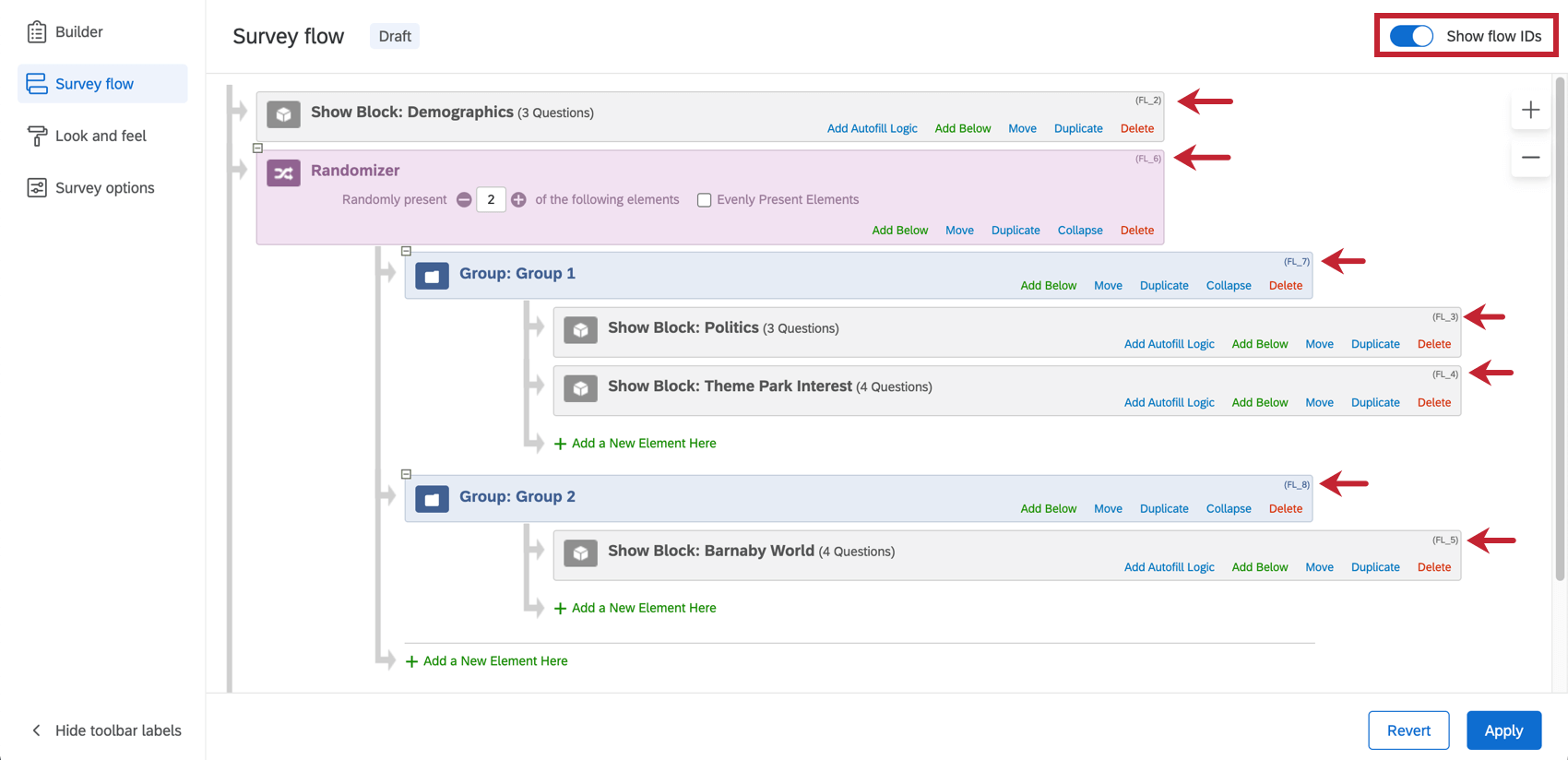
These IDs are used in the exported data to identify which elements within the randomizer were shown to the respondent. This column of data usually appears towards the end of the exported data file.


Types of Projects this Feature Is Available In
Randomizers are compatible with every type of project that lets you customize a survey. This includes:
That's great! Thank you for your feedback!
Thank you for your feedback!