

Print Survey
What's on this page
About Printing a Survey
The Print survey option is available in the Survey tab’s Tools menu under Import/Export. You can use this feature to print a physical copy of your survey or to save it to a PDF.
Qtip: The printable file does not allow for special formatting.
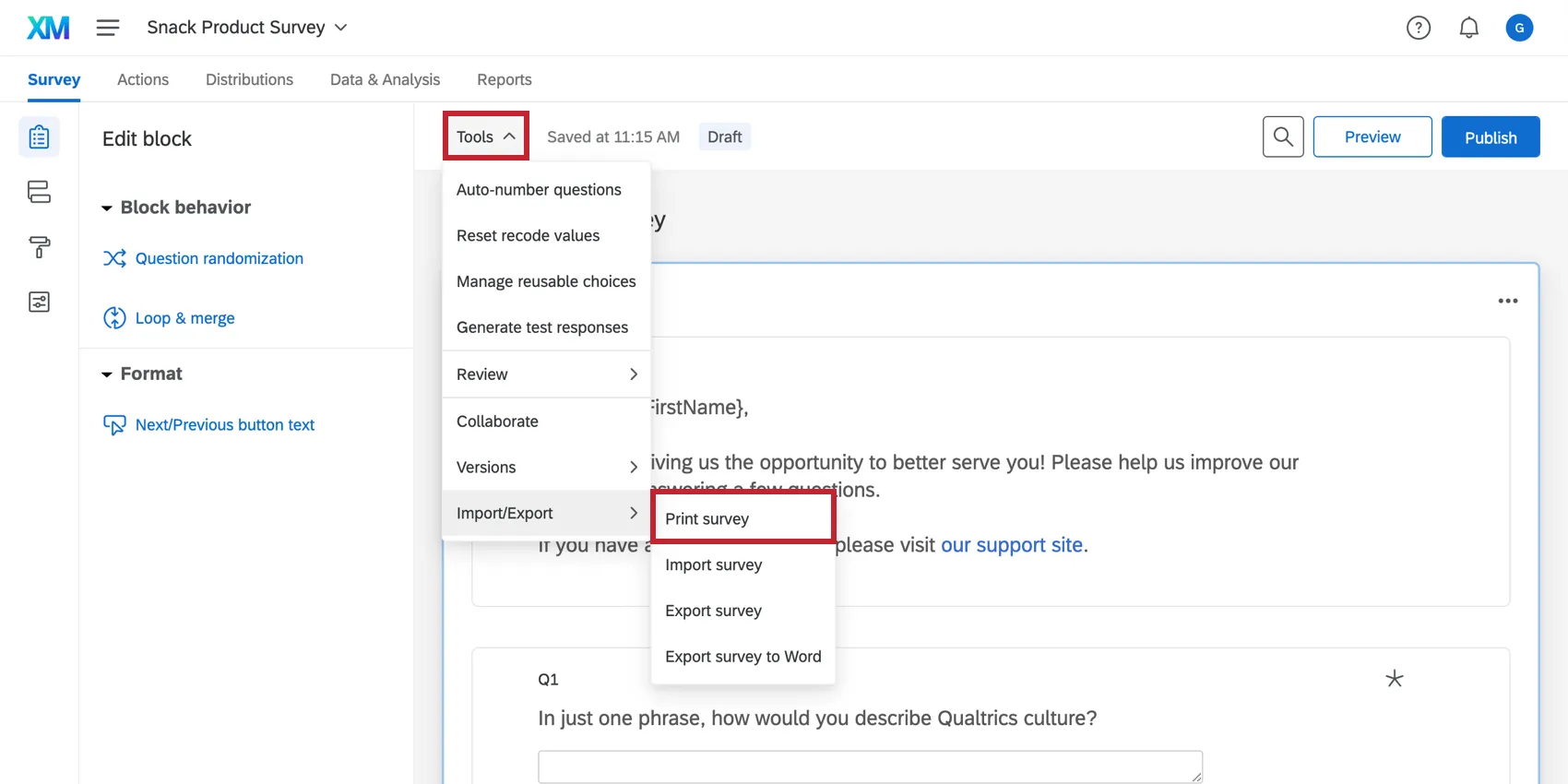

In addition to the PDF version, you can also export your survey to a Microsoft Word DOCX format and print from Word.
Qtip: If your survey contains translations, the print screen will have a dropdown menu for choosing which translation you’d like to print.
Printing a PDF
Clicking Print survey will open 2 windows: a printable preview of the survey and your printer dialog window.
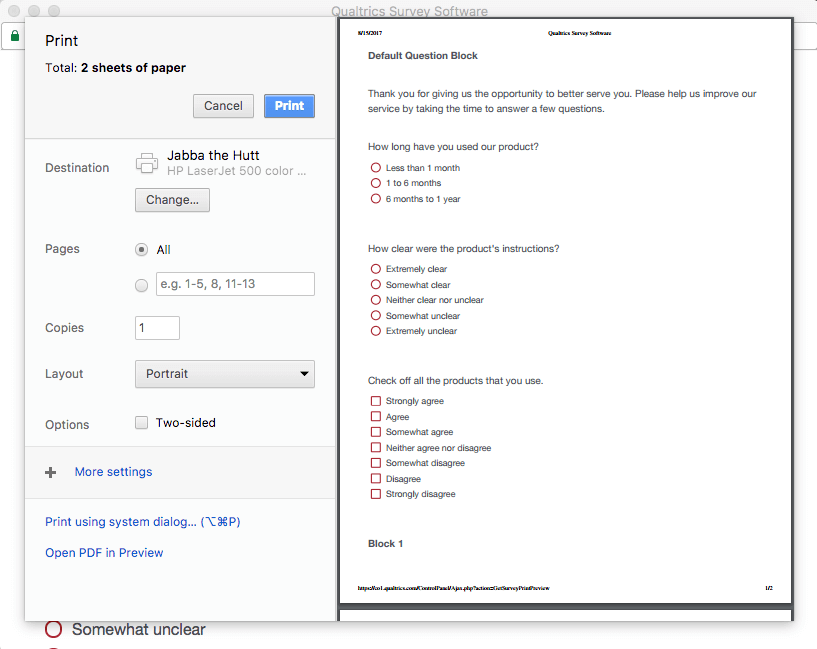
The process of printing to PDF is different for Mac and Windows computers. Macs have a PDF printer built into their system by default, so you simply need to choose to print the file as a PDF within the print dialog window. Windows computers will need to have a PDF printer (Adobe Acrobat, PDFCreator, CutePDF, etc.) installed. If a PDF printer isn’t installed, there won’t be a PDF print option.
Qtip: PDFCreator and CutePDF are free PDF printer programs, while Adobe Acrobat is for purchase. Note that Qualtrics is unaffiliated with Adobe Acrobat, PDFCreator, and CutePDF and can’t be held responsible for those programs or anything that may occur to your computer from their use. Please use caution with any programs you install on your computer.
Saving to a PDF
When selecting Print survey, you’ll also have the option to save your survey as a PDF file. Simply change the Destination to “Save as PDF” instead of a printer location. Once you select Save, the PDF file of your survey will be saved to the downloads folder on your computer.
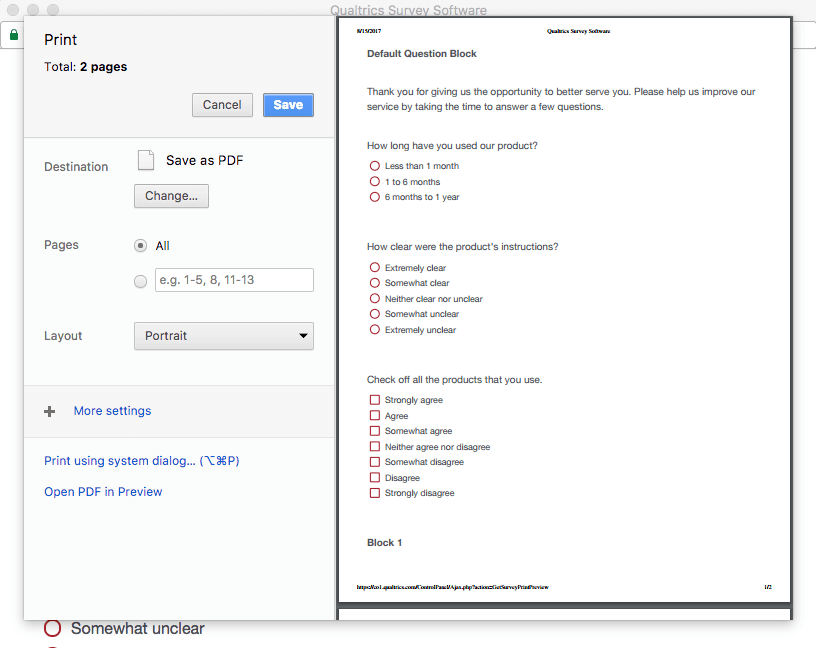
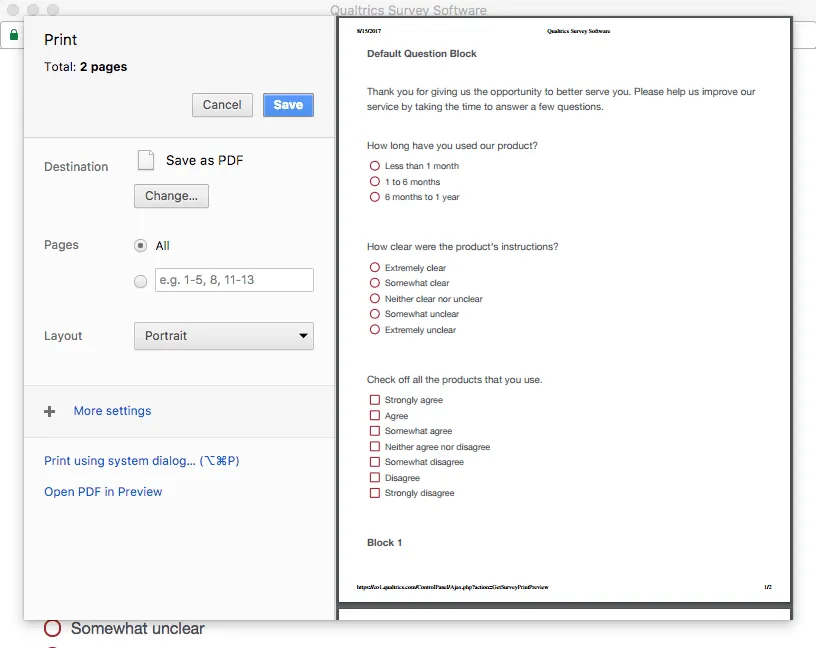
Qtip: Your printer dialog window varies based on your browser and operating system (Google Chrome vs. Apple Safari and Mac vs. Windows, for example). Therefore, your computer’s display may differ from what is shown above.
Printing from Word
If you would like to print your survey from a Word Document, you’ll first need to export your survey to a Word Document. You can find instructions for this in the Exporting a Survey section of the Import and Export Surveys page.
Using “Print Survey” in Different Project Types
You can print and save many different types of projects to PDF. The options described on this page are available in:
FAQs
How do I export a survey?
How do I export a survey?
- Export Survey: Export a QSF of your survey that contains all formatting and settings but not any response data. This option is usually used to create copies of your survey for storage or sharing. Unlike the other 2 formats covered here, a QSF can be imported back into Qualtrics.
- Export Survey to Word: Export a DOCX of your survey that contains all of the questions, logic, and coded values, but not the stylistic formatting.
- Print Survey: Print a physical copy of your survey or save a PDF.
That's great! Thank you for your feedback!
Thank you for your feedback!