

Recoding Data Mapper Fields (CX)
What's on this page
About Recoding Dashboard Fields in the Data Mapper
CX Dashboards allows dashboard editors to recode Text Set, Multi-Answer Text Set, and Number Set data under the Dashboard Settings. Recoding allows you to group data or change how it appears in CX Dashboards widgets – for example, by conveniently shortening how choices are labeled, and changing text to numbers.
Qtip: Recoding values in the data mapper does not affect your data in the Survey Platform.

Qtip: If you want to recode data in the data modeler, see Recoding Data Model Fields (CX).
Recoding Fields
Qtip: The default Recode Editor appears for the following field configurations:
- Text Sets that did not originate as open-ended fields (e.g., no Text Entry questions).
- Number Sets that did not originate as open-ended fields (e.g., no Text Entry questions).
- Multi-Answer Text Sets that did not originate as open-ended fields (e.g., a Multi-Answer Multiple Choice question).
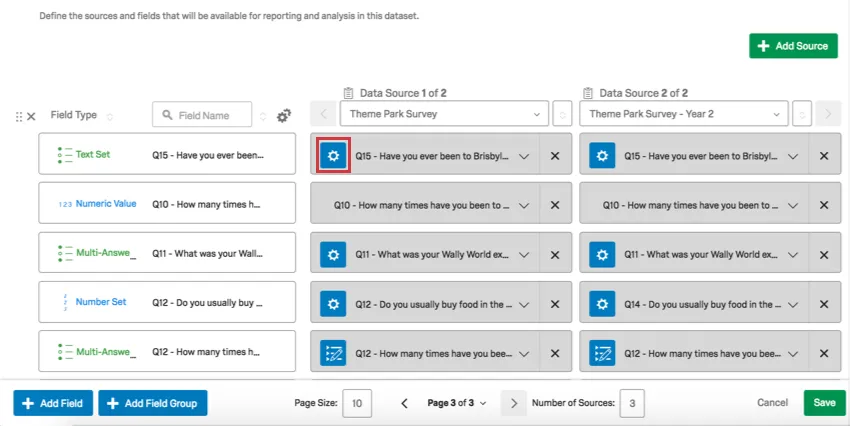
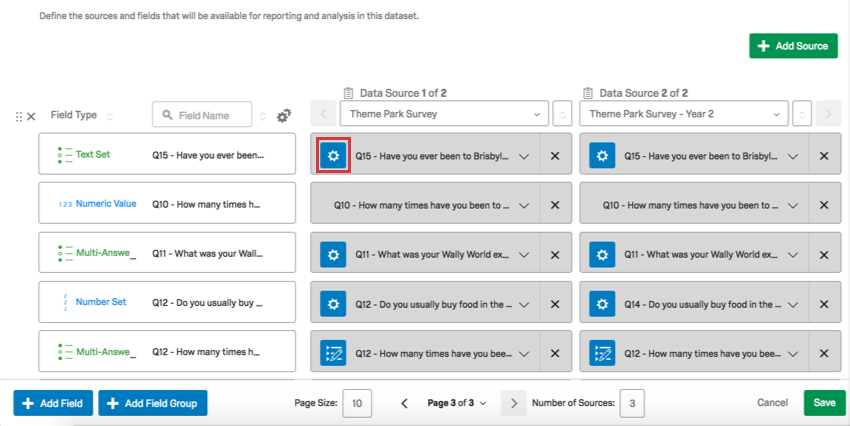
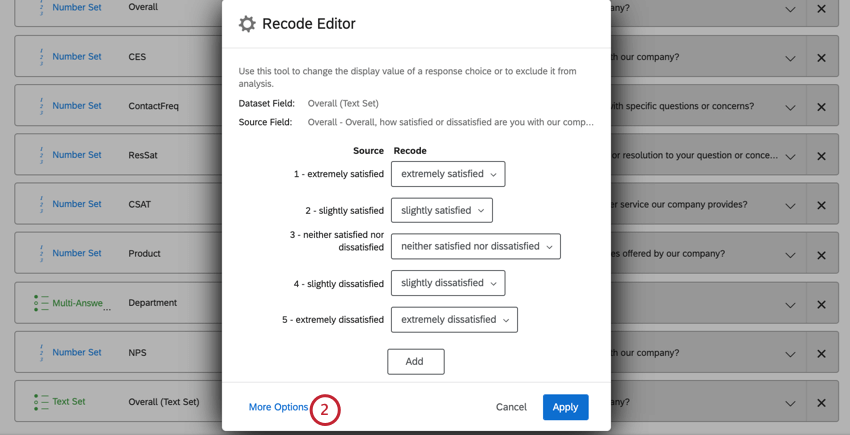
In your dashboard data mapper, click on the recode value gear.
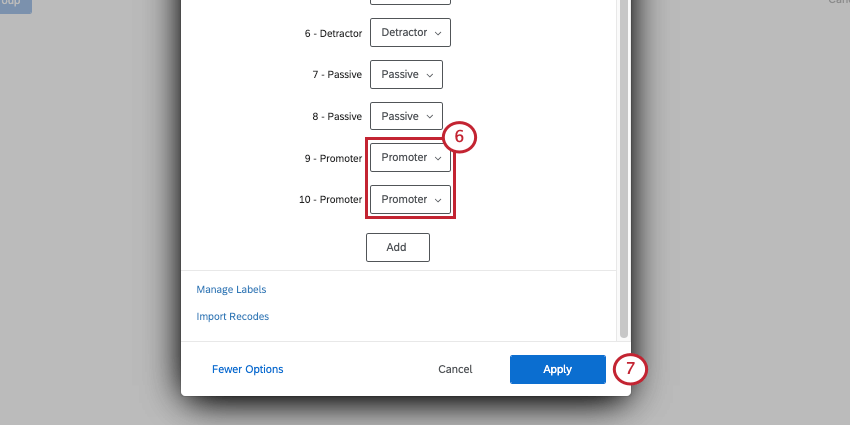
Use the Recode dropdown to make sure the right answers are aligned, or to exclude the option from analysis.
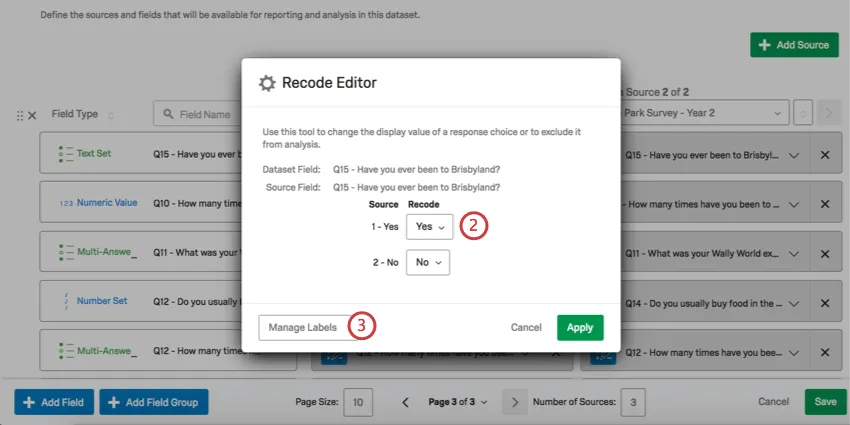
Qtip: If an option is excluded from analysis, it will be hidden from widgets, filters, and other parts of the dashboard. For example, let's say you have the City field, and decide to exclude the value "Tokyo" from analysis. If you try to filter the page or a widget by City, Tokyo won't be an option. Likewise, if you try to display answers where City is "empty," the Tokyo responses will be included, displaying as blank instead.
Qtip: Note that the recode values are limited to the Field Type that you have designated. For example, if you want to recode NPS scores to NPS groups, the Field Type must be Text Set instead of a Number Set because the Recoded Values will be text instead of numbers.
Attention: When recoding Text Sets or importing recode values for Text Sets, you will see numeric values. These values are choice IDs, or internal IDs given to each answer choice when it was created. These IDs are assigned chronologically and aren’t reset when an answer choice is deleted, so there may be gaps in the choice ID numbering for a question.

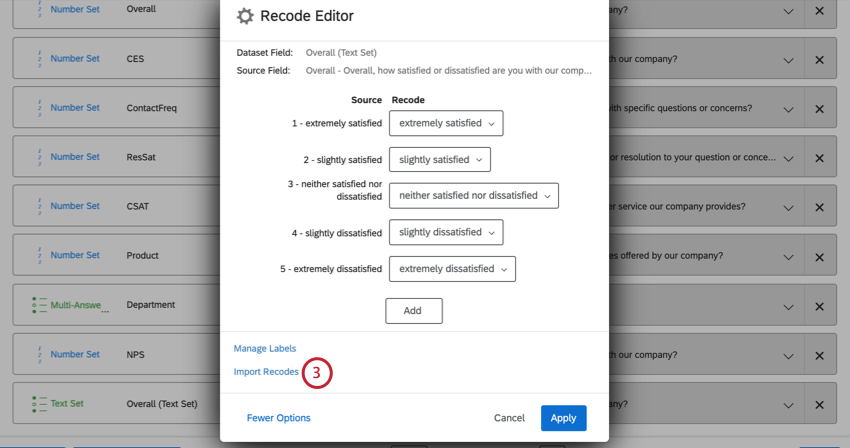
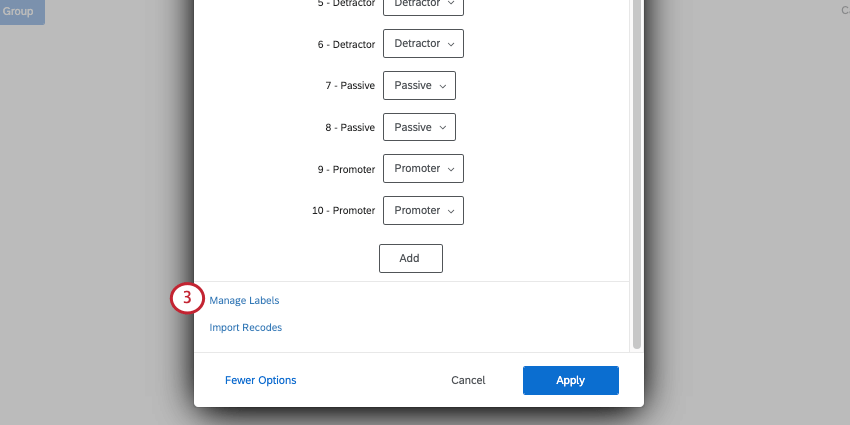
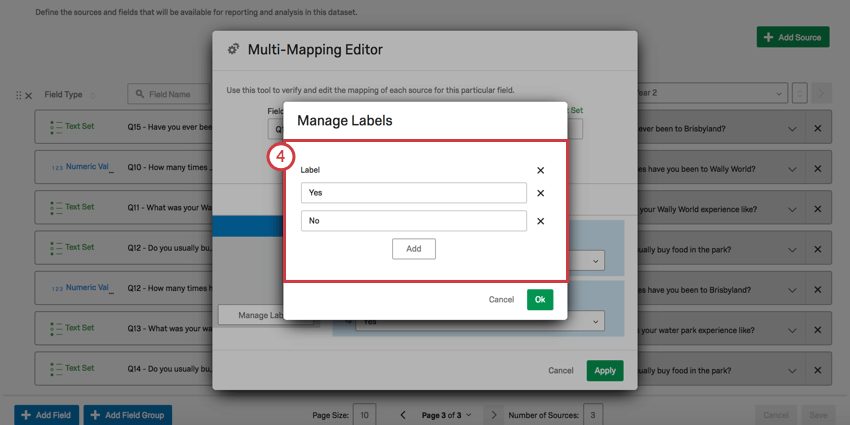
Click Manage Labels.
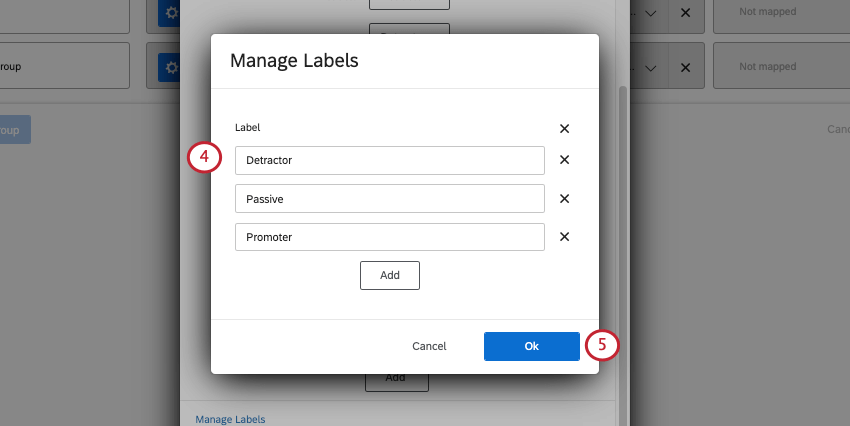
Here, you can change the spelling and wording of options’ labels.
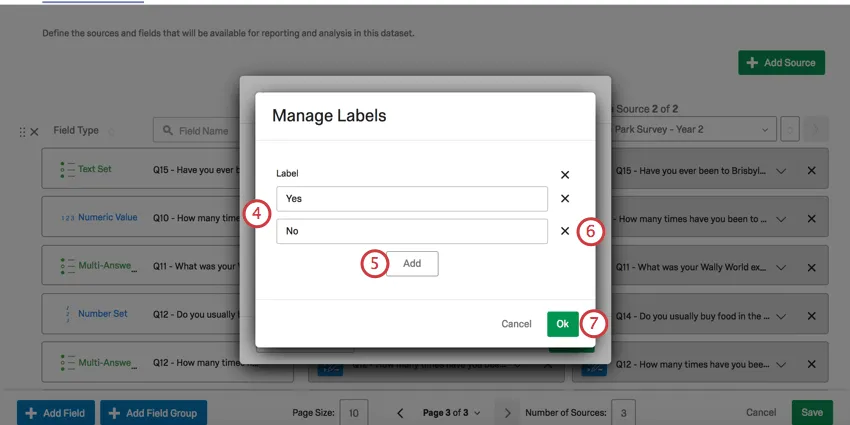
Click Add to add a new option and label it.
Qtip: Recode options must be different than the source. If the recode matches the source value, the recode will be removed from the labels list.
Click the X next to an option to remove it.
Click OK.
Click Apply to finish recoding.
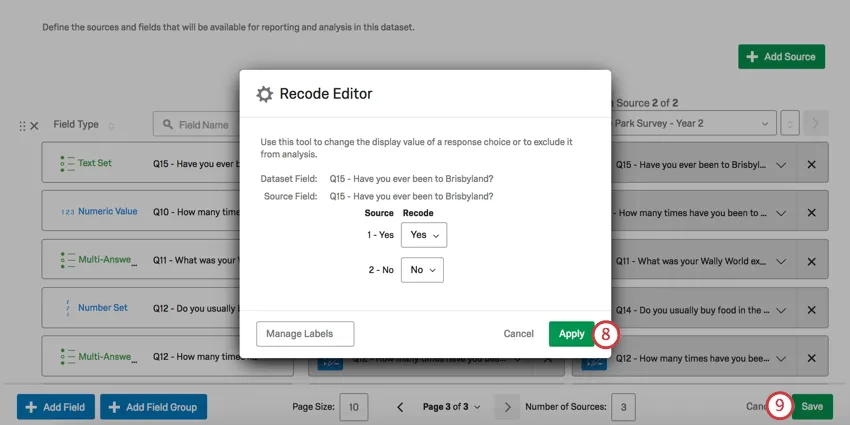
Click Save.
Qtip: Only Text Sets, Multiple-Answer Text Sets, and Number Sets can be recoded.
Qtip: If you’re recoding a survey scoring category, bucketed field, formula, or other custom survey fields, see Derived Data.
Recoding Open-Ended fields as Text Sets or Number Sets
When you’re mapping an open-ended field to a Text Set or Number Set, you will not see the recode editor described above. Instead, you will see two columns.
Qtip: Open-ended fields include sources such as Text Entry questions, a Text Entry field on a Matrix Table or another question type, Embedded Data fields, or a text from an Imported Data project.
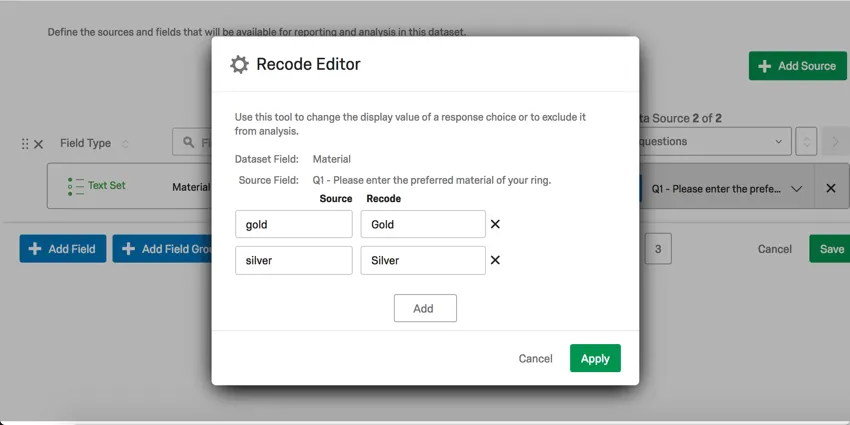
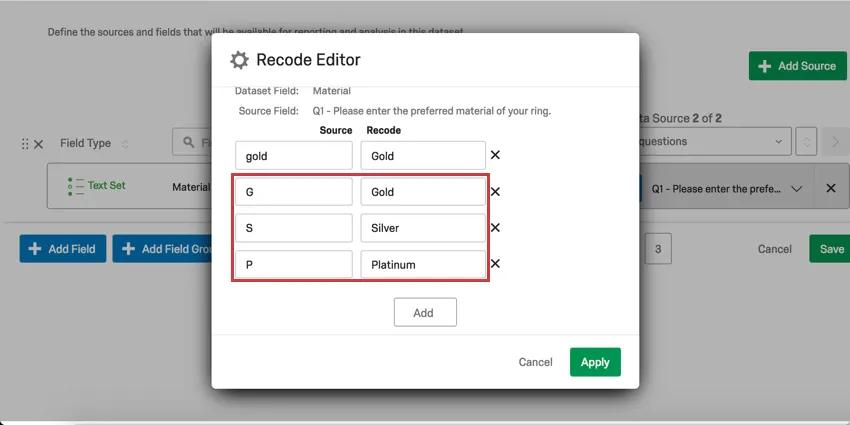
- The Source column refers to the exact text of answers provided in the data. For example, if this was a question asking people what material they want their jewelry to be, answers might include “Gold” or “Silver.”
- The Recode column refers to how you want this data to be labeled when it appears in dashboard widgets.
Qtip: You do not need to add options and recode values if you don’t want to. Data does not have to be recoded to appear in the dashboard; the recode editor just allows you to format the way it will be labeled in your widgets.
Attention: HTML is not supported in the recode editor and will be automatically removed.
Managing Delimiters
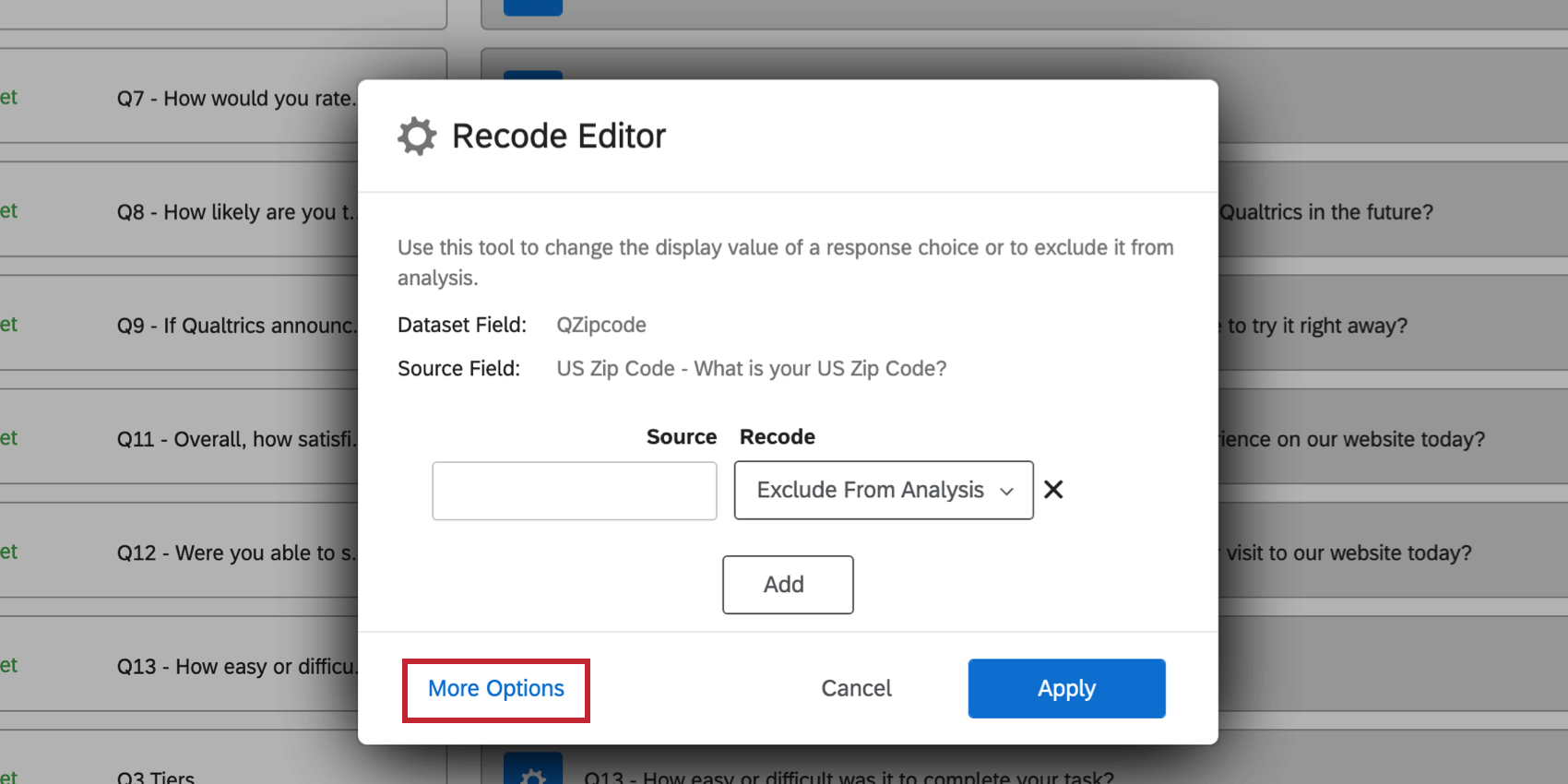
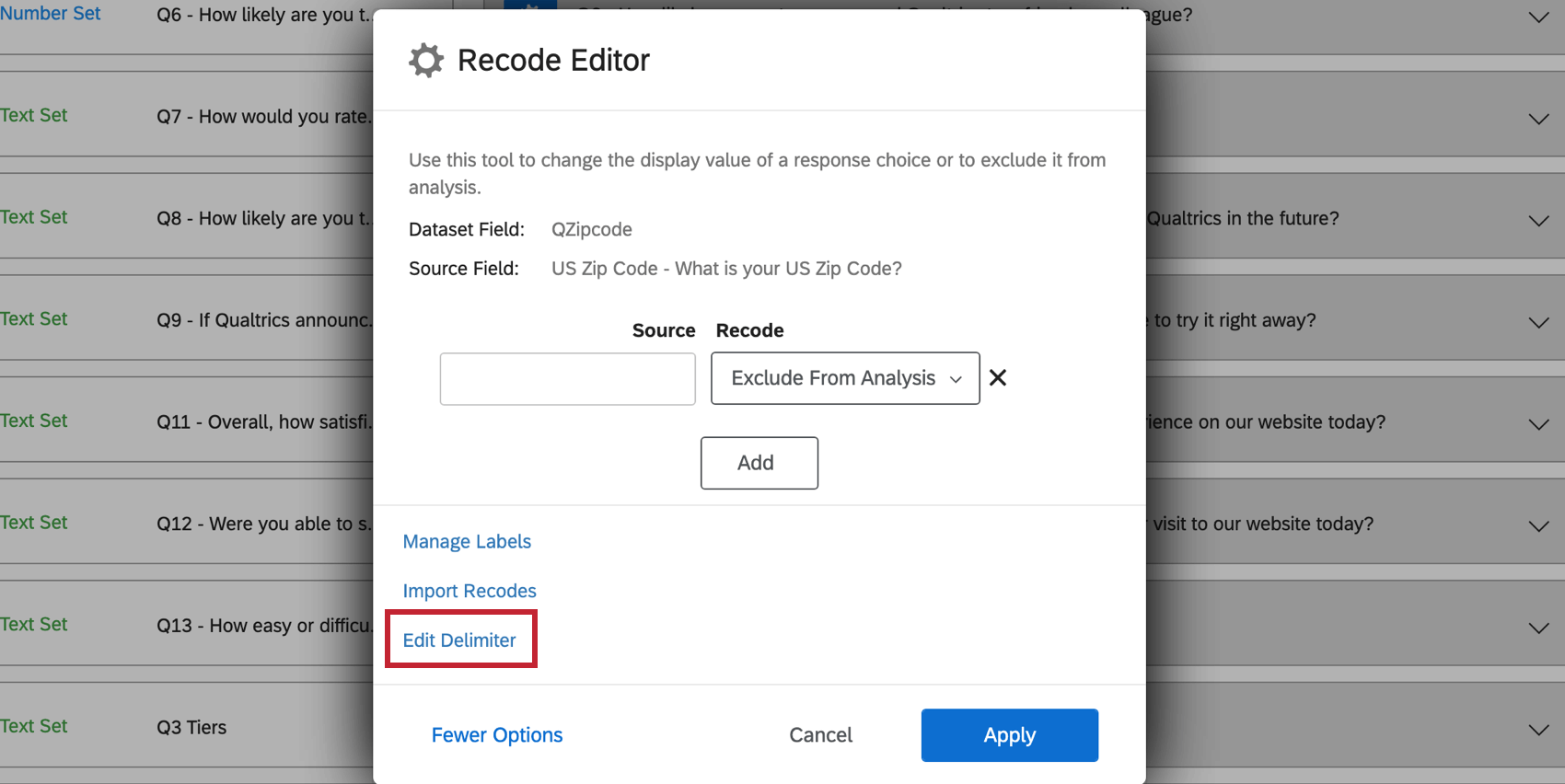
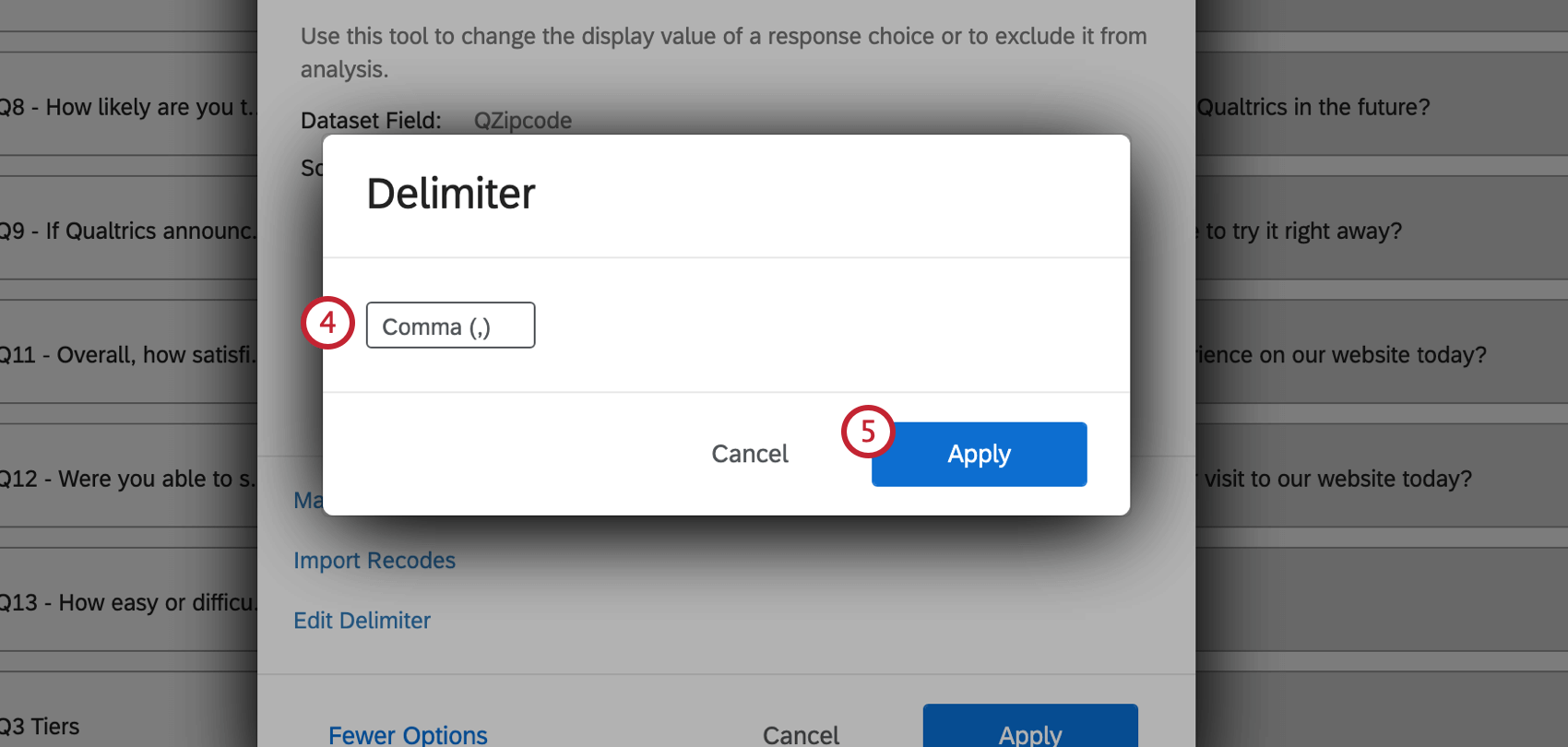
When you’re mapping an open-ended field (such as a Text Entry question or an Embedded Data field) to a Multi-Answer Text Set, you have the option to define a delimiter in the Recode Editor. A delimiter is meant to determine the division between different answers entered into an open-ended field. For example, if you’ve asked respondents to list the names of their children separated by commas, then the delimiter would be a comma.
Importing Recode Values
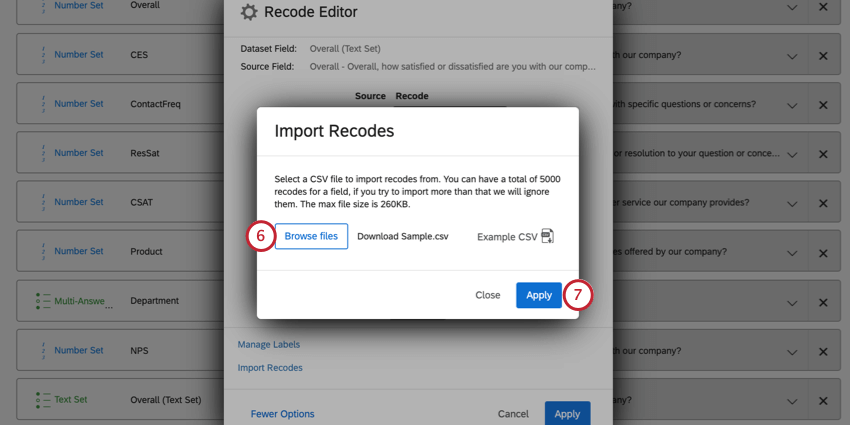
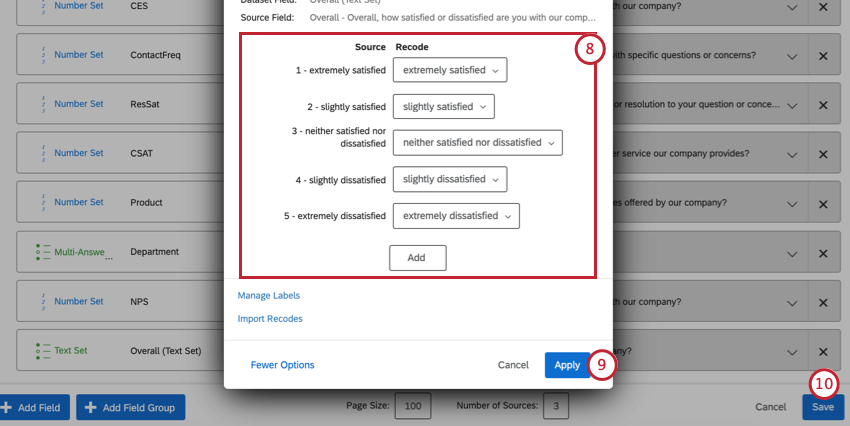
The Recode Editor allows you to import recode values into your mapped fields. This is useful if you have many values you’d like to recode, or if you’re recoding the same field across multiple data sources.
Qtip: A field can have a maximum of 5000 recode values.
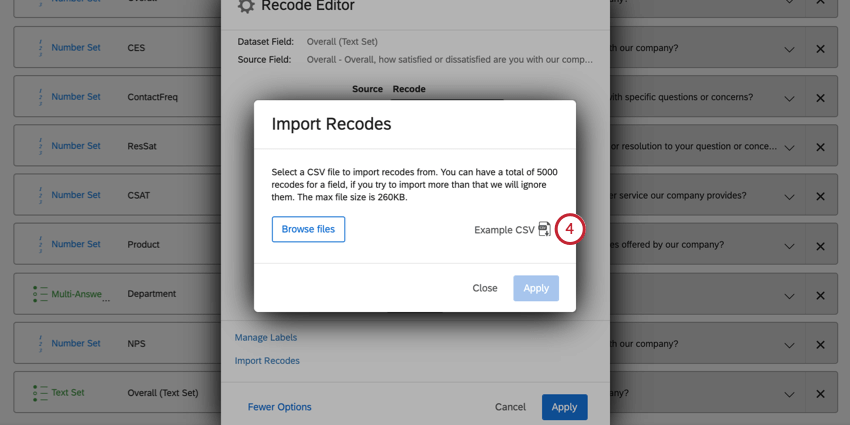
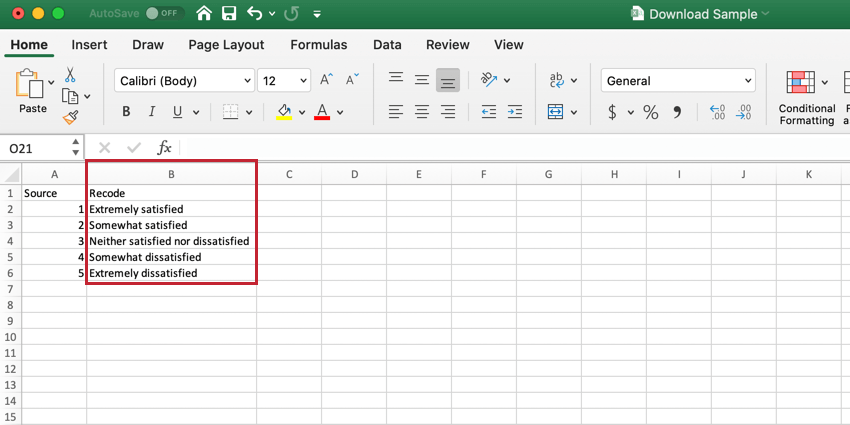
Qtip: If you leave a recode value blank, the answer choice will recode as Exclude From Analysis.
Grouping Fields
One of the most common use cases for recoding values is to group similar choice options together. For example, all NPS questions are rated on a scale from 0-10, and from this scale respondents are grouped into Detractors, Passive, and Promoter customers.
Below, we’ll go through the steps of how to implement a similar example.
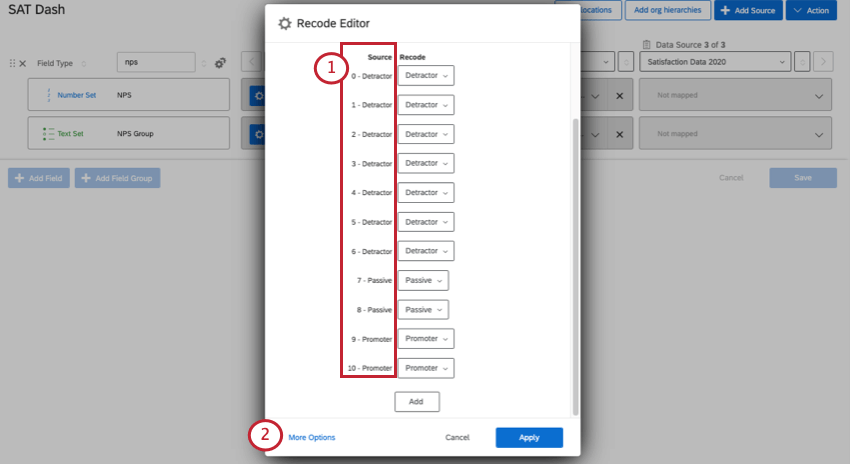
Qtip: Remember that if needed, you can click Add to add another field, or X to remove one.
Cleaning Up Data
Another use case for recoding values is for cleaning up and consolidating inconsistent data. For example, if some of your values for a single embedded data field are “G” and some are “Gold” and some are “gold,” CX Dashboards will interpret these as 3 different values. You can correct or group these inconsistent values by recoding them all to “Gold.”
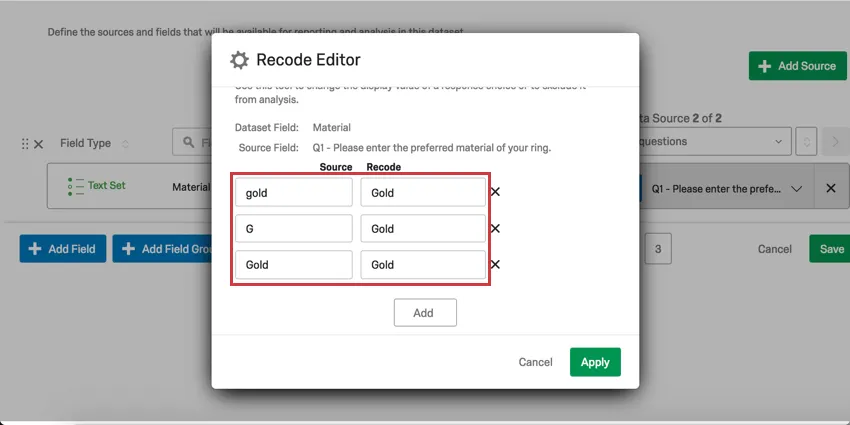
Alternatively, if your embedded data field had values of “G,” “S,” and “P,” you may want to recode them to be “Gold,” “Silver,” and “Platinum” to make them clearer to users.
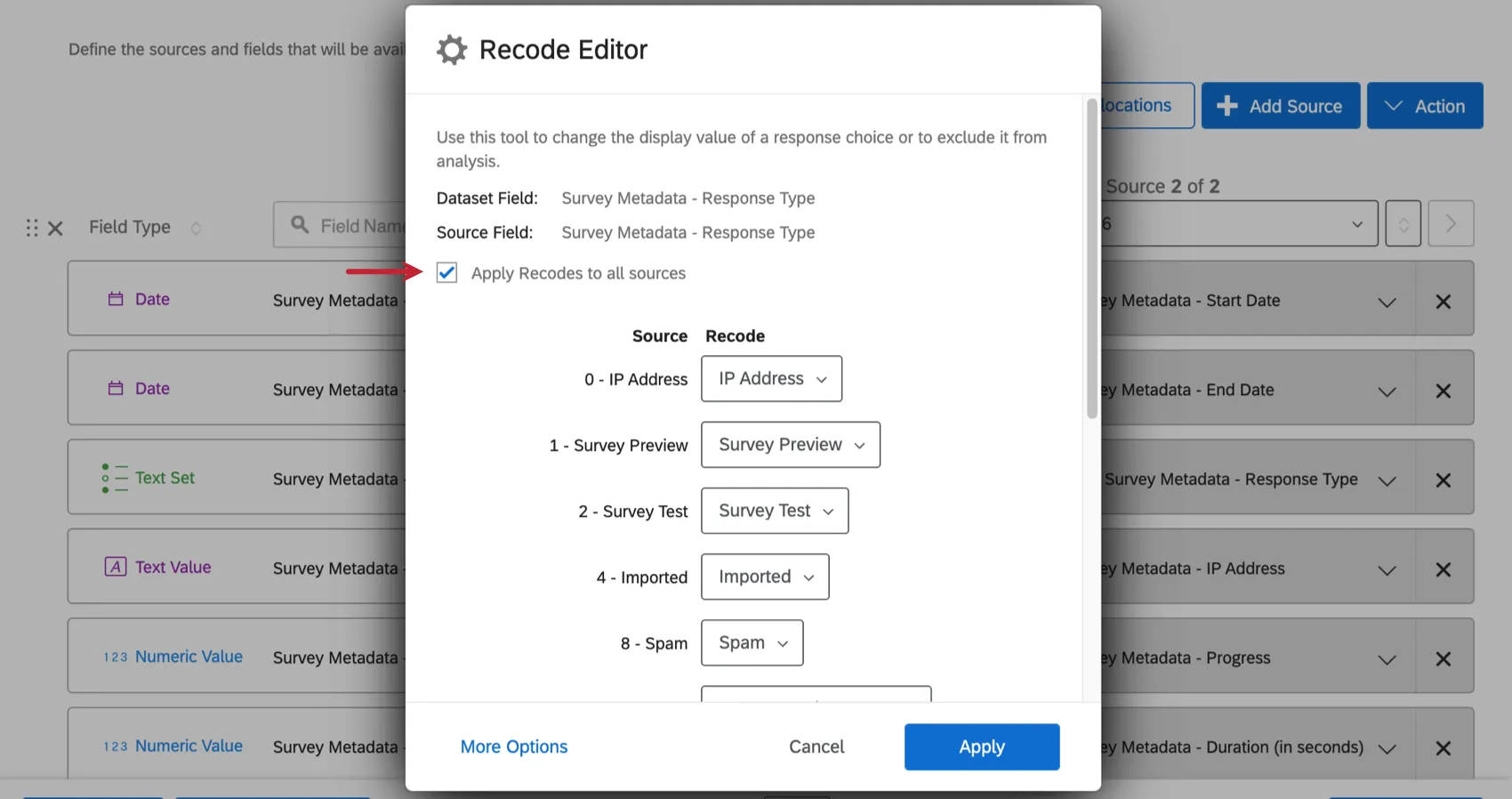
Apply Recodes to All Sources
When you’re editing the recode values of an type of field and you have added multiple sources to your dashboard, you can easily apply the changes you’re making to the same field across all of your sources. Select Apply recodes to all sources before you save your changes.
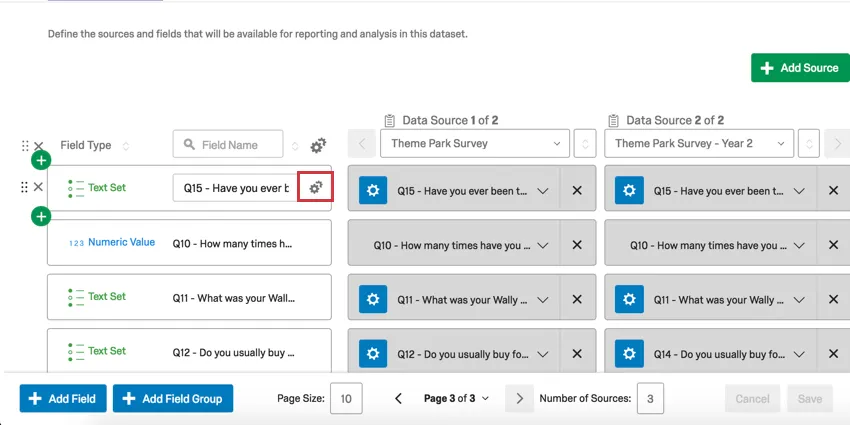
Multi-Mapping Editor
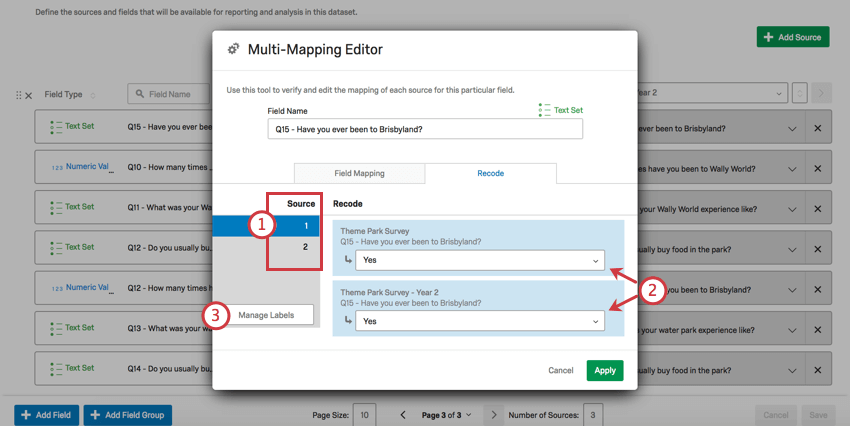
When you’ve added multiple sources to your dashboard, there is an additional recode editor that makes mapping the same fields across multiple sources much easier.
Field Mapping Tab
Using the blue dropdowns, you can choose the field from each source that should correspond to the same dashboard field.
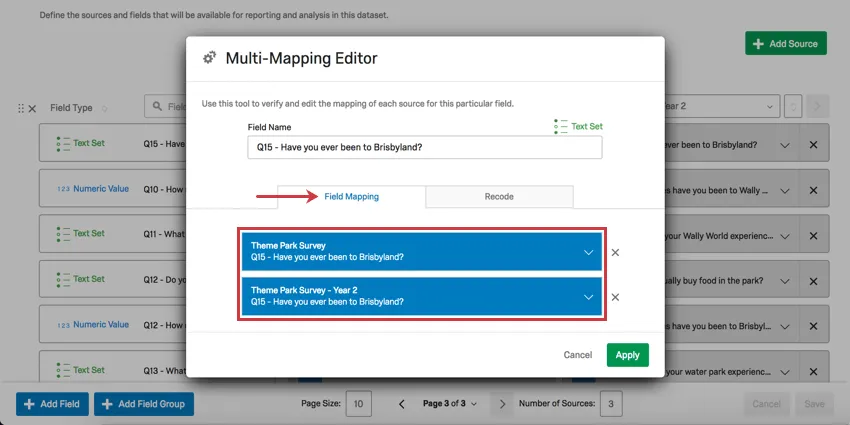
Qtip: Click the X to remove a mapping.
Recode Tab
Here, you can ensure the recode values are the same for each field being mapped together.
FAQs
How do I use the recode editor in CX Dashboards to group answer choices?
How do I use the recode editor in CX Dashboards to group answer choices?
To find instructions on grouping answer choices, visit the Recoding Dashboard Fields support page.
How do I use the recode editor to alter answer choices in CX Dashboards?
How do I use the recode editor to alter answer choices in CX Dashboards?
That's great! Thank you for your feedback!
Thank you for your feedback!