

Exploring Interactions (Studio)
What's on this page
About Interactions
Interactions include all the customer feedback, calls, and chats included in your projects. You can easily browse all of your interactions, and perform different actions on them, such as:
- Adding attributes or models to interactions.
- Viewing, sharing, and exporting feedback records.
- Deleting interaction records in compliance with GDPR and other data privacy policies.
- Accessing individual records.
- Performing actions on records in bulk.
Viewing Interactions
Qtip: You need the View Interactions Explorer permission to visit this page.
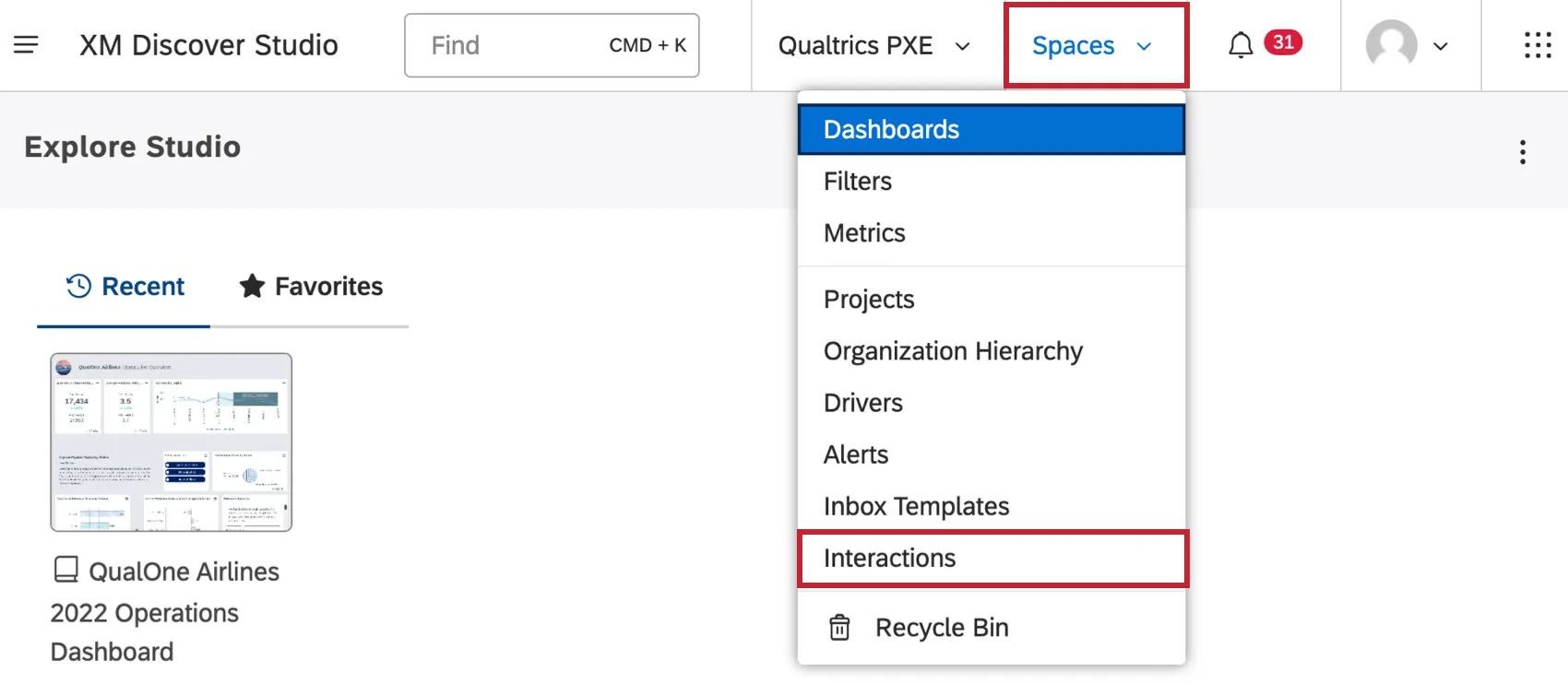
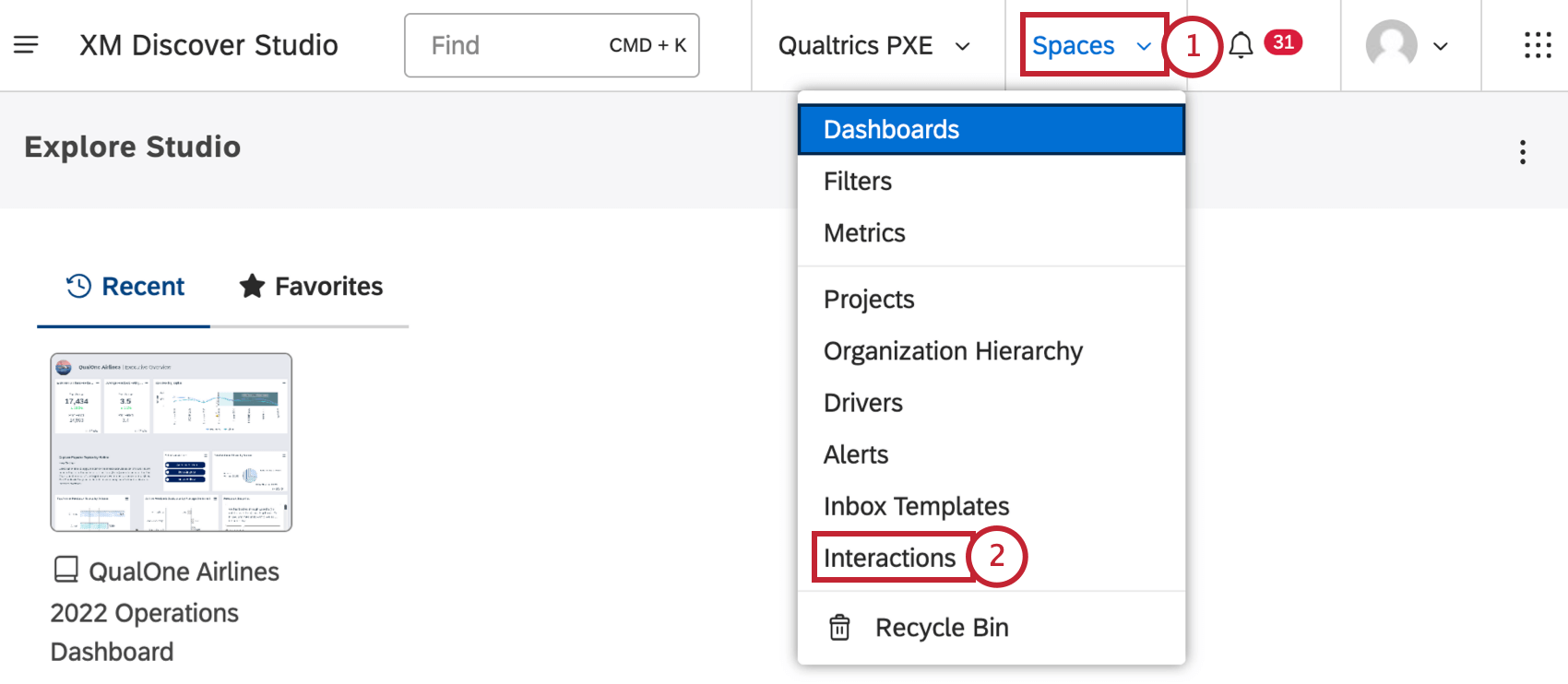
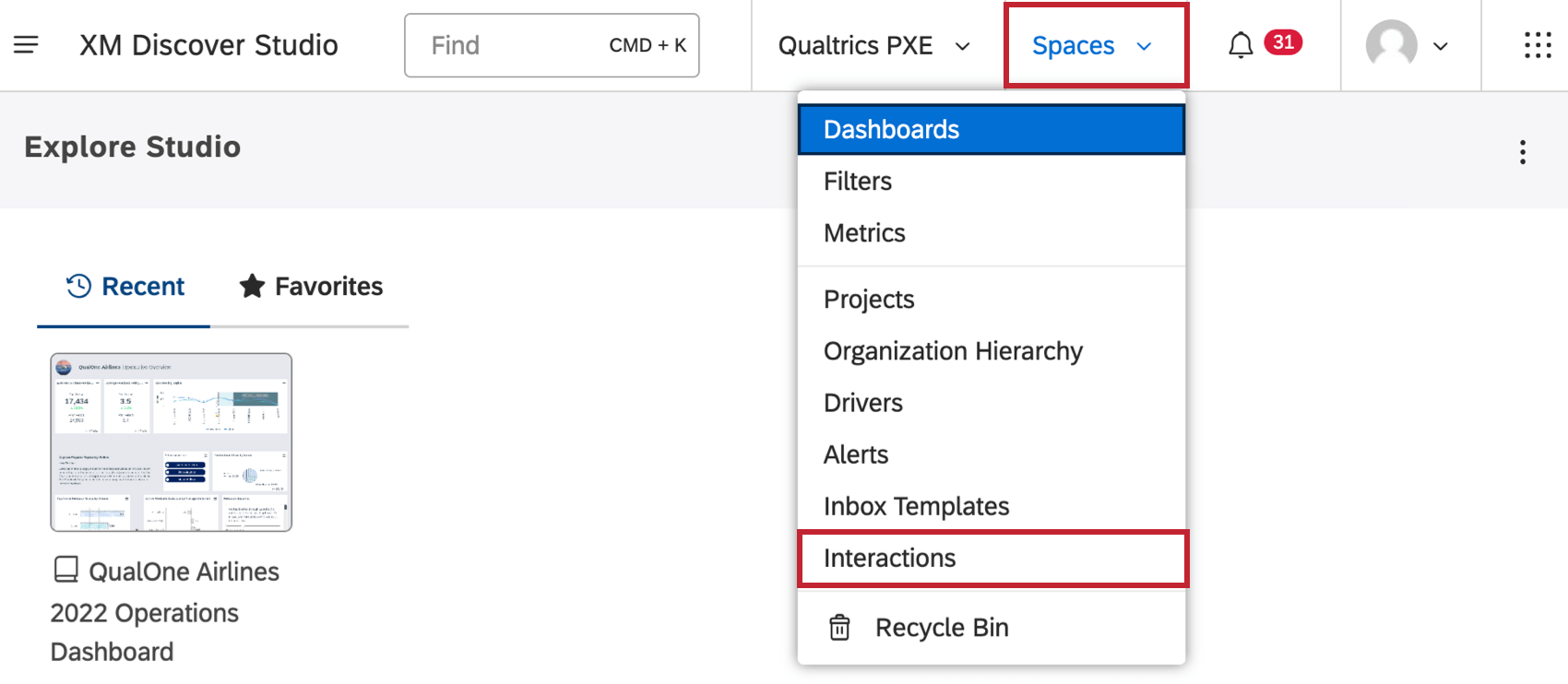
To view interactions, click the Spaces menu and select Interactions.
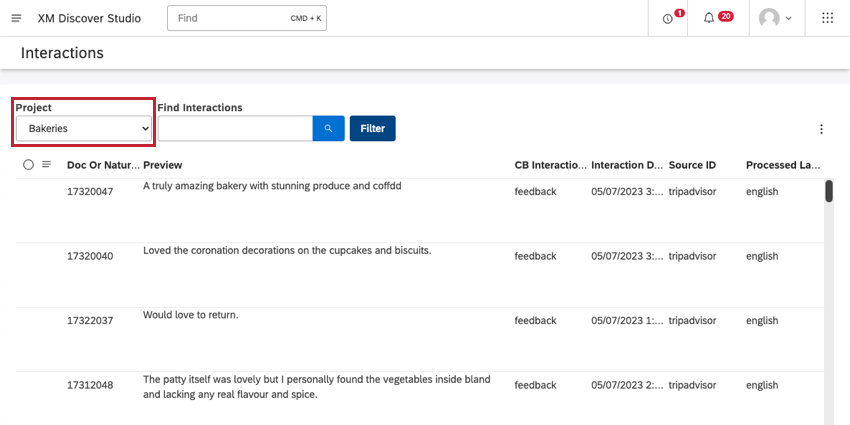
Use the Project dropdown to view interactions associated with different projects.
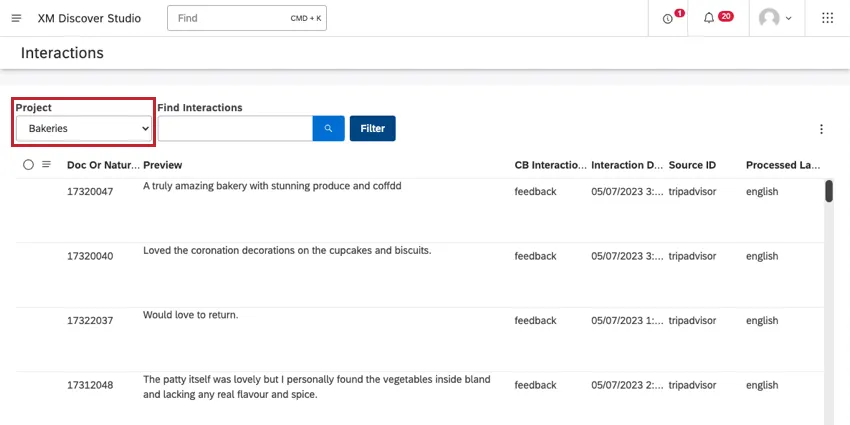
Qtip: You may also need to choose an account and a content provider, depending on what you have access to.
Navigating Interactions
Let’s look at some of the things you can do on the Interactions page.
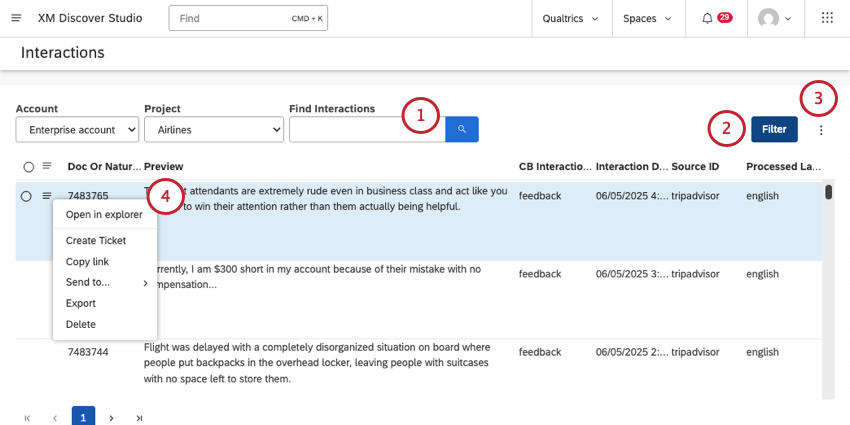
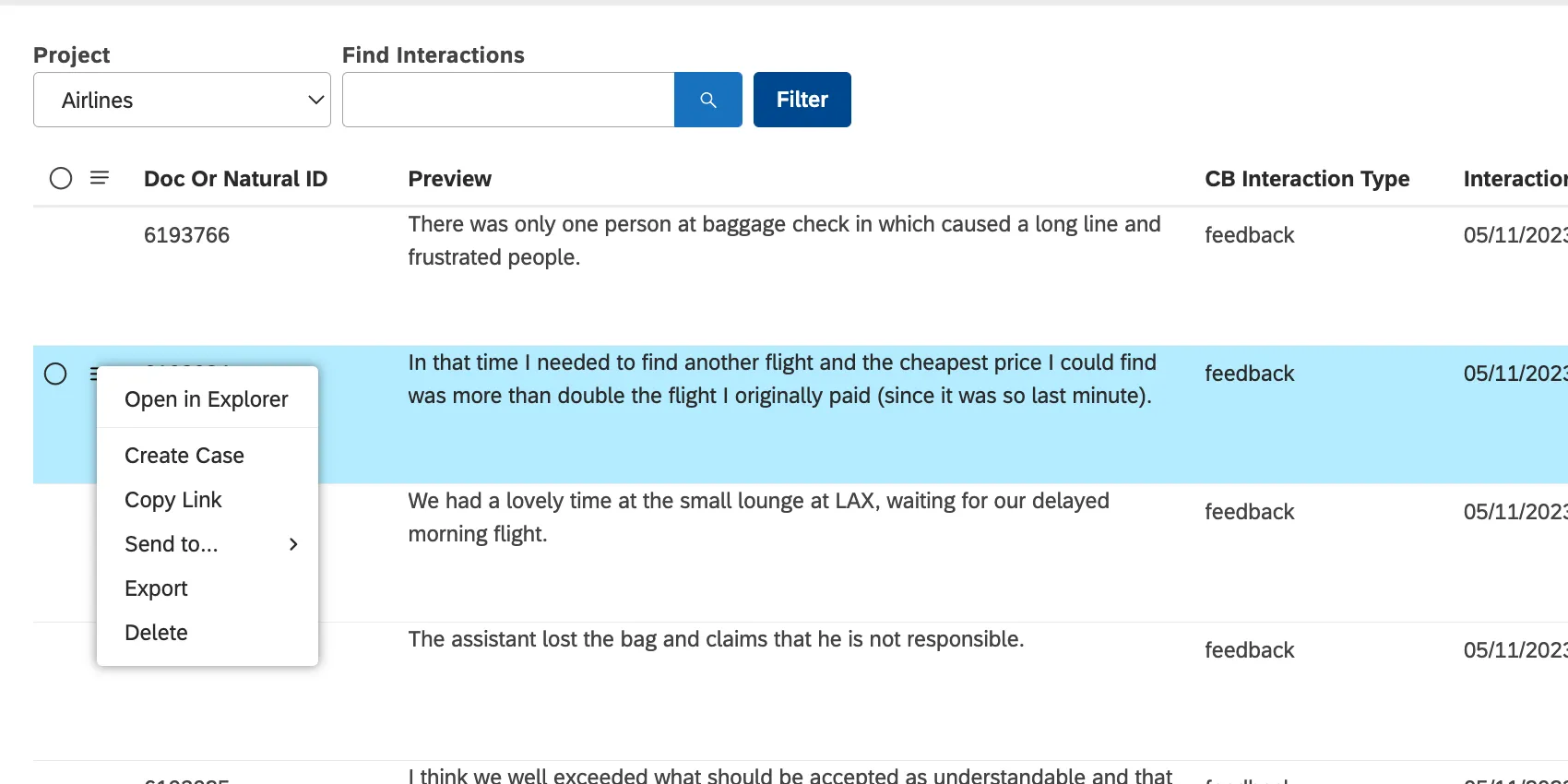
- Open in Explorer: Open the interaction in the document explorer.
- Create Ticket: Create a ticket using Qualtrics ticket workflows (also known as Engage xFlow). Tickets can be used to track a variety of tasks and issues that need to be resolved. Learn more. Qtip: This option only appears if you have a Manual Ticket Creation permission, which is part of the Contact Center Quality Management solution.

- Copy Link: Share the interaction as a link. See Sharing Interactions.
- Send to: Add interactions to a new or existing dashboard. See Sharing Interactions.
- Export: Export the selected interactions.
- Delete: Delete the interaction. This option only appears for users with administrative access to a project.
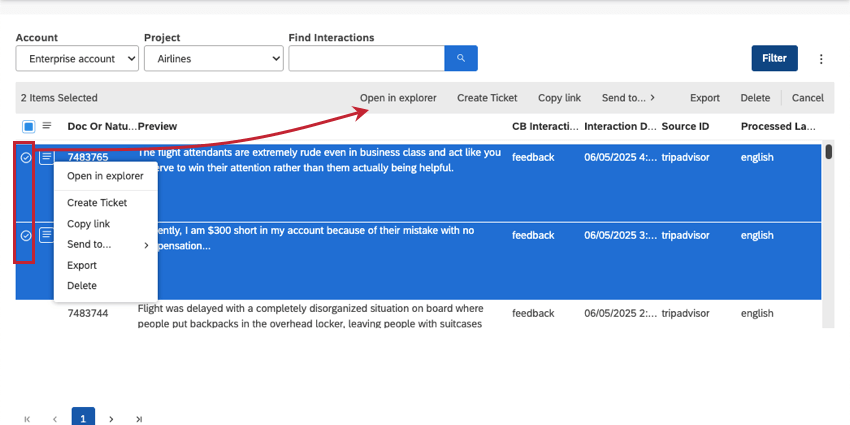
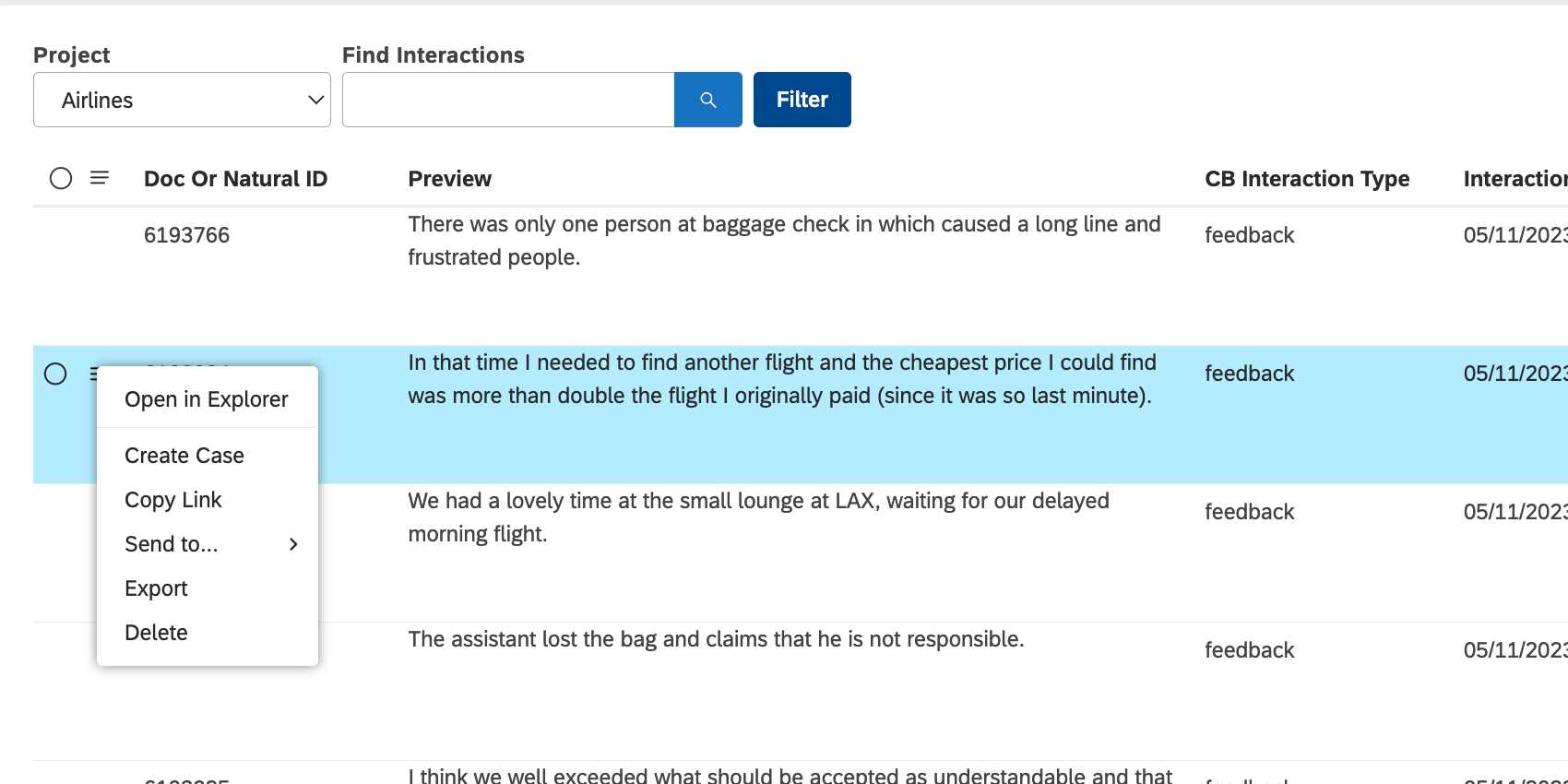
- Open in Explorer: Open the interaction in the document explorer.
- Create Ticket: Create a ticket using Qualtrics ticket workflows (also known as Engage xFlow). Tickets can be used to track a variety of tasks and issues that need to be resolved. Learn more. Qtip: This option only appears if you have a Manual Ticket Creation permission, which is part of the Contact Center Quality Management solution.
- Copy Link: Share the interaction as a link. See Sharing Interactions.
- Send to: Add interactions to a new or existing dashboard. See Sharing Interactions.
- Export: Export the selected interactions.
- Delete: Delete interactions. This option only appears for users with administrative access to a project.
- Cancel: Deselect the interactions and do not perform any actions.
Selecting Columns to Display
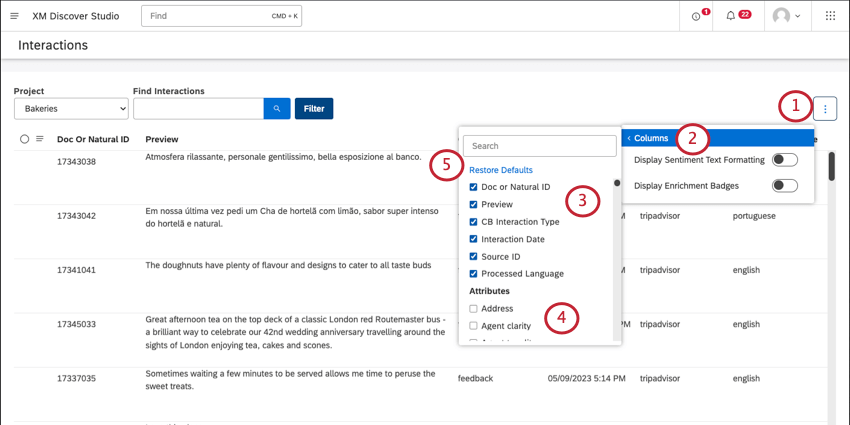
Select which attributes, enrichments, or models to display as columns in the interactions table.
Qtip: Your custom column selections will stay until you switch to a different project.
Qtip: Only selected columns appear in interaction exports.
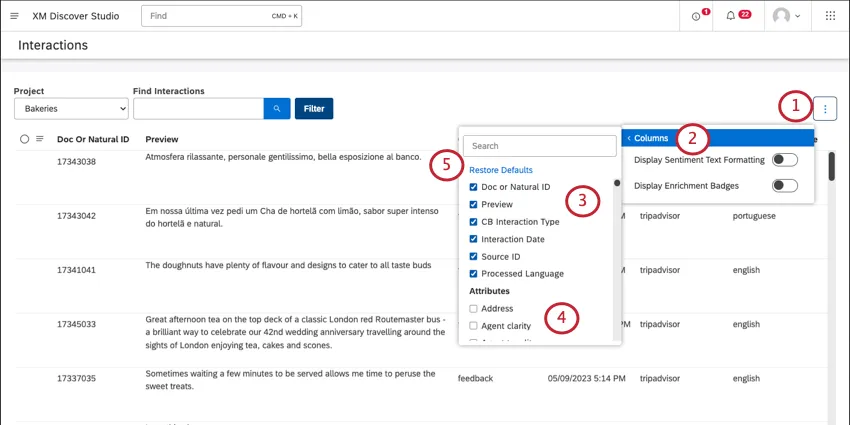
Qtip: Use the search bar to search attributes, enrichments, and models by name.
Qtip: You can select up to 10 columns.
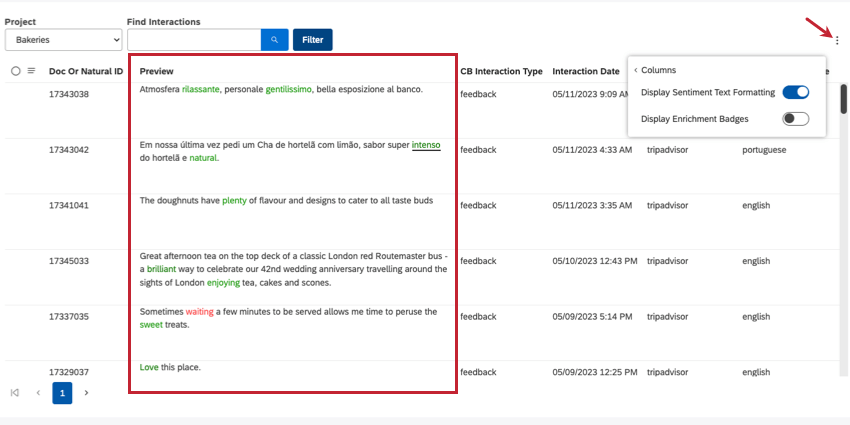
Displaying Sentiment Text Formatting
You can show or hide in-line sentiment for the Preview column.
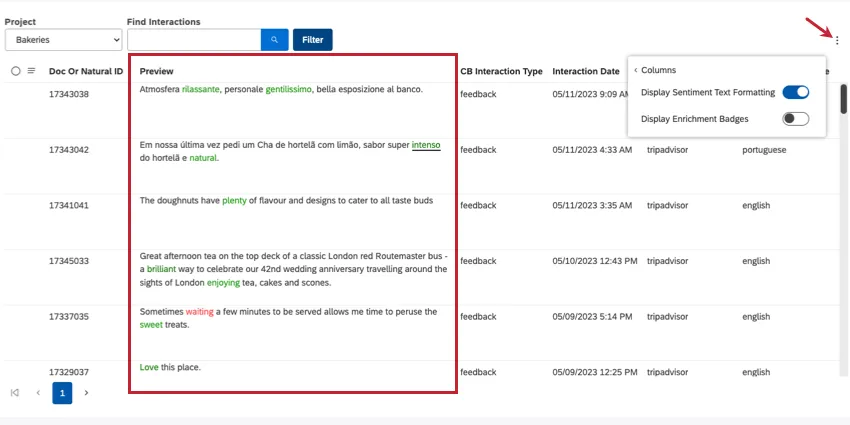
Click the menu in the upper-right and select Display Sentiment Text Formatting.
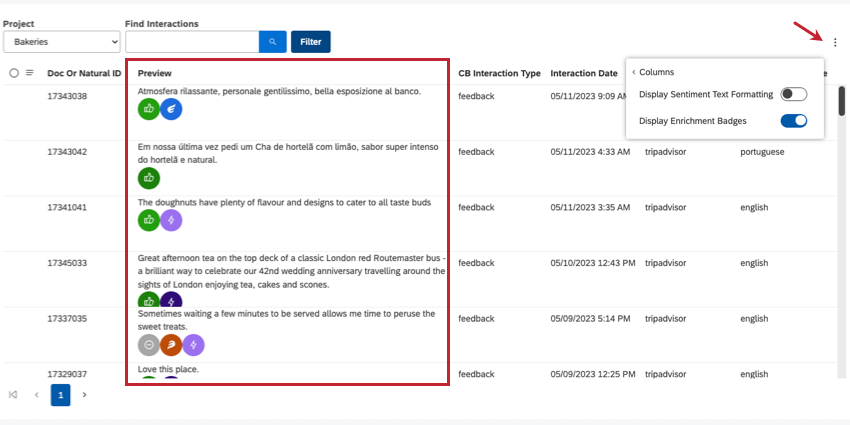
Displaying Enrichment Badges
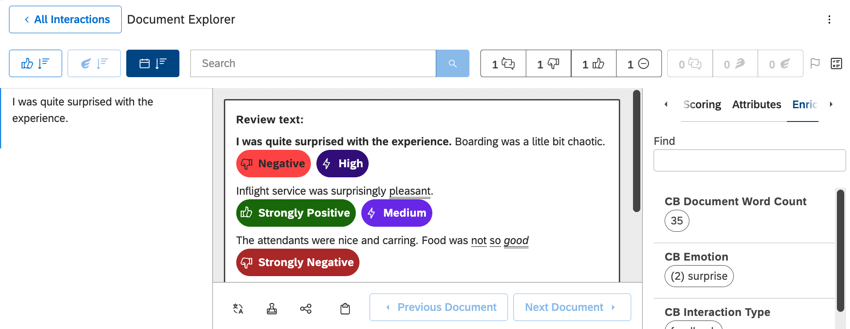
You can show or hide enrichment badges, such as overall sentence sentiment, effort, and emotional intensity.
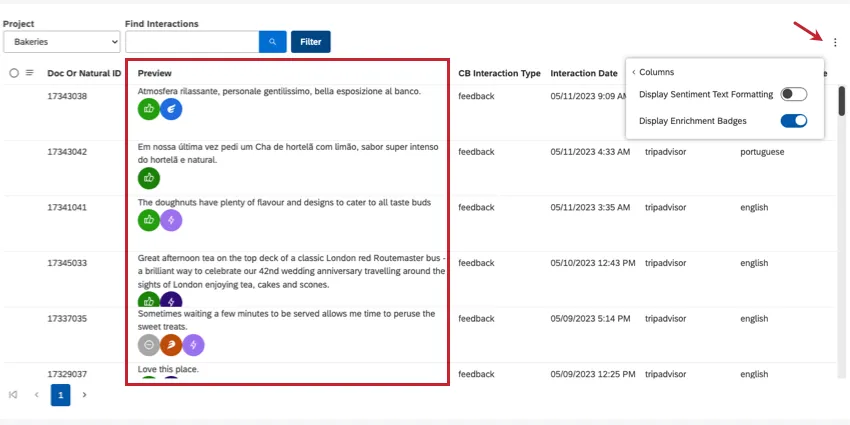
Click the menu in the upper-right and select Display Enrichment Badges.
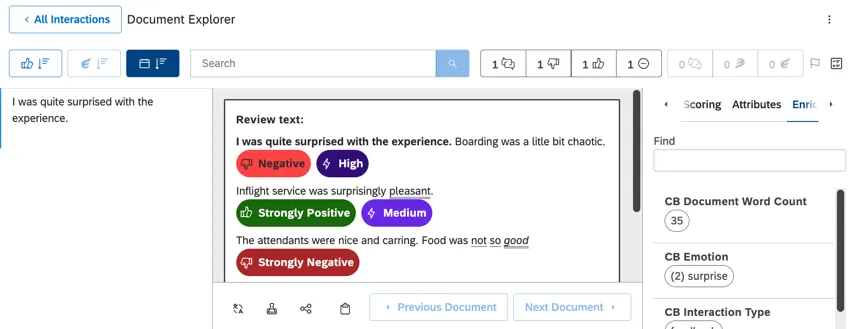
Qtip: Click on an interaction to see the enrichment badges with text, to learn what they mean.
Deleting Interactions
You can delete interactions across all XM Discover systems.
Warning: Once you delete an interaction, it cannot be retrieved. Do not delete an interaction unless you are sure that’s what you want to do.

Qtip: To delete an interaction, you need the Delete Feedback Records permission and Administrator-level data access to the project.
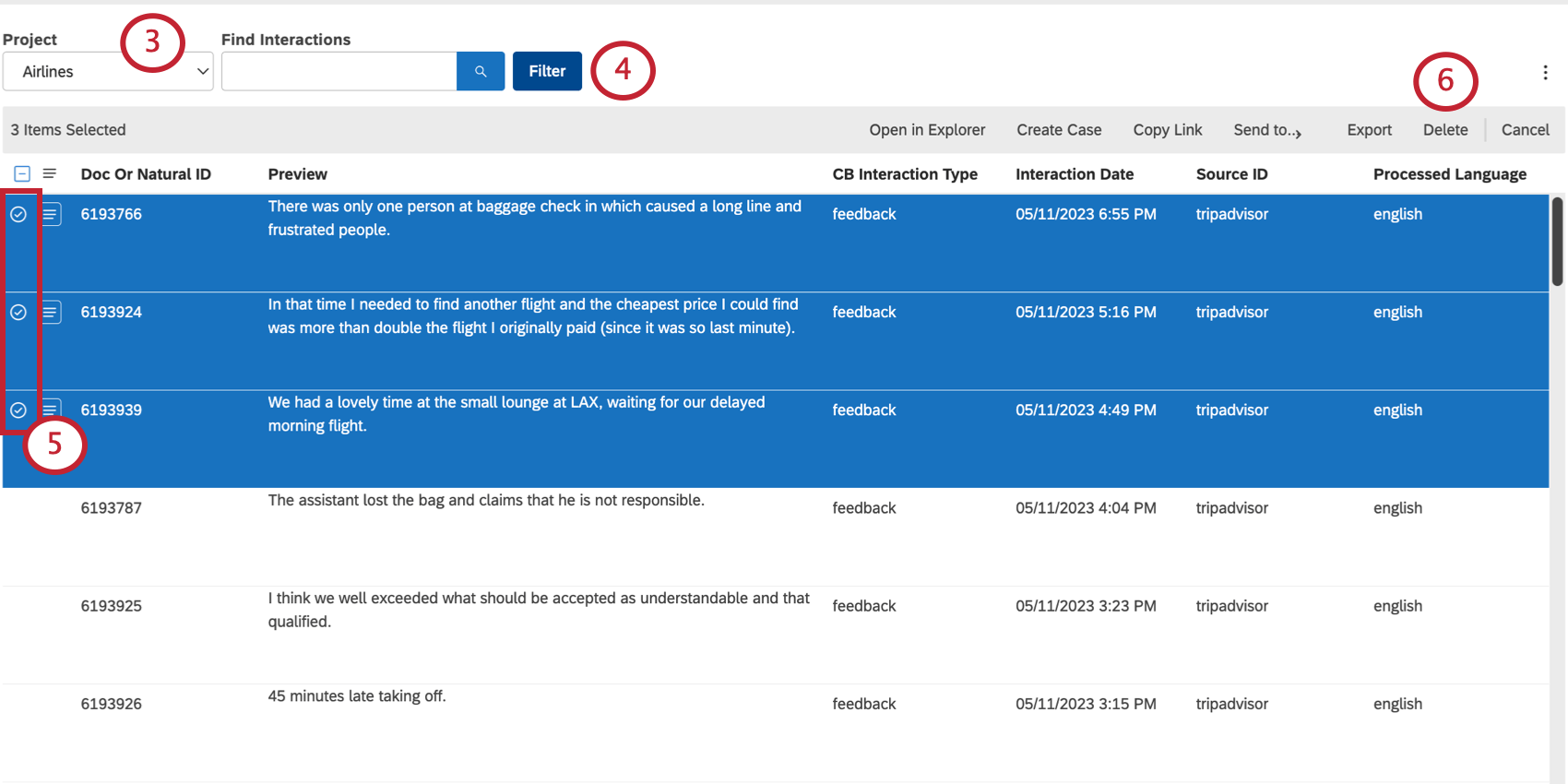
Qtip: You may also need to choose an account and a content provider, depending on what you have access to.
Qtip: You can only delete up to 5 interactions at once.
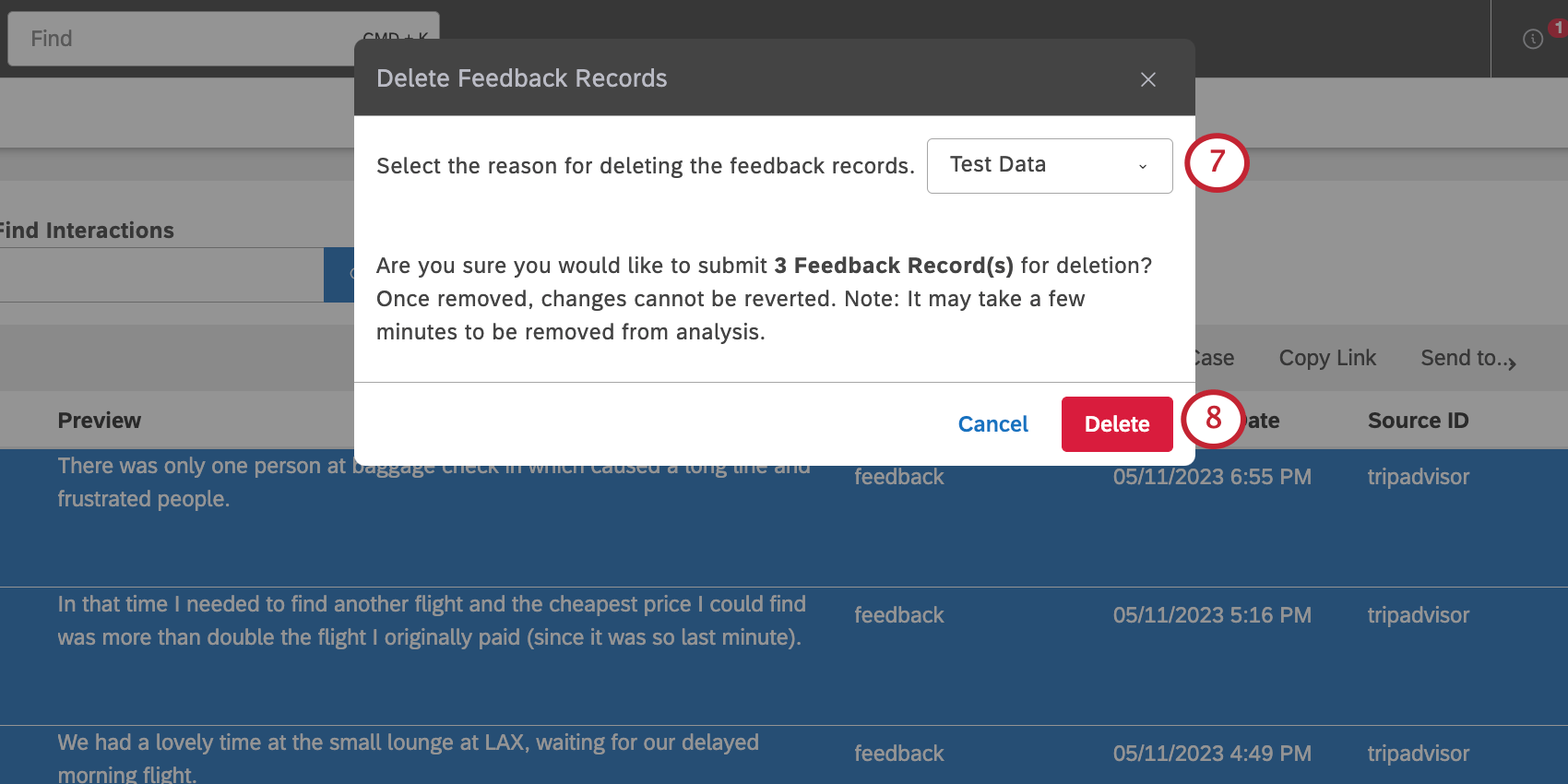
- GDPR/CCPA Compliance
- PII Data
- Inaccurate Data
- Old Data
- Test Data
- Other Qtip: The reason you select will be documented in the security log.
Qtip: To delete an individual interaction, click the dropdown next to it, then select Delete.
That's great! Thank you for your feedback!
Thank you for your feedback!