

Critical Support Workflow
What's on this page
About the Critical Support Workflow
It's important to know when a customer's unhappy, but even more important to know when their initial issue wasn't resolved. On this support page, we'll cover how to build a workflow that's crucial for frontline teams like call centers. When a customer indicates that their issue hasn't been resolved, you can send a notification to a support manager on a channel of your choice. You can even integrate with your case management software to reopen the issue.
Before You Create This Workflow
Have a Transactional Survey Ready
This critical support workflow is designed to plug into an existing survey, like a post-support survey, where you ask the customer how satisfied they were with the agent's help. If you don't have one already, see our page on how to build a Transactional Survey.
This survey should ask for a rating (e.g., CSAT) and at least one of the following:
- Text entry for open feedback.
- A yes/no question that asks whether the customer's issue was resolved.
Know Your CRM
An optional step of this critical support flow lets you reopen the case. If you want to complete this step, it’s important to know what your CRM is. For example, Salesforce, ServiceNow, or Microsoft Dynamics 365.
Qtip: You might need the help of your organization’s IT team for the CRM step.

Step 1: Event and Conditions
In this step, the goal is to make sure the workflow triggers when one of two negative ratings is received and the customer indicates unresolved issues.
Open your survey and go to the Workflows tab.
Choose the Survey response event.

Select your feedback survey.
Change the operator to say All of the following are true.
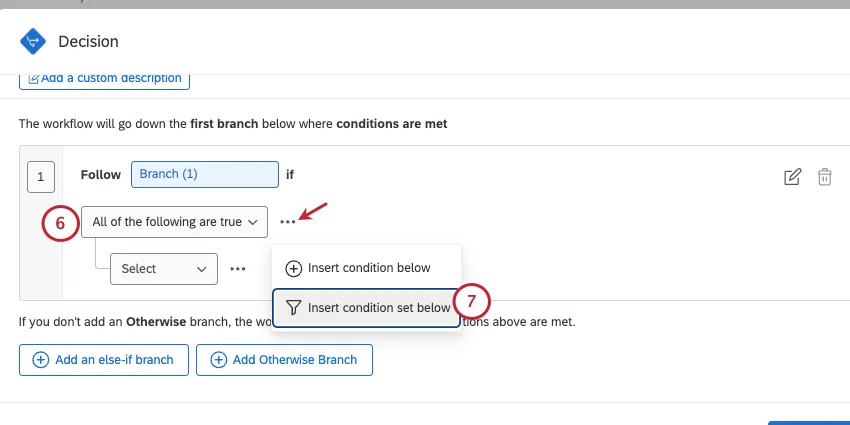
Next to "All," select Insert condition set below.
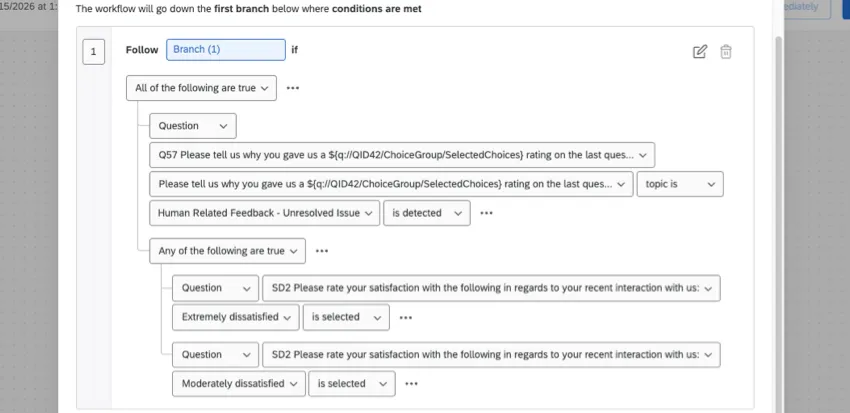
In this condition set, add criteria based on the CSAT, if extremely dissatisfied is selected.
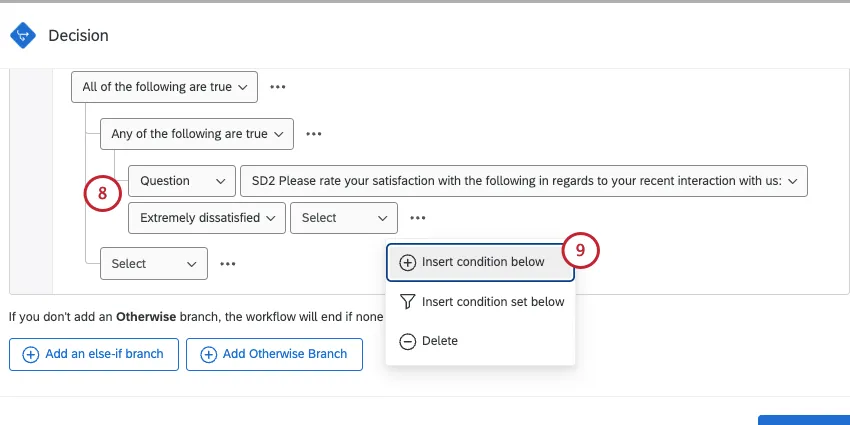
Qtip: These steps use CSAT as an example, but you can modify them as needed for your chosen rating.
Next to this, select Insert condition below.
Add criteria based on the CSAT, if moderately dissatisfied is selected.
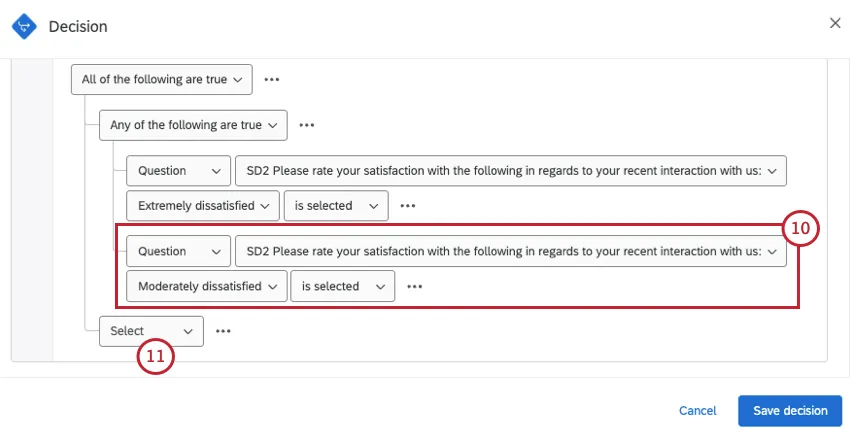
Qtip: The CSAT conditions should be indented together under "Any of the following are true," as shown.
Now select the outer condition, under "All of the following are true." Your next steps are different based on whether you:
- Have a yes/no question that explicitly asks if the customer's issue was resolved.
- Only collect open text entry feedback.
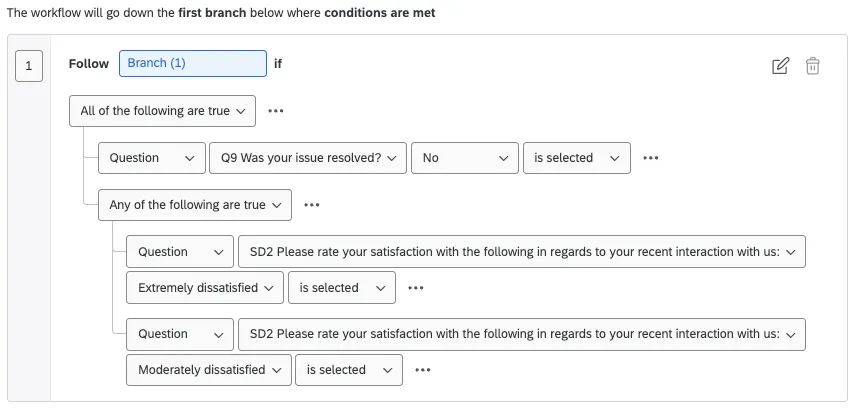
If you have a yes/no question, add a condition based on this question, and select the issue wasn't resolved option.
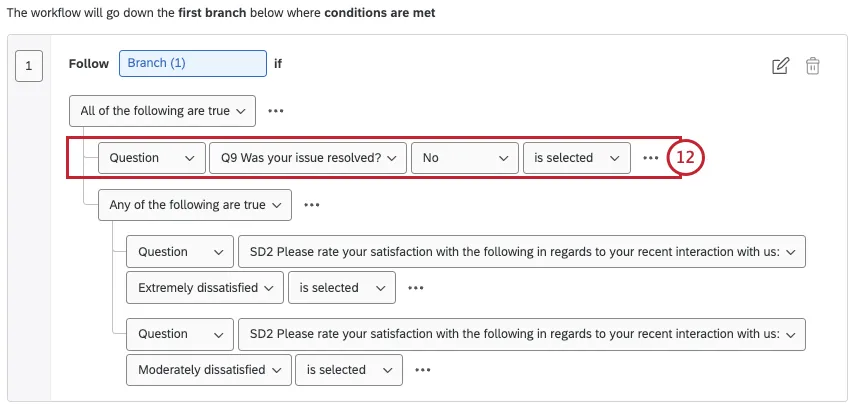
If you have a text entry question, add a condition based on this question.
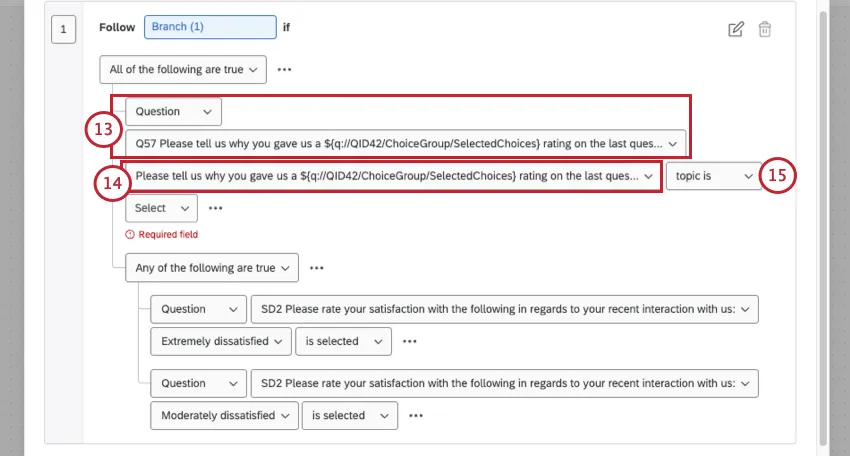
Select the question's name again.
Select topic is.
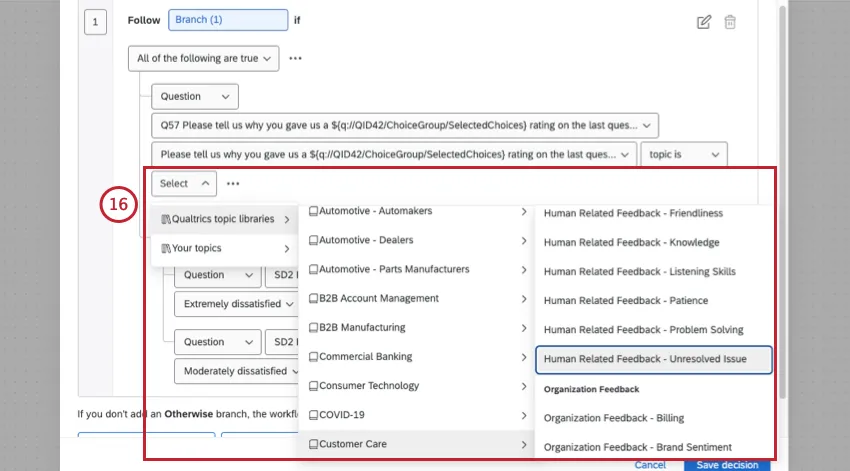
Hover over Qualtrics topic libraries, then Customer Care, then Human Related Feedback - Unresolved Issue.
Select is detected.
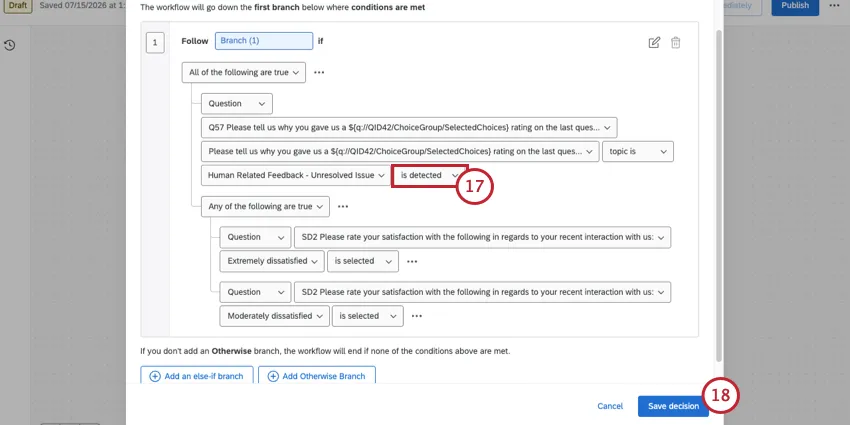
Qtip: This completed condition leverages topic analysis devised by top experts in order to dynamically trigger workflows. In other words, all customers have to do is mention in their feedback that their issue was unresolved, and the critical support workflow will start. To learn more, see TextFlow.
You can now save your decisions.
Example: Below are examples of what your final conditions should look like. If you need help with condition sets, see Conditions and Condition Sets.

Step 2: Notification
Next, you're going to add a task to the same workflow, under the decision you just made. The goal of this task will be to alert a support manager (or agent) that the customer said their issue wasn't resolved.
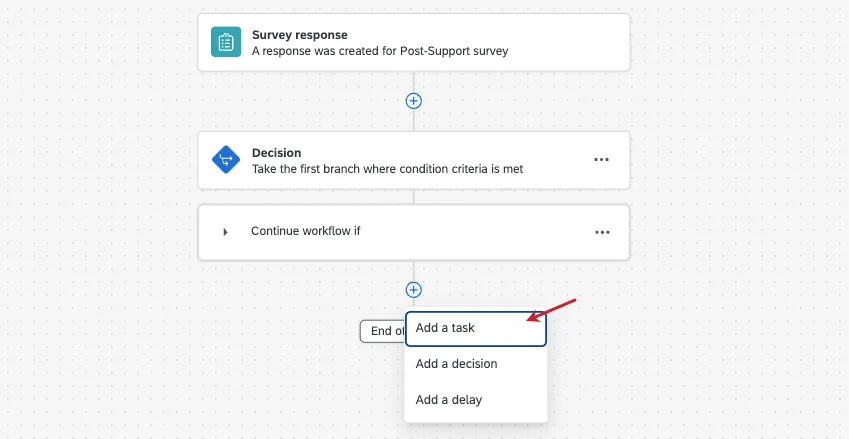
Here are some recommended tasks you can use:
See these pages for setup steps. As you create your messages, keep the following in mind:
- You can set recipients to piped text ( {a} ), allowing dynamic assignment. For example, if you want to send the message to the support representative, you can pull their information from the survey's embedded data.
- Piped text ( {a} ) can also help when you build the message. Insert key information about the client and their feedback, such as the client's name, a link to the ticket, and their contact information.
Step 3: Case Reopened
The exact next steps are going to vary based on your chosen CRM, but here are the basics:
Add another task to the workflow.
Choose your CRM. Here are a few examples:
Qtip: Try searching the name of your CRM on our support site. If there’s not a prebuilt integration, your IT team can always use APIs or webhooks with a web service task.
Use the task to update the case in your CRM. Change its status to reopen it.
Qtip: In Qualtrics Tickets, this is a good use for a custom status. For example, you could call it "Reopened" to distinguish from open tickets that have never been actioned before.
Attention: Once you’re finished, don’t forget to Publish your workflow!


Workflow Templates
Workflow templates are a faster way to build certain workflows. They come with major tasks and settings already selected, so you only have to enter your specific program’s information. There are a few templates similar to the build described on this page. For example, if you use Zendesk, there's a template that creates a new Zendesk ticket based on an issue being flagged as unresolved.
For more details, see Textflow Templates.
That's great! Thank you for your feedback!
Thank you for your feedback!