

Adding Feedback Givers, Recipients, & Managers (360)
What's on this page
About Feedback Recipients (Subjects), Feedback Givers (Evaluators), and Managers
Before you conduct a 360, you need to figure out who will be participating. This page will cover the different kinds of participants, their relationships, and how to upload them properly to your 360 project.
Attention: Regardless of project status, any changes you make to metadata when uploading existing directory members to your project will not affect their metadata in the directory. (Note: This warning only applies to metadata. Person metadata changes, such as name changes, will always affect the directory, since they are changes to how the participant’s personal information is stored in the employee directory.)

Qtip: Employee Insights Admins and EX Administrators can import Brand Administrators as project participants. However, they cannot edit any Brand Admin user data, which can only be changed by other Brand Admins. This is to prevent user account admin information from being modified by lower level user admins. If you’d like to change this behavior, reach out to Qualtrics Technical Support and ask to have the Limit EX Admin Update Person permission disabled for the organization.

Differences Between Feedback Recipients and Feedback Givers
- Feedback recipients: Or subjects. The participants being evaluated in your 360.
- Feedback givers: Or evaluators. The participants who evaluate a feedback recipient.
Attention: Remember to always upload feedback recipients (subjects) before you upload feedback givers (evaluators)!
It is possible to be a feedback giver and recipient at the same time. For example, John may give Patty feedback, but feedback from his own manager. A person who fills out a self-reflection is giving themself feedback and receiving that feedback. It’s also possible to only be a feedback giver or a feedback recipient.
You can easily make a recipient a feedback giver by assigning them to give someone feedback. On the other hand, to make someone who is only a feedback giver a recipient, you have to carefully upload the participant with the exact same SubjectUniqueIdentifier in the Feedback recipient section.
Being a feedback recipient or a feedback giver can determine which mailings you qualify for.
Relationships and Managers
Relationships explain how a feedback giver and recipient know each other. For example, someone who works on the same level as you could be labeled your Peer or Colleague, depending on your company’s preference.
Qualtrics has several relationships built in by default:
- Self: This relationship cannot be reassigned, and always refers to the feedback recipient’s self.
- Manager: This relationship allows the feedback giver to be displayed in the Manager section of the Participants tab. Managers can have special tasks no other feedback givers can. For example, managers can approve or view their direct reports’ reports. If John Doe is marked as Jane Smith’s manager, Jane Smith is automatically marked as John Doe’s direct report.
- DirectReport: A direct report is someone who reports to a manager. If John Doe is marked as Jane Smith’s manager, Jane Smith is automatically marked as John Doe’s direct report.
- Peer: This relationship indicates when a feedback recipient and their feedback giver are on the same level. It does not have any special functions, and can be replaced in favor of any custom relationship you like.
The best way to define relationships is by using the Relationship column in the CSV or TSV file when you upload feedback givers.
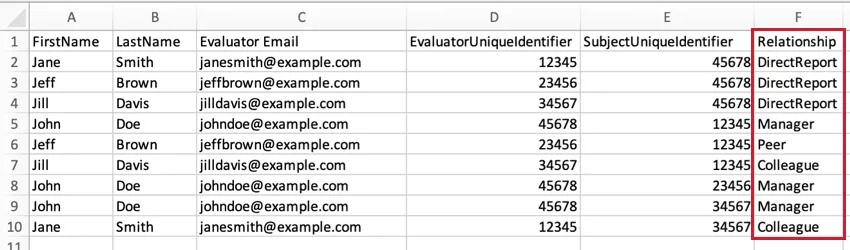
You can create custom relationships by typing whatever you want into this column. These custom relationships can later be managed in the participant tools.
Qtip: If you need to correct a relationship after responses are already collected, you can also assign relationships inside the Participant Information Window.
Metadata
Metadata is any extra information you want to associate with a participant aside from the Qualtrics required fields (full name, unique identifier, and email). Examples include department, title, level, and team. Metadata is recorded as responses are collected, and allows you to control what questions will be displayed to certain feedback recipients, as well as build data sources to further segment and analyze your data. Metadata is also a handy filter when reporting.
The best way to add metadata is by including additional columns in your feedback recipient and feedback giver files. You can include as many additional metadata columns as you like, since there is no limit to the amount of additional information you can associate with your participants.
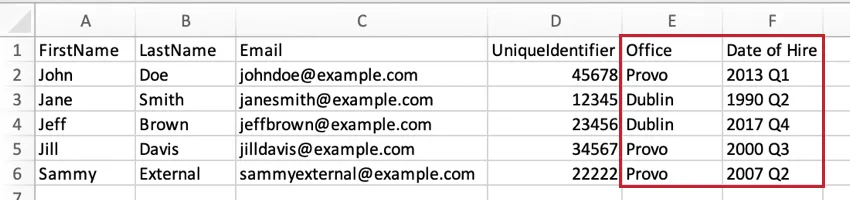
Attention: We recommend adding a Language column and giving each participant the correct language code. If no language is provided, then the participant portal will be displayed in English (US).
Qtip: If you forgot to add metadata until after responses were collected, you can also add metadata to one participant at a time inside the Participant Information Window.
Importing Feedback Recipients
Go to the Participants tab.
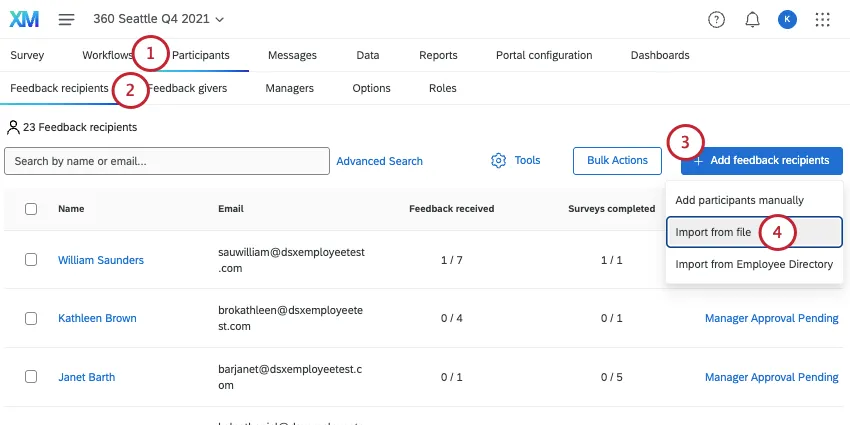
Make sure you are in the Feedback recipients section.
Click Add feedback recipients.
Select Import from file.
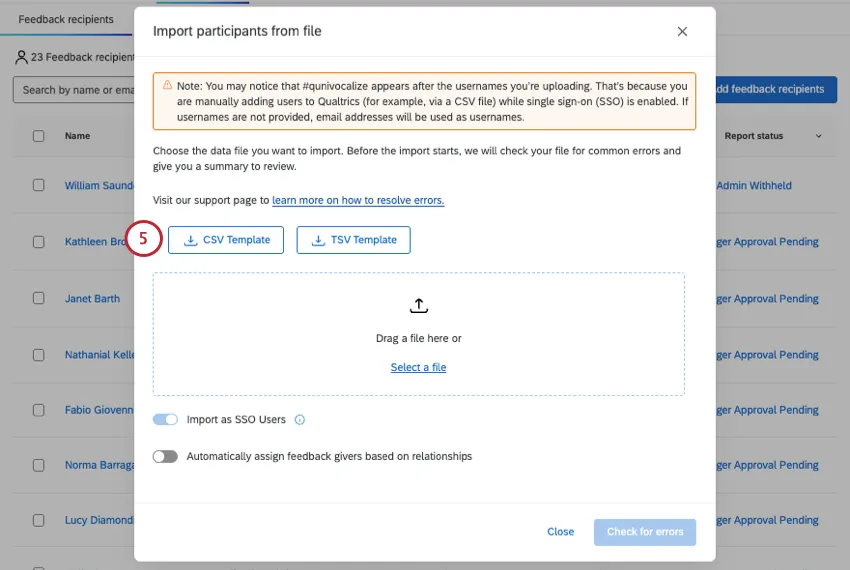
Download the CSV or TSV template.
Prepare your file.
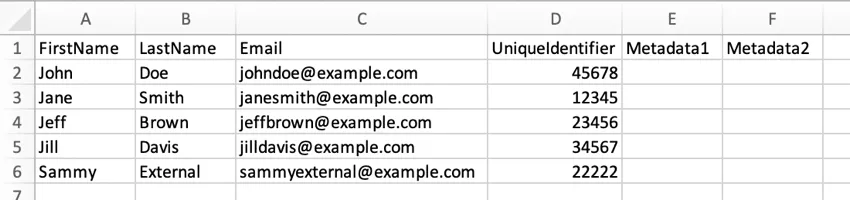
Keep your header row! The only thing you should change in the header are Metadata 1 and Metadata 2. Instead of these headers, feel free to add any metadata you want, such as Office, Location, Department, and more.
Every row is a separate subject/feedback recipient.
Every feedback recipient needs a first name, last name, email, and a unique identifier (such as an employee ID). The email will later serve as their login ID.
If you add a Language column, values should be language codes, not language names.
When you save the file, keep it as a CSV or TSV that’s UTF-8 encoded.
Add as many rows of feedback recipients as you need. Your max file size is 100MB.
Click Select a file and choose your file.
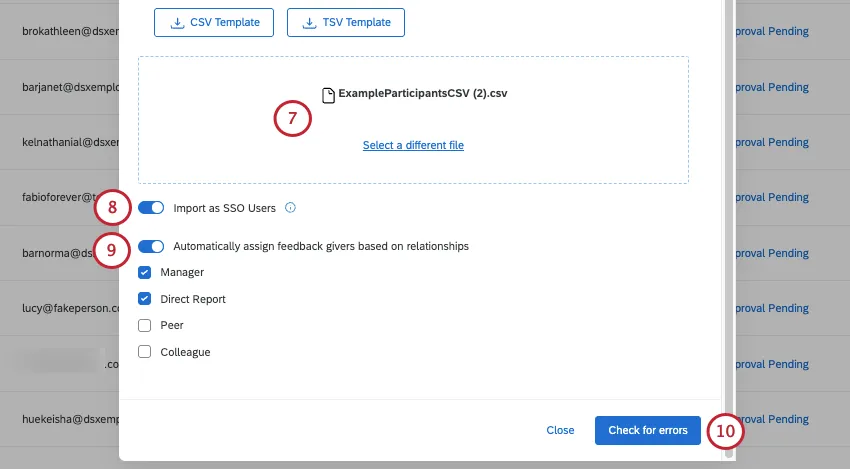
If your license uses SSO, you can enable or disable the Import as SSO Users option. When this option is enabled, any newly created participants will be added as an SSO user. Your organization ID will be automatically added to the end of their email address to create their SSO login username. When disabled, the new participants will be added as standard users who log in with a unique Qualtrics username and password.
If you have participants already saved in your directory, you can assign them feedback givers based on who’s already listed in their directory relationships. Just select Automatically assign feedback givers based on relationships and select the eligible relationship types.
If no file issues are detected, click Check for errors.
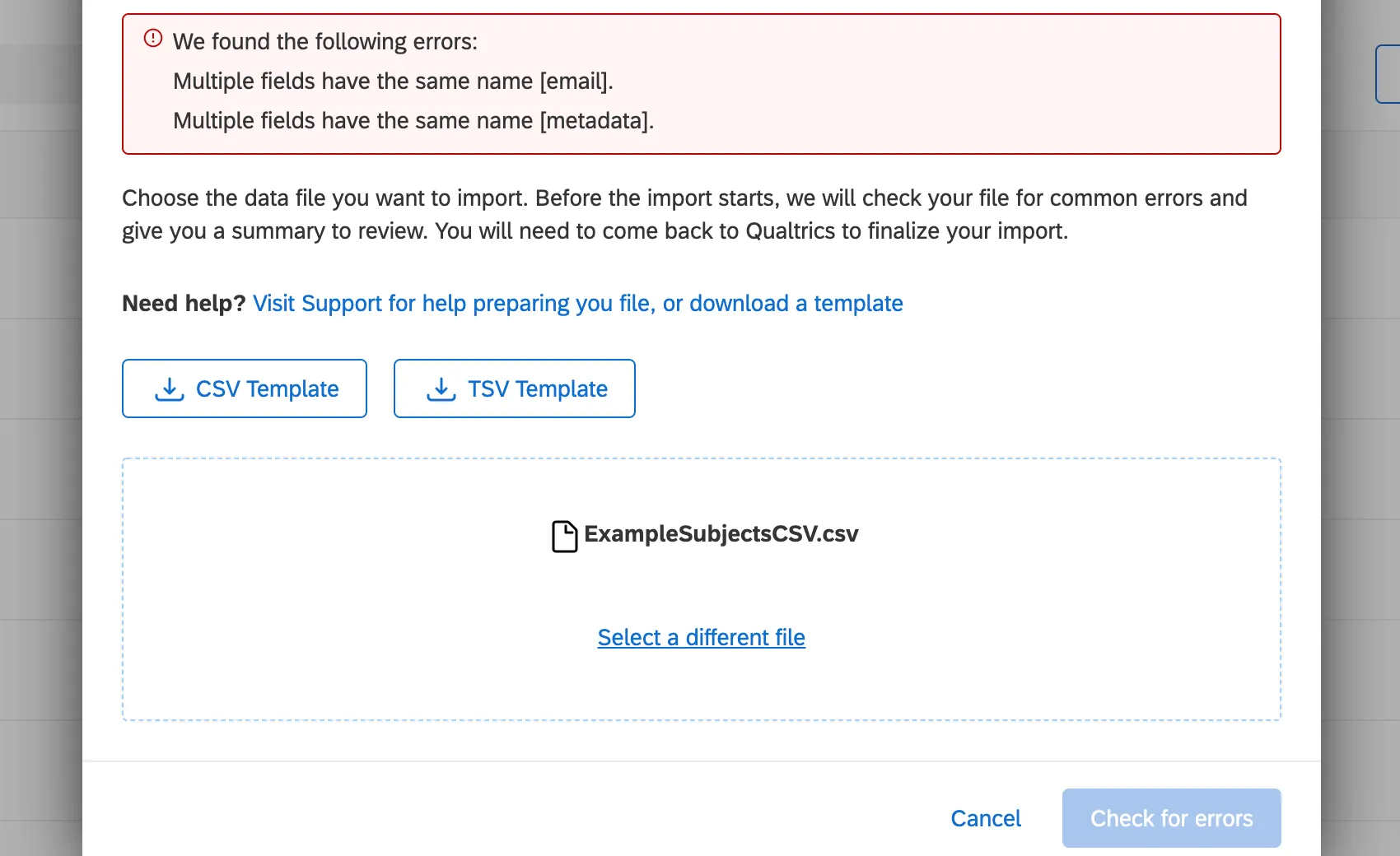
Qtip: If the importer detects initial issues, it will not let you proceed, and will list issues in red. Read these descriptions and make corrections to your file. After you’ve saved the changes, click Select a different file and re-upload the file.
While the importer is loading, you can return to your participant list.
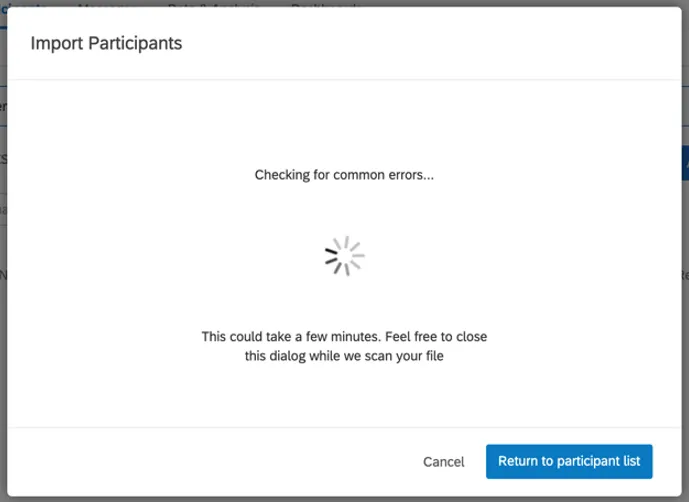
Qtip: After your file has finished processing, return to your project and click Review your import.
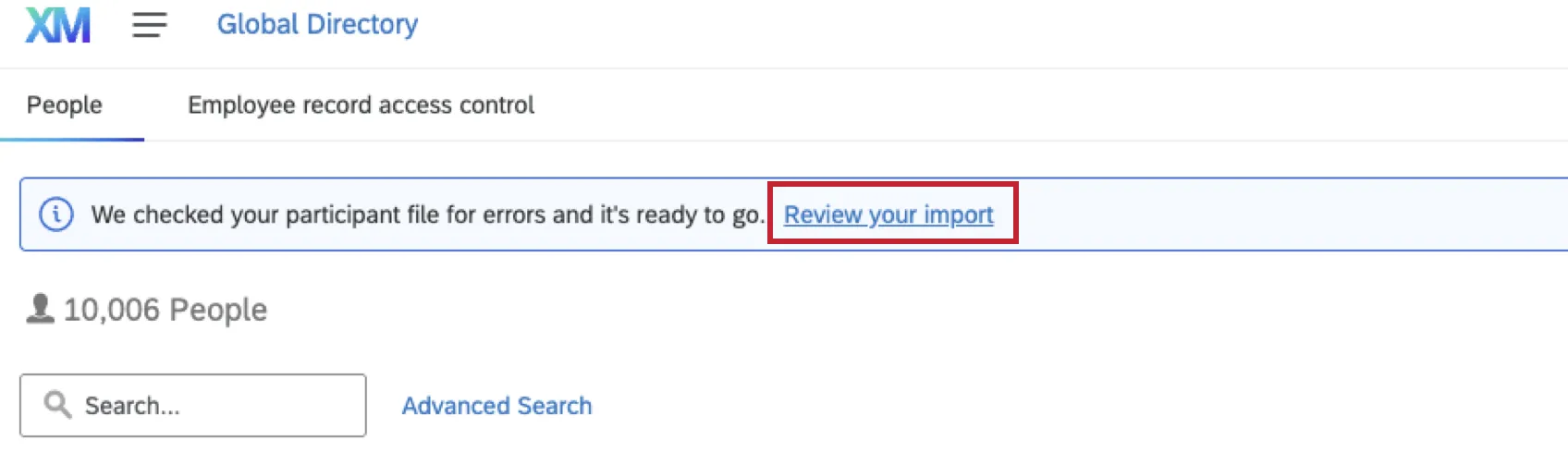
When loaded, the importer will summarize what participants will be updated or added to the project, and what impact this will have on your directory, too. The importer will also warn you if there are any errors in your rows.
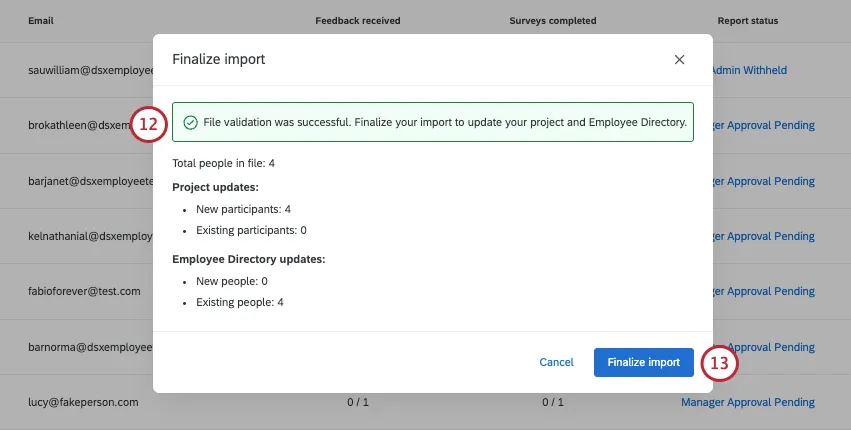
If you are happy with these changes, click Finalize import.
You will be shown the status of your recent imports / exports.
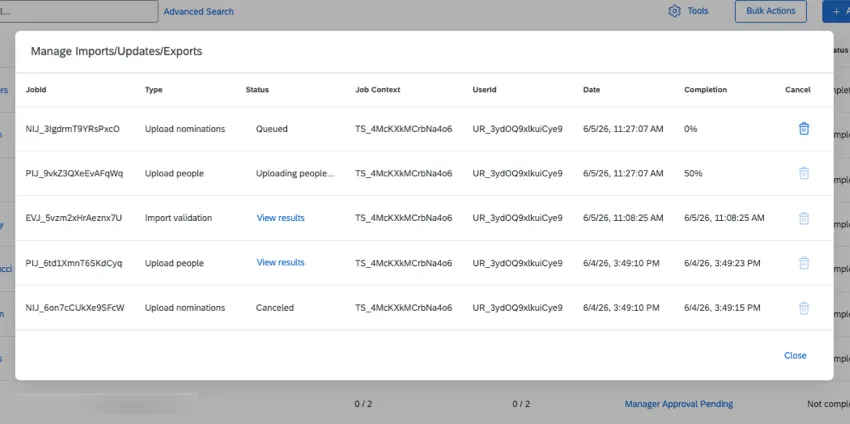
Qtip: If errors are detected in your file, there are steps to resolve them. See Errors Detected in a Participant File.
Importing Feedback Givers
Warning: Do not complete this section until you’ve uploaded your feedback recipients!
In this section, we’ll cover how to prepare a file so you can upload your feedback givers (evaluators).
Qtip: If your license has SSO, make sure you upload your participants to the directory with their usernames before you upload participants! Once someone’s in the directory, you can upload them directly into the project without including the UserName column.
Go to the Participants tab.
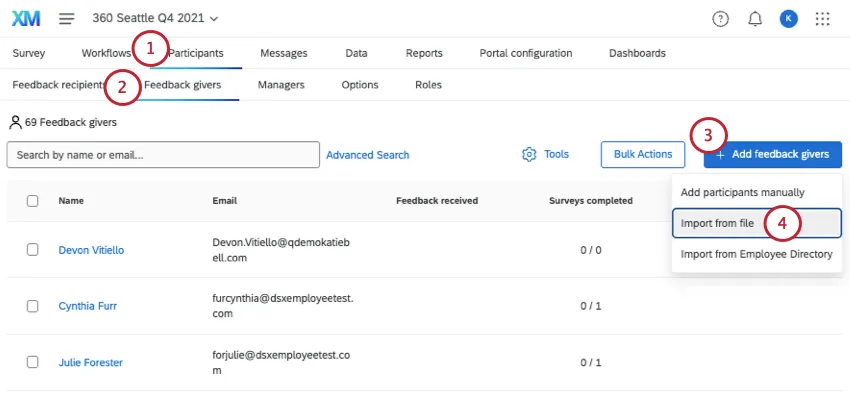
Make sure you are in the Feedback givers section.
Click Add feedback givers.
Select Import from file.
Download the CSV template.
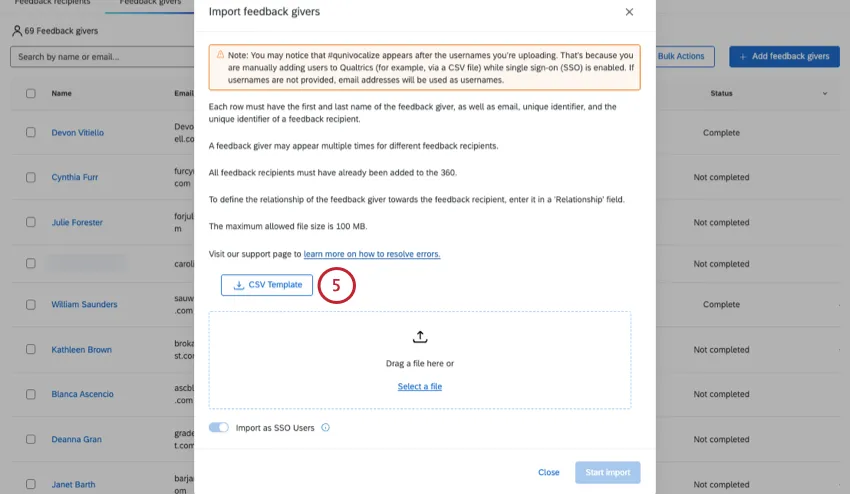
Prepare your file:
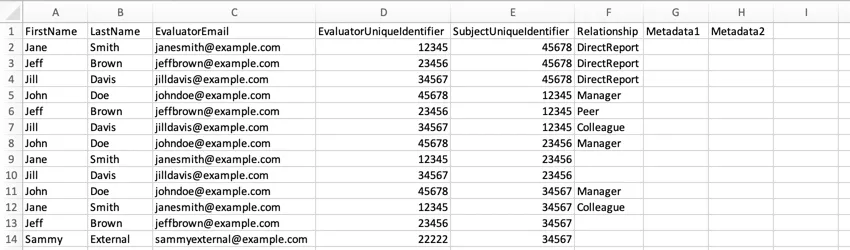
Keep your header row! The only thing you should change are Metadata 1 and Metadata 2. Instead of these headers, feel free to add any metadata you want, such as Office, Location, Department, and more.
The metadata columns are for the feedback giver. Try to keep rows where the feedback giver recurs consistent.
Every row is a separate feedback recipient/feedback giver relationship. For example, let’s say you want to add 2 feedback givers for Jane Smith and 3 feedback givers for John Doe. Even if some of these feedback givers are the same people, you will fill out 5 new rows.
The FirstName and LastName columns are for the feedback giver (evaluator). These columns should reference the same person whose email is in the Evaluator Email column and whose unique identifier is in the EvaluatorUniqueIdentifier column.
The SubjectUniqueIdentifier column should match each UniqueIdentifier you designated when you prepared the feedback recipient file.
The Relationship column refers to the relationship of the feedback giver to the recipient. For example, if John Doe is Jane Smith’s manager, and John Doe is the feedback giver, the Relationship should say Manager. If Jane Smith is evaluating John Doe, the Relationship should say DirectReport.
If you add a Language column, values should be language codes, not language names.
When you save the file, keep it as a CSV or TSV that’s UTF-8 encoded.
Add as many rows of relationships as you need. Your max file size is 100MB.
Click Select a file and choose the CSV or TSV you have saved.
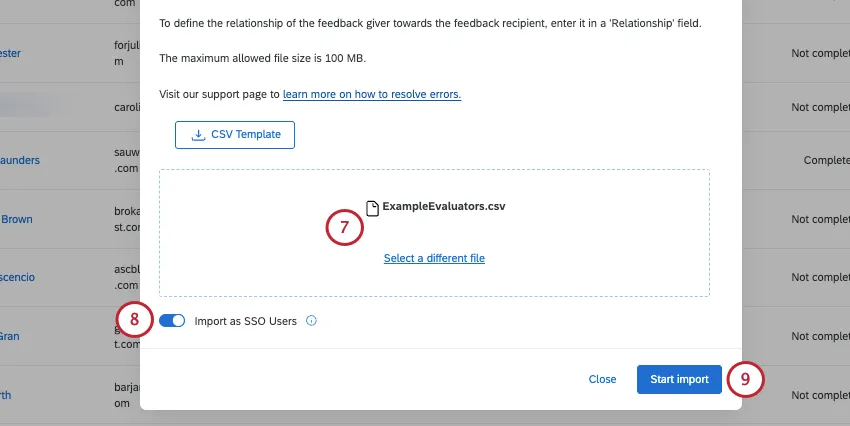
If your license uses SSO, you can enable or disable the Import as SSO Users option. When this option is enabled, any newly created participants will be added as an SSO user. Your organization ID will be automatically added to the end of their email address to create their SSO login username. When disabled, the new participants will be added as standard users who log in with a unique Qualtrics username and password.
Click Start import.
Adding Managers That Aren't Feedback Givers
Sometimes you may want to add managers to your projects to perform administrative tasks or look at reports, but you do not want the managers to participate in feedback. This section will walk through how to add managers without adding them as feedback givers (evaluators).
Adding Feedback Recipients and Givers Manually
Qtip: If your license has SSO, make sure you upload your participants to the directory with their usernames before you upload participants! Once someone’s in the directory, you can upload them directly into the project without including the UserName column.
When you manually add feedback givers (evaluators) or feedback recipients (subjects), you must fill out the same columns you would if you were uploading a file. See “importing” sections above.
To add participants manually:
Navigate to the Participants tab.
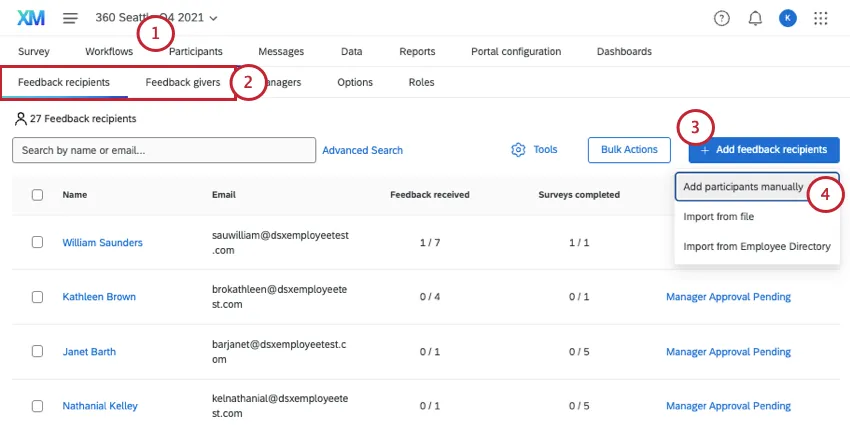
Make sure you are in the correct section:
Subjects must be uploaded in the Feedback recipients section.
Evaluators must be uploaded in the Feedback givers section.
Click Add feedback recipients/givers.
Select Add participants manually.
Feedback Recipients (Subjects)
For employees that exist in your directory, you can use the search bar at the top. Type in a name and click the user to add them.
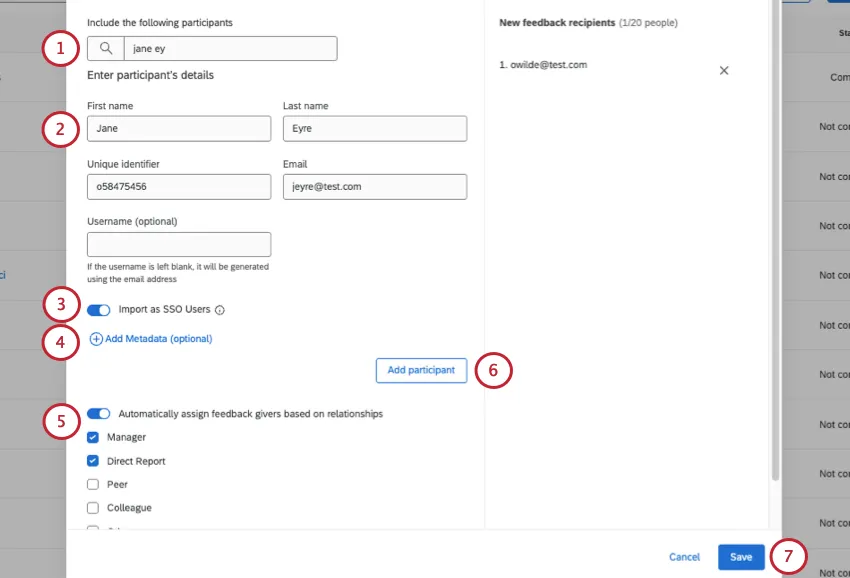
If you’re creating a feedback recipient from scratch, fill out their first name, last name, unique identifier, and email. Username is optional.
Click Add Metadata to add metadata to the participant.
If your license uses SSO, you can enable or disable the Import as SSO Users option. When this option is enabled, any newly created participants will be added as an SSO user. Your organization ID will be automatically added to the end of their email address to create their SSO login username. When disabled, the new participants will be added as standard users who log in with a unique Qualtrics username and password.
If you have participants already saved in your directory, you can assign who will give them feedback based on who’s already listed in their directory relationships. Just select Automatically assign feedback givers based on relationships and select the eligible relationship types.
When you are finishing with this participant, click Add participant.
Repeat these steps as needed. Click Save to officially upload your participants.
Feedback Givers (Evaluators)
For employees that exist in your directory, you can use the search bar at the top.
Search for feedback givers in your directory, and select their name. Their information will appear in the following fields:
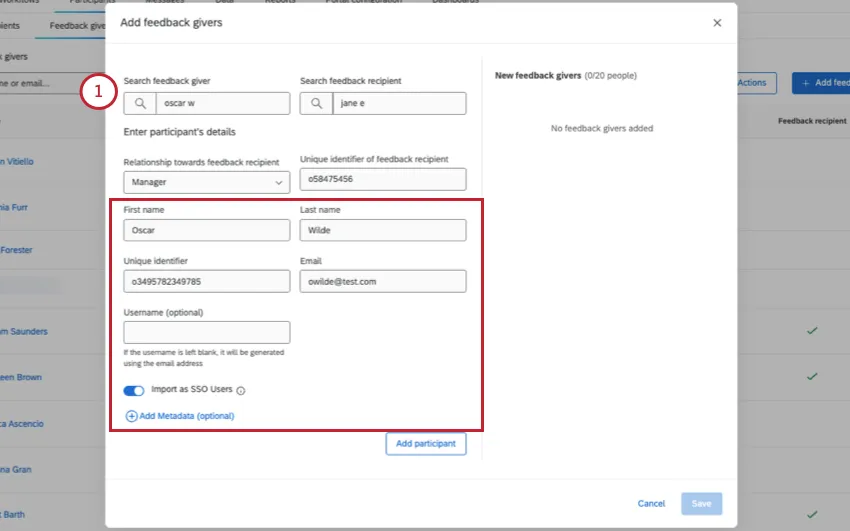
- First name
- Last name
- Unique identifier
- Username
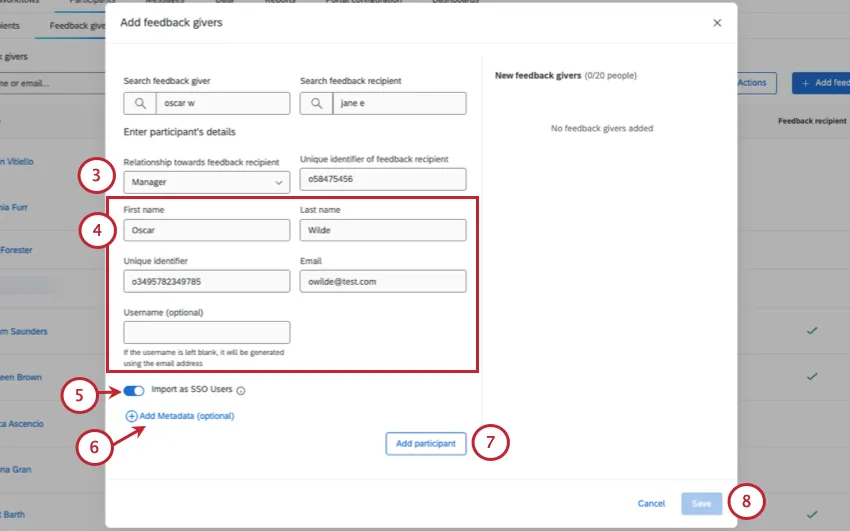
Select the feedback giver’s Relationship towards feedback recipient.
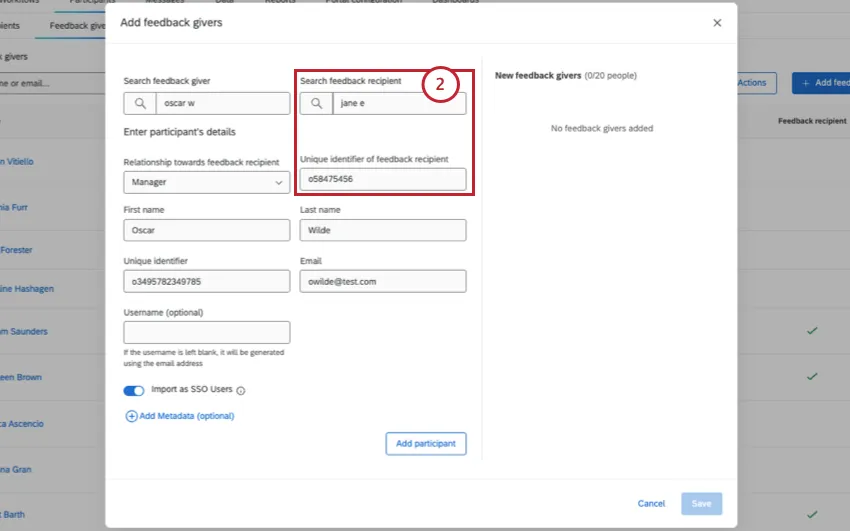
Search for the feedback recipient in your directory, and select their name. Their information will appear under Unique identifier of feedback recipient.
Qtip: You should upload feedback recipients before you upload feedback givers.
If you’re creating a feedback giver from scratch, fill out their first name, last name, unique identifier, and email. Username is optional.
If your license uses SSO, you can enable or disable the Import as SSO Users option. When this option is enabled, any newly created participants will be added as an SSO user. Your organization ID will be automatically added to the end of their email address to create their SSO login username. When disabled, the new participants will be added as standard users who log in with a unique Qualtrics username and password.
Click Add Metadata to add metadata to the feedback giver.
When you are finishing with this participant, click Add participant.
Repeat these steps as needed. Click Save to officially upload your participants.
Importing 360 Participants from the Global Directory
In addition to importing 360 participants from a file or through manual import, you have the option to import them both directly from the directory. Importing participants from the employee directory is useful when:
- You already have a feedback-giver-to-feedback-recipient relationship defined in the directory.
- You want to use different filtering conditions to import a subset of feedback recipients and feedback givers.
- You want to bring metadata already saved in the directory into the project.
You can choose to import all participants or just a subset based on filter criteria. This is useful if you want to add a specific group of participants to your project from the employee directory.
Navigate to the Participants tab.
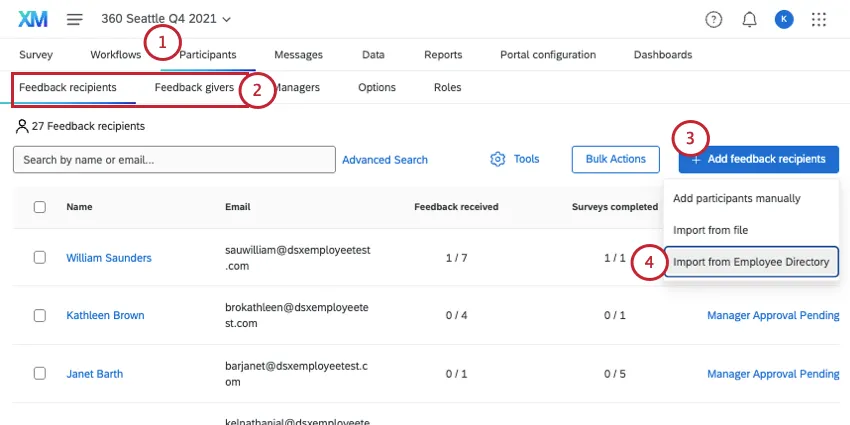
Make sure you are in the correct section:
- Subjects must be uploaded in the Feedback recipients section.
- Evaluators must be uploaded in the Feedback givers section.
Click Add feedback recipients/givers.
Select Import from Employee Directory.
Decide between importing all participants from the directory or only participants who meet the following criteria.
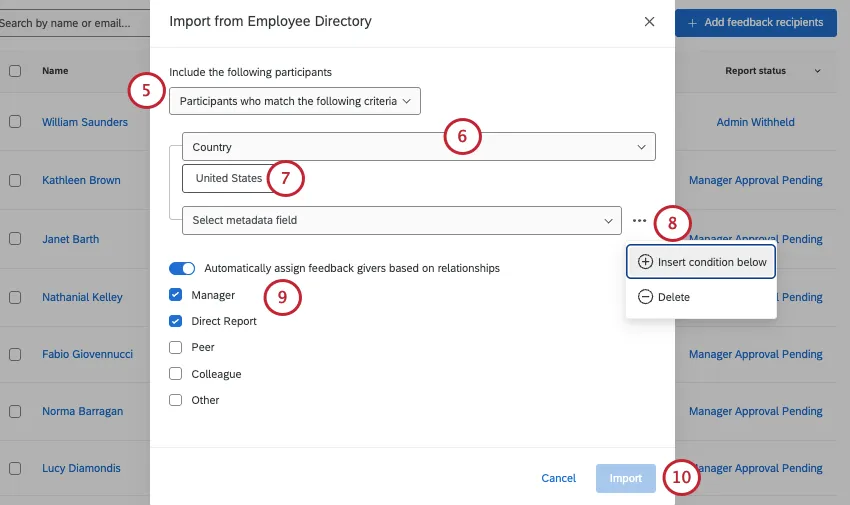
Qtip: If you choose to import all participants, skip Steps 6-8.
Choose a metadata field you’d like to filter the directory by.
Choose the value of this metadata you’d like to filter the directory by. You can choose multiple values.
Qtip: Multiple values for the same field are joined by “or.” For example, choosing France and Germany for country looks for employees with France or Germany listed as their country.
Qtip: If there are no options, that means no one in the directory has a value for that field. Remember, you can remove metadata fields from your directory, but should only do so if you are totally sure you don’t use these fields or plan to use them.
To add more conditions, click the 3 dots and select Insert condition below.
Qtip: Multiple conditions are joined by an “And” clause. For example, saying Country should be France and Department should be Finance means you’ll only import the Finance department members located in France.
This option only appears when uploading feedback recipients. If you have participants already saved in your directory, you can assign who will give them feedback based on who’s already listed in their directory relationships. Just select Automatically assign feedback givers based on relationships and select the eligible relationship types.
When you’re ready, click Import.
Updating Responses With New Metadata
Warning: The following method can be used to update metadata. Do not use it to change existing relationships!
FAQs
Who assigns relationships in a 360?
Who assigns relationships in a 360?
Depending upon the Participants Options enabled for the 360 project, a feedback recipient (subject) and/or manager can assign relationships to feedback givers (evaluators).
Managers can assign relationships if Managers may choose evaluators is turned enabled.
Feedback recipients (subjects) can only assign relationships if Subjects nominates evaluators and the sub option Allow subjects to select relationships are both enabled.
Please note that the relationships selected when nominating feedback givers are only used to categorize the response and do not provide the feedback giver with additional project permissions. Feedback givers that are selected with a "manager" relationship will not be assigned into the manager role automatically and will not be able to perform manager-related tasks. Only a project administrator can define managers for users added to the 360 project.
Administrators (e.g., those with project-creation capabilities) can always assign relationships. Administrators can change relationships even after assessments have been submitted. This is done by clicking on the person’s name in the Feedback recipients section, viewing the Feedback givers list, clicking on the relationship, and selecting the new relationship from the list.
How do you mass upload all of your feedback recipients or feedback givers into a 360 project?
How do you mass upload all of your feedback recipients or feedback givers into a 360 project?
For in-depth instruction, see our page on Adding Feedback Givers, Recipients, & Managers (360). This page includes what to do with your CSV file to prepare it for import.
Does order of the metadata matter when organizing your 360 participant file?
Does order of the metadata matter when organizing your 360 participant file?
How can you assign a manager to someone without the manager being also assigned as a feedback giver?
How can you assign a manager to someone without the manager being also assigned as a feedback giver?
It is easy to assign a manager to feedback recipients without the manager being assigned as a feedback giver. You will need to add the manager to each applicable feedback recipient:
- Go to Participants.
- Go to the Feedback recipients section.
- Click on the name of the feedback recipient.
- Click on the Relationships tab of the Participant Information Window.
- In the Search bar, type the name or email address of the person you’d like to add as a manager. The search bar will return a list of people from the directory that match the search.
- Select the appropriate individual.
- For relationship, choose Manager.
I'm uploading employees to my directory, and my organization has SSO. How do I format the UserName column?
I'm uploading employees to my directory, and my organization has SSO. How do I format the UserName column?
You should not include the SSO suffix (#brandID) in the participant usernames. Qualtrics will automatically add the suffix on all usernames. If you do include the SSO suffix, Qualtrics will add it a second time.
When I create participants, are there any metadata limits I should consider?
When I create participants, are there any metadata limits I should consider?
That's great! Thank you for your feedback!
Thank you for your feedback!