

Merging Duplicate Contacts in XM Directory
What's on this page
About Merging Duplicate Contacts in XM Directory
Using Identity Resolution, XM Directory allows you to find and merge contacts that have the same information (for example, the same email or name) so that duplicate contacts don’t exist in your directory.
Once directory-wide rules are in place, if someone tries to upload a contact that already exists, a new contact will not be created. Instead, the existing directory contact will be updated with any new information you have added, such as new or updated embedded data values. Any directory-wide rules will be visible in the import window when users add new contacts to the directory.
You can also merge duplicate contacts that already exist in your directory.
Qtip: To access directory settings and identity resolution, you need both the Access XM Directory and Manage Directory user permissions. Talk to your Brand Administrator if you’re interested in these permissions.

Attention: Once contacts have been merged, these changes can not be rolled back. You can change your merge settings whenever you need, but rules will only be applied to your directory going forward.

Attention: Rules for merging duplicate contacts are not case sensitive. For example, if you merge based on email, “barnaby@tread.com” and “BARNABY@tread.com” would be merged.
Qtip: Directory-wide settings for merging duplicate contacts are only available for XM Directory. This feature is not available to XM Directory Lite, but you can merge duplicate contacts within individual lists in XM Directory Lite.
Merging Newly Added Contacts
You can set up rules in your directory to make sure newly added contacts with similar information are merged. When you create a rule, it will look for contacts that have the same information in the fields you chose (for example, email) and merge them into a single contact that contains the most up-to-date information that’s been added to the directory.
You can create up to 3 rules, and arrange the order in which they’ll run. Rules will be evaluated in order until a rule applies. When building rules, you can can think of there being an implicit “or” in between rules. Rules are not additive; only 1 merge rule is used per contact.
If the newly added contact doesn’t have a value for a field included in your rule, that rule will be skipped. If all rules are skipped or no duplicate contacts are found, the contact will be added as a new contact. You can add as many data fields to your rule as you want.
Qtip: If a rule has multiple fields, newly added contacts must have a value for every field, otherwise the entire rule will be skipped.
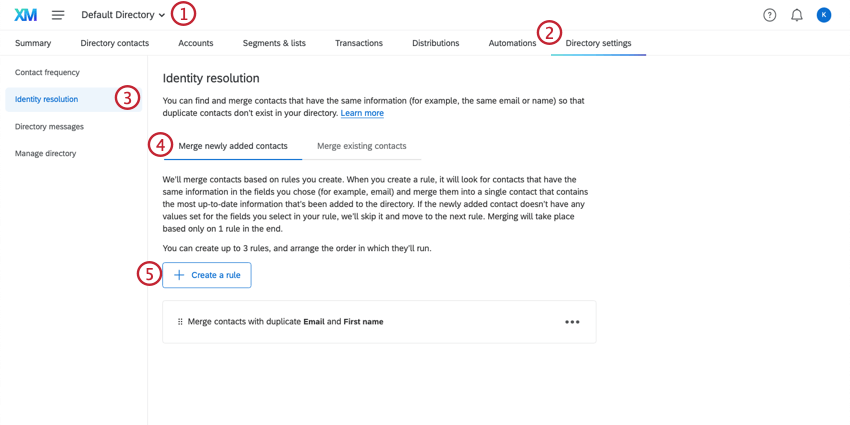
Qtip: Each directory’s merge rules are separate.
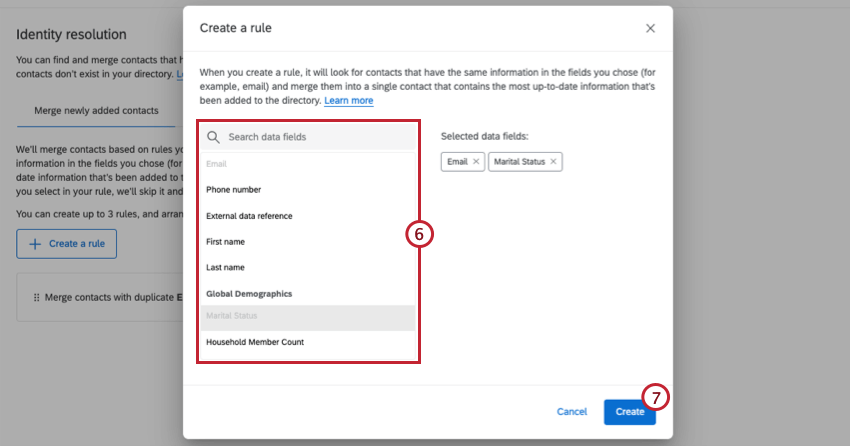
Qtip: Use the search bar to find specific embedded data fields in your directory.
Attention: It may take several hours for new rules to be created if you have a large directory.
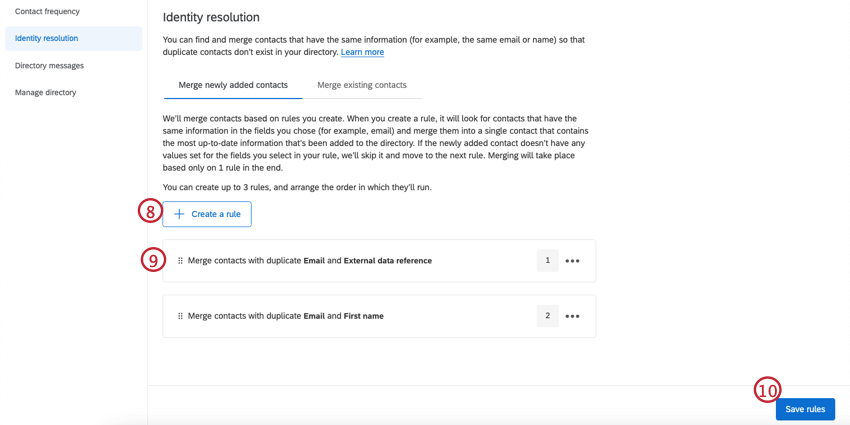
Example: Your first rule says contacts with the same email address should be merged. But occasionally, you upload contacts without email addresses. For these contacts, you add a second rule that says contacts with the same phone numbers should be merged. (Note that in this example, contacts missing an email address or contacts with different email addresses but the same phone number will be merged by phone number.)

Attention: These settings are not retroactive. Only contacts uploaded to the directory after these settings are saved will be merged using these rules. If you need to merge contacts that are already in your directory, see merging existing contacts. You can also consolidate contacts using consolidate duplicates in directory options.
Merging Existing Contacts
If duplicate contacts already exist in your directory, you can easily merge them together.
Qtip: We recommend performing this manual merge every time you change your rules for newly added contacts.
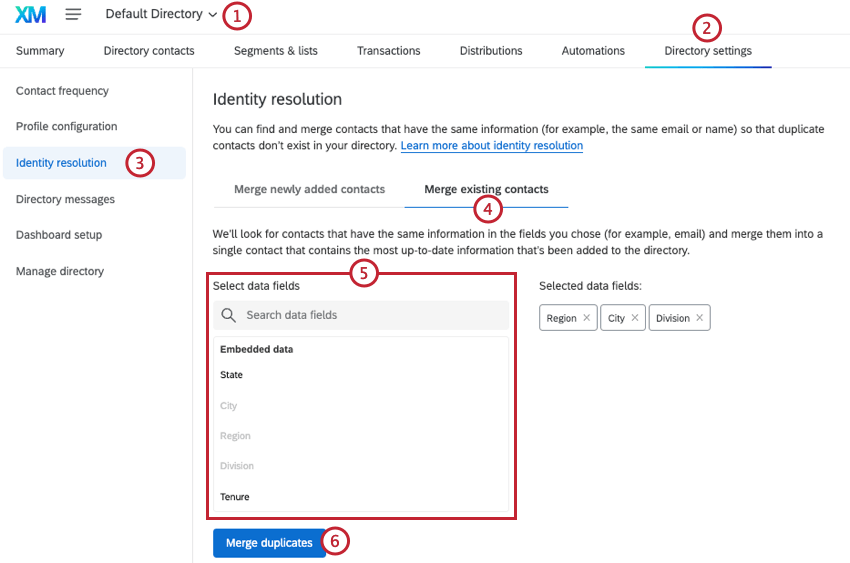
Qtip: Each directory’s merge rules are separate.
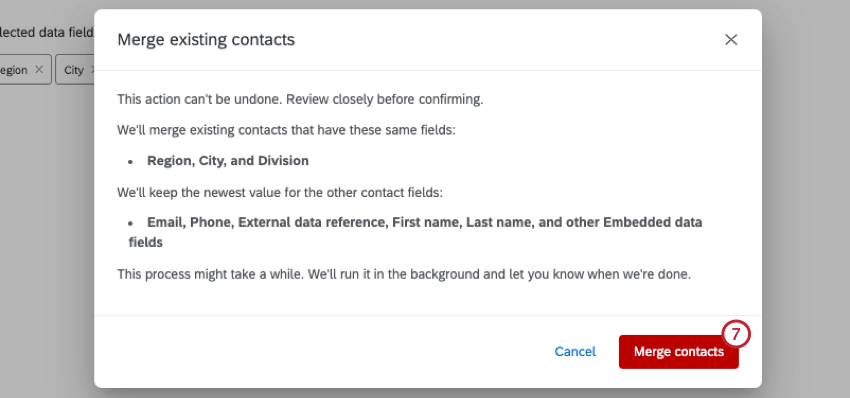
Qualtrics will then merge any duplicate contacts in your directory based on your specified rules. The run time can vary depending on the number of contacts in your directory. When merging duplicate contacts, there is a limit that each set of duplicate contacts must have less than 500 contacts. If there are more than 500 contacts in 1 set, the job will fail. To prevent this, you can manually delete contacts until you have less than 500 in each deduplication set.
Once you’ve started a deduplication job, you can view the status of the job by clicking the toolbox at the top of the page.
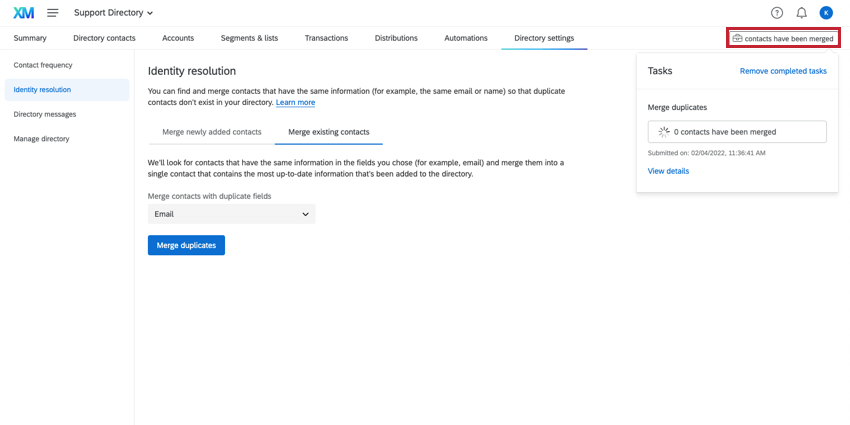
Note that when existing contacts are merged using this method, the following contact attributes will keep the newest value for the consolidated contact:
- External data reference
- First name
- Last name
- Phone
- All embedded data fields.
Transactional data will retain all previous values.
Qtip: When contacts are merged, sometimes they will retain the creation date of the newer contact. This can result in the contact’s creation date being after events in the contact’s timeline.
Qtip: Merging existing contacts will not update Survey Responses and Respondent Funnel Records.
Qtip: An unsubscribed status will always carry through to the merged contact if any of the contacts being merged are opted out.
FAQs
What do most XM Directory users choose to deduplicate by?
What do most XM Directory users choose to deduplicate by?
Why would I choose to deduplicate by External Data Reference in XM Directory?
Why would I choose to deduplicate by External Data Reference in XM Directory?
My file looks like it uploaded, but I don't see any contacts in my list in XM Directory. What happened?
My file looks like it uploaded, but I don't see any contacts in my list in XM Directory. What happened?
If you cannot see the Directory Settings tab, consult your Brand Administrator.
What’s XM Directory? / Where’s Target Audience?
What’s XM Directory? / Where’s Target Audience?
How do I merge duplicate contacts in a list in XM Directory Lite?
How do I merge duplicate contacts in a list in XM Directory Lite?
When you import updates to existing contacts, how are empty / blank fields treated?
When you import updates to existing contacts, how are empty / blank fields treated?
When updating contacts via a file upload, blank contact fields (such as FirstName, LastName, and ExternalDataReference) will overwrite existing values for contacts in the directory.
However, directory embedded data fields will not have their data overwritten by default. You can choose which embedded data fields should allow blank values to overwrite existing ones by adjusting your directory settings. See Importing Blank Values in XM Directory for more information.
That's great! Thank you for your feedback!
Thank you for your feedback!