

Insert a Graphic
What's on this page
About Inserting a Graphic
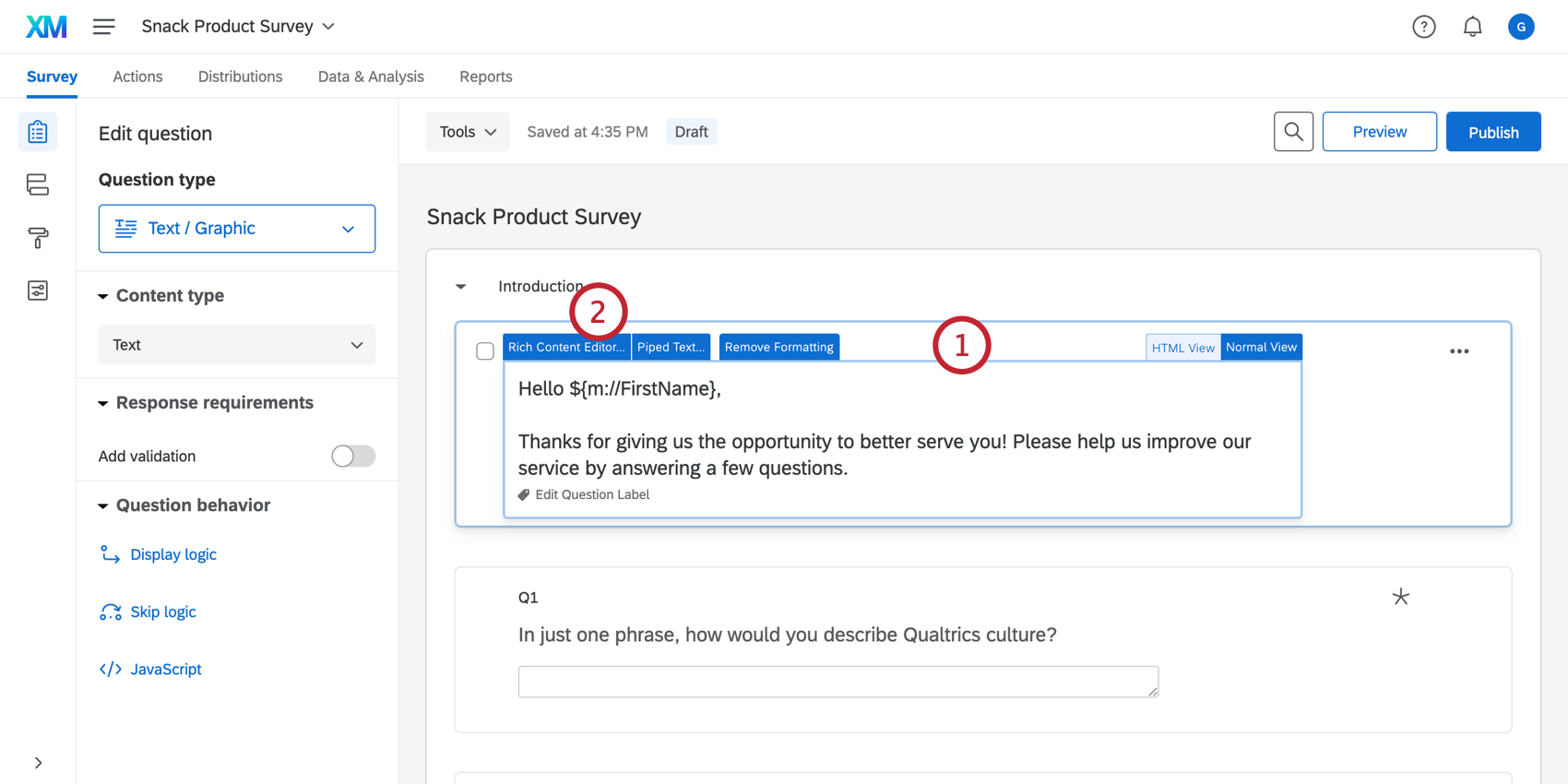
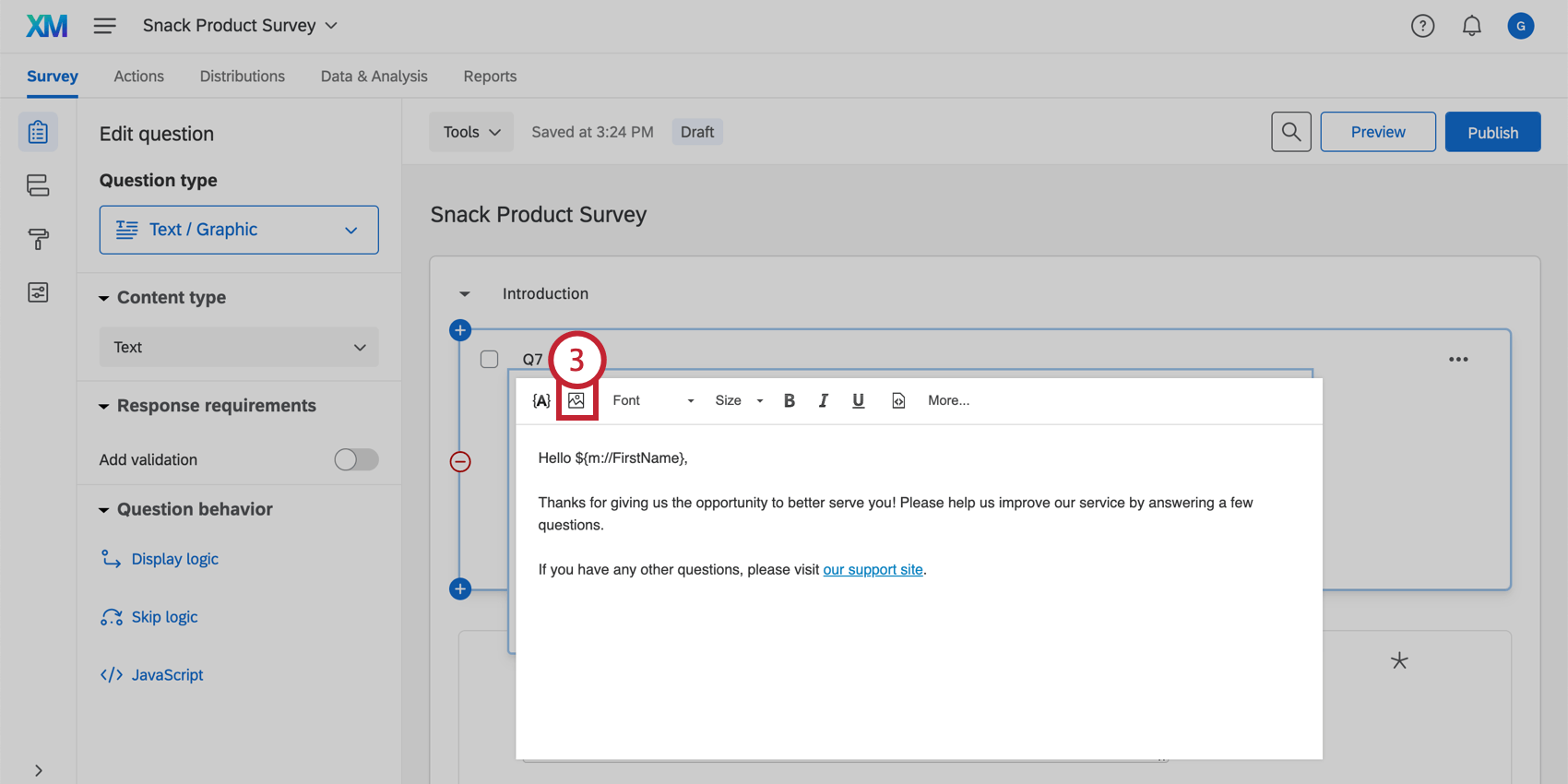
You can easily display graphics in a question, answer choice, header/footer, an email message, or anywhere else in Qualtrics that has a rich content editor.
Qualtrics supports JPG (or JPEG), PNG, and GIF images that are 16MB or smaller. Before you upload a graphic into your survey, make sure you have permission to use the image.
Qtip: For the best user experience, we recommend using PNG files, keeping images below 1MB, and using images with a width of 770px or narrower. If you insert a graphic larger than 770px wide, your survey will automatically scale the image to 770px width.
Inserting Graphics into Questions
Qtip: A similar method can be used to insert an image anywhere in Qualtrics that you see a rich content editor.
Qtip: This step is useful if you belong to 1 or more group libraries.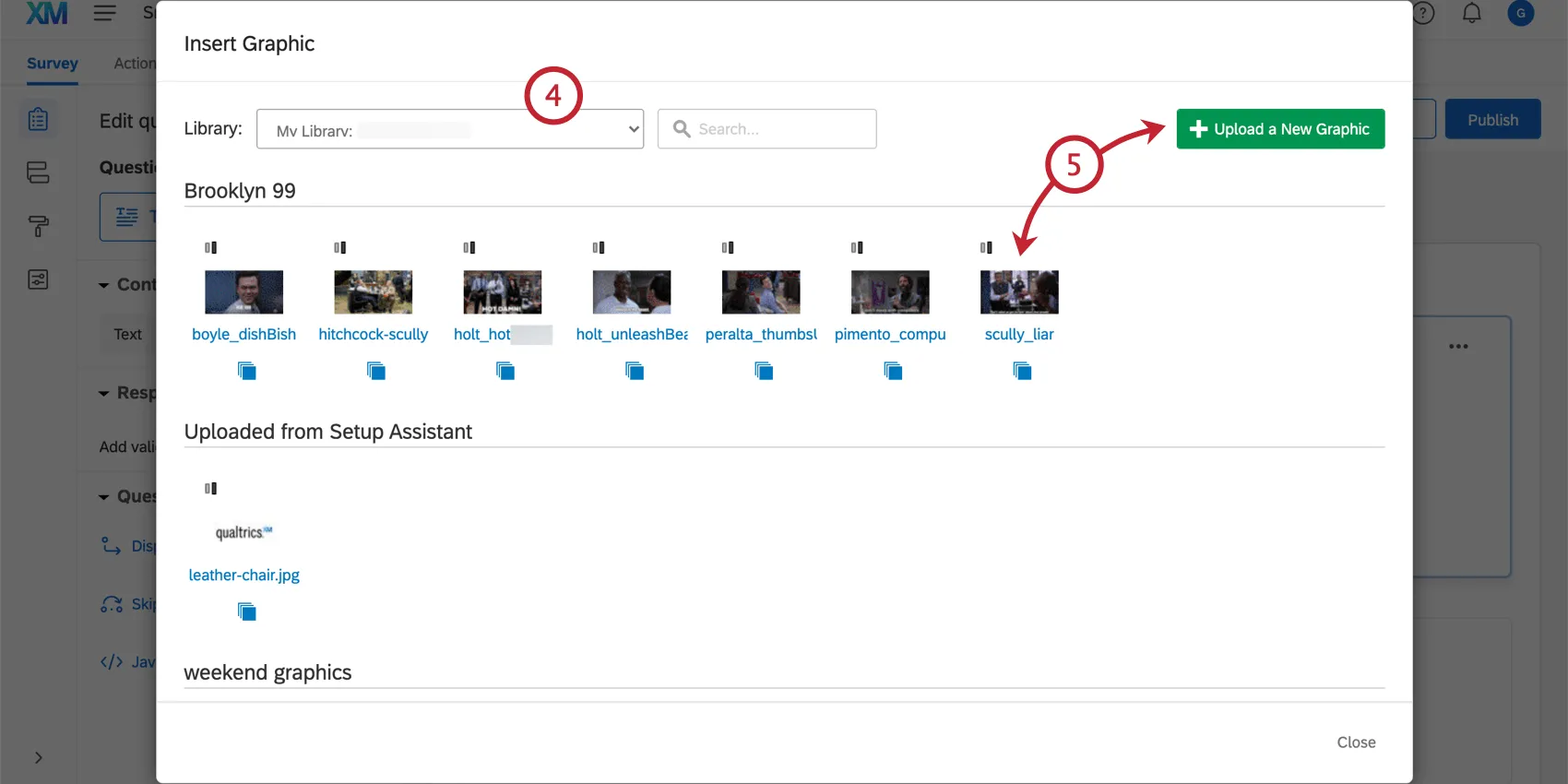
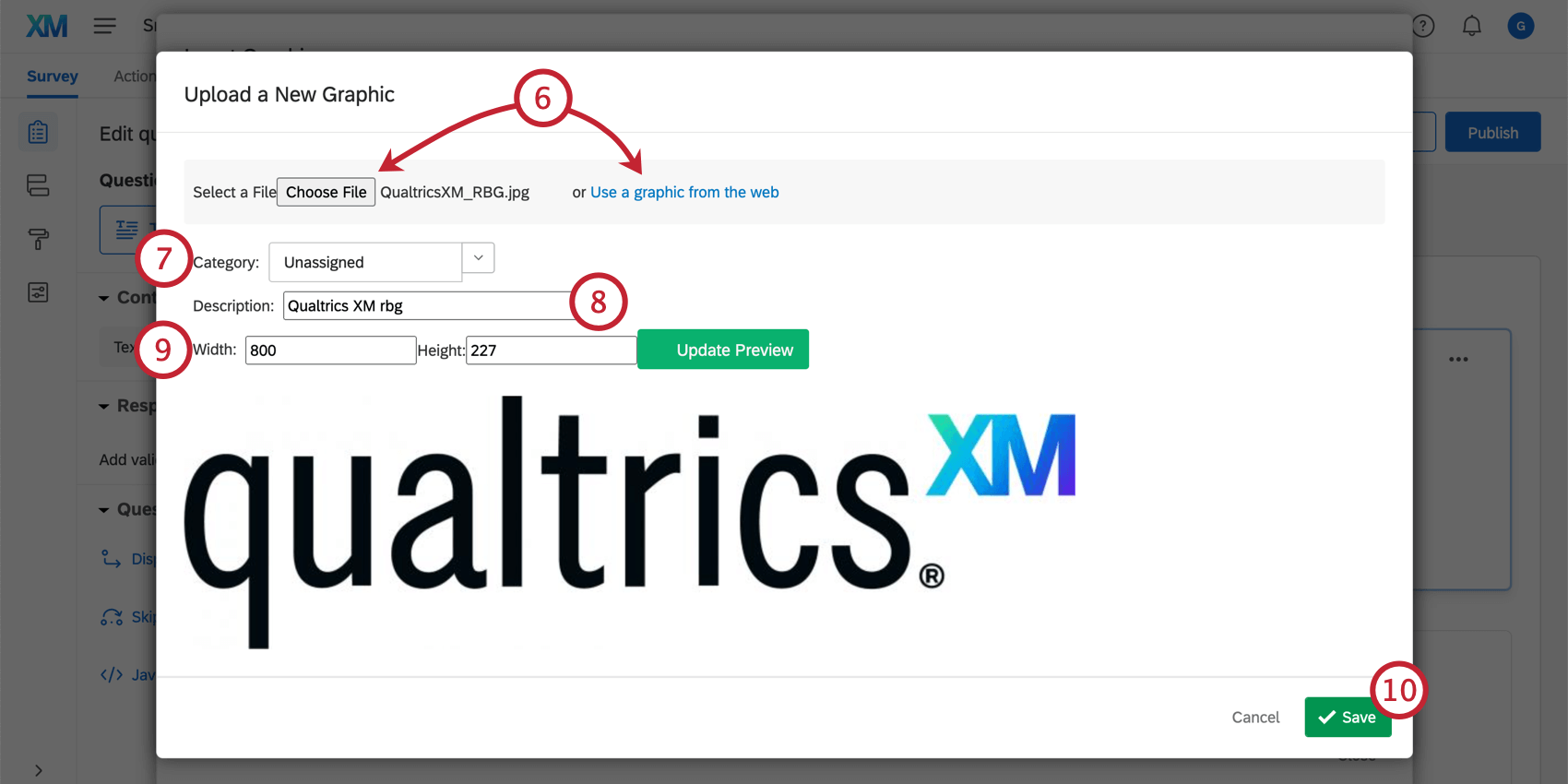
- Choose file: Upload a picture from your computer. This option lets you rename or resize the image before uploading it.
- Use a graphic from the web: Upload an image using a URL. This option lets you rename but not resize the image before uploading it. Qtip: Make sure the URL ends in a file type, such as .PNG or .JPG. If the URL isn’t valid (such as if it goes to a website instead of an image), this upload method won’t work.

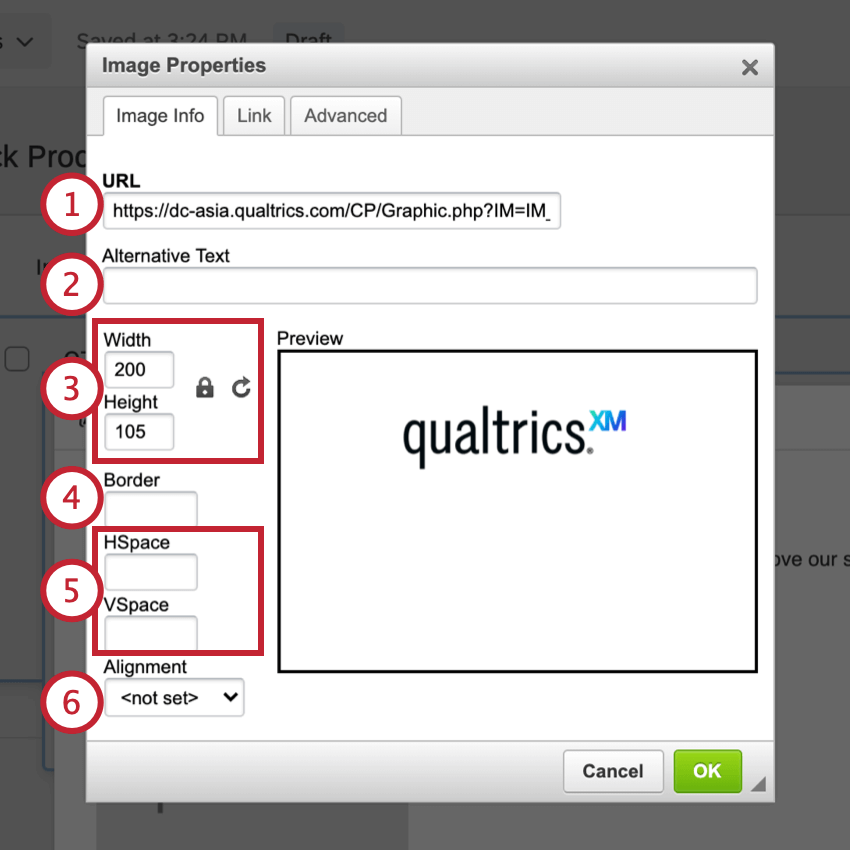
Qtip: If you update just the height or just the width, the other will automatically adjust so the image can resize without getting stretched or distorted.
Qtip: Images saved to the Qualtrics library use RGB format. If your image doesn’t use this format, you might notice a slight change in color once the image is uploaded. If you would like to test and edit your image in RGB format before you upload it to Qualtrics, use an image editing software outside the XM platform, such as Photoshop.
Inserting Graphics into Answer Choices
The steps for adding a graphic to an answer choice are slightly different from adding a graphic to the question text.
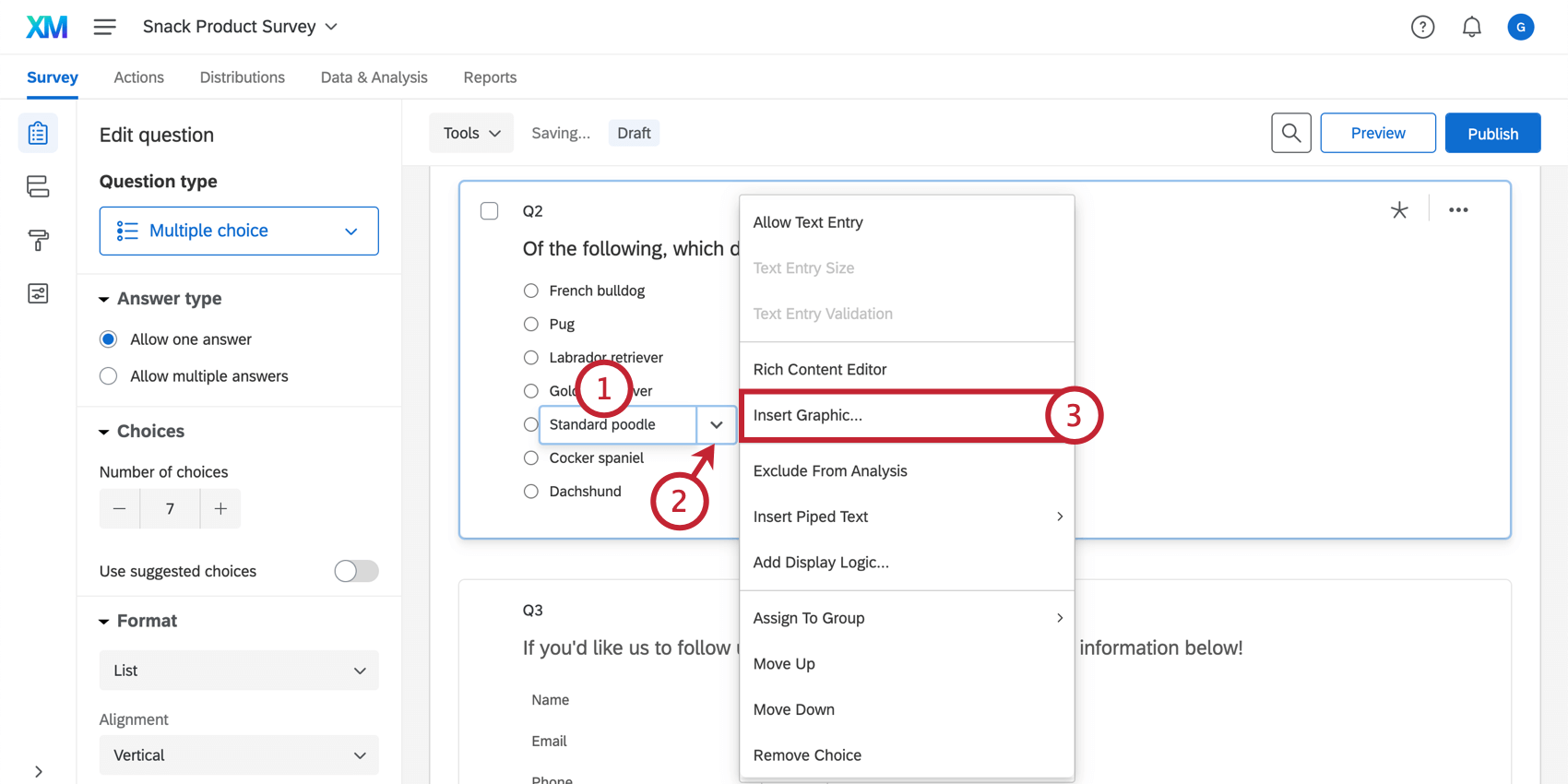
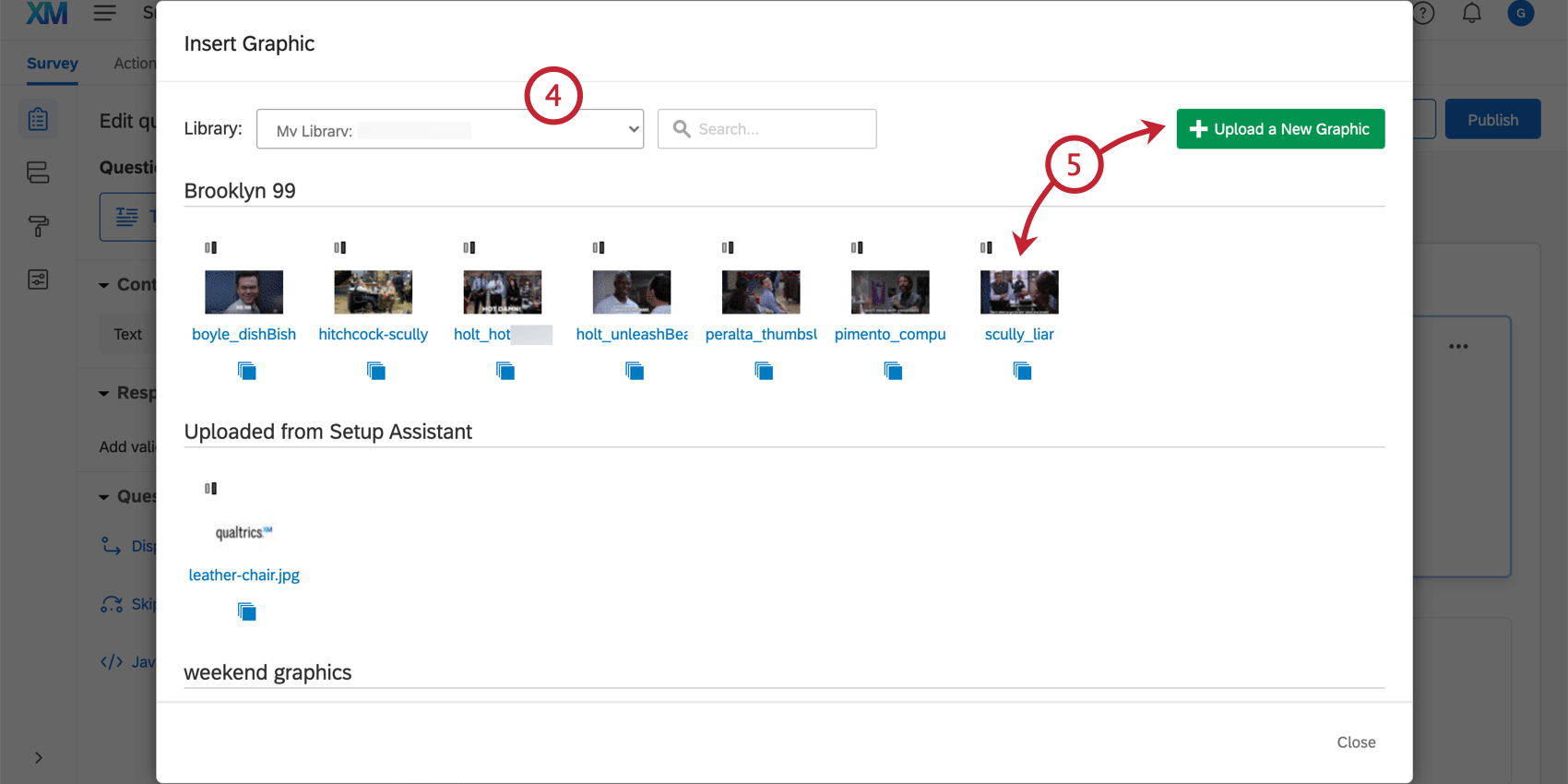
Qtip: This step is useful if you belong to 1 or more group libraries.
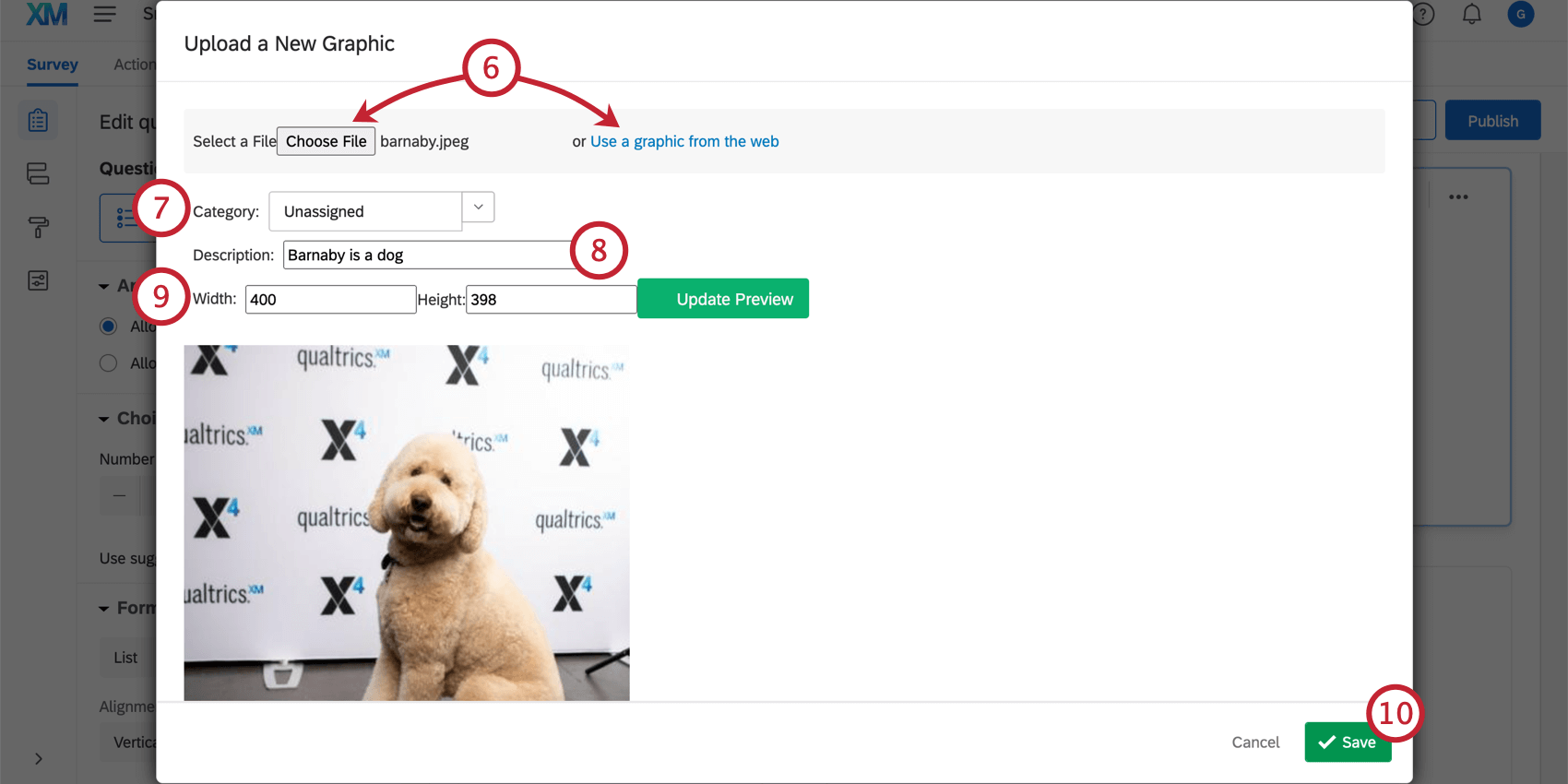
- Choose file: Upload a picture from your computer. This option lets you rename or resize the image before uploading it.
- Use a graphic from the web: Upload an image using a URL. This option lets you rename but not resize the image before uploading it.
- Qtip: Make sure the URL ends in a file type, such as .PNG or .JPG. If the URL isn’t valid (such as if it goes to a website instead of an image), this upload method won’t work.
Qtip: If you update just the height or just the width, the other will automatically adjust so the image can resize without getting stretched or distorted.
Qtip: You can also use the rich content editor to insert images in an answer choice. If you insert a graphic this way, you’ll have free use of the rich content editor and other image properties to format your graphic. However, you won’t be able to use the Additional Graphic Options listed below on rich content editor graphics.
Additional Graphic Options
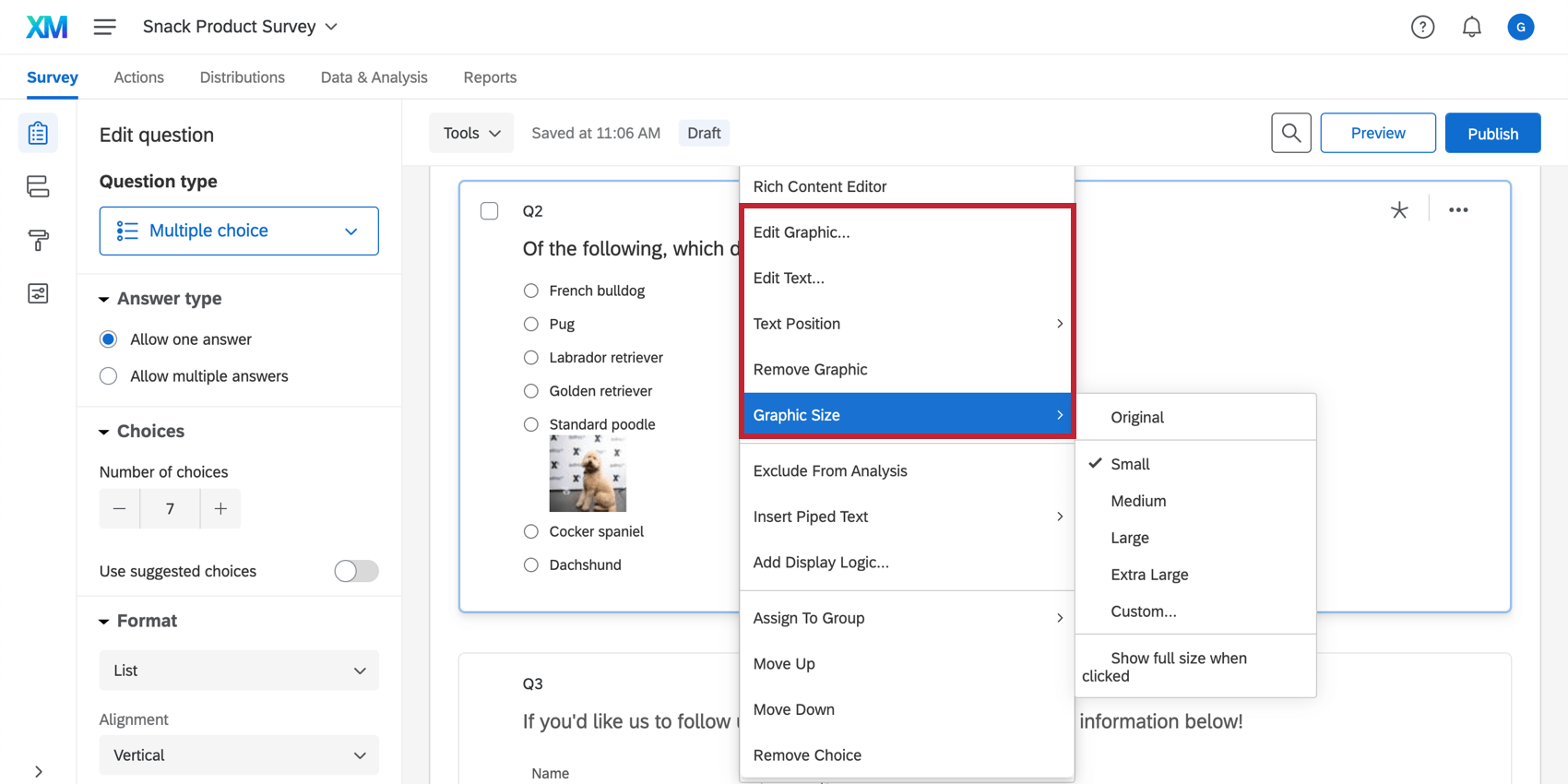
Once you’ve used the Insert Graphic option, additional settings will appear in the dropdown.
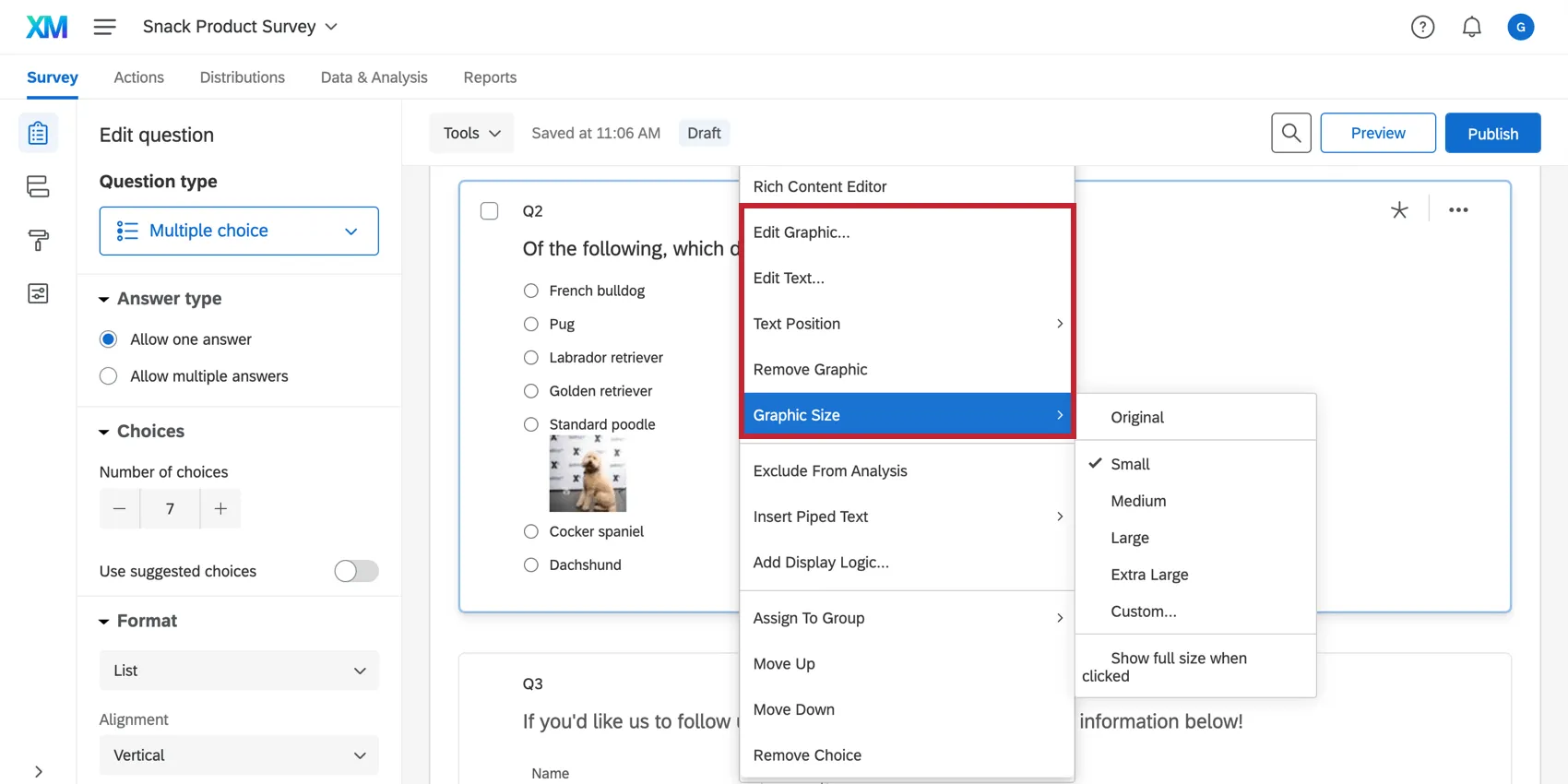
- Edit Graphic: Choose the graphic to insert into the answer choice. This can be an existing graphic from your library, or you can upload a new image. “Edit Graphic” will replace any graphic you currently have added to the answer choice.
- Edit Text: Edit the text for the choice that displays with the graphic.
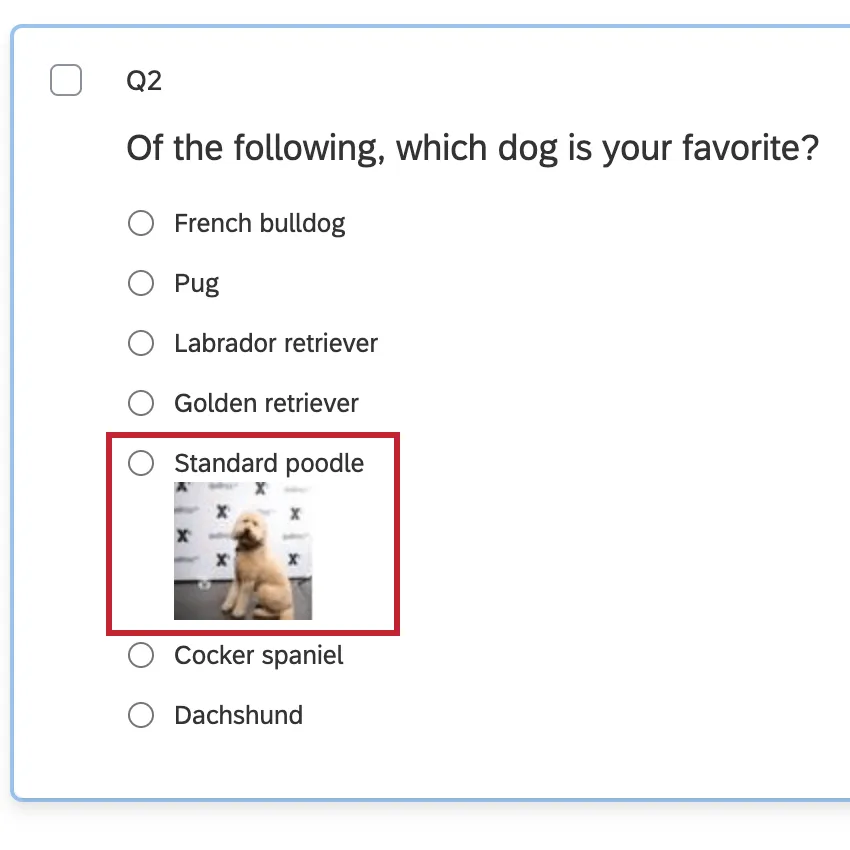
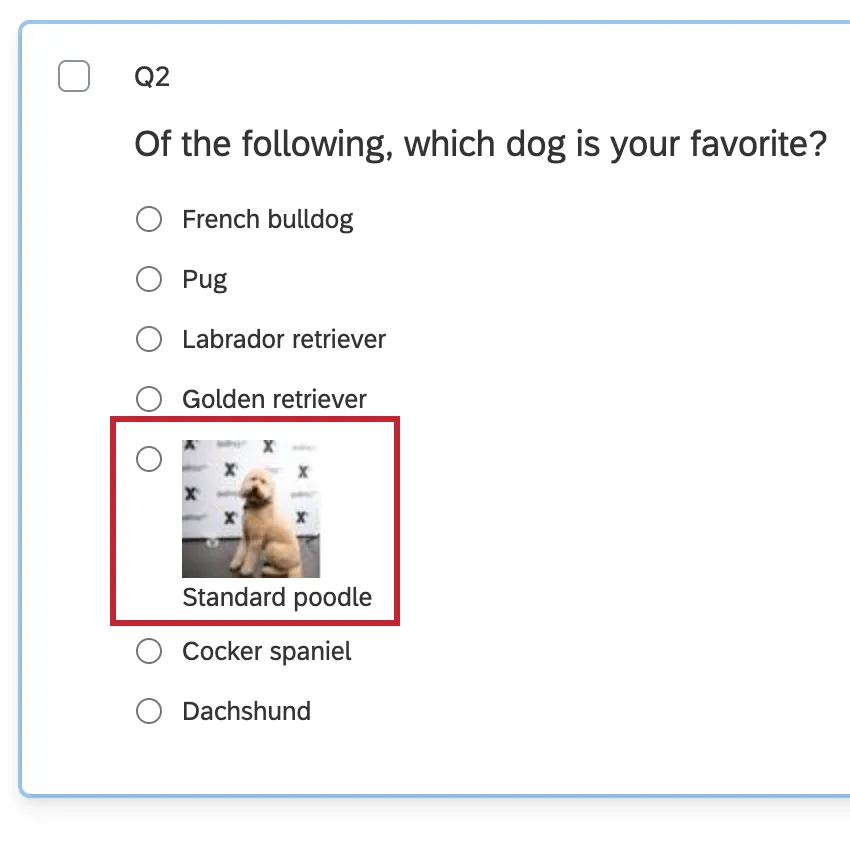
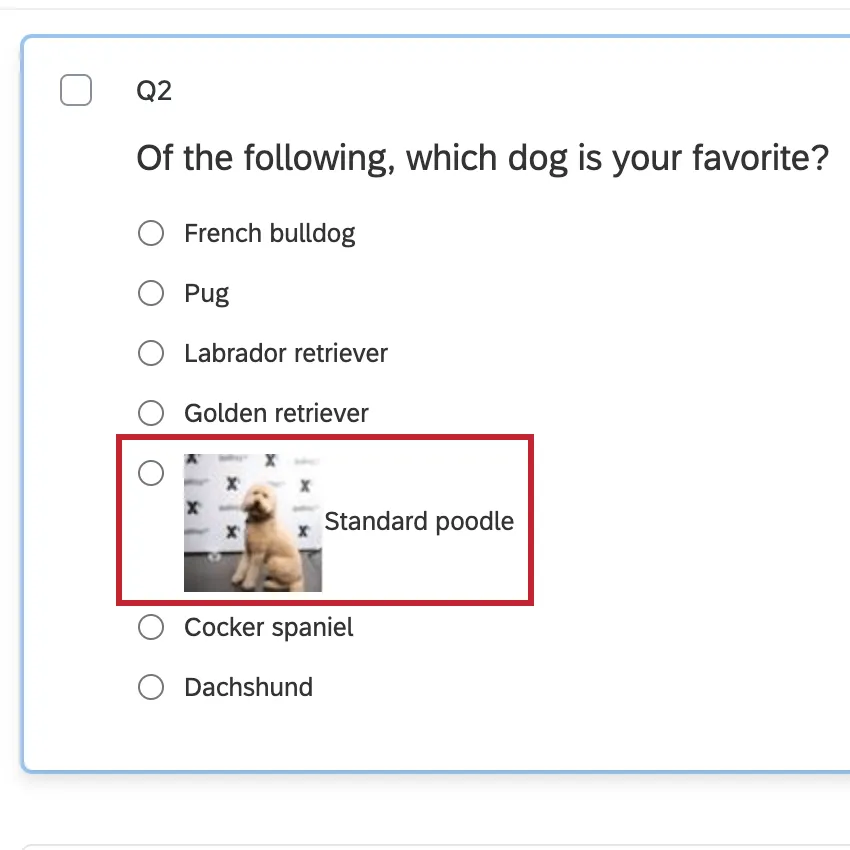
- Text Position: Change where the text is displayed relative to the image. This setting affects the whole question, so any choices with images attached look consistent.
- Top
- Bottom
- Left

- Right
- Top
- Remove Graphic: Remove the graphic from the answer choice.
- Graphic Size: Change the size of the graphic. You can choose from preset dimensions, or choose Custom to adjust the size manually. If you’ve resized the image, you have the option to select Show full size when clicked. This means that when the respondent clicks the image, a full-sized version will open.
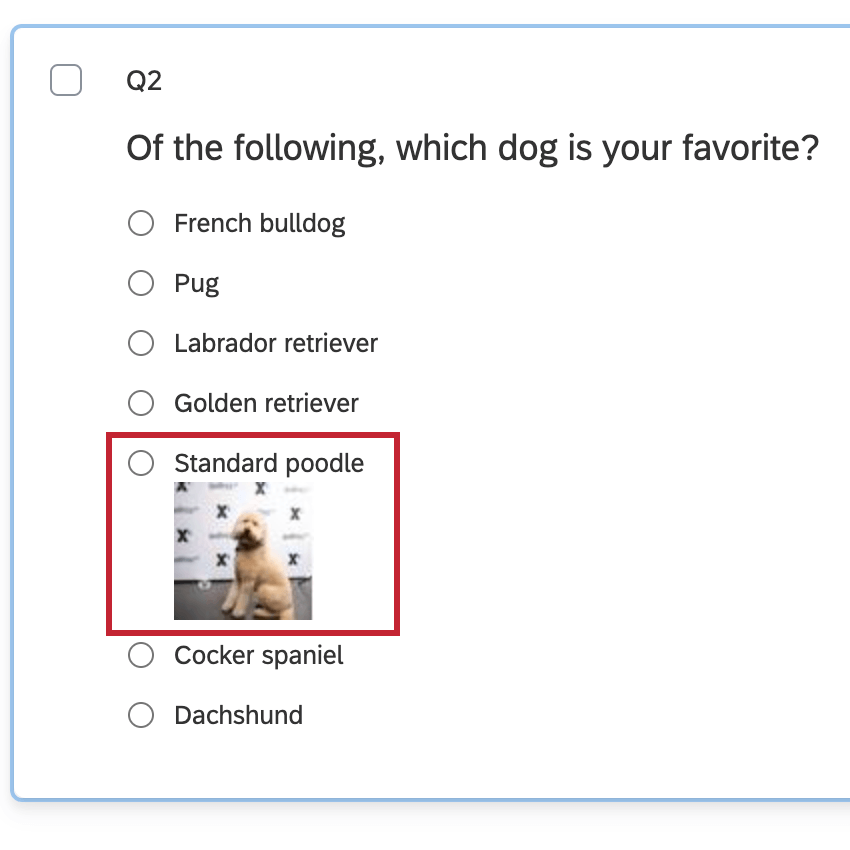
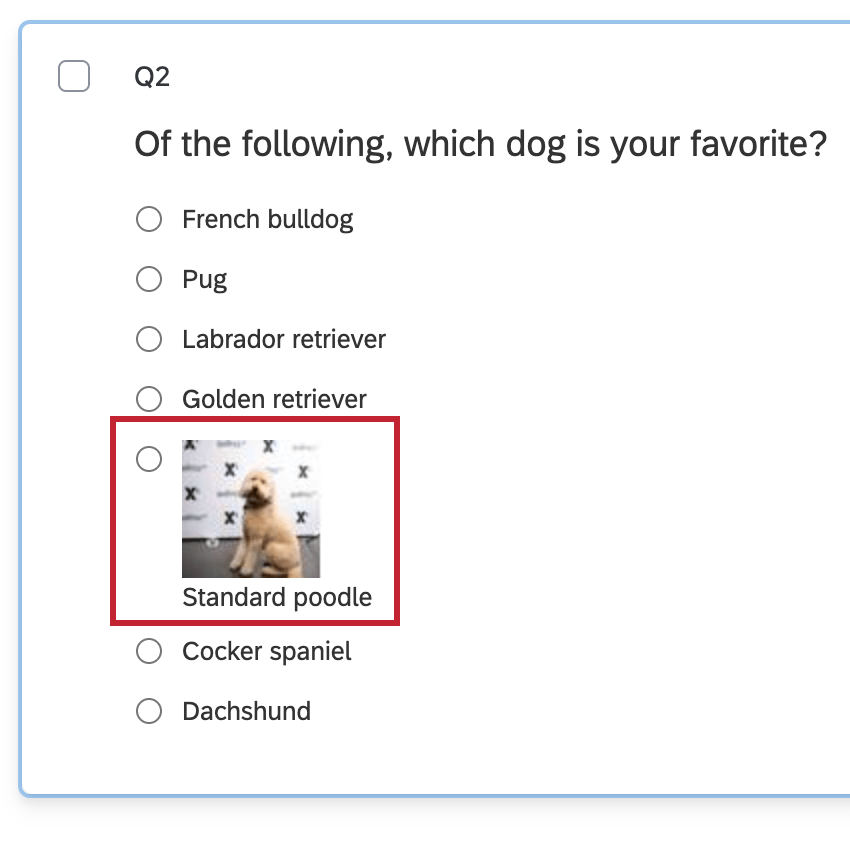
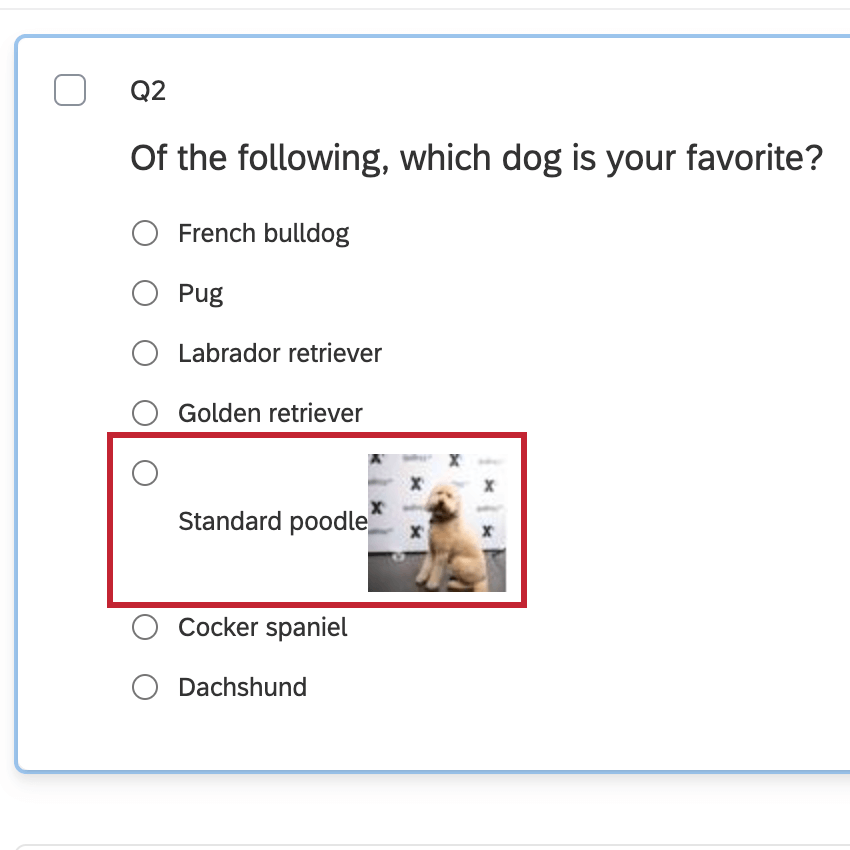
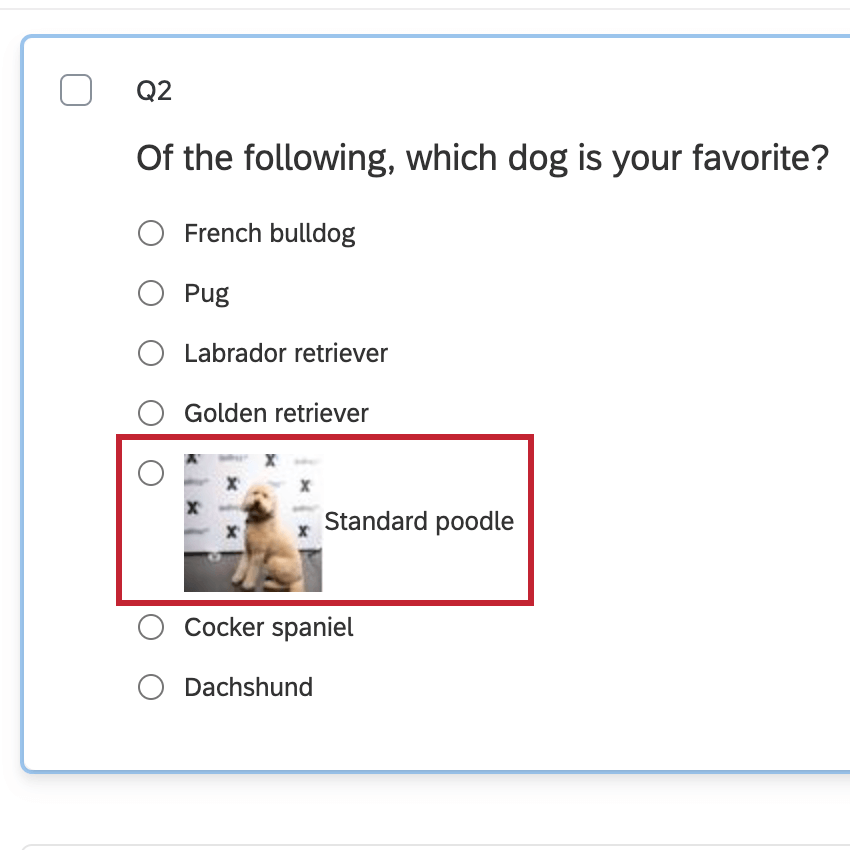
Image Properties
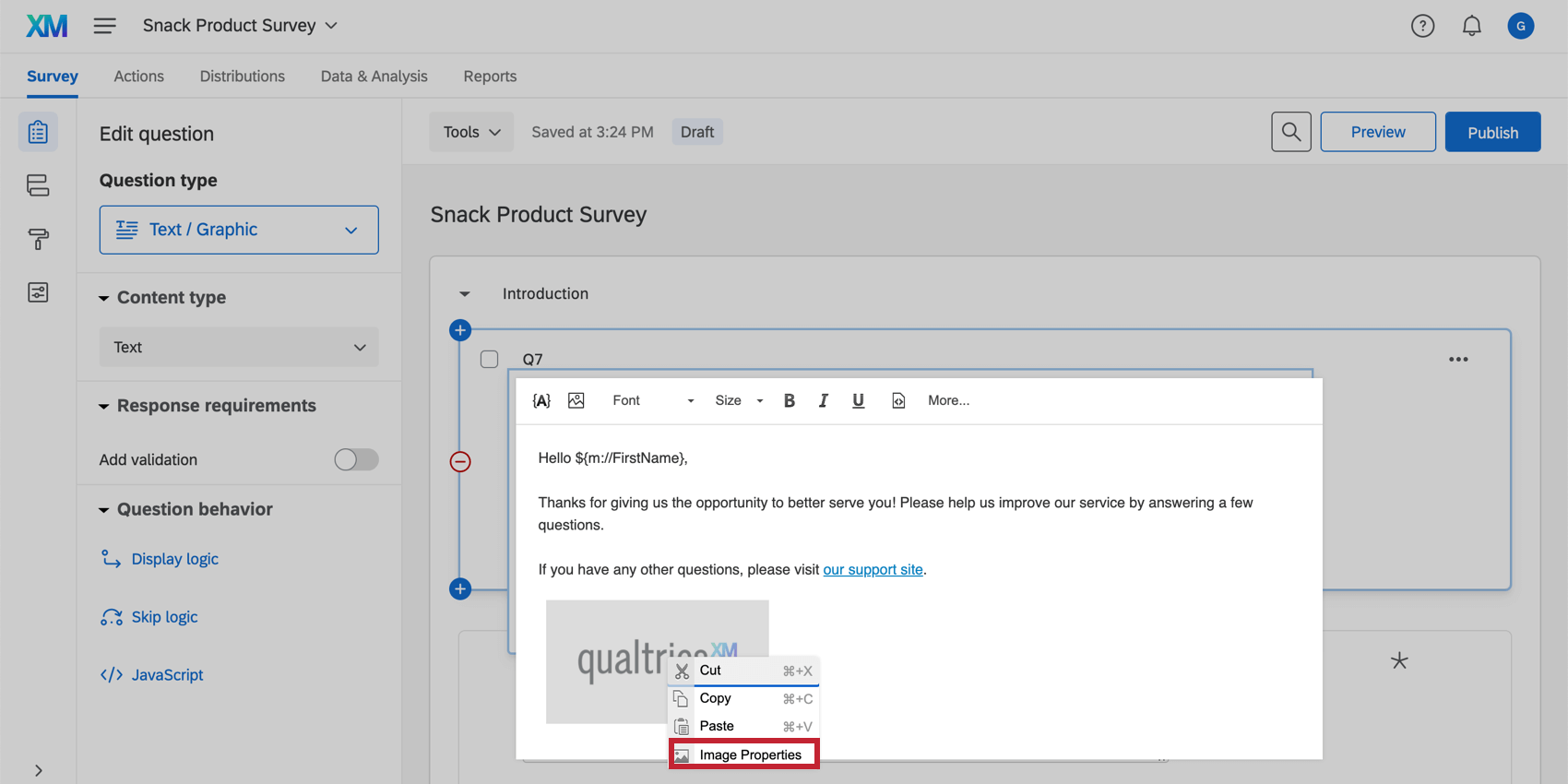
After inserting an image into the rich content editor, you can right-click on the image and select Image Properties to further edit the parameters of your image.
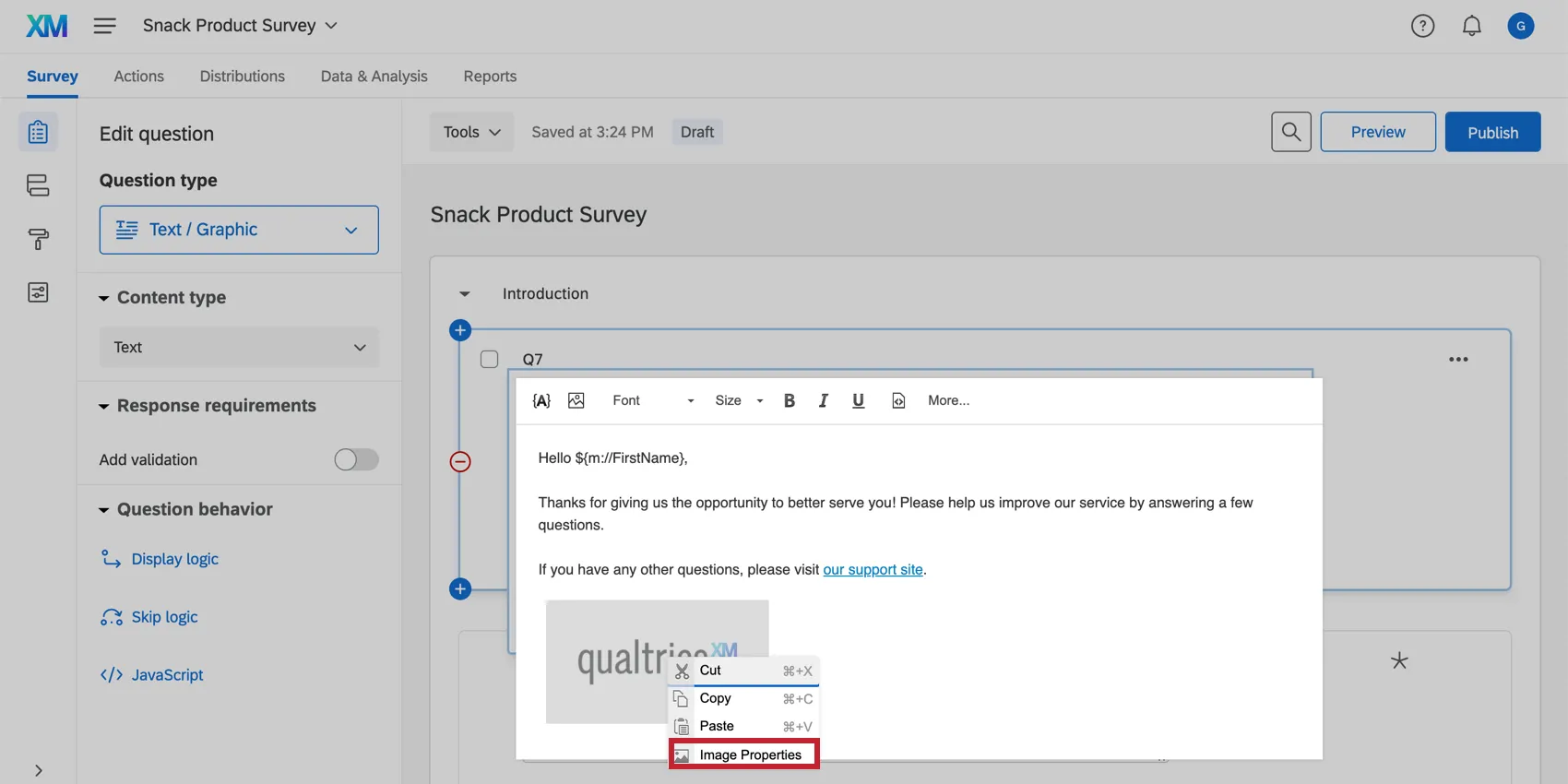
Image Info
This section contains information related to the formatting of your image.
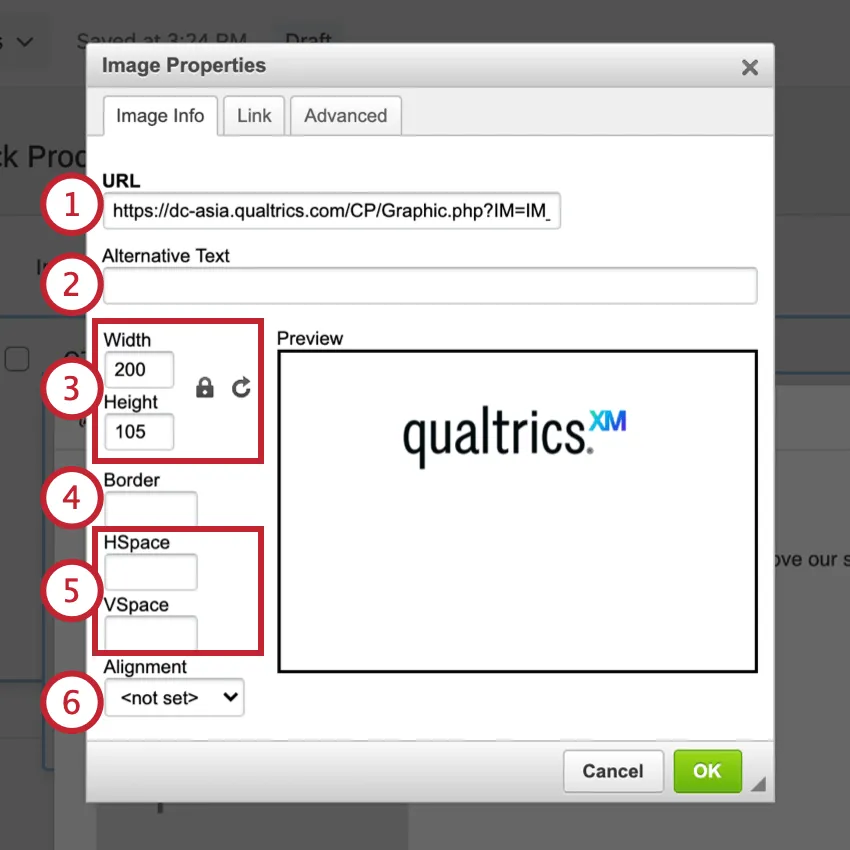
Qtip: If you would like to adjust the dimensions of your image everywhere that the image is being used in your account instead of this single instance, you can change the image dimensions in your Library.
Qtip: Currently you can’t adjust how the text wraps around the image.
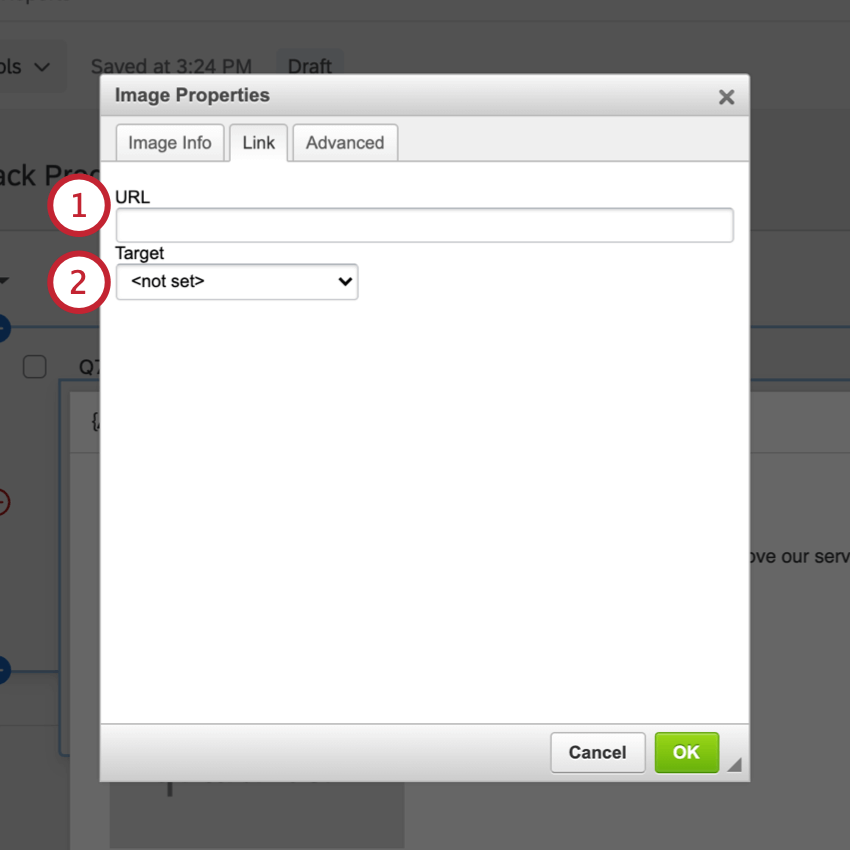
Link
In this section, you can add a hyperlink to your image so that when someone clicks on it, they will go to the URL you link here.
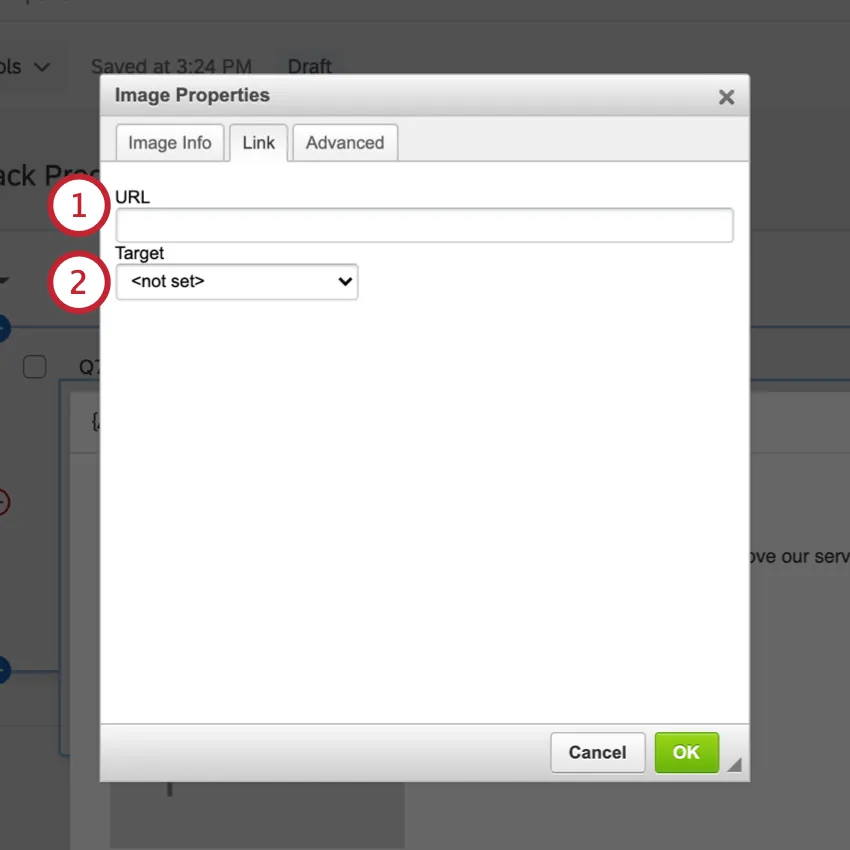
Qtip: One of the most common options is New Window (_blank), which opens the link in a different window/tab. The other options provide ways to make the linked page appear in the same window/tab as the survey.
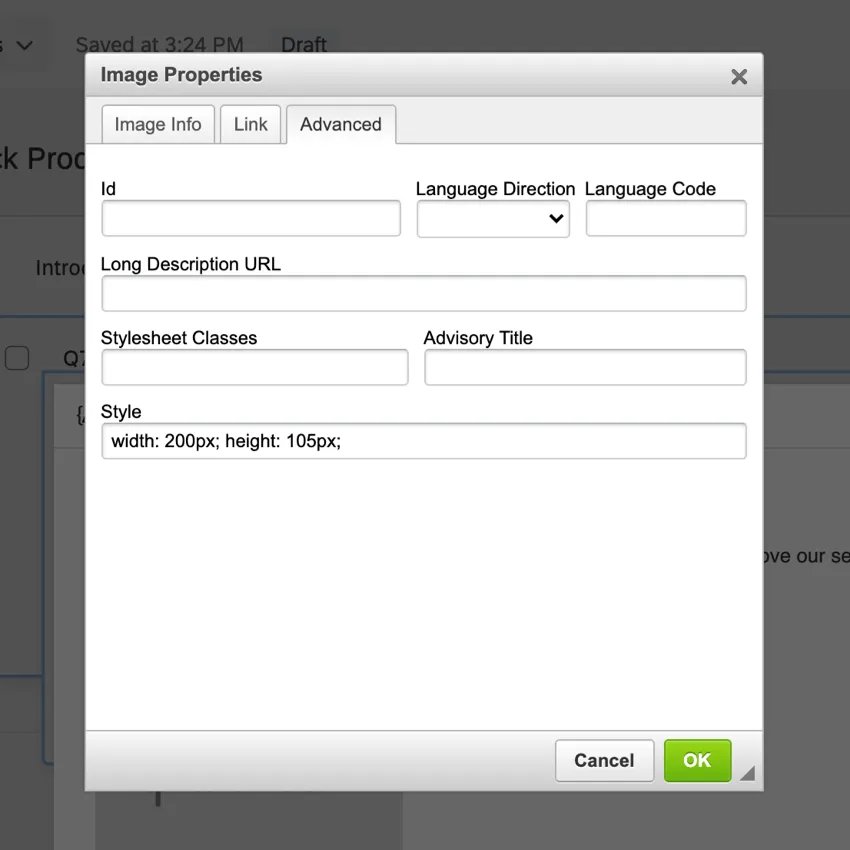
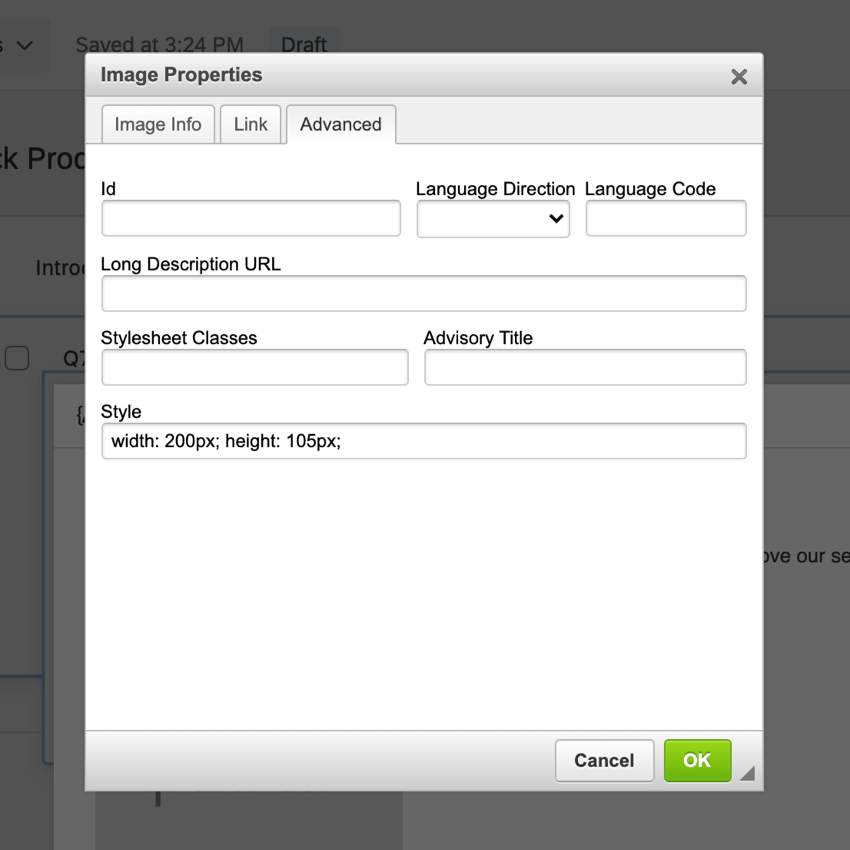
Advanced
This section allows you to add an Id, Language Direction, Language Code, Long Description URL, Stylesheet Classes, Advisory Title, and Style, if desired.
Accessing Graphics Saved to Your Library
Once you’ve uploaded an image to Qualtrics, you can access it again at any time by going to your Library. In the library, you can edit the graphic’s name, size, and more, which will be reflected in every survey where you’ve inserted the graphic. See Library Graphics for more details.
Troubleshooting Graphics
This section goes over a few solutions for common questions that arise when uploading graphics to Qualtrics.
Image Won’t Upload to Qualtrics
- Saved as one of the following file types:
-
- JPG (or JPEG)
- PNG
- GIF
-
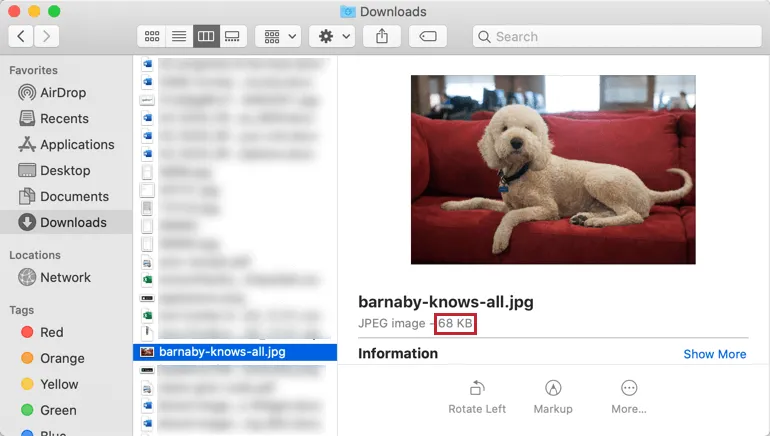
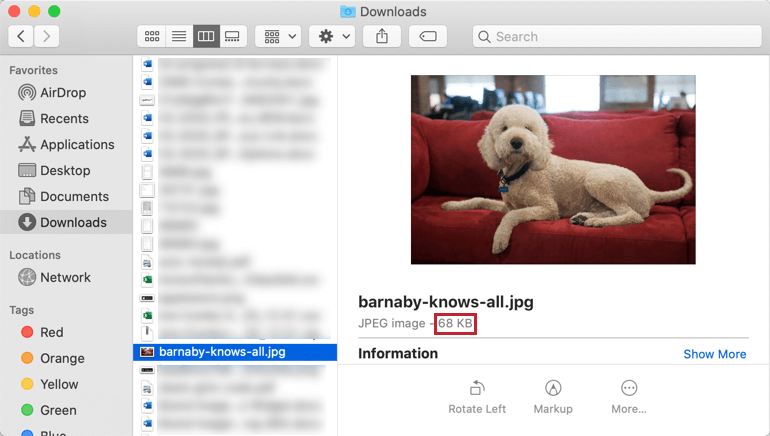
- Size 16MB or smaller. If your image is too large, you must use an image editing program to change its width and / or height before you upload it to Qualtrics. Qtip: Double-check the size of your image before uploading it to Qualtrics.
Changing the Size of an Image Already Uploaded to Qualtrics
Depending on how you added the image to Qualtrics, there are a few ways to resize it once it’s been uploaded; you don’t necessarily need to resize it in an image editing program unless you want to.
FAQs
What is the max file size I can upload to my Library?
What is the max file size I can upload to my Library?
Why can’t I copy a survey or add a graphic to my libraries?
Why can’t I copy a survey or add a graphic to my libraries?
How do I change the dimensions of a graphic once it is uploaded?
How do I change the dimensions of a graphic once it is uploaded?
I want my survey to start with introductory text or an image. How do I do that?
I want my survey to start with introductory text or an image. How do I do that?
If you're looking to add a logo to your theme or a header / footer on every page of the survey, see Survey Theming or General Look and Feel Settings instead.
How do I add a logo to my survey?
How do I add a logo to my survey?
How can I randomize images in my survey?
How can I randomize images in my survey?
That's great! Thank you for your feedback!
Thank you for your feedback!