

Web Service
What's on this page
About Web Services
Sometimes you may want to include more complex features in your survey. Maybe you want to pull in the top 10 headlines from a news website into your survey, or you want to automate a second survey distribution to be emailed to the respondents of a first survey exactly 2 hours later. A Web Service would allow you to do just that by making requests to a designated URL.
Qtip: This page contains references to Qualtrics’ API, which is a feature that requires special permission to access. If you are interested in obtaining access to this feature, please reach out to your Brand Administrator for more information.

Attention: Setting up a web service often requires advanced programming knowledge. Although our support team is happy to help with the basics of putting information into the web service, we cannot provide support on the programming aspects. You can always try asking our community of dedicated users instead.
Adding a Web Service
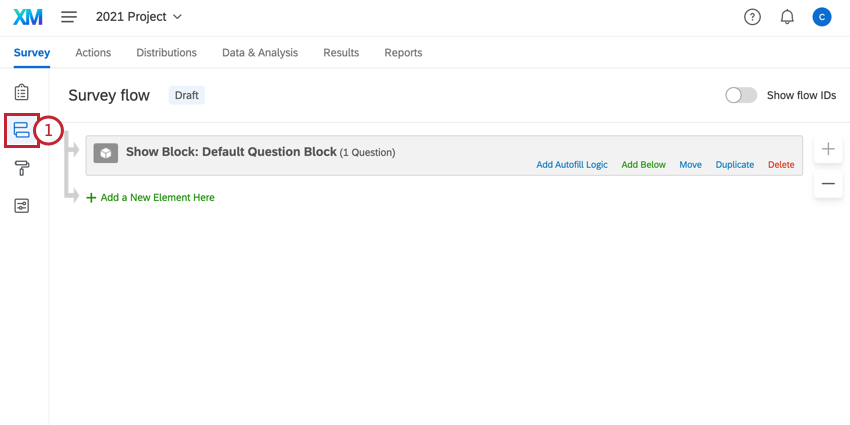
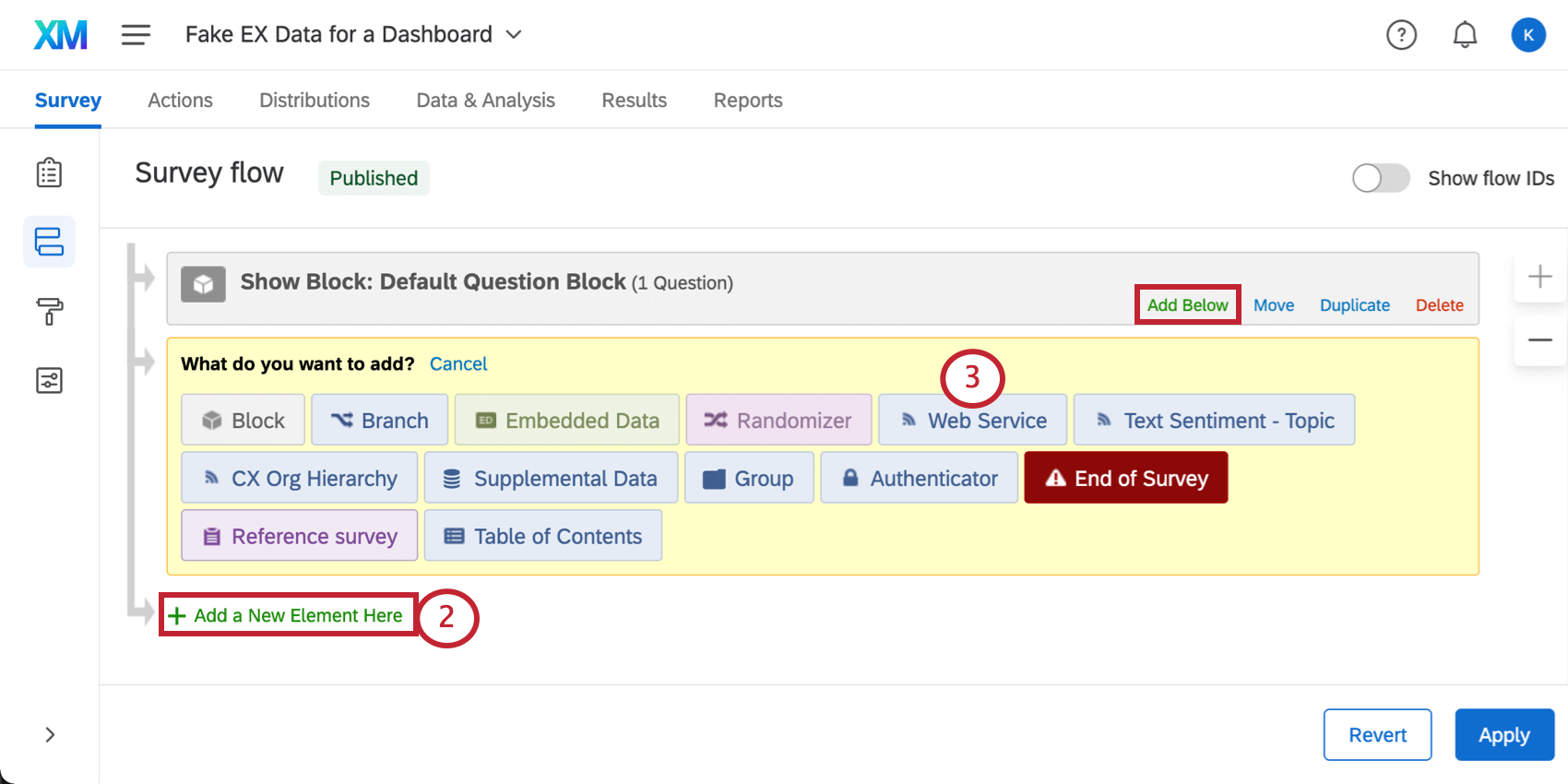
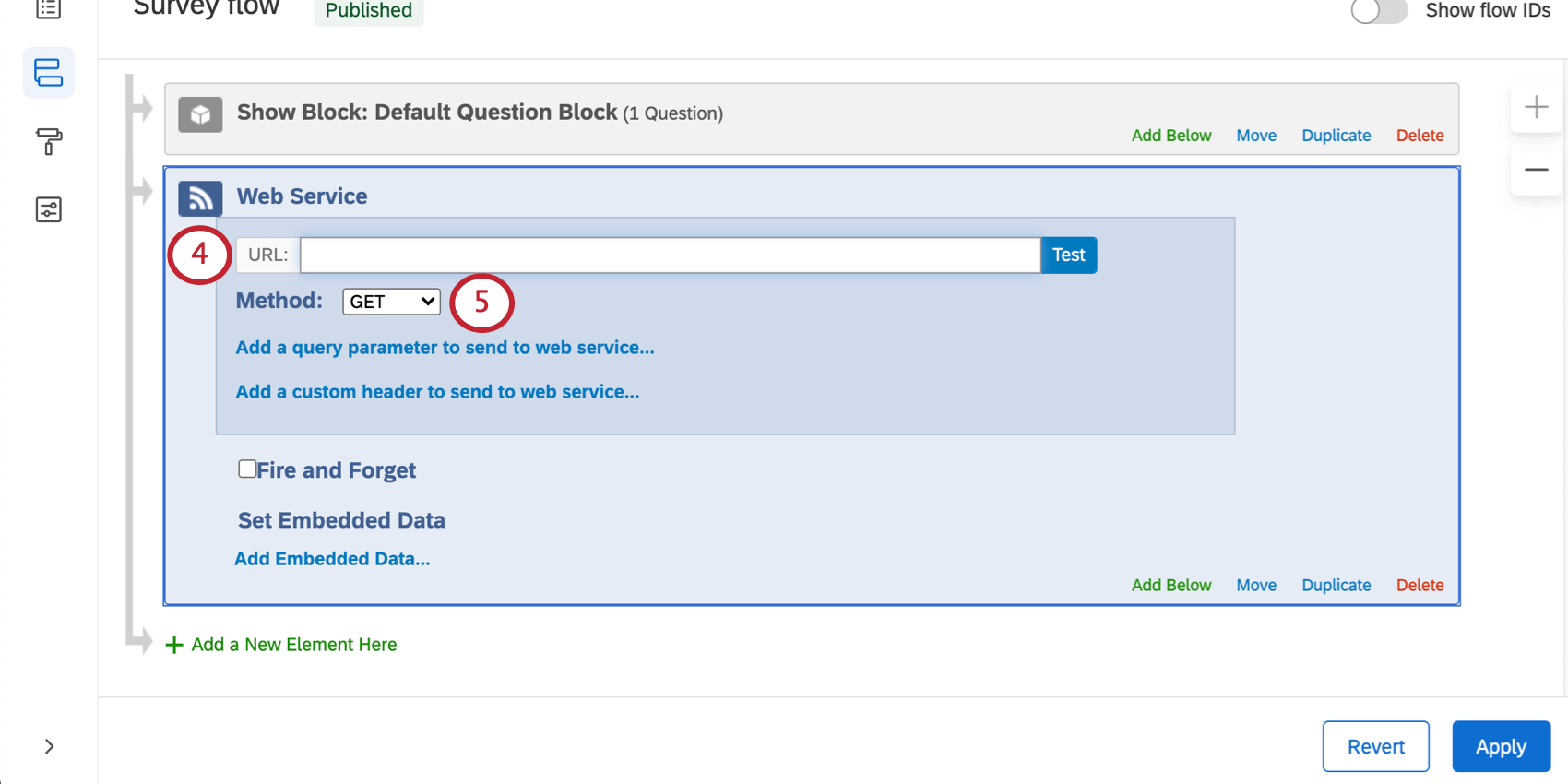
Qtip: You can use piped text to pass survey information into your endpoint URL via query strings.
Methods
Our web service feature allows you to choose from a series of Methods to request information from your specified URL.
| Method Type | Action | Example |
|---|---|---|
| GET | The web service goes to the URL and retrieves information. | Retrieve information about a member of your contact list. See the Get Contact API call for more details. |
| POST | Go to the URL and save information there. | Create a library message. |
| PUT | Update or replace existing information. | Change a username. This is 1 of the things you can do with the Update User call. |
| PATCH | Update or replace existing information. Very similar to PUT. While our web Service offers this method, our API does not use PATCH calls. | Modify data saved on your server. |
| DELETE | Remove information. | Delete a graphic from your library. |
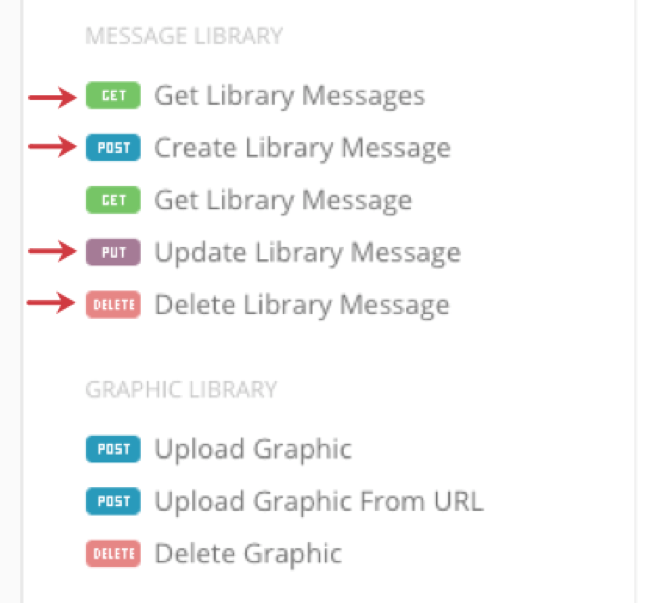
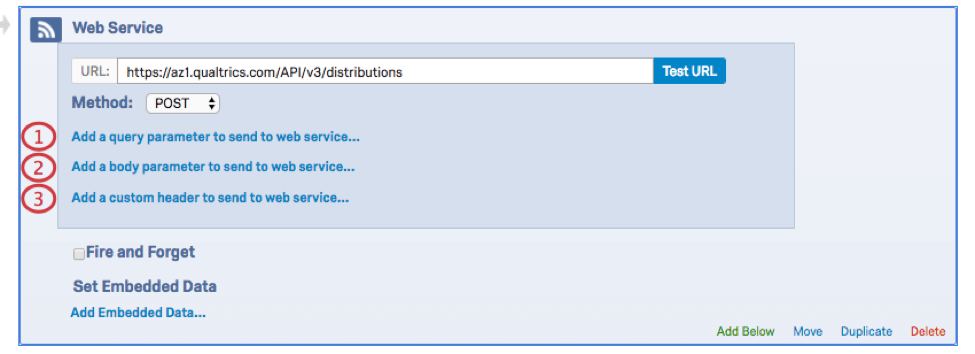
If you are using our API calls, the documentation will tell you which method to use, as indicated in the screenshot below.
Adding Credentials to a Web Service
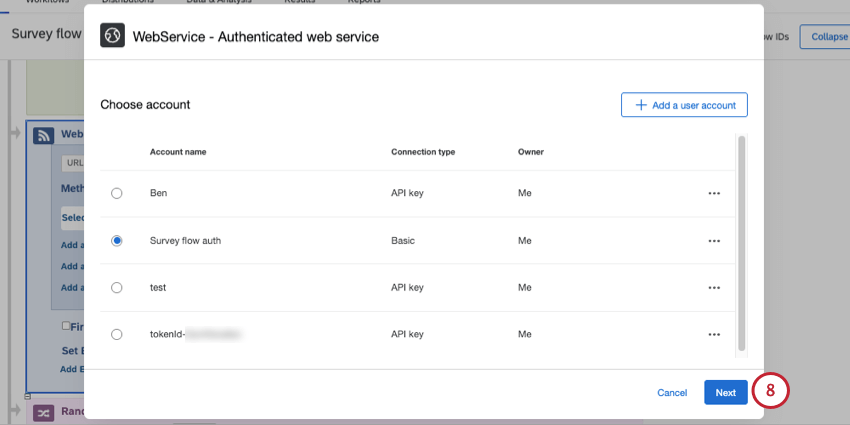
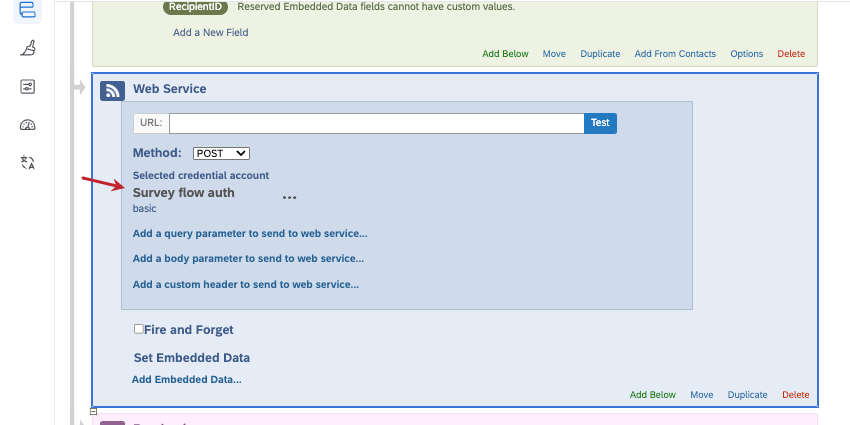
As an optional step, you can add authorization credentials to your survey flow’s web service. Survey flow web services are compatible with basic, API key, and OAuth 2.0 methods, and can share credentials with web services in workflows.
Setting Credentials
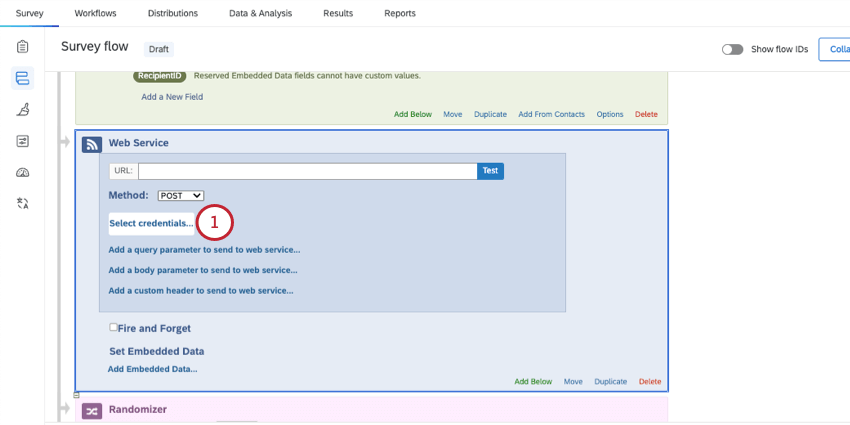
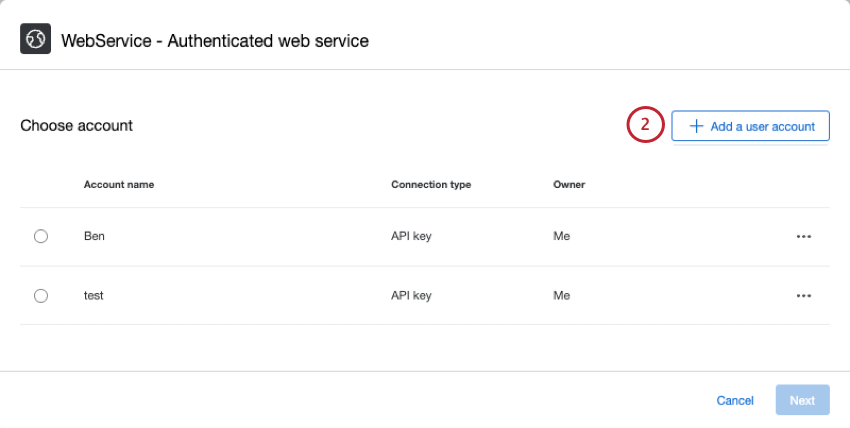
Qtip: The accounts you see in this window may include ones created for web services in workflows, or made by Brand Administrators for use by the entire organization.
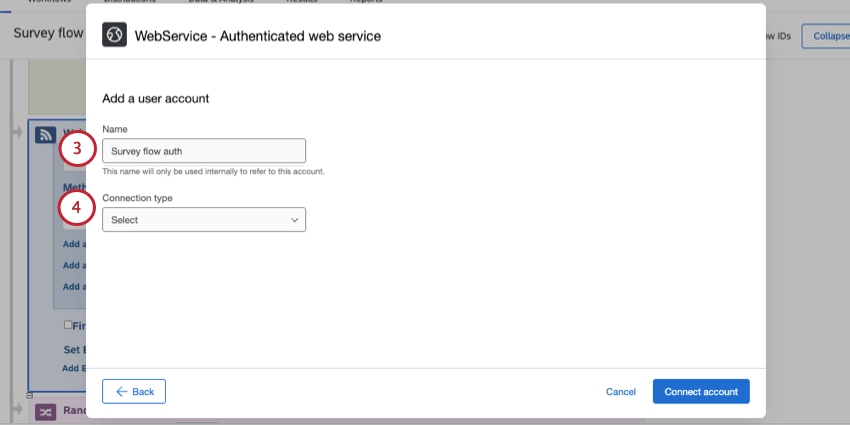
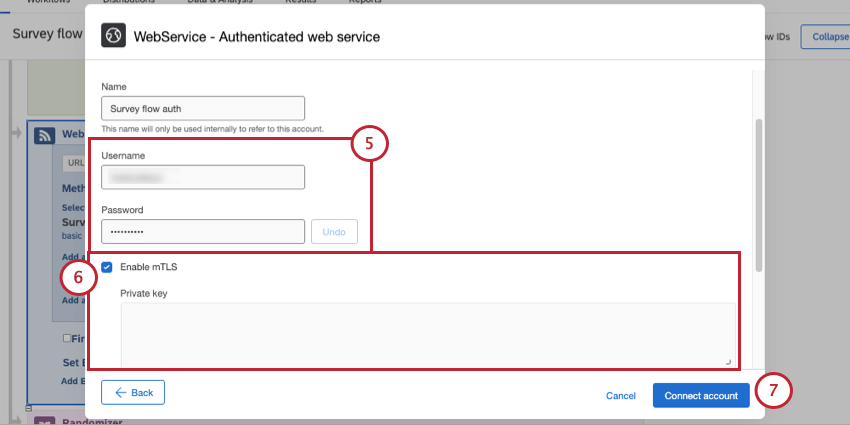
- Basic: Provide a username and password.
- API key: Use a unique identifier to authenticate to an API.
- OAuth: Authorize third-party access to your server resources without sharing your credentials.
Configuring Credential Parameters
You can adjust where your credentials are added in the request, in addition to name and template parameters.
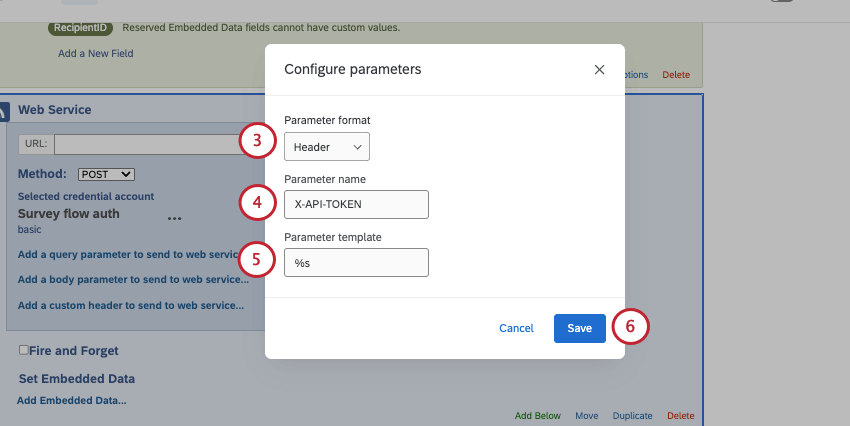
- Header
- Query
- Body
Replacing and Removing Credentials
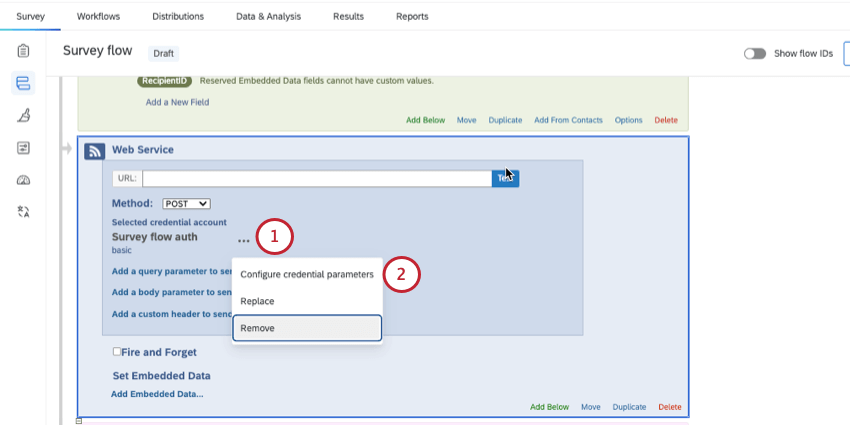
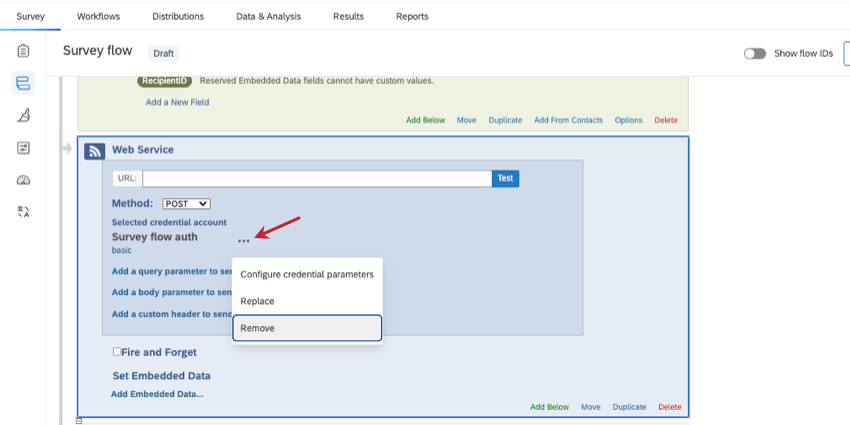
Click the 3 dots next to your credentials for the following options:
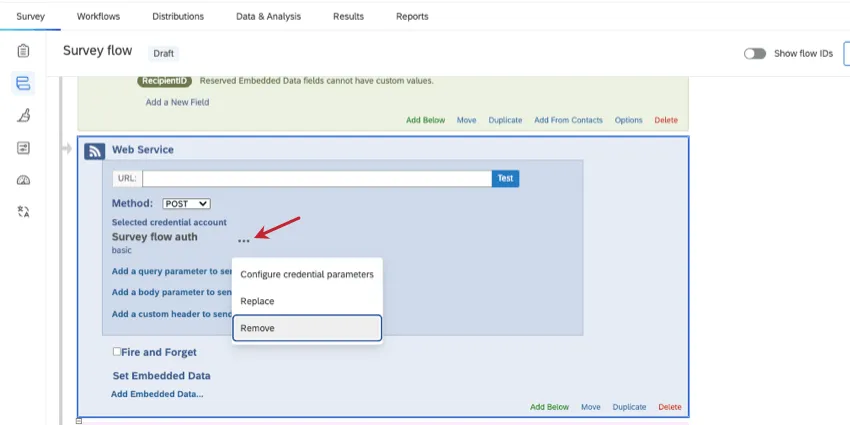
- Configure credential parameters: Described above.
- Replace: Choose or add a different set of saved credentials to the web service.
- Remove: Delete the credentials from the web service. This is how you’d switch the web service from authorized to non-authorized.
Managing Accounts
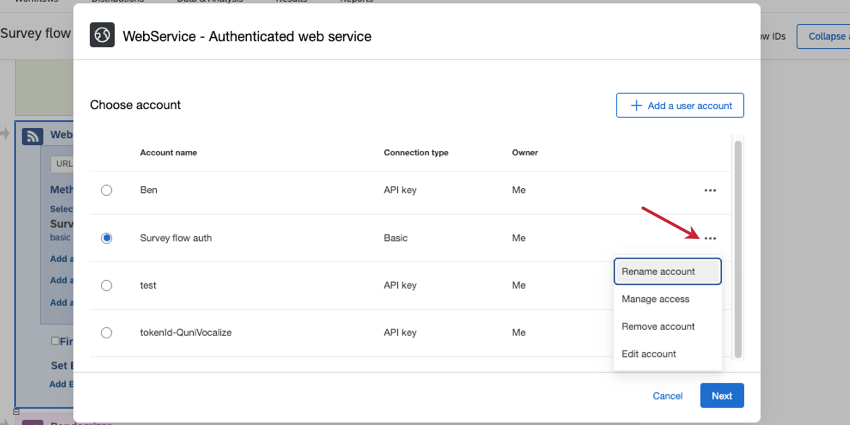
In the credentials window, you can manage accounts (individual credentials) by clicking the 3 dots. Your options include:
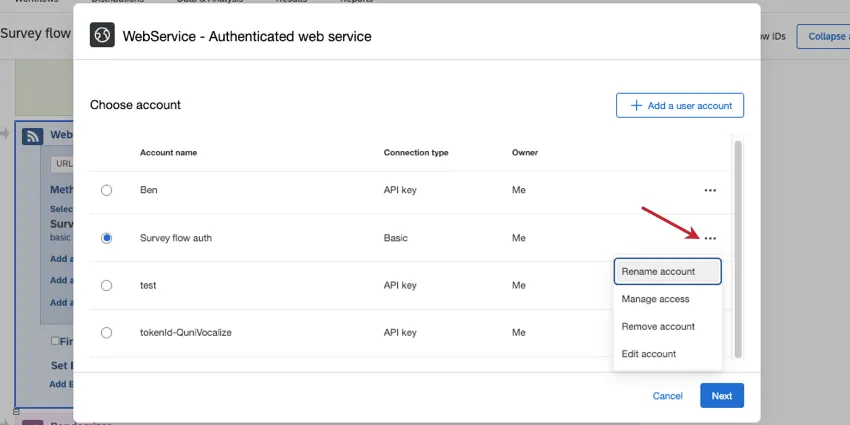
- Rename account
- Manage access
- Remove account
- Edit account (change how the credentials are set up, such as authorization type)
Some options may be unavailable. For example, if you didn’t make an account, you may not be able to delete it. If you aren’t a Brand Administrator, you won’t be able to manage user access to accounts.
Managing Credentials as an Administrator
Brand Administrators can create web service credentials and control which users throughout the organization are allowed to use them.
To learn more, see Extensions Administration. The extension is called WebService, with no spaces.
Parameters
There are currently 3 types of Parameters you can append to your request.
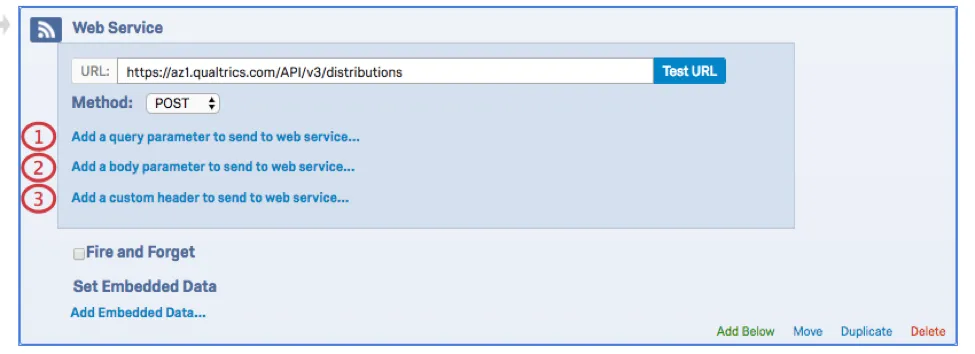
- application/x-www-form-urlencoded: Rather than entering your body parameters into the specified area of the Web Service, add them as a query string at the end of your specified URL.
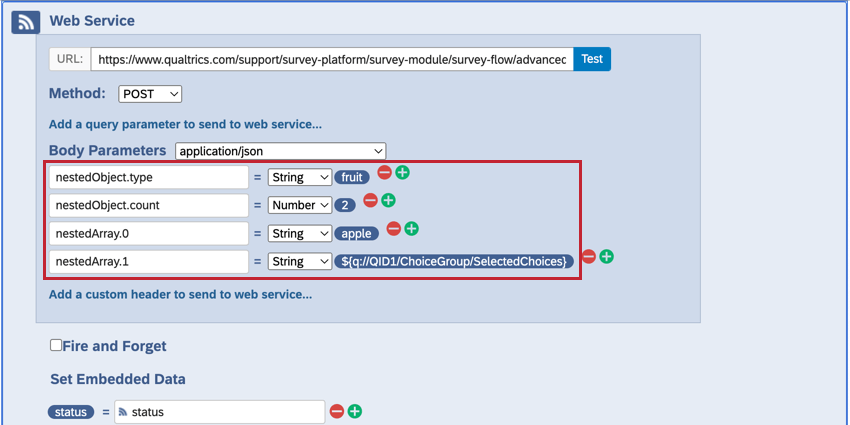
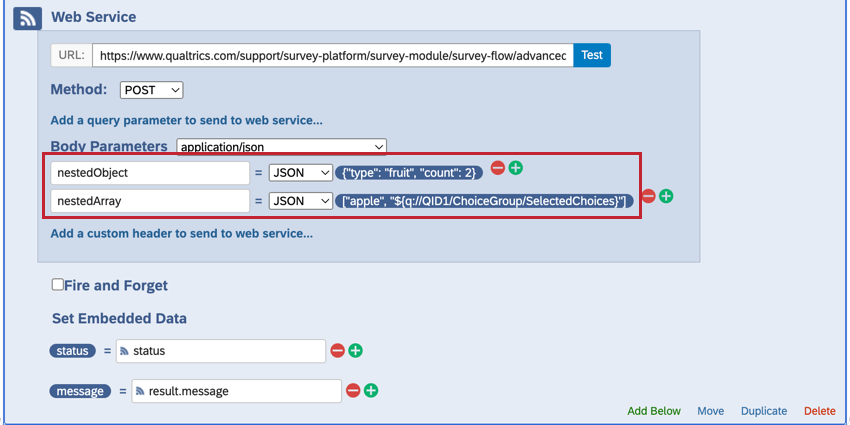
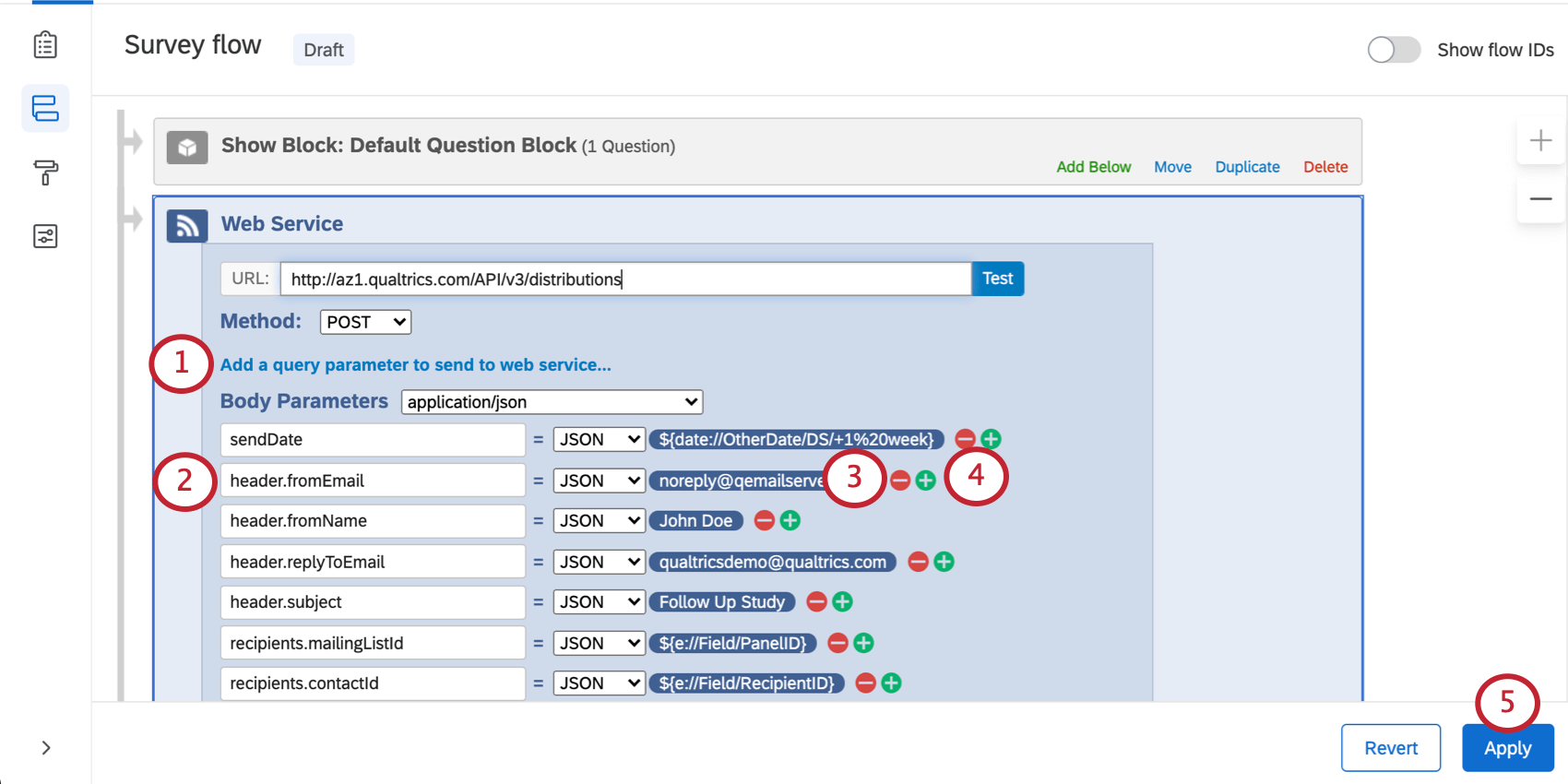
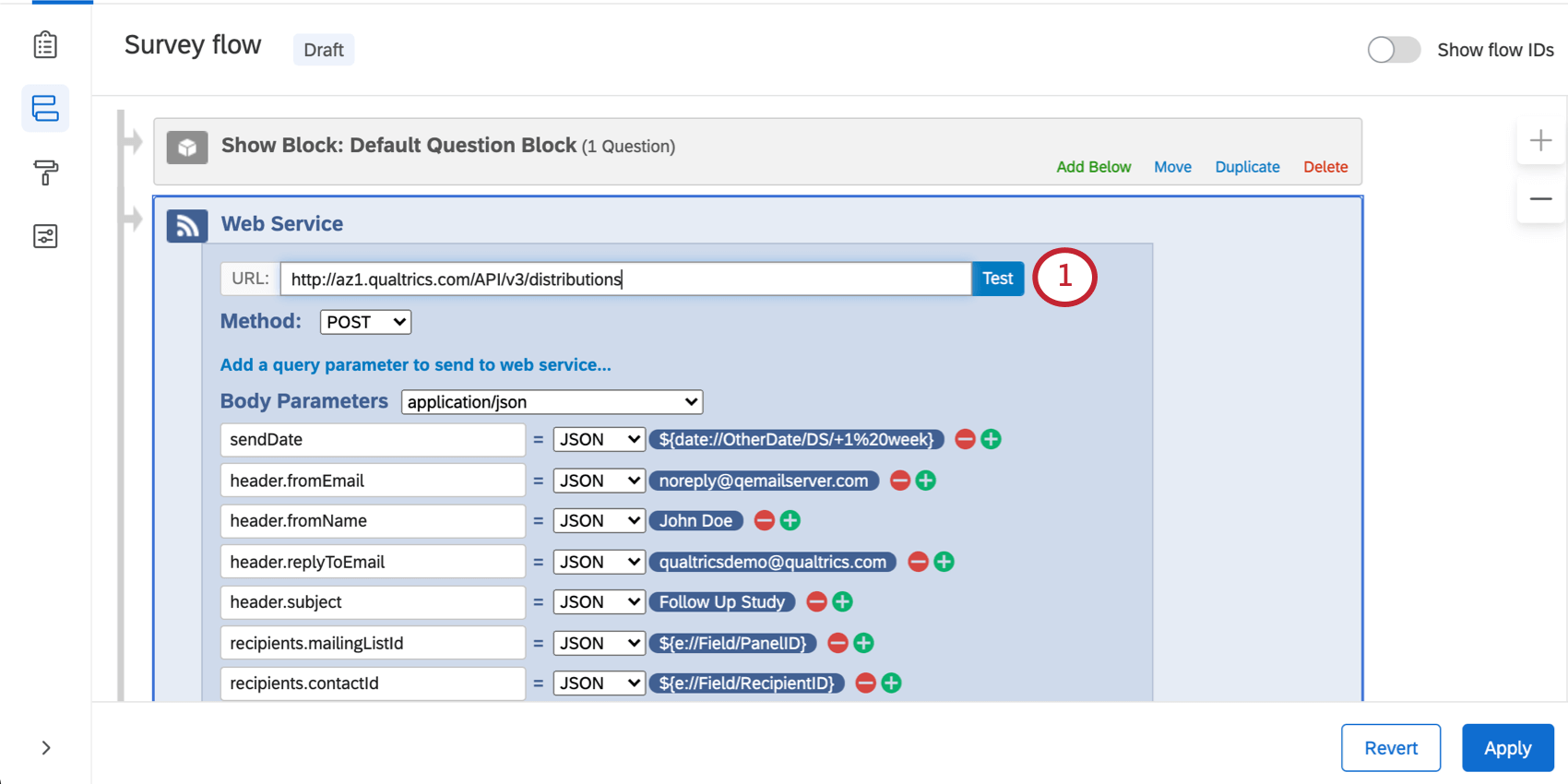
- application/json: Enter each of your request body’s parameters, being sure to specify the type and value. For nested parameters, such as arrays and objects, you can either enter your keys using Dot Notation or enter the values directly as raw JSON:
- This image shows body parameters using Dot Notation.

- This image shows the same body parameters but as raw JSON instead.
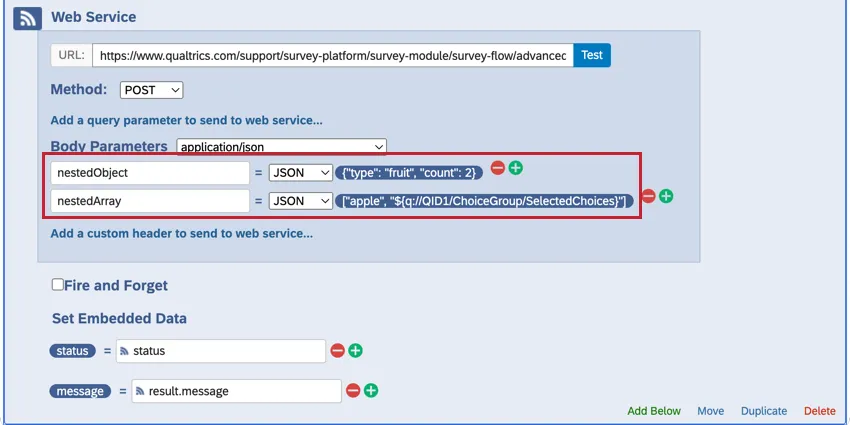 Attention: Every key and value in a JSON object, as well as every element in a JSON array (including piped text), must have double quotes around it.
- This image shows body parameters using Dot Notation.
Qtip: Authentication URLs should be added into the custom header.
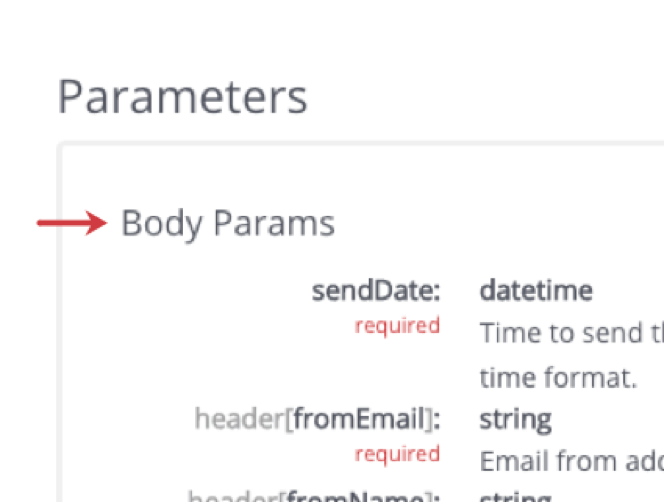
If you’re using our API calls, the documentation will tell you what kind of parameters to include. The example below provides Body parameters to set.
Adding Parameters to Your Web Service
Testing Your Parameters
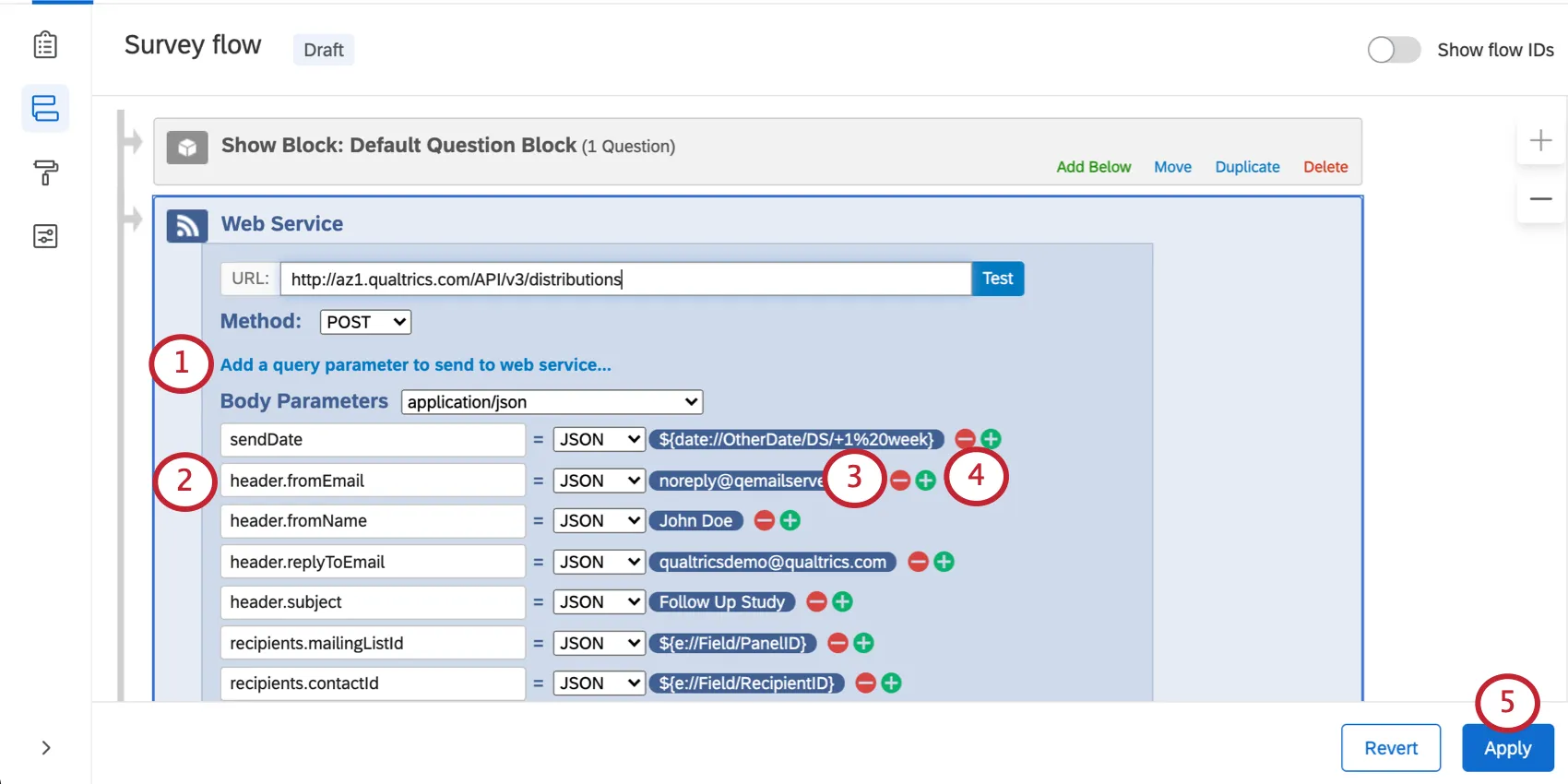
Once you have pasted in your URL and set up your parameters, you can test your URL to see what Fields you can pull in.
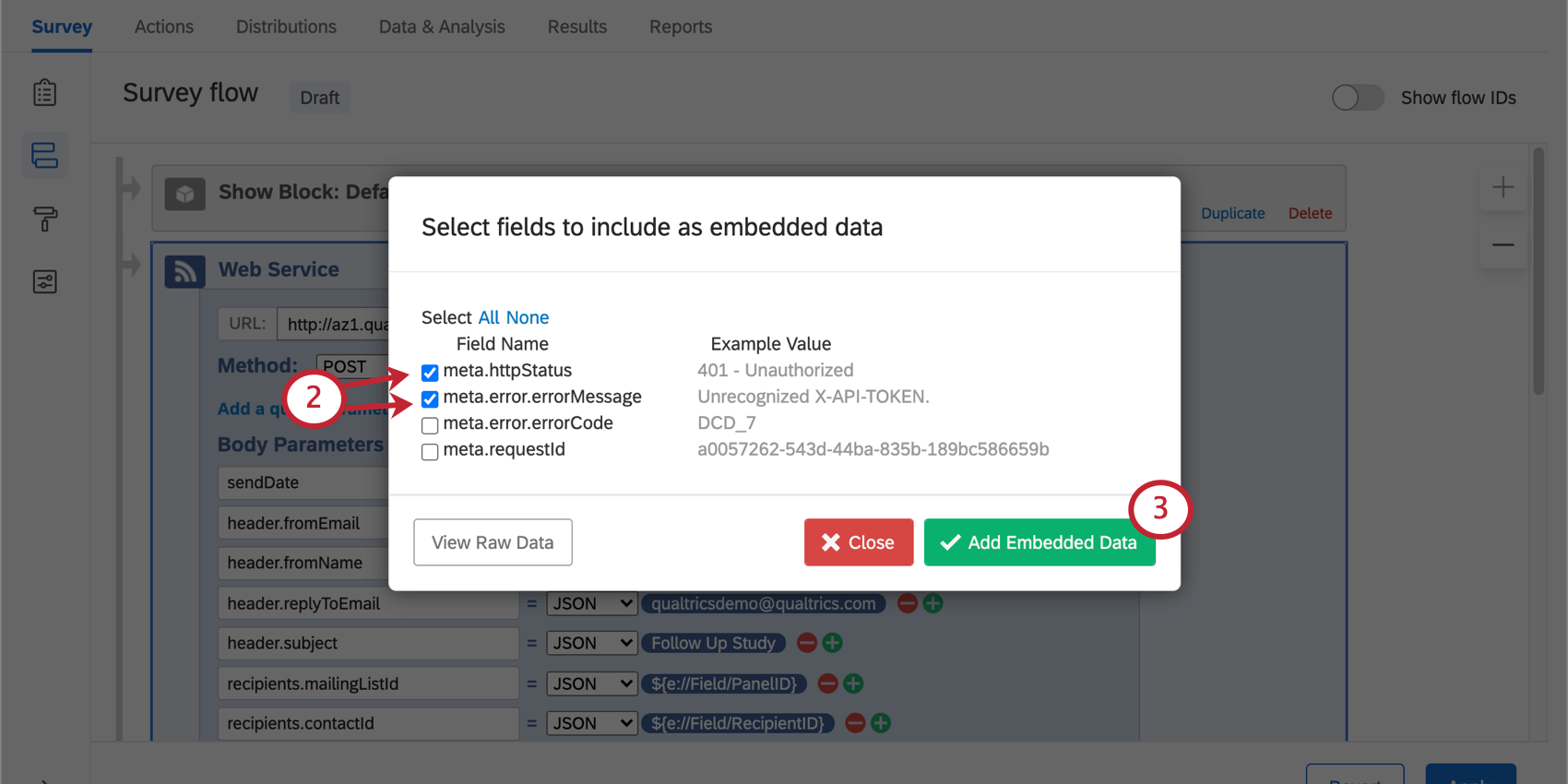
Qtip: Embedded data set in a web service is recorded as a “text set” variable type.
Qtip: You can change the embedded data names associated with the fields of your web service under the Set Embedded Data column. The embedded data names are to the left of the equals (=) sign, indicated by a green ED icon. The right side should not be altered. The names you set on the left will be the names of the fields as they appear in your data.
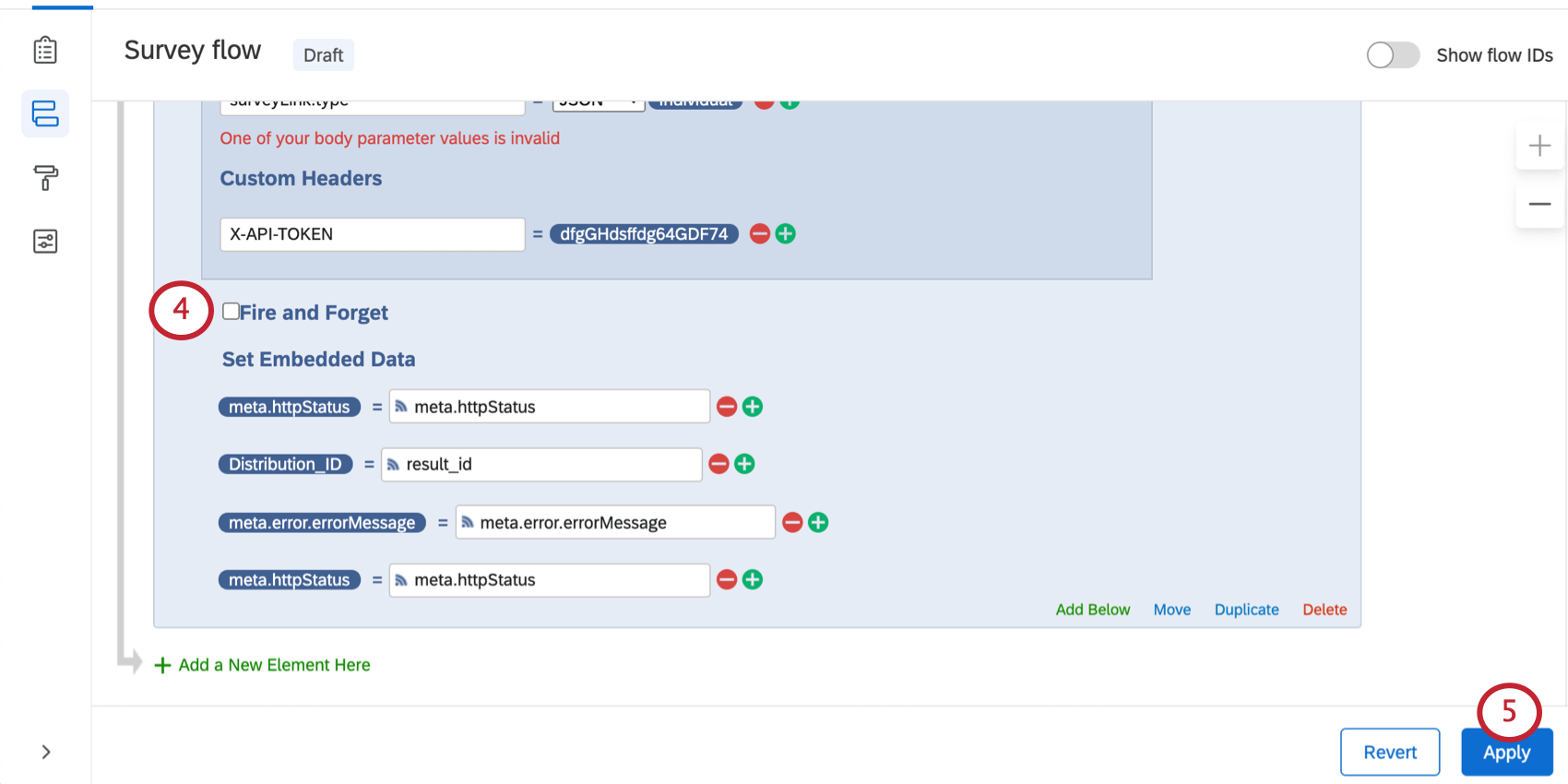
Qtip: Fire and Forget allows your survey to make a request to a web service without waiting for a response. This means that your respondents will be able to complete the full survey without any delay due to the web service. You may want to use this option if you have a web service request that takes a while to process, but we would recommend that you only use this feature during testing, since it will prevent embedded data from saving.
Correcting TLS Errors
As of September 1, 2021, web service requests with Transport-Layer Security (TLS) errors will fail. TLS is what makes web requests over HTTPS (as opposed to plain HTTP) secure, preventing the request data from being visible to third parties and ensuring that the request is sent to the correct destination. Ignoring TLS errors effectively eliminates these security benefits; this change is an important step in our continual efforts to improve the security of the Qualtrics platform.
In order to resolve each TLS error, you need to do 1 of the following:
- Fix the TLS error. Due to the nature of TLS errors, our support team cannot provide specific guidance on how to do so, but your network administrator will know how to fix the error.
- Change the flow element web service request to be made over HTTP, not HTTPS. For example, you could change the URL “https://example.com” to “http://example.com”. If you choose to take this approach, you should also ensure that the HTTP URL doesn’t redirect to the HTTPS URL. Attention: Please note that this approach will cause the web service request data to be transmitted unencrypted.
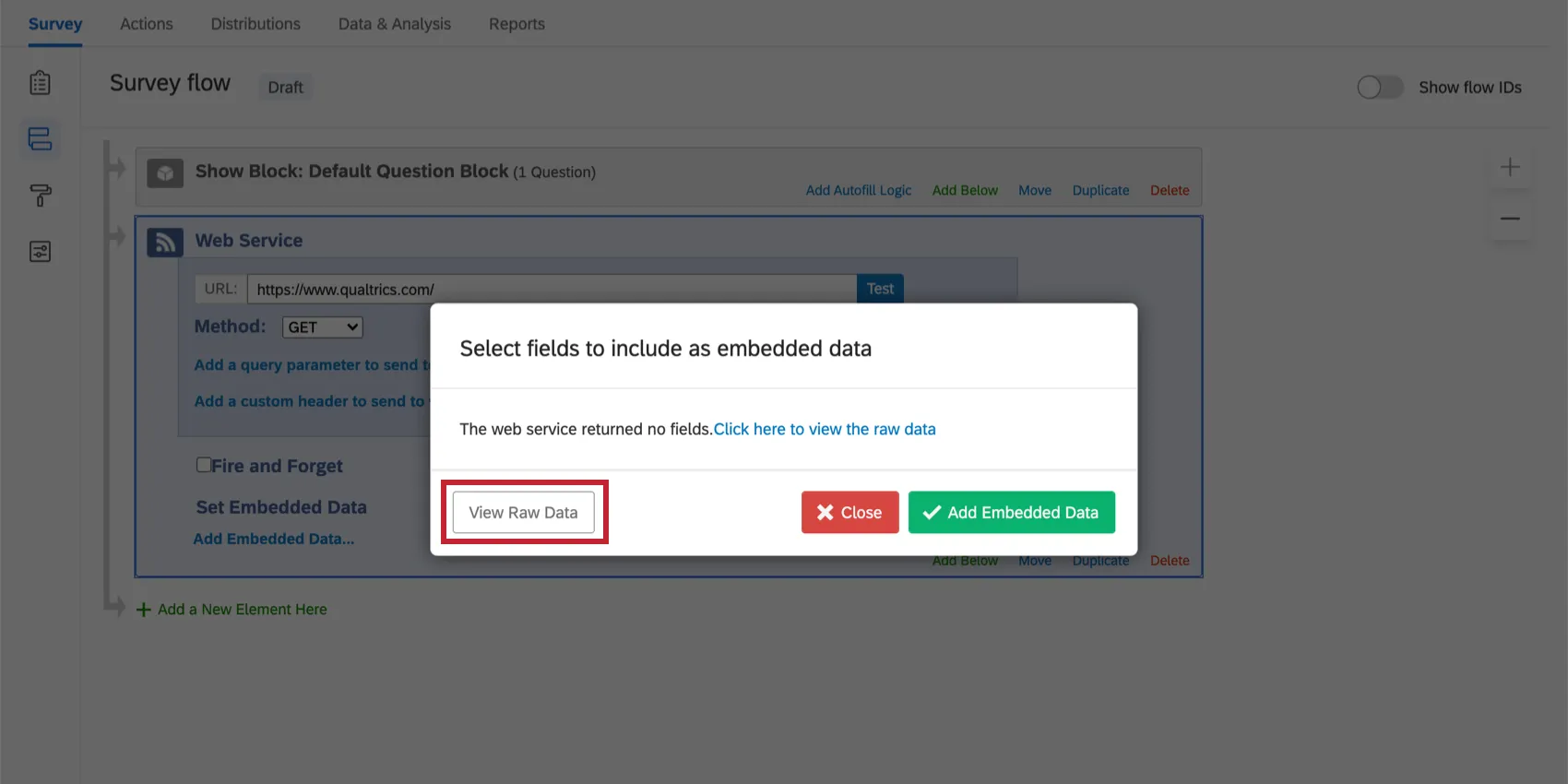
You can verify that your web service element is ready for this change by using the test button next to the URL field in the flow element. Viewing the raw data in the resulting window, also shown below, should not show an error.
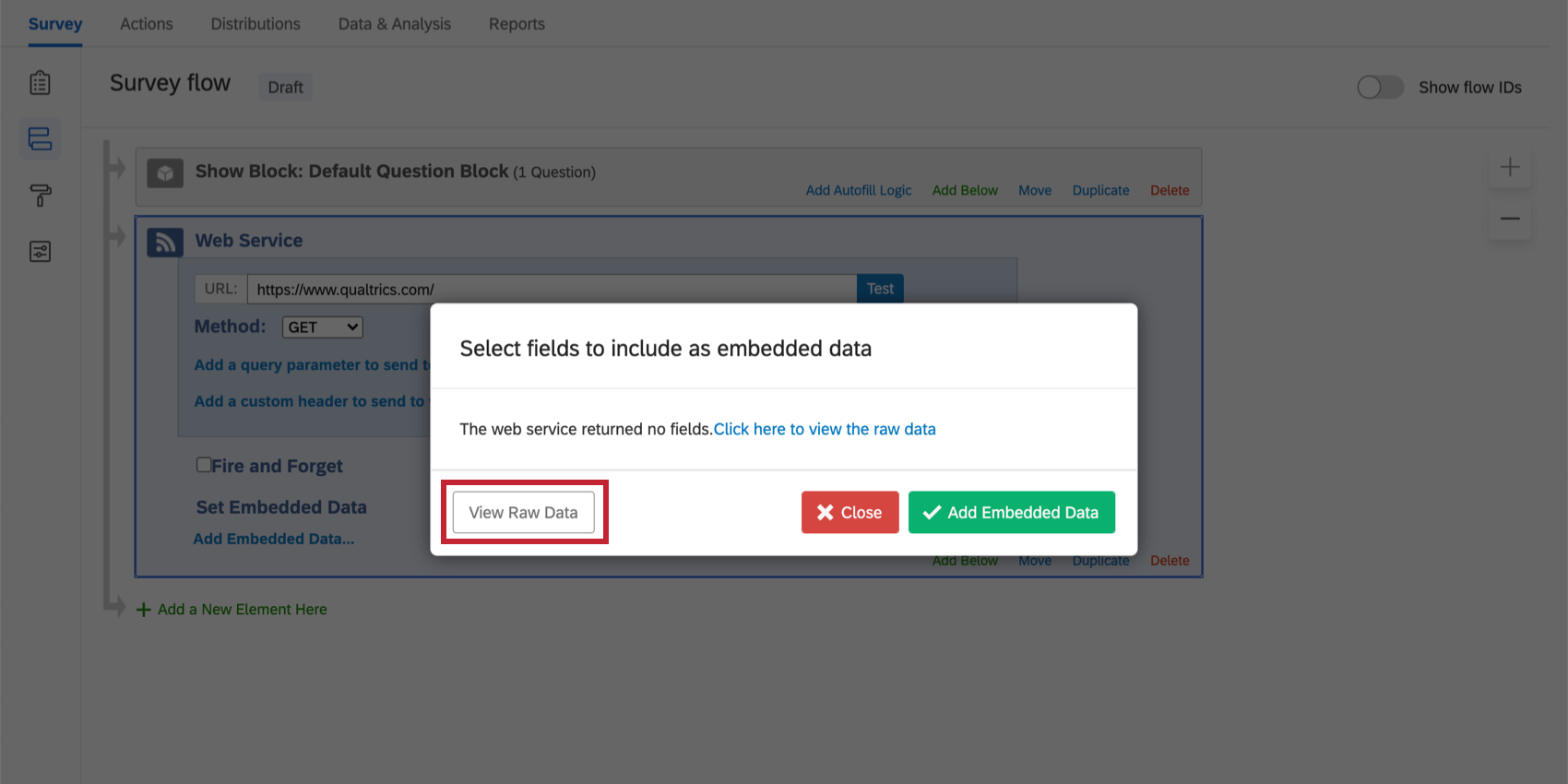
Attention: If you update the web service element to fix the error, you must also publish your changes to the survey. We recommend that you resolve the errors as soon as possible to avoid in-progress survey sessions using the old survey version after the deadline. If you instead resolve the error via another method (e.g., by fixing the TLS configuration on the server targeted by your web service element), publishing is not necessary.
Types of Projects this Feature Is Available In
So long as you have access to Web Services as part of your license, you can add a web service to any type of project’s survey flow. This includes:
That's great! Thank you for your feedback!
Thank you for your feedback!