

Email Triggers
What's on this page
About Email Triggers
Attention: The email task feature under Workflows works the same as email triggers, but with several notable improvements. Due to these improvements, we recommend using the email task instead.

Warning: We strongly recommend not using email triggers, as they may not behave as intended, and we no longer plan to develop any improvements for this feature. For the same functionality with added improvements, please use the email task feature instead.
Whether you need to know about a response immediately or send a follow-up email to your respondents, Email triggers provide a simple solution. Email triggers allow you to send an email notification to someone when a survey response is completed and specified conditions are met.
Example: You can use email triggers for a variety of cases, such as a whistle-blower survey that triggers an email to HR when fraud is reported or a scheduling survey that sends your respondents a record of which events they signed up for.

Setting Up an Email Trigger
By default, an email trigger will send an email to your email address any time a respondent completes the survey. These and many other options can be configured by following the steps outlined below.
To set up an Email Trigger
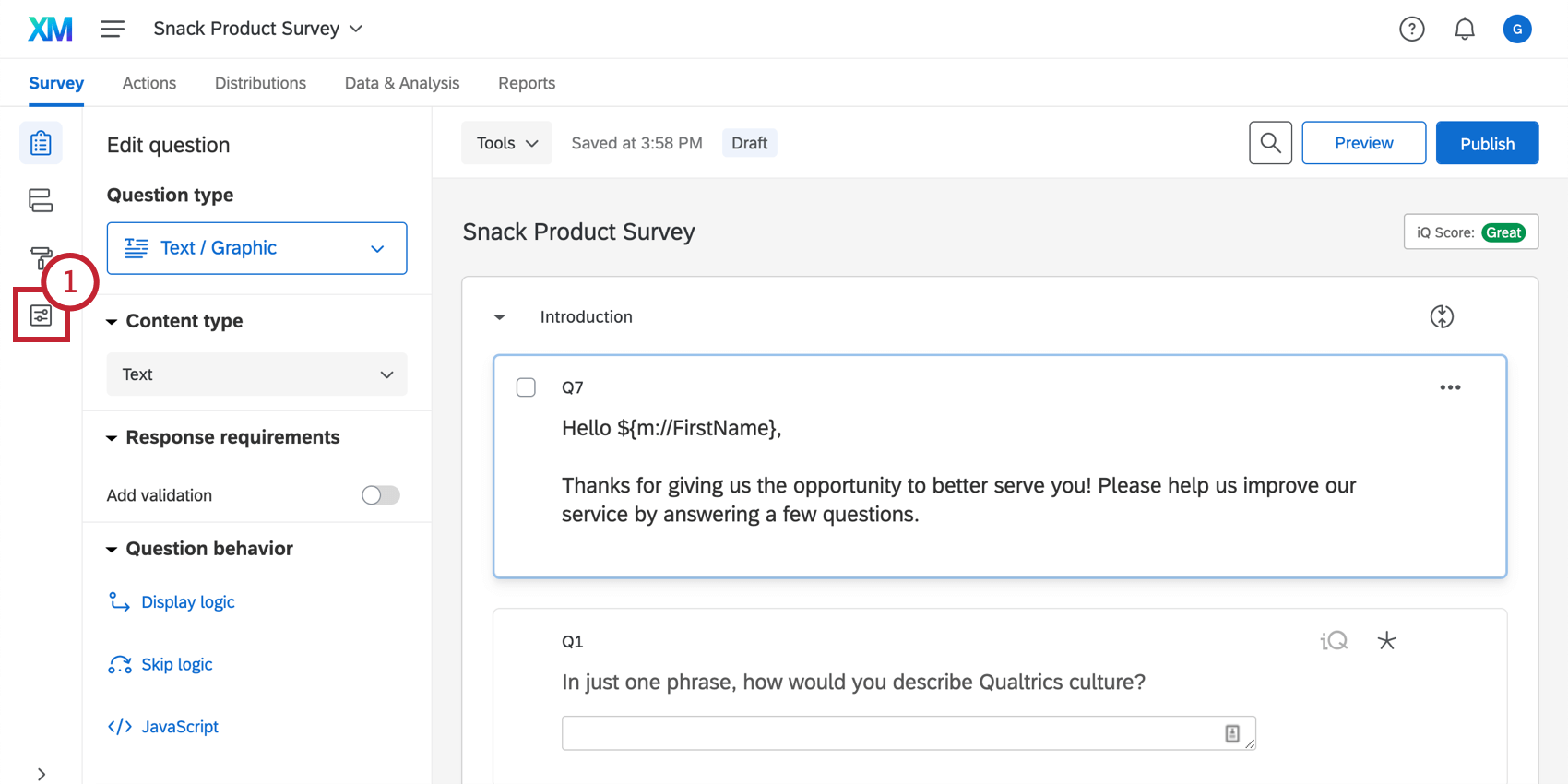
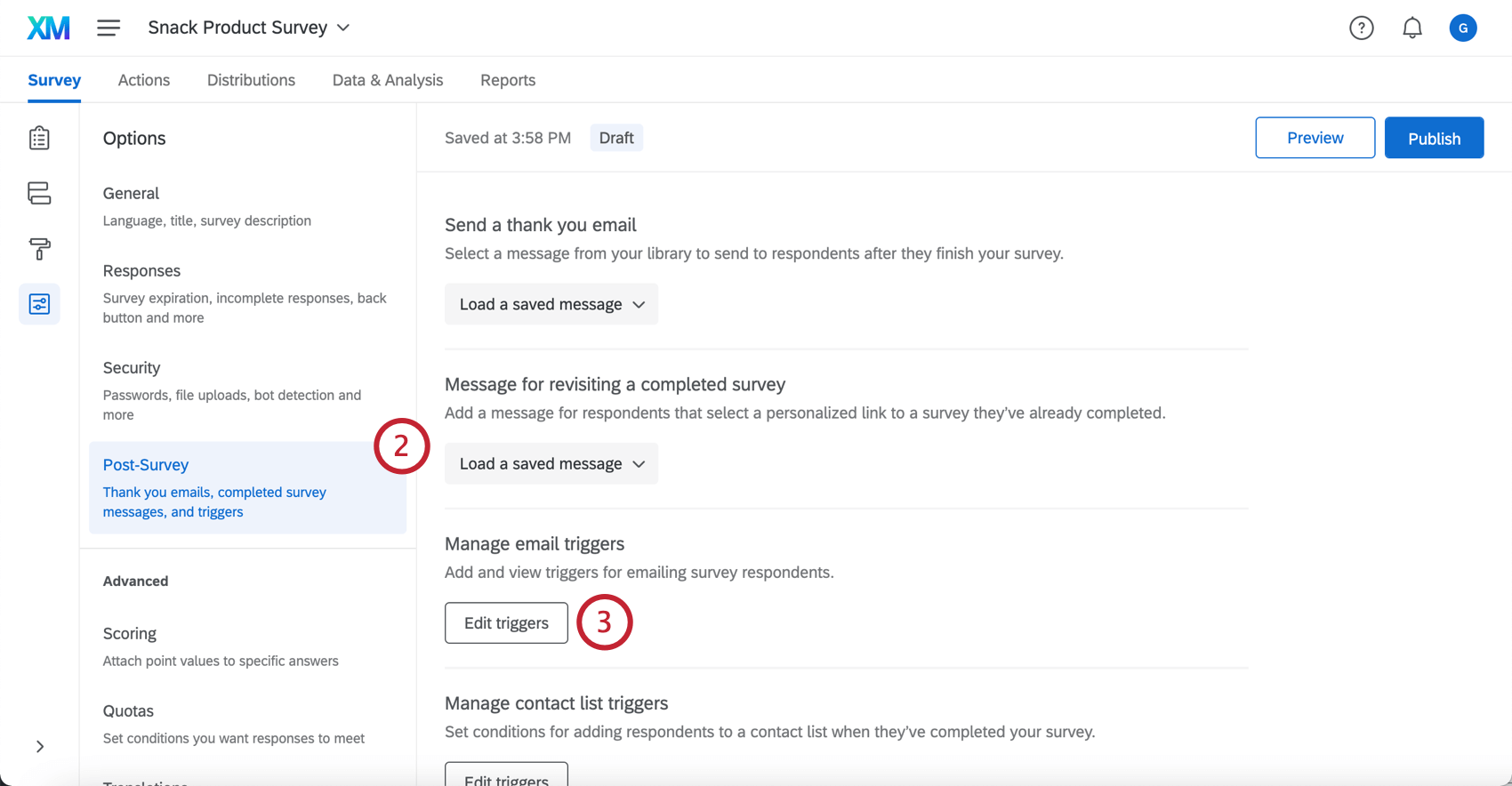
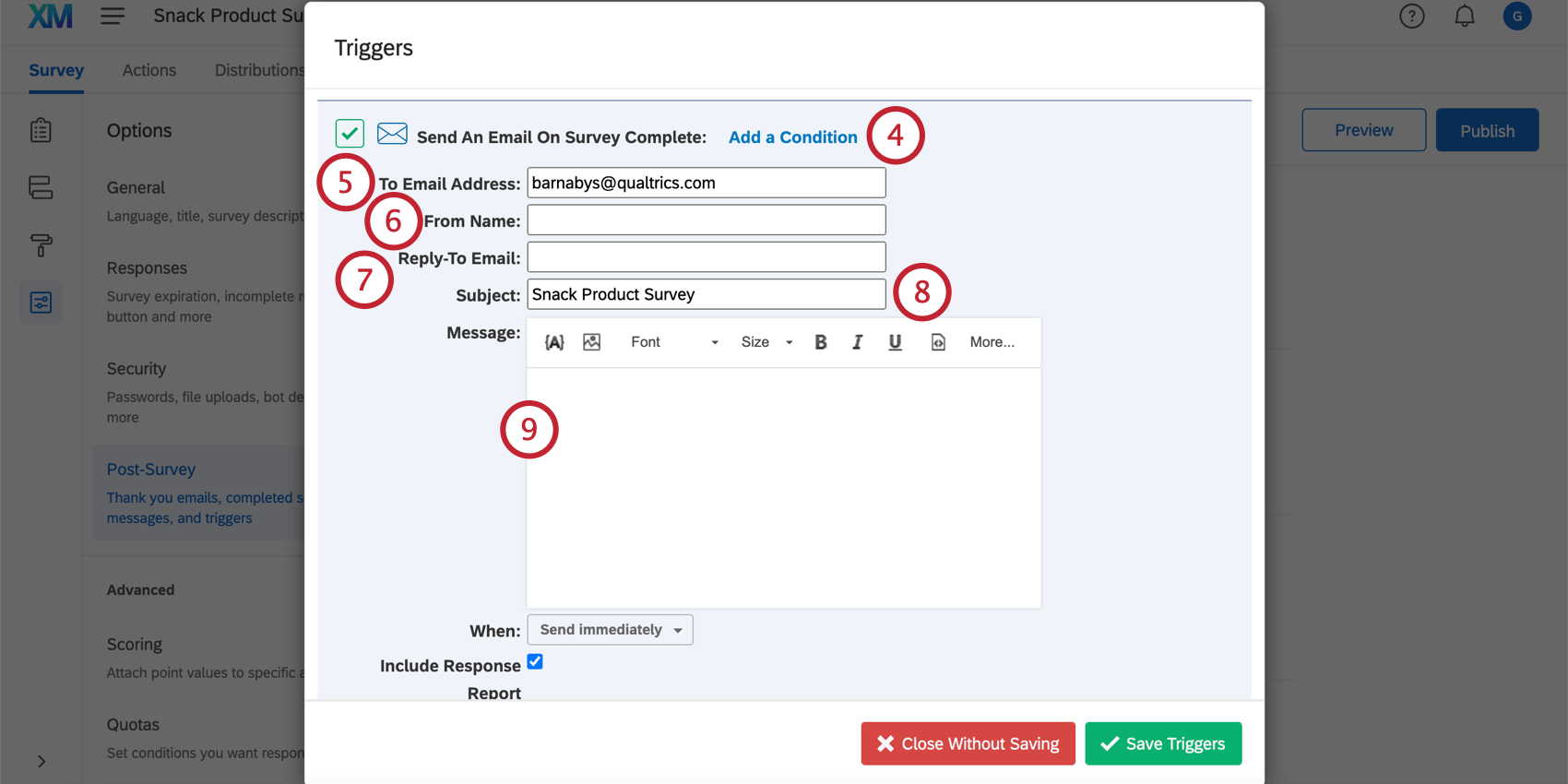
Qtip: An incomplete survey response will only cause an email trigger to send an email if the trigger has a condition that was met by the incomplete response. Otherwise, incomplete responses will not cause an email trigger to send an email when recorded.

Qtip: If your survey was distributed in multiple languages and you’d like to send respondents a trigger in the language in which they took the survey, you will need to create one trigger for each language. You can set a condition on the trigger to send based on the recipient’s language code so that recipients receive the trigger in the correct language.
Qtip: You can send the email trigger to multiple individuals at once by adding comma-separated emails in this field. See the Triggering Email to Respondents section below for more options and information.
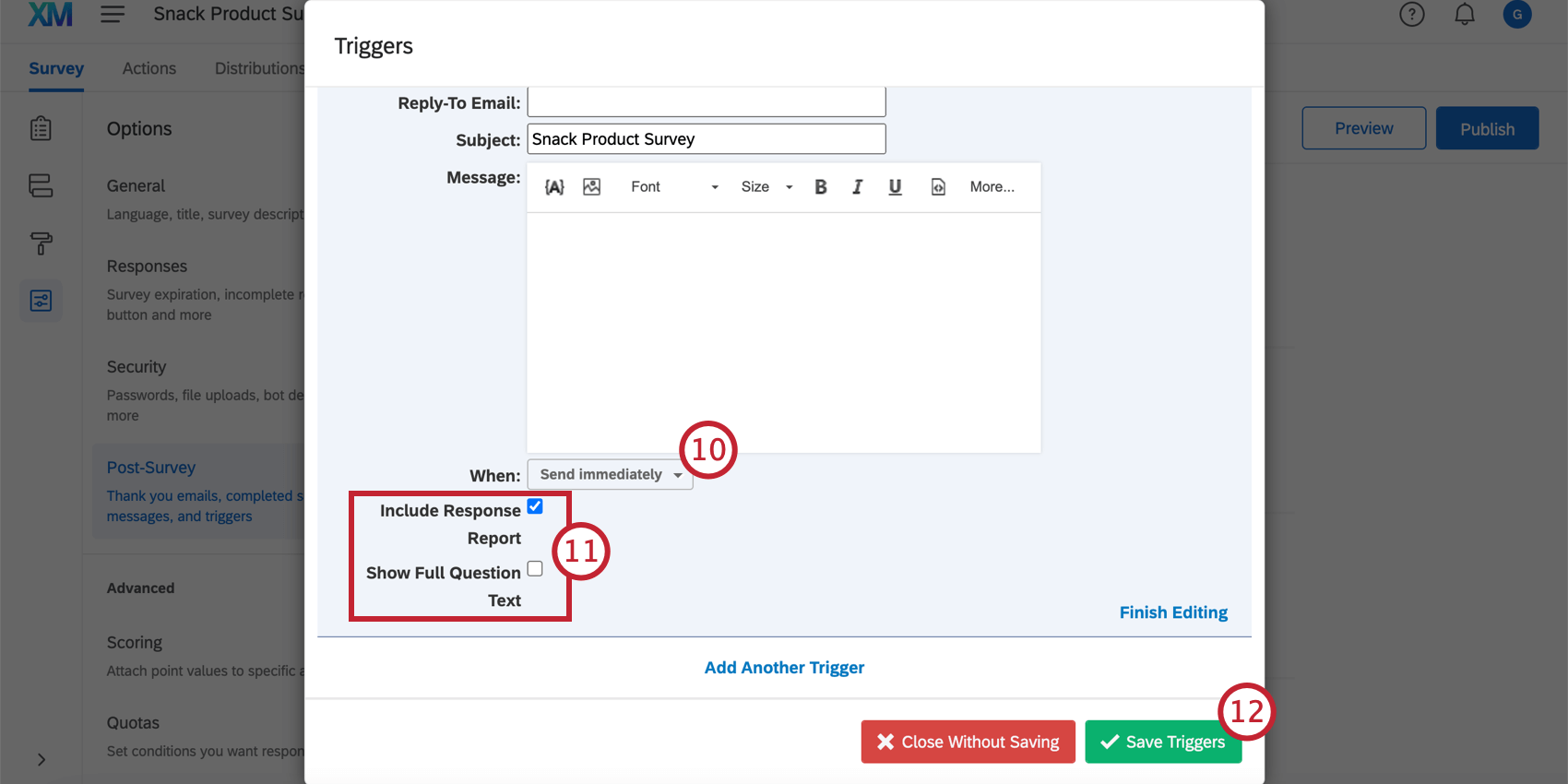
Qtip: Because of the nature of how emails are triggered, it is not possible to specify the exact time and date that the email will send (since the specified date may already have passed by the time the respondent finishes their survey).
Qtip: Include Response Report adds a summary of the questions and respondent’s answers to the body of the email (as well as includes a link to an online version). Show Full Question Text displays the entire text for each question in the response report instead of clipping longer text.
Attention: There are some instances in which response reports may be disabled for a brand. Please see the Allow Response Reports page for more information.
Qtip: Remove an email trigger by clicking Finish Editing and then Delete.
You can add as many email triggers as you want, changing the conditions or recipient email addresses as needed.
Triggering Emails to Respondents
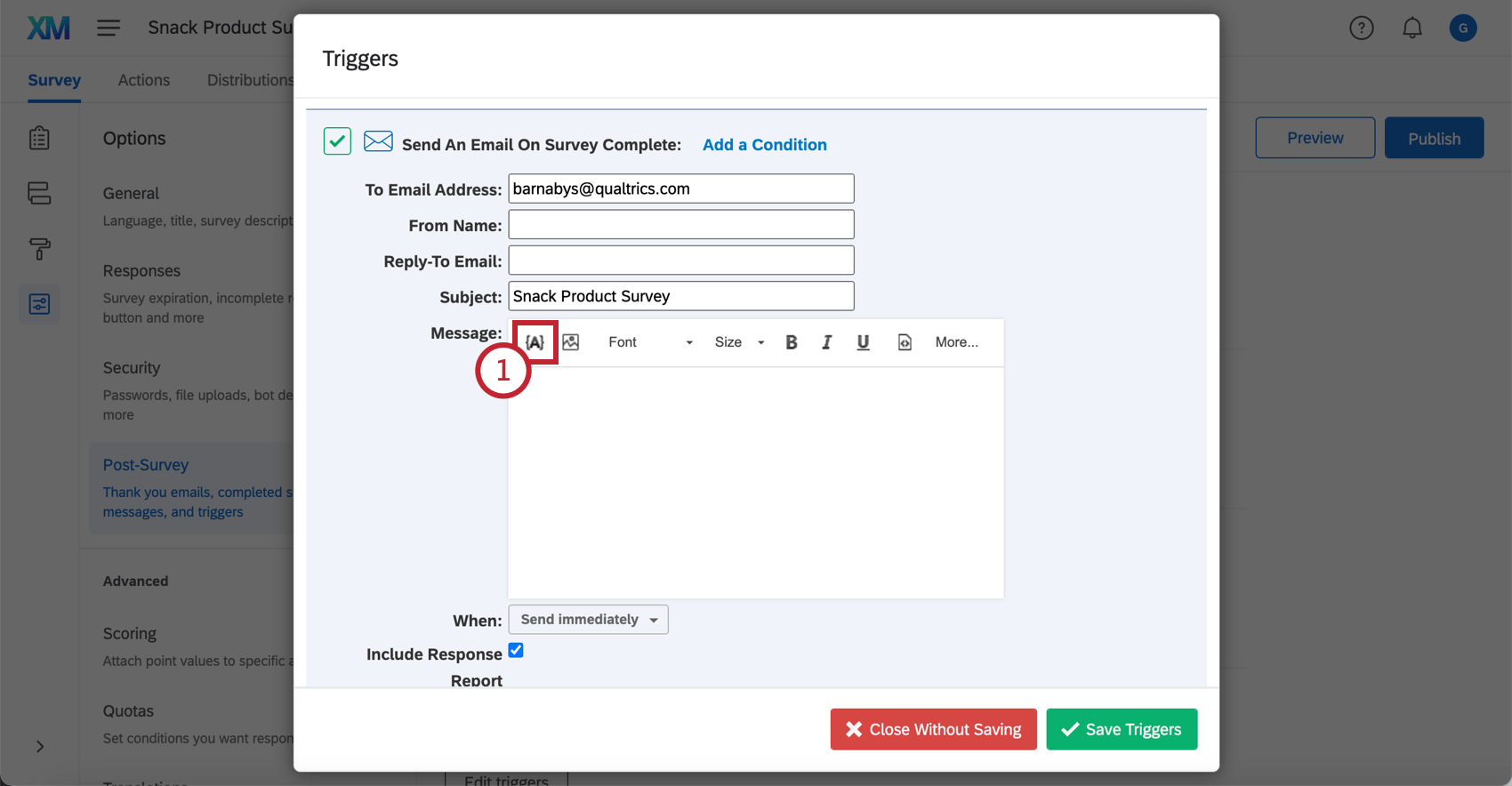
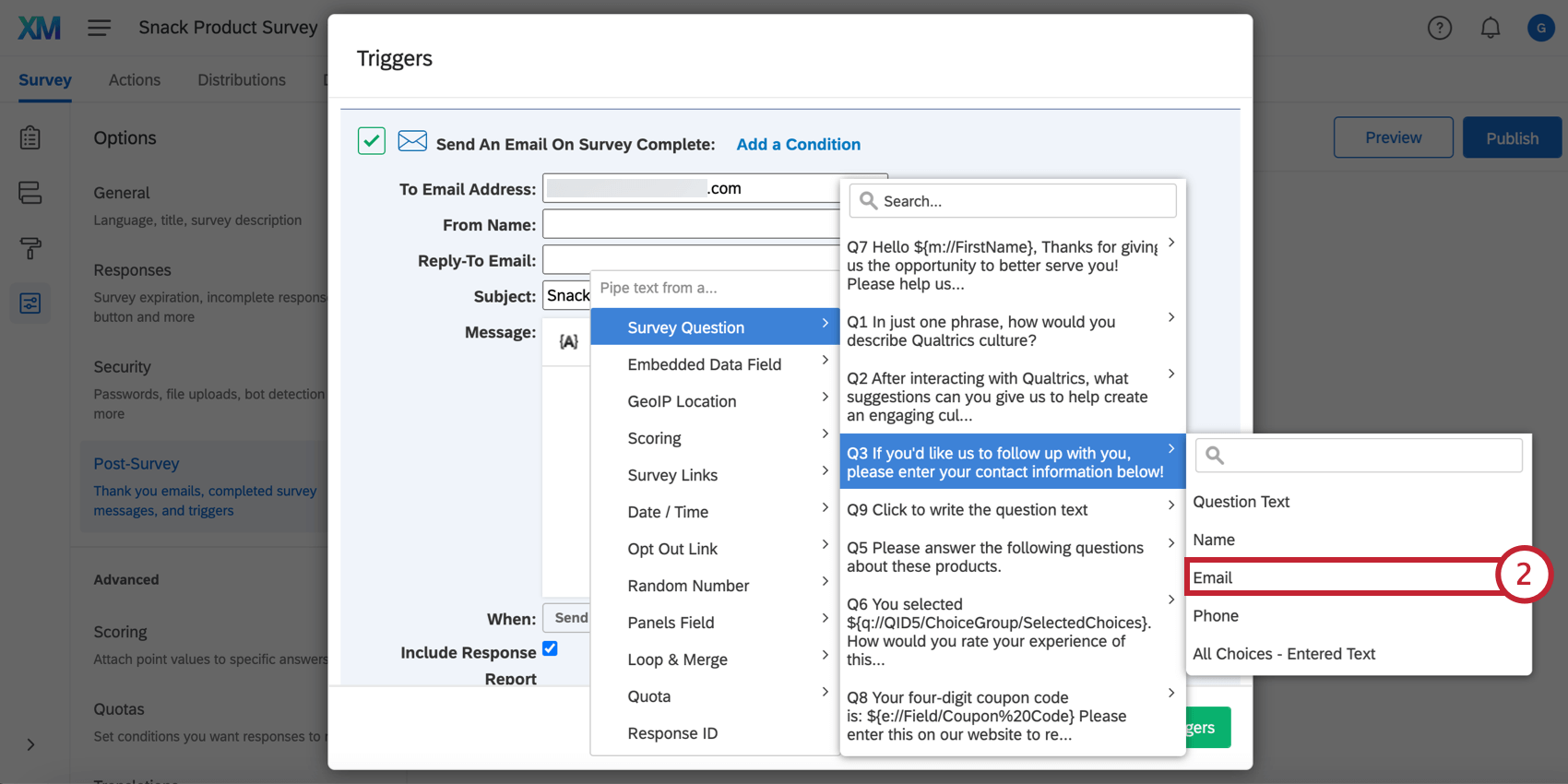
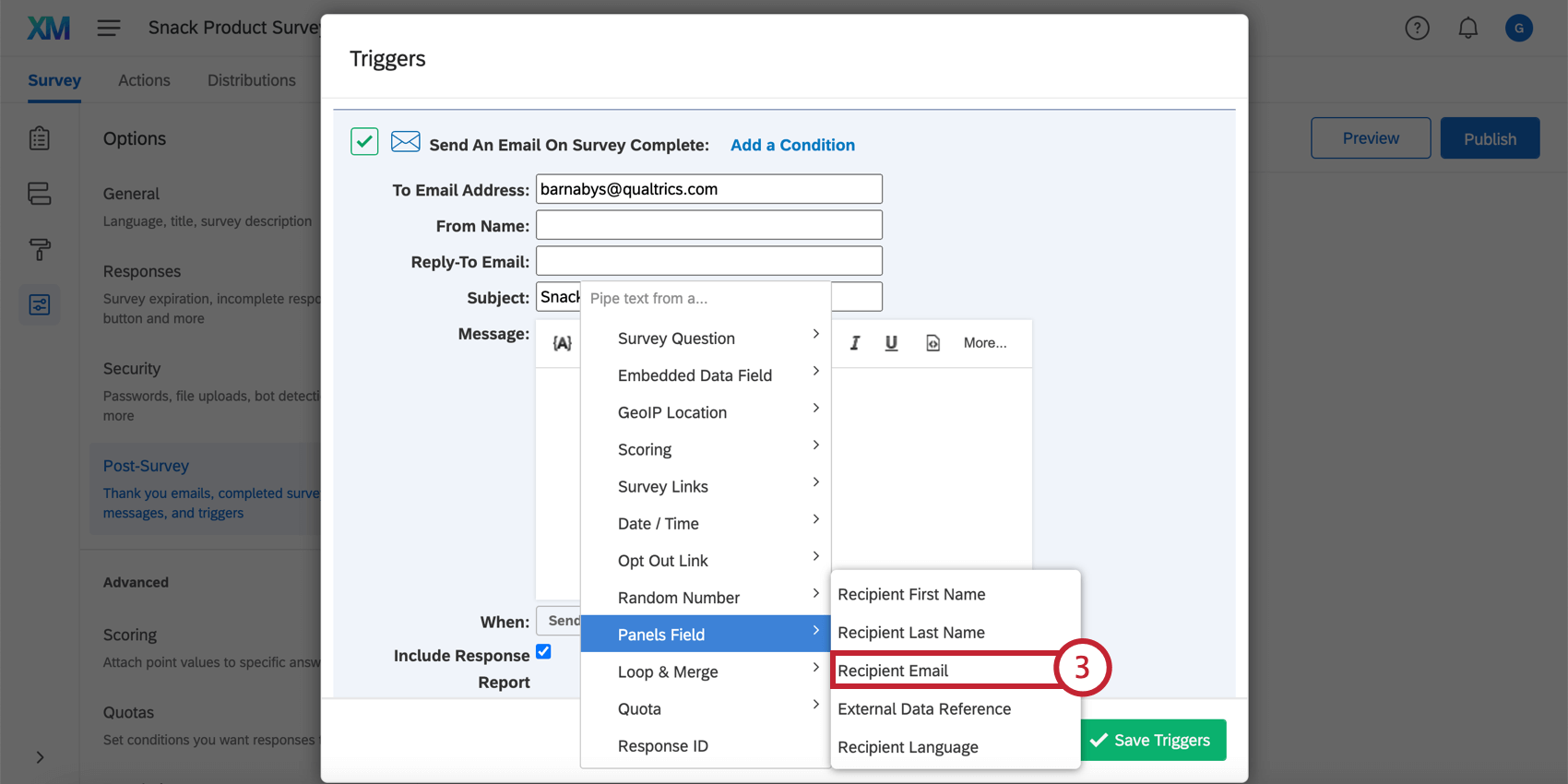
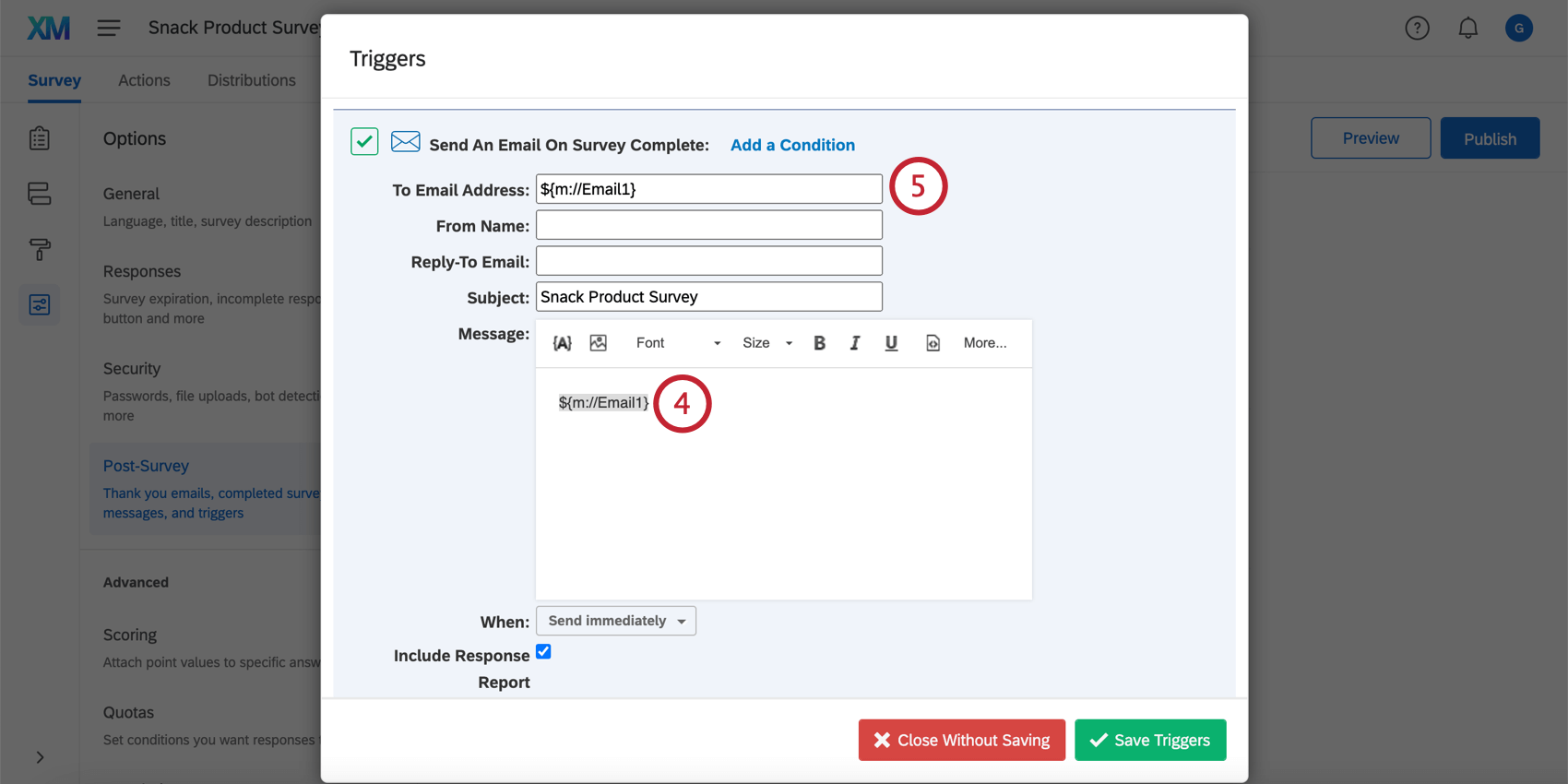
If you are distributing your survey through a contact list or you ask respondents for their email addresses in the survey, you can use piped text code to dynamically update the email address the email trigger sends to (rather than using a fixed email address).
To use Piped Text to send an Email Trigger
Qtip: Do you have a query string in your email trigger that does not seem to be working? It might have to do with how your piped text is formatted. Best practice is to add ‘?format=urlencode’ to the end of piped text values, before the last bracket. This ensures values with spaces and special characters carry over properly into the query string. For example, pull embedded data called Department into your query string by using ${e://Field/Department?format=urlencode} instead of ${e://Field/Department}.
However, don’t add format=urlencode to email fields. This will convert the @ symbol to %40.
When Emails Are Triggered
There are several types of responses that trigger emails, and there are several that do not.
- All completed responses (people who got all the way to an end of the survey) will trigger emails they qualify for.
- Incomplete survey responses (people who didn’t ever finish their survey) do not trigger emails unless the trigger has a condition added to it.
- Imported responses do not trigger emails.
- Offline app responses will trigger emails once they are uploaded.
FAQs
How can I send automated emails to my respondents and/or myself based on survey completion?
How can I send automated emails to my respondents and/or myself based on survey completion?
You can also send an email to the participant if you don’t initially have their email by asking them for it in a survey question and then piping their response to that question into the "To" email field.
That's great! Thank you for your feedback!
Thank you for your feedback!