

Dashboard Translation
What's on this page
About Dashboard Translation
If your audience speaks multiple languages, it may be beneficial to have their dashboard results available to them in their preferred language. The Translation tab allows you to translate the parts of your dashboard that do not automatically translate.
Qtip: Values for advanced filters and breakouts in response rates cannot be translated at this time.
Attention: There are some labels in the dashboard that are not included in the translation file because they are hard-coded into the dashboard. This text cannot be translated at this time and will default to English. Unrecoded embedded data fields and certain widgets can also not be translated.
Types of Translation Available in Each Dashboard
Dashboard label and data translation are available in all types of Qualtrics dashboards. This includes CX Dashboard projects, EX dashboards, Results Dashboards, brand tracker dashboards, and reputation management dashboards.
Qtip: EX dashboards include dashboards in Engagement, Lifecycle, Ad Hoc Employee Research, Pulse, and 360 dashboards. For more details on each of these project types, see Types of Employee Experience Projects.
There are a few different elements that you can translate in a dashboard, and these are separated into different files for upload.
Label Translations
This is the majority of the text in your dashboard widgets, such as widget titles and descriptions, the dashboard’s name, categories, filter names (but not values), and more. There are several different ways to generate label translations:
- Generate a translations using Google Translate.
- Draw from the shared translation memory.
- Manually add label translations by uploading a file.
To learn more, see Translating Dashboard Labels.
Data translations (or “filter translations” in CX Dashboards)
The data fields you’ve mapped to your dashboard (names and recode values). In EX dashboards, this includes the names of any categories you’ve created. Data fields are translated separately from the rest of the dashboard text, but data fields only need to be translated once, rather than repeating the process for each page filter.
Examples include:
- Field names
- Field values
- Category names
- Question statement names
- Action plan reporting fields
For detailed steps, please see Translating Dashboard Data.
Action plan guidance translations
If you’ve added guided action planning to your dashboard, you can upload translations for all your guidance.
Qtip: This type of translation is only available for Engagement and Lifecycle projects.
For detailed steps, please see Translating Guided Action Planning.
Static Dashboard Text
“Static text” refers to text in the dashboard that you cannot customize, and is included in the dashboard by default. Most static text is excluded from the file, so you don’t have to worry about translating it. Instead, this text has pre-loaded translations that will appear when you change the language the dashboard is viewed in. The Languages in Qualtrics page has a list of the languages static text is available in (i.e., any language CX and EX dashboards can be translated into).
Examples of static text includes dates, global menu and footer text, and any widget text that you cannot customize. (E.g., “Show change since” text in a number chart.)
Opening Translation Files
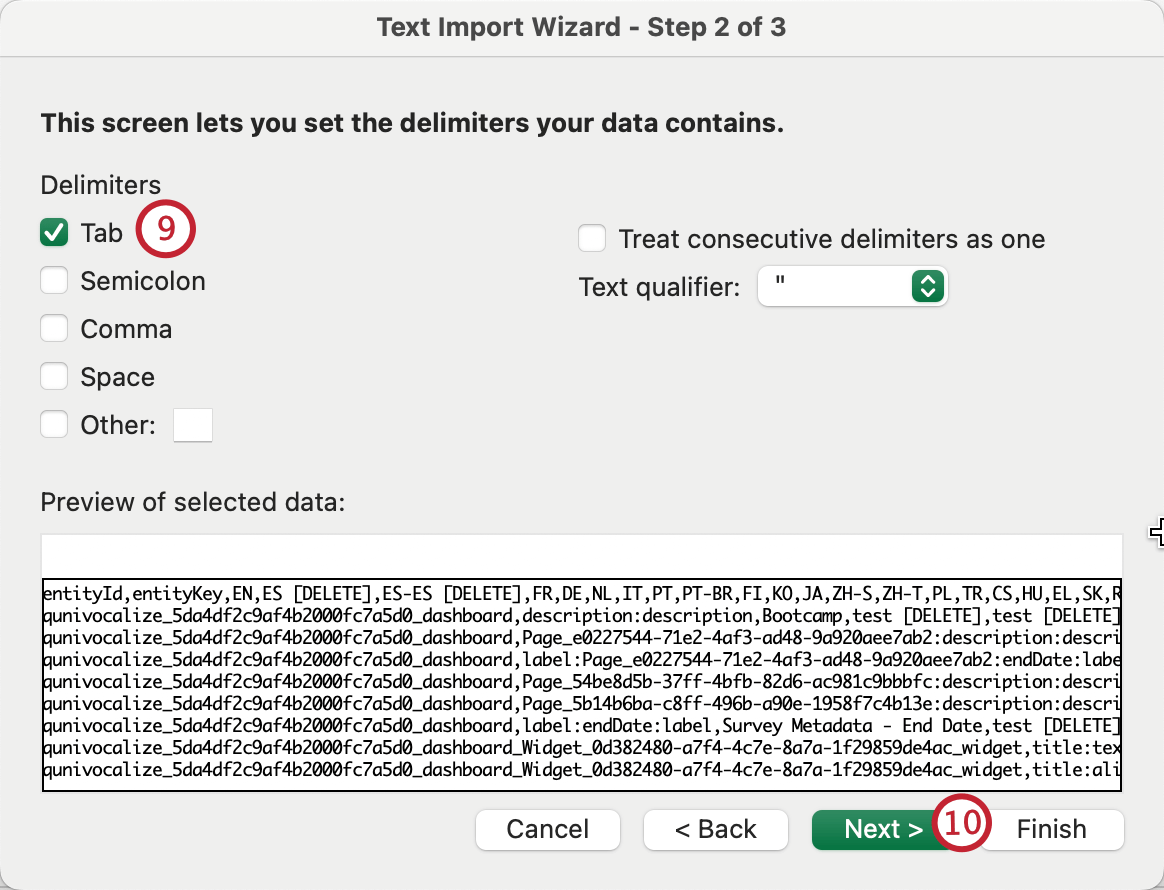
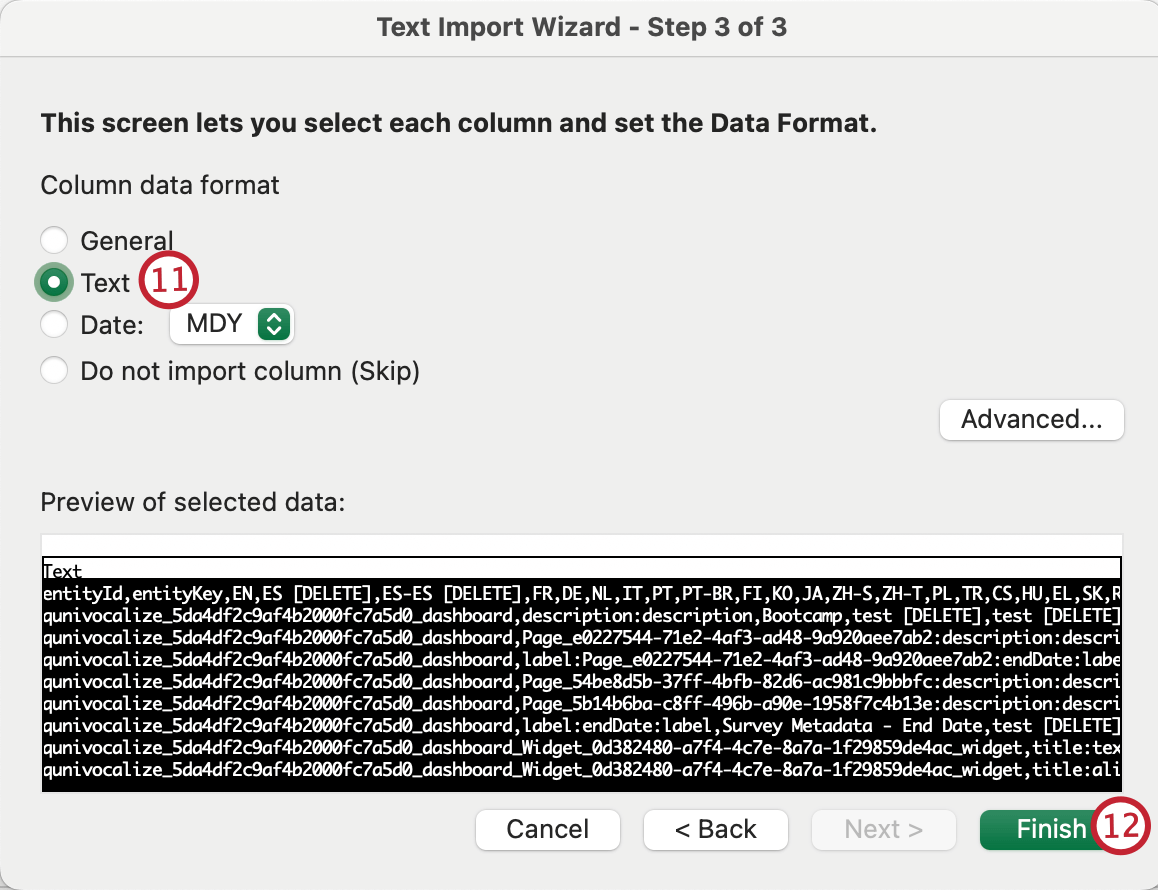
Once you’ve downloaded the translation file from your dashboard, follow these steps to open the file and add your translations. For more information, see Microsoft’s documentation.
Excel
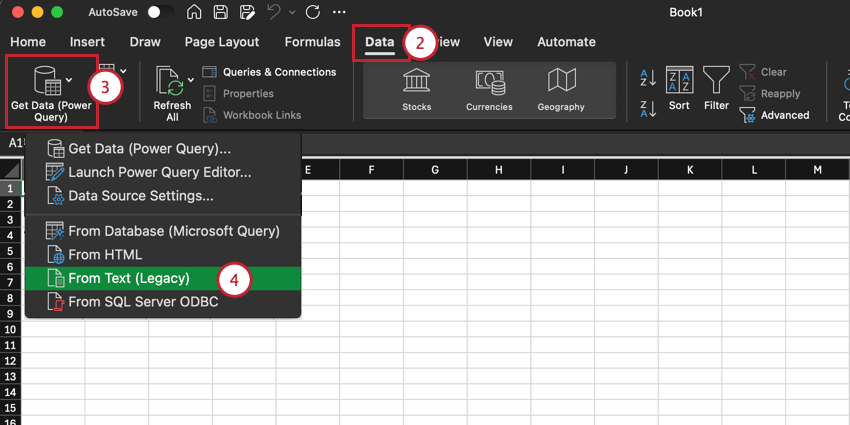
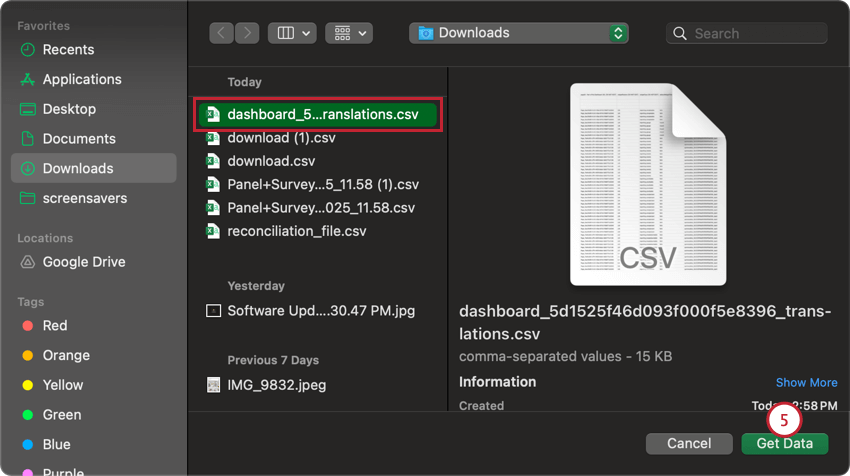
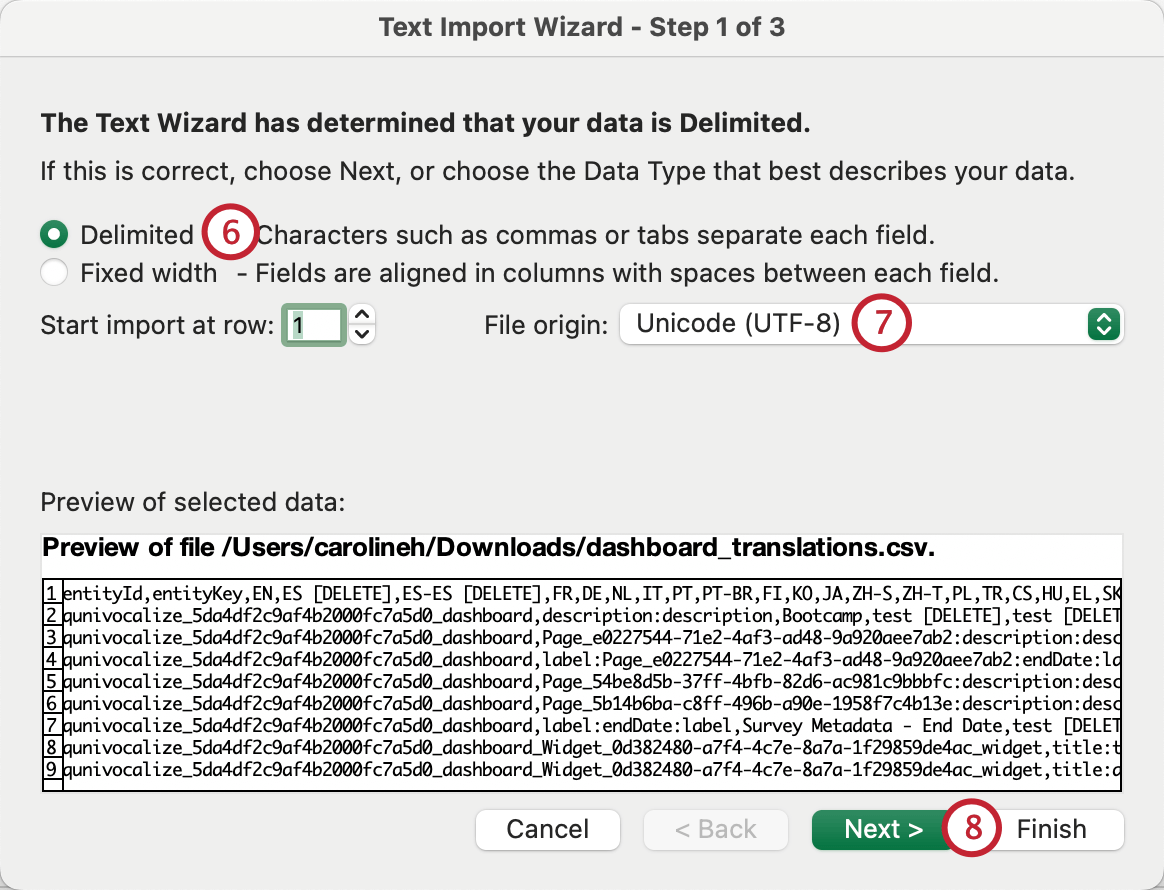
Attention: If you are using Windows, make sure to select My data has headers.
Google Sheets
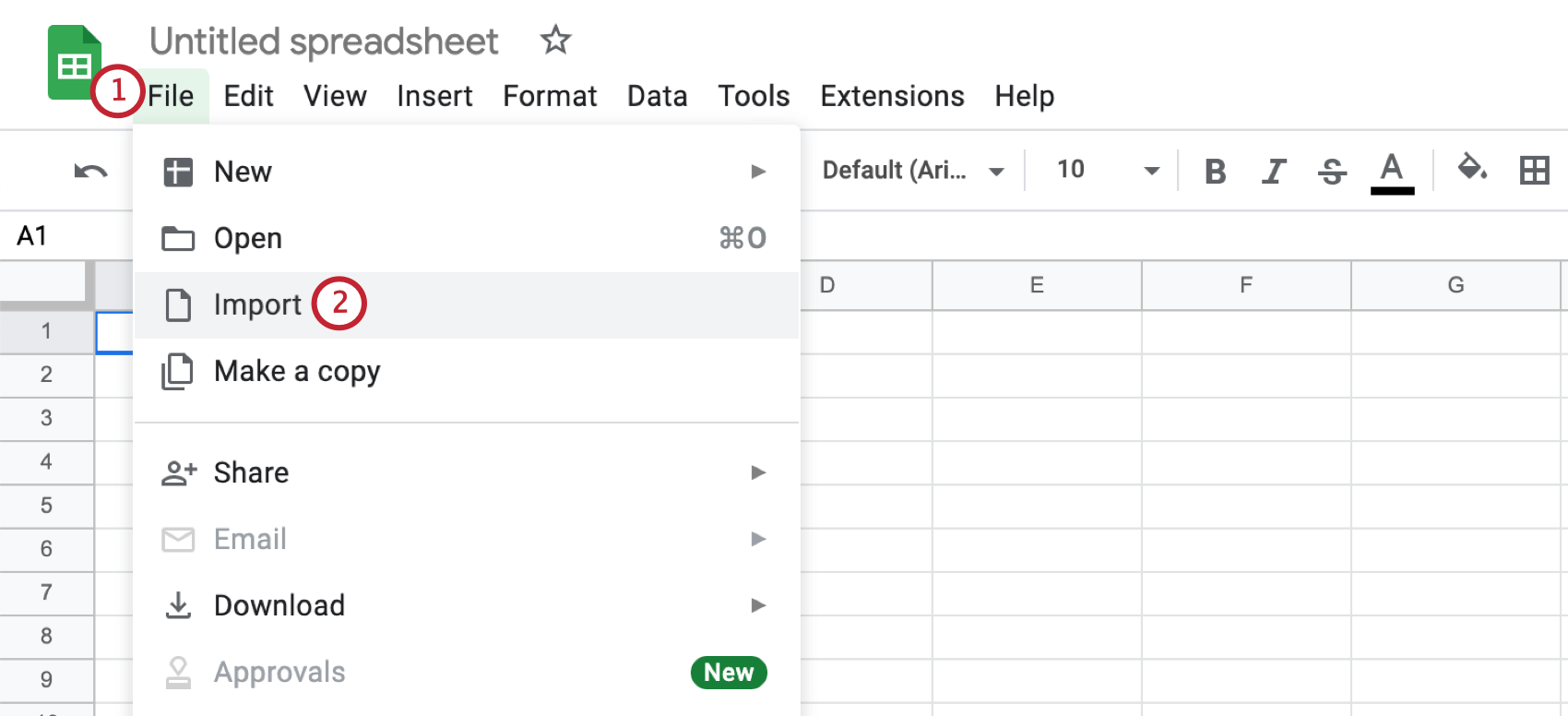
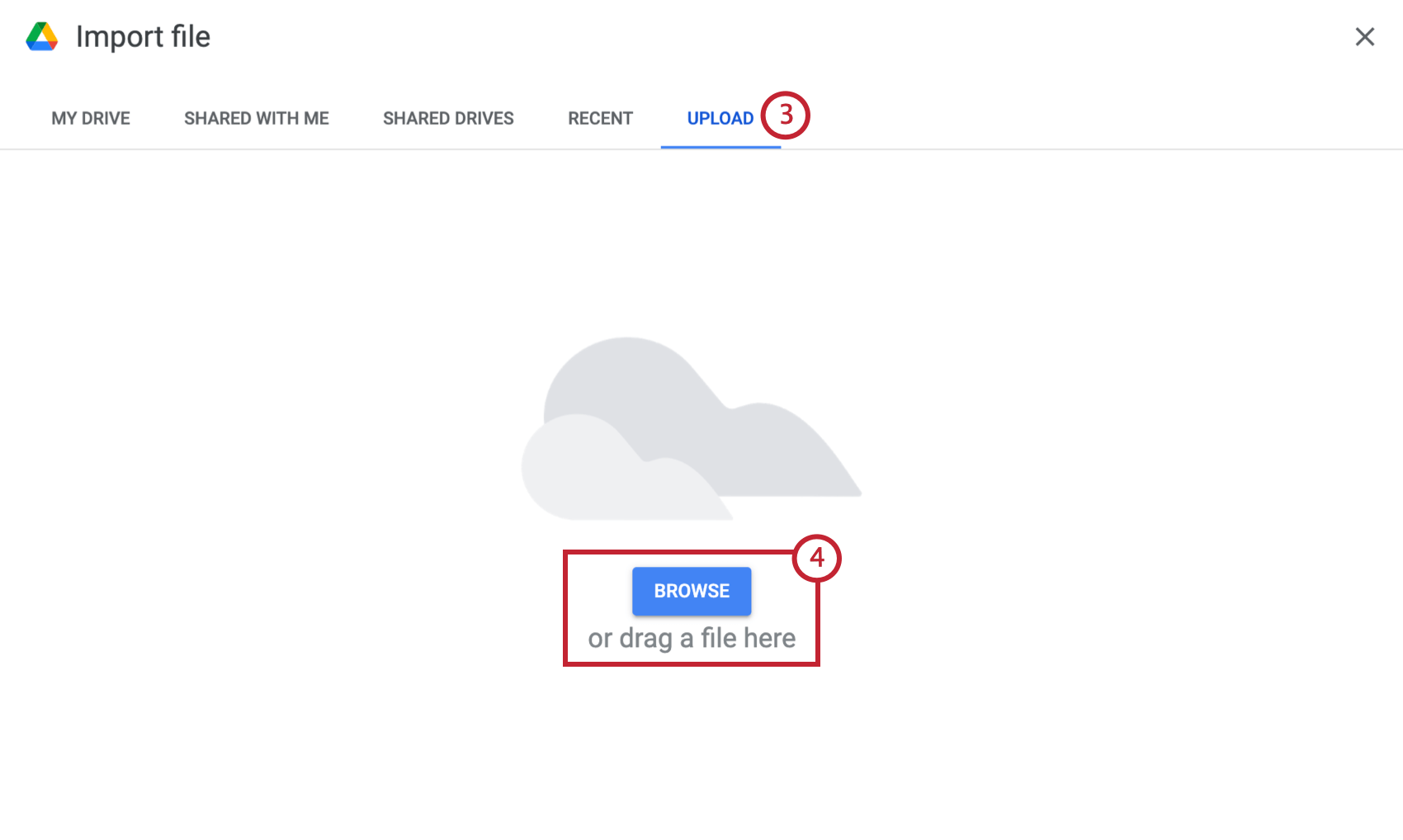
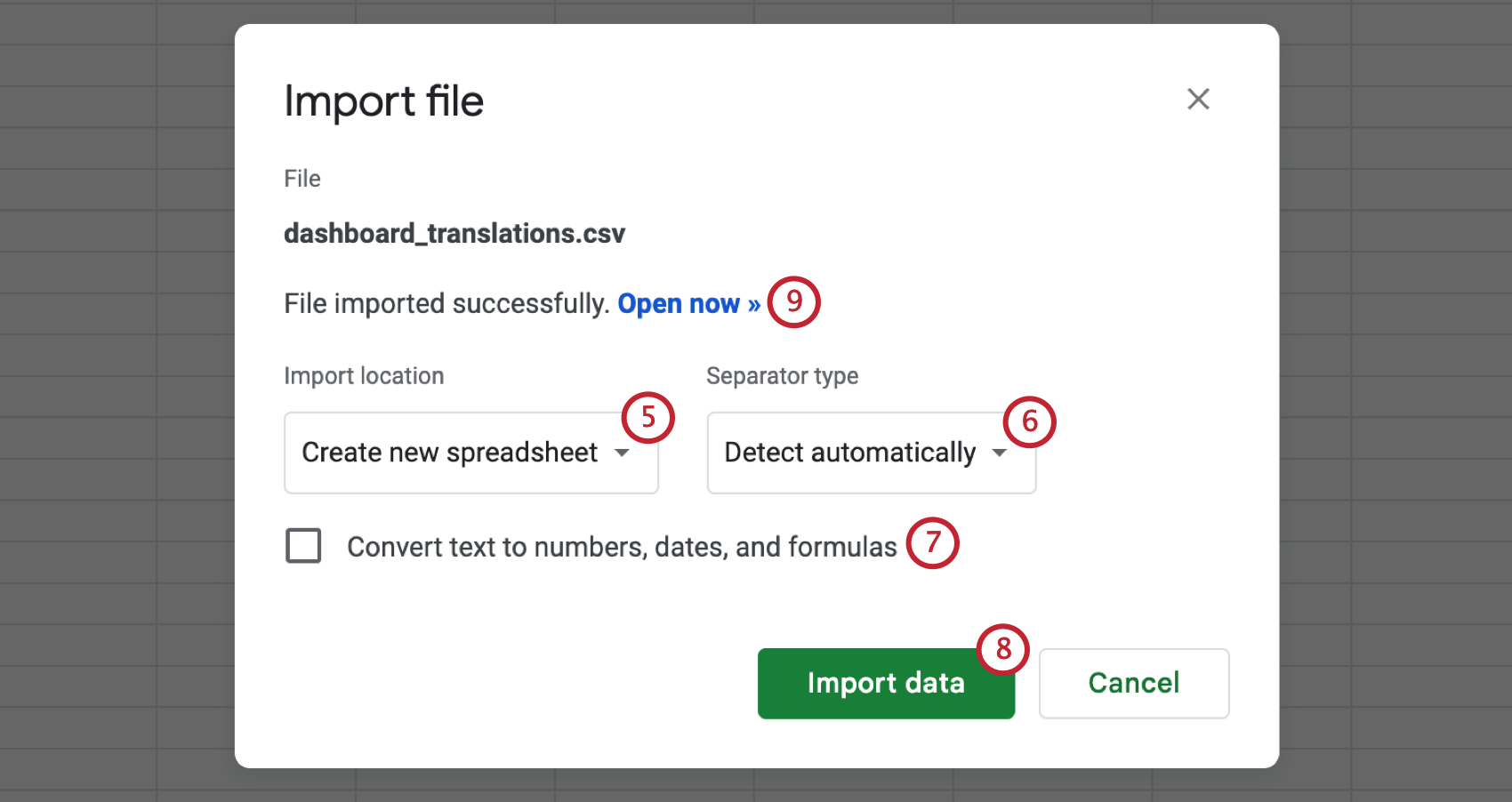
To open your translation file in Google Sheets, log in to Google Sheets and follow the below steps. See Google’s documentation for more information.
Troubleshooting Dashboard Translations
- Make sure the translation type matches the file content and includes all headers from the exported file.
If you view a dashboard in a different language and make changes, but that dashboard has not been translated by file yet, then the change will affect the dashboard’s default language.

Attention: If you make edits while viewing a translated dashboard, your changes will only be applied to that language. We do not recommend using this method to separately edit languages.
- If you have trouble uploading the translation file, try including every language column in the file, even if you are not using that language as a translation. (Leaving columns blank will not delete translations.)
- If your special characters aren’t being uploaded correctly, make sure the file is either a CSV file with UTF-8 encoding or a TSV.
If you have the same widgets duplicated across multiple pages, you will see the labels for those widgets repeated. You must provide a translation each time that same label appears.

Qtip: The only exception is that mapped dashboard fields only have to be translated once. Other repeating elements, like title text or widget descriptions, will have to be translated again.
- If you make a change to the dashboard after you download the translation file but before you upload translations, your fields will not match. Make sure not to edit the dashboard in between translations.
- If you cannot find a translation in the label file, check for it in the data file. If you still cannot find the translation, it may not be translatable at this time.
- Make sure Excel formulas have been converted to plain text. To do this, you can highlight all the values in your sheet, copy them, then paste them without formatting / paste values only.
Reducing Export File Size
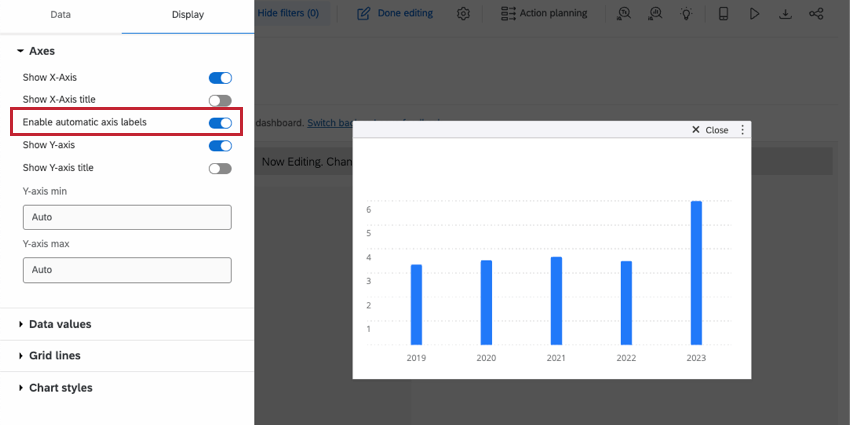
If you’d like to reduce the size of your exported label file, here are a few recommendations:
Viewing Translated Dashboards
Switching Between Dashboard Translations as an Editor
As a dashboard editor, you can switch quickly between dashboard translations so you can check the edits you've made.
First, make sure the dashboard has already had translations added to it.
Click the language icon. You can even search the language list if there is a large number of languages available.
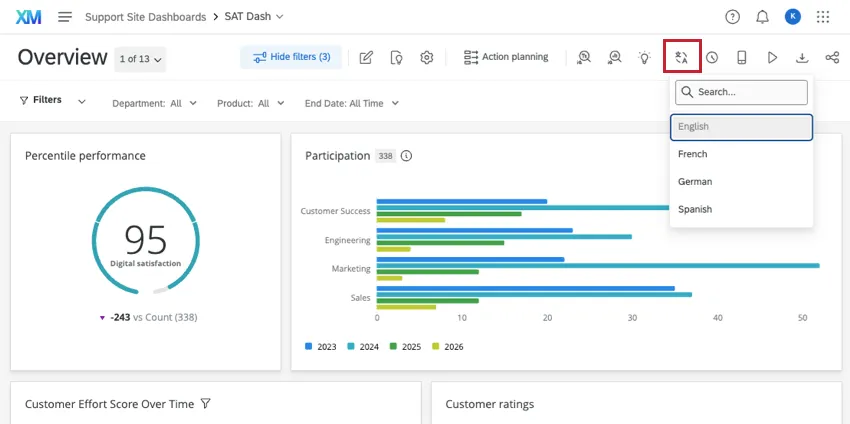
This method of switching between translations is only available to users with editing access to the dashboard.
Setting a User’s Dashboard Translation
The dashboard translation that a user sees initially will match their account’s language, so long as there’s a matching translation in the same language.
Qtip: A dashboard user's account language can be set via metadata when uploading participants. Use the Language field paired with a language code.
Users can adjust their own account language by doing the following:
Click the account settings icon.
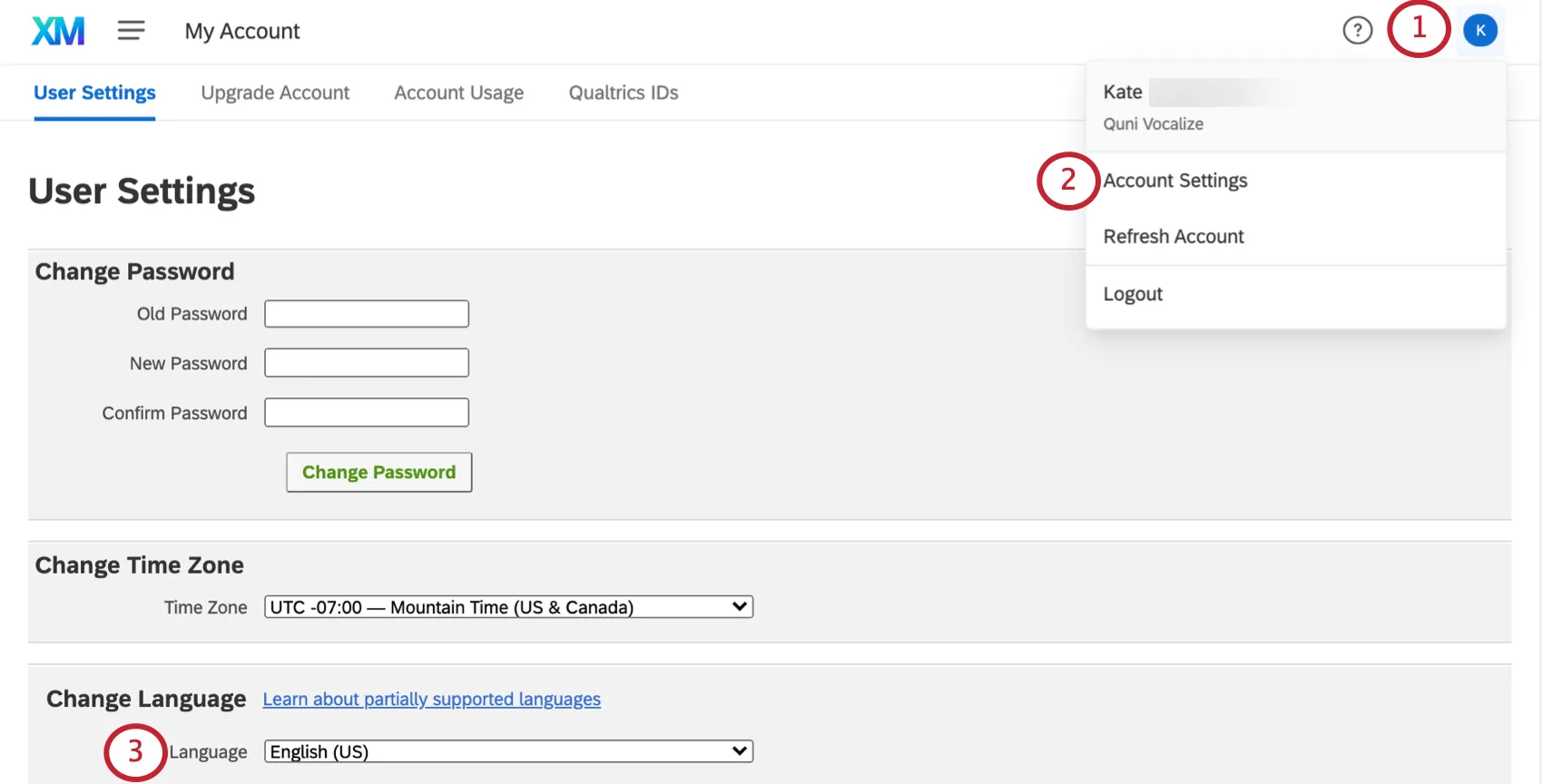
Click Account Settings.
Adjust the Change Language dropdown.
Qtip: For a list of our currently supported languages, see our page on Language Availability.
Qtip: Qualtrics doesn’t change the language shown in the dashboard based on the user's browser language; however, some browsers may give the option to translate or attempt to translate based on the language set in the user's browser.
FAQs
How do I translate my action plan reporting pages?
How do I translate my action plan reporting pages?
If you want to translate the action planning dataset in an Employee Experience or Customer Experience dashboard, see these steps.
How do I translate metadata values?
How do I translate metadata values?
While a metadata name (e.g., Department) appears in the data translation file, the values (e.g., Engineering, Marketing) are often missing. This is because the values need to be mapped to the dashboard. Once this is done, you can also translate metadata values with the data translation file.
- Open your dashboard data.
- Click the gear (or recode button) on the metadata field.
- Select More Options.
- Select Manage Labels.
- Add each value you want to translate.
- Save your changes.
- Wait for the dashboard to finish loading.
- Perform data translation.
Can I translate the Text iQ topics displayed in my dashboard widgets?
Can I translate the Text iQ topics displayed in my dashboard widgets?
Text iQ topics are automatically translated as a part of the Text iQ bubble and Text iQ table widgets. However, there is no way to translate Text iQ topics when you use them in other widgets. This is true for both EX and CX Dashboards.
That's great! Thank you for your feedback!
Thank you for your feedback!