

Step 1: Creating Your Project & Adding a Dashboard (CX)
What's on this page
Permissions Required
You can only create Dashboard projects if:
- You are one of the following user types:
- Brand Administrator
- CX Administrator
- OR you have all the following permissions enabled:
- Customer Experience
- Use CX Dashboards
- Create CX Projects
- Manage CX Users (recommended)
If you cannot create dashboards and want these permissions adjusted, reach out to your Brand Administrator for help.
Creating Your First Dashboard
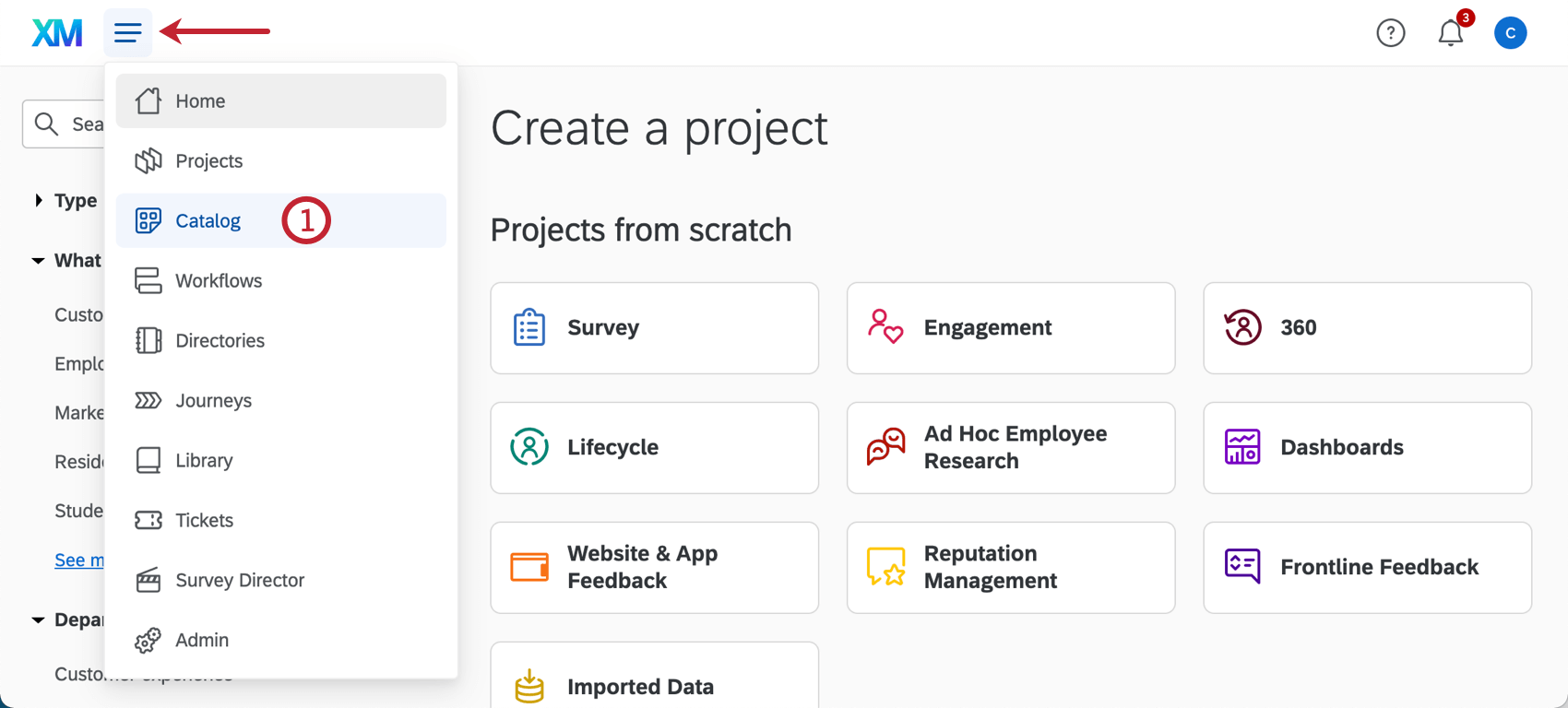
Qtip: A project can also be created from the Projects or Homepage.

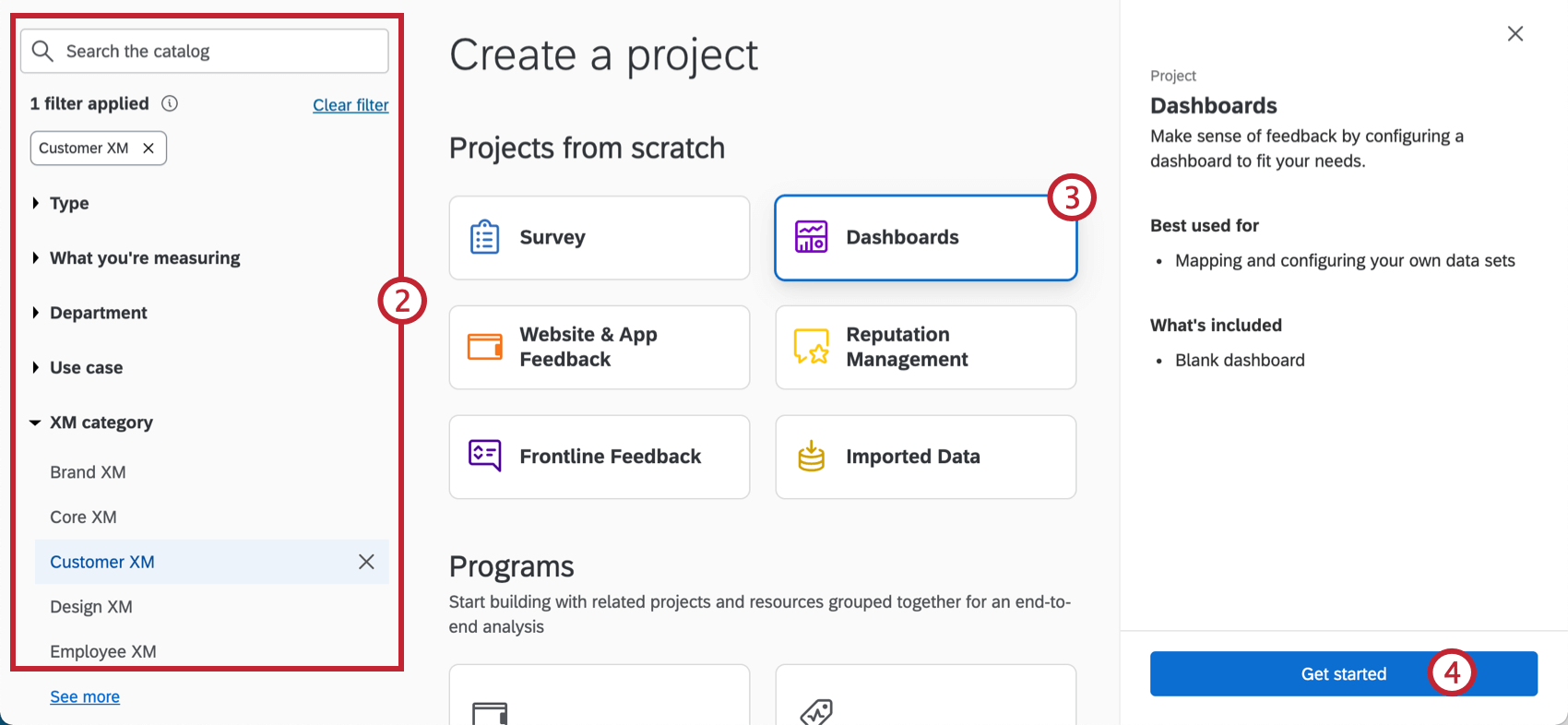
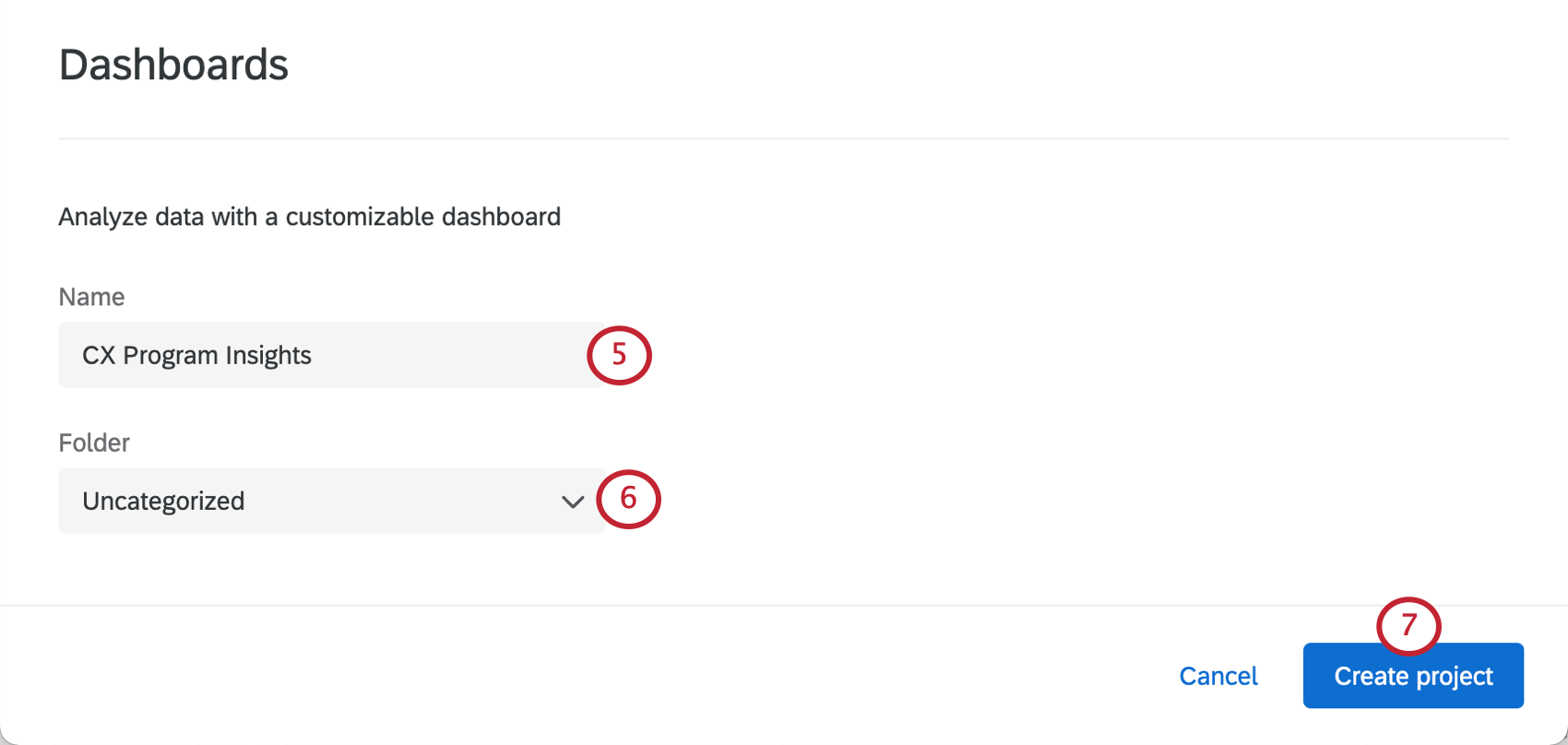
Qtip: You can always rename this later!
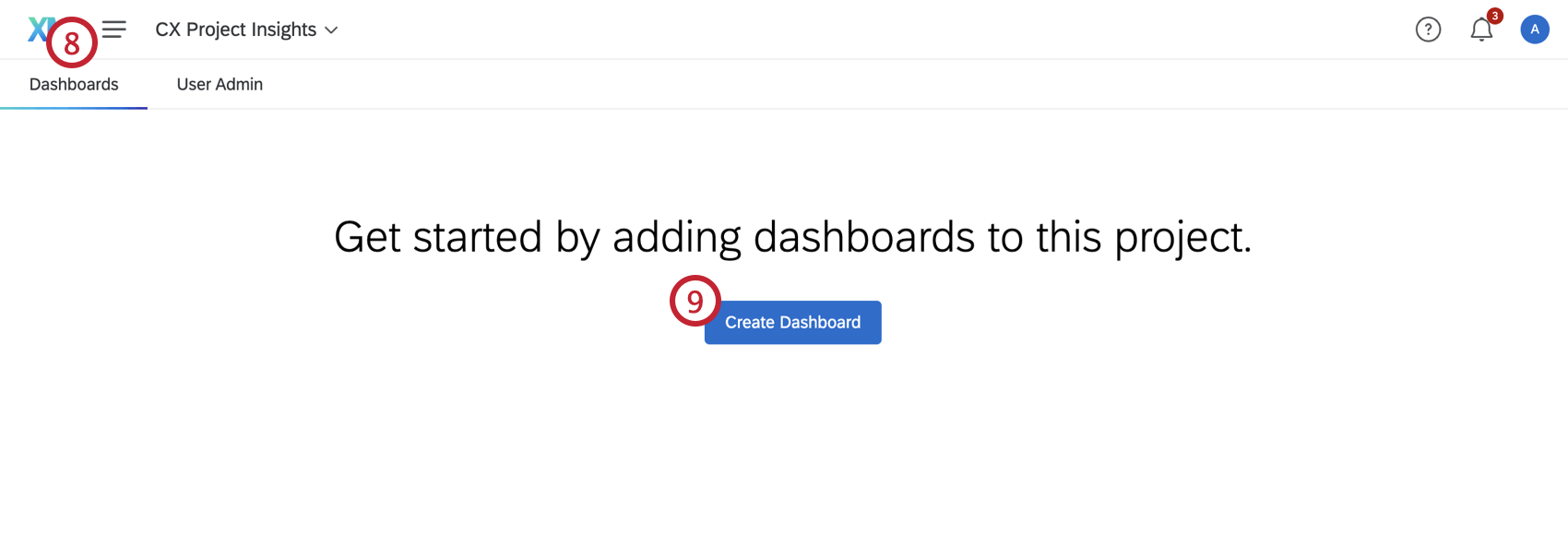
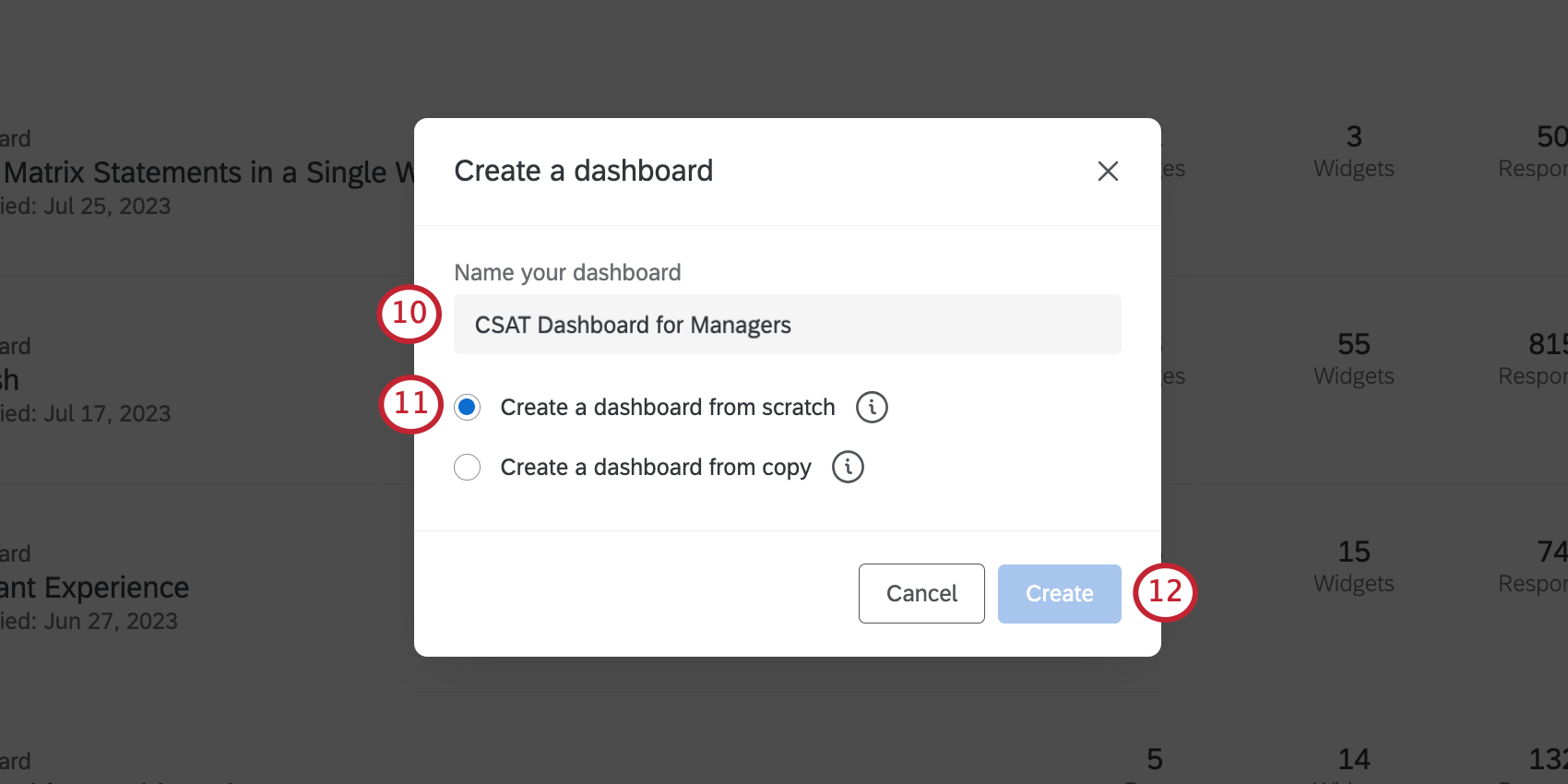
Qtip: To learn more about the other settings, see Managing Dashboards within a Project.
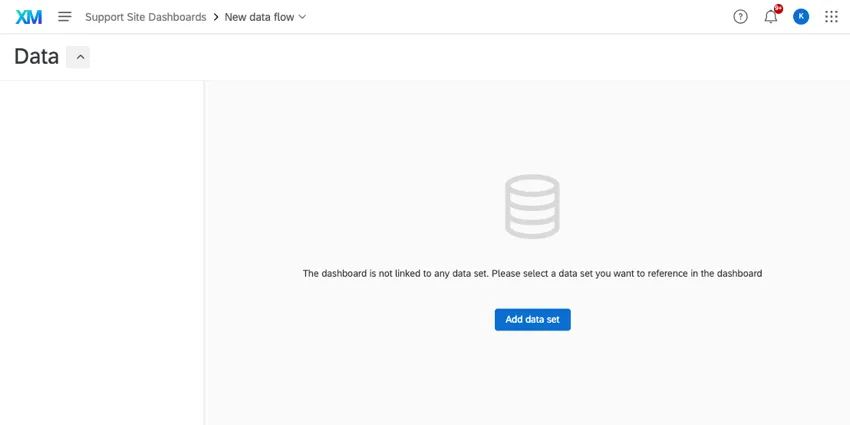
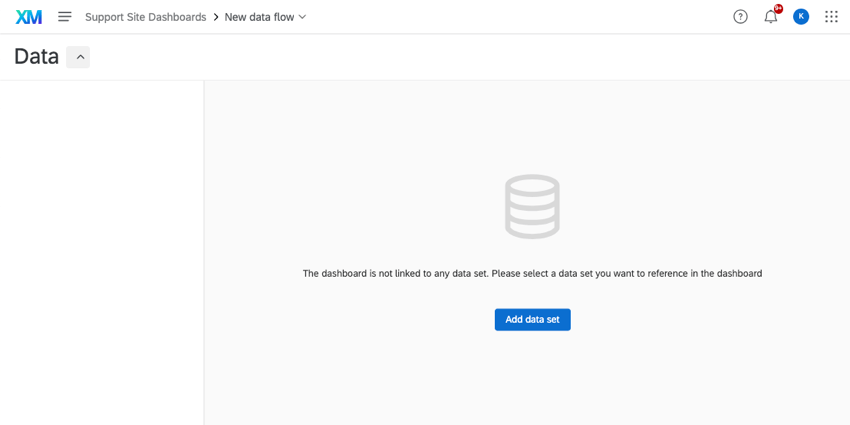
You will be transported to the Dashboard Data tab inside your dashboard, which is where you link up a data source to your dashboard. We’ll go over this in detail in the next page, Step 2: Mapping a Dashboard Data Source.
Dashboards Project vs. Dashboards in a Project
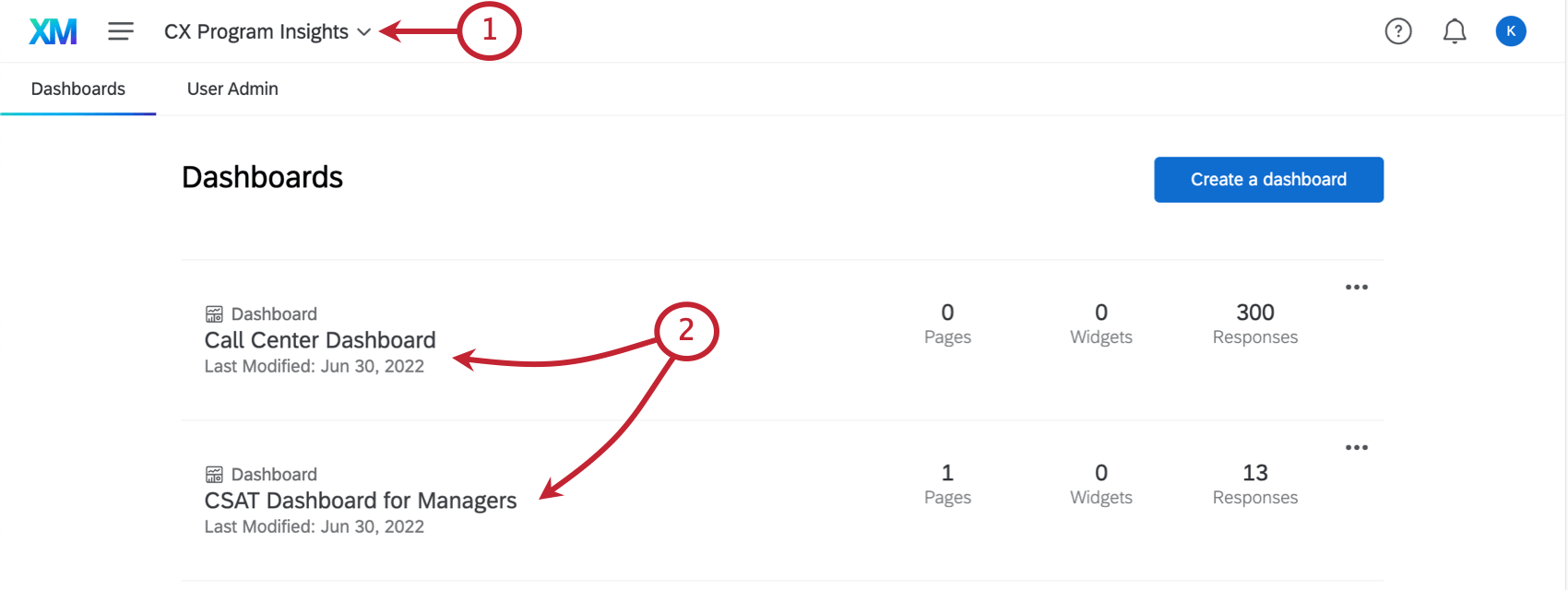
In the steps we just completed, you may have noticed that you didn’t create just one dashboard: you created a project with a dashboard inside it. But when do you decide to make a new project? When do you decide to just add more dashboards to the same project? It partially comes down to who you want to give access, and how much access you want to give them.
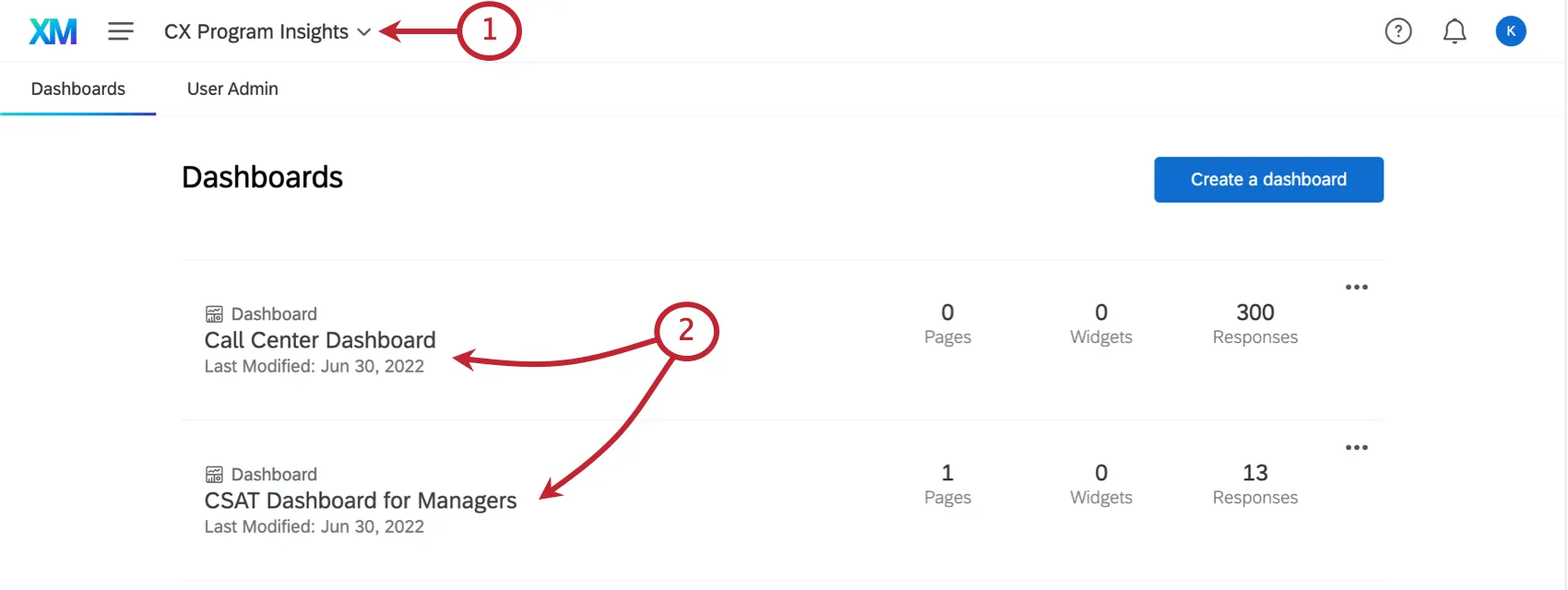
Projects can only be created (or renamed, or copied, or moved, or deleted) by project administrators. But when it comes to the main dashboard stuff – editing widgets, filtering pages, making your fields perfect, and all the theming and ticket data and other settings – anyone can be given that access, regardless of whether they’re an administrator. What’s more, this latter group of people (called dashboard users) can be set up to have restricted access to data or even view-only capabilities. Project administrators will always have full editing capabilities and cannot be assigned restricted access.
Qtip: Curious to learn more about this distinction? See Project Administrators vs. Dashboard Users for more details.
It’s ultimately your choice when to make a new project and when to add a dashboard to an existing project. Projects are often a larger organization tool for your dashboards. Similar dashboards should probably live in the same project. (Although you can always move dashboards between projects if you change your mind later.) It’s also worth noting that you can create multiple pages on a dashboard, and restrict users’ access by these pages of a dashboard. We’ll discuss this more in the lesson on sharing.
Example: Your CX Program consists of two main initiatives: customer support experience, and website (digital) experience. Because of this, you create two dashboards projects: Customer Support and Digital.

Navigating Dashboards on the Projects Page
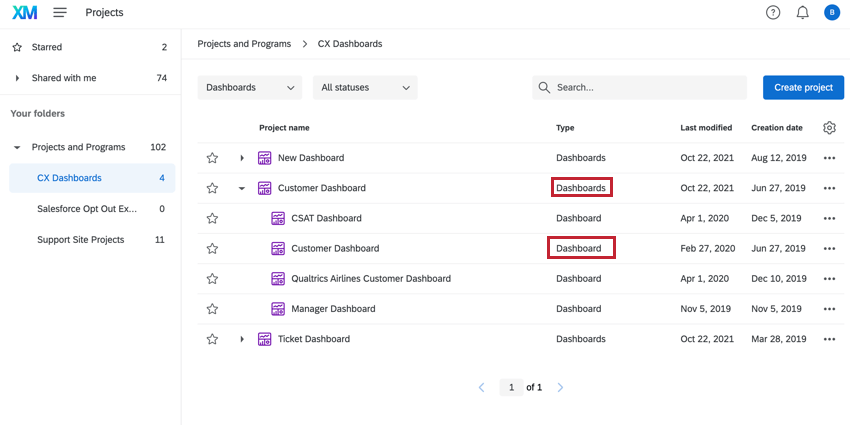
The Projects Page displays your dashboards projects and each individual dashboard you have access to. You can expand a dashboards project to see all dashboards within that project by clicking the arrow next to the dashboards project’s name.
Qtip: Dashboards within projects are sorted by the date they were last modified.
Your dashboard project type is Dashboards while a specific dashboard within that project is a Dashboard. Any dashboards that have been shared with you will be a Dashboard (shared).
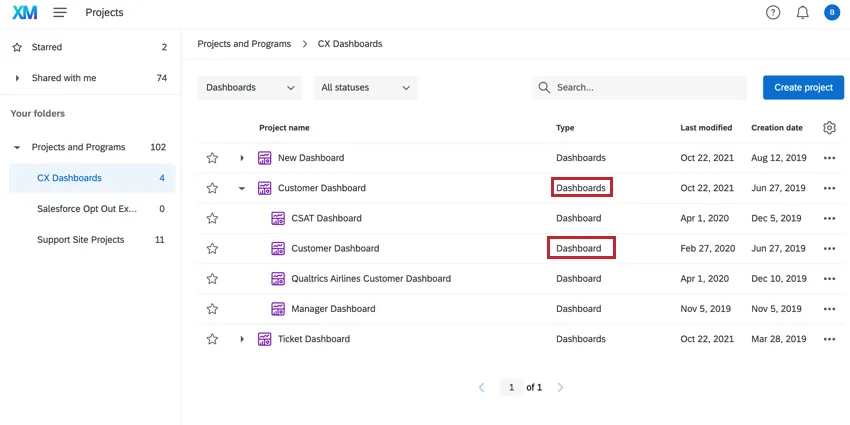
Qtip: All dashboards (both ones you create and ones that are shared with you) will be in the “Projects and Programs” folder.
You can take various actions on your dashboards and their projects from the Projects page by clicking the three dot menu for that dashboard. The options available to you depend on the type of dashboard you select.
- Dashboards project options: The following project actions are available for dashboards projects:
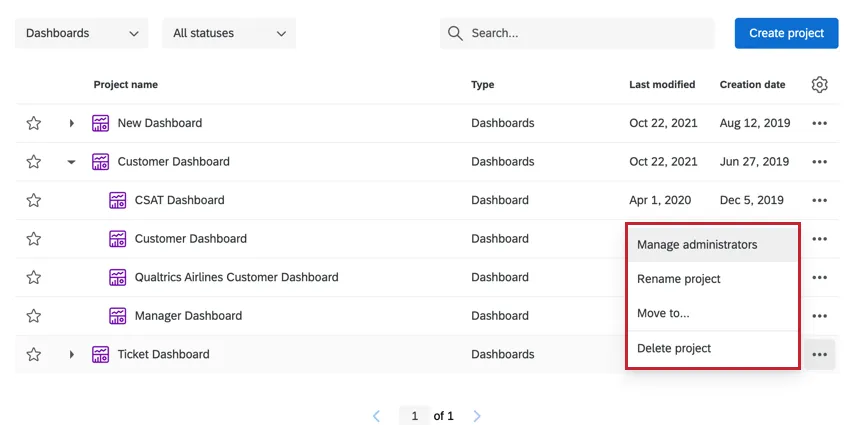
- Manage administrators: Add and remove project administrators.
- Rename project: Rename your CX dashboards project.
- Move to: Move the CX dashboards project to a new folder.
- Delete project: Delete the CX dashboards project. This is irreversible.
- Individual dashboard options: The following project actions are available for an individual dashboard:
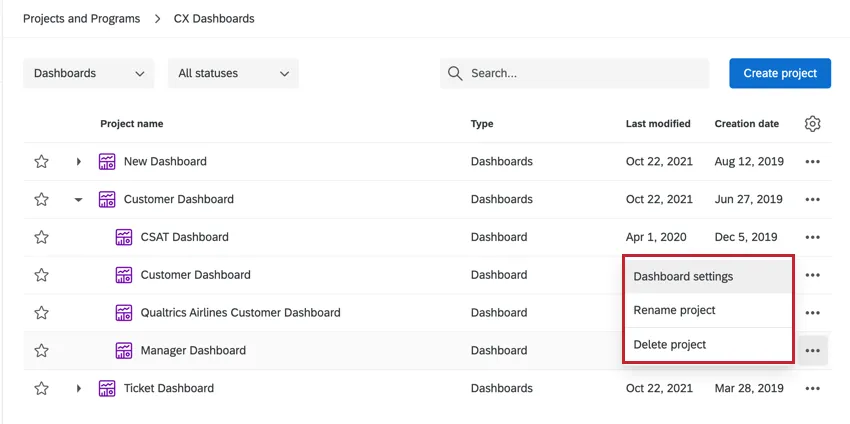
- Dashboard settings: Brings you to the dashboard’s settings to change field mapping, dashboard theme, and more.
- Rename project: Rename your CX dashboard.
- Delete project: Delete the CX dashboard. This is irreversible.
FAQs
How can I stay up to date on new Qualtrics features?
How can I stay up to date on new Qualtrics features?
To access these release notes, you need an XM Community account. These accounts are free for any users with a Qualtrics account. This support page contains information for how to register an XM Community account.
Once you're logged into the XM Community, head over to the Weekly Product Updates Introduction Post. This post contains all the information you need to get started with subscribing to product updates!
What are CX Dashboards?
What are CX Dashboards?
Can Dashboards projects only be used for customer experience research?
Can Dashboards projects only be used for customer experience research?
That's great! Thank you for your feedback!
Thank you for your feedback!