

Managing Metrics (Studio)
Suite
Customer Experience
Product
Qualtrics
What's on this page
About Managing Metrics
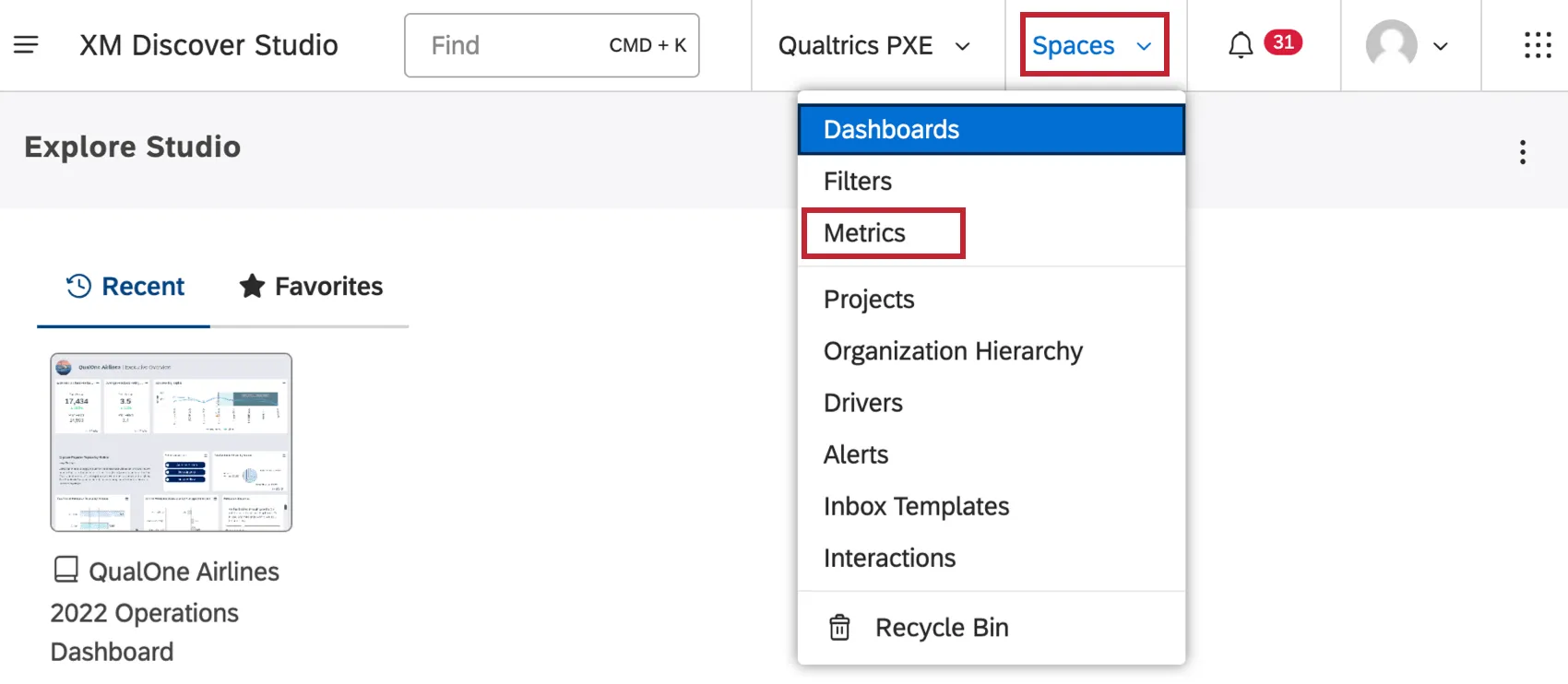
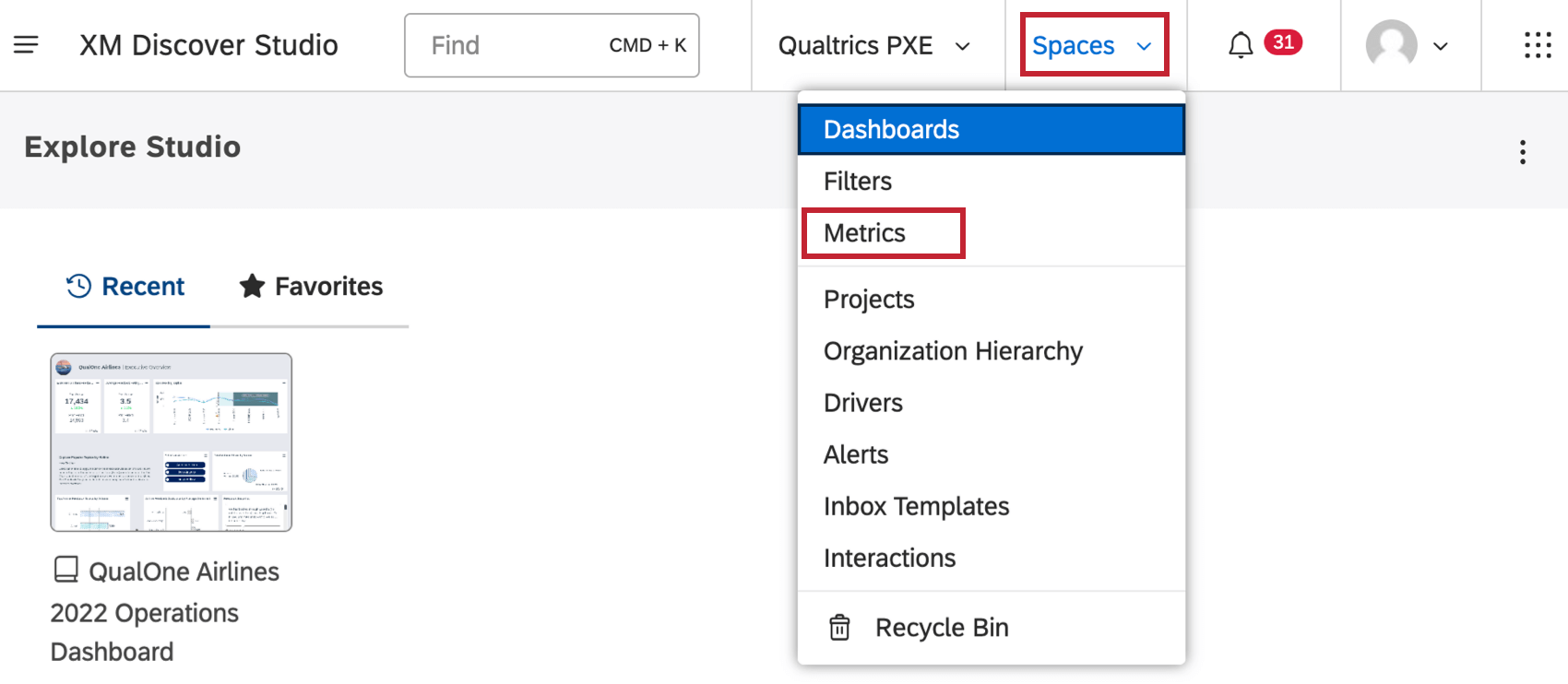
To manage your metrics, click the Spaces menu and select Metrics.
Qtip: Only users linked to a content provider can access this page.
Qtip: Metrics can be shared, modified, and deleted in Studio, but not in Designer.
Navigating the Metrics Page
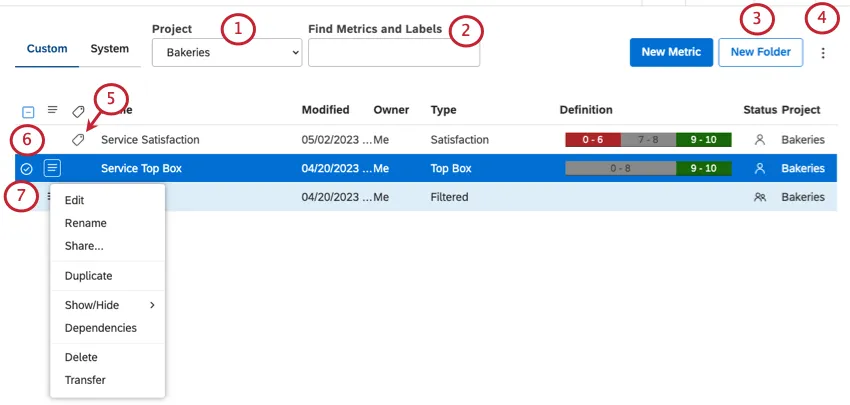
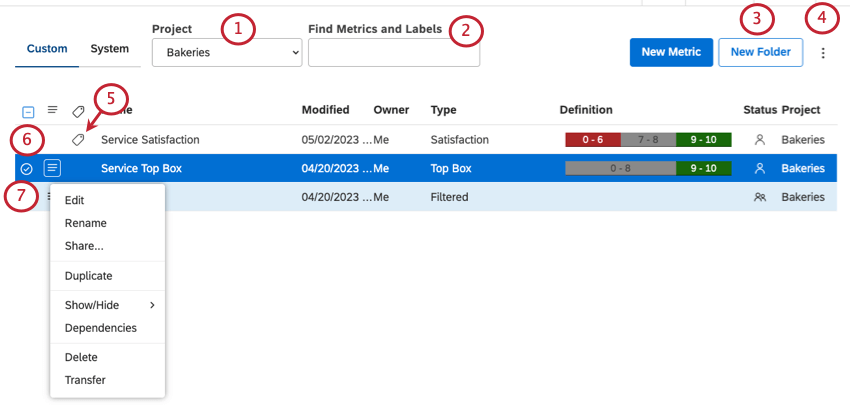
Project: Select a project from the dropdown to see metrics associated with that project.
Qtip: In your user preferences, you can set a project that is selected by default.
Find Metrics and Labels: Search a metric by name or by label.
New Folder: Create a folder to organize your metrics into.
Columns: Click the button then hover over Columns to decide which columns of information to display.
This icon indicates that the metric has been labeled. See Labeling Metrics.
Select a metric. If you select multiple metrics at a time, the actions will change.
Perform actions for each metric.
Managing Metrics
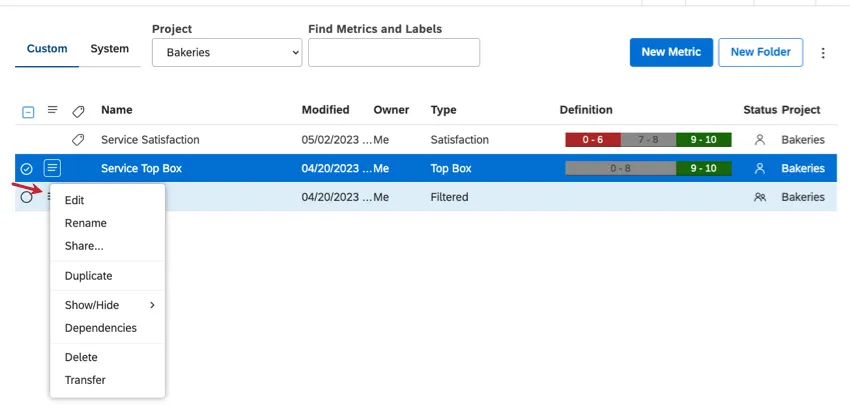
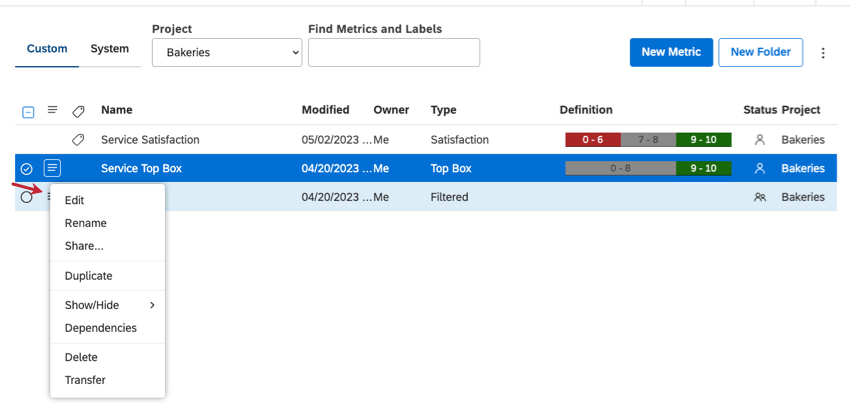
Click the dropdown next to a metric to edit it, rename it, share it, duplicate it, delete it, transfer it to another owner, and more.
Managing Individual Metrics
The following actions are available if you’ve selected one metric:
Qtip: You cannot edit metrics created by other users, even if you have access to them. However, you can duplicate an existing metric and then modify it.
- Edit: Edit your metric. This lets you change details such as the metric’s name, how it’s configured, properties, numeric formatting, and conditional formatting. See Creating Metrics for details on settings that apply to all metrics. See also specific metric pages:
- Rename: Change your metric’s name. Qtip: If a metric is public, its name must be unique per project, regardless of who created it. If a metric is private, its name must be unique among other metrics created for the same project by its owner.

- Share: See Sharing Metrics.
- Duplicate: Create a copy of a metric.
- Show/Hide: See Hiding Metrics.
- Dependencies: See Metric Dependencies.
- Delete: You can only delete metrics you created. If you delete a metric, it will be automatically removed from all widgets and you won’t be able to use the metric anymore. For information on restoring metrics, see Using the Recycle Bin. Qtip: If another user shared a metric with you and you no longer need it, they can stop sharing it.
- Transfer: See Transferring Metrics.
Managing Multiple Metrics at the Same Time
The following actions are available if you’ve selected multiple metrics:
- Share: See Sharing Metrics.
- Edit Labels: See Labeling Metrics
- Show/Hide: See Hiding Metrics.
- Delete Selected: You can only delete metrics you created. If you delete a metric, it will be automatically removed from all widgets and you won’t be able to use the metric anymore. For information on restoring metrics, see Using the Recycle Bin. Qtip: If another user shared a metric with you and you no longer need it, they can stop sharing it.
- Transfer: See Transferring Metrics.
Columns of Information
Qtip: If you have access to more than 10 projects, you’ll need to select a project before any metrics will be displayed on this page.
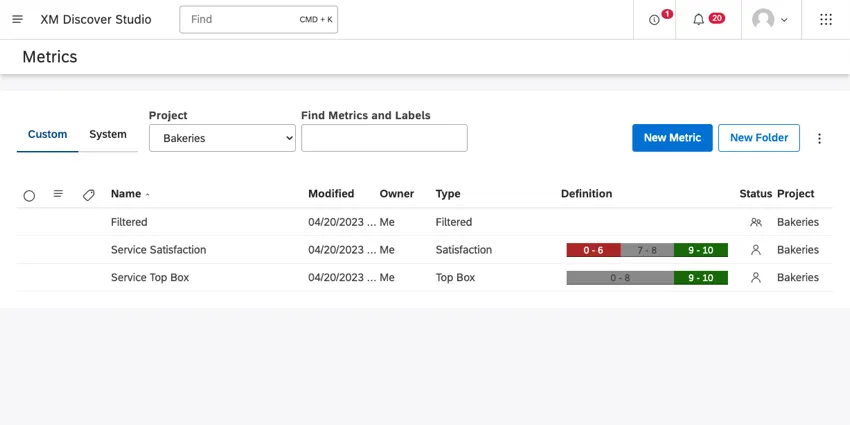
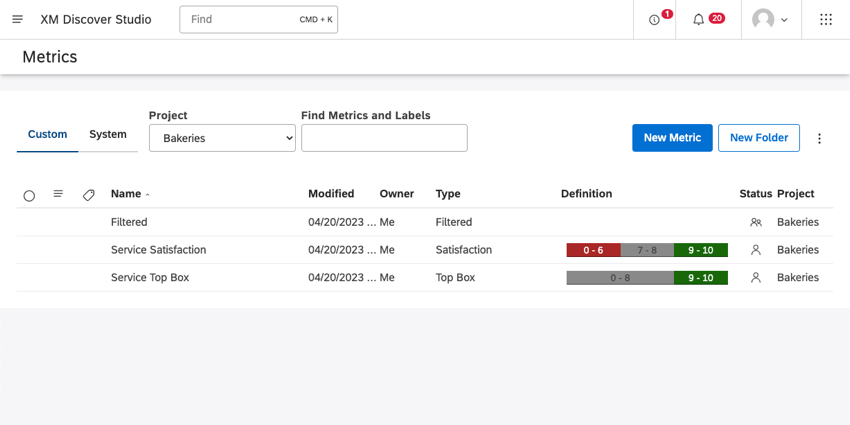
For each metric, you’ll see the following information displayed:
- Name: The name of the metric.
- Modified: The time this metric was last modified, according to your time zone.
- Owner: The current owner of the metric.
- Type: The type of metric.
- Definition: A text description of the metric, or the conditional formatting if it’s a top box, bottom box, or satisfaction metric.
- Status: The metric’s sharing status:
-
Private: A metric that has not been shared or made available to any other users.

-
Shared: A metric that has been shared with other users.

-
Public: A metric that, when shared, was marked Share with all Users. This means all the users in your master account have access to it.

-
- Project: The name of the project the metric is based on.


Custom vs. System Metrics
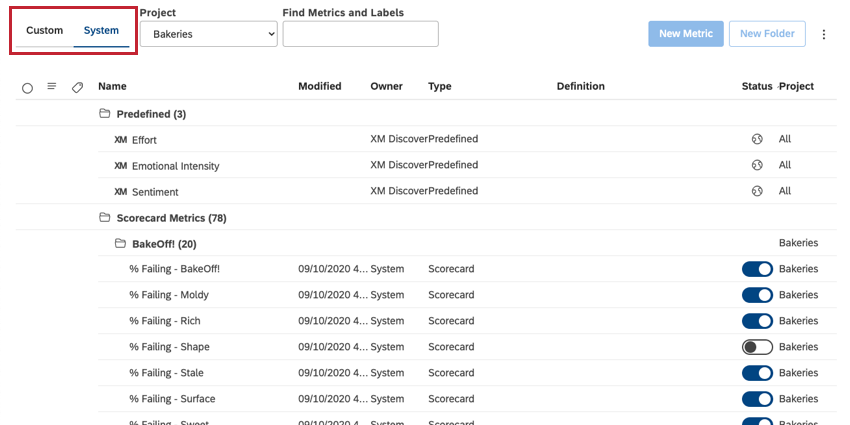
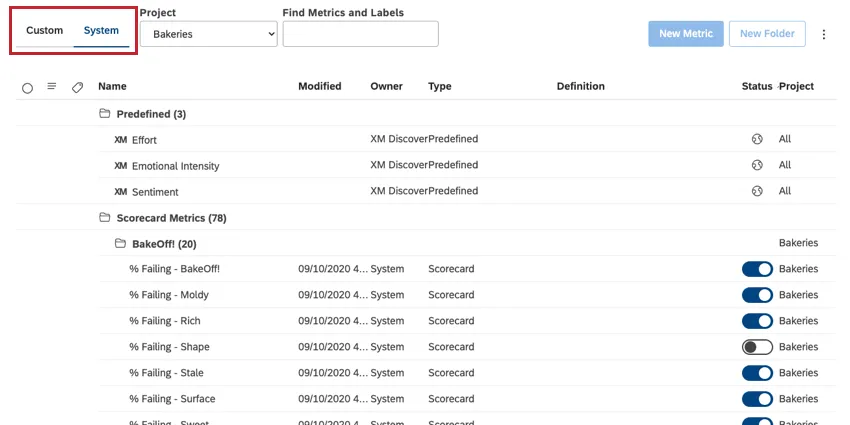
The Custom tab contains metrics you created. These metrics can be:
- Top Box metric
- Bottom Box metric
- Satisfaction metric
- Filtered metric
- Custom Math metric
- Value metric
The System tab contains:
- Predefined metrics, such as Sentiment, Effort, and Emotional Intensity
- Scorecard metrics
That's great! Thank you for your feedback!
Thank you for your feedback!