

Import & Export Surveys
What's on this page
About Importing & Exporting Surveys
There are lots of ways to import and export a survey in Qualtrics. First, there is the QSF, or “Qualtrics Survey Format” file. A QSF file can act as a backup or as a means of transferring a copy of your survey to another Qualtrics account. You can export a QSF of your survey and then import that QSF into a Qualtrics account.
You can also import a survey using a TXT or DOCX file. However, make sure before you import anything that you’ve formatted your file using simple or advanced TXT format.
There is also a way to export your surveys that can’t be uploaded back into Qualtrics, but has other benefits. By exporting to a Word document, you will have a key of all your recode values, and a clean, easy-to-read copy of your survey to provide for approval to your colleagues and program advisor.
Qtip: The QSF file does not contain any of the survey responses. To export survey responses, see our Exporting Response Data page.

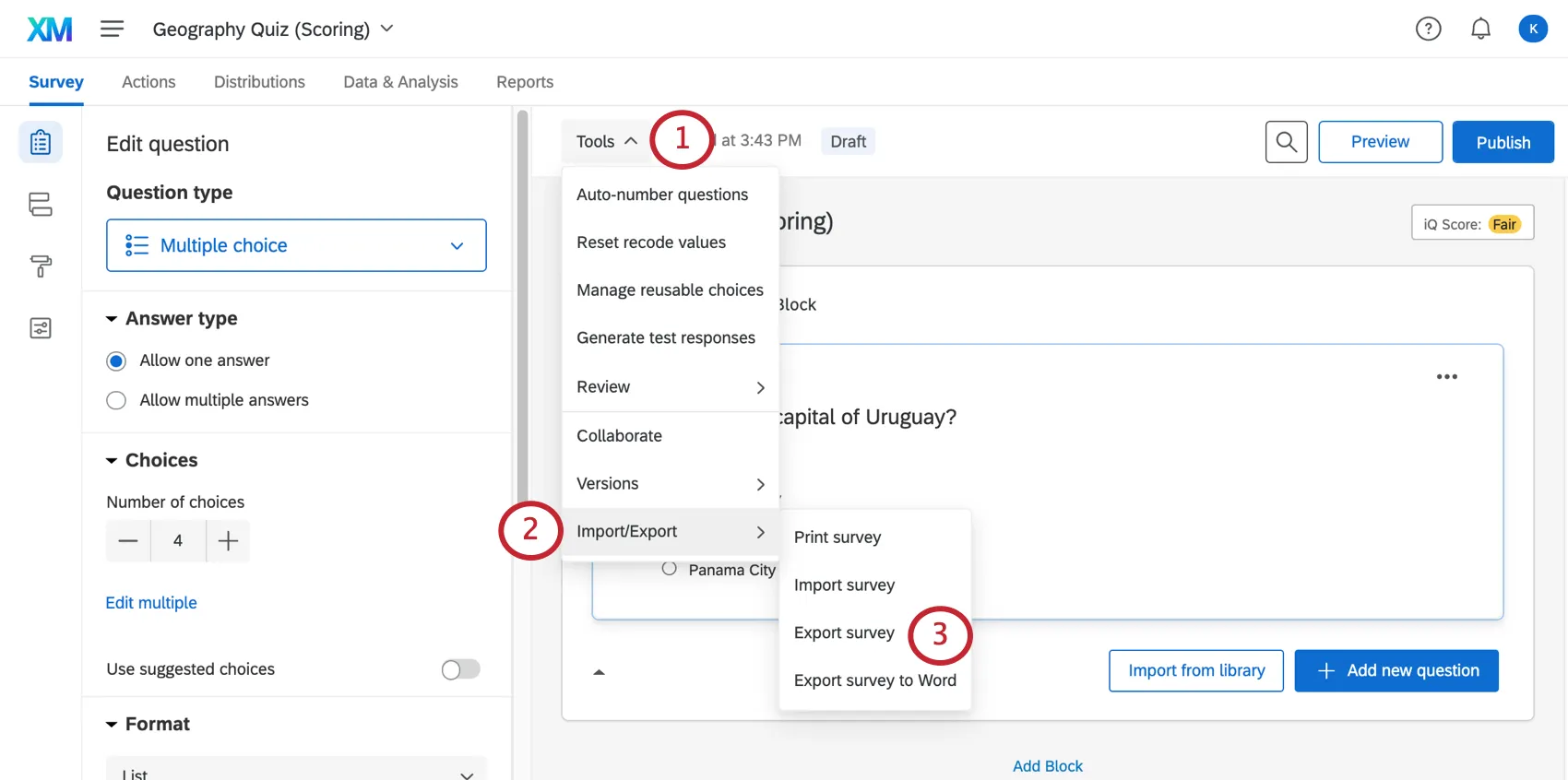
Exporting a Survey as a QSF
When you export your survey as a QSF file, this file will contain all of your survey formatting and settings, though it will not contain any response data. QSF files contain the question in your trash. This export option is primarily used to create copies of a survey for sharing to other Qualtrics accounts.
Qtip: Any workflows you’ve created will carry over ONLY if you import the QSF into the same brand that the workflows were made in. If you import the QSF into a different brand, then the workflows will not carry over.
After the QSF file is downloaded to your computer, you may find that you’re unable to open it. That’s because it’s a special file format only Qualtrics can read. You can still move this file to a different folder or share it with a colleague over email.
Warning: Do not edit the QSF file! Editing the file can corrupt the contents and make it unable to upload to your account. You may only rename the file, if desired, but do not change the contents or file type.

Qtip: With Internet Explorer, you might need to click on the yellow bar at the top of the page to grant permission to download the file.
Importing a QSF Survey
Qtip: You will not see the import option if you are using any Employee Experience project, such as Engagement, Lifecycle, Ad hoc employee research, Pulse, or 360. If you want to create one of these projects from a QSF, go to the catalog and create a new project from a file.
You can create a project from a QSF from the Projects page. To learn more, see the Creating a Project from a File support page.
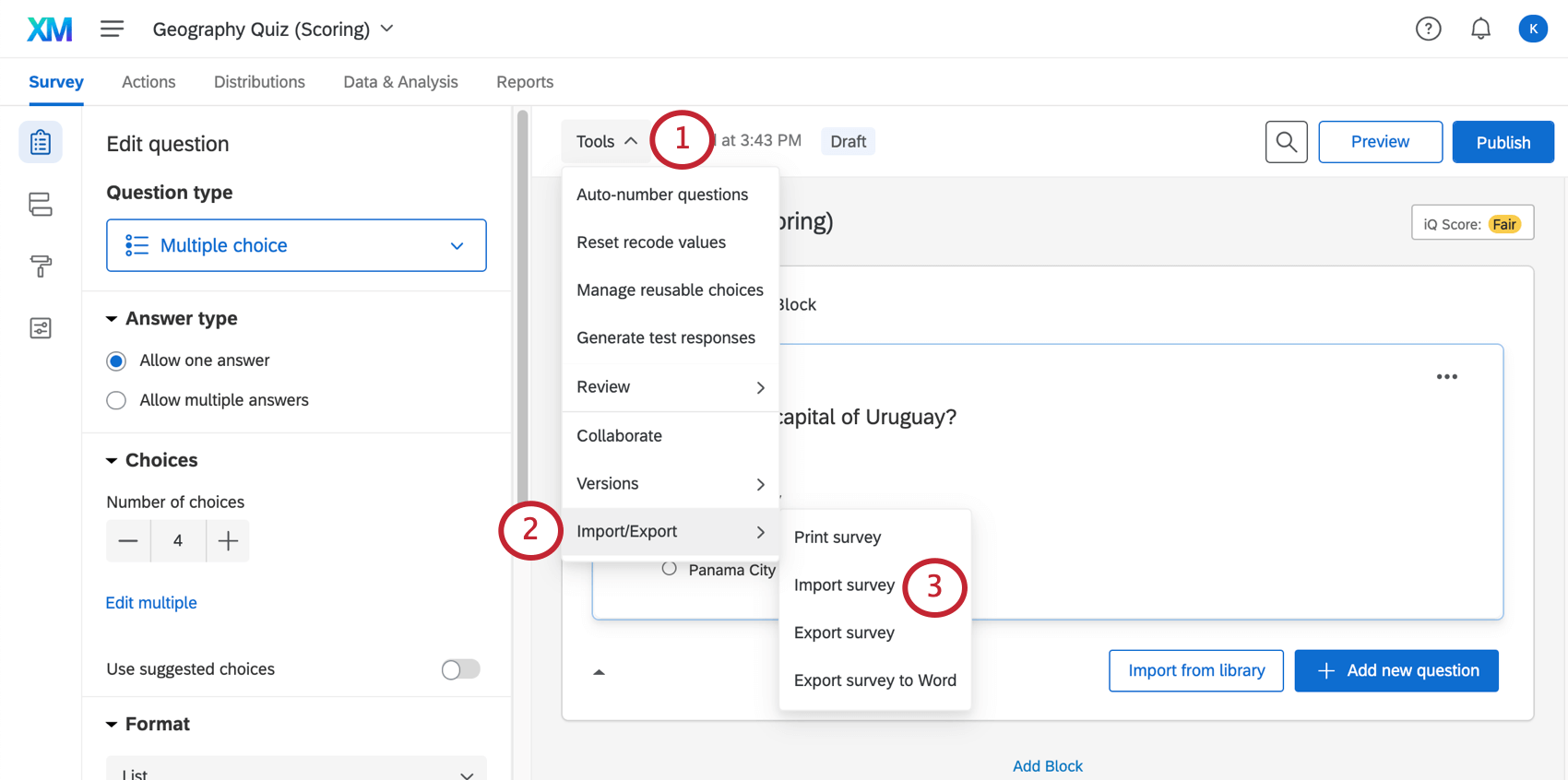
Alternatively, you can import your survey as a QSF through the Survey tab.
Attention: Importing a QSF file through the Survey tab will create a new survey in your account.
To import a survey through the Survey tab, follow the steps below:
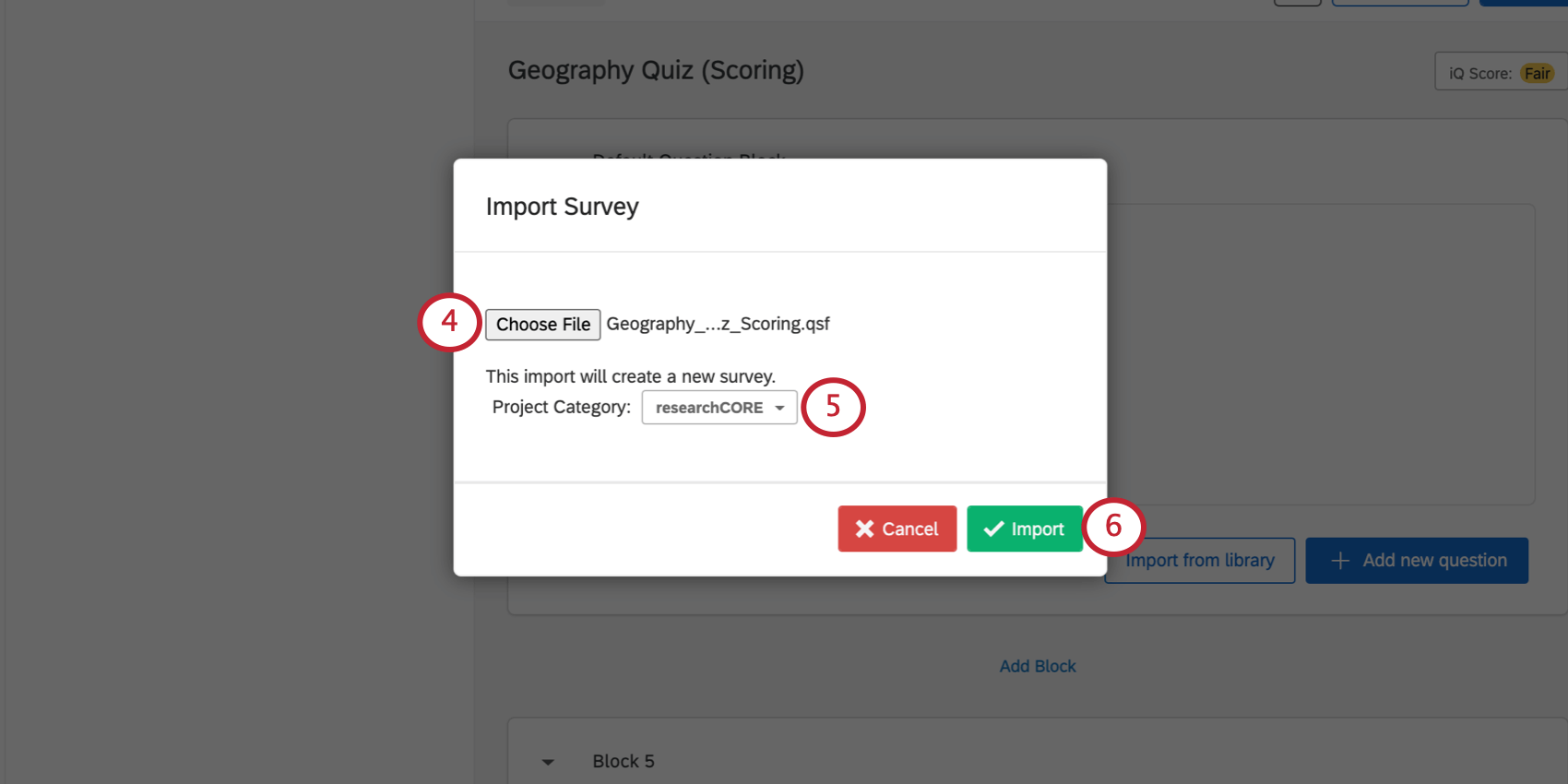
Qtip: Research Core applies for most surveys.
Preparing a Simple Format TXT or DOCX File
Simple TXT formatting is appropriate for simple surveys that only have multiple choice and matrix questions. For more options, see Preparing an Advanced Format TXT File below.
To format questions in Simple TXT
- You can set the question’s export tag by including it as a string followed by a period before the question text. Example: If I put “Question12. This is my question,” then Question12 is my export tag.

- For multiple choice questions, answer choices should be in a bulleted or numbered list, separated from the question text by empty line.
- Avoid using “:” in answer choices. You can add these in by editing the question in the survey builder after you’ve imported the file.
Example of Simple TXT formatting:
Example – Simple Text File: Example.txt
MC1. This is a multiple choice question. Every question starts with aexport tag followed by a period. There should be a blank line betweenthe question text and the choices.choice achoice bchoice cchoice d[[Block:My Block Name]]MC2. This is a multiple choice- multiple answer question.[[MultipleAnswer]]choice achoice bchoice cchoice d[[PageBreak]]MX1. This is a matrix question that has longer question text.It is a matrix question because it has two groups of choices.The choices ma, mb, and mc are statements while m1, m2, and m3are scale points. mambmcm1m2m3MX2. This is a matrix-multiple answer question.[[MultipleAnswer]]mambmcm1m2m3[[Block]]MC3. What is your age?0-1819-2526-3435-4445+
Qtip: Having trouble importing your TXT file? Make sure it’s saved in the standard TXT Tab Delimited Text format. If the file is saved in UTF-16, it won’t upload properly.
Preparing an Advanced Format TXT or DOCX File
When using the Advanced TXT format, each part of the question must be explicitly defined using the “[[]]” tags. The tags begin with “[[” and end with “]]” with no spaces in-between the brackets. Tags should be on a separate line from the actual survey content. See the example of advanced .TXT formatting at the end of this section to get an idea of what this looks like.
Question Type Codes
The following is a list of all of the question types compatible with Advanced TXT formatted files.
Qtip: To add Question ID’s (QIDs) to questions, include the QID after the question type code.
- [[MC]] – Multiple Choice
- [[SingleAnswer]] – Single answer question
- [[Vertical]] – Vertical layout
- [[Horizontal]] – Horizontal layout
- [[MultipleAnswer]] – Multiple answer question
- [[Vertical]] – Vertical layout
- [[Horizontal]] – Horizontal layout
- [[DropDown]] – Dropdown list
- [[Select]] – Select box
- [[MultiSelect]] – Multiple answer select box
- [[SingleAnswer]] – Single answer question
- [[Matrix]] – Matrix Table
- [[SingleAnswer]] – Single answer question
- [[MultipleAnswer]] – Multiple answer question
- [[TextEntry]] or [[TE]] – Text Entry
- Text entry questions can also be created by having 2+ consecutive underscore characters in the question text, or if the question text contains the phrases “open text” or “open end.”
- [[SingleLine]] – Single line question
- [[Essay]] – Essay box question
- [[Form]] – Form question
- [[ConstantSum]] or [[CS]] – Constant Sum
- [[RankOrder]] or [[RO]] – Rank Order
- [[Question:Text]] or [[DB]] – Text/Graphic (Descriptive Block)
Other Tags
The following is a list of all of the features compatible with Advanced TXT formatted files.
- [[SimpleFormat]] – Specifies the file is a simple formatted file.
- [[AdvancedFormat]] – Specifies the file is an advanced formatted file.
- [[ED:{field}:{value}]] – Adds embedded data to the survey flow with the given field. If a value is specified, then the field will be set to that value.
- [[Question:{question type code}:{question sub-type code}:{question sub-sub-type code}]]– Specifies a new question with a specific type, either MC, Matrix, TE, CS, RO, or DB. Optionally, a question sub-type code can be used.
- [[Choices]] – Specifies the choices for a multiple choice question or the statements for a matrix question (one per line after the tag).
- [[Answers]] – Specifies the choices for a matrix question (one per line after the tag).
- [[AdvancedChoices]] – Specifies we are using advanced choice formatting, allowing for recode values and multiline choices.
- [[Choice:{recode value}]] – Specifies the start of a choice. An optional recode value can be used to set the recode value of the choice.
- [[AdvancedAnswers]] – Specifies we are using advanced answer formatting, allowing for recode values and multiline answers.
- [[Answer:{recode value}]] – Specifies the start of an answer. An optional recode value can be used to set the recode value of the answer.
- [[MultipleAnswer]] – Specifies that the question should be a multiple answer question.
- [[ID:question ID]] – Specifies the question ID.
- [[PageBreak]] – Specifies a page break.
- [[Block]] – Specifies a block should begin.
- [[Block:block name]] – Specifies a block should begin with a specific name.
Example of Advanced .TXT formatting:
Example – Advanced Text File: AdvancedExample.txt
[[AdvancedFormat]][[ED:State]][[ED:Gender]][[ED:SawSurvey:1]][[Block:MC Block]][[Question:MC:Dropdown]]drop down[[Choices]]choice achoice bchoice c[[Question:MC:Select]]select[[Choices]]choice achoice bchoice c[[Question:MC:MultiSelect]]multiselect[[Choices]]choice achoice bchoice c[[Question:MC:SingleAnswer:Horizontal]]single answer horizontal[[Choices]]choice achoice bchoice c[[Question:MC:MultipleAnswer:Horizontal]]multiple answer horizontal[[Choices]]choice achoice bchoice c[[Question:TE:Form]]This is a form question. Please fill out the following information:[[Choices]]First NameLast Name[[Block]][[Question:MC]][[ID:q1]]This is a multiple choice question. With one value recoded.[[AdvancedChoices]][[Choice]]choice awith text onmultiple lines[[Choice]]choice b[[Choice]]choice c[[Choice:99]]N/A with recode 99[[PageBreak]][[Question:Matrix]]This question is a matrix question.It has lots of question text on multiple lines and usesadvanced answers.[[Choices]]statement astatement bstatement c[[AdvancedAnswers]][[Answer]]answer 1[[Answer]]answer 2[[Answer]]answer 3[[PageBreak]][[Question:Matrix]]This question is a matrix question and uses advanced choices andanswers with recode values.[[AdvancedChoices]][[Choice]]choice a[[Choice]]choice b[[Choice]]choice c[[Choice]]choice d[[AdvancedAnswers]][[Answer:10]]answer 1 - recode 10[[Answer:20]]answer 2 - recode 20[[Answer:30]]answer 3 - recode 30
Qtip: Having trouble importing your TXT file? Make sure it’s saved in the standard TXT Tab Delimited Text format. If the file is saved in UTF-16, it won’t upload properly.
Qtip: HTML coding can be applied to TXT documents to style survey content. Qualtrics Support does not offer assistance or consultation on HTML custom coding. You can always try asking our community of dedicated users instead. If you’d like to know more about our custom coding services, please contact your Qualtrics Account Executive.
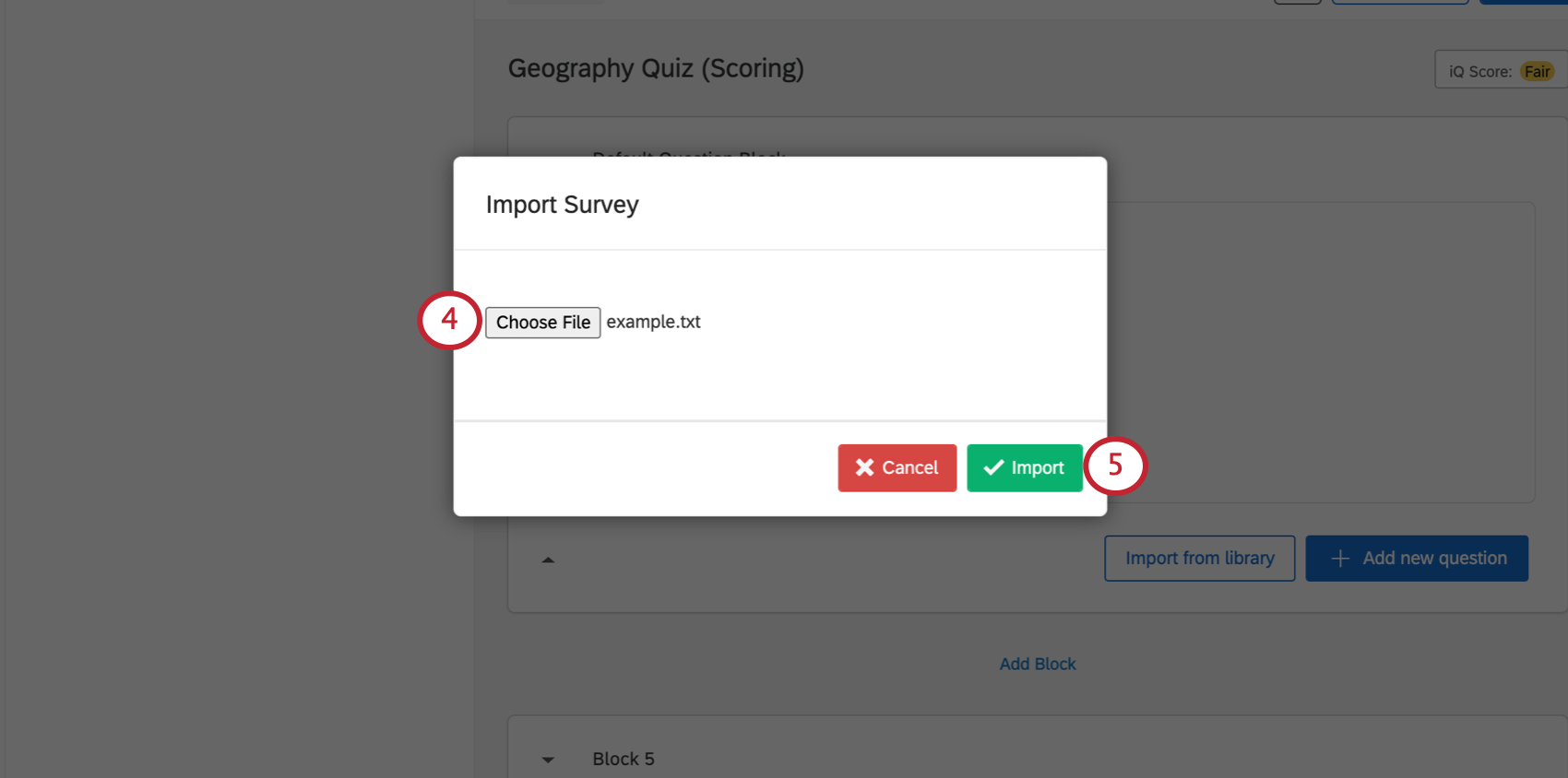
Importing a TXT or DOCX Survey
Qtip: Importing a DOCX file will always create a new survey in your account. TXT will add on to the existing survey you are importing into.
Attention: You cannot import the exported Word document into Qualtrics. You must prepare a DOCX file that follows the simple or advanced TXT format.
Qtip: Having trouble importing your TXT file? Make sure it’s saved in the standard TXT Tab Delimited Text format. If the file is saved in UTF-16, it won’t upload properly.
Exporting a Survey as a Word Document
Attention: This export is meant to act as a readable copy or data dictionary for your survey. It cannot be imported back into Qualtrics.
When you export your survey as a Word document, this document will contain all of the questions, blocks, page breaks, and answer choices in your survey, but may exclude some custom text formatting.
Qtip: When importing your survey into a Word document, images within your survey will not be transferred over. This includes images in your question text, and images in any answer choices. If you have any images in your survey and you export to a Word document, there will be a blank space where the image is supposed to be.
This export can be useful as a data dictionary, an outline of your survey’s structure (including logic and survey flow), or as a simple paper version of your survey.
Qtip: If you want to export a PDF version of your survey, see our Print Survey page.
To Export Your Survey as a Word Document
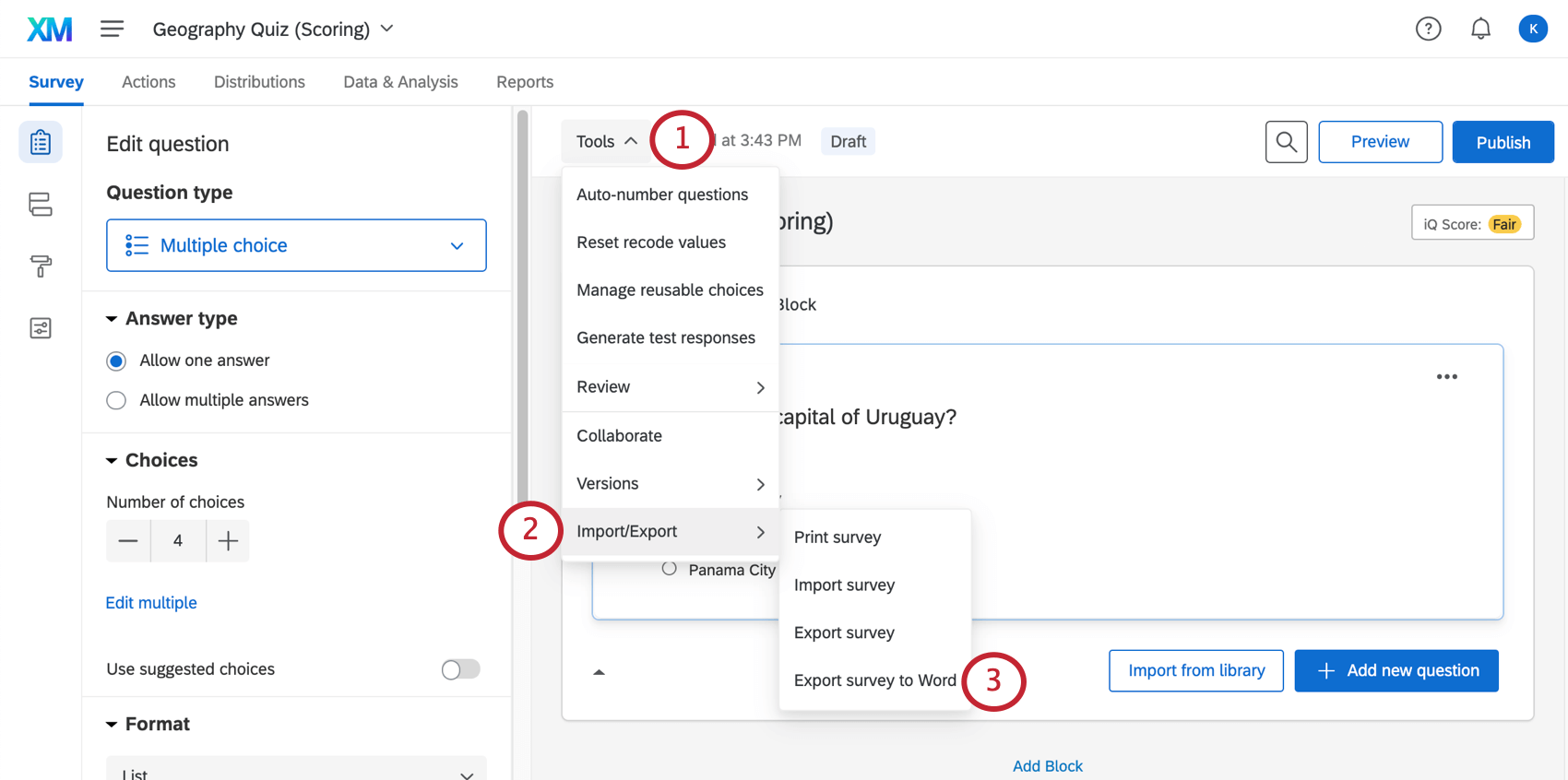
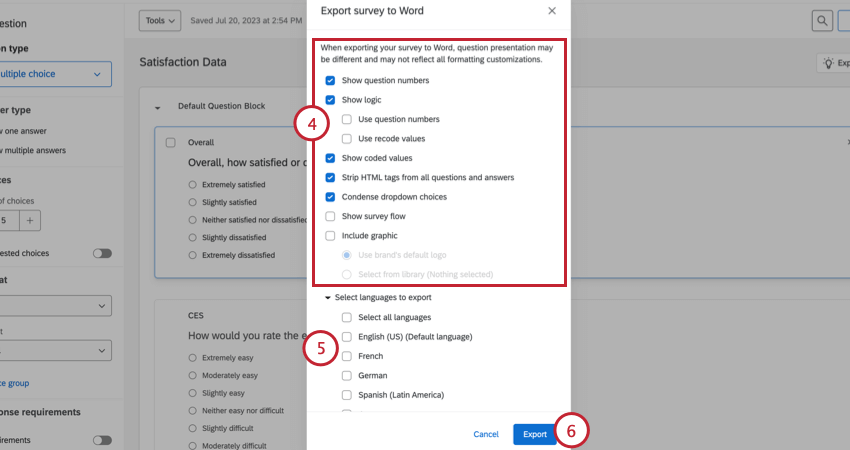
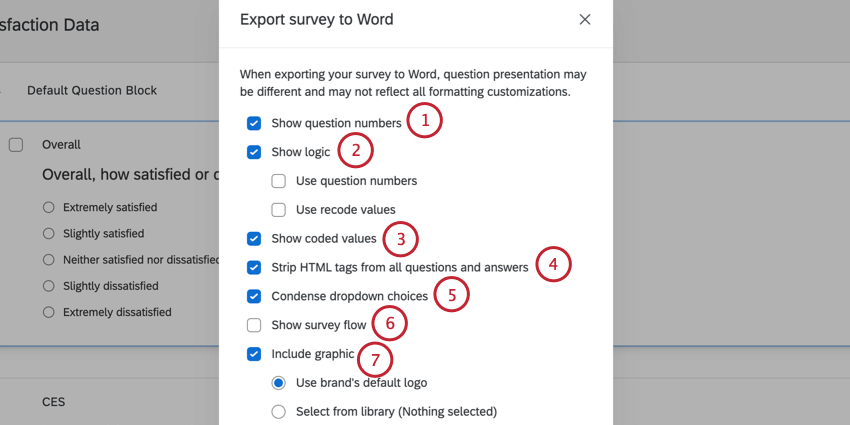
Options for Exporting to Word
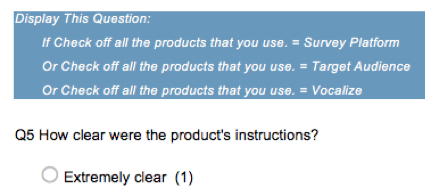
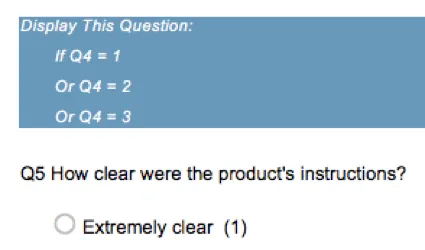
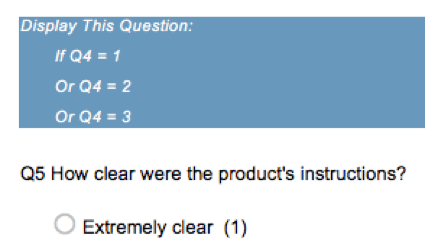
- Use question numbers: Instead of writing out the whole question text in the logic, the export will only display the question number. For example, in the screenshot below, “Q4 – Check off all the products that you use” becomes “Q4.”
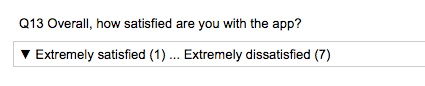
- Use recode values: When selected, the export will show the recode values of the choices involved in the logic. For example, in the image below, the recode value for Q4’s choice “Survey Platform” is 1 because it’s the first choice in the list.
FAQs
Why are my recode values all out of order?
Why are my recode values all out of order?
After you collect your first response, the recode values won't automatically update to be in a sequential order so as to protect your collected data.
So, if you make three options—we'll say Red, Yellow, and Blue—your recode values initially are 1, 2, and 3. If you delete Yellow and add Orange, Orange is the fourth option and has a recode value of 4. Your recode values are now 1, 3, and 4. If you move Red so that it’s the last listed option, your recode values are now 3, 4, and 1.
However, you can change the recode values at any time without affecting your data. You will see the updated values the next time you download your data or view your results.
How do I transfer ownership of a survey from one user to another?
How do I transfer ownership of a survey from one user to another?
If you would like to transfer only a specific survey between accounts, click on the username of the survey owner and select View Account Use Info. This will allow you to find the survey you would like to transfer; select Change Owner on the right side of the survey.
For more information, visit the Changing Project Ownership section of the Creating and Managing Users support page.
To transfer surveys between accounts, you must be a Brand Administrator. Reach out to your Brand Administrator if you need assistance.
How can I get my surveys or account moved to another license?
How can I get my surveys or account moved to another license?
If you don’t want or don’t have anything currently in your account (no surveys, no contact lists, and no library messages), you can deactivate your own account. This way you will be able to more make an account with your new license and get started more quickly.
For details on all of the options offered you, see the User Moves page.
That's great! Thank you for your feedback!
Thank you for your feedback!