

Extracting Conversational Data from Files
What's on this page
Qtip: This support page describes functionality that we intend to release starting April 8, 2026. Qualtrics may, in its sole discretion and without liability, change the timing of any product feature rollout, change the functionality for any in preview or in development product feature, or choose not to release a product feature or functionality for any reason or for no reason.

About Extracting Conversational Data from Files
Transcripts of customer and support interactions – such as chats, email threads, and call transcripts – make up conversational data. Conversational data can contain enriching open-ended feedback and provide an opportunity to coach your customer-facing representatives on how to best serve your customers.
You can perform this kind of conversational analytics once your data has been moved from your server to Qualtrics, with our host of Omnichannel Listening features.
Qtip: If you’re using Amazon S3 or SFTP to send call data to a voice project, only written call transcripts are supported. Audio files are not supported. For voice to text, see other options.
Supported File Sources
Right now, you can extract call transcript, chat, and email files from the following sources:
- Secure file transfer protocol with your server: Extract Data from SFTP Files task
Amazon Simple Storage Service: Extract Data from Amazon S3 task
Attention: We only recommend using conversational data settings with these tasks if you’ve purchased Implementation Services. Conversational analysis is for use with chat, voice, and email projects as part of Omnichannel Listening Management. See linked page for more details and permissions.

Formatting Conversational Data
Conversational data has to be in a written format. For example, transcribed call transcripts are supported, but audio files are not.
Attention: We highly recommend using our example files when saving conversation data to your server:
Files should be saved as a TSV or CSV with UTF-8 encoding.
Every row of the file has to be a separate record, and every column is a different field, or entry, in the same record. Your example file must have headers.
Extracting Conversational Data
Go to stand-alone workflows and create an ETL workflow.
For the Data source (ETL extractor), select one of the following tasks:
Start your task setup. Depending on the task you chose, this may include connecting to an account, defining file paths, or specifying buckets.
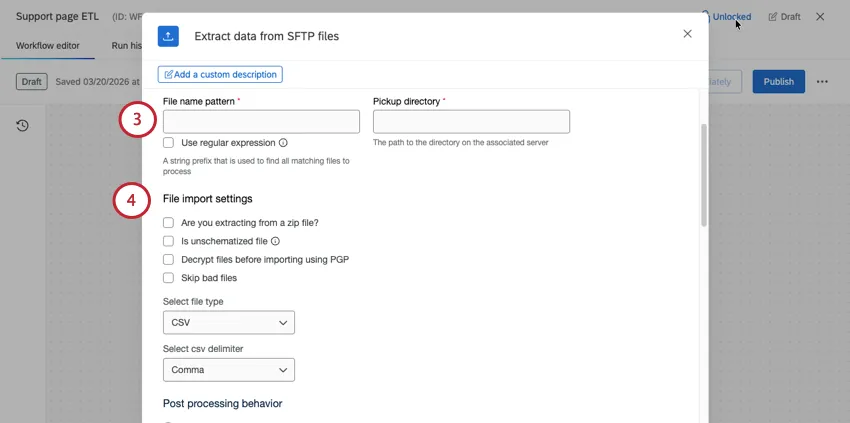
Qtip: For steps unrelated to conversational data, see the task-specific support pages.
Select desired file import settings.
Attention: Unschematized files are not compatible with conversational data. Otherwise, all other file import settings are compatible.
Set post processing behavior as desired.
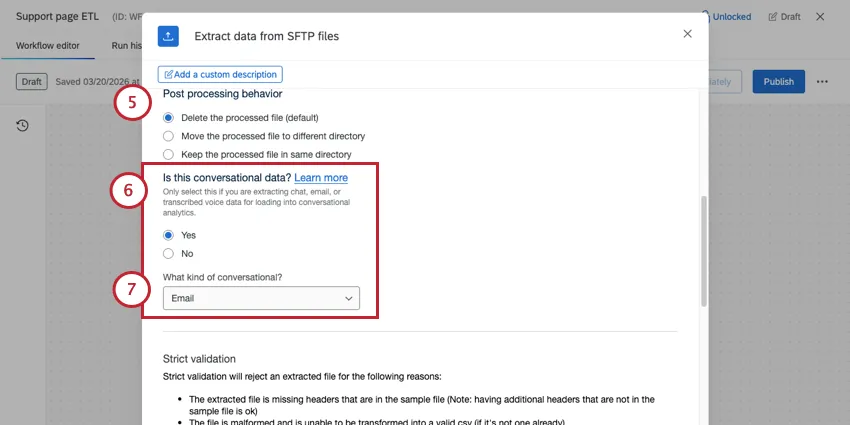
For Is this conversational data, you must select Yes.
Select one of the following conversational data types:
- Chat: The data is formatted as a series of online chats. These can be with an automated or human agent. This kind of data will be stored in a chat project.
- Email: The data is formatted as a series of emails. This kind of data will be stored in an email project.
- Voice: The data is formatted as a call transcript This kind of data will be stored in a voice project.
Set validation as desired (SFTP only).
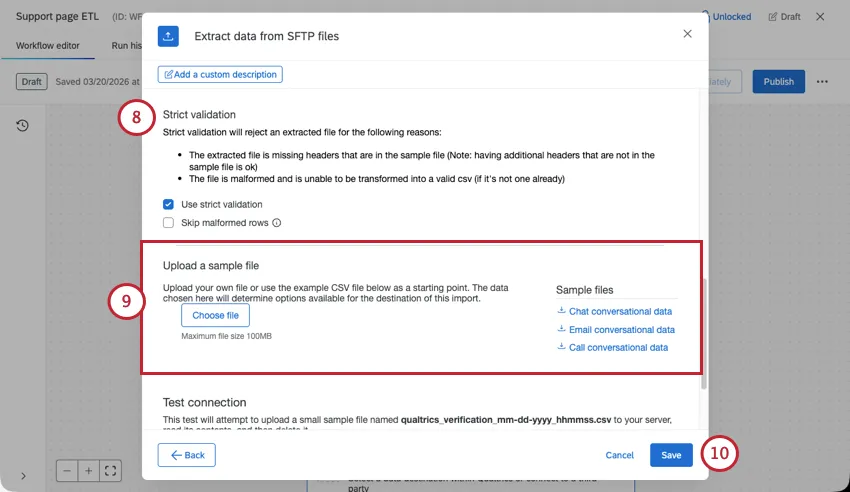
When you upload a sample file, we recommend using one of our example files.
Complete your task.
Now it’s time to load data to Conversational Analytics. See linked page for steps.
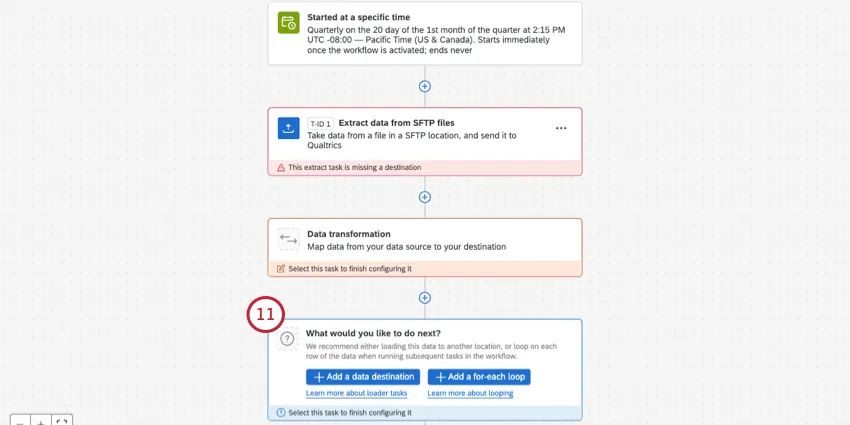
Qtip: If you’re selecting an existing voice project in this task, you can only select voice projects created via the Load Data to Conversational Analytics task. That’s because voice projects that process call transcripts are slightly different from voice projects that allow voice to text (with Genesys or NiceCXone).
Once your workflow is complete, your data will be added to Qualtrics on your chosen schedule. You can analyze this data with automated topics and build dashboards.
That's great! Thank you for your feedback!
Thank you for your feedback!