

Retake Survey Link (EX)
What's on this page
Qtip: This page describes functionality available to Engagement, Lifecycle, Pulse, and Ad Hoc Employee Research projects. For more details on each, see Types of Employee Experience Projects.

About the Retake Survey Link
Retake survey links allow you or your participant to go back into their response to your Employee Experience project and edit it after it has been submitted. This is useful if a respondent mistakenly answered a question or if the participant’s incomplete response was closed because of inactivity but they would like to finish the survey.
Qtip: Although you can issue retake survey links for any recorded response, responses in progress must be closed and moved to recorded responses first.
When participants enter the retake link, they’ll see the answers they chose the last time they worked on the survey. When they finish, the new response will completely replace the original response in the dataset.
Qtip: If the pseudonymization policy is enabled, participants will not be able to see their previous answers while taking a retake link. Once they finish their retake link, the new response will completely replace the original response.
Generating a Retake Link in the Participants Tab
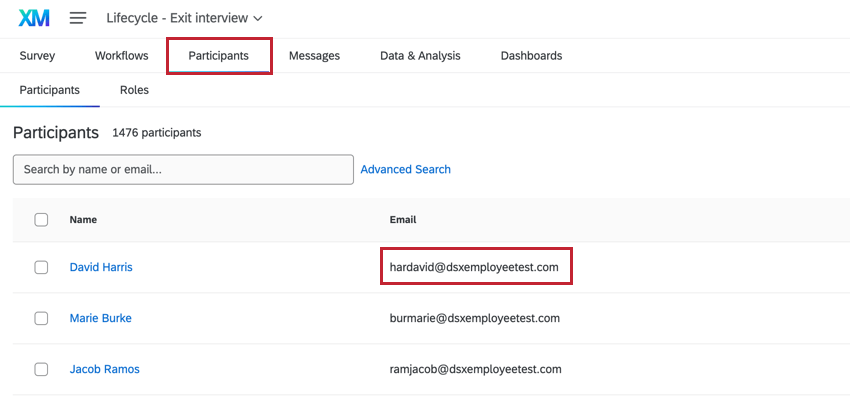
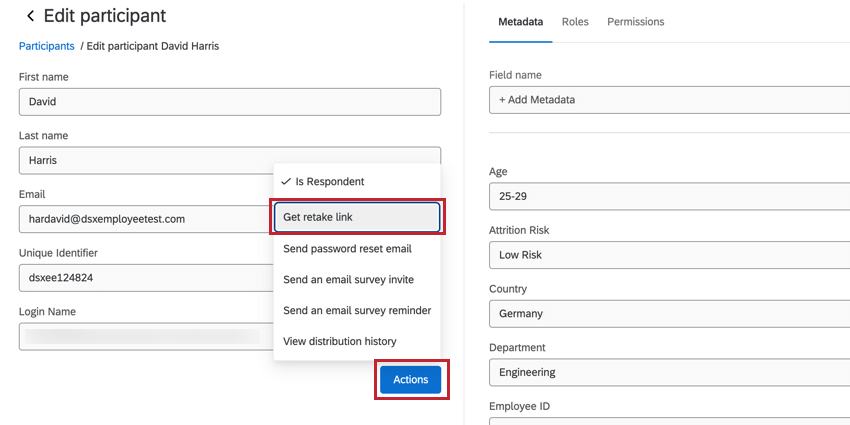
When you generate a retake link in the Participants tab, it is up to you to send this link to the participant.
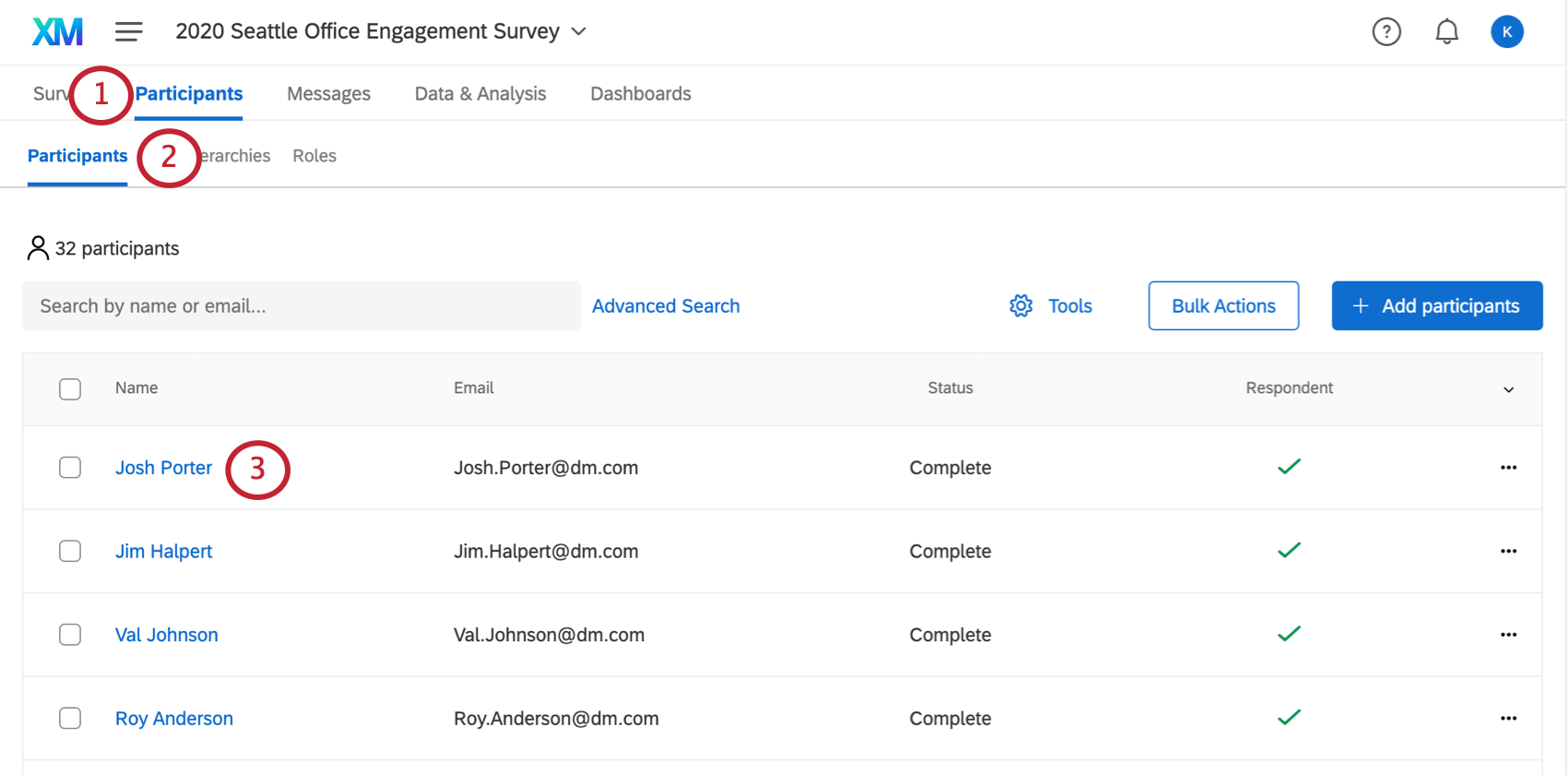
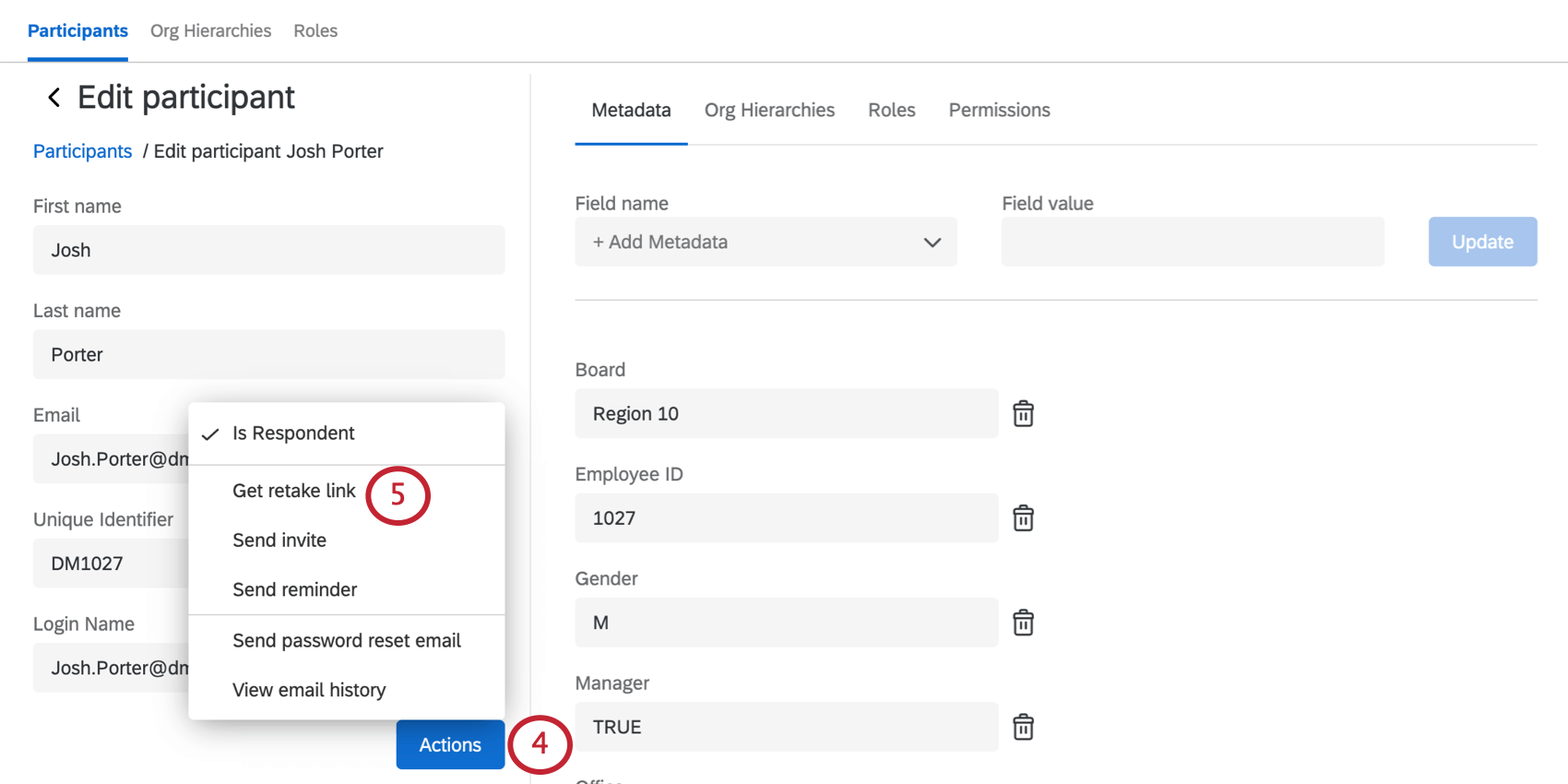
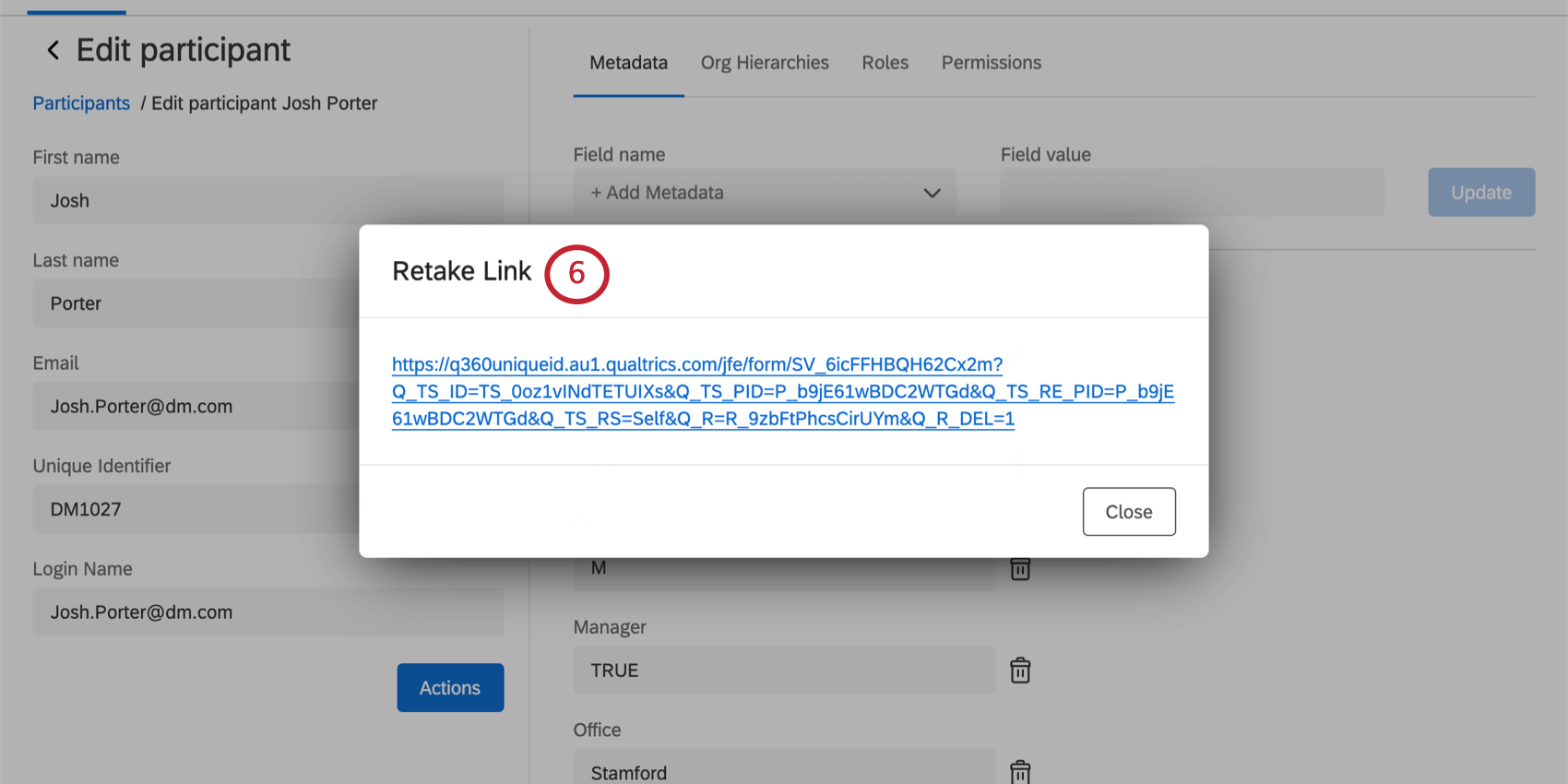
Generating a Retake Link in the Data & Analysis Tab
You can also generate a retake link from the Data & Analysis tab. When you generate a retake link from this tab, it is up to you to send the link to the participant. The Data & Analysis tab does not display participant name or email on the response, so unless you use knowledge of the answers or unique metadata to find the right response, it is better to generate a retake link from the Participants tab.
See Issuing Retake Links for more information on generating links from the Data & Analysis tab. Note that EX projects only have the “Retake Response” option since participants are not allowed to have multiple unique responses for the same project.
Allow Survey Retakes
Attention: This setting is not compatible with Employee Lifecycle. See Allowing Participants to Submit Multiple Responses in Lifecycle.

There is one more way you can get retake links to your participants. This method is probably the most convenient, because it allows participants to retake the survey as many times as they like using the original link they were invited to the survey with. However, with this setting, you cannot limit the number of times a participant retakes, and they will be able to keep going until the assessment is closed or the option is deselected.
This setting is not compatible with the anonymous link. If you’d like to use the anonymous link, but allow participants to retake their responses, check out the authenticator feature.
Attention: If you leave this option enabled, anyone who accesses the link can retake the response. Be clear with managers that they should not forward their survey invitation to members of their team, because each participant gets their own unique link.
Qtip: You can turn this option on and off at any time during your data collection.
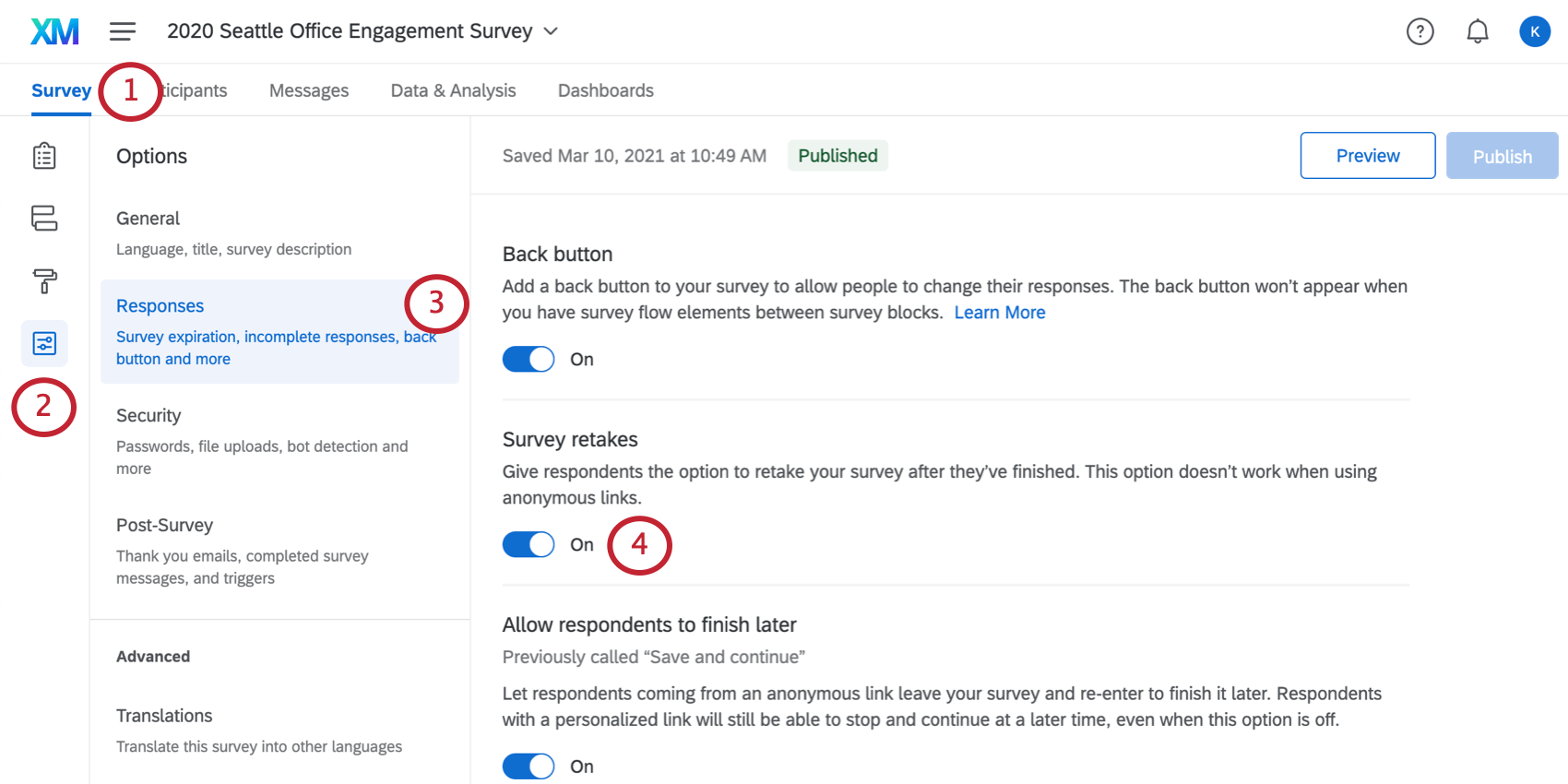
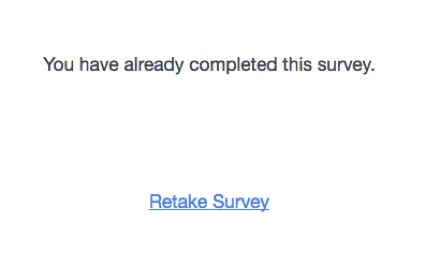
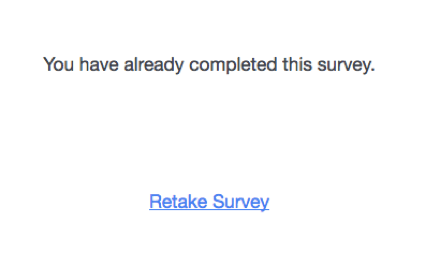
When participants revisit a link where they’ve already completed the survey, they will see the message shown below. To retake the survey, they just need to select Retake Survey.
Building a Retake Link
Qtip: The use case described below is useful if you want someone other than the participant themselves to add more information to their survey response. If you want the participant to receive their own retake link, we recommend enabling retakes in the survey options instead.
Sometimes it’s necessary to send out a retake link to once the initial survey is submitted. For example, if a new hire fills out an onboarding survey, you may want their manager to review their survey and answer some additional questions. In the steps we cover here, we’ll show how you can send a retake link to the manager, allowing the manager’s feedback to be recorded in the same survey response as the new hire’s feedback.
Qtip: The method outlined below is for sending the retake link in an email task, but this can be applied in a message at the end of the survey, including messages at the end of different survey branches.
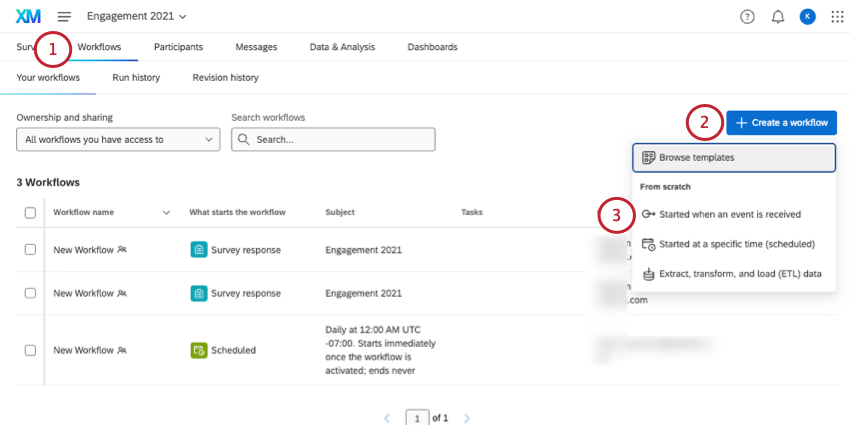
Qtip: You can also create your workflow in the global page, but we recommend keeping it inside your project instead.
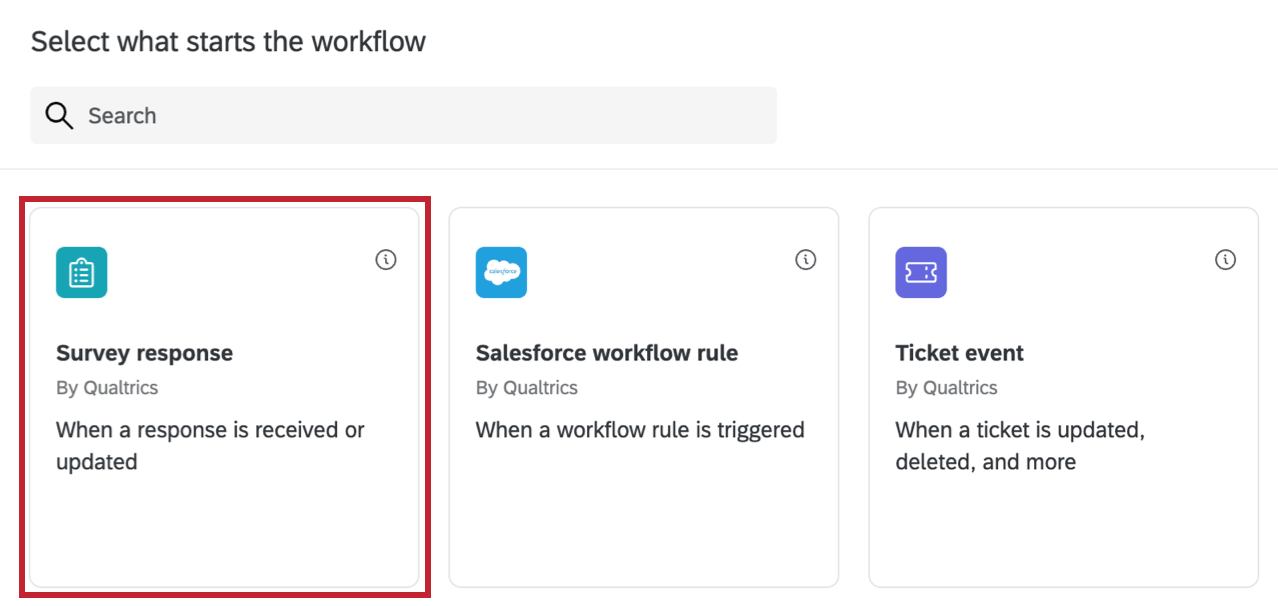
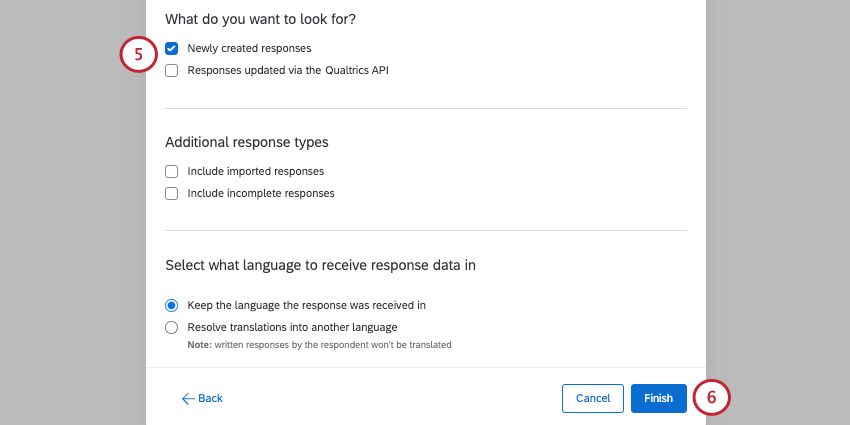
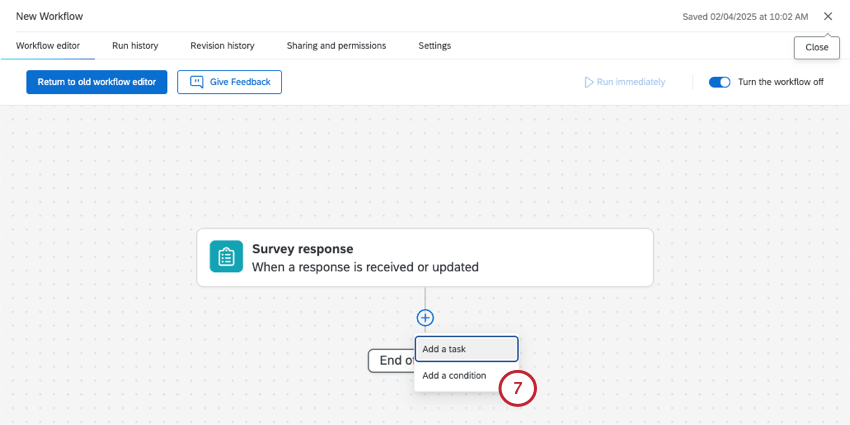
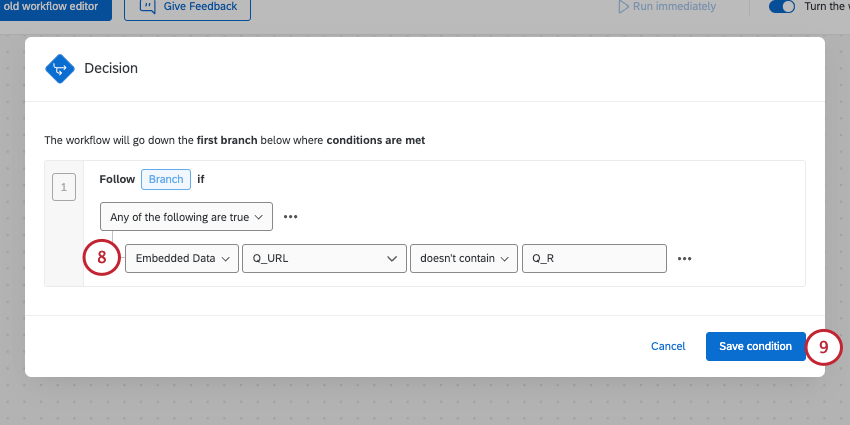
Attention: Adding this condition ensures that only the original survey response prompts a retake link by checking that the URL associated with this response doesn’t contain the retake tag. Without this condition, the respondent will also receive this email workflow after they take their retake link survey.
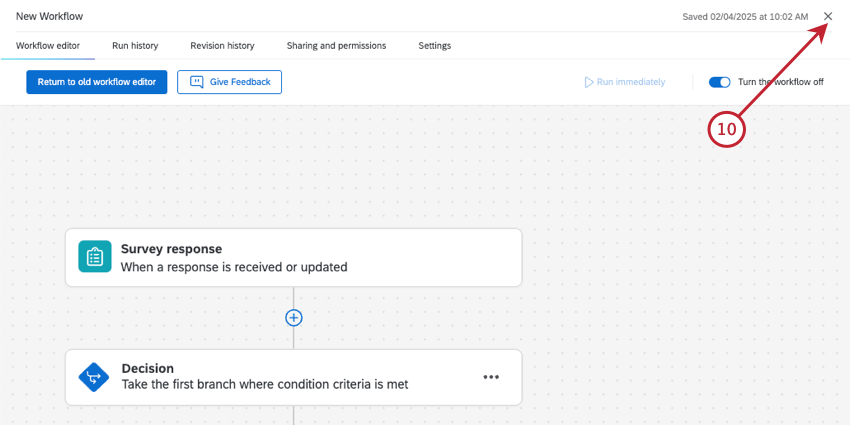
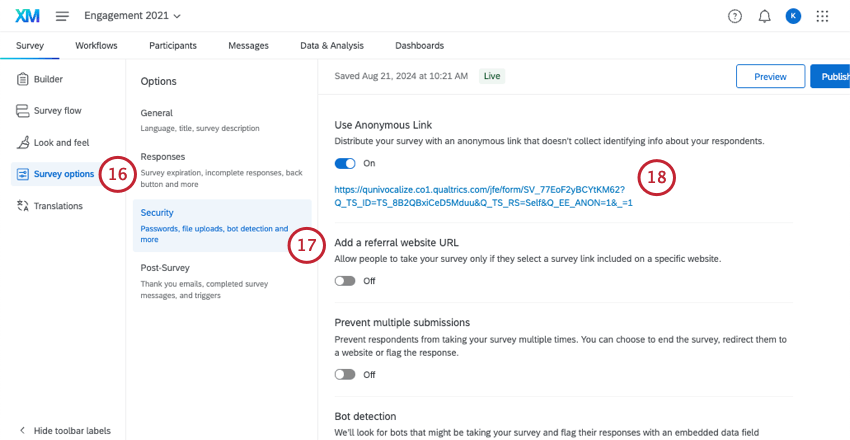
Qtip: If you want to reduce the chance of anonymous responses, you can turn off the anonymous link once you have it copied and saved somewhere.
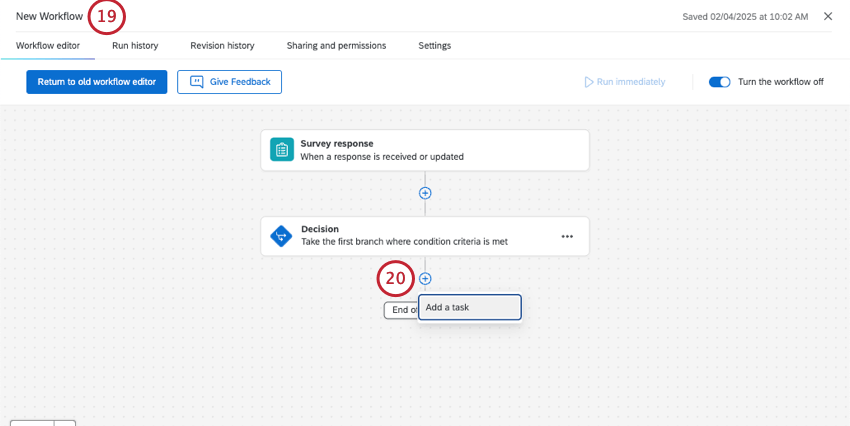
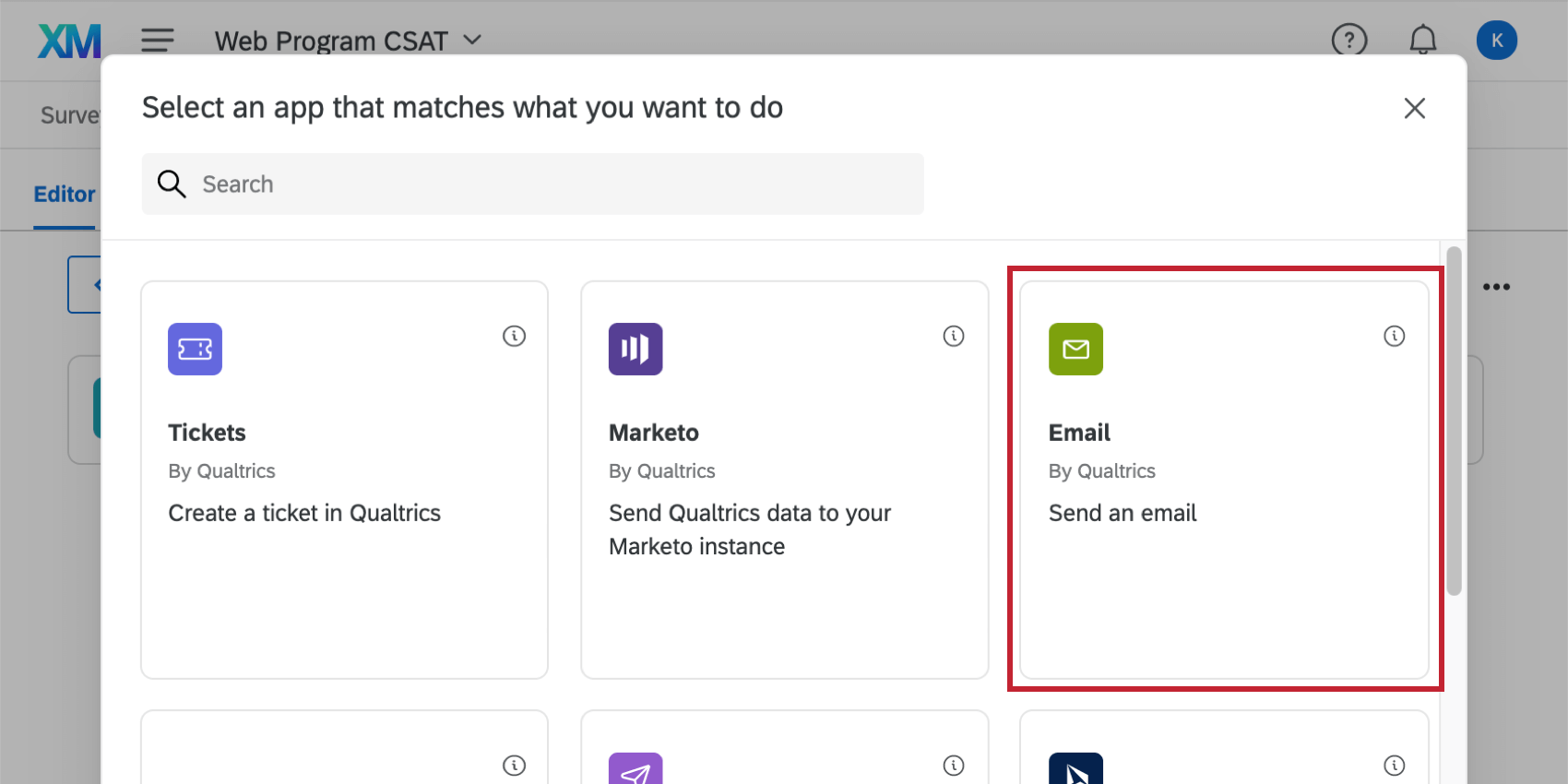
Qtip: To continue the example from earlier, the recipient should be the participant’s manager. In order to email participants’ managers the retake link, make sure each participant has their manager’s email saved as metadata.

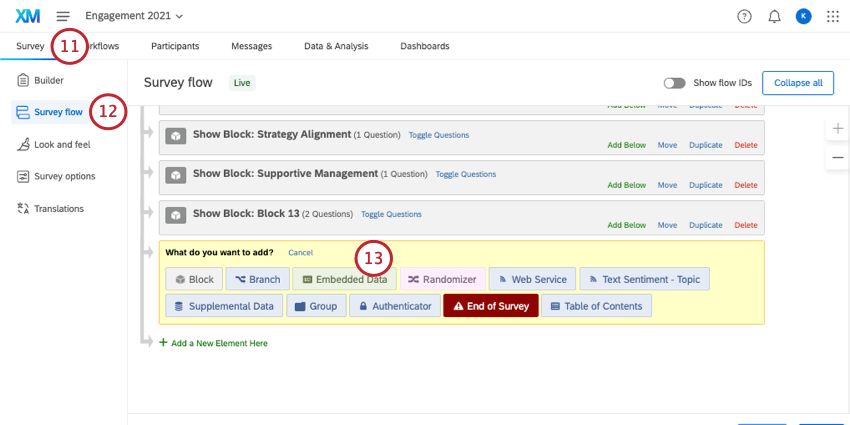
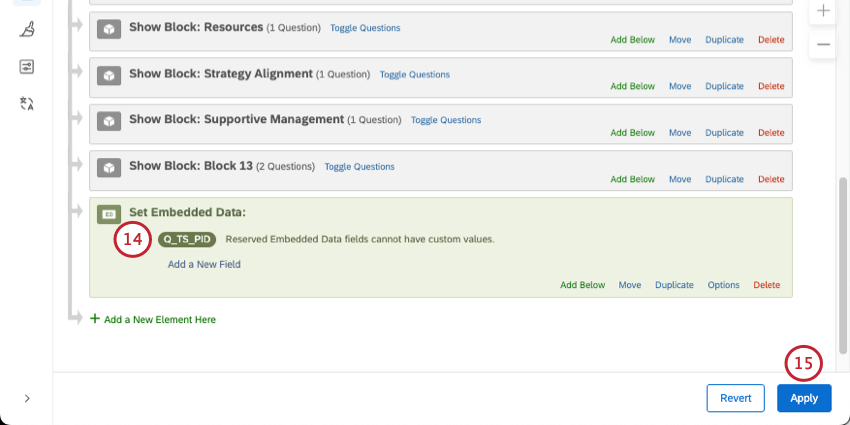
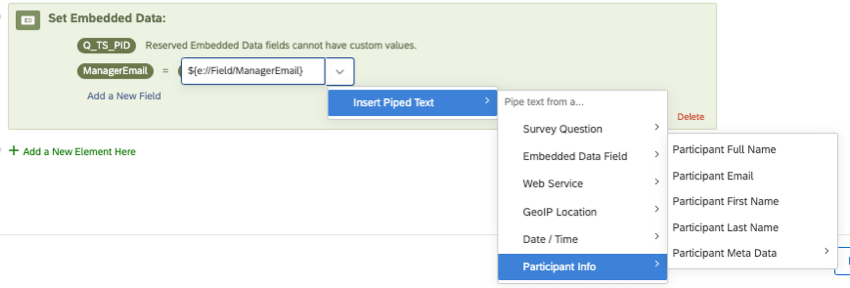
Then save that metadata as embedded data in the survey flow.
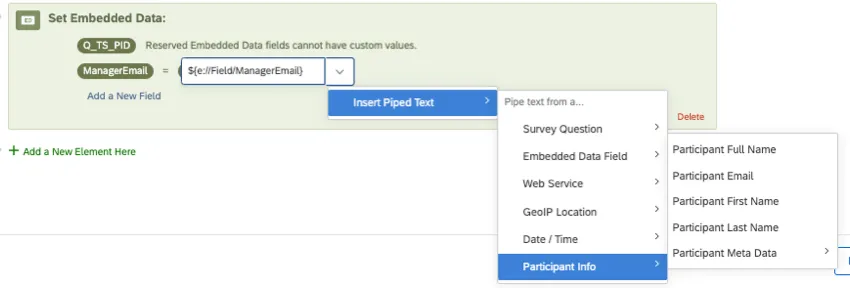
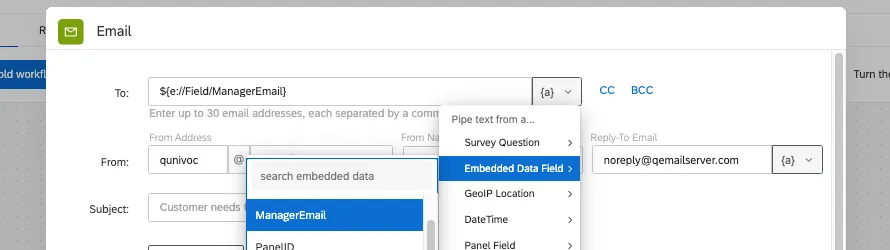
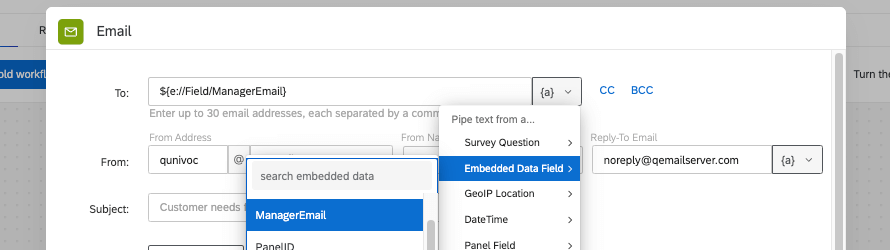
Then you can use piped text to insert the manager email field into the “To” email field.
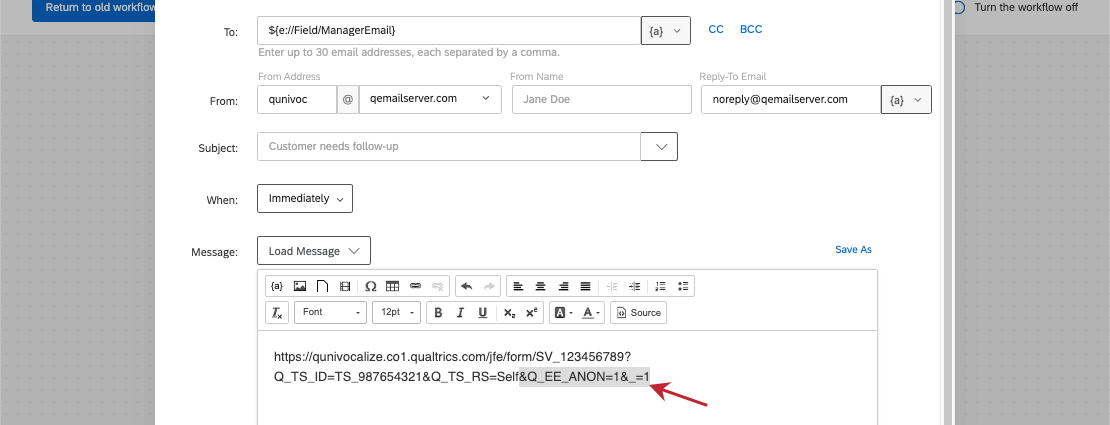
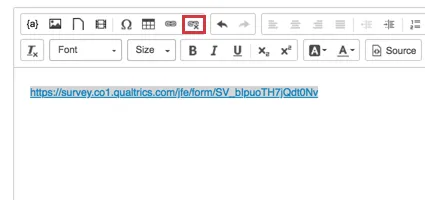
Qtip: Be careful that you don’t paste in a hyperlink here! This can prevent you from properly editing your link. If your anonymous link is blue and clickable, then highlight the text and click the break hyperlink icon.
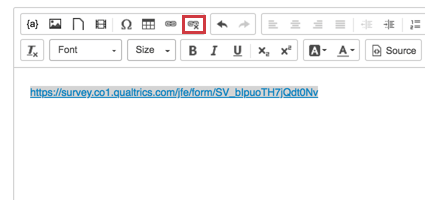
Example: For example, the link would now look like: https://qunivocalize.co1.qualtrics.com/jfe/form/SV_123456789?Q_TS_ID=TS_987654321&Q_TS_RS=Self

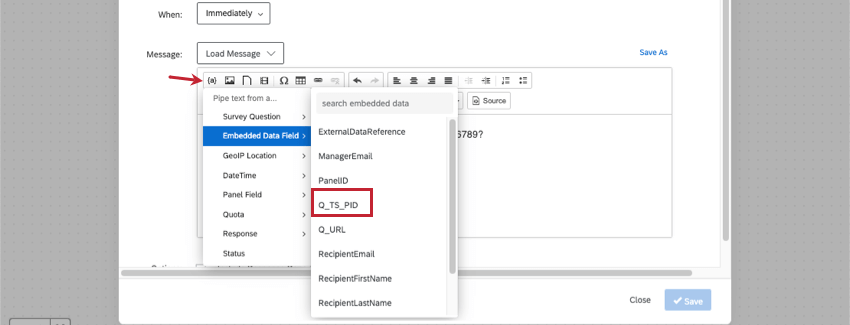

Example: After adding this field (person ID), your link should look like this: https://qunivocalize.co1.qualtrics.com/jfe/form/SV_123456789?Q_TS_ID=TS_987654321&Q_TS_RS=Self&Q_TS_PID=${e://Field/Q_TS_PID}
Example: Your link should have 2 separate fields set equal to the same value. For example: https://qunivocalize.co1.qualtrics.com/jfe/form/SV_123456789?Q_TS_ID=TS_987654321&Q_TS_RS=Self&Q_TS_PID=${e://Field/Q_TS_PID}&Q_TS_RE_PID=${e://Field/Q_TS_PID}
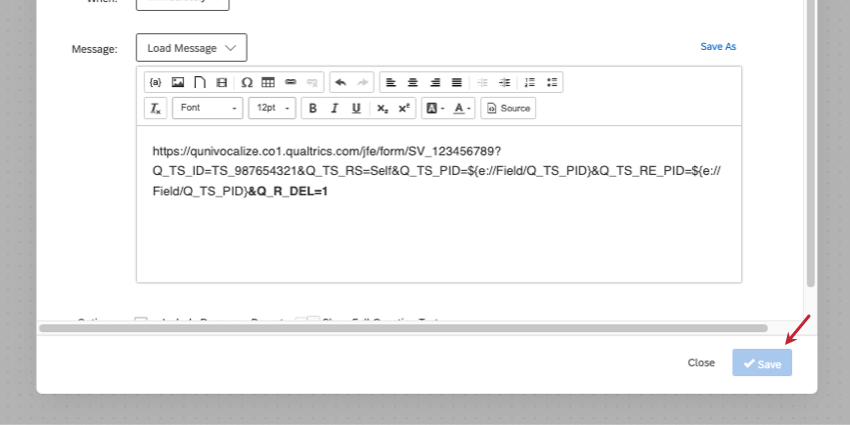
Example: If you wanted the retake to replace the original response, your link would look like this: https://qunivocalize.co1.qualtrics.com/jfe/form/SV_123456789?Q_TS_ID=TS_987654321&Q_TS_RS=Self&Q_TS_PID=${e://Field/Q_TS_PID}&Q_TS_RE_PID=${e://Field/Q_TS_PID}&Q_R_DEL=1
Qtip: If this new link seems too long, you can make a clickable word or phrase in your email instead by inserting a hyperlink.
The individual who receives the email task will have a link that allows them to see the original response and change its answers.
Displaying and Hiding Content During Retakes
You can set up your survey so that certain questions are displayed – or hidden – when a retake link is used.
Although the following links take you out of EX support pages, the steps to achieve these tasks in EX projects are exactly the same:
FAQs
I forwarded my Employee Engagement survey invitation to my team and someone else took the survey with my link. How do I reset my response?
I forwarded my Employee Engagement survey invitation to my team and someone else took the survey with my link. How do I reset my response?
My Employee Engagement participants want to retake their responses. How can they do this?
My Employee Engagement participants want to retake their responses. How can they do this?
That's great! Thank you for your feedback!
Thank you for your feedback!